Samsung Frame TV Art: What Looks Best and How to Upload
What art looks best on a Samsung Frame TV: paper textures, muted colour and 3840 × 2160 files. How to upload your own through SmartThings and pick a mat.
In short: Art that looks best on a Samsung Frame TV is matte and printed-looking: paper or plaster texture, muted colour, soft contrast and no glowing whites, in a 16:9 file of 3840 × 2160. Japanese ink, woodblock prints and quiet architecture pass for a real framed print; neon and glossy 3D renders give away that it is a screen.
By the Velpaper team · Wallpapers by Carlos Vivero, Velpaper designer · · 5 min read
Free 4K originals for iPhone and Android, no watermark
On this page
The art that looks best on a Samsung Frame TV is the art that looks printed: paper or plaster texture, muted colour, soft contrast and no large glowing white areas, in a 16:9 landscape file of 3840 × 2160, the native resolution of 4K Frame models. Japanese ink paintings, woodblock-style prints and calm architecture read as a framed picture from across the room. Neon, glossy renders and pure black give away that it is a screen. You upload your own images with the SmartThings app or a USB stick and then pick a mat.
What makes art look real on The Frame
Art Mode works when the picture behaves like ink on paper rather than light on a panel. Five things help most:
- Texture. Visible paper grain, washi fibres or plaster give the eye something physical. Smooth gradients look digital.
- Muted colour. Cream, indigo, sage and warm grey sit naturally on a wall. Saturated cyan and magenta glow.
- No pure white. A large white area at full brightness lights up the room. Cream and off-white look like paper.
- No pure black either. A black field looks like a switched-off TV. Charcoal and ink washes read as a print.
- A clear subject with breathing room. A mat covers the edges, so keep the subject away from the borders.
Recent Frame models have a matte, anti-glare screen that helps the paper effect, and Art Mode adjusts brightness to the room through a light sensor. Even so, a slightly lower Art Mode brightness than the default usually looks more like paper in the evening.
Art that works: ink, woodblock and quiet architecture
These six Velpaper desktop wallpapers are 3840 × 2160, the exact pixel size of a 4K Frame, so they need no cropping or scaling.
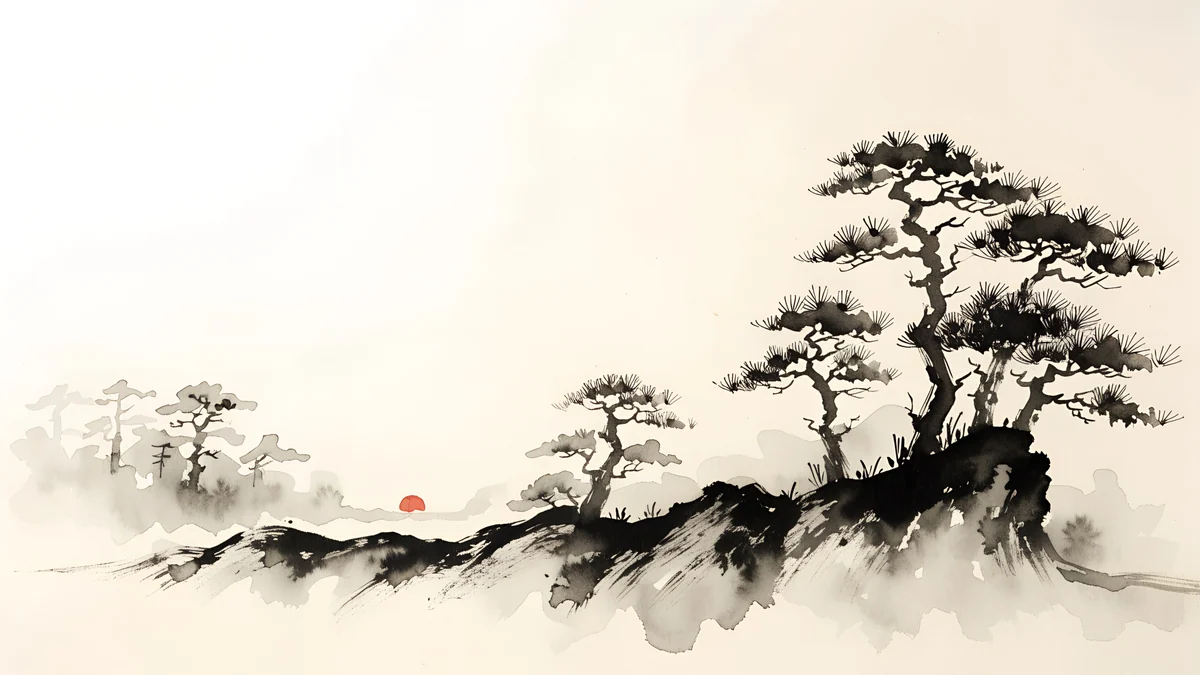 Ink Mist Ridge4K · Desktop
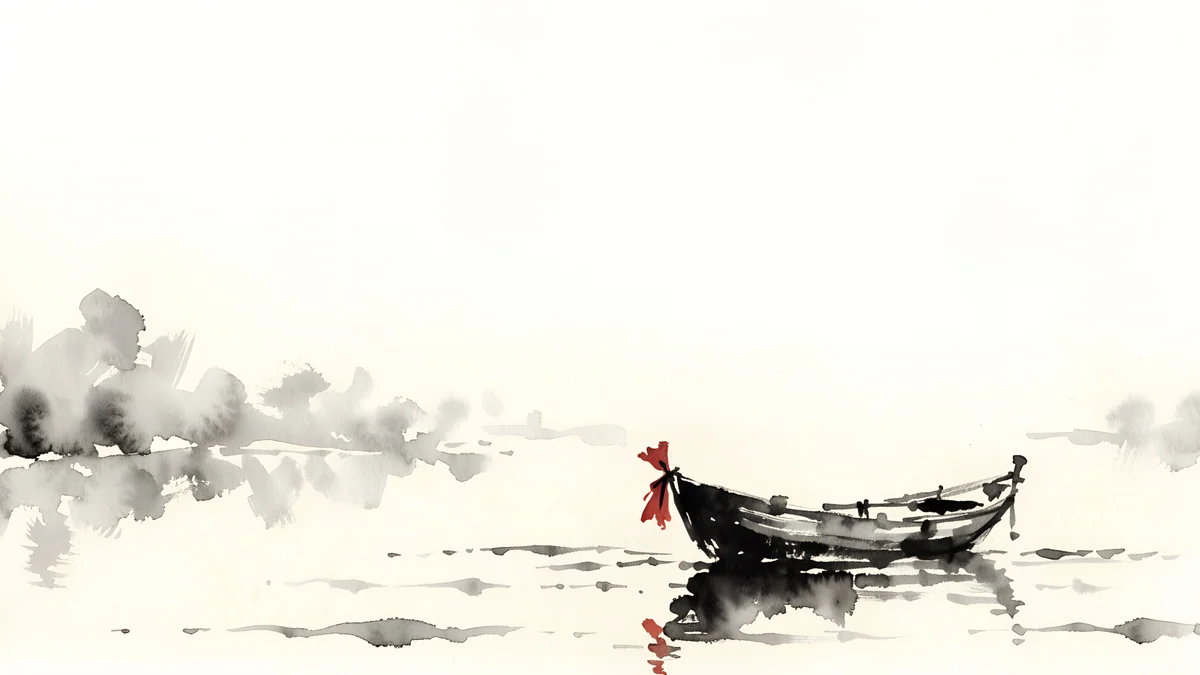 Ink Quiet Lake4K · Desktop
 Snow Village4K · Desktop
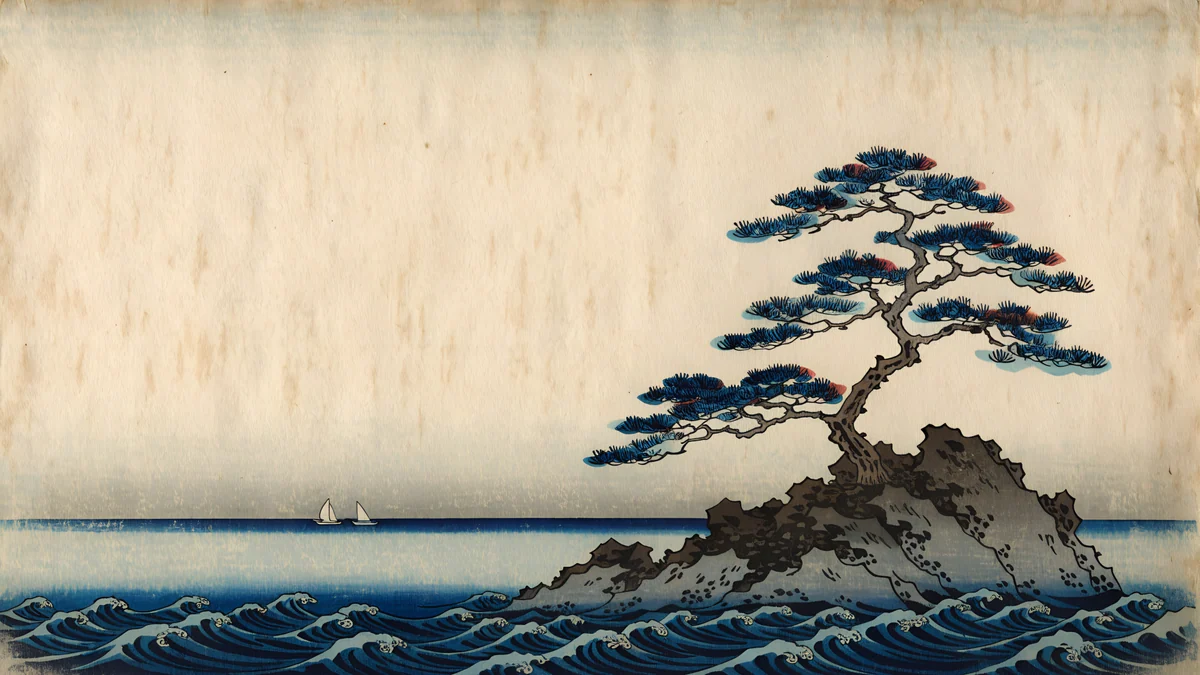 Pine Coast4K · Desktop
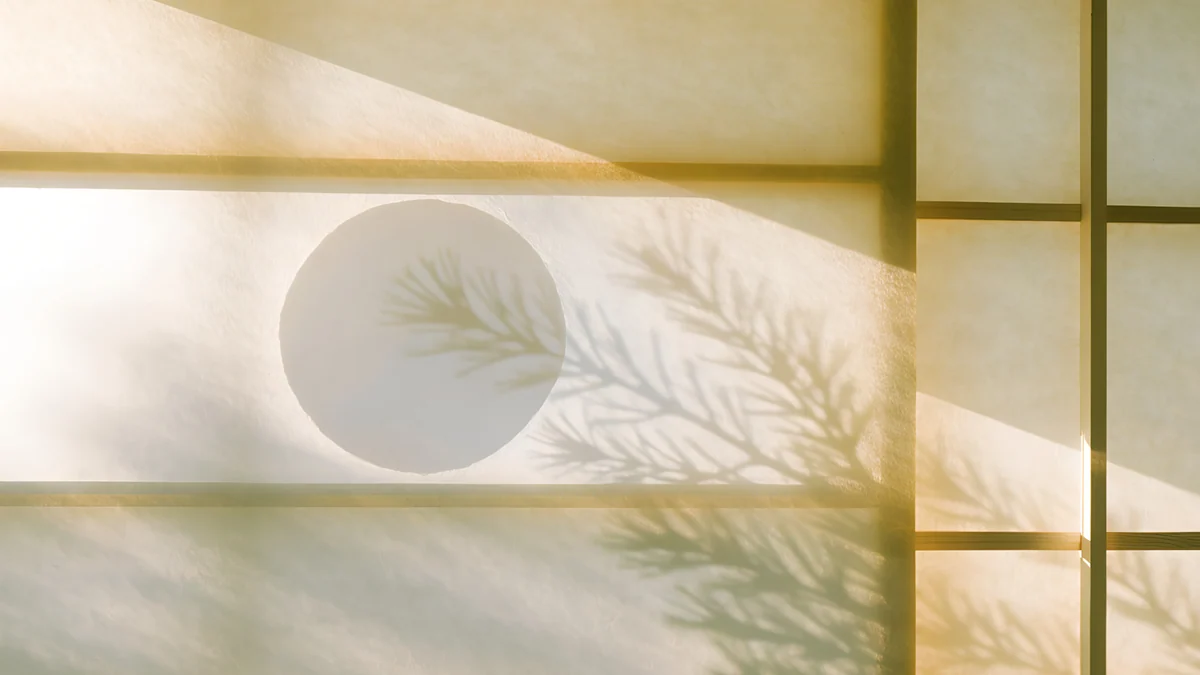 Shoji Moon4K · Desktop
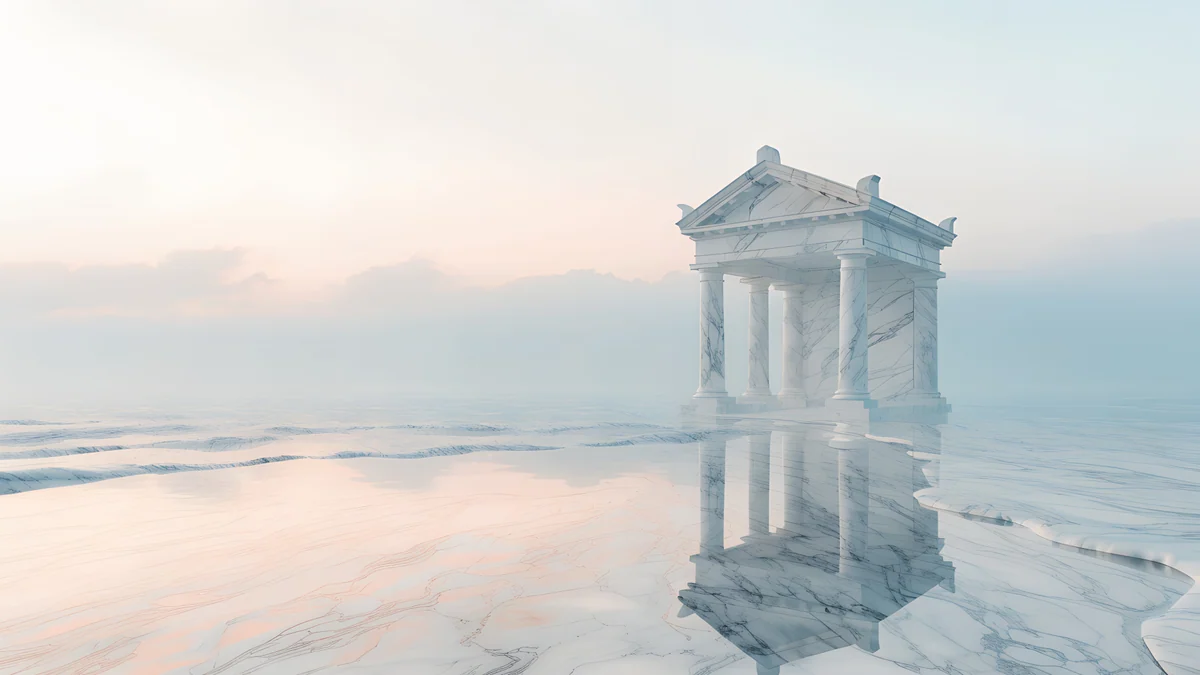 Portico4K · Desktop
Ink Mist Ridge is black ink pines on a ridge across cream paper, with a tiny red sun; it looks like a scroll painting behind glass. Ink Quiet Lake is one small boat on still water with a lot of empty paper, the calmest choice for a living room. Snow Village is a woodblock-style snowy mountain over a village under a starry indigo sky, the strongest colour of the six and still matte. Pine Coast is a lone pine on a rock above indigo waves, on warm paper. Shoji Moon is a pale moon behind shoji paper with leaf shadows, almost colourless, good in a bright room. Portico is a white classical temple reflected in still water under a pink and blue sky, for a lighter, more architectural wall.
More in the same mood: our Japanese ink wallpapers and ukiyo-e wallpapers.
How to upload your own art to The Frame
Samsung's menu names change between app versions and TV model years, so use these steps as a map rather than exact labels.
With the SmartThings app
- Save the image to your phone's photo library. Use the full 3840 × 2160 file, not a screenshot.
- Open SmartThings and tap your Frame TV. The phone and TV must be on the same Wi-Fi network.
- Open Art Mode (shown as Art in some versions).
- Go to your own photos section, usually called My Photos or My Collection, and tap Add or the plus button.
- Pick the images and confirm the upload.
- Choose a mat style and colour, or no mat, and set the image to display.
With a USB stick
- Copy the JPG files to a USB stick.
- Plug it into the TV, or into the One Connect box on models that have one.
- In Art Mode, open your photos section and choose the option to add or import from USB.
- Select the images, import them and pick a mat.
Samsung's own help pages and the Frame's manual list the current menu names for your model year.
Choosing a mat and the right file
A digital mat is the single biggest step from TV to picture frame. It adds a border that hides the screen edge and gives a busy image room to breathe.
- Off-white mat, ink art. A cream or white mat with Ink Mist Ridge or Shoji Moon looks like a gallery print.
- Dark or colour mat, woodblock prints. Snow Village and Pine Coast have deep indigo in them; a navy or charcoal mat picks it up.
- No mat, landscapes with empty space. Ink Quiet Lake and Portico have soft edges and work full-bleed.
File checklist: 16:9 landscape, 3840 × 2160, JPG. A mat crops a little from the edges or shrinks the picture, so keep important details out of the outer tenth of the frame. Portrait art shown on a landscape Frame gets wide side borders; use landscape files whenever you can.
Common problems and fixes
- The art looks like a lit screen. Lower the Art Mode brightness and choose a picture with cream rather than white areas.
- The picture is soft. The upload was smaller than 3840 × 2160, often a screenshot or a photo sent through a messaging app that compressed it. Upload the original file.
- The image is cropped strangely. It is not 16:9. Crop it to 3840 × 2160 before uploading, or pick a mat that shows the whole picture.
- The upload fails. Phone and TV are on different networks, or the app needs an update. Put both on the same Wi-Fi and update SmartThings.
- The TV wakes up by itself. That is the motion sensor in Art Mode settings; adjust or turn it off there.
- Colours look off. Some models offer a colour tone setting for Art Mode. Warmer tones suit paper-based art.
Getting the art in Velpaper
Every Velpaper wallpaper is an original by designer Carlos Vivero. Desktop wallpapers are 3840 × 2160, some are 5120 × 2880, and phone wallpapers are 2160 × 3840. Velpaper is an app for iPhone, iPad, Mac and Android, with the same catalog on velpaper.com, and the desktop wallpapers are free in full size with no account and no watermark. These are files for your own screens, not a Samsung Art Store subscription.
- On your phone, open Ink Mist Ridge in the Velpaper app or on velpaper.com.
- Download the 3840 × 2160 original and save it to your photo library.
- Upload it to The Frame through SmartThings and pick a cream mat.
For the same calm look on your phone, the portrait versions of Snow Village and Pine Coast are in the app as well.
Original wallpapers in 4K and 5K for iPhone, Android and desktop.
Questions
What kind of art looks best on a Samsung Frame TV?
Art that looks printed rather than lit. Pictures with paper or plaster texture, muted colour and soft contrast pass for a framed print from across the room: Japanese ink paintings, woodblock-style prints, watercolour landscapes and calm architecture. Avoid large areas of pure white, which glow like a screen, and pure black, which looks like a switched-off TV. Saturated neon, glossy 3D renders and busy photos also give the trick away. Use a landscape 16:9 file at 3840 × 2160, keep the subject away from the edges so a mat can frame it, and lower the Art Mode brightness a little in the evening.
What resolution should art be for The Frame?
Use 3840 × 2160 pixels in a 16:9 landscape format, which matches the native resolution of 4K Frame models. A file at exactly that size needs no scaling or cropping and looks as sharp as the panel allows. Smaller files, such as 1920 × 1080 images or screenshots, are enlarged and look soft, especially on 55 inch and larger sets. Portrait images can be shown, but they get wide borders on the sides of a landscape screen. Save the picture as a JPG and upload the original file rather than a copy sent through a messaging app, which often compresses it.
How do I put my own pictures on a Samsung Frame?
The usual way is the SmartThings app. Save the image to your phone, open SmartThings, tap your Frame TV and open Art Mode. Go to your own photos section, often called My Photos, tap Add, choose the pictures and confirm the upload. Then pick a mat style and colour and set the image to display. The phone and the TV must be on the same Wi-Fi network. You can also copy JPG files to a USB stick, plug it into the TV or its One Connect box and import them in Art Mode. Samsung renames these menus between app versions and model years, so the labels on your TV may differ.
Do I need the Samsung Art Store subscription?
No. The Art Store is an optional subscription with licensed artworks from museums and galleries, but The Frame displays your own images in Art Mode without it. You can upload any picture you have the right to use through the SmartThings app or a USB stick, choose a mat and set how long each image stays. Free sources work well as long as the files are 3840 × 2160 and look like printed art. Velpaper desktop wallpapers, for example, are original 4K works by designer Carlos Vivero, free in full size on velpaper.com and in the Velpaper app, with no account and no watermark.
Should I use a mat on The Frame?
Usually yes. A digital mat adds a border around the picture, which hides the edge of the screen and makes the TV read as a framed print. A cream or white mat suits ink paintings and pale art; a navy or charcoal mat suits woodblock prints with deep blues; a picture with lots of soft empty space, such as a misty lake, can go full-bleed with no mat at all. Remember that a mat crops or shrinks the picture, so keep important details out of the outer tenth of the image. The list of mat styles and colours depends on your model year and software version.
Carlos Vivero
Designer of Velpaper wallpapers
Carlos Vivero designs the wallpapers in Velpaper: quiet architecture, liquid glass, Japanese ink and calm landscapes. Every piece is made as a 4K original for iPhone, Android and desktop.
Recent work








