AI Wallpaper Prompts: 7 That Work and How to Write Yours
AI wallpaper prompts that work for phone and desktop: a simple formula, seven ready prompts, the words that keep the clock readable and how to fix bad results.
In short: A good AI wallpaper prompt names one subject, a setting, a style, two or three colours, the light and, most importantly, the layout: tall 9:16, subject in the lower third, empty space at the top, no text. Then upscale the result to 2160 × 3840 before you set it.
By the Velpaper team · Wallpapers by Carlos Vivero, Velpaper designer · · 6 min read
Free 4K originals for iPhone and Android, no watermark
On this page
The prompts that make good AI wallpapers describe the screen as much as the picture: one subject, a setting, a style, two or three colours and the light, plus layout words such as vertical 9:16, subject in the lower third, empty sky at the top, no text. That last part is what most prompts miss, and it is why so many AI images look great in the app but bad behind a lock screen clock.
This guide gives you a formula, seven prompts you can paste as they are, and fixes for the usual problems. It works in ChatGPT, Gemini, Midjourney, Adobe Firefly, Microsoft Copilot and local Stable Diffusion tools, with small differences noted below.
The formula for a wallpaper prompt
Write the parts in this order, each as a short phrase:
- Subject: one thing. A single arch, three pines, one boat, a glass ribbon.
- Setting: where it is. An empty courtyard, a misty slope, a still lake.
- Style or medium: minimal architectural photography, Japanese ink wash, soft 3D render, grainy gradient.
- Palette: two or three named colours. Sage and ivory, navy with magenta and teal, lavender and warm sand.
- Light: late afternoon sun, blue hour, fog, a single warm window.
- Layout for the screen: vertical 9:16 for a phone or wide 16:9 for a desktop, subject in the lower third, empty space at the top for the clock, nothing important near the edges.
- Exclusions: no text, no watermark, no people, no logos.
Words like 4K, 8K or ultra HD in a prompt do not change the size of the file. Each tool outputs a fixed resolution, so plan to upscale afterwards.
Seven prompts that work
- Minimal arch. A single cream plaster arch in an empty sunlit courtyard, minimal architectural photography, sage and ivory palette, soft late afternoon light, arch in the lower third, clear sky above, vertical 9:16, no text, no people.
- Ink wash. Japanese ink wash painting of three pine trees on a misty slope, pale rice paper texture, black ink with one small red accent, trees at the bottom, open mist in the upper half, vertical 9:16, no text, no signature.
- Rainy night. A quiet city side street after rain at night, navy tones with magenta and teal reflections in puddles, cinematic soft focus, low horizon, dark calm sky at the top, vertical 9:16, no signs, no text, no people.
- Grainy gradient. Abstract grainy gradient, seafoam at the top, buttery cream in the middle, deep blue green at the bottom, smooth transitions, fine film grain, no shapes, vertical 9:16.
- Liquid glass. One abstract liquid glass ribbon, lavender and warm sand, glossy highlights on a pale background, soft studio light, centred slightly low, lots of empty space, vertical 9:16, no text.
- OLED black. A single glossy black liquid fold with faint silver highlights on a pure black background, minimal, high contrast, object in the lower half, upper half pure black, vertical 9:16.
- Desktop. Wide 16:9 desktop wallpaper, one long low concrete wall across a misty plain, pale grey sky, minimal, calm, wall in the lower third, empty left side for icons, no text.
Change one part at a time. If the result is too busy, remove nouns rather than adding adjectives.
How to generate and set an AI wallpaper
- Set the shape first. In Midjourney add --ar 9:16 for a phone or --ar 16:9 for a desktop, and --no text for exclusions. In Firefly and most other apps, pick the aspect ratio in the settings panel. In chat assistants, write the shape in the prompt; if the tallest option is 2:3, accept it and crop later.
- Paste your prompt and generate several versions. Pick the one with the calmest top area, not the busiest detail.
- Refine with one change, for example move the subject lower or make the sky darker.
- Download the full size file, not a screenshot of the chat.
- Upscale to 2160 × 3840 for a phone or 3840 × 2160 for a desktop, as explained in our guide to upscaling a wallpaper to 4K.
- Set it. On iPhone: Settings, Wallpaper, Add New Wallpaper, Photos. On Android: touch and hold the home screen, open the wallpaper menu, then choose the photo.
Before you post or share AI wallpapers, read the terms of the tool you used; the rules for personal and commercial use differ between services. Describe a style in your own words rather than naming a living artist.
What the finished result should look like
These Velpaper wallpapers show the layout the prompts above aim for. Use them as a target when you judge your own results.
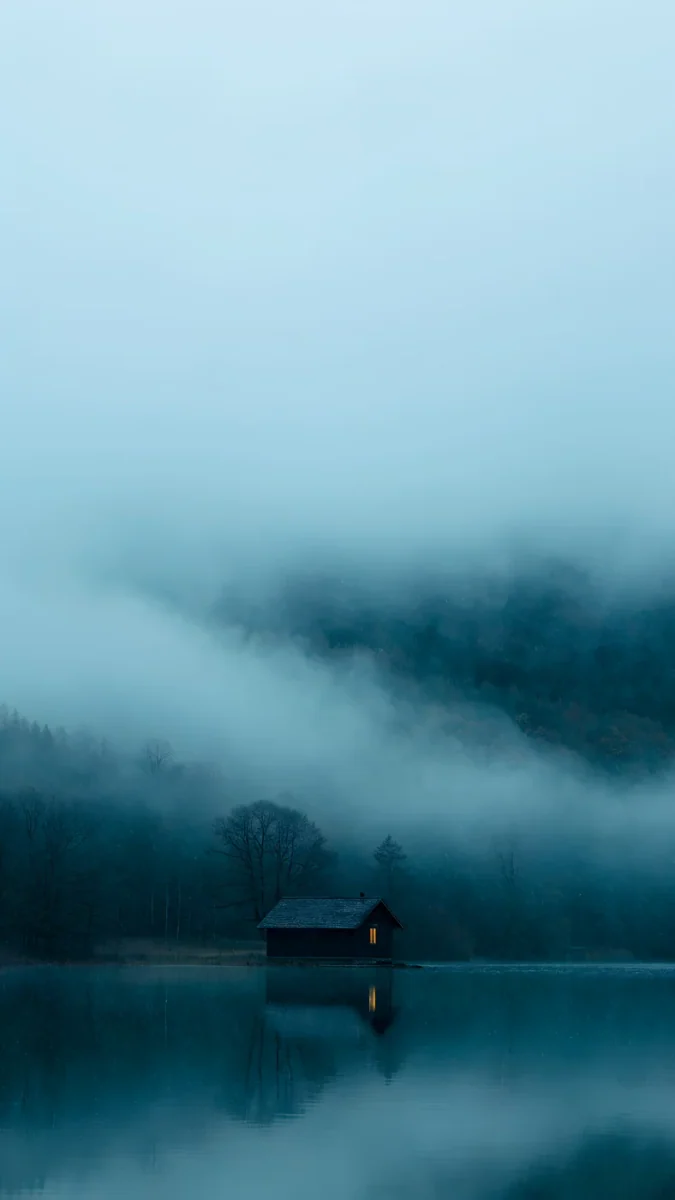 A Window in the Fog4K · Phone
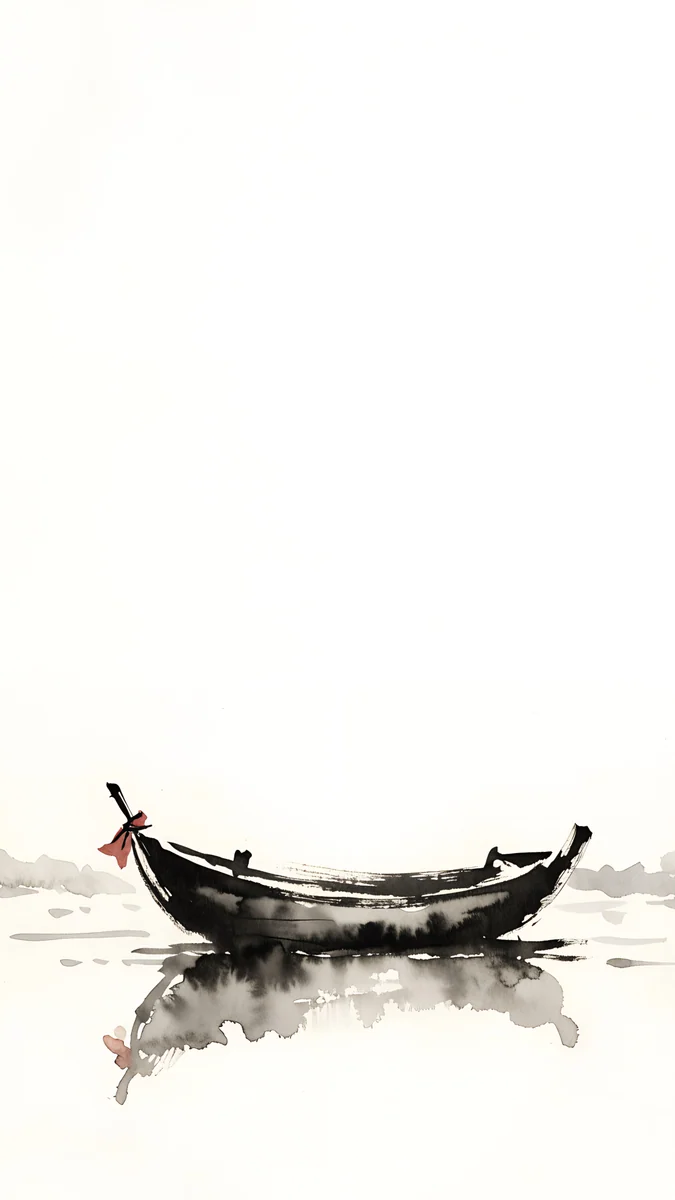 Quiet Boat4K · Phone
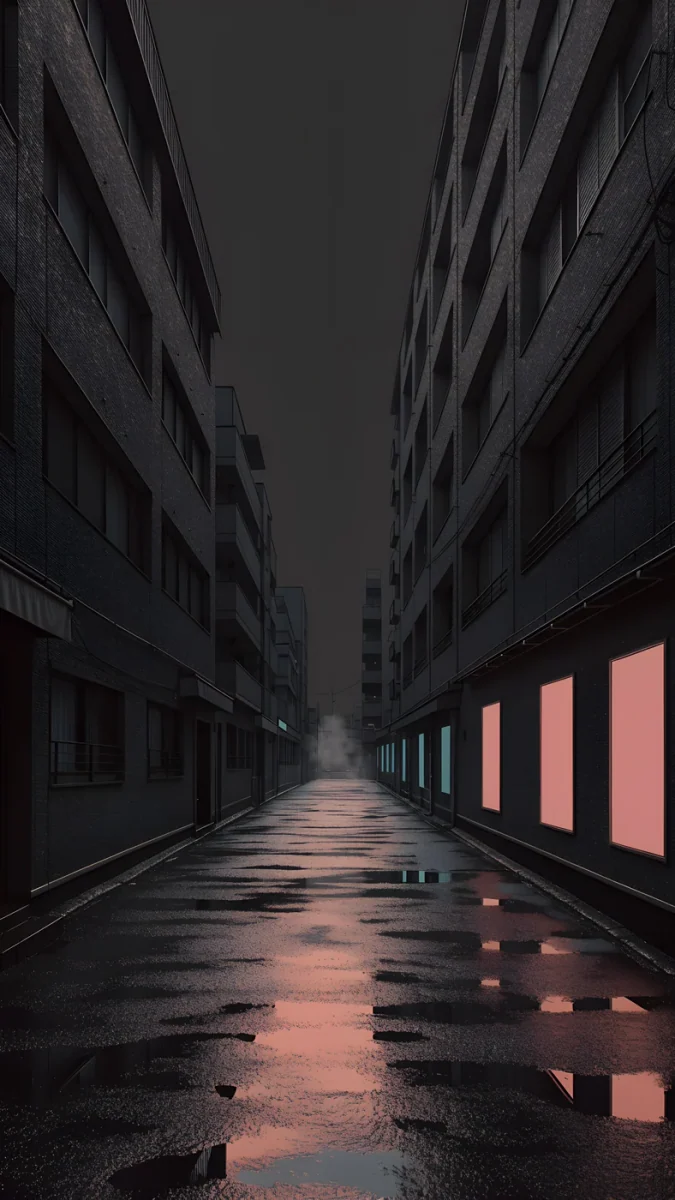 Tokyo After Rain4K · Phone
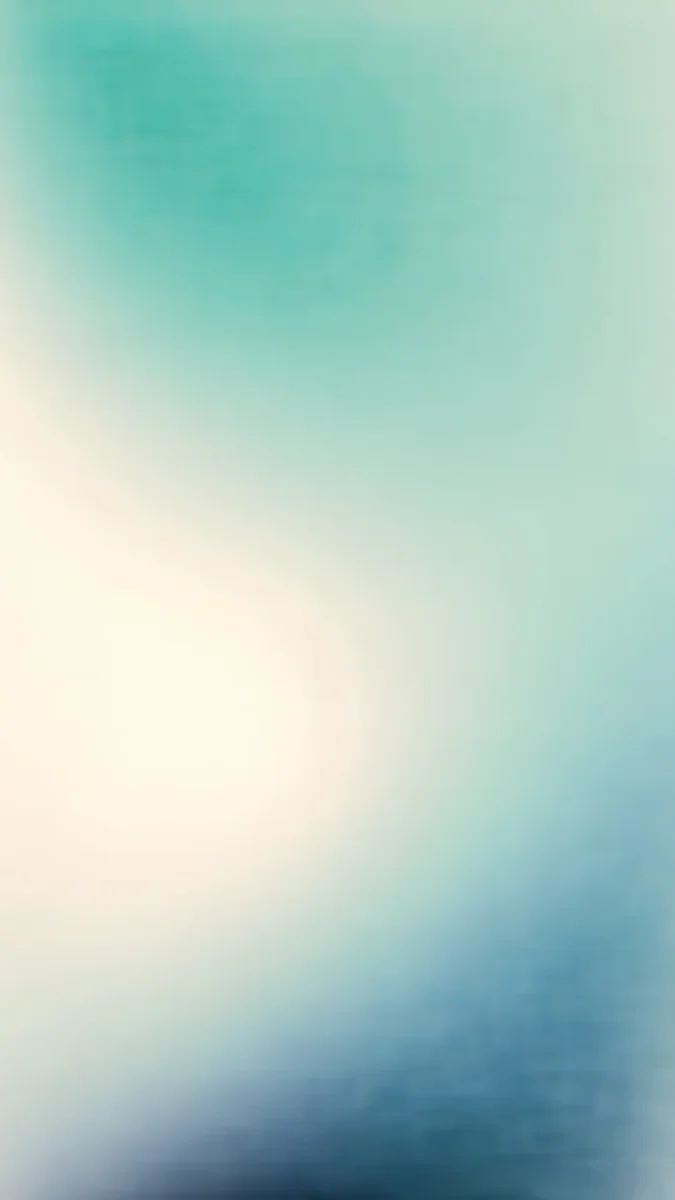 Celadon Haze4K · Phone
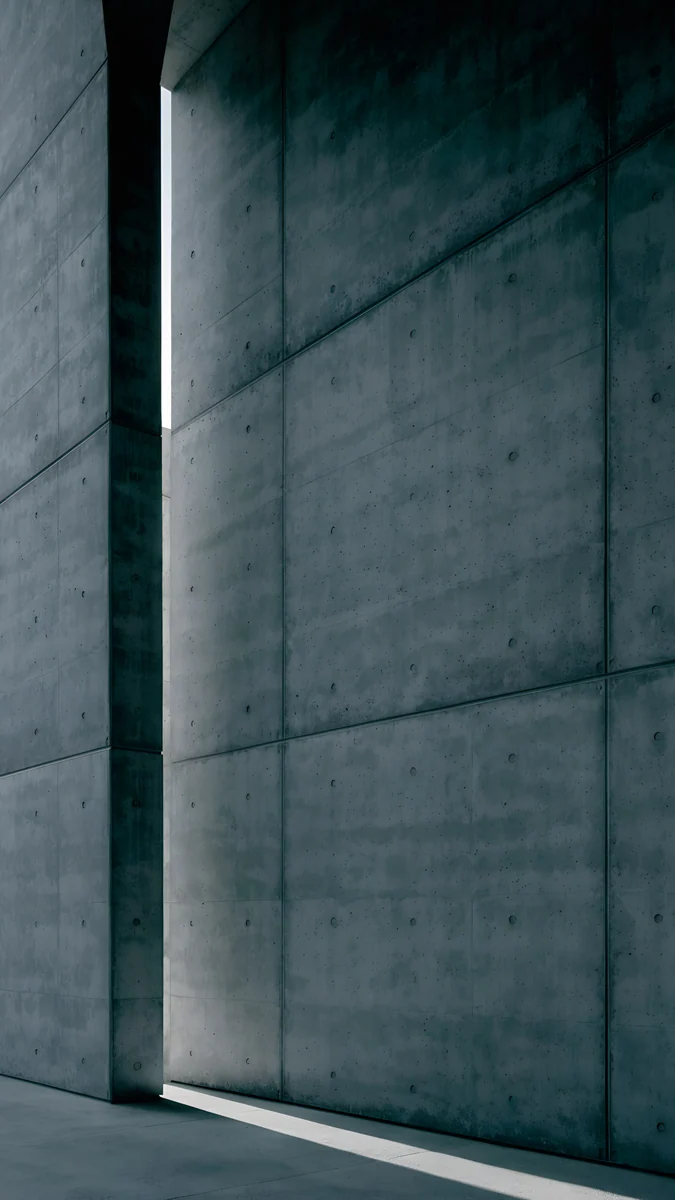 Charcoal Slot4K · Phone
 Liquid Light4K · Phone
A Window in the Fog keeps a cabin and one amber window low, with fog filling the top half, which is exactly what subject in the lower third, open sky above asks for. Quiet Boat is one ink boat with a red cloth on pale paper, the one accent colour idea in practice. Tokyo After Rain is a navy street with magenta and teal in the puddles, a dark top for a white clock. Celadon Haze is a grainy gradient with no shapes at all, so widgets sit on smooth colour. Charcoal Slot is a concrete wall with one slit of light, proof that a single element is enough. Liquid Light shows the liquid glass look in lavender and warm sand.
Common problems and fixes
- Random letters or fake signatures. Add no text, no signature, no watermark, or use the tool's negative prompt field.
- The clock covers the subject. Ask for the subject in the lower third and empty space at the top, and regenerate rather than cropping.
- Too busy behind icons. Cut the prompt to one subject, add minimal, lots of empty space, and remove detail words like intricate.
- Blurry once set. The output is smaller than the screen. Upscale before setting it.
- Wrong shape, so the phone zooms in. Set 9:16 at generation, or crop to the Wallpaper preset in Photos. More in our iPhone wallpaper zoom fix.
- Stripes in skies and gradients. Add fine film grain to the prompt, and export as PNG.
Prefer a finished wallpaper? Get it in Velpaper
Velpaper is a wallpaper app for iPhone, iPad, Mac and Android, and the same library is on velpaper.com. Every wallpaper is original 4K art designed by Carlos Vivero, and some desktop pieces are 5K. Each one is made for iPhone, iPad, Mac and Android screens, composed so the clock, icons and widgets have a calm place to sit, free to download with no account. Some phone wallpapers unlock after a short optional ad in the apps.
- Open A Window in the Fog in the Velpaper app or on velpaper.com.
- Save the 2160 × 3840 original. No upscaling needed.
- Set it from Photos as in step 6 above.
Original wallpapers in 4K and 5K for iPhone, Android and desktop.
Questions
What is the best prompt for an AI phone wallpaper?
There is no single best prompt, but the best ones share a structure: one subject, a setting, a style, two or three colours, the light, and layout words for the screen. For example: a single cream plaster arch in an empty sunlit courtyard, minimal architectural photography, sage and ivory palette, soft late afternoon light, arch in the lower third, clear sky above, vertical 9:16, no text, no people. The layout part matters most. Without vertical 9:16, subject in the lower third and empty space at the top, the image may look great on its own and still be hidden by the clock and widgets.
How do I get an AI image in the right size for a wallpaper?
Set the shape when you generate and the size afterwards. For the shape, choose 9:16 for a phone or 16:9 for a desktop: in Midjourney with --ar 9:16, in Firefly and most apps in the aspect ratio setting, and in chat assistants by writing it in the prompt. For the size, upscale the download, because most generators output images well below 4K. A phone wallpaper should end up at 2160 × 3840 pixels and a desktop wallpaper at 3840 × 2160. Writing 4K or 8K in the prompt does not change the pixel count; a free upscaler such as Upscayl does.
Which words keep the lock screen clock readable?
Ask for empty space where the clock goes and for contrast with its colour. Useful phrases are empty sky at the top, subject in the lower third, calm upper half, minimal and low horizon. For a white clock, add dark sky or night; for a dark clock, add pale sky, fog or light background. Avoid words that fill the frame, such as intricate, detailed pattern or crowded. Leave the left and right edges simple too, because phones trim a little from the sides of a 9:16 image. If a result still fights with the clock, regenerate with the subject lower instead of trying to crop it.
Why do AI wallpapers have weird text or blurry parts?
Image models learn that posters and photos often contain letters, so they add text shaped scribbles unless you tell them not to. Add no text, no signature and no watermark to the prompt, or use the negative prompt field in tools like Stable Diffusion, or --no text in Midjourney. Blurry areas usually have two causes. Either the model softened the background on purpose, which you can change with words like sharp focus throughout, or the file is simply smaller than your screen and was enlarged when set. In the second case, upscale the image to 2160 × 3840 for a phone or 3840 × 2160 for a desktop before setting it.
Can I use AI generated wallpapers for free?
For personal use on your own phone or computer, most AI image tools allow it, and several, such as ChatGPT, Gemini, Copilot and Firefly, offer some free generations at the time of writing. The details depend on the service and your plan, so read its terms if you want to share, sell or publish the images. Describe the style you want in your own words rather than naming a living artist, and avoid prompts based on characters, brands or real people. If you would rather skip the prompting, Velpaper wallpapers are free 4K originals for iPhone, iPad, Mac and Android, with no account needed.
Carlos Vivero
Designer of Velpaper wallpapers
Carlos Vivero designs the wallpapers in Velpaper: quiet architecture, liquid glass, Japanese ink and calm landscapes. Every piece is made as a 4K original for iPhone, Android and desktop.
Recent work