iPhone Wallpaper Zoomed In? 5 Fixes for iOS 26 and 18
iPhone wallpaper zoomed in or cut off? 5 fixes step by step for iOS 26 and iOS 18: turn off Perspective Zoom, pinch to reframe, crop first, use the right size.
In short: An iPhone wallpaper looks zoomed in when the picture has a different shape from the screen, when it is smaller than the screen, or when Perspective Zoom enlarges it for the motion effect. Turn off Perspective Zoom in the lock screen editor's More menu, pinch to reframe, and start from a tall image of at least 1320 × 2868 pixels, such as a 2160 × 3840 original.
By the Velpaper team · Wallpapers by Carlos Vivero, Velpaper designer · · Updated · 6 min read
Free 4K originals for iPhone and Android, no watermark
On this page
If your iPhone wallpaper is zoomed in too much, three things are usually behind it. The picture has a different shape from the screen, so iOS fills the height and cuts the sides. The picture is smaller than the screen, so iOS stretches it. Or Perspective Zoom is on, and iOS enlarges the image a little more so it can drift when you tilt the phone.
All three can be fixed in a minute. The steps below work on iOS 18 and iOS 26, and the menus are the same on every iPhone that runs them.
Why is my wallpaper zoomed in?
iOS never shows a wallpaper with empty bars. Whatever you pick, it scales the picture until the whole screen is covered, and anything that falls outside is trimmed.
Shape. A recent iPhone screen is about 19.5:9, tall and narrow. A photo from the camera is 4:3, and a landscape photo is wider still. To fill a tall screen with a 4:3 photo, iOS has to blow it up until the height fits, which throws away a third or more of the width. That is the classic zoomed in look: the faces are huge and the edges of the scene are gone.
Size. A picture saved from a chat, a social feed or a small website is often 1080 pixels wide or less. An iPhone 16 Pro Max screen is 1320 × 2868. iOS has to enlarge the file to cover it, so it looks both bigger and softer than you expected.
Motion. Perspective Zoom moves the wallpaper slightly as you tilt the phone. To have room for that movement, iOS scales the picture up a few percent beyond the screen edges. On a busy image the difference is easy to miss. On a portrait or a picture with text near the edges, it is the reason something gets clipped.
Fix 1: turn off Perspective Zoom
This is the quickest fix, and it often solves the problem on its own.
- Touch and hold the lock screen until the screens shrink into a row. Your iPhone has to be unlocked with Face ID or the passcode first.
- Tap Customize, then tap the lock screen preview.
- Tap the More button, the three dots in the bottom right corner of the editor.
- Turn off Perspective Zoom if it appears in the list. If it is not there, this wallpaper does not use it.
- Tap Done.
You can reach the same editor from Settings, Wallpaper, then Customize under the lock screen preview. If Reduce Motion is on in Settings, Accessibility, Motion, the wallpaper does not move at all and the option may be missing from the menu.
On iOS 26 there is one more control next to the three dots: a small hexagon button for Spatial Scene, which turns a photo into a 3D image that shifts as you move the phone. The movement uses spare picture around the edges, so the framing can look tighter. If your photo suddenly seems cropped, tap the hexagon to switch Spatial Scene off and compare.
Fix 2: pinch and drag to reframe
In the same editor, pinch with two fingers to change the zoom and drag to move the picture. The live preview shows exactly what the lock screen will look like, clock included.
There is a limit you cannot get around here: you can zoom in as much as you like, but you cannot zoom out past the point where the picture fills the screen. If the image is wider than the screen, some of it will always be cut. Use the editor to choose which part survives, then see Fix 4 if you need the whole picture.
While you are here, check the top third. The clock sits there, and on iOS 26 it can grow taller when the picture leaves it room. Keep faces and important detail below it. Our guide to wallpapers that keep the clock readable covers colour and contrast in more detail.
Fix 3: crop the photo before you set it
If iOS keeps guessing wrong, decide the framing yourself in Photos. Open the image, tap Edit, open the crop tool and choose the aspect ratio preset called Wallpaper. It matches your screen, so when you set the result as a wallpaper, iOS has nothing left to trim.
This also helps with group photos. Crop to the person or the part of the scene you want, and the wallpaper editor opens on exactly that.
Fix 4: show a whole landscape photo
Since iOS cannot shrink a wallpaper below the screen, a wide photo will never fit whole on its own. Two workarounds give you the full picture with bars above and below:
- The screenshot trick. Open the photo in Photos, tap once so the buttons disappear and the background turns black, then take a screenshot. The screenshot is exactly your screen size, with the photo in the middle and black above and below. Set that as the wallpaper.
- Add a border. Any photo editor that can place an image on a tall canvas does the same job, with a colour or a blurred copy behind it instead of black.
The screenshot is limited to your screen resolution, so it will not be as sharp as the original. For a family photo that is usually fine.
Fix 5: start from a big enough image
The cleanest fix is a picture made for a phone. An image that is taller than your screen and roughly the same shape needs almost no cropping and no enlargement. Our iPhone wallpaper size guide lists the exact resolution of every model, from 1170 × 2532 on the iPhone 14 to 1320 × 2868 on the iPhone 16 Pro Max.
Every Velpaper phone wallpaper is a 2160 × 3840 original. iOS only has to scale it down, and it loses roughly a tenth of the width on each side to fit the narrower screen. That is why the edges of these designs stay calm: the subject sits in the middle and the crop lands on empty sky or plaster.
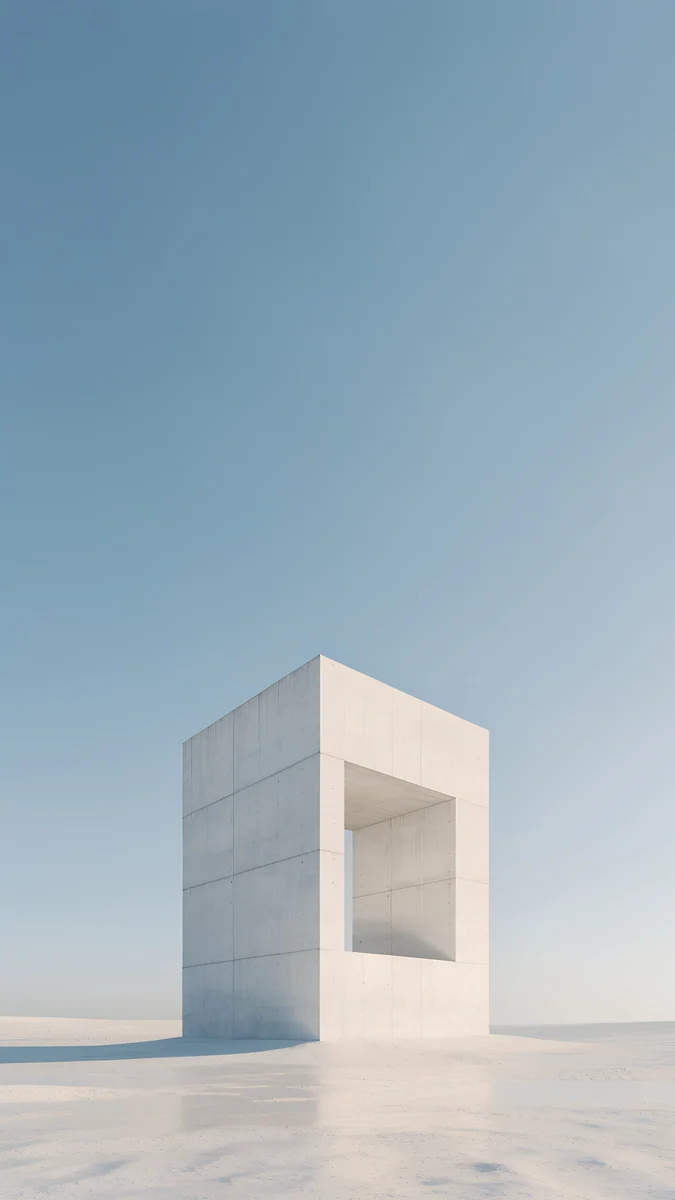
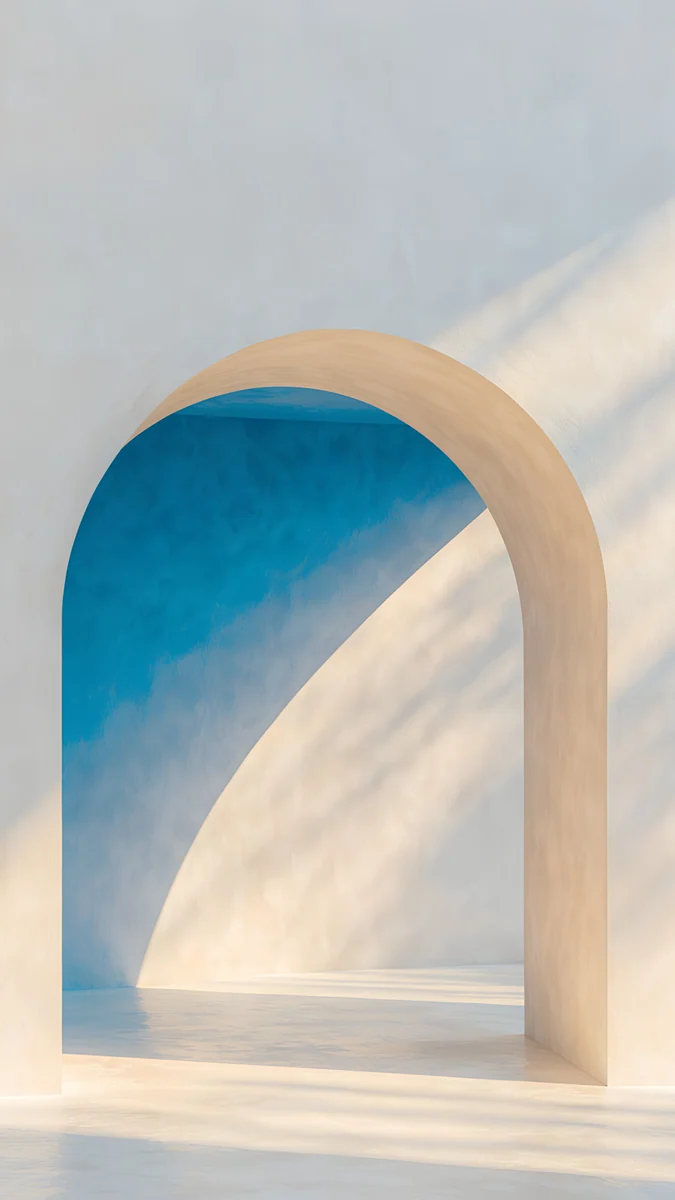
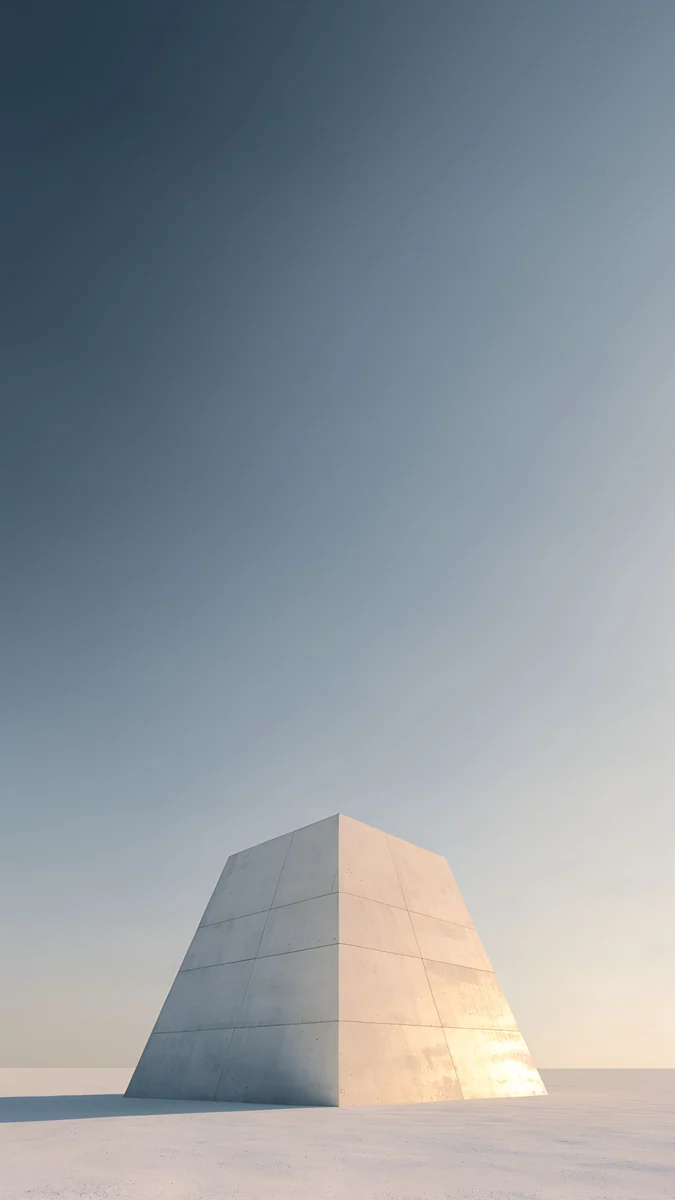
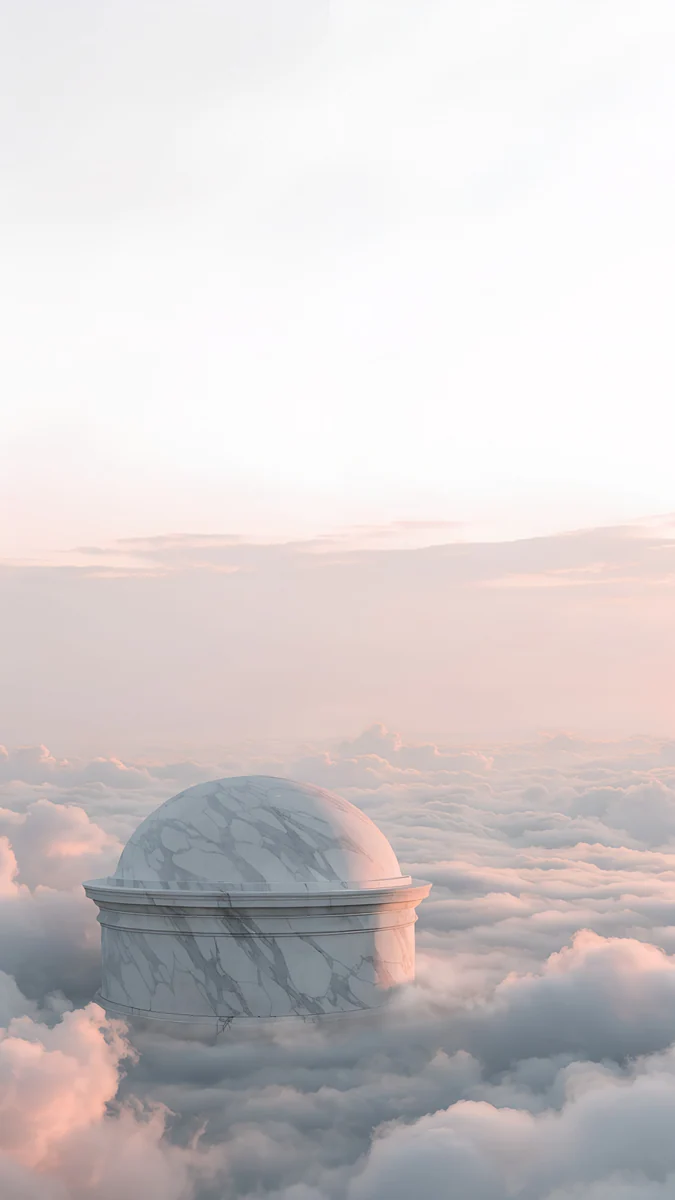
Monolith on the Plain puts a white stone frame low in the picture under open blue sky, so the clock has a clean field. The Blue Arch keeps its arch in the centre with plain wall at both sides. Pyramid of Light and Rotunda work the same way: a single shape, lots of air around it, nothing important near the edges.
Set it again the right way
Once you have a good file, set it fresh rather than editing the old wallpaper. Save the image to Photos, open Settings, Wallpaper, Add New Wallpaper, tap Photos and choose it. Check Perspective Zoom in the More menu before you tap Add. Our step by step guide on how to set a lock screen wallpaper on iPhone walks through the clock, widgets and home screen options too.
If you download from a phone browser, save the full original, not a screenshot of the preview. A screenshot of a preview is already screen sized and compressed, so any crop afterwards makes it softer.
Original wallpapers in 4K and 5K for iPhone, Android and desktop.
Questions
Why is my iPhone wallpaper zoomed in?
Because iOS always fills the whole screen. If the picture is wider than the screen, as camera photos and landscape shots are, iOS enlarges it until the height fits and cuts the sides. If the picture is smaller than the screen, iOS stretches it. Perspective Zoom adds a little extra enlargement so the image can move when you tilt the phone. Turn Perspective Zoom off in the More menu of the lock screen editor, then pinch and drag to reframe.
Can I zoom out a wallpaper on iPhone?
Only down to the point where the picture covers the screen. In the lock screen editor you can pinch to zoom in and drag to move the image, but iOS will not let it shrink so far that empty space appears around it. To show a whole wide photo, place it on a taller canvas first. The simplest way is to open it in Photos, tap once to hide the buttons, take a screenshot and set the screenshot as your wallpaper.
How do I make a photo fit my iPhone wallpaper without cropping?
Give it the same shape as your screen before you set it. In Photos, tap Edit, open the crop tool and choose the Wallpaper aspect ratio, which matches your iPhone display. If you want to keep the whole photo rather than crop it, add bars instead: take a screenshot of the photo shown full screen in Photos, or use an editor that places it on a tall background. Then set the result through Settings, Wallpaper, Add New Wallpaper.
What size picture fits an iPhone wallpaper?
Anything at least as large as your screen and close to its shape. Recent iPhones range from 1170 × 2532 pixels on the iPhone 14 to 1320 × 2868 on the iPhone 16 Pro Max. A 2160 × 3840 image covers all of them: iOS scales it down and trims a slim strip from each side because the screen is a little narrower than 9:16. Smaller files, such as 1080 × 1920, have to be enlarged and look soft.
Why does my wallpaper look blurry after I set it?
Usually because the file is smaller than the screen and iOS had to enlarge it. Images saved from messengers and social apps are often recompressed and cut down to about 1080 pixels wide. Zooming in the editor makes this worse, since every pinch stretches the pixels further. Download the original file instead of saving a preview or screenshot, and pick an image of at least 1320 × 2868 pixels. A 2160 × 3840 original stays sharp on every current iPhone.
Carlos Vivero
Designer of Velpaper wallpapers
Carlos Vivero designs the wallpapers in Velpaper: quiet architecture, liquid glass, Japanese ink and calm landscapes. Every piece is made as a 4K original for iPhone, Android and desktop.
Recent work








