Different iPhone Wallpaper for Each Focus Mode
Link a separate Lock Screen and wallpaper to Work, Personal, Sleep or any Focus on iPhone, switch them on a schedule, and fix a Lock Screen that won't change.
In short: Create one Lock Screen per Focus, then go to Settings, Focus, pick a Focus and tap the Lock Screen preview under Customize Screens to link it. When that Focus turns on, by hand or on a schedule, the iPhone switches to its Lock Screen and wallpaper by itself.
By the Velpaper team · Wallpapers by Carlos Vivero, Velpaper designer · · 5 min read
Free 4K originals for iPhone and Android, no watermark
On this page
To set a different wallpaper for each Focus mode, build one Lock Screen per Focus with its own wallpaper, then link them: open Settings, tap Focus, choose a Focus such as Work or Sleep, and under Customize Screens tap the Lock Screen preview and pick the one you made. From then on, turning on that Focus swaps the Lock Screen, its wallpaper and its Home Screen with it.
The steps below are for iOS 26 and work the same way on iOS 18. Each Focus can have one linked Lock Screen, and each Lock Screen can belong to one Focus.
Step 1: make a Lock Screen for each Focus
- Save the wallpapers you want to Photos first, one per mode.
- Touch and hold the Lock Screen until the gallery of Lock Screens appears. You may need Face ID or your passcode.
- Tap the + button at the bottom right, then Photos, and choose the wallpaper for your first Focus.
- Tap the clock to change the font and colour, and add any widgets that suit the mode, such as Calendar for Work or Alarms for Sleep.
- Tap Add, then Set as Wallpaper Pair, or Customize Home Screen if you want a calmer picture behind the apps.
- Repeat for every Focus you plan to use.
If you need a refresher on the editor itself, our guide on how to set a lock screen wallpaper on iPhone walks through fonts, widgets and the clock.
Step 2: link each Lock Screen to a Focus
There are two routes, and they do the same thing.
From the Lock Screen gallery
- Touch and hold the Lock Screen and swipe to the Lock Screen you made.
- Tap Focus at the bottom of the preview.
- Pick the Focus, for example Work, then tap outside the list to close it.
From Settings
- Open Settings and tap Focus.
- Tap a Focus. If the one you want is missing, tap + to add it; iOS offers ready-made modes such as Driving, Fitness and Reading, or a Custom one with your own name and icon.
- Under Customize Screens, tap the Lock Screen preview on the left.
- Pick an existing Lock Screen, or create a new one from the gallery, and tap Done.
- Tap the Home Screen preview in the middle if you also want only certain Home Screen pages in this mode.
Turn the Focus on from Control Center and lock the phone to check: the Lock Screen should switch at once.
Step 3: switch automatically on a schedule
A linked Lock Screen changes whenever its Focus turns on, so the real automation is the Focus schedule.
- In Settings, Focus, open the Focus.
- Under Set a Schedule, tap Add Schedule.
- Choose Time (for example 9:00 to 17:30 on weekdays), Location (when you arrive at the office) or App (when you open a certain app).
- Tap Done. Repeat for other modes.
The Sleep Focus takes its times from your sleep schedule in the Health app, so its Lock Screen appears at bedtime and leaves in the morning. If Share Across Devices is on, a Focus you turn on from your Mac or iPad switches the iPhone Lock Screen too.
Wallpapers that suit different modes
The point of a Focus Lock Screen is that you know which mode you are in at a glance. Pick wallpapers that differ clearly in brightness or colour, not five similar ones.
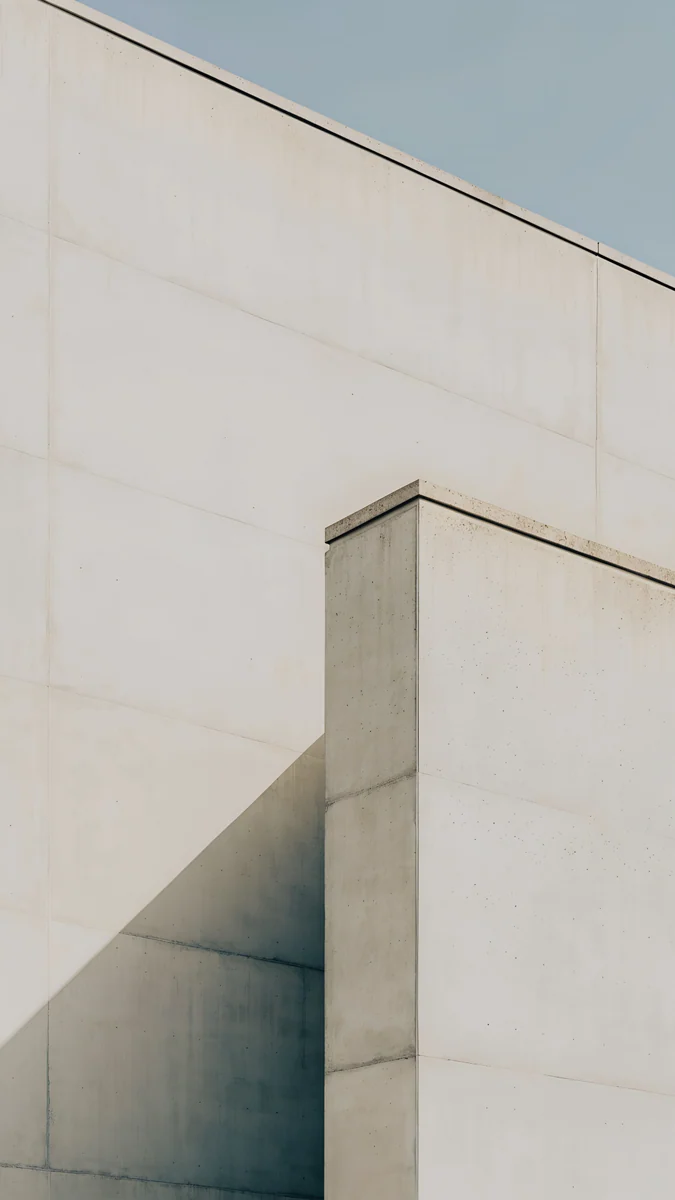 Ivory Fold4K · Phone
 Celadon Haze4K · Phone
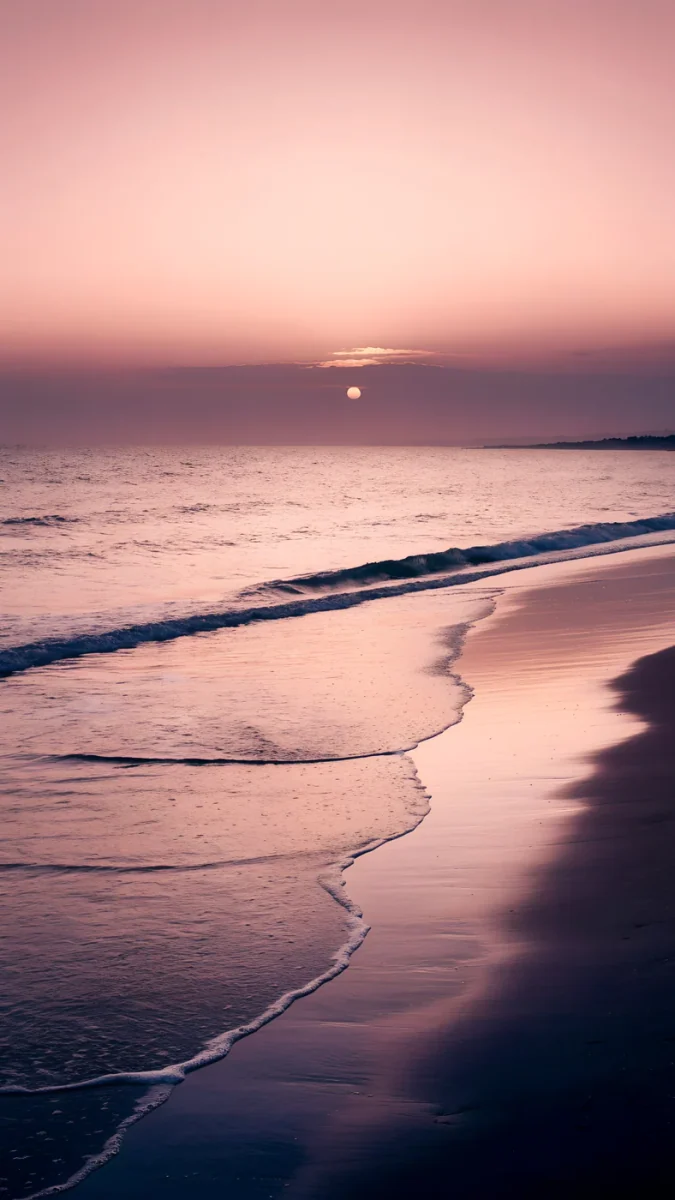 Peach Reflection4K · Phone
 Mist Pines4K · Phone
 Obsidian Waves4K · Phone
- Ivory Fold for Work: a pale concrete sheet creased once, quiet enough for a Calendar widget and a dark clock.
- Celadon Haze for Reading or Mindfulness: a seafoam to cream gradient with no subject, so nothing pulls at your attention.
- Peach Reflection for Personal: an empty beach at sunset, warm and clearly different from the work screen.
- Mist Pines for a weekend or Do Not Disturb: old pines in fog with a small red sun, and an almost empty upper half for the time.
- Obsidian Waves for Sleep: black waves at the bottom and pure black above, so a dimmed screen at night stays dark.
Common problems and fixes
- The Lock Screen does not change. Check that the Focus is really on: open Control Center and look at the Focus tile. A schedule only switches it at the set time, and a Focus started on another device needs Share Across Devices.
- The wrong Lock Screen appears. Linking a Lock Screen to a Focus replaces the one linked before. Open Settings, Focus, the mode, and check the preview under Customize Screens.
- The Lock Screen is dark and dim in Sleep. That is the Dim Lock Screen option. In Settings, Focus, Sleep, tap Options and turn it off if you want to see the wallpaper.
- A linked Lock Screen disappeared. If you delete a Lock Screen from the gallery, the link goes with it. Make a new one and link it again.
- The Home Screen did not change. The Home Screen pages are a separate choice in the same Customize Screens row. A wallpaper pair changes the Home Screen picture, but the pages stay as they are until you pick them.
Get these wallpapers in Velpaper
Every wallpaper above is a 4K original designed by Carlos Vivero, 2160 × 3840 pixels, so it stays sharp on every iPhone. They are free in the Velpaper app for iPhone, iPad, Mac and Android and on velpaper.com, with no account and no watermark, and each one keeps the top of the frame calm for the clock.
- Open Ivory Fold and Obsidian Waves in the Velpaper app or on velpaper.com.
- Tap Download on each to save the originals to Photos.
- Make a Lock Screen with each one, then link Ivory Fold to Work and Obsidian Waves to Sleep.
For one wallpaper that changes by itself without any Focus, see our guide to making the iPhone wallpaper change automatically.
Original wallpapers in 4K and 5K for iPhone, Android and desktop.
Questions
Can I have a different wallpaper for each Focus on iPhone?
Yes. Since iOS 16 every Focus can have its own Lock Screen, and every Lock Screen has its own wallpaper, clock style and widgets. Create a Lock Screen for each mode, then open Settings, Focus, choose the mode and tap the Lock Screen preview under Customize Screens to link it. Alternatively, touch and hold the Lock Screen, swipe to the one you want and tap Focus at the bottom. When the Focus turns on, the iPhone switches to that Lock Screen and its wallpaper, and back again when the Focus ends.
How do I make my wallpaper change at a certain time of day?
Link a Lock Screen to a Focus and give that Focus a schedule. In Settings, Focus, open the mode, tap Add Schedule under Set a Schedule and choose Time, then the start and end times and the days. At the start time the Focus turns on and the iPhone shows its Lock Screen; at the end it returns to your usual one. You can also trigger a Focus by location or by opening an app. If you just want variety without fixed times, Photo Shuffle rotates pictures on tap, on lock, hourly or daily instead.
Why is my Focus Lock Screen not showing?
Usually the Focus is not actually on. Open Control Center and check the Focus tile; a scheduled Focus only starts at its set time, and one started on a Mac or iPad only reaches the iPhone if Share Across Devices is on. Next, open Settings, Focus, the mode, and look at the Lock Screen preview under Customize Screens. If it is empty, the link was lost, often because the Lock Screen was deleted from the gallery. Link it again. Finally, check Options in that Focus: Dim Lock Screen can make the wallpaper look like it is missing.
Can each Focus have its own Home Screen too?
Yes, in two separate ways. The Home Screen wallpaper comes with the Lock Screen: if you set a wallpaper pair, or customised the Home Screen picture when you made that Lock Screen, it switches together with the Focus. The Home Screen pages are chosen separately. In Settings, Focus, the mode, tap the Home Screen preview under Customize Screens and select which pages to show. A Work Focus can then show one page with work apps and a calm wallpaper, while a Personal Focus shows another page with a different picture behind it.
What wallpaper is best for the Sleep Focus?
A dark one with very little light in the upper half, where the clock and alarm sit. At night a bright wallpaper is the first thing you see when you check the time, and a mostly black image is easier on the eyes in a dark room. On iPhones with an OLED screen, black areas also switch the pixels off. Obsidian Waves from Velpaper is a good fit: glossy black waves at the bottom, pure black above. Remember that the Sleep Focus may also dim the Lock Screen, which you can turn off under Options.
Carlos Vivero
Designer of Velpaper wallpapers
Carlos Vivero designs the wallpapers in Velpaper: quiet architecture, liquid glass, Japanese ink and calm landscapes. Every piece is made as a 4K original for iPhone, Android and desktop.
Recent work








