How to Set a Lock Screen Wallpaper on iPhone (2026)
How to set a lock screen wallpaper on iPhone in iOS 17 and 18, step by step, plus how to keep the clock readable and the picture sharp on every screen.
· 4 min read
 Monday, Oct 69:41
 Monday, Oct 69:41
 Monday, Oct 69:41
The lock screen is the part of your iPhone you see most. You glance at it for the time, a notification or the weather dozens of times a day, usually without unlocking. Since iOS 16 it is also its own canvas: the wallpaper, the clock style and the widgets are set together, and a good image makes the time easier to read at a glance. Here is how to set one on iOS 17 and iOS 18, and how to pick a picture that works with the clock.
How to set a lock screen wallpaper, step by step
- Save the wallpaper to Photos. Any image in your library works. Velpaper wallpapers can be saved straight from the app.
- Open Settings, then Wallpaper.
- Tap Add New Wallpaper. Tap Photos at the top and choose your image.
- Position it. Pinch to zoom and drag with two fingers to move the picture. Keep the part you care about below the clock.
- Style the clock. Tap the time. A panel opens with fonts and colours; the last circle in the colour row opens a full picker, and some fonts also have a slider for weight.
- Add widgets. The box under the clock holds up to four small widgets, and the date line above it takes one more, such as the weather or your next calendar event.
- Tap Add, then choose. Set as Wallpaper Pair puts the same image on the home screen. Customise Home Screen lets you pick something different.
There is a shortcut from Photos: open the image, tap the Share button, scroll down and tap Use as Wallpaper. It drops you into the same editor at step 4.
Choose a wallpaper that keeps the clock readable
On iOS 17 and 18 the clock sits in the upper third of the screen, large and bold. That area decides whether the lock screen feels clean or busy. With a calm top, whether a soft gradient, open sky or a plain wall, the time reads instantly. Detail and contrast work better lower down, where the notifications and your thumb are.
Then match the clock to the brightness. A light wallpaper wants a dark clock, and a dark wallpaper wants white or a pale tint. iOS picks a colour on its own, but it often lands on a mid tone that fades into the picture, so it is worth setting by hand.
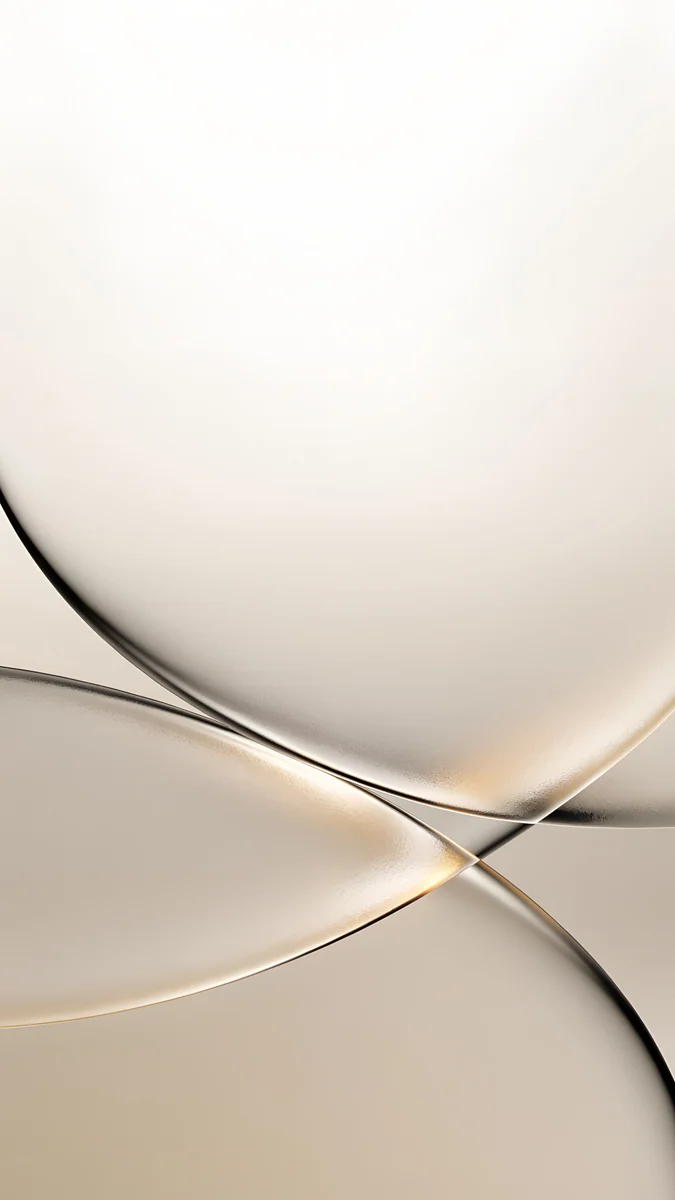
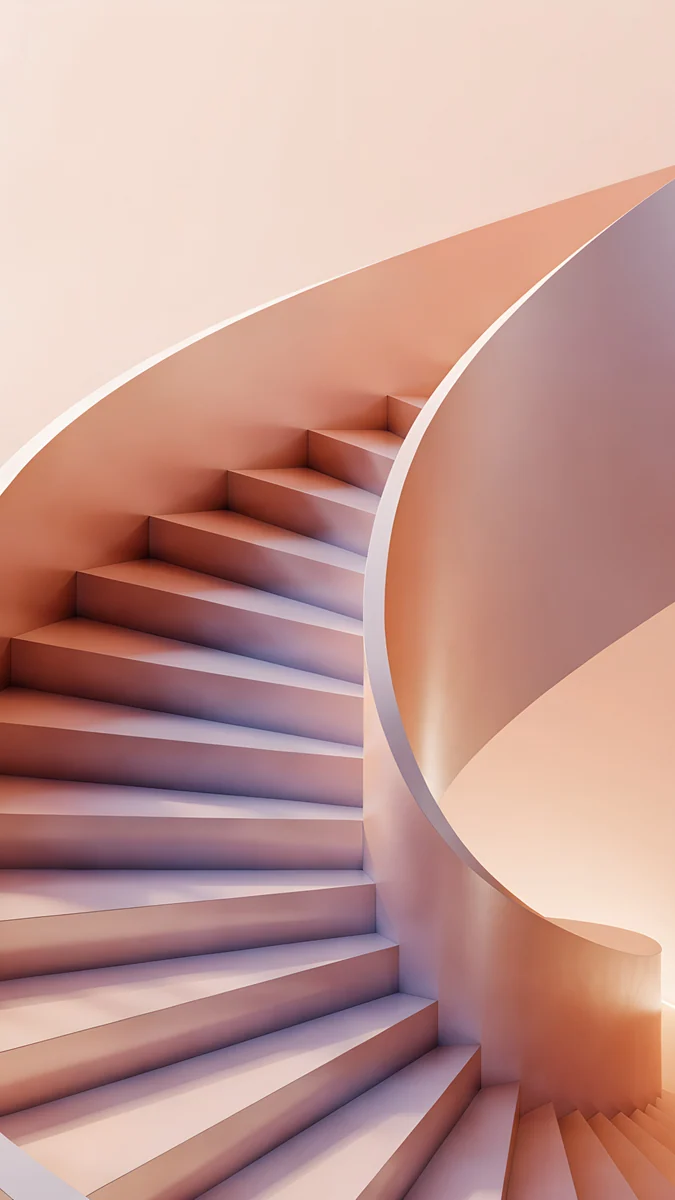
Three light examples that suit a dark clock:
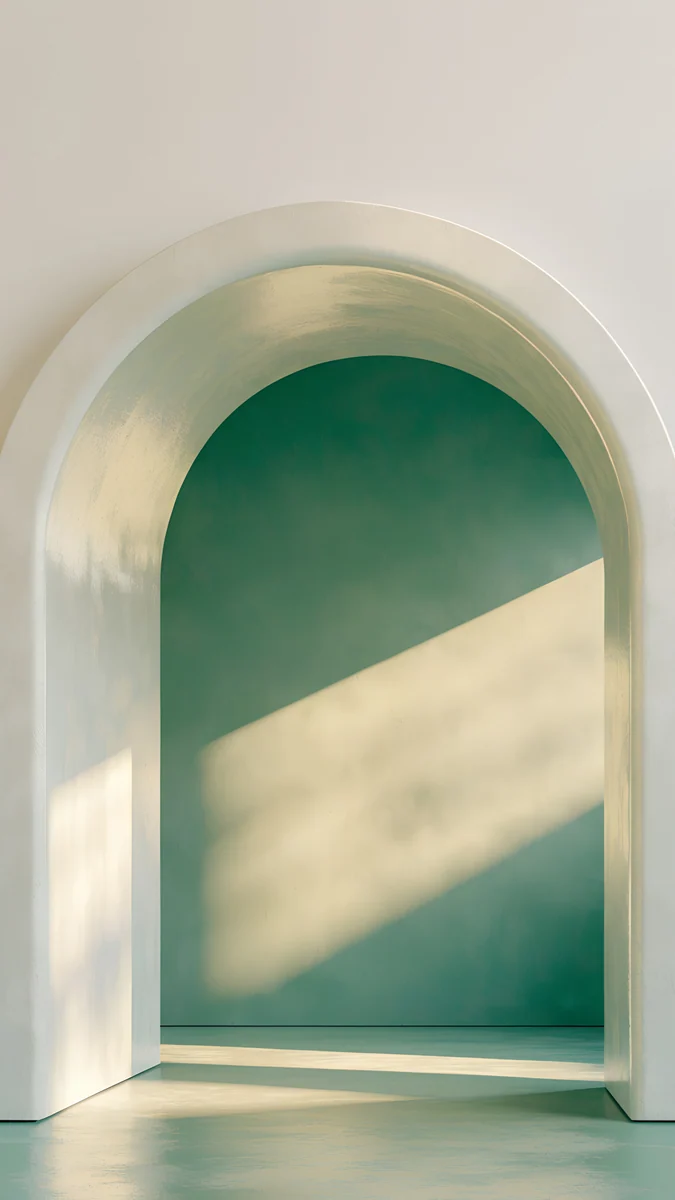
Champagne Veil stays in warm cream and champagne tones with very little contrast. Peach Spiral Well mixes peach and coral with a soft mauve shadow. Sage Sun Arch is pale plaster, sage green and a strip of sun.
And three darker ones for a white clock:
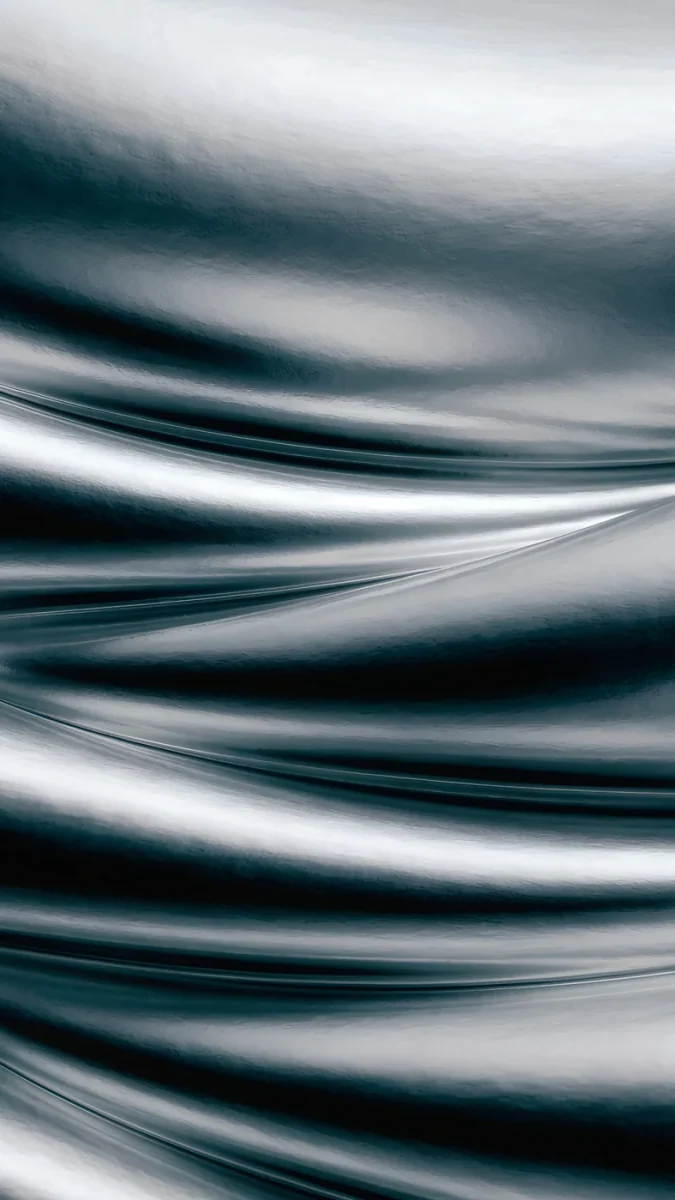
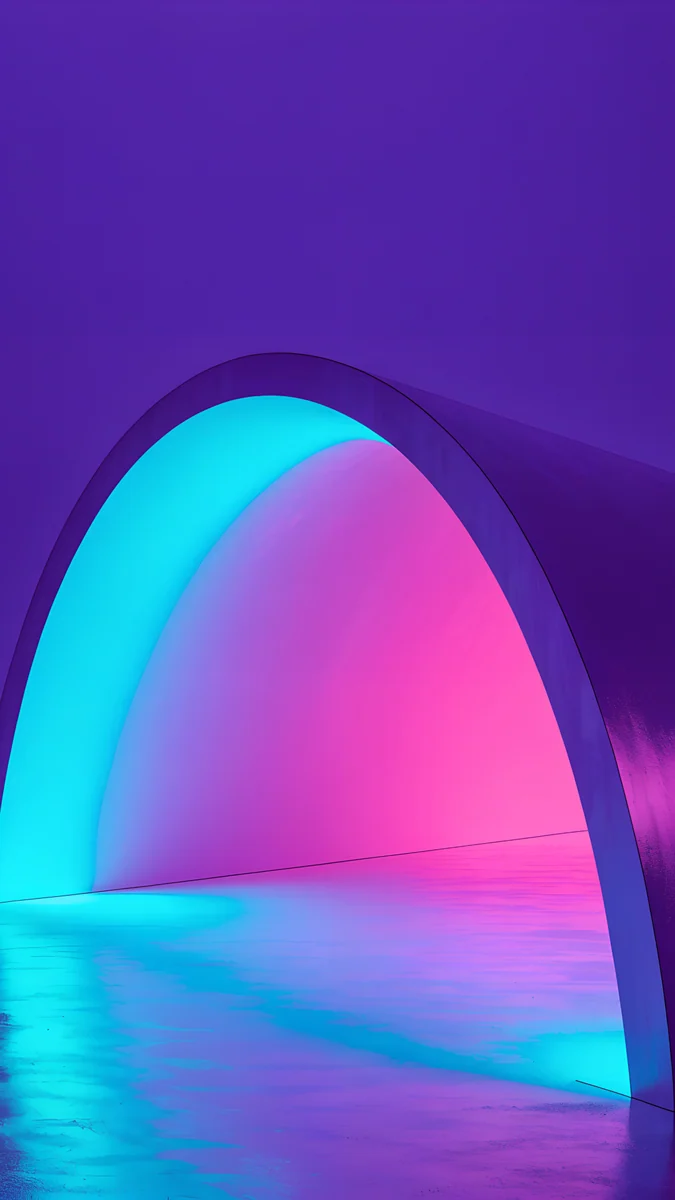
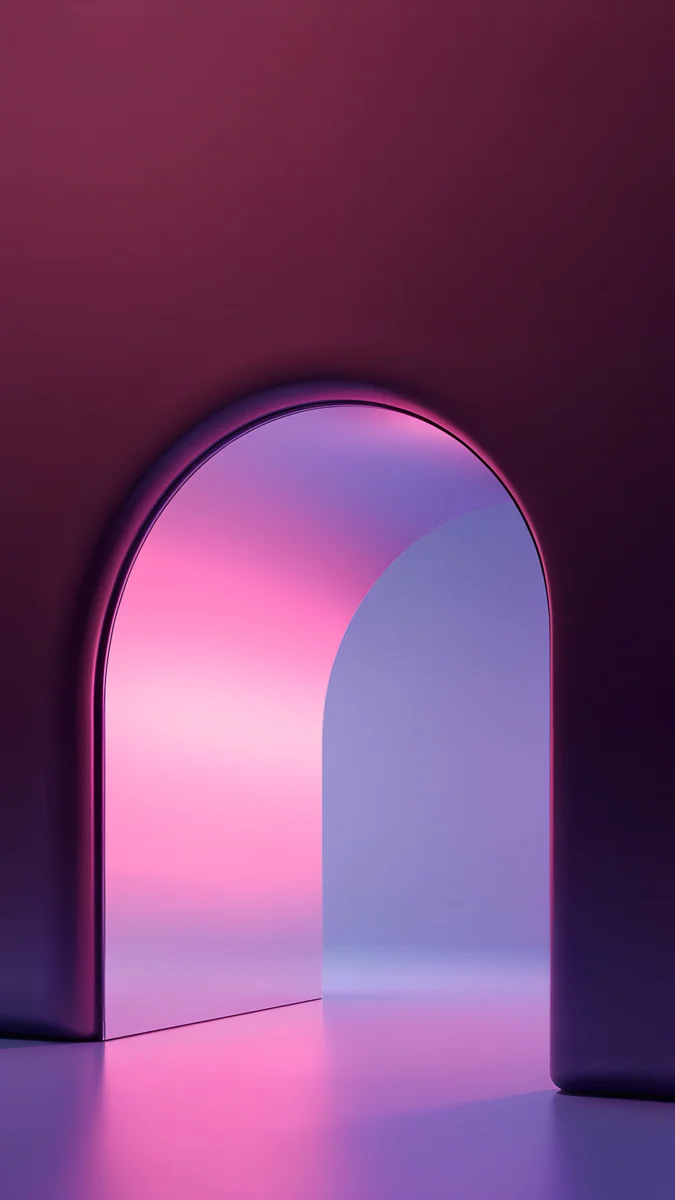
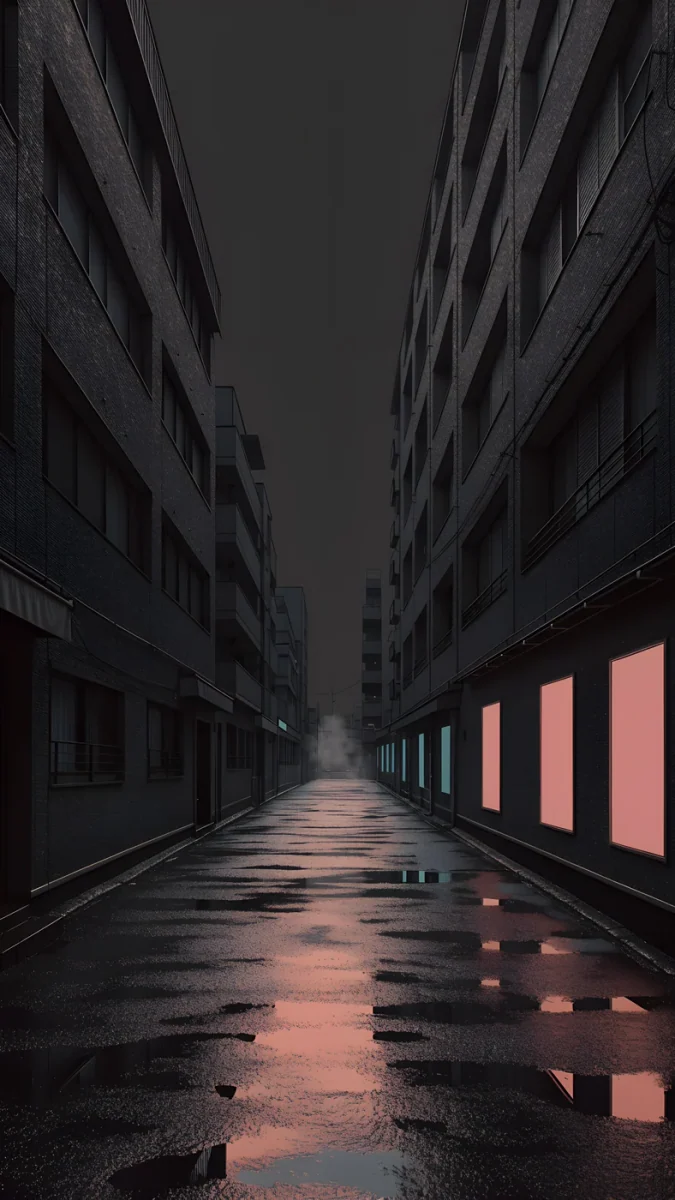
Tidal Quiet is built from deep teal, sea green and pale foam. Moon Silver is nearly black with silver light. Electric Violet Arch glows violet and cyan inside a dark wall, and on an OLED screen the black areas stay truly black.
Download the original, not a screenshot
When a lock screen looks soft, the cause is usually the file. A screenshot of a preview, or an image saved from a social feed, is compressed and often smaller than the screen. iOS stretches it and the edges go fuzzy, especially after you pinch to zoom.
Velpaper phone wallpapers are 2160 × 3840 pixels, larger than any iPhone display, so iOS only ever scales them down. Get the file from the Velpaper app on iPhone or from the wallpaper page on velpaper.com. If Safari puts the download in Files, open it, tap Share and choose Save Image. The pictures in this article are compressed previews: use them to choose, not to set.
Pair the lock screen with the home screen
After you tap Add, iOS asks what to do with the home screen. Set as Wallpaper Pair is the quick answer: the same picture on both.
Customise Home Screen gives you more control. You can blur the same image so icons stand out, use a plain colour or a gradient taken from the wallpaper, or choose a second photo. A detailed picture usually looks better blurred behind icons; a calm one can stay sharp.
A good pair comes from one palette. Champagne Veil on the lock screen with Peach Spiral Well on the home screen keeps both in warm, pale tones. To change either one later, press and hold the lock screen, tap Customise and choose which screen to edit.
Original wallpapers in 4K and 5K for iPhone, Android and desktop.
Questions
Does a wallpaper need to be exactly 2160 × 3840 pixels?
No. iOS accepts any image and scales it to fill the screen. What matters is that the image is at least as large as your display, otherwise iOS has to enlarge it and it goes soft. Recent iPhones are around 1179 × 2556 pixels and the largest Pro Max models around 1320 × 2868. A 2160 × 3840 file is bigger than both, so it only gets scaled down. Its 9:16 shape is a little wider than an iPhone screen, so iOS trims a sliver from the left and right edges. Velpaper composes its phone wallpapers with that crop in mind and keeps the important part away from the sides.
Why is my lock screen wallpaper blurry?
Usually the file is too small. A screenshot, a compressed preview or an image saved from social media is often smaller than the screen, so iOS stretches it. Zooming in too far while positioning the picture has the same effect, because it enlarges the pixels. If the lock screen is sharp but the home screen is not, the blur is a setting: press and hold the lock screen, tap Customise, choose Home Screen and turn off Blur. The fix for the first two cases is to download the original file, for example the 2160 × 3840 version from Velpaper, and zoom in less.
Can the lock screen and home screen have different wallpapers?
Yes. After setting up the lock screen, tap Add and choose Customise Home Screen instead of Set as Wallpaper Pair. Then tap Photos and pick a different image, or choose a plain colour or gradient. To change an existing pair, press and hold the lock screen, tap Customise, then Home Screen. Many people use a detailed picture on the lock screen and a calmer one behind their apps, since icons and widgets already fill the home screen. Two wallpapers from the same colour family keep the switch from one screen to the other from feeling abrupt.
How do I change the clock colour on the iPhone lock screen?
Press and hold the lock screen, tap Customise, then choose Lock Screen. Tap the time and a panel opens with fonts and a row of colours. Tap a colour to apply it; the last circle in the row opens a full colour picker, and a slider under the swatches makes the shade lighter or deeper. Some fonts also let you change the weight. Tap Done when the clock reads clearly against the image. As a rule, a dark clock suits light wallpapers and a white or pale clock suits dark ones.
Are Velpaper wallpapers free?
Browsing and previewing is free on velpaper.com and in the apps. Some phone wallpapers, such as Tidal Quiet, are fully free. Most others unlock after a short optional ad in the iPhone and Android apps; on the website, if no ad is available the original downloads for free. Desktop wallpapers are free. There is no account and no subscription, and the file you get is the full 2160 × 3840 original without a watermark.