How to Make Your iPhone Wallpaper Change Automatically
Use Photo Shuffle to rotate your iPhone wallpaper on tap, on lock, hourly or daily, pick your own wallpapers for it, or switch Lock Screens with Shortcuts.
In short: Go to Settings, Wallpaper, Add New Wallpaper, tap Photo Shuffle, choose Select Photos Manually and pick your wallpapers, then set Shuffle Frequency to On Tap, On Lock, Hourly or Daily. The iPhone then changes the wallpaper by itself, with no app needed.
By the Velpaper team · Wallpapers by Carlos Vivero, Velpaper designer · · 5 min read
Free 4K originals for iPhone and Android, no watermark
On this page
To make your iPhone wallpaper change automatically, use Photo Shuffle: open Settings, tap Wallpaper, then Add New Wallpaper, choose Photo Shuffle, select the pictures and set how often they change: On Tap, On Lock, Hourly or Daily. It is built into iOS 26 and iOS 18 and needs no extra app.
For changes at exact times, such as a dark wallpaper every evening, there are two more tools: a Focus with its own Lock Screen, and a Shortcuts automation. Both are covered below.
How to set up Photo Shuffle
- Save the wallpapers you want to rotate to Photos. Putting them in one album makes them easy to find.
- Open Settings, tap Wallpaper, then Add New Wallpaper. You can also touch and hold the Lock Screen and tap the + button.
- Tap Photo Shuffle in the row at the top.
- Choose Select Photos Manually and tap each wallpaper you want. The other choice, Use Featured Photos, lets iOS pick from categories such as People, Nature and Cities in your library.
- Tap Add or Use Photos, depending on your version.
- Tap the More button (three dots) at the bottom right and set Shuffle Frequency.
- Tap Add, then Set as Wallpaper Pair to show the same picture on the Home Screen, or Customize Home Screen to keep a fixed one behind the apps.
To add or remove pictures later, touch and hold the Lock Screen, tap Customize, choose the Lock Screen and tap the photo grid button at the bottom left.
Which shuffle frequency to choose
| Setting | What happens | Good for |
|---|---|---|
| On Tap | A tap on the Lock Screen shows the next picture | Choosing by mood each time |
| On Lock | A new picture every time you lock the phone | The liveliest rotation |
| Hourly | One picture per hour | A calm change through the day |
| Daily | One picture per day | A wallpaper of the day |
On Lock changes often, so it works best with wallpapers that share a palette and a calm top area. Then the clock colour you chose fits every picture and the Lock Screen never looks broken.
Wallpapers that shuffle well together
A shuffle set looks deliberate when the pictures share one light and one colour family. These five are all warm gradients or a sunset scene, with soft tones behind the clock.
 Apricot Dusk4K · Phone
 Rose Hour4K · Phone
 Butter Glow4K · Phone
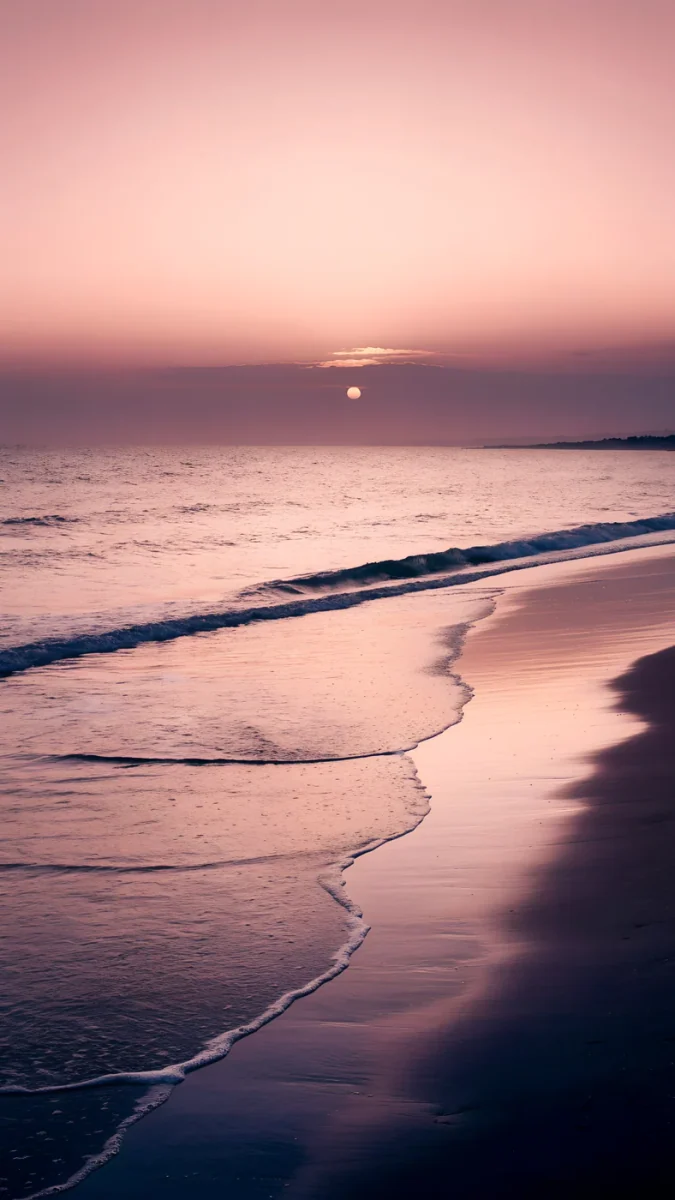 Peach Reflection4K · Phone
 Plum Afterglow4K · Phone
- Apricot Dusk puts apricot and peach in the lower half and dusty denim blue on top, a natural home for a white clock.
- Rose Hour runs from dusty rose to a pale blush centre, the same warmth one step pinker.
- Butter Glow is the lightest, pale butter yellow melting into apricot pink, and gives the set a bright morning frame.
- Peach Reflection adds one real scene, an empty beach with a low amber sun, so the rotation does not feel like five swatches.
- Plum Afterglow is the evening end of the set, plum and mauve, darker around the clock.
A Daily shuffle of these five feels like the sky changing through the week. For a cooler set, try the indigo woodblock scenes in our ukiyo-e wallpapers.
Change the wallpaper at set times with Focus or Shortcuts
Photo Shuffle cannot follow a clock. If you want one wallpaper for work hours and another for the evening, link a Lock Screen to a Focus and give the Focus a schedule. Our guide to a different wallpaper for each Focus has the steps.
The Shortcuts app is the other route:
- Make the Lock Screens you want to switch between first.
- Open Shortcuts, tap Automation, then + or New Automation.
- Choose Time of Day, set the time and repeat, and select Run Immediately.
- Add the wallpaper action: search the action list for wallpaper. Depending on your iOS version it is called Set Wallpaper or Switch Between Wallpapers.
- Pick the Lock Screen to switch to and tap Done. Add a second automation for the way back.
Common problems and fixes
- The wallpaper is not changing. Open the More menu in the Lock Screen editor and check Shuffle Frequency. With On Tap, nothing changes until you tap the Lock Screen.
- Some pictures look zoomed in. Photo Shuffle fits every image to the screen. Use files at least as large as the display, such as 2160 × 3840, and avoid screenshots. Our iPhone wallpaper zoom fix explains the rest.
- The clock is hard to read on some pictures. One clock colour has to suit every image. Remove the busy ones from the set or choose pictures with a calm upper half.
- The Home Screen is blurred or shows a different picture. That comes from the Home Screen choice when you added it. Open Settings, Wallpaper, tap Customize under the Home Screen preview, and pick the pair or turn off Blur.
- Featured Photos keeps showing people. Featured Photos picks from your library by category. For a wallpaper-only rotation, create the shuffle again with Select Photos Manually.
Get these wallpapers in Velpaper
Every wallpaper in this guide is a 4K original designed by Carlos Vivero, 2160 × 3840 pixels, larger than any iPhone screen, so Photo Shuffle never has to stretch it. They are free in the Velpaper app for iPhone, iPad, Mac and Android and on velpaper.com, with no account and no watermark, and each one keeps calm space where the clock sits.
- Open Apricot Dusk in the Velpaper app or on velpaper.com and tap Download.
- Repeat for Rose Hour, Butter Glow, Peach Reflection and Plum Afterglow.
- In Photos, put the five in one album so they are easy to pick.
- Create the Photo Shuffle as above and set it to Daily or On Lock.
Original wallpapers in 4K and 5K for iPhone, Android and desktop.
Questions
How do I make my iPhone wallpaper change automatically?
Use Photo Shuffle, which is built into iOS. Open Settings, tap Wallpaper, then Add New Wallpaper, and choose Photo Shuffle at the top. Select the pictures yourself with Select Photos Manually, or let iOS use featured photos from your library. Then open the More menu and set Shuffle Frequency to On Tap, On Lock, Hourly or Daily, and tap Add. From then on, the Lock Screen, and the Home Screen if you set a wallpaper pair, shows a new picture at that interval without any app or extra steps.
Can I use my own wallpapers in Photo Shuffle?
Yes. Photo Shuffle works with any image saved in the Photos app, including downloaded wallpapers, not only camera photos. When you create the shuffle, choose Select Photos Manually and tap the wallpapers you want. It helps to collect them in one album first so you can find them quickly. Use full-size files rather than screenshots: a 2160 × 3840 wallpaper stays sharp on every iPhone, while a screenshot of a preview is already compressed. You can add or remove pictures later from the Lock Screen editor with the photo grid button.
Can the iPhone change the wallpaper at a specific time?
Not with Photo Shuffle, which only offers On Tap, On Lock, Hourly and Daily. For exact times there are two options. First, link a Lock Screen to a Focus and give the Focus a time schedule in Settings, Focus; the wallpaper changes when the Focus starts and ends. Second, use a Shortcuts automation: in the Shortcuts app create a Time of Day automation, set it to run immediately and add the wallpaper action, called Set Wallpaper or Switch Between Wallpapers depending on your iOS version. Both switch between Lock Screens you created beforehand.
Why is my Photo Shuffle wallpaper not changing?
Check the Shuffle Frequency first. Touch and hold the Lock Screen, tap Customize, choose the Lock Screen and open the More menu; if it is set to On Tap, the picture only changes when you tap the Lock Screen. Hourly and Daily take that long before the next picture appears. Next, make sure the shuffle has more than one picture in it. If you are using a Focus, a Lock Screen linked to that Focus can replace the shuffle while the Focus is on. Restarting the iPhone helps when the setting is right but nothing happens.
Does Photo Shuffle drain the battery?
No meaningful amount. Photo Shuffle simply loads a different still image at the interval you chose, which is a small task compared with the screen itself. On Lock changes the picture most often, but it only happens at the moment you lock the phone. What affects battery more is brightness and how long the screen stays on. On iPhones with an OLED display, darker wallpapers use a little less power while they are visible, so a shuffle set of mostly dark pictures is slightly more frugal than a bright one.
Carlos Vivero
Designer of Velpaper wallpapers
Carlos Vivero designs the wallpapers in Velpaper: quiet architecture, liquid glass, Japanese ink and calm landscapes. Every piece is made as a 4K original for iPhone, Android and desktop.
Recent work








