Teams Background: How to Use a 4K Wallpaper on Calls
Teams background step by step: add a custom background in Microsoft Teams, Zoom and Google Meet, the 1920 × 1080 size to use, and why calm scenes work.
In short: Any 16:9 image works as a Teams background, and 1920 × 1080 pixels is the size video calls use, so a 4K desktop wallpaper scaled to half is an ideal source. In Teams, open Effects and avatars before a meeting, then More video effects and Add new; Zoom and Google Meet have the same option under their video settings.
By the Velpaper team · Wallpapers by Carlos Vivero, Velpaper designer · · Updated · 7 min read
Free 4K originals for iPhone and Android, no watermark
On this page
A Teams background is simply a picture that replaces the room behind you. Any 16:9 image works, and 1920 × 1080 pixels is the size video calls actually use. That makes a 4K desktop wallpaper, 3840 × 2160, a perfect source: scaled to exactly half, it lands on 1920 × 1080 with nothing cut off. In Teams you add it under Effects and avatars, then More video effects and Add new.
This guide covers the steps in Microsoft Teams, Zoom and Google Meet, why your background looks reversed to you, and which kind of image holds up on a call.
Teams background size: 16:9 and 1920 × 1080
Webcams and meeting apps work in 16:9, the same shape as a laptop or TV screen. Microsoft does not publish a fixed pixel size for backgrounds you upload in Teams; its help page only asks for a JPG, PNG or BMP file. Zoom is more specific. It tells you to crop the image to your camera's aspect ratio and names 1280 × 720 or 1920 × 1080 for a 16:9 camera. Google Meet lists no size and warns that your video may be cropped, so the edges of a background are not always visible.
In practice 1920 × 1080 is the safe choice everywhere. It matches the Full HD frame most calls are built around, it still looks sharp when someone pins your video on a large monitor, and the file stays small enough to upload in a second.
Velpaper desktop wallpapers are made at 3840 × 2160 (4K) or 5120 × 2880 (5K). Both are 16:9, so shrinking them changes nothing but the pixel count. You can upload the original as it is, but a 1920 × 1080 copy is lighter and leaves the app no reason to crop. The PC wallpaper size guide explains the 16:9 family in more detail.
Shrinking a 4K wallpaper to 1920 × 1080
- Mac: open the file in Preview, choose Tools, then Adjust Size, and set the width to 1920 pixels with proportional scaling on.
- Windows 11: open the file in Photos and use Resize image from the three-dot menu, or open it in Paint, choose Resize and enter 1920 by 1080 pixels.
Save the copy as a JPG and keep the 4K original for the desktop itself. If you want the same picture behind your icons, here is how to set a wallpaper on Windows 11.
How to add a custom background in Microsoft Teams
These steps are for the Teams desktop app on Windows and Mac. The wording can shift slightly between versions, but the order stays the same.
- Open the meeting and select Join. On the pre-join screen, with your camera on, select Effects and avatars.
- Go to More video effects, then Add new, and pick your image.
- Select the new image in the list. Teams keeps it for later meetings and calls until you change it.
During a meeting, open More actions (the three dots) in the meeting controls, choose Video effects and settings, then Video effects. Add new works the same way. Select Preview to check the result privately, then Apply.
On the Teams mobile app, tap Background effects on the join screen, or More and then Background effects during a call. If there is no upload option at all, your organisation may have switched custom images off, or your device may not support background effects. Teams on Linux does not offer them.
Zoom and Google Meet
Zoom
In the Zoom desktop app, click your profile picture, then Settings, and open the Video & effects tab. Under Virtual backgrounds, click the add icon and choose an image. During a meeting, click the small arrow next to Video, choose Video & effect settings, and you reach the same panel.
Zoom accepts 24-bit PNG and JPG files up to 15 MB. On some computers it asks you to download an extra package for backgrounds without a green screen. Accept it once and it stays installed.
Google Meet
Before you join, click Backgrounds and effects at the bottom right of your video preview, then Choose backgrounds and effects. On the Backgrounds tab, under Blur and personal backgrounds, use the option to add your own personal background. In a running call, click Video settings next to the microphone and open the same Backgrounds tab.
Meet runs in the browser, so it needs a recent Chrome, Edge, Firefox or Safari with graphics acceleration turned on. On work and school accounts, the admin decides whether personal backgrounds are allowed.
Why your background looks reversed
Teams, Zoom and Meet show you a mirrored self-view, like a bathroom mirror, because that feels natural when you move. The background is mirrored along with you, so text reads backwards and a tree on the left appears on the right.
Only you see that. Everyone else in the call sees the picture the right way round. Teams and Zoom have a Mirror my video switch in their video settings if you want your preview to match what others see. Do not flip the file itself, or it will be reversed for everyone else.
It is one more reason to choose a picture without lettering. A wall, a sky or a painted landscape looks equally good in both directions.
Which wallpapers work as a call background
Background replacement works by cutting you out of the camera image in real time. The edge around hair and shoulders is never perfect, and a busy pattern behind it makes that seam shimmer. Video compression adds its own trouble: fine stripes, grain and small text break into blocks on a weak connection. Calm images avoid both problems.
A good call background has three traits. The middle, where your head and shoulders sit, is simple, because you cover it anyway. Whatever is interesting sits at the sides or near the top, where it stays visible. The tones are soft and light to mid, so your face remains the brightest, sharpest thing in the frame.
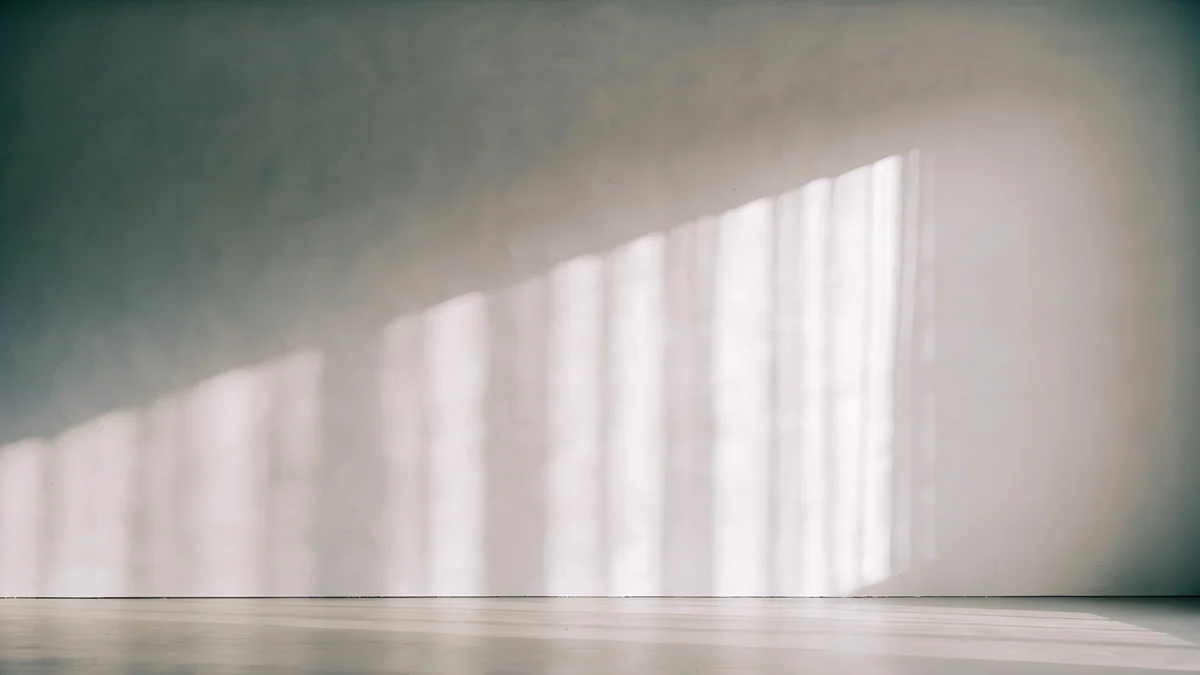 Curtain Veil4K · Desktop
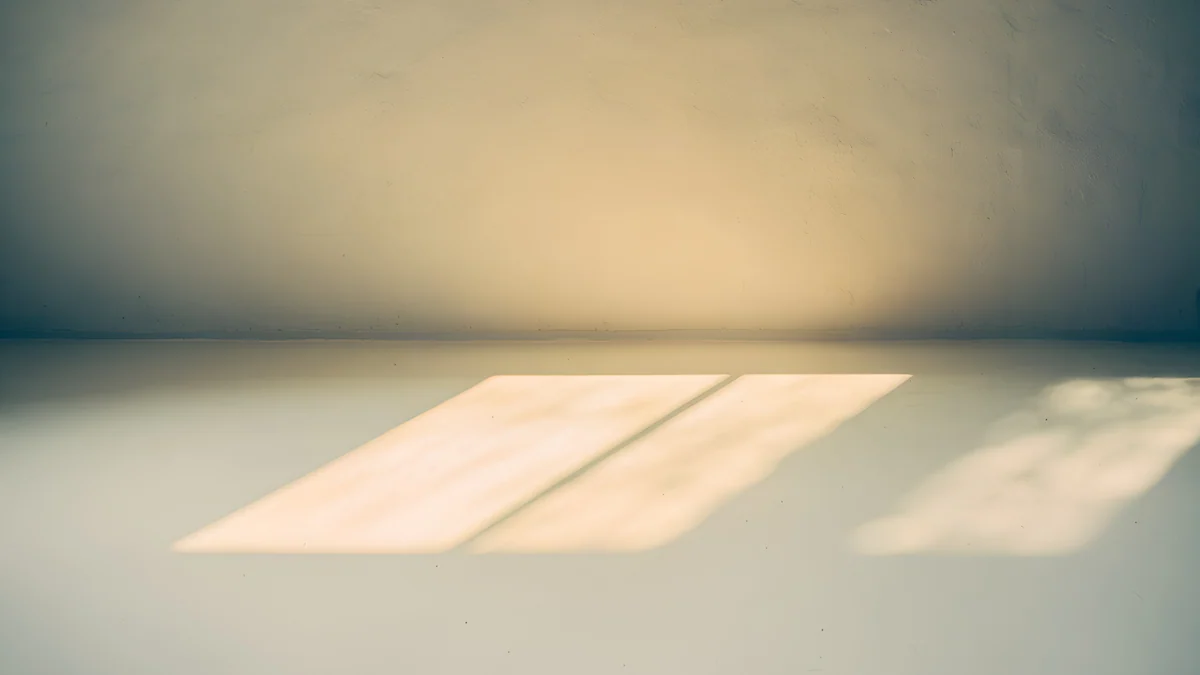 Window Square4K · Desktop
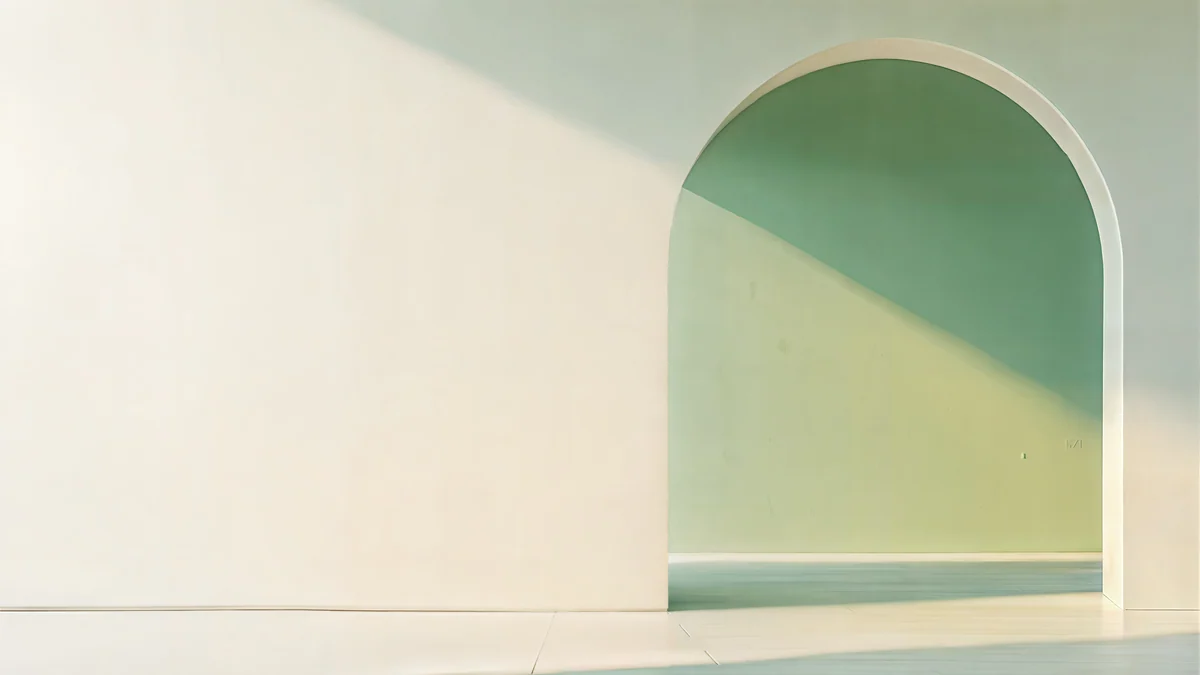 Sage Sun Gallery5K · Desktop
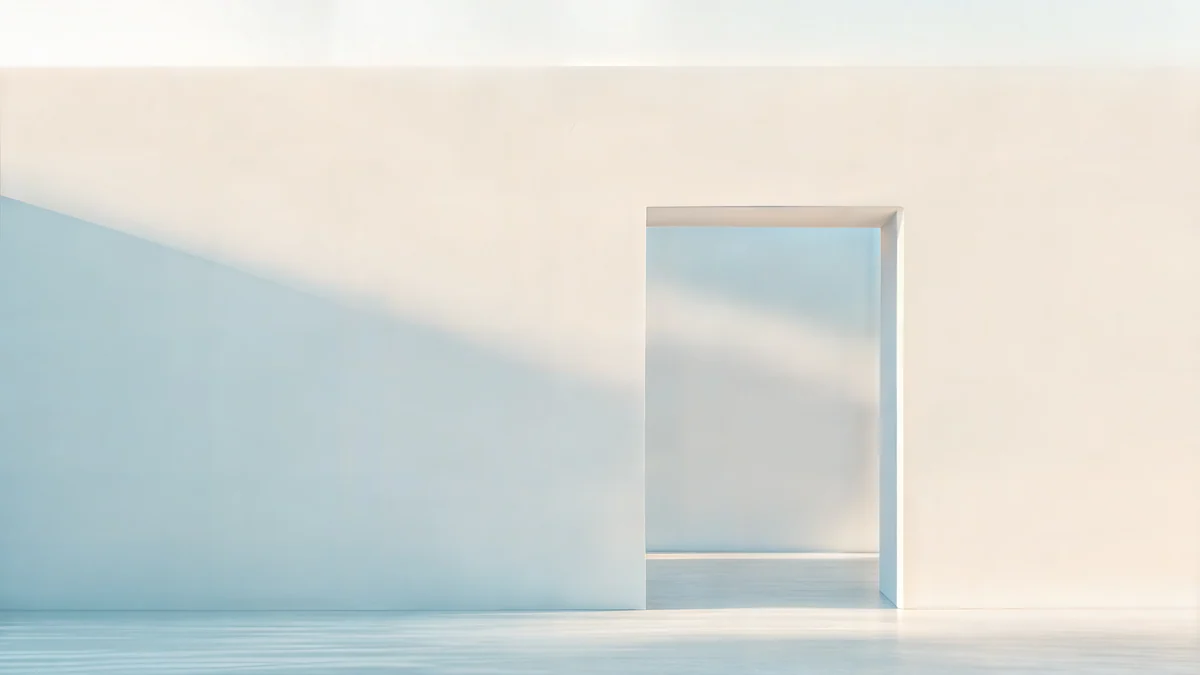 Ivory Daylight Gate5K · Desktop
Curtain Veil is the most convincing room: a warm grey wall with soft stripes of light from a curtain, close to what a real home office looks like on a good afternoon. Window Square is an empty room with a patch of sunlight on the floor. Sage Sun Gallery puts a white wall behind you and an arched opening full of sage-green light to one side, and Ivory Daylight Gate opens a doorway onto pale sky. Those last two are 5K originals.
If you want a scene with more depth, Enfilade, a row of white arches running away from the camera, frames your head almost like a halo. Ink Mountain Mist is a Japanese ink landscape of pale ridges and a small red sun, light enough that dark clothing stands out against it. There are more scenes in that quiet style among our mountain wallpapers. For a friendly call, Window Cat keeps a black cat on the windowsill in the bottom corner, where it stays visible next to you.
Before an important call, run a quick test. Wear what you will wear, open the preview and look at your outline. If your sweater is the same colour as the wall in the picture, the app struggles to tell them apart, so pick a background that contrasts with your clothes. The calming wallpapers collection has more soft scenes to try.
Where to get the images
Every Velpaper desktop wallpaper is free to download from velpaper.com or the Mac app, without a watermark, at 3840 × 2160 or 5120 × 2880. No account is needed. Download the original, make a 1920 × 1080 copy for calls and keep the full file for your desktop. That way the screen in front of you and the wall behind you on camera can match.
Original wallpapers in 4K and 5K for iPhone, Android and desktop.
Questions
What size should a Teams background be?
Use a 16:9 image, and 1920 × 1080 pixels is the safest size. Microsoft does not set a fixed size for backgrounds you upload in Teams and only asks for a JPG, PNG or BMP file, but meeting video is built around a 16:9 frame, and Zoom names 1920 × 1080 as a recommended size for 16:9 cameras. A 4K wallpaper of 3840 × 2160 is the same shape at twice the size, so you can upload it directly or scale it to exactly half for a lighter file. Avoid square or tall images, because the app has to crop them and may cut off the part you liked.
Why is my Teams background backwards?
Because Teams shows you a mirrored preview of yourself, and the background is mirrored with it. Text appears reversed and objects swap sides, but only on your screen. The other people in the meeting see the background the right way round. If the mirrored preview bothers you, turn off Mirror my video in the Teams video settings, and your preview will show what others see. Do not flip the image file to compensate, because then it really will be reversed for everyone else. Backgrounds without text, such as walls, skies and landscapes, avoid the issue entirely.
Can I use a 4K wallpaper as a Zoom background?
Yes. Zoom accepts 24-bit PNG and JPG images up to 15 MB and recommends matching your camera aspect ratio, which for most webcams is 16:9. A 3840 × 2160 wallpaper is 16:9, so it fits without cropping. Zoom will scale it down to the size of your video anyway, which is why a 1920 × 1080 copy looks the same on the call and uploads faster. If your original is a 5K image of 5120 × 2880, it is also 16:9 and can be scaled to 1920 × 1080 the same way, for example with Adjust Size in Preview on a Mac.
Why can't I add my own background in Teams?
There are a few common reasons. Your organisation may have disabled custom background images in its Teams policies, in which case only the built-in backgrounds or blur appear. Teams on Linux does not support background effects, and some virtual desktop setups do not either. Older or low-powered computers may also lack the option. Check that you are in the desktop app and have the camera on, since the effects panel only appears with video enabled. If Add new is still missing on a work account, ask your IT administrator whether custom backgrounds are allowed.
Do virtual backgrounds slow down my computer?
They add some work. The app has to separate you from the room in every frame, which uses the processor or graphics chip and drains a laptop battery faster. Google notes that background effects in Meet can slow a device and use more power. The image itself makes little difference, since the app scales it down to the call resolution. If your video stutters, close other heavy apps, plug the laptop in, or switch to a simple blur, which is usually lighter than a full replacement image.
Carlos Vivero
Designer of Velpaper wallpapers
Carlos Vivero designs the wallpapers in Velpaper: quiet architecture, liquid glass, Japanese ink and calm landscapes. Every piece is made as a 4K original for iPhone, Android and desktop.
Recent work








