How to Change Wallpaper on Windows 11 (2026 Steps)
How to change wallpaper on Windows 11 step by step: desktop background, lock screen, slideshow and a different picture on each monitor, and the right file size.
In short: To change the wallpaper on Windows 11, open Settings, go to Personalization, then Background, set Personalize your background to Picture, click Browse photos and pick your image, then choose Fill as the fit. The quicker route is to right-click any image in File Explorer and choose Set as desktop background.
By the Velpaper team · Wallpapers by Carlos Vivero, Velpaper designer · · Updated · 6 min read
Free 4K originals for iPhone and Android, no watermark
On this page
- How to change wallpaper on Windows 11 in Settings
- The fastest ways: File Explorer and Photos
- Fill, Fit, Stretch, Tile, Center or Span
- Change the lock screen wallpaper on Windows 11
- Set up a wallpaper slideshow
- A different wallpaper on each monitor
- What size of wallpaper to use on Windows 11
- When the wallpaper option is greyed out
To change the wallpaper on Windows 11, press Windows + I to open Settings, go to Personalization, then Background, and pick an image under Choose a photo. That takes about four clicks, and the same menu also controls the fit, the slideshow and multiple monitors.
The steps below use the menu names of Windows 11 version 24H2 and 25H2, which match on Home and Pro, on a laptop and on a desktop PC. If a setting is missing on your machine, the last section explains why.
How to change wallpaper on Windows 11 in Settings
- Right-click an empty part of the desktop and choose Personalize, or open Settings with Windows + I and click Personalization.
- Click Background.
- Next to Personalize your background, choose Picture. The other options are Solid color, Slideshow and Windows spotlight.
- Click one of the Recent images, or click Browse photos and open your own file.
- Under Choose a fit for your desktop image, select Fill.
The desktop changes as soon as you pick the image. There is no Save button. Windows keeps a copy of the file, so the wallpaper stays even if you later delete the original from Downloads.
The fastest ways: File Explorer and Photos
If the image is already on your PC, you do not need Settings at all. In File Explorer, right-click the file and choose Set as desktop background. Select several images first and Windows turns them into a rotating set.
In the Photos app, open the image, click the three dots in the toolbar, then Set as. From there you can apply it to the background or to the lock screen.
On a Mac the route is different, and our guide on changing the desktop wallpaper on a Mac covers it. If you also use a school laptop, there is a separate walkthrough for changing the wallpaper on a Chromebook.
Fill, Fit, Stretch, Tile, Center or Span
The fit decides what Windows does when the image and the screen have different shapes.
| Fit | What it does | Use it when |
|---|---|---|
| Fill | Scales the image to cover the screen and trims the overflow | Almost always |
| Fit | Shows the whole image, with bars where it does not reach | Nothing may be cropped |
| Stretch | Pulls the image to the screen shape | Never for photos or art, it distorts |
| Tile | Repeats the image at its real size | Small patterns |
| Center | Places the image at its real size in the middle | The image matches your resolution exactly |
| Span | Spreads one image across all monitors | Panoramas on two or more screens |
Fill is the right default for a 16:9 wallpaper on a 16:9 screen. On a 16:10 laptop, such as one with a 2560 × 1600 panel, Fill trims a thin strip from the left and right edges, which a well composed wallpaper hides easily.
Change the lock screen wallpaper on Windows 11
- Open Settings, then Personalization, then Lock screen.
- Next to Personalize your lock screen, choose Picture (or Slideshow).
- Click Browse photos and pick the image.
- Clear the box for fun facts and tips if you want only your picture, without text from Microsoft.
Further down the same page, the switch Show the lock screen background picture on the sign-in screen decides whether the picture also appears behind the password field. Turn it off if you prefer a plain sign-in screen.
Set up a wallpaper slideshow
Put the images you want into one folder first. Then go to Personalization, Background, choose Slideshow and click Browse to select that folder.
Under Change picture every you can choose intervals from 1 minute to 1 day. Turn on Shuffle the picture order so the folder does not always play in alphabetical order. On a laptop, the option to keep the slideshow running on battery is off by default, which saves a little power.
A slideshow works best when the pictures share a mood. Five calm Japanese scenes or five dark abstracts feel like one set; a random mix of photos feels like a screensaver.
 Rain Bridge4K · Desktop
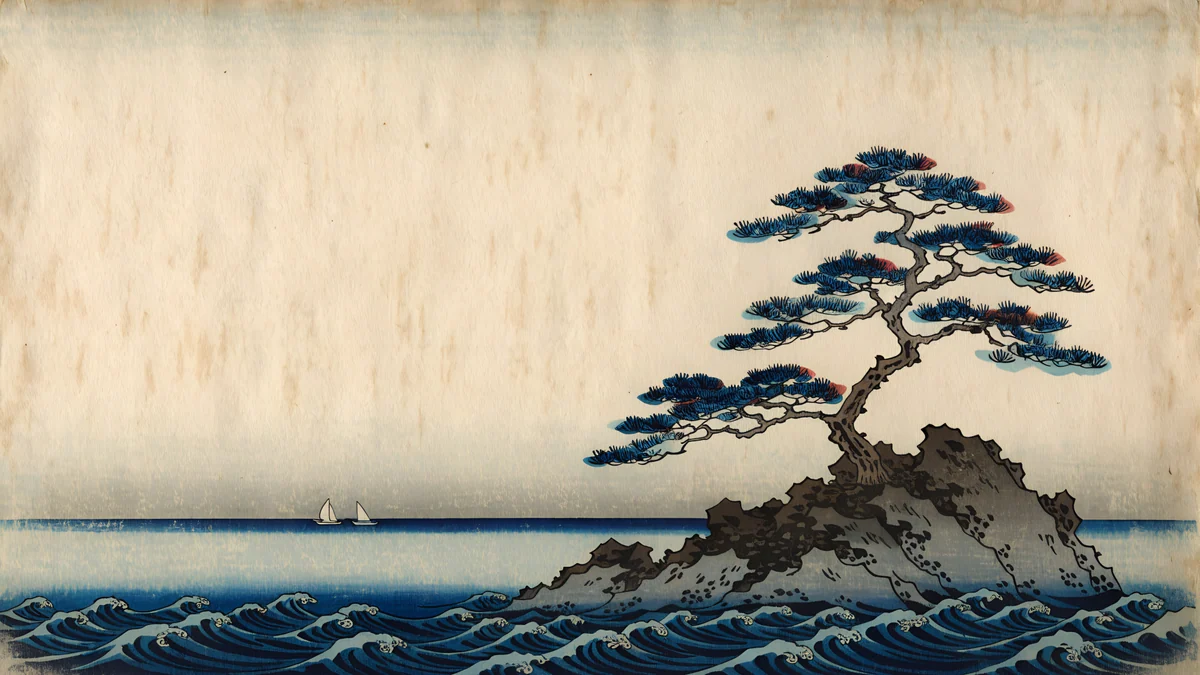 Pine Coast4K · Desktop
 Snow Village4K · Desktop
 Cranes at Dawn4K · Desktop
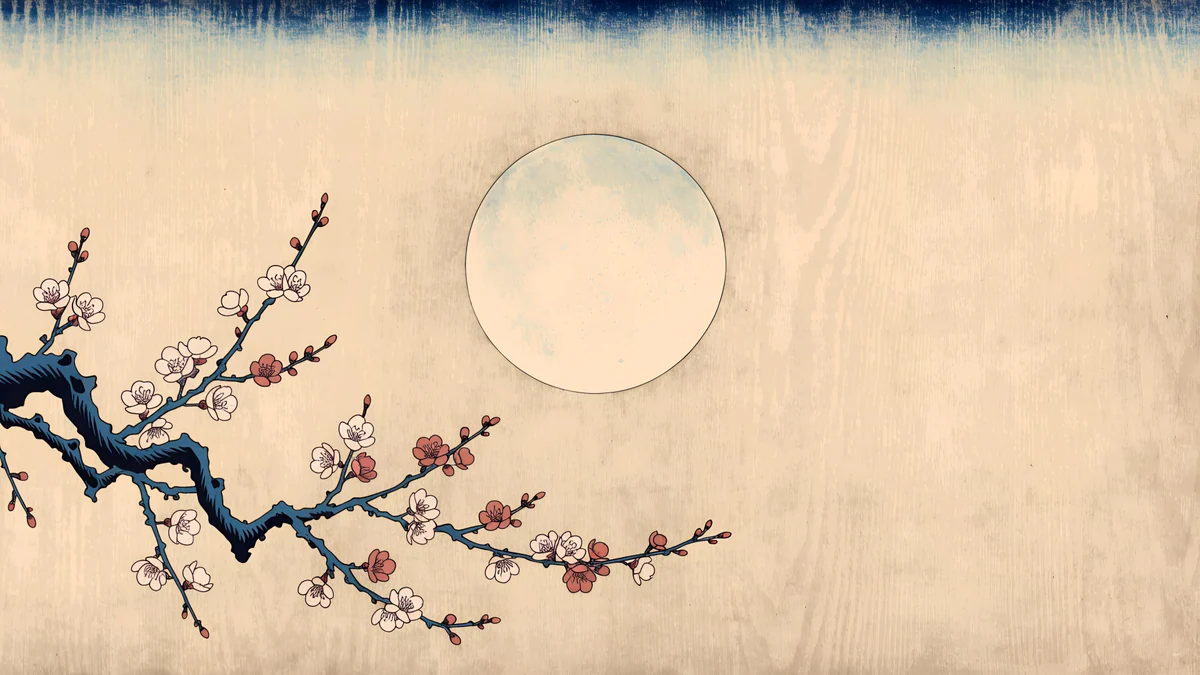 Plum Moon4K · Desktop
These five woodblock style desktop wallpapers share one indigo and parchment palette, so they make a natural slideshow folder.
A different wallpaper on each monitor
Windows 11 can show a different image on each screen. Set Personalize your background to Picture, then right-click a thumbnail under Recent images and choose Set for monitor 1, Set for monitor 2 or Set for all monitors.
The images you want must be in Recent images first, so pick each one once with Browse photos. To stretch one wide picture across both screens instead, choose the Span fit.
What size of wallpaper to use on Windows 11
Check your real resolution in Settings, System, Display, under Display resolution. Scaling such as 150 percent changes the size of text, not the number of pixels the wallpaper has to fill.
A wallpaper should be at least as large as that number. A 3840 × 2160 (4K) image covers 1080p, 1440p and 4K monitors, because Windows only has to scale it down. For a 5K display, look for a 5120 × 2880 original. Our PC wallpaper size guide lists the common laptop and monitor resolutions, including ultrawide.
Velpaper desktop wallpapers are 3840 × 2160 or 5120 × 2880 JPEG files, free to download from velpaper.com with no account. On Windows you use the website; the apps are for iPhone, Android and Mac. Pick one, save it, then use any of the methods above.
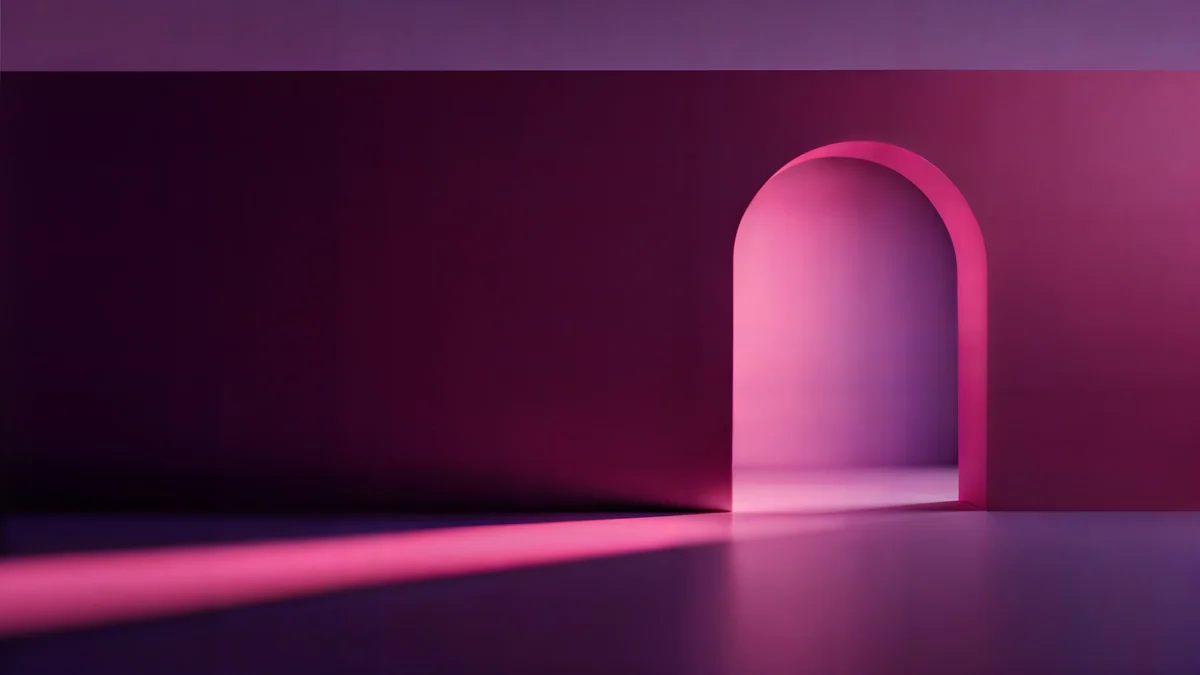 Rose Pulse Arcade5K · Desktop
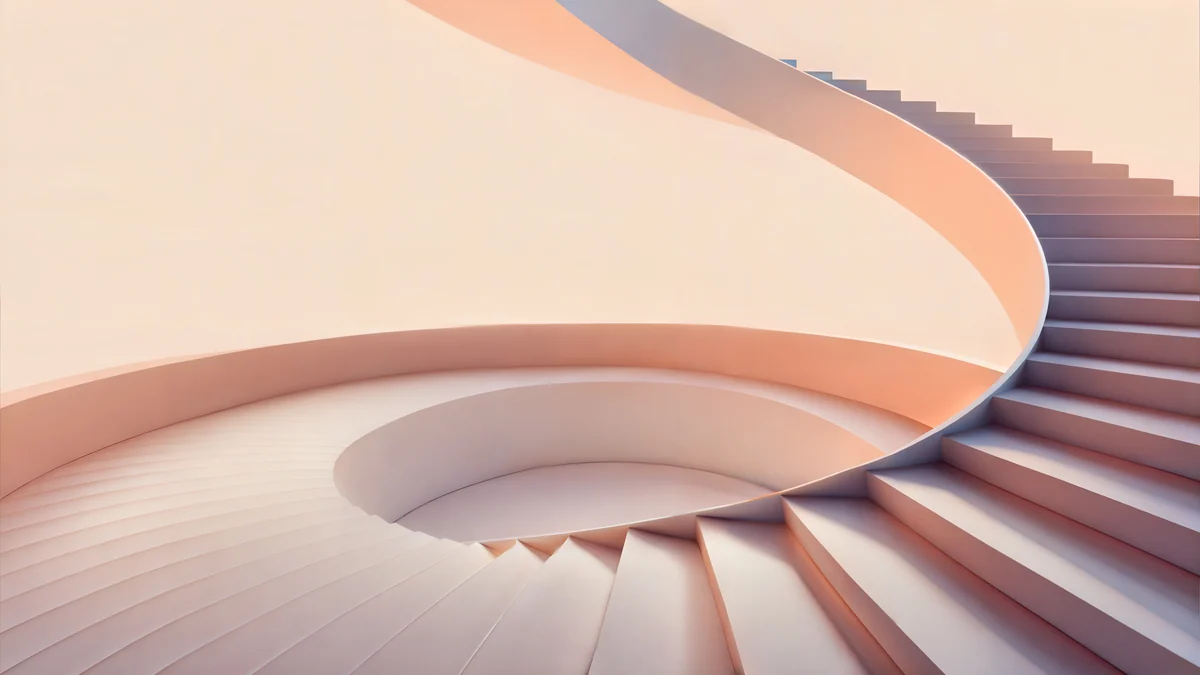 Peach Spiral Atrium5K · Desktop
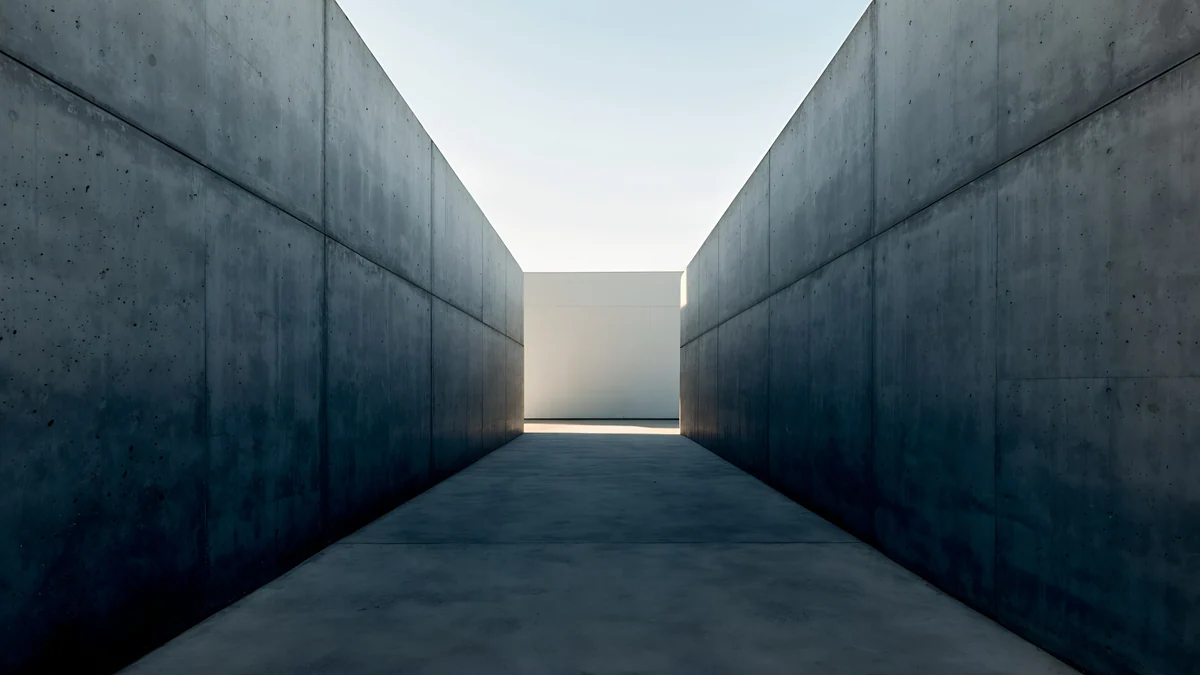 Graphite Passage4K · Desktop
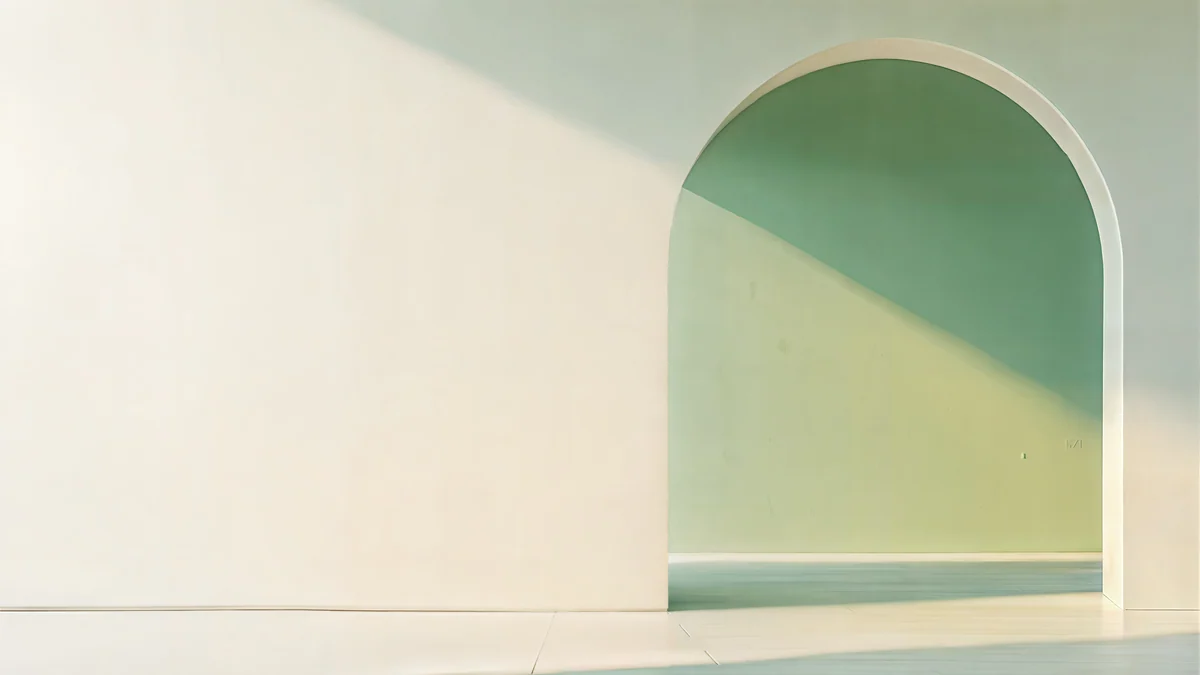 Sage Sun Gallery5K · Desktop
Rose Pulse Arcade and Graphite Passage suit dark mode and a dark taskbar. Peach Spiral Atrium is the light option for a bright desk. For more wide architecture, our Gaudí wallpapers come in desktop versions too.
When the wallpaper option is greyed out
Windows is not activated. An unactivated copy shows the message that you need to activate Windows before you can personalize your PC, and the Background page is locked. Right-clicking an image in File Explorer and choosing Set as desktop background usually still works.
A work or school PC. If the page says some settings are managed by your organization, the wallpaper is set by policy. Only the administrator can change it.
The image looks softer than the file. Windows recompresses JPEG wallpapers to save space, and on smooth gradients you may see faint banding. Advanced users can raise the quality with a DWORD value named JPEGImportQuality set to 100 under HKEY_CURRENT_USER, Control Panel, Desktop in the Registry Editor, then set the wallpaper again. If you are not comfortable editing the registry, leave it; on most photos and paintings the difference is hard to see.
You want a moving wallpaper. Windows 11 has no built-in video wallpaper. Windows spotlight changes the picture daily, and third-party apps such as Lively Wallpaper or Wallpaper Engine add animation.
Original wallpapers in 4K and 5K for iPhone, Android and desktop.
Questions
How do I change the wallpaper on Windows 11 without Settings?
Open File Explorer, find the image, right-click it and choose Set as desktop background. Windows applies it straight away with the Fill fit. You can also open the image in the Photos app, click the three dots in the toolbar, choose Set as and apply it to the background or the lock screen. Both routes work on Windows 11 Home and Pro, and the File Explorer method usually works even when the Personalization page is locked because Windows is not activated.
How do I change the lock screen wallpaper on Windows 11?
Open Settings, go to Personalization and then Lock screen. Next to Personalize your lock screen, choose Picture, click Browse photos and select your image. If you only want your own picture, clear the box for fun facts and tips. The switch Show the lock screen background picture on the sign-in screen controls whether the same image appears behind the password field. The lock screen and the desktop are set separately, so they can show different pictures.
Can I have a different wallpaper on each monitor in Windows 11?
Yes. Go to Settings, Personalization, Background and set Personalize your background to Picture. Add each image once with Browse photos so it appears under Recent images. Then right-click a thumbnail and choose Set for monitor 1, Set for monitor 2 or Set for all monitors. If you want one wide image across both screens instead, choose the Span fit. A slideshow, by contrast, applies the same rotating folder to every monitor.
Why is my Windows 11 wallpaper blurry?
Usually the image is smaller than the screen. A 1920 × 1080 picture on a 4K monitor has to be enlarged two times, and enlarged pictures look soft. Check your resolution in Settings, System, Display and use a wallpaper at least that large, such as a 3840 × 2160 original for a 4K screen. The Stretch fit also distorts and softens images, so use Fill. Windows also recompresses JPEG wallpapers, which can add faint banding to smooth gradients.
Where can I get free 4K wallpapers for Windows 11?
Velpaper publishes original desktop wallpapers at 3840 × 2160 and 5120 × 2880 pixels, and the desktop versions download free from velpaper.com without an account or a watermark. There is no Windows app, so use the website in any browser, save the file and set it with Settings or a right-click in File Explorer. Windows itself includes a few wallpapers and Windows spotlight, which shows a new photo from Microsoft every day.
Carlos Vivero
Designer of Velpaper wallpapers
Carlos Vivero designs the wallpapers in Velpaper: quiet architecture, liquid glass, Japanese ink and calm landscapes. Every piece is made as a 4K original for iPhone, Android and desktop.
Recent work








