How to Change Google Chrome Background: Own Image (2026)
How to change the Google Chrome background step by step: the Customize Chrome panel, your own image, themes vs colours, daily refresh and the image size to use.
In short: Open a new tab, click Customize Chrome at the bottom right, then go to Appearance, Change theme and choose Upload an image. The picture becomes the background of the New Tab page for that Chrome profile only, so repeat the steps in every profile you use.
By the Velpaper team · Wallpapers by Carlos Vivero, Velpaper designer · · Updated · 5 min read
Free 4K originals for iPhone and Android, no watermark
On this page
To change the Google Chrome background, open a new tab and click the Customize Chrome button in the bottom right corner. A side panel opens. Under Appearance, choose Change theme, then Upload an image and pick a file from your computer. The new background appears straight away behind the Google search box and your shortcuts.
The steps are the same on Windows, Mac, Linux and ChromeOS. Below are the details that the short version skips: what a theme changes compared with an image, why the background only shows in one profile, and what size the picture should be so it stays sharp on a large monitor.
How to change the Google Chrome background image
- Open a new tab with Ctrl + T on Windows or Cmd + T on a Mac.
- Click Customize Chrome at the bottom right of the page. On narrow windows it shrinks to a pencil icon.
- In the side panel, find Appearance and click Change theme.
- Click Upload an image. Older Chrome versions called this option Upload from device.
- Choose a JPG or PNG file and confirm. The New Tab page updates at once.
- Close the side panel. Chrome keeps the image until you change it again.
After you upload a picture, Chrome suggests a browser colour picked from the image and tints the tab strip and toolbar to match. If the suggestion looks wrong, choose another colour under Appearance in the same panel.
The panel also opens from the side panel button in the toolbar. That is handy when a website is already open and you do not want to leave it.
Theme, colour or image: what each one changes
The Change theme screen mixes three different things, and they are easy to confuse.
- Your own image changes only the New Tab page. Websites look exactly as before.
- Google collections are sets of photos and art chosen by Google. Click a collection and switch on Refresh daily to get a new picture every day. This option does not exist for your own upload, because Chrome only stores one image.
- Colours under Appearance recolour the window frame and tabs. Choose a colour with no image and the New Tab page becomes a plain tinted page.
Themes from the Chrome Web Store are a fourth option. They change the frame colours and usually add their own New Tab image. Installing one replaces the picture you uploaded, because a profile can have only one theme at a time.
One background per Chrome profile
A Chrome background belongs to the profile, not to the computer. If you have a work profile and a personal profile, each keeps its own image and colour. Many people use that on purpose: a calm cream picture for work and something brighter for evenings, so it is obvious at a glance which window is which.
It also means a new profile starts with the default page. Switch to it from the profile icon at the top right and repeat the steps. Guest windows and Incognito windows never show your custom background.
Light and dark mode are set in the same panel under Appearance, with Light, Dark or Device. Your uploaded image stays the same in both modes, so pick one that works next to dark tabs as well as light ones.
What size image to use for the Chrome background
Chrome stretches the image to fill the whole window and trims whatever does not fit. A small picture gets enlarged and looks soft on a big monitor. Start from a file at least as large as your screen:
| Screen | Good image size |
|---|---|
| Full HD laptop or monitor | 1920 × 1080 or larger |
| QHD and 4K monitors | 3840 × 2160 |
| 5K displays, 27 inch iMac | 5120 × 2880 |
| MacBook (16:10) | 3840 × 2160, a thin strip trimmed at the sides |
The shape of the window matters as much as the pixels. A wide wallpaper fills a maximised window perfectly, but if you drag the window narrower Chrome crops more from the sides. Images with the main shape near the middle survive any window size. For exact resolutions of common screens, see our PC wallpaper size guide.
The centre of the New Tab page is busy: the Google logo, the search box and a row of shortcut tiles. A calm, light or softly lit image keeps the shortcut labels readable. These desktop wallpapers work well behind them:
 Noon Blinds4K · Desktop
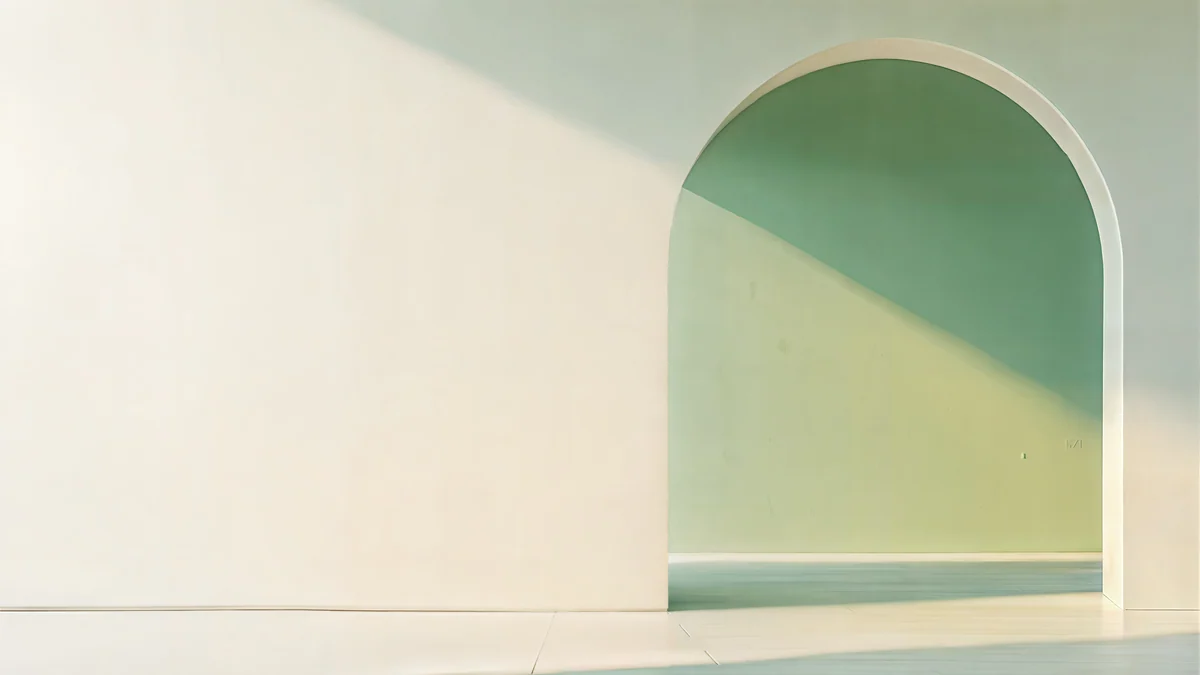 Sage Sun Gallery5K · Desktop
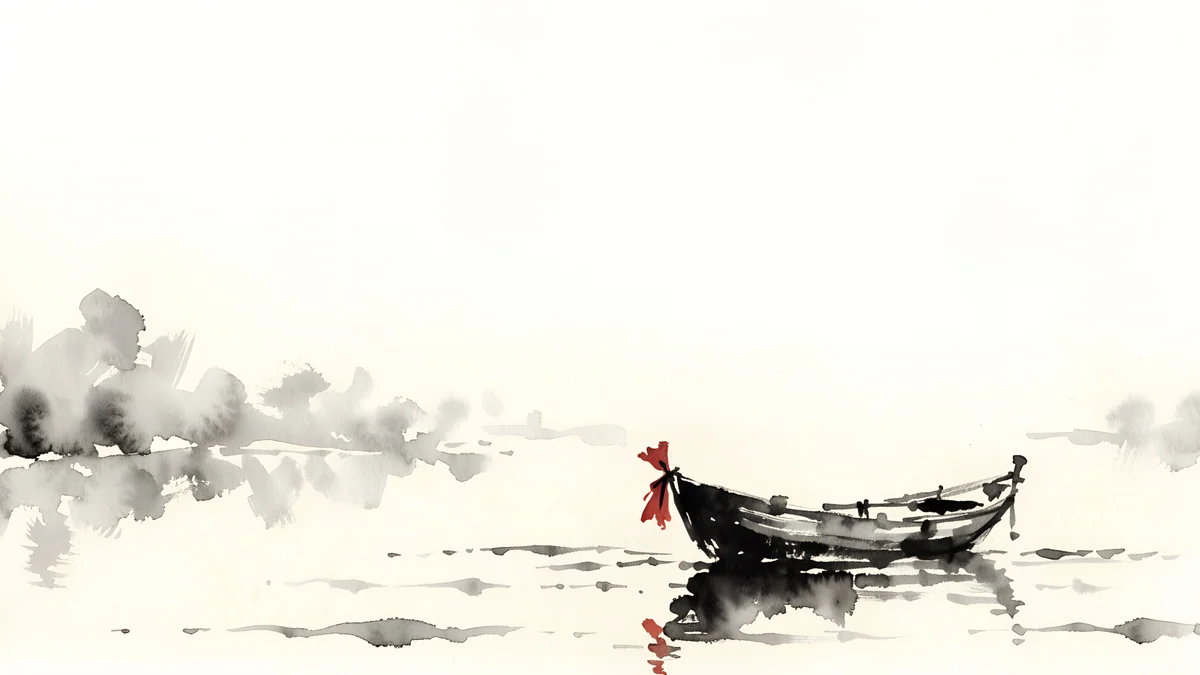 Ink Quiet Lake4K · Desktop
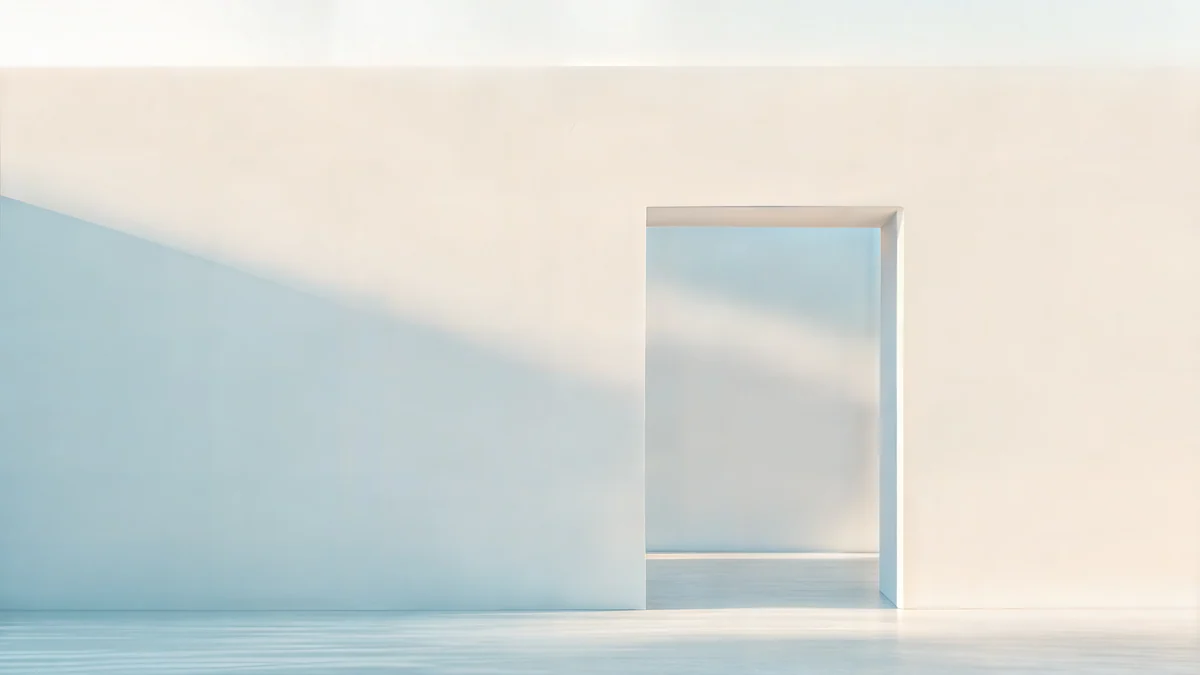 Ivory Daylight Gate5K · Desktop
Noon Blinds lays diagonal stripes of sun across a cream wall, quiet enough that the search box sits on it like paper. Sage Sun Gallery is pale sage with a warm patch of light, and Ink Quiet Lake is an ink wash lake with most of the frame left empty. Ivory Daylight Gate is a 5K original, the one to choose for a 5K screen. Every Velpaper desktop wallpaper downloads free from its page at 3840 × 2160 or 5120 × 2880, and our beige aesthetic wallpapers add more warm, low contrast options.
When the Customize Chrome button is missing
If there is no button at the bottom right, one of these is usually the reason:
- Another search engine is the default. The customisable page belongs to Google search. Google's help page also says you need to be signed in to your Google Account. Check Settings, Search engine.
- An extension controls the New Tab page. Dashboard and to-do extensions replace the page completely. Turn the extension off in chrome://extensions and the button returns.
- The browser is managed. On a work or school computer an administrator can lock themes and the New Tab page. You will see "Managed by your organization" in the Chrome menu.
Reset the background, and Chrome on Android
To go back to the plain page, open the panel again and click Reset to Default Chrome at the bottom. That removes the image and the custom colour together.
On Android phones, recent versions of Chrome have a similar option: open a new tab, tap the three dot menu, choose Customize new tab page, then Appearance, where you can upload an image. The phone background is separate from the one on your computer.
Chrome only changes the browser. To change the wallpaper of the computer itself, see how to change the wallpaper on Windows 11 or change the wallpaper on a Chromebook. Using the same image in both places makes the desktop and the browser feel like one setup.
Original wallpapers in 4K and 5K for iPhone, Android and desktop.
Questions
How do I change my Google Chrome background to my own picture?
Open a new tab and click Customize Chrome at the bottom right. In the side panel, go to Appearance, click Change theme, then Upload an image, and choose a JPG or PNG file from your computer. The picture appears behind the Google search box at once. Chrome may also suggest a browser colour from the image; you can keep it or pick another colour under Appearance. The background applies to the current profile only.
Why did my Chrome background disappear?
The most common reasons are a different profile, a new theme or an extension. Each Chrome profile keeps its own background, so switching profiles shows a different page. Installing a theme from the Chrome Web Store replaces an uploaded image. An extension that takes over the New Tab page hides it entirely. Changing the default search engine away from Google also removes the customisable page. Fix the cause and upload the image again if needed.
Can Chrome change the background every day?
Yes, but only with Google collections. Open Customize Chrome, choose Change theme, click a collection such as landscapes or art, and turn on Refresh daily. Chrome then shows a new picture from that collection each day. Your own uploaded image cannot rotate, because Chrome stores one custom picture per profile. To rotate your own wallpapers, change them by hand or use the wallpaper settings of your operating system instead.
What size should a Chrome background image be?
Use an image at least as large as your screen. 1920 × 1080 is enough for a Full HD laptop, 3840 × 2160 suits QHD and 4K monitors, and 5120 × 2880 fits a 5K display or a 27 inch iMac. Chrome fills the window and trims what does not fit, so keep the main subject near the middle. A small image gets enlarged and looks soft, especially around fine lines.
Does the Chrome background change the colour of websites?
No. The uploaded image only appears on the New Tab page. Chrome does tint its own frame, the tab strip and the toolbar, with a colour taken from the image, but web pages keep their own design. If you want darker browser chrome, choose Dark under Appearance in the same panel. Some websites follow that setting and switch to their own dark theme, which has nothing to do with the background image.
Carlos Vivero
Designer of Velpaper wallpapers
Carlos Vivero designs the wallpapers in Velpaper: quiet architecture, liquid glass, Japanese ink and calm landscapes. Every piece is made as a 4K original for iPhone, Android and desktop.
Recent work








