Chromebook Wallpaper Size and How to Change It (2026)
Chromebook wallpaper size for 16:9, 3:2 and 16:10 screens, and how to change it step by step: your own images, Google Photos and Change daily.
In short: There is no single Chromebook wallpaper size: use an image at least as large as your screen, and a 3840 × 2160 file covers every built-in Chromebook panel. To set it, right-click the desktop, choose Set wallpaper & style, then Wallpaper, open My Images, pick the file and leave the layout on Fill.
By the Velpaper team · Wallpapers by Carlos Vivero, Velpaper designer · · Updated · 7 min read
Free 4K originals for iPhone and Android, no watermark
On this page
- Chromebook wallpaper size by screen
- How to change the wallpaper on a Chromebook
- Using your own image from Files or Downloads
- Google Photos, Change daily and Create with AI
- Light, dark and accent colours
- Set a screen saver from the same hub
- Troubleshooting: blocked, blurry or cut off
- Your next step: set a 4K wallpaper now
The right Chromebook wallpaper size is your screen's own resolution or larger: 1366 × 768 or 1920 × 1080 on most models, 2256 × 1504 or 2400 × 1600 on premium 3:2 models, and a 3840 × 2160 file covers every built-in Chromebook panel. To change the wallpaper, right-click the desktop, choose Set wallpaper & style, then Wallpaper, and pick an image from Google's collections, My Images or Google Photos. The menu names below match Google's Chromebook Help page as of October 2026.
Chromebook wallpaper size by screen
Google does not publish a required size. ChromeOS scales your picture to cover the screen, so the only rule is to start with at least as many pixels as the display has. Google's help page lists .png and .jpg as supported formats.
| Screen | Typical resolution | File to download |
|---|---|---|
| Everyday Chromebook, 11 to 15 inch, 16:9 | 1366 × 768 or 1920 × 1080 | 4K |
| Premium 3:2, such as Acer Chromebook Spin 713 or Google Pixelbook | 2256 × 1504 or 2400 × 1600 | 4K |
| Tablet-style 16:10, such as Lenovo Chromebook Duet | 1920 × 1200 | 4K |
| 4K panels, such as Samsung Galaxy Chromebook | 3840 × 2160 | 4K |
| External QHD or 4K monitor | 2560 × 1440 or 3840 × 2160 | 4K or 5K |
| External 5K display | 5120 × 2880 | 5K |
On a 3:2 or 16:10 screen, the Fill layout trims a strip from the left and right of a 16:9 image: roughly 8 percent on each side for 3:2, about 5 percent for 16:10. Keep the subject away from the side edges and nothing important is lost.
For reference, every Velpaper wallpaper is a 4K original: desktop wallpapers are 3840 × 2160, some are 5120 × 2880, and all of them are free. They are JPEG files of 0.1 to 2.4 MB, 0.8 MB on average, which matters on a Chromebook with 32 or 64 GB of storage.
How to change the wallpaper on a Chromebook
- Close or minimise your windows, then tap an empty spot on the desktop with two fingers on the touchpad, or right-click with a mouse. On a Chromebook tablet, press and hold.
- Choose Set wallpaper & style. On older ChromeOS versions the entry is just Set wallpaper.
- Click Wallpaper. Google's collections sit at the top, your own sources, My Images and Google Photos, further down.
- Click a picture. ChromeOS applies it at once and shows a preview at the top of the hub.
The same hub opens from Settings, which is handy when the desktop is buried under windows. Click the clock in the corner, open Settings, choose Personalization in the sidebar, then the wallpaper and style entry.
Using your own image from Files or Downloads
Anything you download in Chrome lands in My files, in the Downloads folder. There are two ways to turn one of those files into a wallpaper:
- In the hub, click My Images. ChromeOS lists the pictures it finds in Downloads and other local folders. Click one.
- In the Files app, right-click the image and choose Set as wallpaper. No hub needed.
After you pick a personal image, two layout buttons appear: Fill and Center. Fill scales the picture until it covers the whole screen and trims whatever spills over the edge. Center places the file at its original pixel size, so a 4K image on a 1080p screen shows only its middle quarter. Leave it on Fill unless you want that exact crop.
 Petrol Current5K · Desktop
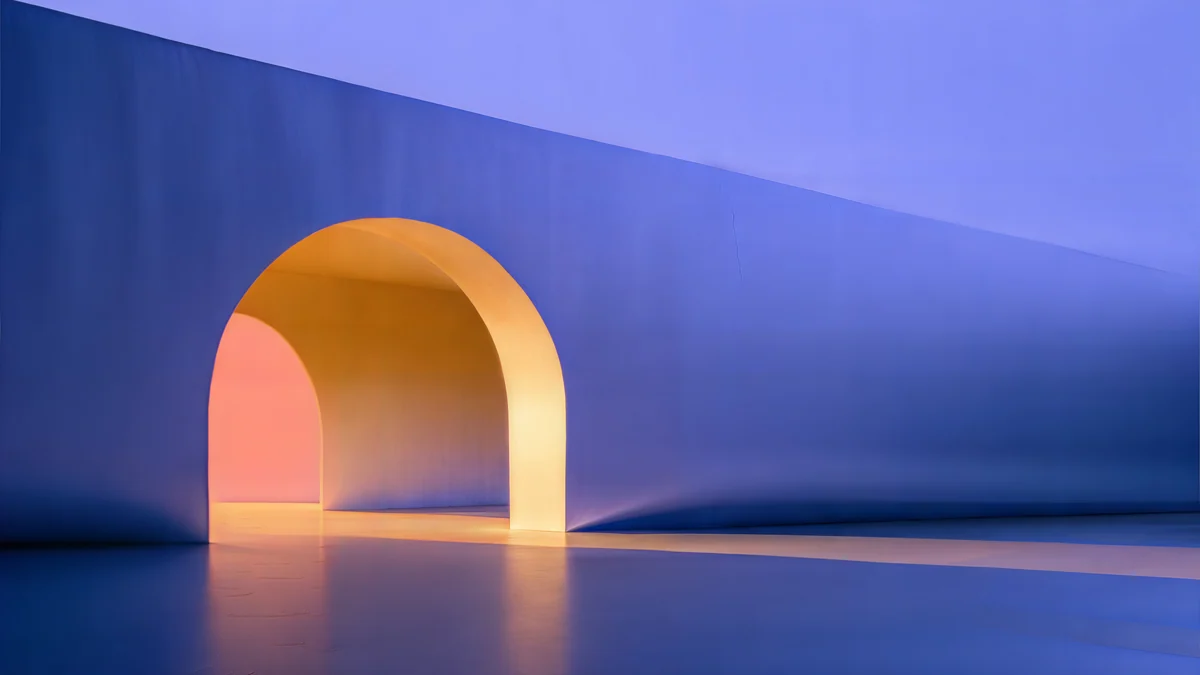 Solar Indigo Gate5K · Desktop
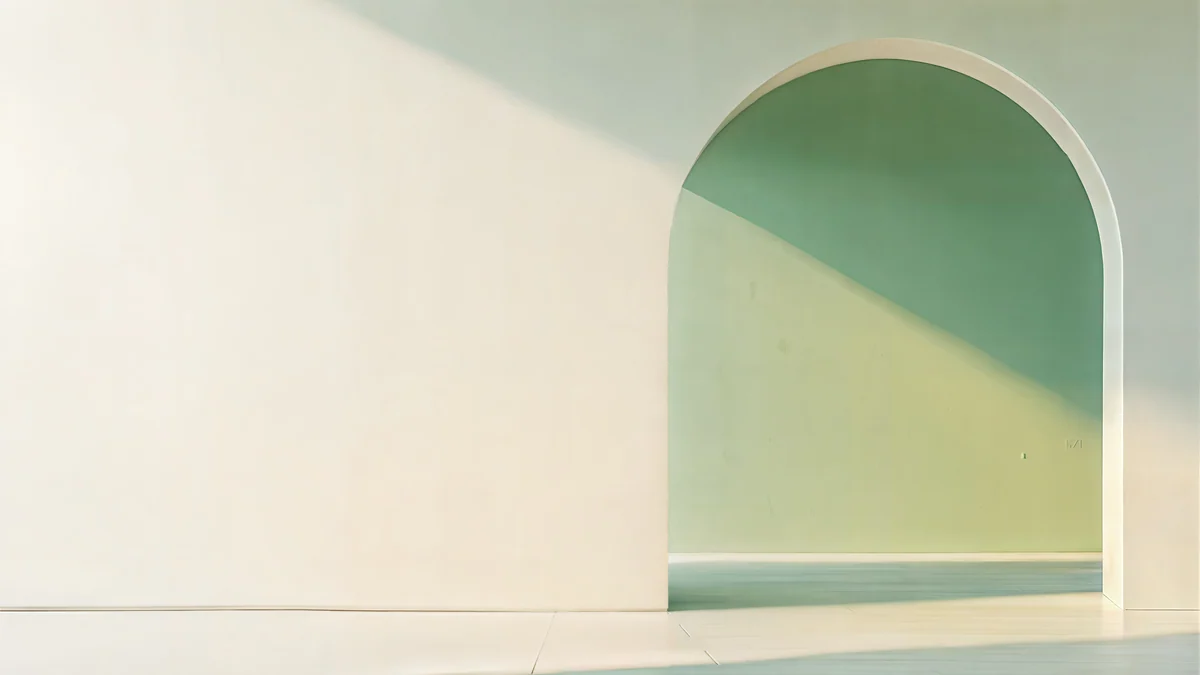 Sage Sun Gallery5K · Desktop
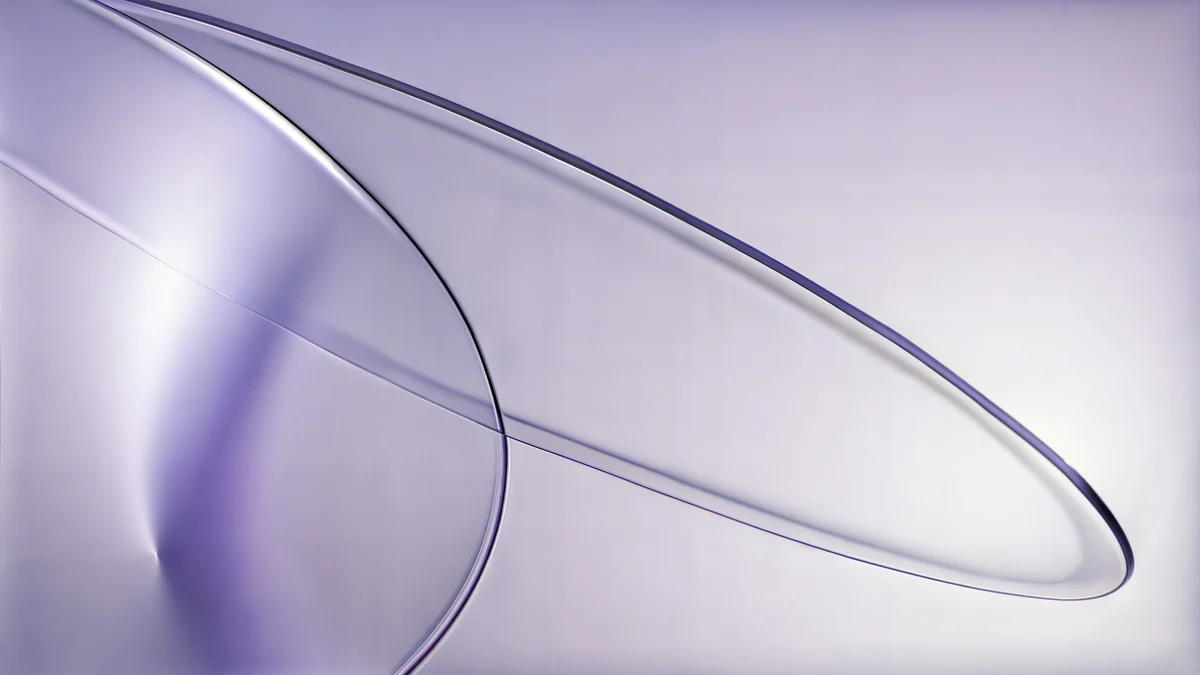 Lilac Drift5K · Desktop
These four are good first picks for a Chromebook desktop, all 5120 × 2880. Petrol Current and Solar Indigo Gate are dark and deep, Sage Sun Gallery and Lilac Drift are pale and quiet, and all of them keep their edges plain, so the strip that Fill removes is just wall.
Google Photos, Change daily and Create with AI
Click Google Photos in the hub and ChromeOS shows the photos and albums of the Google account you are signed in with. You can set a single photo, or open an album and switch on Change daily. The Chromebook then picks a fresh picture from that album every day, and a refresh button skips ahead when the current one does not suit you. The same toggle works on Google's own collections.
The hub does not rotate a local folder, so for a daily rotation of your own files, put them in a Google Photos album first.
Two extras are worth knowing. On Chromebook Plus models the hub has a Create with AI section that generates a wallpaper from a theme you pick. And to get the same wallpaper on every Chromebook you sign in to, open Settings, then Privacy and security, Sync and Google services, Manage what you sync, and turn on Sync everything.
Light, dark and accent colours
At the top of the hub sits the theme control with three options: Light, Dark and Auto. Auto follows sunset and sunrise where you are, and it darkens the shelf, launcher and system menus, not just the wallpaper. Under Accent colors, the switch Use color sets that match your wallpaper tints those menus to your picture.
For a wallpaper that itself switches with the theme, Google points to its Radiance collection. A personal JPEG or PNG does not switch, so either pick one picture that suits both themes or keep a dark and a pale one and swap by hand.
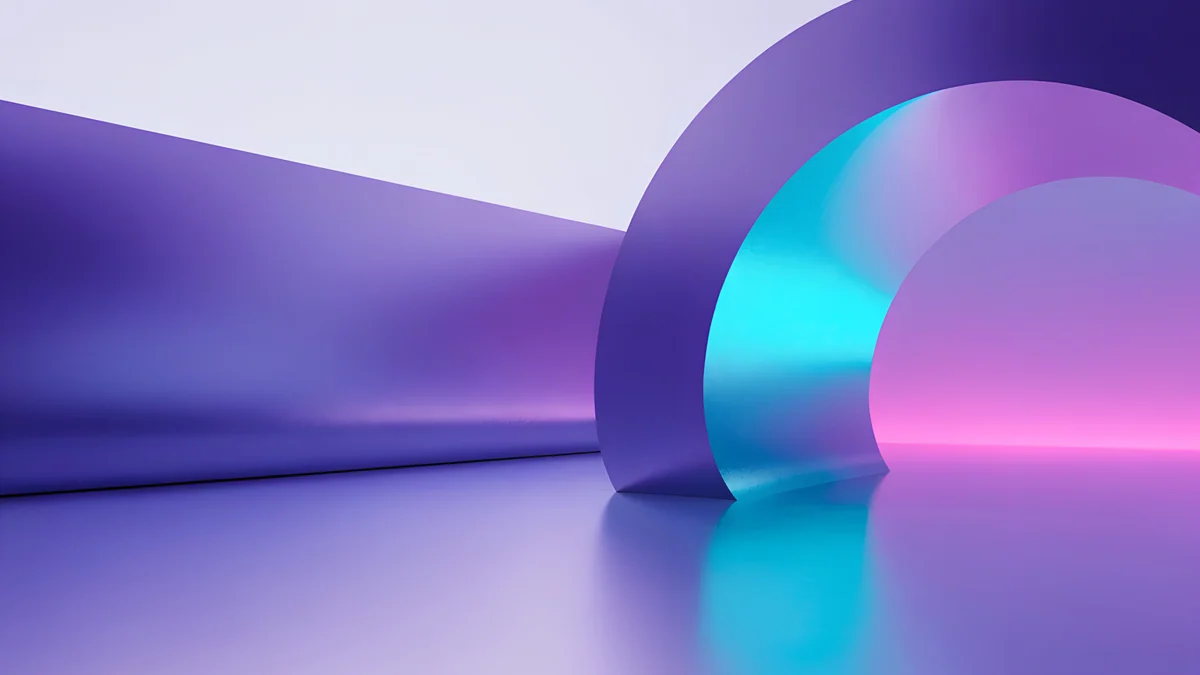 Electric Violet Vault4K · Desktop
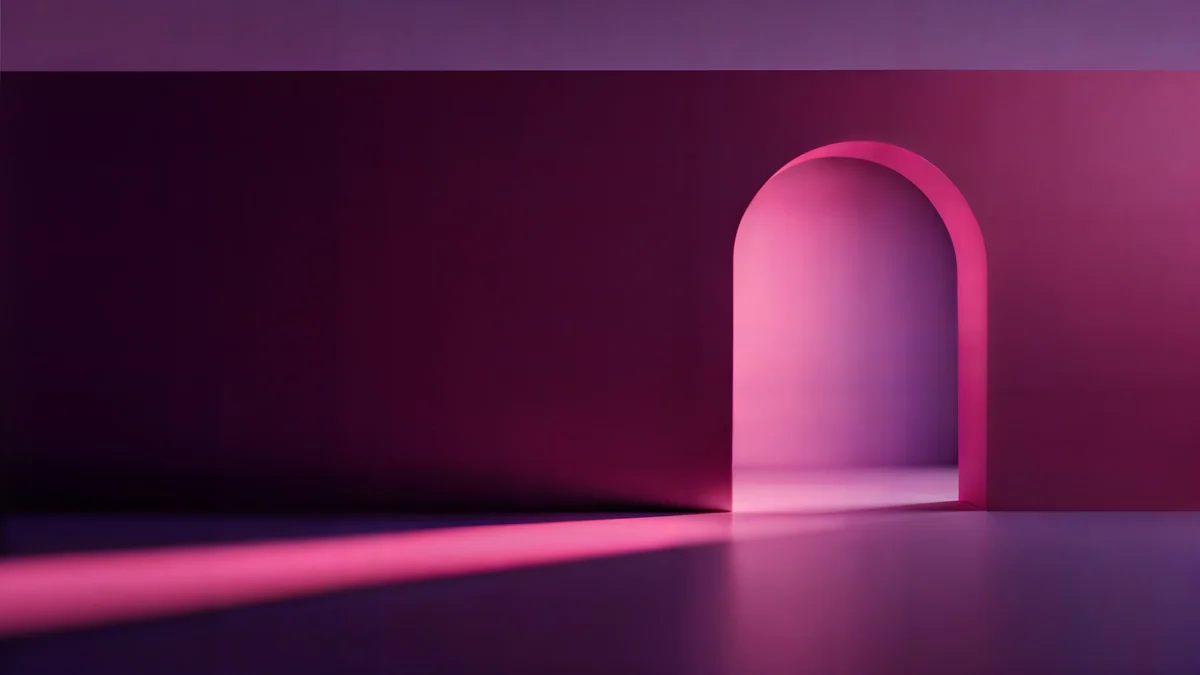 Rose Pulse Arcade5K · Desktop
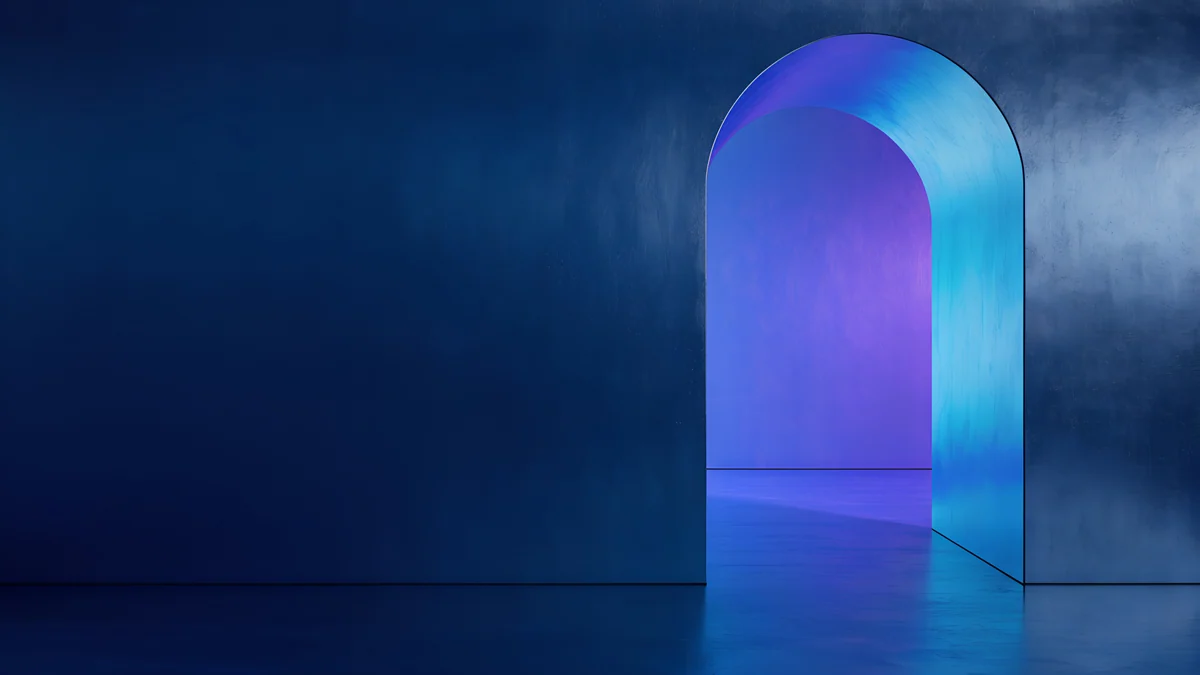 Volt Blue Vault4K · Desktop
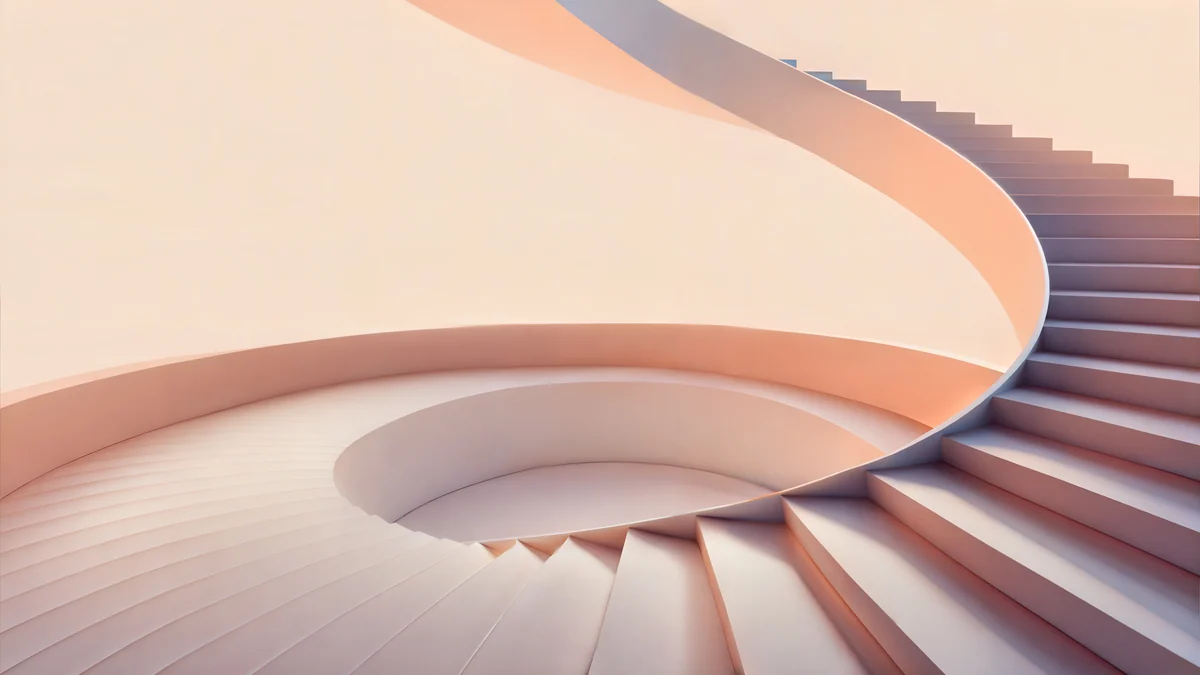 Peach Spiral Atrium5K · Desktop
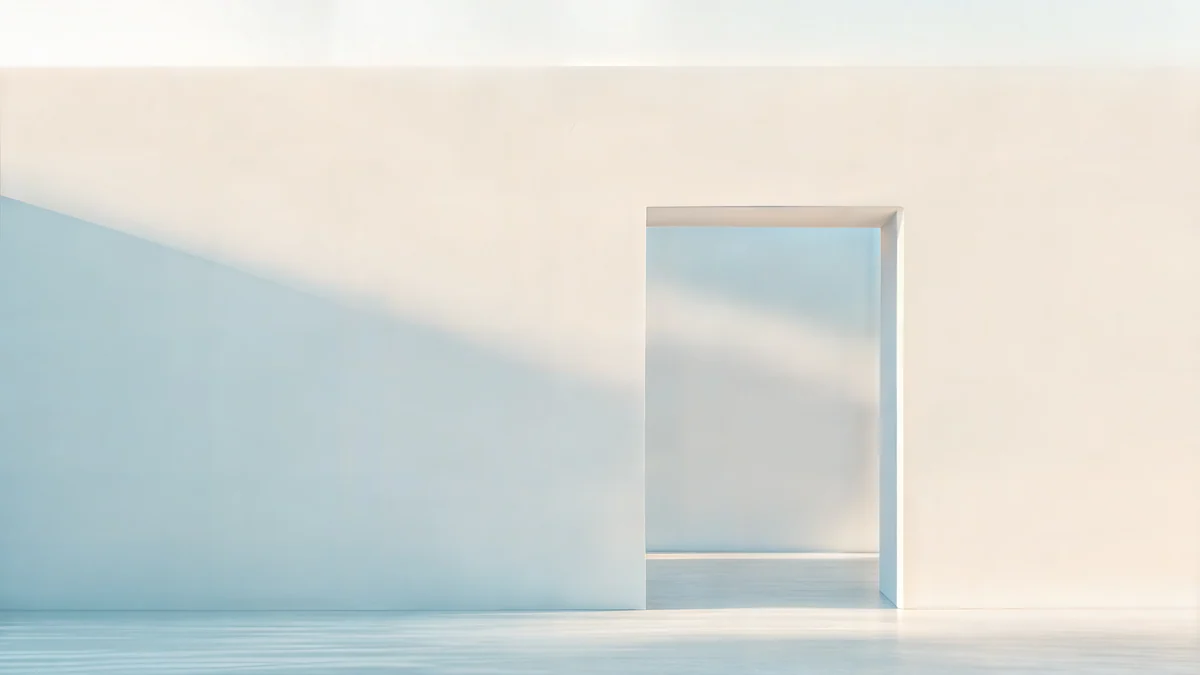 Ivory Daylight Gate5K · Desktop
 Mint Folded Steps4K · Desktop
The first three are made for the Dark theme: saturated violet, rose and cobalt that sit well behind a dark shelf. The last three are for Light: warm peach, ivory and mint. Mint Folded Steps comes from our minimalist staircase wallpapers.
Set a screen saver from the same hub
- Right-click the desktop and choose Set wallpaper & style, then Screen saver.
- Switch the toggle on the right to on.
- Pick an animation: Slide show, Feel the breeze or Float on by.
- Choose the source, Google Photos or Art gallery, and how long it runs: 5, 10 or 30 minutes, 1 hour or forever.
To save battery, the screen saver only runs while the Chromebook is charging. School and work accounts do not get this option.
Troubleshooting: blocked, blurry or cut off
- The option is missing or greyed out. On a school or work Chromebook, the administrator can stop you changing the wallpaper. Only they can lift it.
- The image will not set. Check the format. Google lists .png and .jpg as supported; convert other files first.
- Blurry. The file is too small, often a screenshot or a saved web preview. Download the original 3840 × 2160 or 5120 × 2880 file instead.
- Cut off. The layout is on Center. Open My Images, click the picture and switch to Fill.
- The menus look different from this guide. Your ChromeOS is out of date. Google explains how to update your Chromebook's operating system.
Google's own guide covers every option in the hub: Change background wallpaper and screen saver on your Chromebook. The new tab background in the Chrome browser is a separate setting, explained in our guide to changing the Chrome background.
Your next step: set a 4K wallpaper now
Velpaper has apps for iPhone, Android and Mac but no Chromebook app yet, so on ChromeOS the website is the way in. Every desktop wallpaper there is free in full size, with no account and no watermark.
- Open Electric Violet Vault in Chrome. The page shows the size, 3840 × 2160, before you download.
- Press Download. The 0.6 MB original goes to Downloads. Do not drag the preview or take a screenshot; both give you a compressed copy.
- Open Files, right-click the new file and choose Set as wallpaper.
- Check that Fill is selected in the hub.
If you also use a Mac, the steps there are different: see how to change the desktop wallpaper on a Mac.
Original wallpapers in 4K and 5K for iPhone, Android and desktop.
Questions
What size should a Chromebook wallpaper be?
At least the resolution of your screen. Most Chromebooks are 1366 × 768 or 1920 × 1080 at 16:9, premium models with a 3:2 panel are 2256 × 1504 or 2400 × 1600, tablet-style models are 1920 × 1200, and a few have 3840 × 2160 panels. A 3840 × 2160 image covers all of them, and the Fill layout crops the sides on 3:2 and 16:10 screens without distorting anything. Use .jpg or .png, the formats Google lists as supported. Velpaper desktop wallpapers are 3840 × 2160 or 5120 × 2880 JPEG files of about 0.8 MB.
Can I set a different wallpaper on each monitor on a Chromebook?
Not from the Wallpaper and style hub. ChromeOS applies one wallpaper to every connected display, so the picture you choose shows on the built-in screen and the external monitor at the same time, each with the Fill layout applied to its own shape. If the two screens have different proportions, say a 3:2 laptop panel and a 16:9 monitor, the external one shows a little more of the left and right edges. The practical fix is to pick a wallpaper whose edges are plain and to download a file large enough for the bigger of the two screens.
Why does my Chromebook wallpaper look blurry or cut off?
Blurry usually means the file is too small. A picture saved from a web preview, a screenshot or a 1366 × 768 image gets enlarged on a 1080p or 3:2 screen, and no setting can add the missing detail. Download the original from the wallpaper page, which on Velpaper is 3840 × 2160 or 5120 × 2880. Cut off usually means the layout is on Center rather than Fill. Center shows the image at its native pixel size, so a 4K file on a 1080p screen displays only the middle. Open the hub, click the image under My Images and switch the layout to Fill.
Can a Chromebook change the wallpaper automatically every day?
Yes, with the Change daily toggle in the Set wallpaper & style hub. Open a Google collection or a Google Photos album and switch on Change daily instead of clicking a single picture. ChromeOS then picks a new image from that set once a day, and the refresh button skips to the next one whenever you like. It does not work with a local folder in Downloads. For a rotation of your own files, including wallpapers downloaded from Velpaper, upload them to a Google Photos album, choose that album in the hub and turn on Change daily.
Is there a Velpaper app for Chromebook, and are the wallpapers free?
There is no Chromebook app yet. Velpaper has apps for iPhone, Android and Mac, and on ChromeOS the way in is the website, velpaper.com, which works in Chrome like any other site. All wide wallpapers on the site are free to download at full size, 3840 × 2160 or 5120 × 2880, with no account, no subscription and no watermark. Some phone wallpapers unlock after a short optional ad in the iPhone and Android apps, but that does not apply to the website. Once the file is in Downloads, right-click it in Files and choose Set as wallpaper.
Carlos Vivero
Designer of Velpaper wallpapers
Carlos Vivero designs the wallpapers in Velpaper: quiet architecture, liquid glass, Japanese ink and calm landscapes. Every piece is made as a 4K original for iPhone, Android and desktop.
Recent work








