How to Change App Icons on iPhone to Match a Wallpaper
Change iPhone app icons with Shortcuts in iOS 26, pick icon colours from your wallpaper, and know when built-in tinted or clear icons are the faster choice.
In short: Open Shortcuts, create a shortcut with the Open App action, choose Add to Home Screen, tap the icon and pick your own image, then hide the original app in the App Library. For a matching look with no per-app work, use Tinted or Clear icons in the Home Screen editor instead.
By the Velpaper team · Wallpapers by Carlos Vivero, Velpaper designer · · 5 min read
Free 4K originals for iPhone and Android, no watermark
On this page
To change app icons on iPhone, use the Shortcuts app: make a shortcut with the Open App action, add it to the Home Screen with your own picture as the icon, then remove the original app from the Home Screen so only your version shows. Each app needs its own shortcut. If you only want every icon to match the wallpaper's colour, the built-in Tinted and Clear styles do that in one step.
The steps below are for iOS 26 and work the same way on iOS 18. Menu names in Shortcuts move around a little between versions; where they do, both places are mentioned.
How to change an app icon with Shortcuts
- Save the icon image to Photos first. Use a square picture, 512 × 512 pixels or larger, so it stays sharp at the Large icon size.
- Open Shortcuts and tap + in the top right corner.
- Tap Add Action or the search field, type Open App and tap it.
- Tap the faded word App in the action and choose the app you want to restyle.
- Tap the shortcut name at the top, or the share button, and choose Add to Home Screen.
- Tap the small icon under Home Screen Name and Icon, then Choose Photo, and pick your image. Adjust the crop and tap Choose.
- Type the name you want under the icon and tap Add.
- Hide the original: touch and hold the real app icon, tap Remove App, then Remove from Home Screen. The app stays installed in the App Library.
Repeat for every app on the page. Most people stop at the eight to twelve apps they actually see; the rest can live in the App Library.
Pick icon colours from the wallpaper
Custom icons look planned when they borrow two or three colours from the wallpaper and nothing else. A simple method:
- Background: take the palest or the most common tone of the wallpaper for the icon tiles, so the grid melts into the picture.
- Symbol: take one darker accent from the same picture for every glyph. One accent for all icons reads calmer than a different colour per app.
- Shape: keep the same line weight and style across the set. Outline icons on a soft wallpaper, filled ones on a dark one.
- Labels: choose the Large icon size in Edit, Customize to hide app names, or type a short lower-case name for every shortcut.
Any image editor that exports a square PNG or JPEG works for this. Save the finished tiles to one album so the Choose Photo step is quick.
Wallpapers that set the palette for custom icons
A wallpaper with a clear, narrow palette makes icon colours easy to choose, and an even surface keeps the tiles readable. These five each give you a background tone and an accent in one picture.
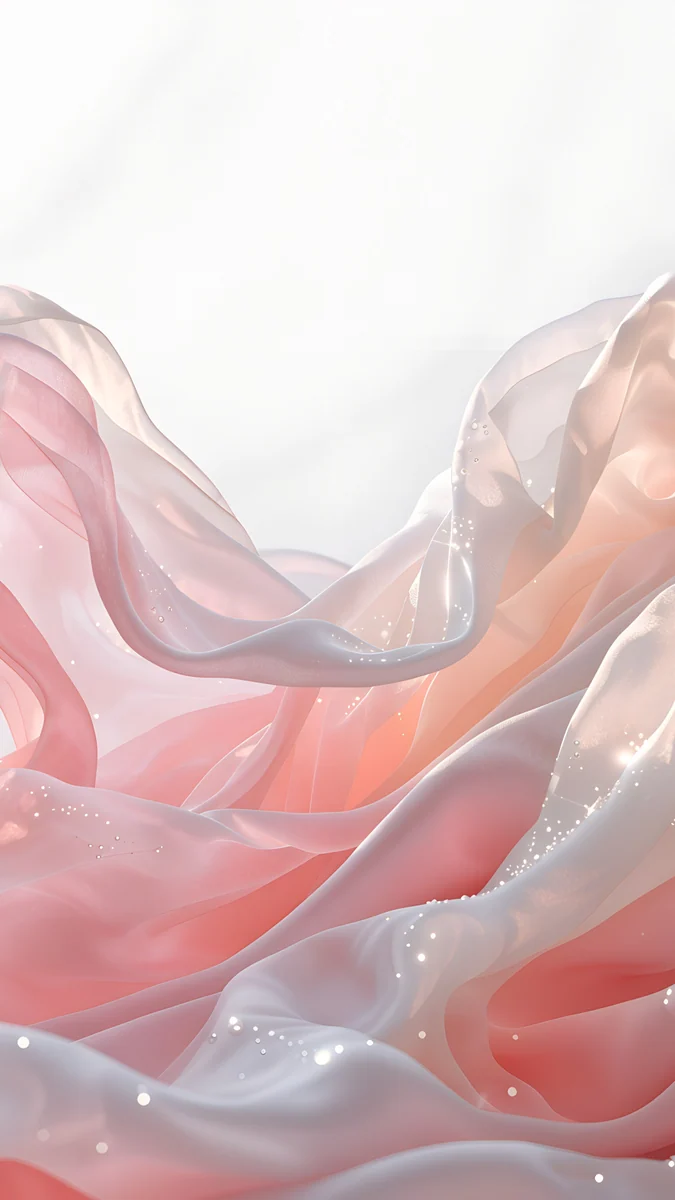 Blush Silk4K · Phone
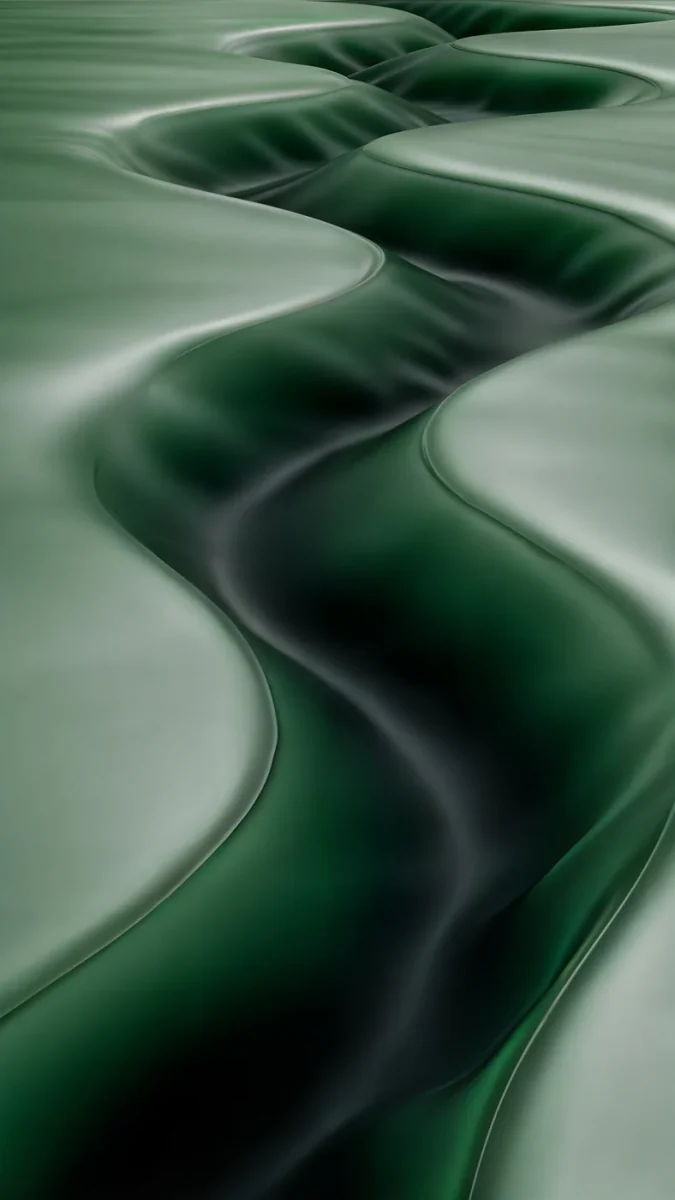 Sage Passage4K · Phone
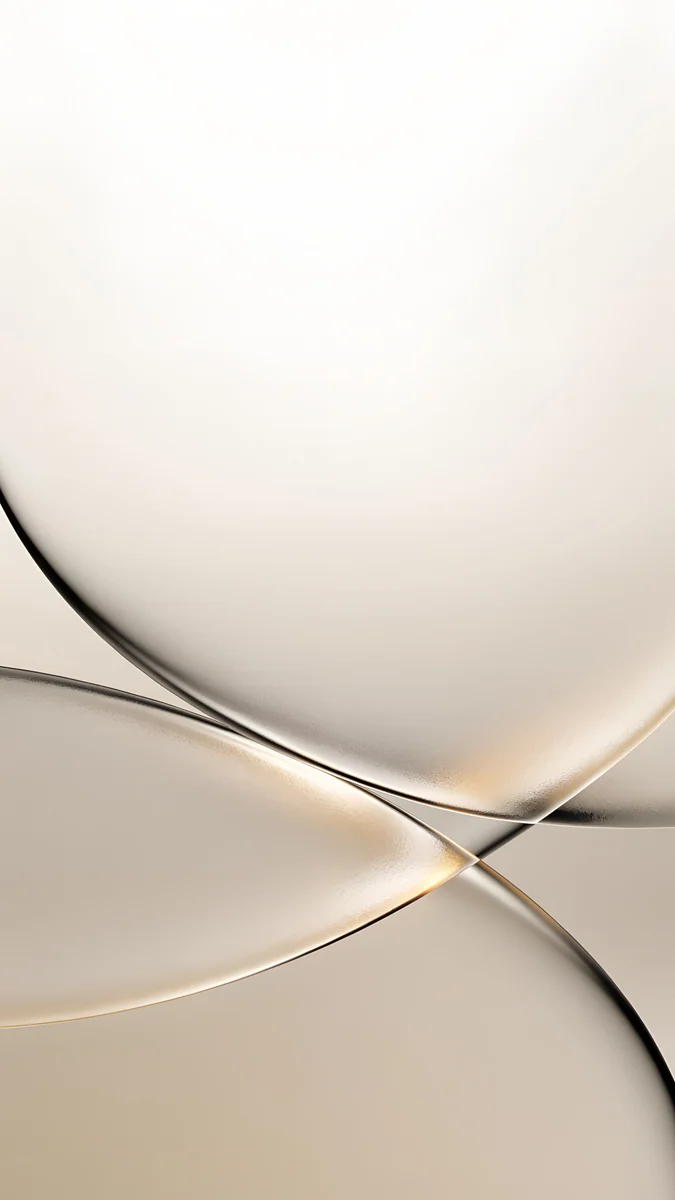 Champagne Veil4K · Phone
 Moon Silver4K · Phone
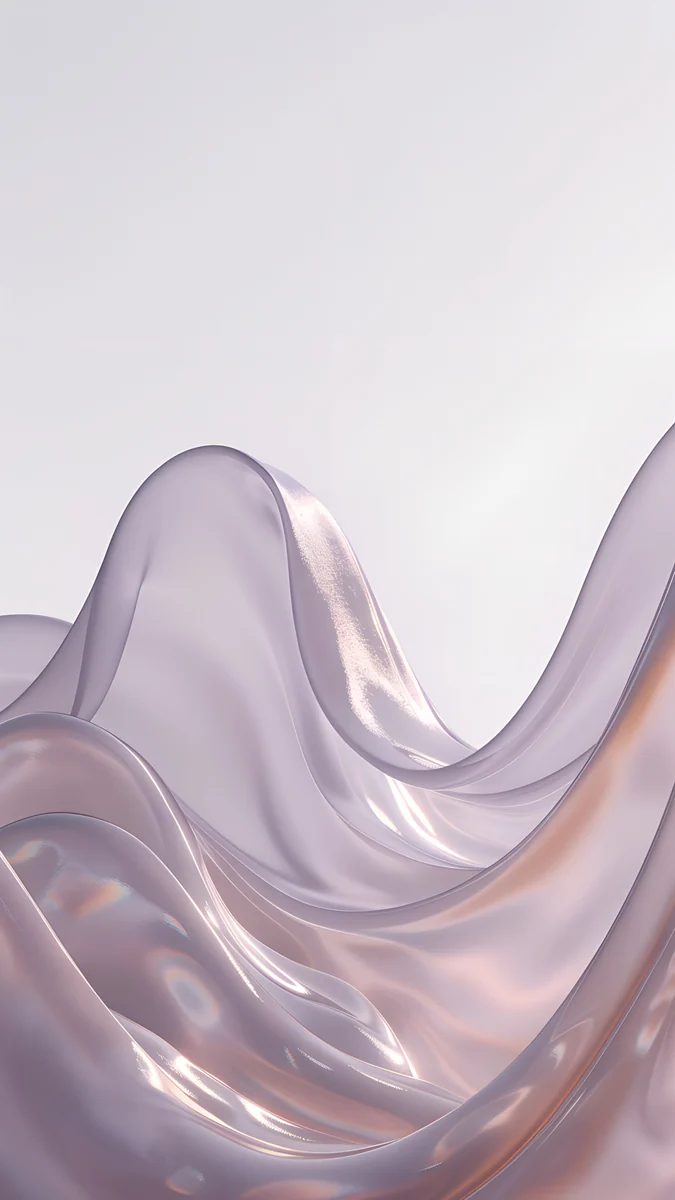 Lavender Silk4K · Phone
- Blush Silk folds blush pink and cream silk with pearl highlights: cream tiles with dusty pink symbols match it exactly.
- Sage Passage winds a dark green channel through soft sage folds, a ready pair of pale sage tiles and deep green glyphs.
- Champagne Veil is cream and sand glass over a gold glow, so neutral that beige icons with a brown line look built in.
- Moon Silver runs from near-black to cool silver, perfect for a black and white icon set.
- Lavender Silk is the cooler sister of Blush Silk, lavender and cream, for lilac tiles with white symbols.
Common problems and fixes
- The icon looks blurry. The source image was too small or a screenshot. Make a square file of at least 512 × 512 and add the shortcut again.
- A banner appears when the app opens. Shortcut icons open the app through Shortcuts, so iOS may show a short Shortcuts notice at the top. It is part of how the workaround works.
- No notification badges. A shortcut icon cannot show the red badge count. For messaging apps you rely on, keep the real icon, or put the real app in the Dock.
- Add to Home Screen is missing. In some versions it sits under the share button, in others under the menu that opens when you tap the shortcut name. Look in both.
- The original icon is still there. Remove it from the Home Screen, not from the phone: Remove App, then Remove from Home Screen. Deleting the app breaks the shortcut.
- Some apps have their own icon options. Many apps offer alternative icons in their own settings, often under App Icon. Those change the real icon, keep badges and need no shortcut.
The faster route: tinted and clear icons
If the goal is icons that match the wallpaper rather than a picture per app, the system styles get you most of the way in seconds. Touch and hold the Home Screen, tap Edit, then Customize, and choose Tinted to colour every icon with a hue you pick from the wallpaper with the eyedropper, or Clear in iOS 26 for frosted glass. Badges keep working and new apps follow automatically. Our guide to clear and tinted icons that match your wallpaper covers it step by step.
Many people combine the two: tinted icons for the whole grid and two or three custom shortcut icons for the apps that matter most. For layout, widgets and hidden pages, see our aesthetic iPhone home screen guide.
Get these wallpapers in Velpaper
Every wallpaper in this guide is a 4K original designed by Carlos Vivero, 2160 × 3840 pixels, larger than any iPhone screen, so iOS only scales it down. They are free in the Velpaper app for iPhone, iPad, Mac and Android and on velpaper.com, with no account and no watermark, and each one keeps an even surface behind the icon grid.
- Open Blush Silk in the Velpaper app or on velpaper.com.
- Tap Download to save the original to Photos.
- Set it in Settings, Wallpaper, Add New Wallpaper, Photos, then build your icons from its cream and pink.
Original wallpapers in 4K and 5K for iPhone, Android and desktop.
Questions
How do I change app icons on my iPhone?
With the Shortcuts app, which comes with every iPhone. Create a new shortcut, add the Open App action and choose the app. Then tap the shortcut name or the share button, choose Add to Home Screen, tap the icon, pick Choose Photo and select your image, type a name and tap Add. Finally, touch and hold the original app, tap Remove App and then Remove from Home Screen, so only your custom icon shows. The app itself stays installed in the App Library. You need one shortcut for each app you want to change.
Can I change app icons without the Shortcuts app?
Partly. iOS has no setting that replaces one app's icon with your own picture, but there are two built-in alternatives. First, the Home Screen editor can restyle all icons at once: touch and hold the Home Screen, tap Edit, then Customize, and choose Dark, Tinted or, in iOS 26, Clear. Tinted lets you take the colour from your wallpaper. Second, many apps include alternative icons in their own settings, often under a section called App Icon. Those replace the real icon, so badges keep working and no shortcut is needed.
Do custom shortcut icons show notification badges?
No. A shortcut on the Home Screen is not the app itself, so it cannot display the red badge with the number of unread notifications. Notifications still arrive as usual on the Lock Screen and in Notification Center; only the badge on the icon is missing. If badges matter for an app, such as your messenger or email, keep the original icon on the Home Screen or in the Dock and use custom icons only for apps where the count does not matter, like the camera, maps or music.
What size should a custom app icon image be?
Square, and at least 512 × 512 pixels. iOS crops the picture to a square and rounds the corners itself, so do not draw the rounded shape into the file. A larger source keeps the icon sharp at the Large size, which also hides the app names. Keep the symbol in the middle with some empty margin, because the corners are cut off. PNG or JPEG both work. Save all the finished icons to one album in Photos so you can find them quickly when you pick Choose Photo in each shortcut.
How do I make app icons match an aesthetic wallpaper?
Start from the wallpaper and take two or three colours from it: a pale tone for the icon backgrounds and one darker accent for all the symbols. Keep the same style for every icon, such as thin outline symbols on cream tiles over Blush Silk, or white glyphs on black over Moon Silver. Hide the labels with the Large icon size. If you do not want to make icons by hand, the Tinted style with the eyedropper gives a similar result in seconds, and Clear icons in iOS 26 let a calm wallpaper show through every tile.
Carlos Vivero
Designer of Velpaper wallpapers
Carlos Vivero designs the wallpapers in Velpaper: quiet architecture, liquid glass, Japanese ink and calm landscapes. Every piece is made as a 4K original for iPhone, Android and desktop.
Recent work








