Clear and Tinted iPhone Icons: Match Your Wallpaper
Turn on clear or tinted icons in iOS 26, take the tint from your wallpaper with the eyedropper, and pick a wallpaper that keeps glass icons readable.
In short: Touch and hold the Home Screen, tap Edit, then Customize, and choose Clear or Tinted; for Tinted, tap the eyedropper and take the colour straight from your wallpaper. Clear icons only look good on a smooth, low-detail wallpaper, because the picture shows through every tile.
By the Velpaper team · Wallpapers by Carlos Vivero, Velpaper designer · · 5 min read
Free 4K originals for iPhone and Android, no watermark
On this page
To make clear or tinted icons match your wallpaper, touch and hold an empty spot on the Home Screen, tap Edit, then Customize, and pick Clear or Tinted. Tinted turns every icon into one colour, and the eyedropper lets you borrow that colour from the wallpaper itself. Clear turns each icon into frosted glass, so it only looks good on a calm, smooth picture.
The steps below are for iOS 26. Tinted icons arrived in iOS 18; Clear came with the Liquid Glass design in iOS 26.
How to turn on clear or tinted icons
- Set the wallpaper first. Icon colours are judged against the picture, so changing it later means tuning the tint again.
- Go to the Home Screen and touch and hold an empty spot until the icons jiggle.
- Tap Edit in the top left corner, then Customize.
- A panel opens at the bottom. Choose Clear or Tinted. The other two options are the default look and Dark.
- Clear and Tinted each come in a light and a dark version. Pick the one that reads better on your wallpaper.
- Choose Small or Large. Large icons drop their names, which suits a clean glass look.
- Tap outside the panel to close it, then tap Done.
Widgets, folders and the Dock follow the same style, so a tinted Home Screen tints them too. You can switch back to the default look in the same panel at any time.
Match the tint to your wallpaper
With Tinted selected, the panel shows a colour slider, a saturation slider and an eyedropper button.
- Tap the eyedropper.
- Drag the circle across the wallpaper until it sits on the colour you want, then let go.
- Pull the saturation down if the icons look loud. A muted tint usually looks more finished than the brightest colour in the picture.
One rule saves a lot of fiddling: take the tint from a colour that covers a large part of the wallpaper, not from a small highlight. On a gradient like Celadon Haze, a pale sage from the middle gives icons that seem to grow out of the background, while the deep blue-green at the bottom makes them stand out more.
Clear icons have no colour to pick. They take everything from what sits behind them, which is why the wallpaper matters more here than any setting.
Wallpapers that work with clear and tinted icons
Glass icons pick up every edge behind them. A smooth gradient keeps them crisp; a detailed photo turns a page of icons into blurry blobs. None of these six has a single subject, so an icon can land anywhere.
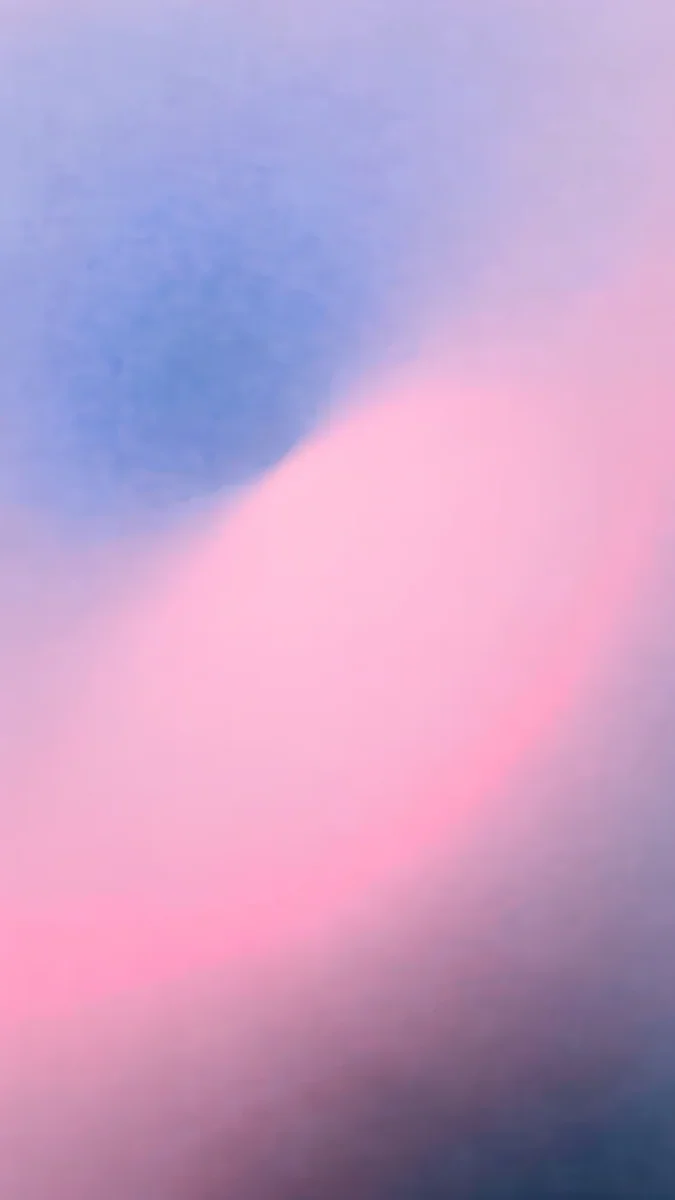 Lilac Hush4K · Phone
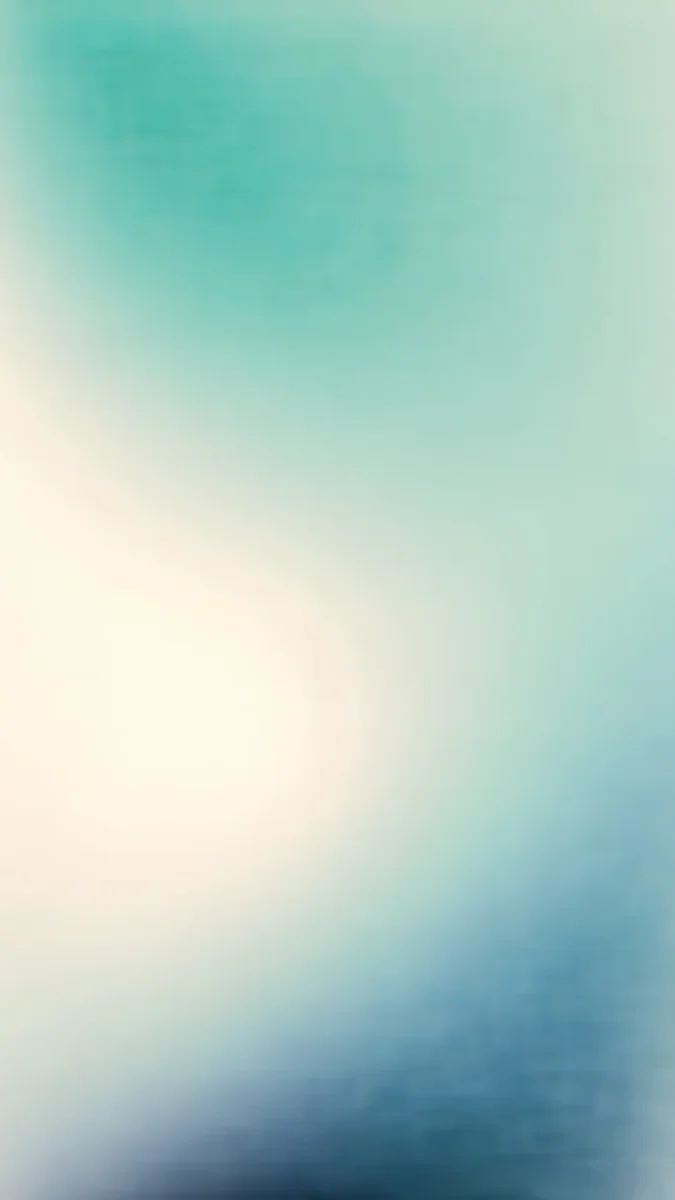 Celadon Haze4K · Phone
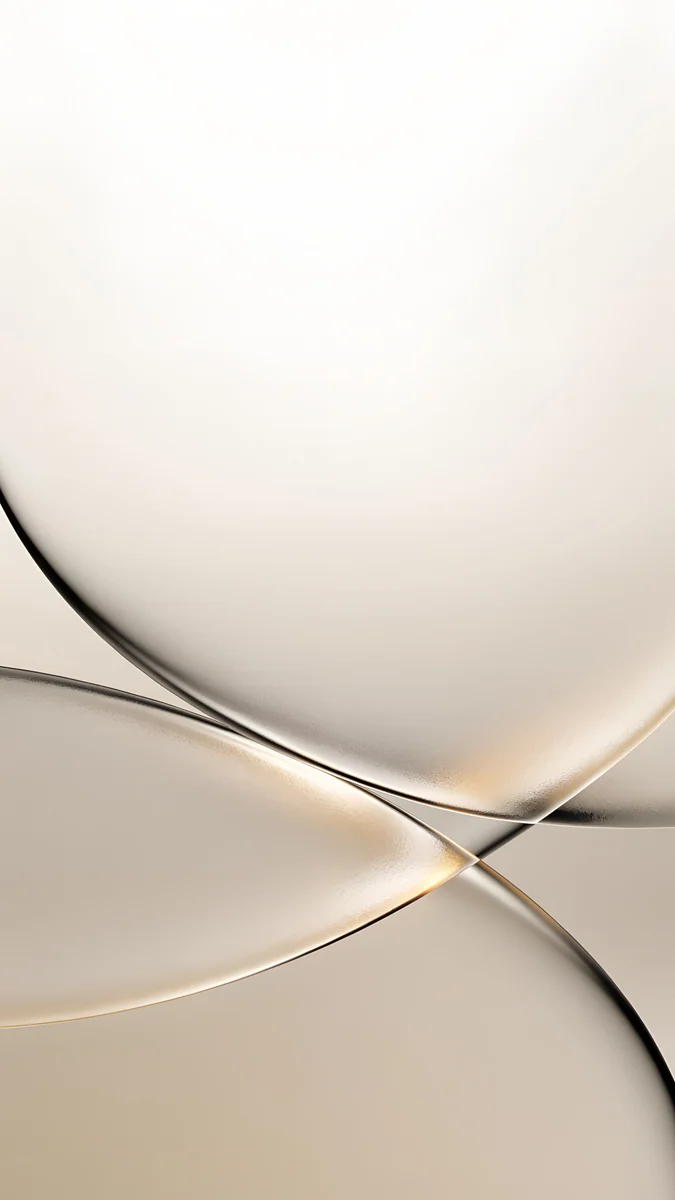 Champagne Veil4K · Phone
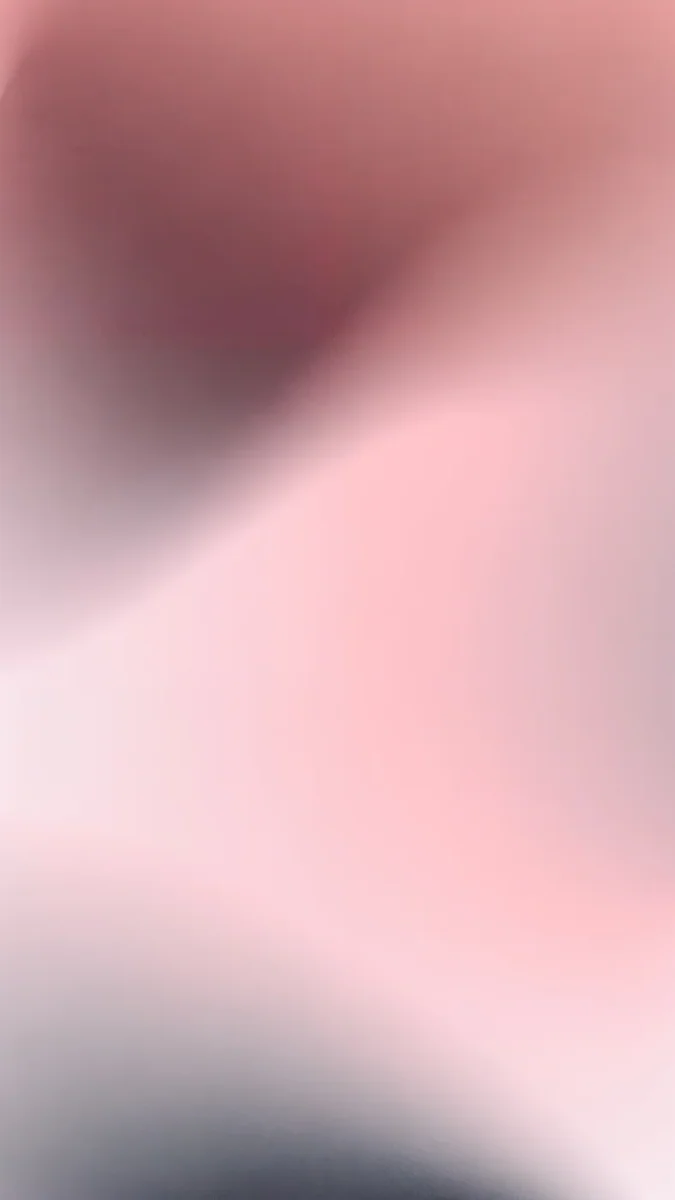 Rose Hour4K · Phone
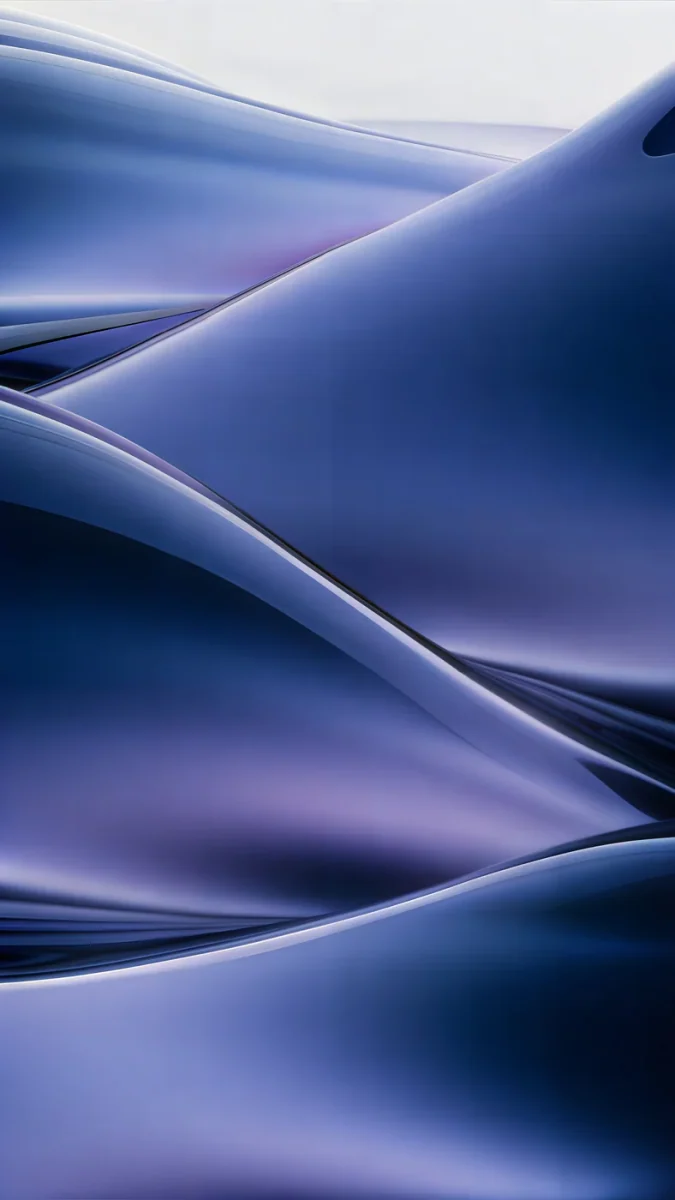 Midnight Flow4K · Phone
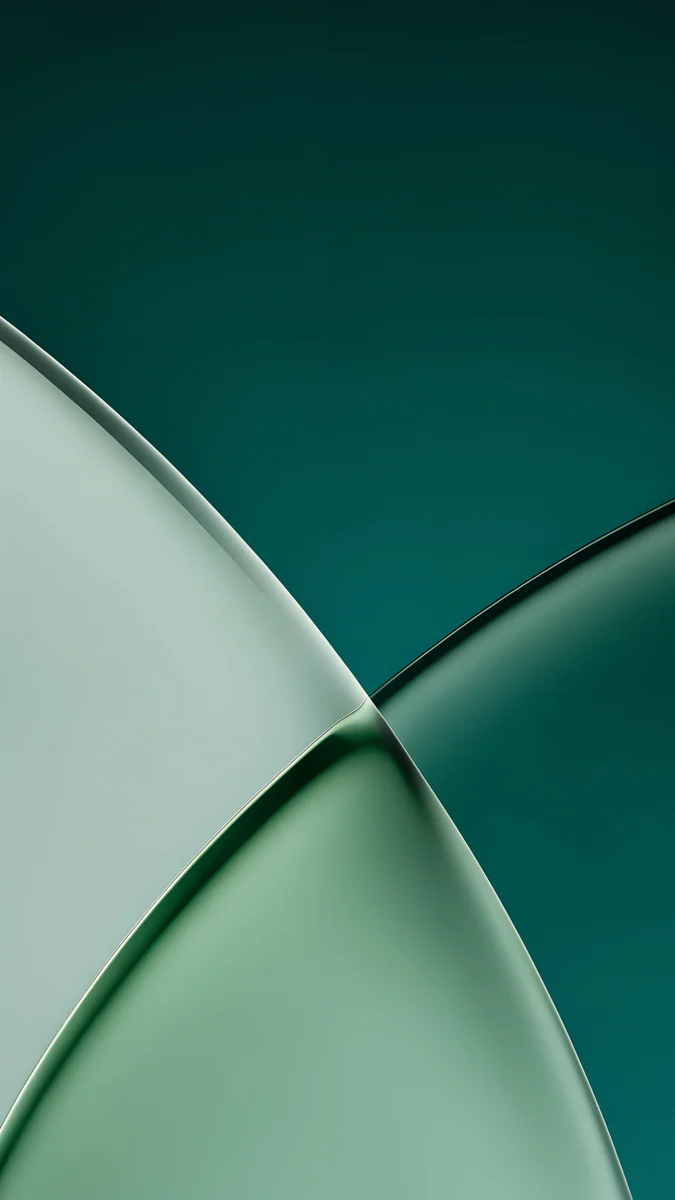 Jade Light Fold4K · Phone
- Lilac Hush blends pale lilac with dusty rose and a slate shadow, so light clear icons look like glass beads on silk.
- Celadon Haze drifts from seafoam to a cream centre with no object at all, so a tint picked from it never clashes.
- Champagne Veil is cream and sand glass over a soft gold glow, almost neutral, and a good base for a warm beige tint.
- Rose Hour runs from dusty rose to pale blush, ideal for a pink tint at low saturation.
- Midnight Flow folds navy into muted violet and suits dark clear icons on an OLED screen.
- Jade Light Fold lays frosted jade planes over deep teal; take the tint from its pale seam of light.
Common problems and fixes
- Icons look muddy or hard to read. The wallpaper is too busy behind the grid. Keep your photo on the Lock Screen and give the Home Screen a calmer picture; our guide to a different lock and home screen wallpaper shows how.
- The Home Screen wallpaper is blurred. iOS can blur the Home Screen copy of a wallpaper pair. Open Settings, Wallpaper, tap Customize under the Home Screen preview and turn off Blur.
- The tint no longer matches after a new wallpaper. The tint stays where you set it and does not follow the picture. Open Customize again and use the eyedropper on the new wallpaper.
- There is no Clear option. Clear needs iOS 26. On iOS 18 the choices are Automatic, Dark, Light and Tinted. Check Settings, General, Software Update.
- You found Clear and Tinted under Display & Brightness. In iOS 26.1 and later, Settings, Display & Brightness has a Liquid Glass option with the same two words. It changes how see-through buttons and menus are across the system, not the app icons.
- One app looks different from the rest. Apps without their own dark or tinted icon get a version generated by iOS. It is usually fine, sometimes a little flat, and only the developer can change it.
Lock Screen and Home Screen as one set
The neatest result is one wallpaper on both screens: the Lock Screen shows it whole, and the Home Screen shows it through the glass. Tap the clock in the Lock Screen editor and you can tint it with the same colour you picked for the icons, so both screens share one accent.
If you want the glass look on the Lock Screen as well, our Liquid Glass wallpapers are built from frosted planes that sit well behind the iOS 26 clock.
Get these wallpapers in Velpaper
Every wallpaper in this guide is a 4K original designed by Carlos Vivero, 2160 × 3840 pixels, larger than any iPhone screen, so iOS only ever scales it down. They are free in the Velpaper app for iPhone, iPad, Mac and Android and on velpaper.com, with no account and no watermark, and each one leaves calm space for the clock and the icon grid.
- Open Lilac Hush in the Velpaper app or on velpaper.com.
- Tap Download to save the original to Photos. Do not screenshot the preview; that copy is compressed and screen sized.
- Open Settings, Wallpaper, Add New Wallpaper, tap Photos, choose the file and tap Add.
- On the Home Screen, tap Edit, Customize and switch to light Clear.
For widgets, pages and hidden labels, our guide to an aesthetic iPhone home screen covers the rest of the setup.
Original wallpapers in 4K and 5K for iPhone, Android and desktop.
Questions
How do I get clear icons on my iPhone?
Clear icons need iOS 26. Touch and hold an empty spot on the Home Screen until the icons jiggle, tap Edit in the top left corner, then Customize. In the panel at the bottom, choose Clear, then the light or dark version, and tap outside the panel to close it. Every app icon, widget and folder turns into frosted glass that lets the wallpaper show through. If you do not see Clear, your iPhone is still on iOS 18 or earlier; check Settings, General, Software Update to see whether iOS 26 is available for your model.
How do I make tinted icons the same colour as my wallpaper?
Open the Home Screen editor with a long press, tap Edit, then Customize, and choose Tinted. Tap the eyedropper button in the panel and drag the circle over the part of the wallpaper whose colour you want, then let go. iOS applies that hue to every icon and widget. Lower the saturation slider if the result looks too strong. The best matches usually come from a colour that fills a large area of the picture, such as the main tone of a gradient, rather than from a small bright highlight.
Why do my clear icons look blurry or hard to read?
Because the wallpaper behind them is too detailed. Clear icons are see-through, so every edge, face or bright patch behind a tile shows through and blurs the symbol on top. The fix is a smoother wallpaper on the Home Screen, such as a soft gradient or a plain surface, while you keep your favourite photo on the Lock Screen. Also check that Blur is off for the Home Screen wallpaper in Settings, Wallpaper, Customize, and try the other version of Clear: dark Clear often reads better on mid-tone pictures.
Do clear and tinted icons change widgets and folders too?
Yes. The style you choose in the Customize panel applies to the whole Home Screen: app icons, widgets, folders and the Dock. A tinted setup therefore turns a calendar or weather widget into the same colour as the icons, which keeps the page consistent. The App Library follows the style as well. The Lock Screen is separate: its clock and widgets are edited in the Lock Screen editor, where you can tap the time and choose a matching colour by hand. Switching back to the default icon look takes one tap in the same panel.
What kind of wallpaper is best for clear icons?
A wallpaper with low contrast and no single subject: a slow gradient, a soft fold of glass or silk, a pale sky. Clear icons show whatever sits behind them, so even colour from edge to edge keeps every tile readable. Avoid photos with faces, text or sharp lines across the middle of the screen. Use a large file, ideally 2160 × 3840, so iOS only scales it down. Velpaper examples that work well are Lilac Hush and Celadon Haze for light clear icons and Midnight Flow for dark ones.
Carlos Vivero
Designer of Velpaper wallpapers
Carlos Vivero designs the wallpapers in Velpaper: quiet architecture, liquid glass, Japanese ink and calm landscapes. Every piece is made as a 4K original for iPhone, Android and desktop.
Recent work








