How to Make Your iPhone Home Screen Aesthetic (iOS 26)
How to make your iPhone home screen aesthetic, step by step for iOS 26 and iOS 18: tinted and clear icons, hidden app names, fewer widgets and a calm wallpaper.
In short: To make an iPhone home screen aesthetic, start with a calm, low-detail wallpaper, then touch and hold the home screen, tap Edit, then Customize, and choose dark, tinted or (in iOS 26) clear icons at the large size, which hides app names. Keep one or two widgets and send everything else to the App Library.
By the Velpaper team · Wallpapers by Carlos Vivero, Velpaper designer · · Updated · 6 min read
Free 4K originals for iPhone and Android, no watermark
On this page
An aesthetic iPhone home screen is mostly subtraction. Fewer colours, fewer labels, fewer pages, and a wallpaper that stays quiet under the icons. Since iOS 18 you can do almost all of it in the built-in editor, without icon packs or shortcuts.
Here is how to make your iPhone home screen aesthetic in iOS 18 and iOS 26, in the order that saves the most time: wallpaper first, then icon style, widgets, pages and Focus.
Start with the wallpaper, not the icons
Every other choice depends on the picture behind the grid. Tinted icons pick up its colour, clear icons let it show through, and widgets sit on top of it. A busy photo makes all of them harder to read.
What works under a full page of icons is a wallpaper with low contrast and no single subject: a slow gradient, a soft surface, a calm sky. Three examples from our catalog:
- Celadon Haze, a gradient of seafoam and pale sage that melts into a buttery glow. It suits light and tinted icons.
- Ivory Fold, a grey-ivory surface creased once, with a cool shadow in the fold. Good for a clean, almost white screen.
- Midnight Flow, navy and muted violet waves. Built for dark icons and an OLED screen.
If you like a striking photo on the lock screen, you do not have to give it up. iPhone lets you use one image on the lock screen and a calmer one on the home screen; our guide to a different lock and home screen wallpaper has the exact steps.
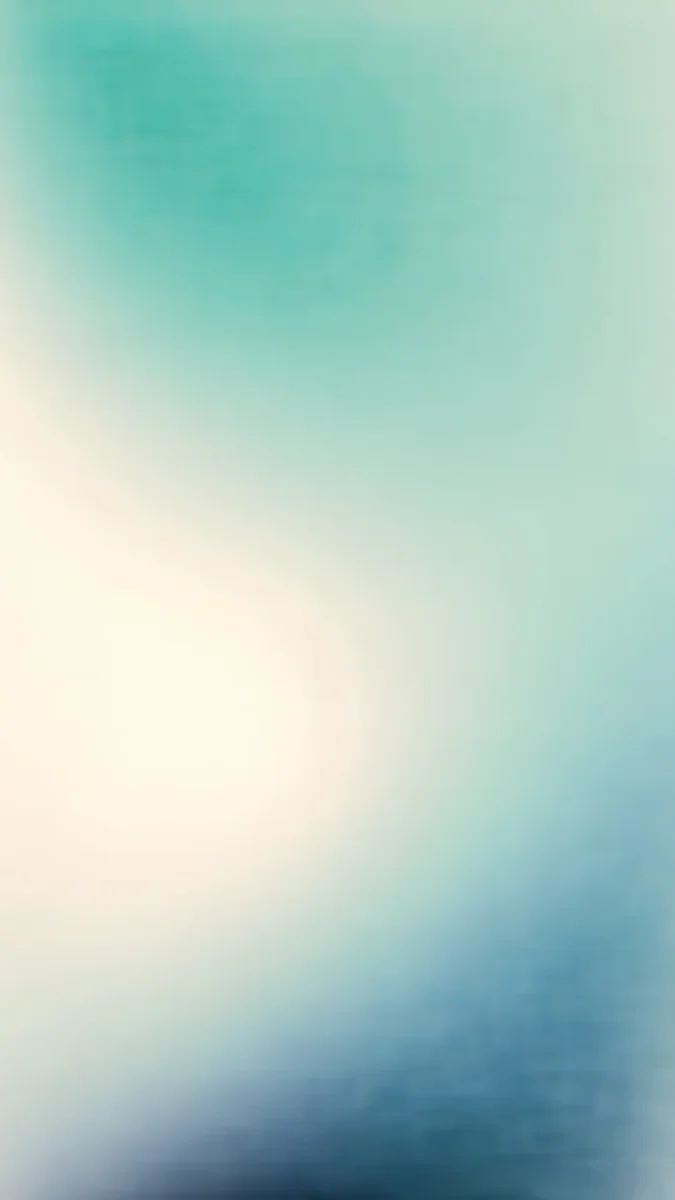 Celadon Haze4K · Phone
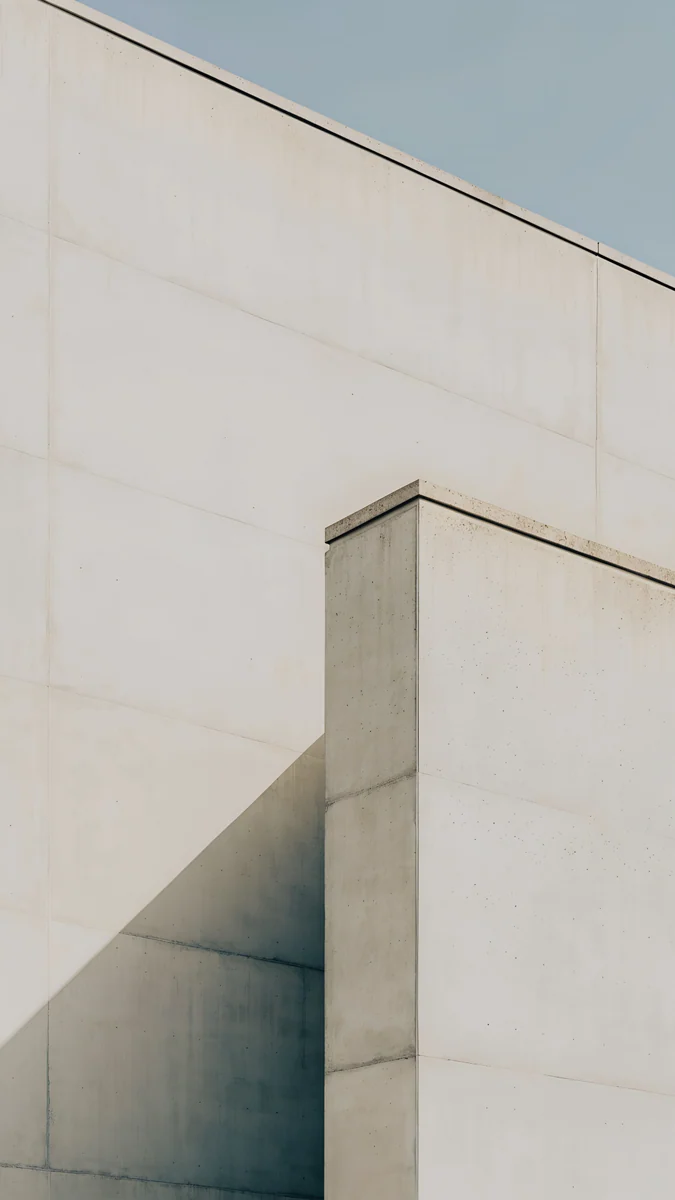 Ivory Fold4K · Phone
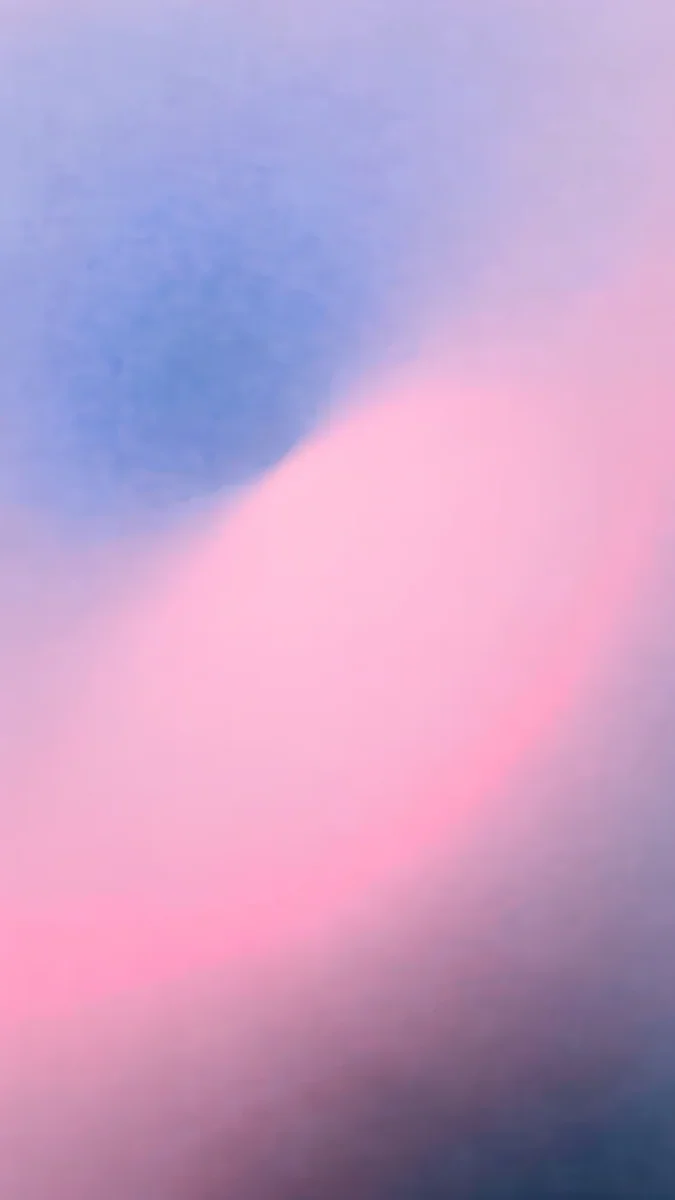 Lilac Hush4K · Phone
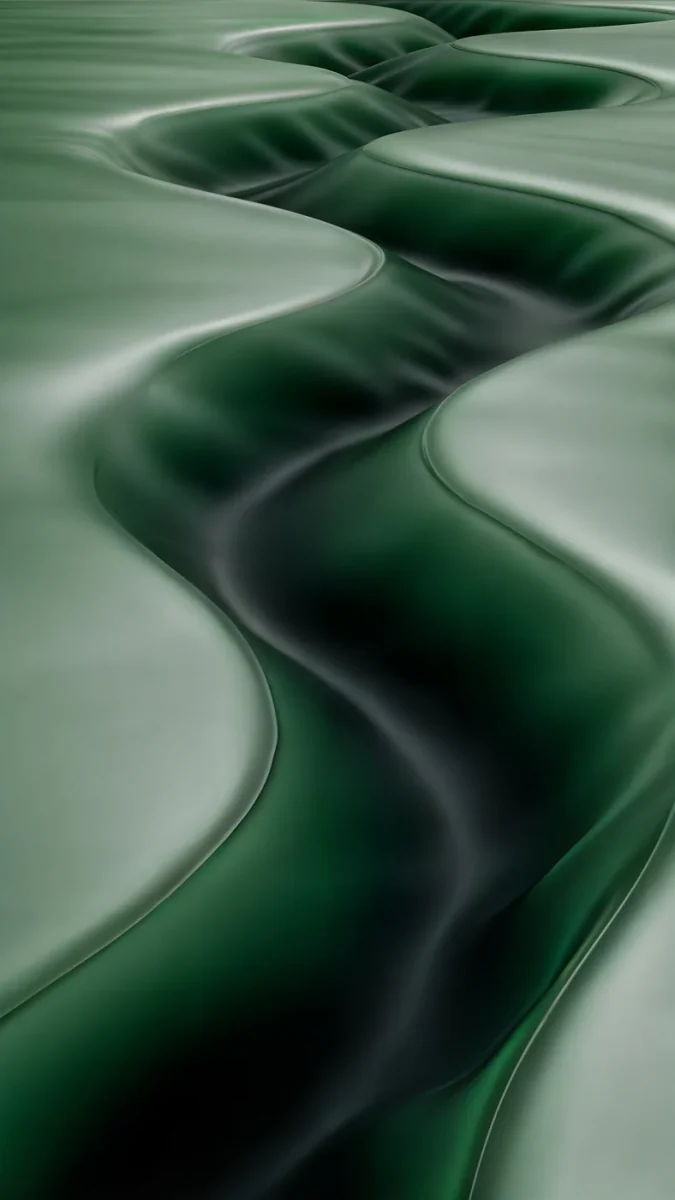 Sage Passage4K · Phone
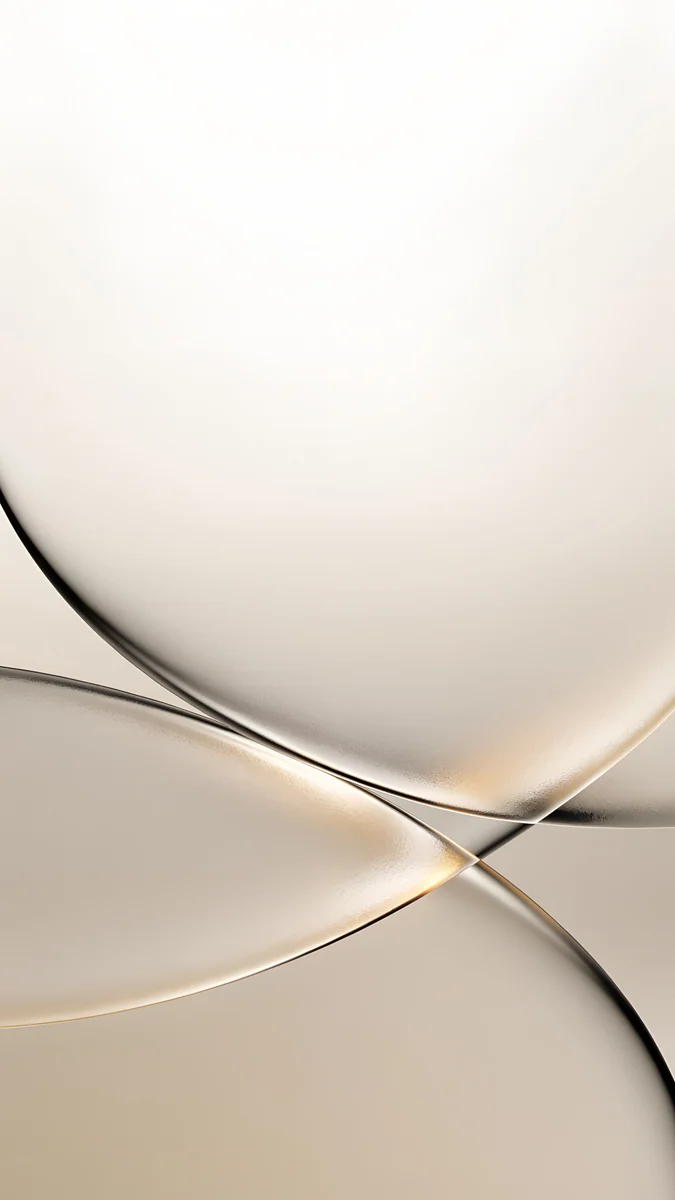 Champagne Veil4K · Phone
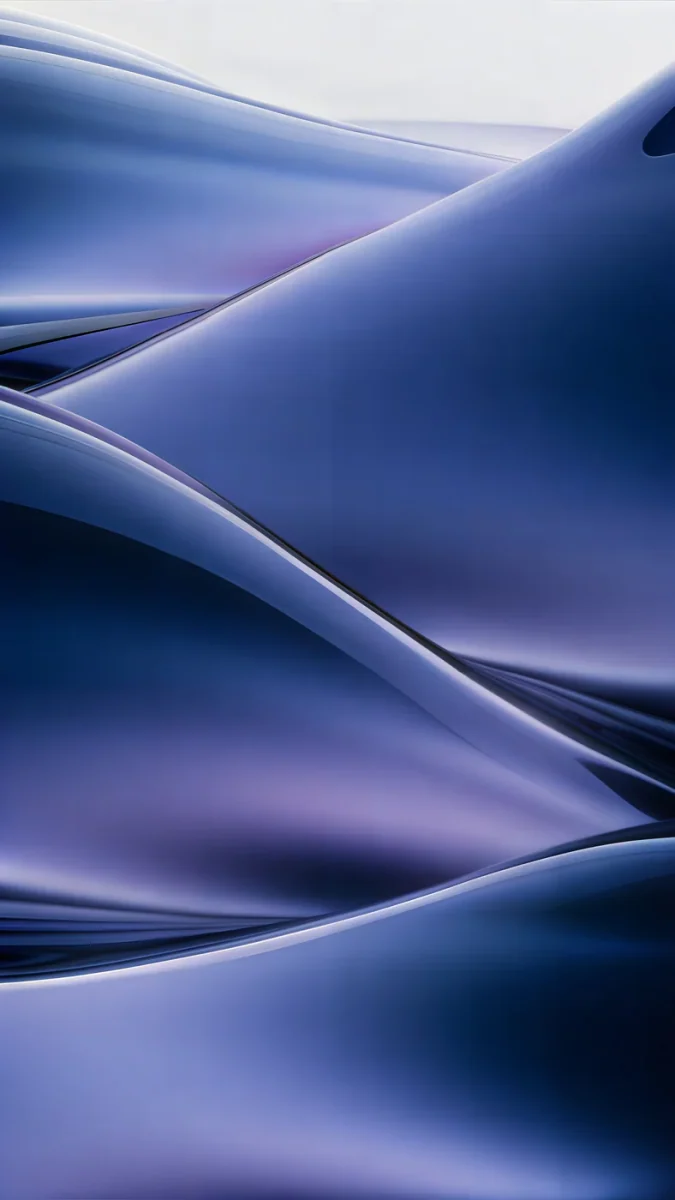 Midnight Flow4K · Phone
All six are 2160 × 3840 originals, so iOS only scales them down when it fits them to your screen.
Dark, tinted and clear icons in iOS 18 and iOS 26
This is the single biggest change you can make. The setting is in the home screen editor, not in Settings.
- Touch and hold an empty spot on the home screen until the icons start to jiggle.
- Tap Edit in the top left corner, then Customize.
- A panel opens at the bottom. Choose the icon size and the icon style, then tap anywhere on the screen to close it.
In iOS 18 the styles are Automatic, Dark, Light and Tinted. Dark puts app icons on black tiles. Tinted turns every icon into one colour; two sliders set the hue and saturation, and an eyedropper lets you borrow a colour straight from the wallpaper.
In iOS 26 the styles are Default, Dark, Clear and Tinted, drawn in the new Liquid Glass look. Clear makes icons look like frosted glass, so the wallpaper shows through every tile. Clear and Tinted each come in a light and a dark version.
Clear icons are where the wallpaper matters most. On a calm gradient like Lilac Hush they look like glass beads on silk; on a busy photo they turn into blurry blobs. If you want the matching look on the lock screen too, see our Liquid Glass wallpapers.
Hide app names with large icons
In the same Customize panel, choose Large as the size. Icons grow a little and their names disappear, which is the cleanest way to remove labels. There is no separate switch for labels, so the two always come together.
Widgets: fewer and bigger
An aesthetic home screen usually has one or two widgets, not six. A large clock, weather or calendar widget at the top gives the page a shape; a wall of small ones looks like a dashboard.
- In jiggle mode, tap Edit, then Add Widget.
- Pick a widget, swipe to the size you want and tap Add Widget.
- Drag it into place. Since iOS 18 you can also resize a widget on the home screen by dragging its corner handle.
Some apps can switch between an icon and a widget directly: touch and hold the app icon and pick a widget size from the menu, if the app offers one. Widgets follow the icon style you chose, so a tinted screen tints them too, which keeps colours from fighting.
A Smart Stack is the trick for people who want more information without more clutter. It piles several widgets into one tile, and you swipe through them.
Fewer pages: App Library and hidden pages
You do not need every app on a home screen page. The App Library, one swipe past your last page, sorts everything automatically.
- To take an app off the home screen without deleting it, touch and hold it, tap Remove App, then Remove from Home Screen.
- To hide a whole page, enter jiggle mode, tap the row of dots above the Dock and untick the pages you do not want. They stay saved and come back if you tick them again.
- Since iOS 18, icons no longer have to fill the grid from the top left. You can leave empty rows and drag apps to the bottom, closer to your thumb, so more of the wallpaper shows.
A common aesthetic layout is one page only: a large widget at the top, a single row of four to eight apps at the bottom, and the Dock. The wallpaper fills the middle.
Focus pages: a different home screen for work and evening
Focus can show only certain home screen pages, so a work page and an evening page do not have to share space.
- Build the extra page first, with the apps and widgets you want in that mode.
- Open Settings, tap Focus and pick a Focus, for example Work or Personal.
- Under Customize Screens, tap the home screen preview and select the page to show.
In the same place you can link a lock screen to that Focus, so the whole phone changes when the mode turns on. The lock screen side is covered in our guide on how to set a lock screen wallpaper on iPhone.
Three ready-made home screen setups
If you want a starting point rather than a theory, these combinations look finished with very little work.
| Setup | Wallpaper | Icon style |
|---|---|---|
| Soft light | Ivory Fold or Champagne Veil | Light (iOS 18) or Default, large |
| Calm green | Celadon Haze or Sage Passage | Tinted in a muted green, picked from the wallpaper |
| Night glass | Midnight Flow or Jade Light Fold | Dark or dark Clear (iOS 26) |
For the night setup, a dark wallpaper also helps on OLED iPhones, because black areas emit almost no light. Our dark OLED wallpapers collection has more options at that end. Jade Light Fold is the softest of the dark ones: two frosted planes of jade over deep teal, with a pale seam of light.
To set any of them as the home screen only, open Settings, tap Wallpaper and tap Customize under the home screen preview on the right. Turn off Blur if you want the gradient to stay crisp behind the icons.
Original wallpapers in 4K and 5K for iPhone, Android and desktop.
Questions
How do I make my iPhone home screen aesthetic without apps?
Everything can be done with built-in tools. Set a calm, low-detail wallpaper on the home screen, then touch and hold an empty spot, tap Edit and Customize, and pick Dark, Tinted or, in iOS 26, Clear icons at the Large size. Remove extra apps to the App Library, hide spare pages by tapping the page dots, and keep one or two widgets. No third-party app is needed for any of these steps.
How do I hide app names on the iPhone home screen?
Touch and hold the home screen, tap Edit, then Customize, and choose the Large icon size. In iOS 18 and iOS 26 large icons appear without their names, which is the only built-in way to hide labels. The size and the missing labels come together; there is no separate switch for names. If you want a page with no text at all, avoid folders and leave the rest of your apps in the App Library.
What is the difference between tinted and clear icons?
Tinted icons, available since iOS 18, turn every app icon into shades of one colour that you choose with sliders or an eyedropper. Clear icons arrived in iOS 26 with the Liquid Glass design and make each icon look like frosted glass, so the wallpaper shows through. Both have light and dark versions in iOS 26. Tinted gives a uniform colour scheme; clear keeps the wallpaper in charge, which is why it works best on a smooth gradient.
Can I use custom icons for each app?
Not with the built-in icon styles, which change all icons at once. People who want a picture per app use the Shortcuts app: create a shortcut that opens the app, then add it to the home screen with your own image. It works, but these icons open the app through Shortcuts and do not show notification badges. For most people the tinted or clear styles give a consistent look with far less work.
What wallpaper works best behind iPhone home screen icons?
A wallpaper with low contrast and no single subject: a slow gradient, a soft surface or an empty sky. Detail in the middle of the screen competes with the icons and makes labels and widgets harder to read. Use a 2160 × 3840 image so iOS only scales it down. Calm examples include Celadon Haze, Ivory Fold and Midnight Flow on Velpaper, where most phone wallpapers unlock after a short optional ad.
Carlos Vivero
Designer of Velpaper wallpapers
Carlos Vivero designs the wallpapers in Velpaper: quiet architecture, liquid glass, Japanese ink and calm landscapes. Every piece is made as a 4K original for iPhone, Android and desktop.
Recent work








