iPhone Home Screen Layout Ideas for iOS 26: 7 Setups
Seven iPhone home screen layouts for iOS 26: one page, thumb zone, widget on top, clear glass, tinted, Dock only and Focus pages, with steps and wallpapers.
In short: The iPhone home screen layouts that work best in iOS 26 keep one or two pages, put apps in the lower half where your thumb reaches, use one large widget at most, and sit on a calm wallpaper. Touch and hold the home screen, drag icons anywhere on the grid, then tap Edit and Customize for icon size and style.
By the Velpaper team · Wallpapers by Carlos Vivero, Velpaper designer · · 6 min read
Free 4K originals for iPhone and Android, no watermark
On this page
Good iPhone home screen layouts for iOS 26 share three habits: one or two pages instead of five, apps in the lower half where your thumb already is, and a calm wallpaper that the Liquid Glass icons can sit on. Since iOS 18 you can place icons anywhere on the grid, so the empty top half is a choice, not a bug. Below are seven layouts you can build in a few minutes with the built-in editor, no extra apps needed.
The menu names match iOS 26 in English. Small labels can move between updates, so if one differs on your iPhone, look in the same place for the closest name.
How to rearrange the home screen in iOS 26
- Touch and hold an empty spot on the home screen until the icons start to jiggle.
- Drag an app to any free cell of the grid. Icons no longer have to fill rows from the top left, so you can leave gaps on purpose.
- Tap Edit in the top left corner, then Customize. Pick Small or Large icons and a style: Default, Dark, Clear or Tinted.
- Tap Edit, then Add Widget, pick a widget and a size, and drop it where you want. Drag the corner of a widget on the home screen to resize it.
- To hide whole pages, tap the row of dots above the Dock while icons jiggle and untick the pages you do not want.
- Tap Done in the top right corner.
Apps you take off the home screen stay in the App Library, one swipe left past your last page. Touch and hold an app, tap Remove App, then Remove from Home Screen to move it there without deleting anything.
Seven home screen layout ideas
1. One page, one row
Keep a single page. Put four to eight apps you open every day in one row near the bottom, keep the Dock, and hide every other page. The middle of the screen belongs to the wallpaper. Everything else lives in the App Library and in search: tap the Search button at the bottom of the home screen or swipe down. This is the cleanest layout and the easiest to keep tidy.
2. Thumb zone
Fill only the lower half of the grid, four rows at most, and leave the top half empty. On a 6.1 or 6.9 inch iPhone the top corners are hard to reach with one hand anyway. A wallpaper with something worth seeing at the top, such as a sky or a moon, makes the empty space look intentional.
3. One big widget on top
Put one large or medium widget across the top, for example Calendar, Weather or a photo, and the apps below it. If you want more information without more clutter, make a Smart Stack: drag one widget onto another of the same size and they share a tile you swipe through. One widget gives the page a shape; six turn it into a dashboard.
4. Clear glass
Choose Clear in the Customize panel. Icons turn into frosted glass and the wallpaper shows through every tile. This is the most iOS 26 look of all, and also the pickiest: it needs a smooth gradient underneath, because a busy photo turns clear icons into blurred blobs. Clear comes in a light and a dark version.
5. Monochrome tinted
Choose Tinted and pick a colour from the wallpaper with the eyedropper, or set hue and saturation with the sliders. Every icon and widget takes the same colour, so the screen reads as one calm surface. Muted greens, lilacs and sand tones work best; full saturation tires the eye.
6. Dock only
Move every app off the first page and keep only the Dock, four apps, plus at most one widget. You launch everything else from search or the App Library. It feels strange for a day and very quiet after a week, and it shows the whole wallpaper every time you unlock.
7. Focus pages for work and evening
Build a work page and an evening page, then let Focus choose. Open Settings, Focus, pick a Focus such as Work, and under Customize Screens tap the home screen preview and select the page to show. When the Focus turns on, only that page appears. Link a lock screen in the same place and the whole phone changes with the mode.
Wallpapers that suit these layouts
A home screen wallpaper has a different job from a lock screen one: it sits behind dozens of icons and labels, so low contrast and no single subject matter more than drama.
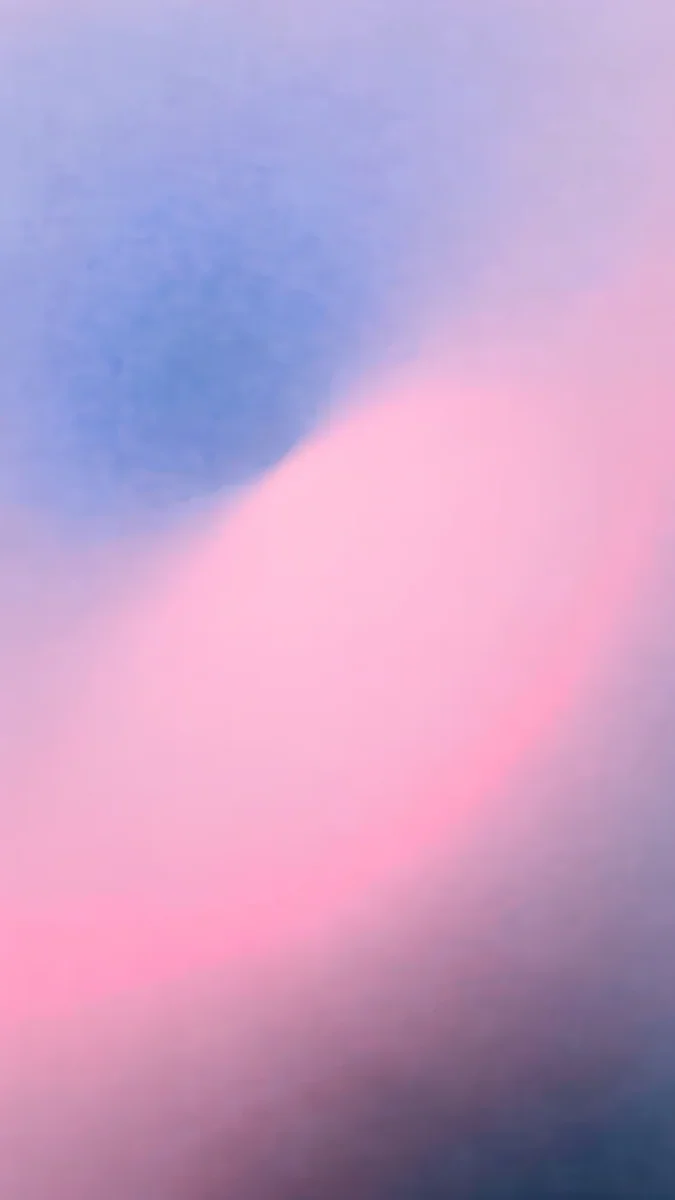 Lilac Hush4K · Phone
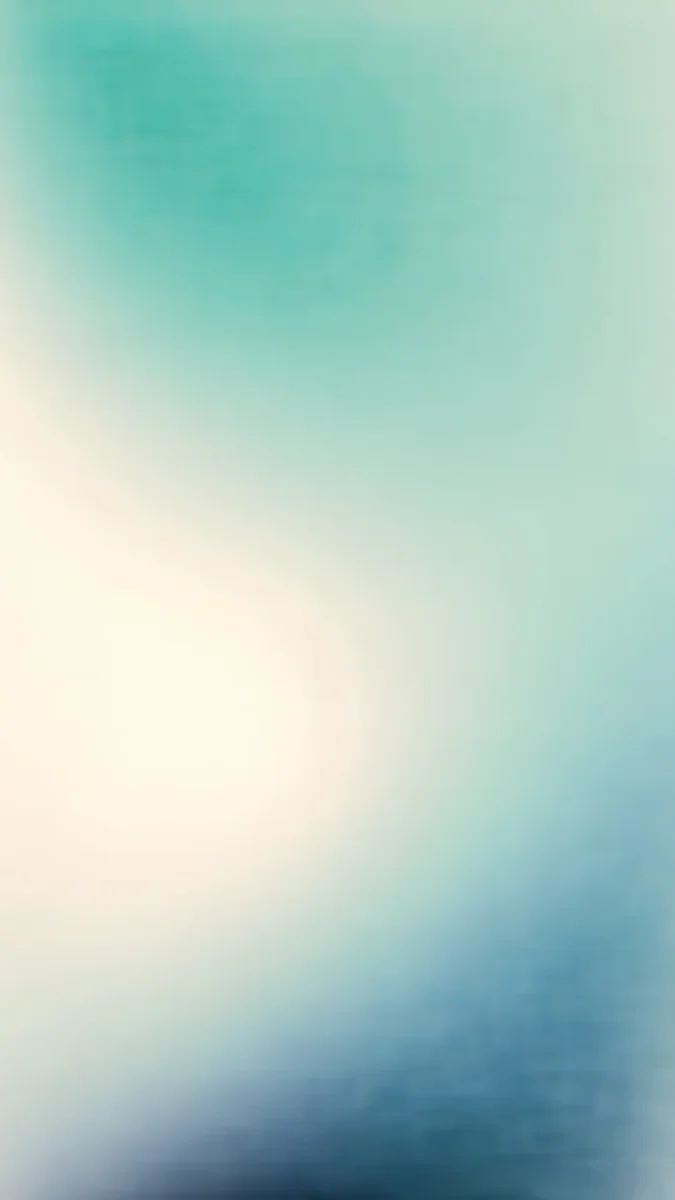 Celadon Haze4K · Phone
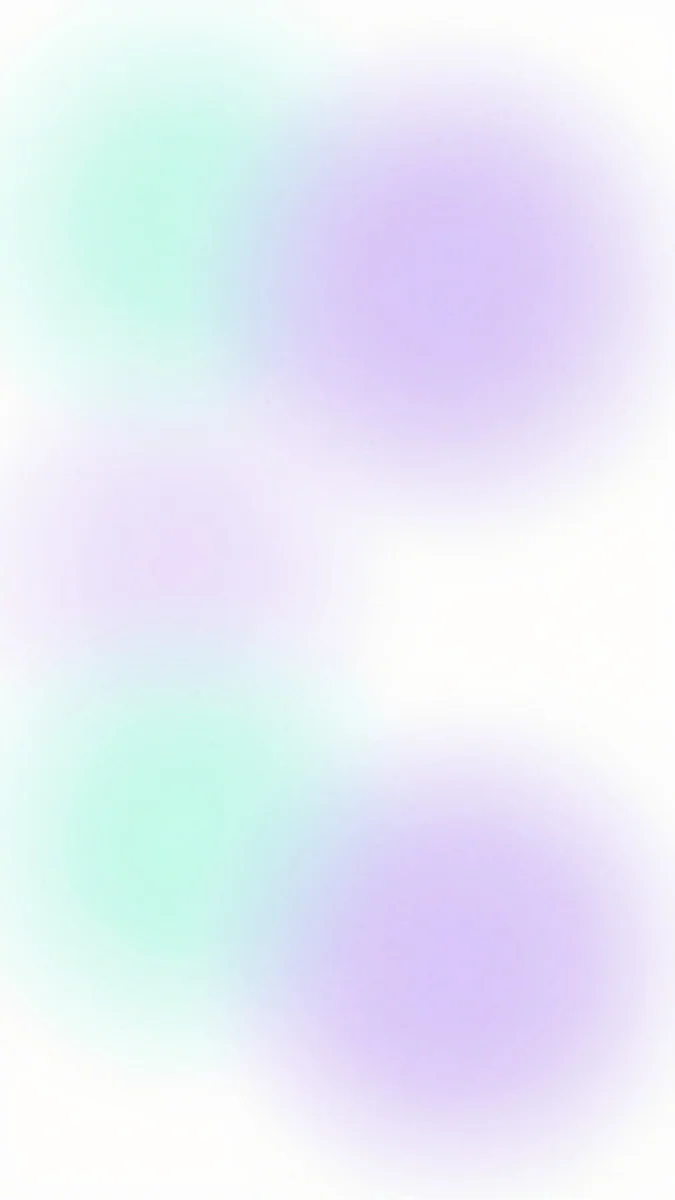 Mint Aura4K · Phone
 Saltwater Moon4K · Phone
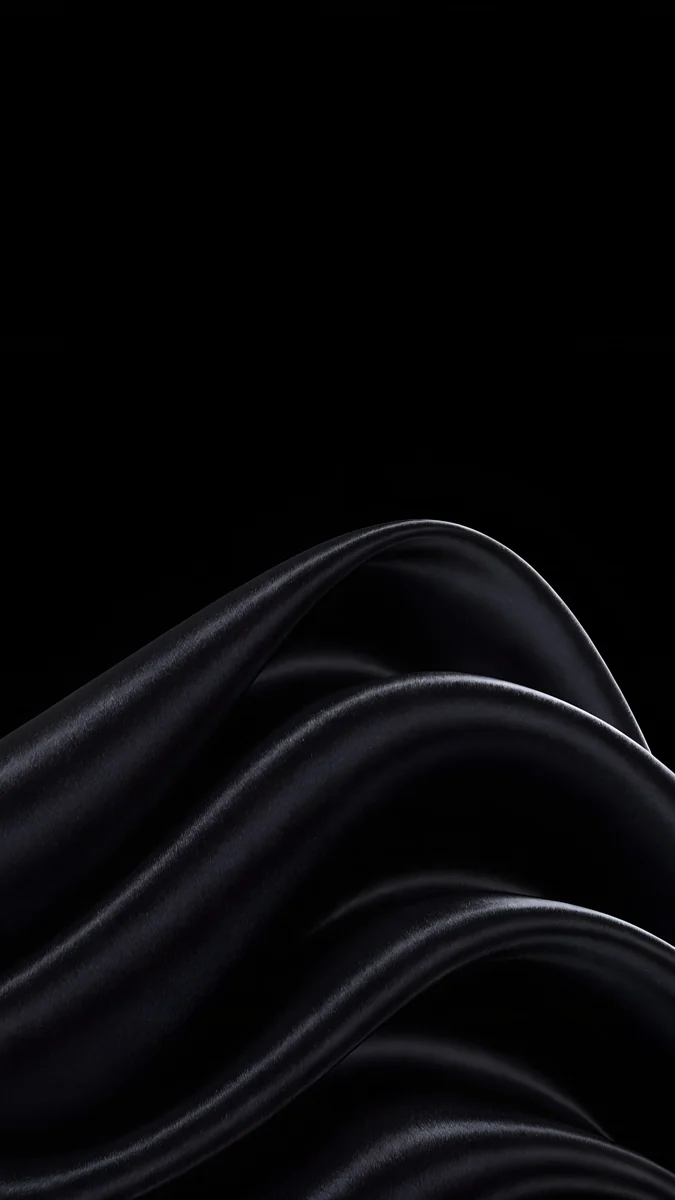 Black Satin4K · Phone
 Arctic Current4K · Phone
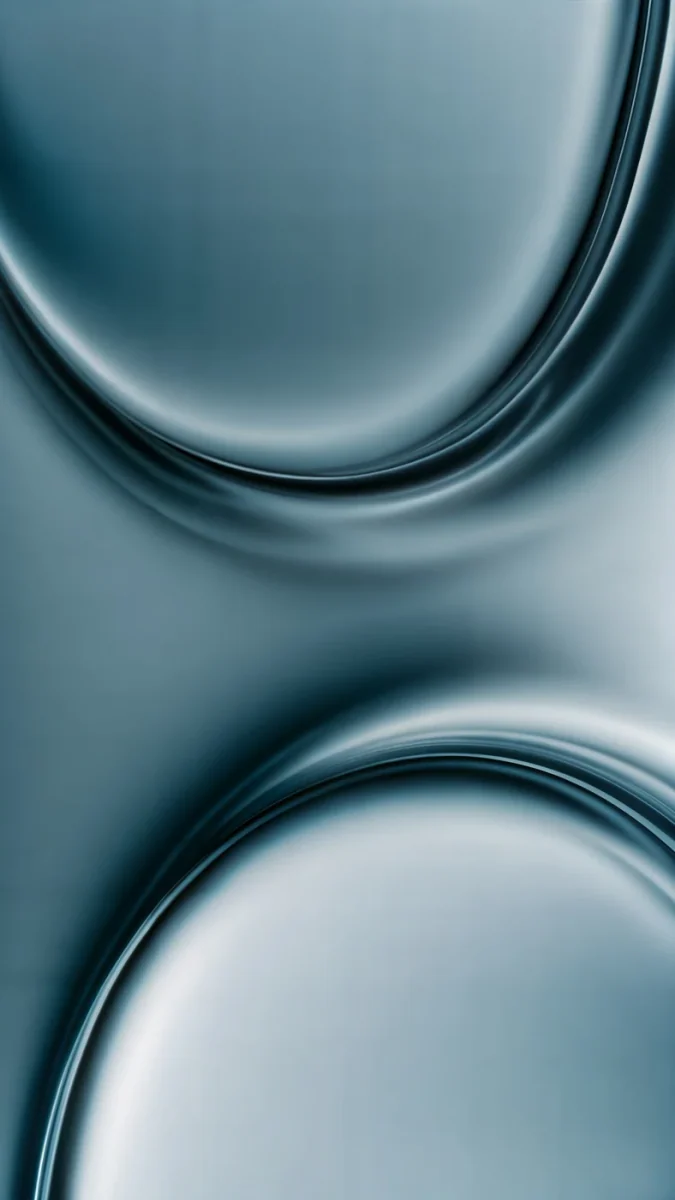
Lilac Hush is a smooth lilac gradient with nothing in the middle, the safest base for Clear icons. Celadon Haze moves from seafoam to pale sage, ideal for a tinted green screen. Mint Aura blends soft orbs of mint, lilac and white with a fine grain, so it hides compression and keeps labels readable. Saltwater Moon puts a tiny moon in a pale pink sky above a calm sea, made for the thumb zone layout. Black Satin spreads low contrast black folds across the whole frame for Dark icons on OLED, and Arctic Current is a smooth dark flow that stays quiet under a full grid of widgets.
Common problems and fixes
- Icons jump back to the top left. Free placement arrived with iOS 18. On older versions icons always fill from the top; update the iPhone in Settings, General, Software Update.
- App names will not go away. There is no separate switch for labels. Choose Large in the Customize panel and the names disappear with the bigger size.
- Clear icons are hard to read. The wallpaper is too busy. Switch to a smooth gradient or use the dark version of Clear.
- A widget will not fit. Widgets need a free block of the right size. Move a few icons out of the way, or drag the widget's corner to a smaller size.
- The wallpaper looks blurred behind the icons. Open Settings, Wallpaper, tap Customize under the home screen preview and turn off Blur.
- An app seems to be gone. It is in the App Library or on a hidden page. Swipe to the App Library and search for it, or tick the page again in the page dots.
For the icon styles in more depth, read how to make your iPhone home screen aesthetic. If you want a striking picture on the lock screen and a calmer one here, see a different lock and home screen wallpaper, and for the lock screen itself, our iOS 26 lock screen customization guide.
Get these wallpapers in Velpaper
Velpaper has apps for iPhone, iPad, Mac and Android, and the same wallpapers are on velpaper.com. Every one is a 4K original designed by Carlos Vivero, 2160 × 3840 pixels on phones, so iOS only ever scales it down.
- Open Lilac Hush in the Velpaper app or on velpaper.com.
- Download the original and save it to Photos. Skip the screenshot; it gives you a compressed copy.
- Open Settings, Wallpaper, Add New Wallpaper, tap Photos and pick the file.
- Tap Add, then Customize Home Screen if you want it behind the apps only, and turn off Blur.
Browsing and previewing are free, with no account. Some phone wallpapers unlock after a short optional ad in the apps, and the file you get is the full original without a watermark.
Original wallpapers in 4K and 5K for iPhone, Android and desktop.
Questions
What is the best iPhone home screen layout?
For most people, one page with four to eight daily apps in the lower half, the Dock, and at most one large widget at the top. Everything else goes to the App Library, which you reach by swiping left past your last page, and to search. This layout keeps the apps within reach of your thumb, shows most of the wallpaper and takes little upkeep. Since iOS 18 you can leave empty rows anywhere on the grid, so you do not need filler apps to push icons down. Pair it with a calm wallpaper, such as a soft gradient, and the Large icon size if you want the app names gone.
How do I move apps anywhere on the iPhone home screen?
Touch and hold an empty spot on the home screen until the icons jiggle, then drag an app to any free cell of the grid. Since iOS 18, icons no longer snap to the top left, so you can leave gaps, fill only the bottom rows or build a frame around the wallpaper. The grid itself stays, so icons still sit in fixed rows and columns. If apps keep jumping back to the top, your iPhone runs an older version; update it in Settings, General, Software Update. Tap Done in the top right corner when the layout is finished, and use the page dots above the Dock to hide pages you no longer need.
How many apps should be on the iPhone home screen?
There is no rule, but fewer is easier to read and to keep tidy. A common target is the four apps in the Dock plus four to eight on the first page, the ones you open several times a day. Everything you open once a week or less can live in the App Library, where iOS sorts apps into categories automatically, or be found through search. If you like having more apps visible, one tidy second page beats five half full ones. You can hide spare pages instead of deleting them: tap the page dots in edit mode and untick them, and they come back if you tick them again.
Do clear icons in iOS 26 work with any wallpaper?
Not equally well. Clear icons turn every tile into frosted glass, so the wallpaper shows through each one. On a smooth gradient they look crisp and light; on a busy photo with faces, text or fine patterns they blur into the background and become hard to tell apart. Choose a wallpaper with low contrast and no single subject, such as Lilac Hush or Mint Aura on Velpaper, and check the dark version of Clear if your wallpaper is dark. Clear is set in the home screen editor: touch and hold, tap Edit, then Customize, and choose Clear. Widgets on the page take the same style.
Where can I get wallpapers for an iPhone home screen layout?
Velpaper makes original wallpapers that work behind icons: calm gradients, soft surfaces and quiet skies, plus dark designs for OLED screens. Every phone wallpaper is a 4K original at 2160 × 3840 pixels, larger than any iPhone display, so it stays sharp after iOS scales it. Lilac Hush and Mint Aura suit Clear icons, Celadon Haze suits a tinted green screen, Saltwater Moon suits a thumb zone layout and Black Satin suits Dark icons. Velpaper has apps for iPhone, iPad, Mac and Android and the website velpaper.com. Browsing is free with no account, and some phone wallpapers unlock after a short optional ad.
Carlos Vivero
Designer of Velpaper wallpapers
Carlos Vivero designs the wallpapers in Velpaper: quiet architecture, liquid glass, Japanese ink and calm landscapes. Every piece is made as a 4K original for iPhone, Android and desktop.
Recent work








