Different Lock and Home Screen Wallpaper: iPhone, Android
How to set a different lock screen and home screen wallpaper, step by step for iOS 26 and 18, Samsung One UI 7 and Pixel, plus how to pick a pair that works.
In short: Both iPhone and Android let you use one picture on the lock screen and another on the home screen. On iPhone, long-press the lock screen, tap Customize, choose Home Screen and tap Photos to pick a second image; on Samsung and Pixel, set one image to Lock screen and then a different one to Home screen.
By the Velpaper team · Wallpapers by Carlos Vivero, Velpaper designer · · Updated · 5 min read
Free 4K originals for iPhone and Android, no watermark
On this page
Yes, you can have a different wallpaper on the lock screen and the home screen, on iPhone and on every Android phone. On iPhone, long-press the lock screen, tap Customize, choose Home Screen and pick a second photo. On Samsung, Pixel and other Android phones, set one picture with the Lock screen option, then set another with the Home screen option.
The idea is worth the extra minute. The lock screen is where you look at a wallpaper, so it can carry a striking image. The home screen is where you work, under a grid of icons, so it wants something calmer. Below are exact steps for iOS 18 and iOS 26, One UI 6 and 7 and stock Android, then a few pairs that work well together.
iPhone: a different wallpaper for each screen (iOS 18 and iOS 26)
Since iOS 16, every iPhone wallpaper is a pair: one lock screen plus one home screen. By default the home screen copies the lock screen, often blurred. You can break the pair whenever you like.
Change only the home screen of your current wallpaper
- Unlock with Face ID or Touch ID but stay on the lock screen.
- Touch and hold the lock screen until the wallpaper gallery appears.
- Tap Customize, then choose Home Screen.
- At the bottom, tap Photos and select the second image. The other options are Pair (same image as the lock screen), Color and Gradient.
- Pinch to frame it, check whether Blur is on or off, and tap Done.
The same editor is in Settings under Wallpaper: tap Customize under the home screen preview on the right.
Add a new pair with two different images
- Open Settings, tap Wallpaper, then Add New Wallpaper.
- Tap Photos and choose the image for the lock screen. Adjust it, add widgets if you want, and tap Add.
- iOS asks how to use it. Tap Customize Home Screen instead of Set as Wallpaper Pair.
- Tap Photos, choose the home screen image and tap Done.
iOS 18 and iOS 26 use the same flow; iOS 26 only changes the look of the controls. The full lock screen side, with fonts, widgets and Focus links, is covered in our guide to setting a lock screen wallpaper on iPhone. One detail: the depth effect, where a subject overlaps the clock, only exists on the lock screen. Why it sometimes refuses to work is explained in our article on the iPhone depth effect.
Samsung Galaxy: lock screen and home screen separately (One UI 6 and 7)
The simplest route on a Galaxy is the Gallery app, used twice.
- Open Gallery and the picture for the lock screen.
- Tap the three-dot menu, then Set as wallpaper, and choose Lock screen. Tap Done.
- Open the second picture, tap the three-dot menu, Set as wallpaper, and this time choose Home screen.
You can do the same from Settings, Wallpaper and style, Change wallpapers: whenever One UI asks where to use an image, pick just one screen. Long-pressing the lock screen opens an editor that only ever changes the lock screen, so your home screen stays untouched. More detail, including how to stop the lock screen picture from rotating on its own, is in our guide to changing the Samsung lock screen wallpaper.
Pixel and stock Android
- Touch and hold an empty spot on the home screen and tap Wallpaper and style.
- Choose the screen you want to change. On recent versions the preview has separate Lock screen and Home screen tabs.
- Tap More wallpapers or My photos and pick the image.
- Tap the confirm button and choose Home screen or Lock screen, not both.
- Repeat for the other screen with a second picture.
Labels shift a little between Android versions and brands, so if a button reads Change wallpaper instead, it does the same job. Steps for other brands are in our guide to changing the wallpaper on Android.
How to pick two wallpapers that work together
Two random pictures make unlocking feel like a jump cut. A pair that belongs together makes it feel like stepping from a doorway into a room. Three rules help.
- The lock screen gets the subject. A moon, a figure, a building. It is seen at a glance with only a clock on top.
- The home screen gets the calm. A gradient, sky or water, with no hard edges where icons sit.
- Both share a palette. Same family of colours, so the switch on unlock feels like a dimmer rather than a channel change.
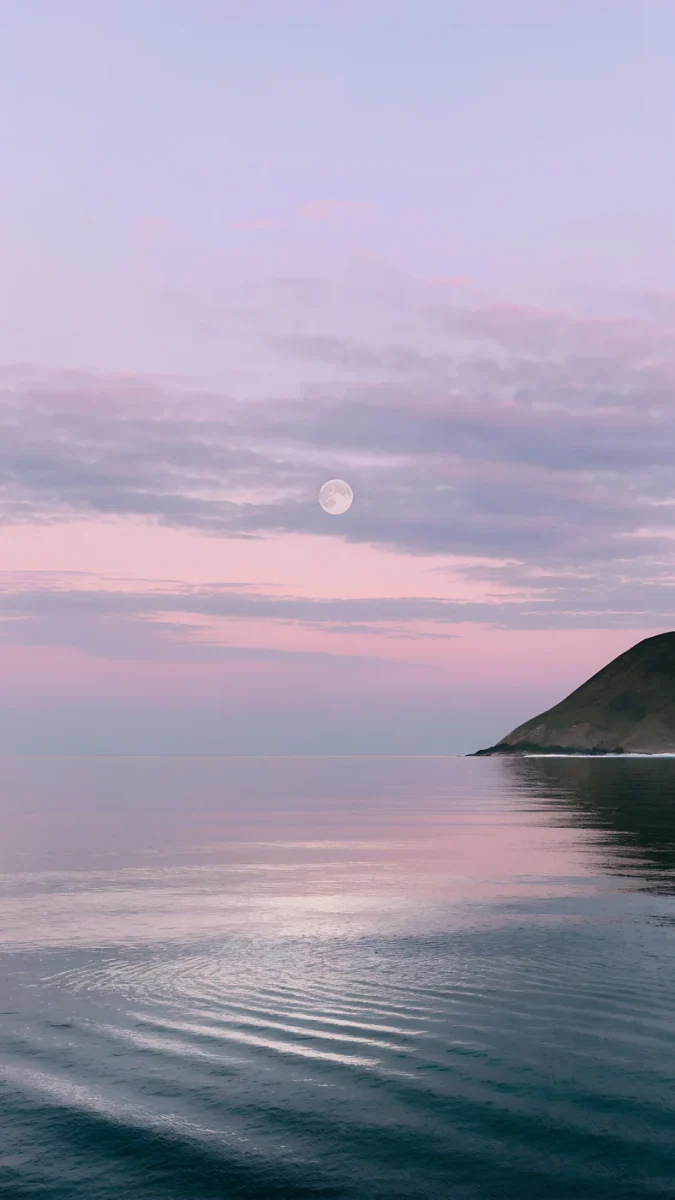 Saltwater Moon4K · Phone
 Lilac Hush4K · Phone
 Blue Cove4K · Phone
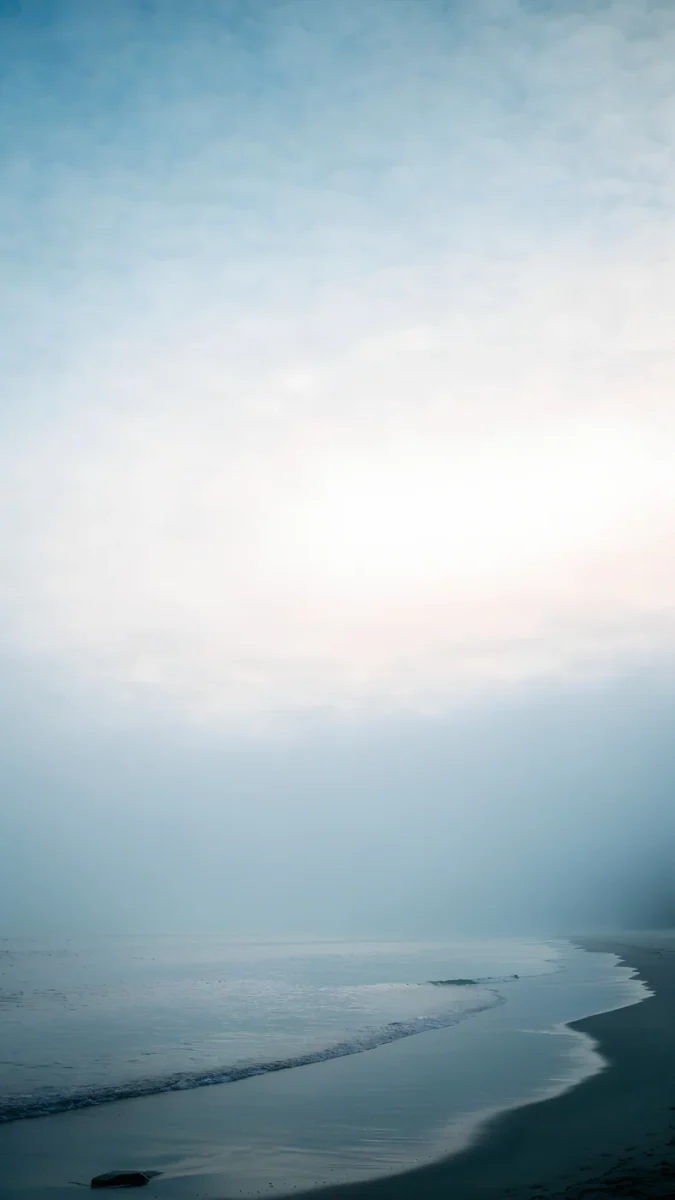 Where the Sea Ends4K · Phone
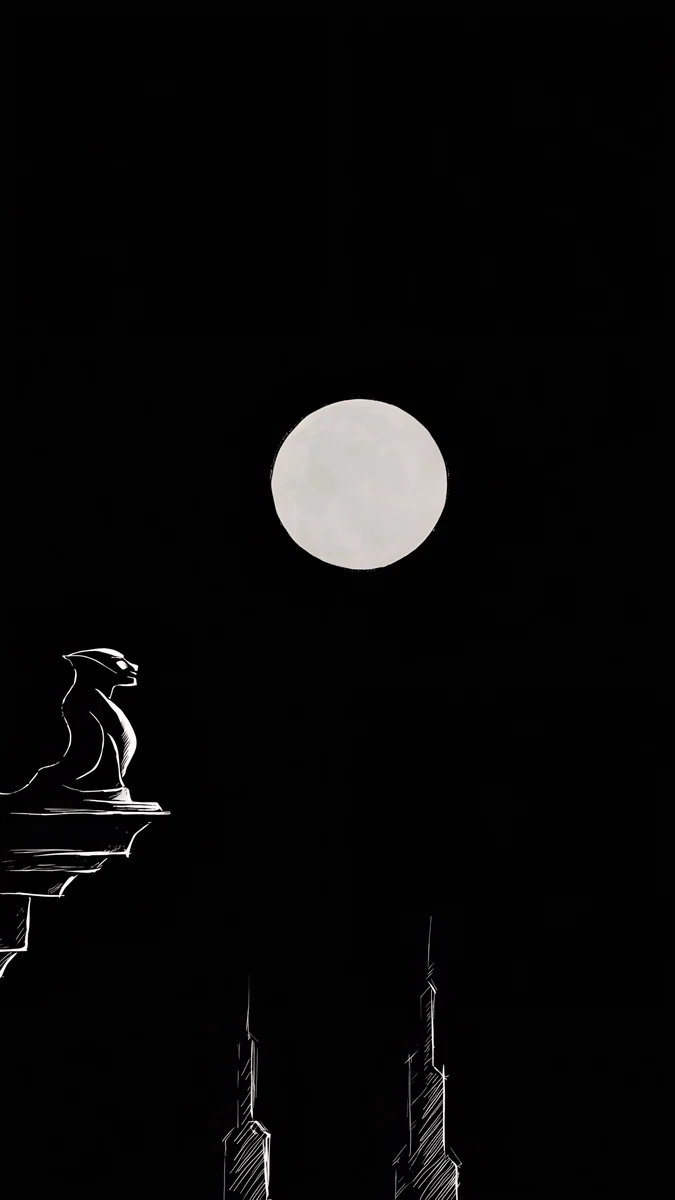 Moon Ledge4K · Phone
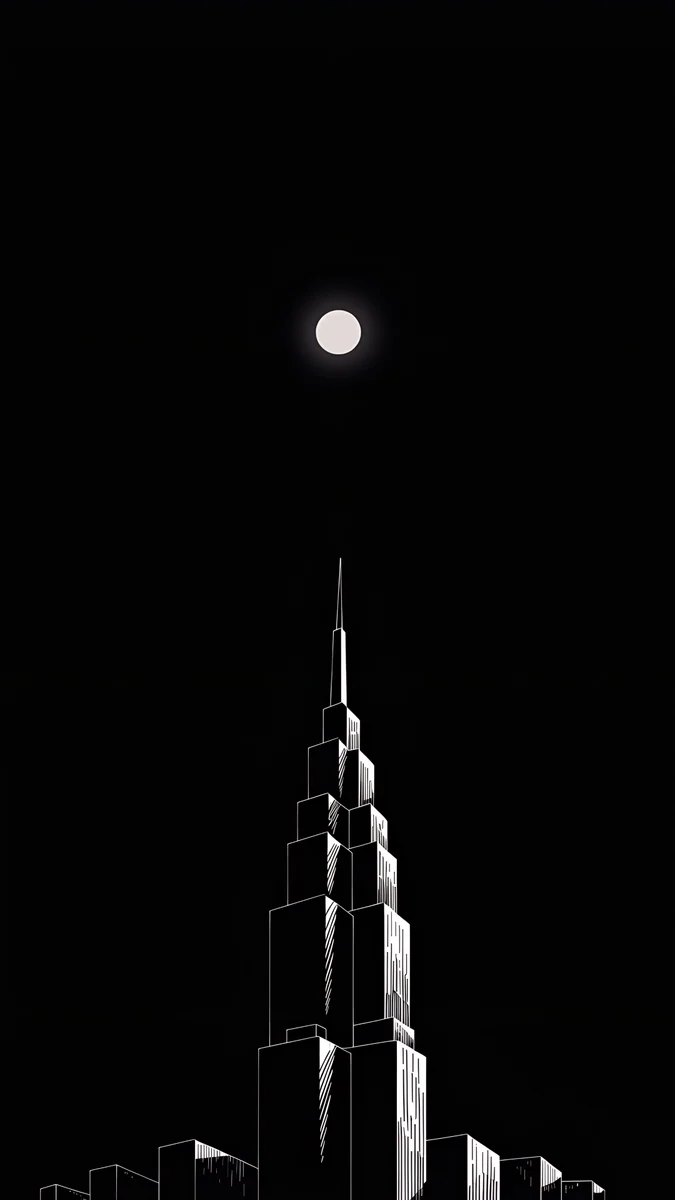 Lone Spire4K · Phone
Here are three pairs from the gallery above. Saltwater Moon, a small moon over still water in lilac light, on the lock screen, with Lilac Hush, a soft lilac and pink gradient, behind the icons. Blue Cove, smooth stones in clear water between dark rocks, for the lock screen, with Where the Sea Ends, mostly misty blue sky above a thin shoreline, on the home screen. For dark mode, Moon Ledge, a gargoyle against a full moon, locks the phone, and Lone Spire, one white-lined tower on black, sits quietly under the apps.
All six are 2160 × 3840 originals on Velpaper. Browsing is free; most phone wallpapers unlock after a short optional ad in the iPhone and Android apps, and on velpaper.com the original downloads for free when no ad is available.
Common problems and quick fixes
The home screen keeps showing the lock screen image. On iPhone, the home screen is still set to Pair. Open Customize, choose Home Screen and tap Photos instead.
The home screen picture looks blurred. The Blur button in the iPhone home screen editor is on. Tap it to turn it off.
The image is too zoomed in. The picture is smaller than the screen, or you pinched in while framing it. Start from a full-size original and see our fix for an iPhone wallpaper that is too zoomed in.
A Galaxy lock screen changes by itself. A wallpaper service such as Dynamic Lock screen is on. Turn it off under Wallpaper services in the lock screen settings, then set your picture again.
Original wallpapers in 4K and 5K for iPhone, Android and desktop.
Questions
Can I have a different wallpaper on the lock screen and the home screen on iPhone?
Yes. Long-press the lock screen, tap Customize and choose Home Screen. At the bottom, tap Photos and pick a different image, then tap Done. If you are adding a new wallpaper from Settings, Wallpaper, Add New Wallpaper, iOS asks after you tap Add whether to set it as a pair or to customize the home screen; choose Customize Home Screen. This works the same in iOS 16, iOS 17, iOS 18 and iOS 26. Each saved lock screen keeps its own home screen, so you can switch between several pairs.
How do I set a wallpaper only on the home screen and not the lock screen?
On iPhone, open the Customize editor for your current wallpaper, choose Home Screen and pick Photos; the lock screen stays as it is. On Samsung, open the picture in Gallery, tap the three-dot menu, then Set as wallpaper, and choose Home screen only. On a Pixel or stock Android, long-press the home screen, open Wallpaper and style, pick the image and choose Home screen when Android asks where to use it. In every case the lock screen keeps its current wallpaper.
Why is my iPhone home screen wallpaper blurry?
In most cases the Blur option is switched on. When the home screen uses Pair, iOS often blurs the lock screen image so icons stand out. Long-press the lock screen, tap Customize, choose Home Screen and tap the Blur button at the bottom to turn it off. If the image still looks soft, the file itself is too small for the screen, for example a screenshot or a photo compressed by a messenger. Use a full original of at least 2160 × 3840 pixels instead.
What kind of wallpaper works best on the home screen?
Something calm with no hard detail where the icons sit. Gradients, misty sky, still water and dark backgrounds all work, because app names and widget text stay readable on top. Keep the striking image, such as a moon, a building or a face, for the lock screen, where only the clock covers it. Choosing two images from the same colour family makes unlocking feel smooth. Dark home screens also suit OLED phones and dark mode, while light pastel ones pair best with dark icon labels.
Does a different home screen wallpaper use more battery?
No. A still wallpaper is drawn once and costs essentially nothing, whether the two screens match or not. What can matter on OLED phones, which include recent iPhones and most Galaxy models, is brightness: dark pixels use less power than bright ones, so a mostly black home screen draws slightly less than a white one when the screen is on. The difference is small in daily use. Velpaper wallpapers are still images, so they behave like any photo you set.
Carlos Vivero
Designer of Velpaper wallpapers
Carlos Vivero designs the wallpapers in Velpaper: quiet architecture, liquid glass, Japanese ink and calm landscapes. Every piece is made as a 4K original for iPhone, Android and desktop.
Recent work








