iOS 26 Lock Screen Customization: Clock and Widgets
Customize the iOS 26 lock screen step by step: the Liquid Glass clock, a taller time, widgets, controls, spatial scenes and Focus, plus fixes when it fails.
In short: Touch and hold the lock screen, tap Customize, then Lock Screen: tap the time to change the font, colour and glass look, drag its lower edge to make it taller, and tap the box under it to add widgets. A wallpaper with a calm top third keeps the glass clock readable.
By the Velpaper team · Wallpapers by Carlos Vivero, Velpaper designer · · 7 min read
Free 4K originals for iPhone and Android, no watermark
On this page
To customize the iOS 26 lock screen, unlock with Face ID while staying on the lock screen, touch and hold it, tap Customize and choose Lock Screen. Tap the time to change its font, colour and glass finish, drag the lower edge of the clock to make it taller, and tap the box under it to add widgets. A wallpaper with a calm top third keeps the Liquid Glass clock readable.
The menu names below match iOS 26 in English. Apple renames small things between updates, so if a label differs slightly on your iPhone, look for the closest match in the same place.
How to customize the iOS 26 lock screen, step by step
- Wake the iPhone and let Face ID or Touch ID unlock it, but do not swipe up.
- Touch and hold an empty part of the lock screen until the gallery of lock screens appears.
- Tap Customize under the current lock screen, then tap the Lock Screen preview on the left. To start from scratch, tap the blue + button instead and pick Photos.
- Pinch and drag with two fingers to frame the picture. Keep the busy part of the image below the clock.
- Tap the time. A sheet opens with fonts, colours and, on most fonts, a weight slider.
- Tap the empty box under the clock to add widgets, or the date line above it for one more.
- Tap Done, then choose whether the home screen uses the same picture.
You can reach the same editor from Settings, Wallpaper, then Customize under the lock screen preview. That path is handy when you are already in Settings and do not want to lock the phone.
The Liquid Glass clock: font, colour and height
iOS 26 draws the time in the new Liquid Glass style. The digits act like thick glass: they pick up light and colour from the wallpaper behind them instead of sitting on top as flat paint. In the font sheet you can choose that glass look or a solid colour, and pick a tint from the row of swatches. The last circle in the row opens a full colour picker.
The clock also stretches. In the editor, drag the handle at the bottom of the time downwards and the digits grow taller. When the photo has a clear subject, such as a person or a building, iOS can place part of the subject in front of the digits. That is the depth effect, switched on in the More menu, the three dots in the bottom right corner. If it refuses to work, our guide to the iPhone depth effect lists every cause.
Glass digits need a calm background. On a soft gradient they look like a lens; on a photo full of small detail they turn hard to read. When that happens, switch to a solid colour or choose a quieter picture. Our guide to a lock screen wallpaper that keeps the clock readable goes deeper into contrast.
Widgets, controls and notifications
- Widgets under the clock. The box holds up to four small widgets, or two wide ones, from apps such as Weather, Calendar, Fitness and Batteries. Third party apps add their own.
- The date line. The line above the time takes one more compact widget, for example the next calendar event or the weather.
- Bottom controls. The flashlight and camera buttons are not fixed. In the editor, tap the minus on either one, then the plus, and pick another control, such as Do Not Disturb, the calculator or a shortcut.
- Notifications. Open Settings, Notifications, Display As and pick Count, Stack or List. Count keeps the most of the wallpaper visible.
- Glass strength. If notification banners look too transparent on your wallpaper, iOS 26.1 and later have a Liquid Glass option in Settings, Display & Brightness with a clear and a tinted look. Tinted makes the glass more opaque. Older builds only have Reduce Transparency in Accessibility, Display & Text Size.
Fewer is better on a lock screen. Two widgets and a clean date line read faster than a full row, and empty widget boxes also leave room for the depth effect.
Spatial scene, Focus and Always On
iOS 26 can turn a photo into a spatial scene: a 3D version of the picture that shifts slightly when you tilt the phone. In the editor, tap the spatial scene button next to the three dots and wait while iOS builds the layers. Apple lists it for iPhone 12 and later. The full walkthrough, with the pictures that work best, is in our guide to the iPhone spatial scene wallpaper.
Each lock screen can also follow a Focus. Touch and hold the lock screen, swipe to the one you want, tap Focus at the bottom of the preview and pick, say, Work or Sleep. When that Focus turns on, the phone switches lock screens for you.
On iPhones with an Always On display, the wallpaper stays dimly visible while the phone rests. In Settings, Display & Brightness, Always On Display you can turn off Show Wallpaper for a black resting screen. Dark wallpapers survive the dimming best; see our Always On display wallpaper guide.
Wallpapers that work with the glass clock
The pattern is the same in all six: the top third is calm, so the glass digits have something smooth to refract, and the detail sits lower, where notifications and widgets go.
 Liquid Light4K · Phone
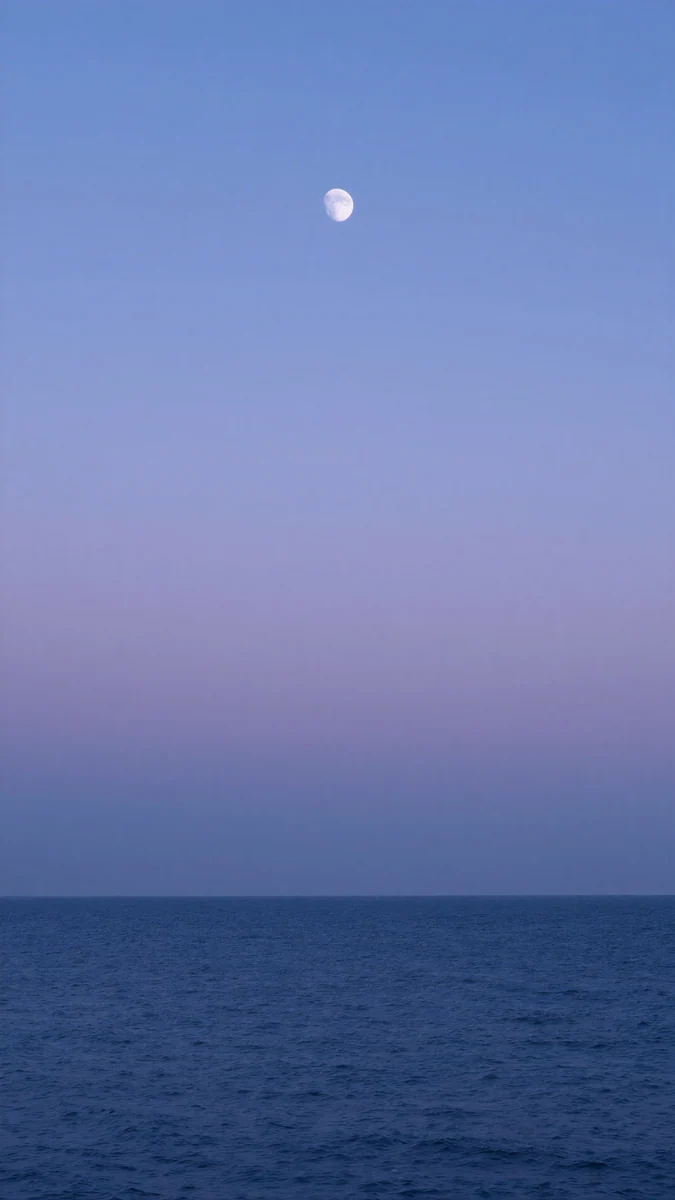 Dusk Moon Sea4K · Phone
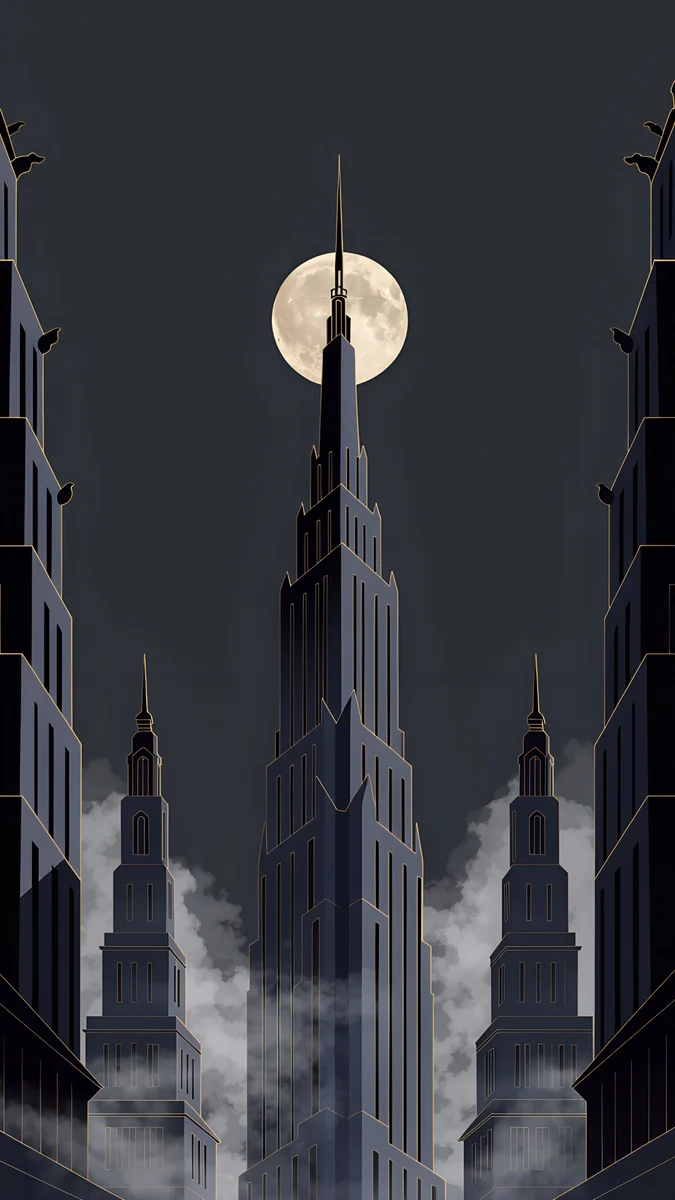 Deco Gold4K · Phone
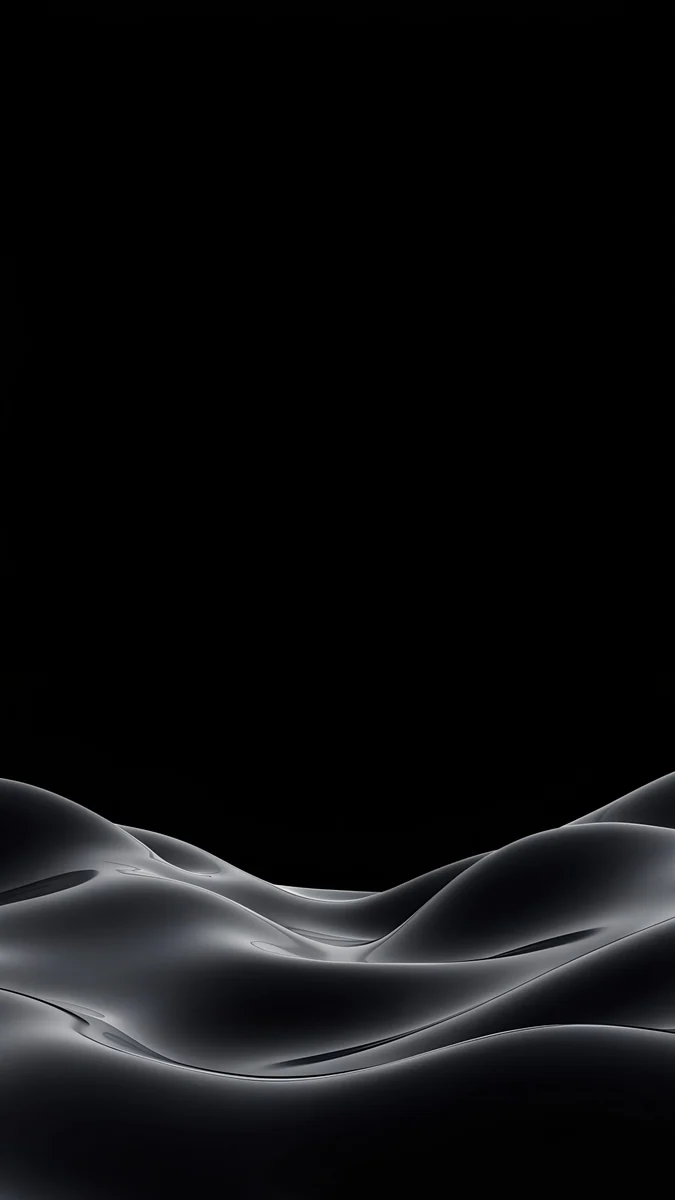 Obsidian Waves4K · Phone
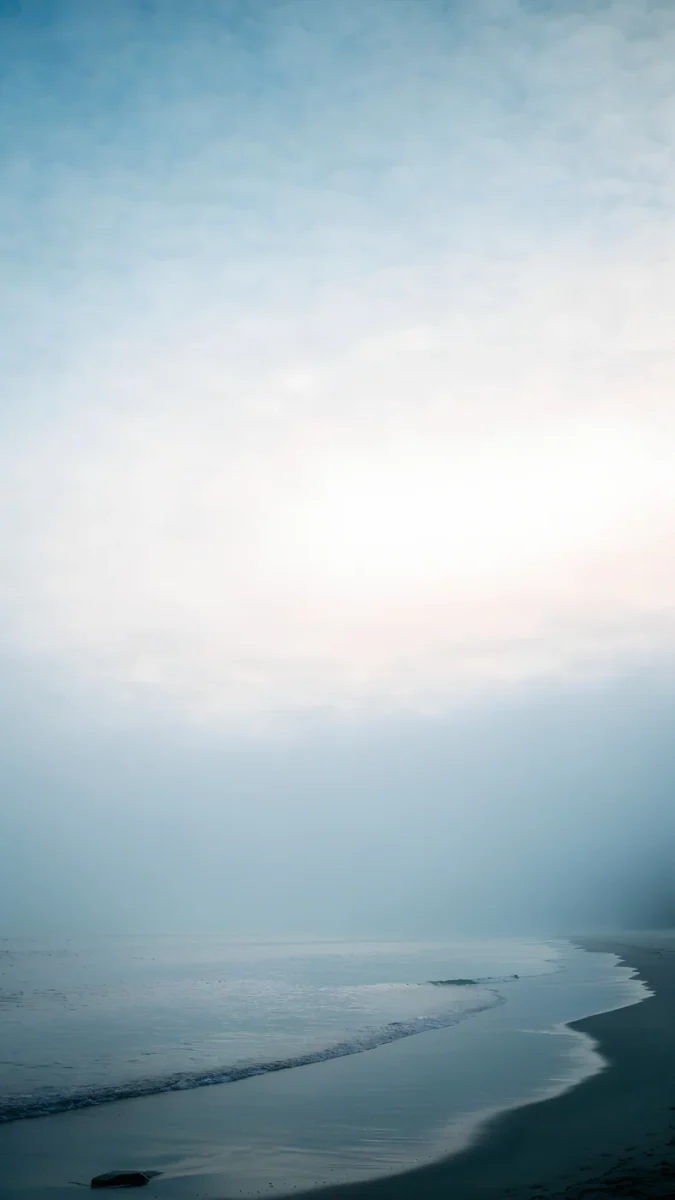 Where the Sea Ends4K · Phone
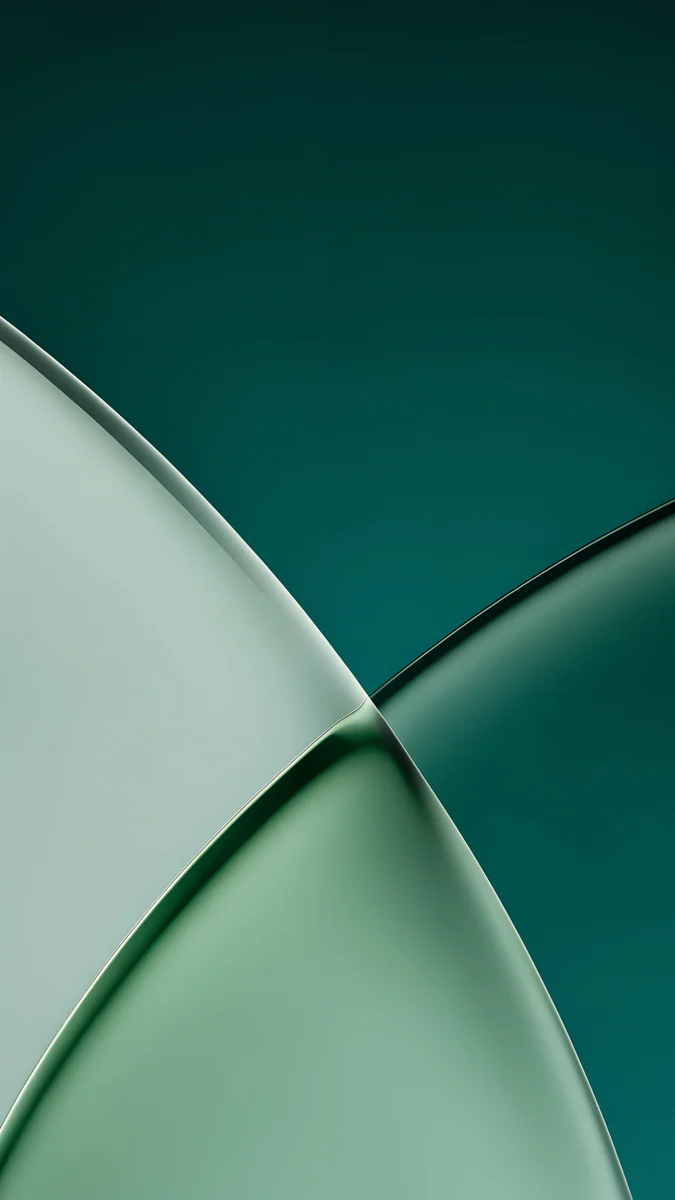 Jade Light Fold4K · Phone
Liquid Light is one long fold of frosted lilac and peach glass, the closest match to the Liquid Glass look itself. Dusk Moon Sea keeps a low horizon and a small moon under a wide dusk sky, so a tall clock fits without touching anything. Deco Gold has a single Art Deco spire rising through a full moon on flat dark sky, a good shape to try with the depth effect. Obsidian Waves puts black glass waves at the bottom and leaves the top pure black, ideal for a white clock and the Always On display. Where the Sea Ends is a thin shoreline under misty sky for a dark clock, and Jade Light Fold lays frosted jade over deep teal for a pale tinted one.
Common problems and fixes
- Customize does not appear. The iPhone is still locked. Look at it until the padlock opens, then touch and hold again.
- The clock blends into the picture. iOS picks a colour automatically and often lands on a mid tone. Tap the time and set white for dark wallpapers or a dark tint for light ones, or switch from glass to a solid colour.
- The clock will not stretch. The taller layout may not be offered with every font or wallpaper type. Try another font, and make sure the picture comes from Photos rather than an Emoji or Color style.
- The depth effect stopped working after adding widgets. The widget row sits exactly where the subject needs to rise. Remove those widgets and turn on Depth Effect again in the More menu.
- The wallpaper looks zoomed or soft. Open the More menu and turn off Perspective Zoom, then reframe. If it is still soft, the file is too small; our zoomed in wallpaper fix explains why.
- No spatial scene button. The iPhone is older than the iPhone 12, or iOS could not find layers in that picture. Try a photo with a clear foreground.
Apple's own steps for the wallpaper part are in Change your iPhone wallpaper.
Get these wallpapers in Velpaper
Velpaper has apps for iPhone, iPad, Mac and Android, and the same wallpapers are on velpaper.com. Every one is a 4K original designed by Carlos Vivero, 2160 × 3840 pixels on phones, and composed with open space where the clock sits.
- Open Liquid Light in the Velpaper app or on velpaper.com.
- Download the original and save it to Photos. Do not screenshot the preview; that gives you a compressed copy.
- Open Settings, Wallpaper, Add New Wallpaper, tap Photos and pick the file.
- Tap the time, choose the glass look or a dark solid colour, then tap Add.
Browsing and previewing are free, with no account. Some phone wallpapers unlock after a short optional ad in the apps, and the file you get is the full original without a watermark. For the basics of setting any image, see how to set a lock screen wallpaper on iPhone.
Original wallpapers in 4K and 5K for iPhone, Android and desktop.
Questions
How do I change the clock on the iOS 26 lock screen?
Unlock the iPhone with Face ID or Touch ID but stay on the lock screen, then touch and hold it and tap Customize, followed by Lock Screen. Tap the time and a sheet opens with fonts, a weight slider on most fonts and a row of colours. On iOS 26 you can keep the Liquid Glass look, where the digits pick up colour and light from the wallpaper, or pick a solid colour. The last circle in the colour row opens a full picker. Tap Done when the time reads clearly against the picture. As a rule, a white or pale clock suits dark wallpapers and a dark clock suits light ones.
Can I make the iOS 26 lock screen clock bigger?
Yes. iOS 26 lets the time grow taller. In the lock screen editor, tap the clock and drag the handle at its lower edge downwards; the digits stretch to fill the space you give them. On a photo with a clear subject, iOS can also put part of that subject in front of the digits with the depth effect, found in the More menu behind the three dots. If the clock refuses to stretch, try another font or a picture added from Photos, because the taller layout may not be offered for every style. A wallpaper with an empty upper half, such as Dusk Moon Sea or Obsidian Waves on Velpaper, gives a tall clock the most room.
How many widgets can I put on the iPhone lock screen?
Up to four small widgets in the box under the clock, or two wide ones, or a mix such as one wide and two small. The date line above the time takes one more compact widget, for example the weather, the next calendar event or a battery level. That is the limit for one lock screen, but you can make several lock screens with different widgets and switch between them, or link each one to a Focus. Keep in mind that widgets under the clock block the depth effect, because the subject of the photo needs that space to rise in front of the time. Two widgets usually look cleaner than a full row.
Why is my iOS 26 lock screen clock hard to read?
Usually because the wallpaper is busy behind the time. The Liquid Glass digits refract what is behind them, so fine detail, text or strong patterns in the top third make them blur into the picture. There are three fixes. Tap the time and set the colour by hand instead of leaving the automatic tint, often white on dark images and a deep tone on light ones. Switch the clock from the glass look to a solid colour. Or pick a wallpaper with a calm top, such as a gradient, a sky or empty water. If the banners are the problem rather than the clock, iOS 26.1 and later let you choose a tinted Liquid Glass look under Display and Brightness.
Where can I get wallpapers that suit the iOS 26 lock screen?
Velpaper makes original wallpapers with the lock screen in mind: a calm area at the top for the clock and the detail lower down, where notifications sit. Every phone wallpaper is a 4K original at 2160 × 3840 pixels, larger than any iPhone screen, so iOS only scales it down. Liquid Light and Jade Light Fold suit the glass clock, Obsidian Waves suits a white clock on OLED, and Deco Gold is a good candidate for the depth effect. Velpaper has apps for iPhone, iPad, Mac and Android and the website velpaper.com. Browsing is free with no account, and some phone wallpapers unlock after a short optional ad.
Carlos Vivero
Designer of Velpaper wallpapers
Carlos Vivero designs the wallpapers in Velpaper: quiet architecture, liquid glass, Japanese ink and calm landscapes. Every piece is made as a 4K original for iPhone, Android and desktop.
Recent work