How to Make a Dynamic Wallpaper on Mac (macOS Tahoe)
Turn on a Mac dynamic wallpaper that follows the sun, build your own time-of-day HEIC from your images, or fake one with a rotating folder. macOS Tahoe.
In short: For Apple's built-in version, open System Settings, Wallpaper, pick a picture from Dynamic Wallpapers and choose Dynamic in the menu next to the preview; it changes with the sun where you are. To make your own, combine several same-size images into one HEIC file with a free tool such as Equinox, then set that file as your wallpaper.
By the Velpaper team · Wallpapers by Carlos Vivero, Velpaper designer · · 6 min read
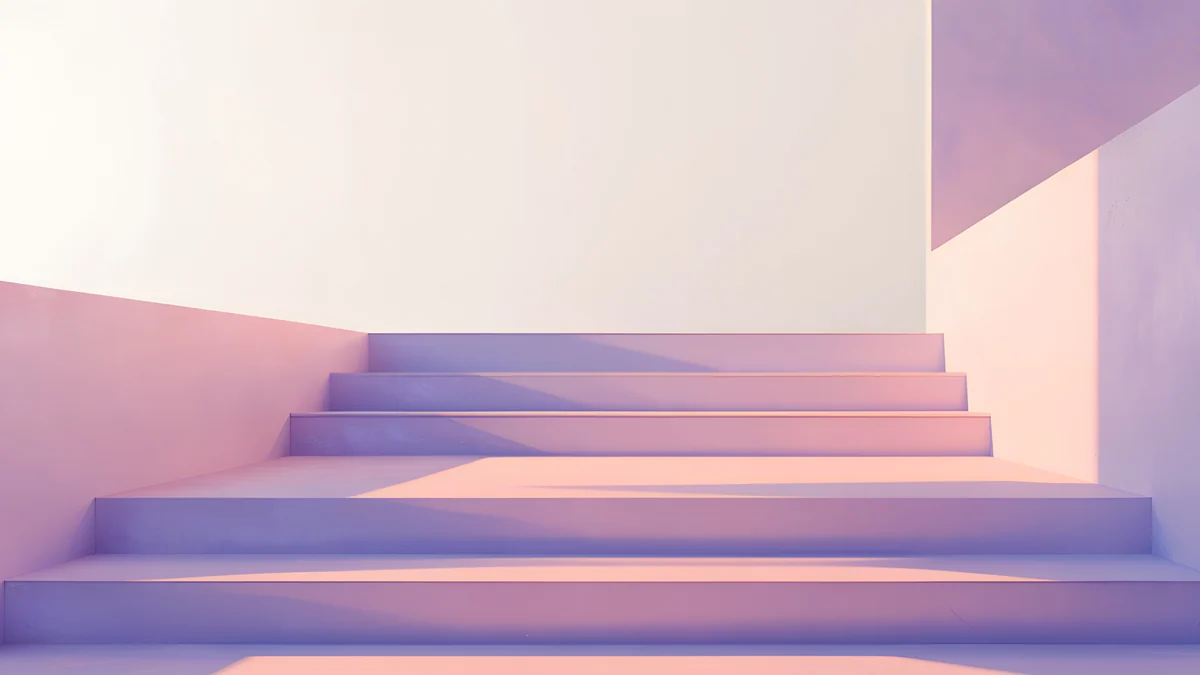 Peach Switchback Steps
 Mint Folded Steps
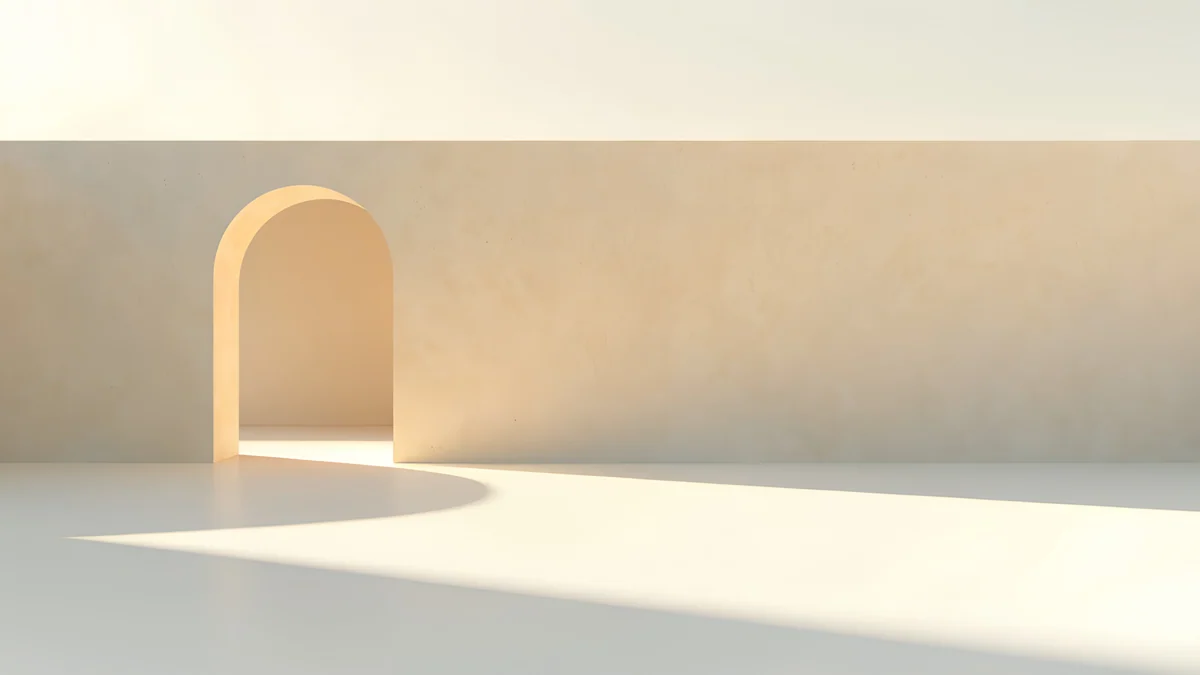 Apricot Noon Hall
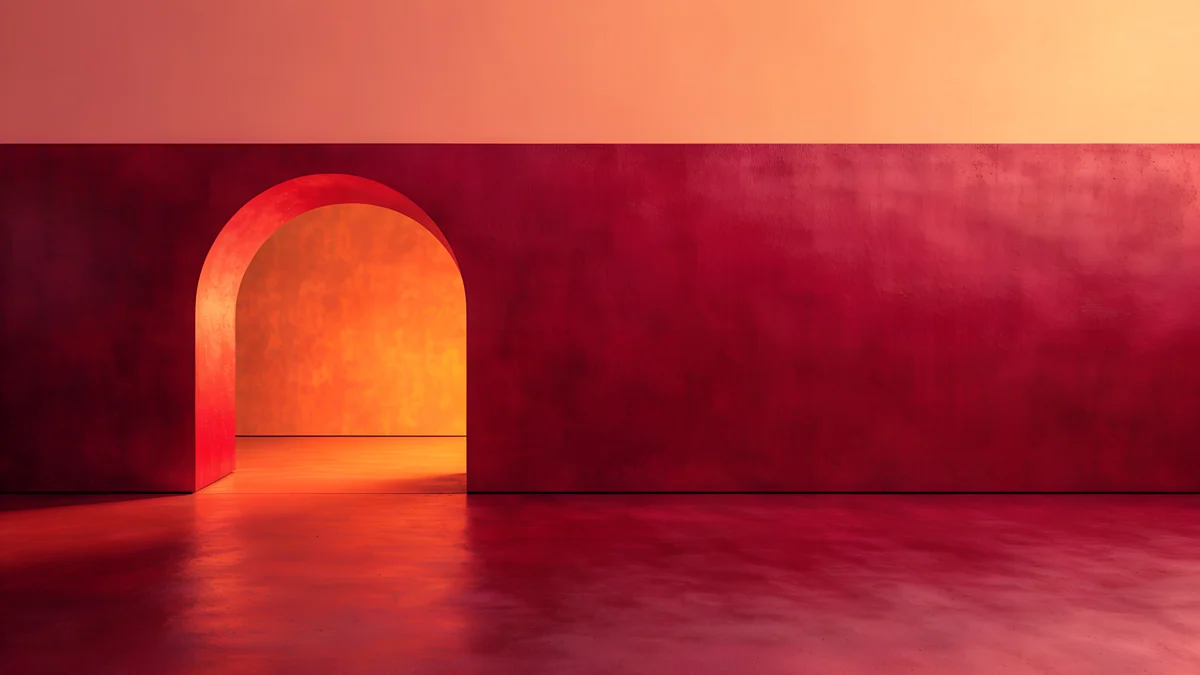 Coral Ignition Gate
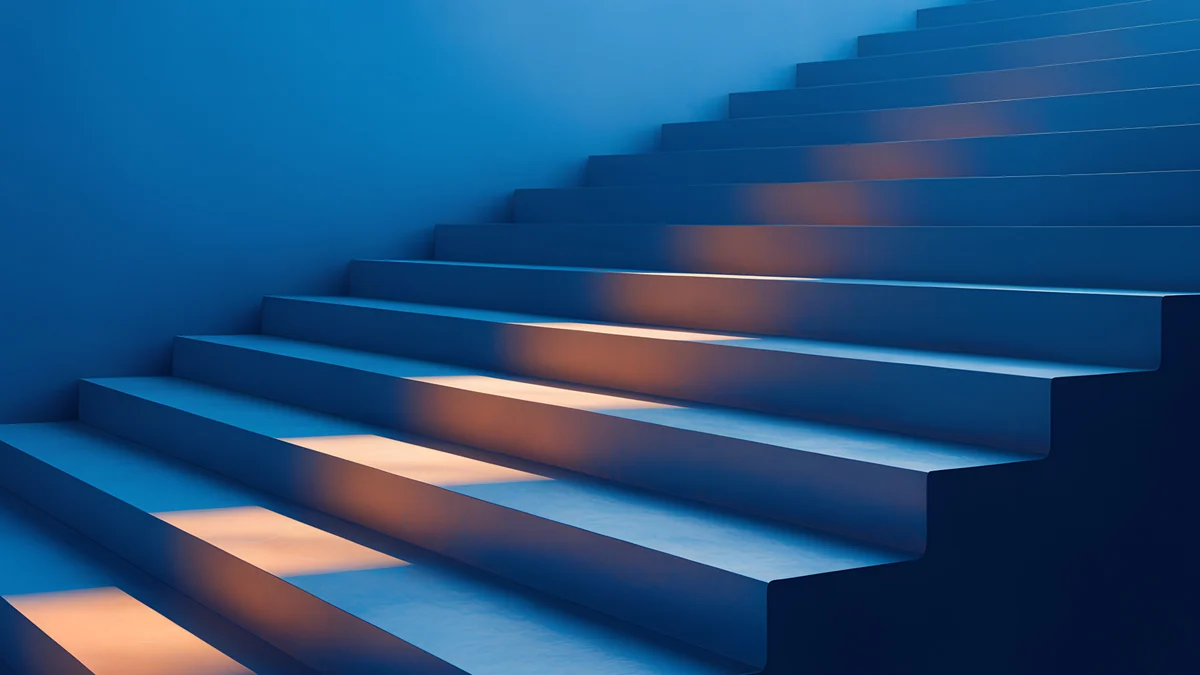 Cobalt Ember Steps
 Electric Violet Vault
Free 4K originals for iPhone and Android, no watermark
On this page
A dynamic wallpaper on a Mac is one picture file that holds several images and changes through the day. Apple's own ones are ready to use: open System Settings, Wallpaper, pick an image under Dynamic Wallpapers and choose Dynamic in the menu next to the preview. To make one from your own pictures you need a special HEIC file, which a free app such as Equinox builds in a few minutes; if you only want variety, a folder that rotates every hour gets close without any extra software.
Turn on Apple's dynamic wallpaper
- Open the Apple menu and choose System Settings.
- Click Wallpaper in the sidebar.
- Scroll to Dynamic Wallpapers and click one. The number of pictures in this group differs by macOS version.
- In the pop-up menu next to the preview, choose Dynamic. The other entries keep the picture on its light or dark version, or follow your light and dark appearance; their exact names can differ by version.
Apple says dynamic wallpapers follow the position of the sun at your location. If Location Services is off in Privacy & Security, the Mac uses the time zone set in General, Date & Time instead, so check that it is right when you travel. Apple's page Customize the wallpaper on your Mac lists the current options.
How a dynamic wallpaper file works
The file is a HEIC image with several pictures inside and a small block of data that tells macOS when to show each one. There are three kinds:
- Solar. Each picture is tied to a position of the sun, so the switch times move with the seasons and your location. Apple's own dynamic wallpapers work this way.
- Time. Each picture is tied to a clock time, for example 07:00, 13:00, 18:30 and 22:00. Easier to plan, but it ignores sunrise and sunset.
- Appearance. Two pictures, one for light mode and one for dark mode. If you set System Settings, Appearance to Auto, the Mac switches at sunset and the wallpaper follows.
All pictures in one file should have the same pixel size and, ideally, the same framing. That is why the best home-made dynamic wallpapers use one scene or one series in different light.
Make your own dynamic wallpaper with Equinox
Equinox is a free, open-source Mac app made for exactly this job. Other tools exist, including the command-line tool wallpapper, but Equinox needs no Terminal. Button names below may differ slightly between app versions.
- Pick four to eight images of the same size, either all 3840 × 2160 or all 5120 × 2880, and order them from morning to night.
- Install Equinox from its developer's page or the Mac App Store and open it.
- Choose the type: Solar, Time or Appearance. For a first try, Time is the easiest to check.
- Drag your images in and give each one its time, or its sun position for Solar. For Appearance, drop one light and one dark image.
- Create the wallpaper and save the HEIC file somewhere permanent, such as your Pictures folder. If you move or delete it later, macOS falls back to another wallpaper.
- Control-click the HEIC in Finder and choose Set Desktop Picture, or add it in System Settings, Wallpaper, Add Photo. If the menu next to the preview offers Dynamic, choose it.
To test a Time wallpaper without waiting all day, set one entry a few minutes ahead and watch the desktop change.
Velpaper series that work as a day cycle
Velpaper does not publish ready-made HEIC dynamic files, but several desktop pieces share one style in different light, which is what a home-made dynamic wallpaper needs. These six are all 3840 × 2160, so they combine into one file without resizing.
Peach Switchback Steps4K · DesktopMint Folded Steps4K · DesktopApricot Noon Hall4K · DesktopCoral Ignition Gate4K · DesktopCobalt Ember Steps4K · DesktopElectric Violet Vault4K · DesktopPeach Switchback Steps is pale peach and lilac, a soft first light for the morning slot. Mint Folded Steps is bright mint stairs under a white sky, the clearest daytime picture. Apricot Noon Hall is a cream wall with one sunlit arch, the high sun of midday. Coral Ignition Gate glows red and orange, made for the sunset slot. Cobalt Ember Steps is deep blue stairs with the last warm light on the treads, early evening. Electric Violet Vault ends the night in violet with cyan and pink light.
For an Appearance wallpaper, take a light and a dark piece of the same size. Ivory Daylight Gate and Solar Indigo Gate are both 5120 × 2880 gates in the same style, one in ivory daylight and one in indigo with a warm glow. More dark picks are in our Mac dark mode wallpapers.
No tools: a folder that rotates every hour
If you do not need the wallpaper to follow the sun, macOS can rotate a folder of images on its own.
- Put the images you want in one folder, for example the six above.
- Open System Settings, Wallpaper and click Add Folder (in some versions it sits under Add Photo).
- Click the folder in the list and choose how often to change, for example every hour or every day.
- Turn off shuffle if you want the files in name order, and number them 01, 02, 03 to control that order.
This changes on a timer, not with the time of day, so the night picture may land at noon. It is still the quickest way to a desktop that does not stay the same all day.
Common problems and fixes
- The wallpaper never changes. The menu next to the preview is on a still light or dark version. Choose Dynamic. Then check the time zone in Date & Time settings.
- It changes at the wrong times. Location Services is off and the time zone is wrong, or you built a Time wallpaper in another time zone. Fix the zone or rebuild the file.
- A home-made HEIC shows only one picture. The file lost its timing data, which happens when you open and re-save it in an image editor or send it through a messaging app. Set the original file from Finder.
- The picture jumps or shifts between steps. The images are not all the same size or framing. Use only 4K or only 5K files from one series.
- The switch looks abrupt. Add more steps. Apple's original Mojave dynamic wallpaper used 16 images for a smooth day.
- The wallpaper is blurry on a 5K display. Build the file from 5120 × 2880 images rather than 4K ones.
The basic wallpaper steps, including Finder and Photos shortcuts, are in our guide to changing the desktop wallpaper on a Mac.
Getting the wallpapers in Velpaper
Every Velpaper wallpaper is an original by designer Carlos Vivero. Desktop wallpapers are 3840 × 2160, some are 5120 × 2880, and phone wallpapers are 2160 × 3840. Velpaper is an app for iPhone, iPad, Mac and Android, with the same catalog on velpaper.com, and the desktop wallpapers are free in full size with no account and no watermark.
- Open Peach Switchback Steps in the Velpaper app for Mac or on velpaper.com.
- Press Download to save the 3840 × 2160 original. Repeat for the rest of your day cycle.
- Drop the files into Equinox, or into one folder for the rotating version.
For a single picture, the Mac app's Set as Desktop Picture button sets it straight away; the lock screen uses the same picture, as explained in our Mac lock screen wallpaper guide.
Original wallpapers in 4K and 5K for iPhone, Android and desktop.
Questions
How do I get the dynamic wallpaper on my Mac?
Open the Apple menu, choose System Settings and click Wallpaper in the sidebar. Scroll to the Dynamic Wallpapers group and click one of Apple's pictures. Then open the pop-up menu next to the preview and choose Dynamic. The wallpaper now changes through the day with the position of the sun at your location. If the menu is set to a light or dark still, or to follow your appearance, it will only change when you switch between light and dark mode. If Location Services is turned off, macOS uses the time zone in Date & Time settings to decide when to switch, so make sure that zone is correct.
Can I make my own dynamic wallpaper on a Mac?
Yes. A dynamic wallpaper is a HEIC file that contains several images plus data saying when each should appear. macOS has no built-in tool to make one, but free apps do it. Equinox, an open-source Mac app, lets you drag in your images, choose Solar, Time or Appearance, set when each picture shows and export the HEIC. Use four to eight images of exactly the same size, for example all 3840 × 2160, ideally of one scene or one series in different light. Save the file in a permanent folder, then Control-click it in Finder and choose Set Desktop Picture.
Why is my Mac dynamic wallpaper not changing?
The most common reason is the menu next to the preview in System Settings, Wallpaper. If it is set to a still light or dark version, the picture stays put; choose Dynamic. The second reason is time: with Location Services off, macOS follows the time zone in General, Date & Time, so a wrong zone means changes at odd hours. For a home-made file, the timing data may have been lost if the HEIC was opened and saved again in an editor or sent through a messaging app. Set the original file from Finder. If you moved or deleted the file after setting it, macOS falls back to another wallpaper.
What is the difference between Solar, Time and Appearance wallpapers?
They differ in what triggers the change. A Solar wallpaper ties each picture to a position of the sun, so it switches earlier in winter and later in summer and follows your location; Apple's own dynamic wallpapers work this way. A Time wallpaper ties each picture to a fixed clock time, such as 07:00 for morning and 22:00 for night, which is simple to plan but ignores the seasons. An Appearance wallpaper holds two pictures, one for light mode and one for dark mode, and switches when your Mac changes appearance. With Appearance set to Auto in System Settings, that happens around sunset and sunrise.
Which Velpaper wallpapers work for a home-made dynamic wallpaper?
Pick pieces from one series in different light, all at the same size. A good 3840 × 2160 day cycle is Peach Switchback Steps for morning, Mint Folded Steps for day, Apricot Noon Hall for midday, Coral Ignition Gate for sunset, Cobalt Ember Steps for evening and Electric Violet Vault for night. For a light and dark Appearance pair at 5120 × 2880, use Ivory Daylight Gate and Solar Indigo Gate. Velpaper does not publish ready-made HEIC dynamic files, so you combine the originals yourself with a tool such as Equinox. The desktop wallpapers are free in full size on velpaper.com and in the Velpaper app for Mac.
Carlos Vivero
Designer of Velpaper wallpapers
Carlos Vivero designs the wallpapers in Velpaper: quiet architecture, liquid glass, Japanese ink and calm landscapes. Every piece is made as a 4K original for iPhone, Android and desktop.
Recent work








