Mac Lock Screen Wallpaper: How to Change It, Step by Step
Mac lock screen wallpaper step by step on macOS Sonoma and later: how to change it, why it shows an old picture, and the screen saver workaround.
In short: On macOS Sonoma and later, the Mac lock screen shows your desktop wallpaper, so you change it in System Settings, Wallpaper. There is no separate lock screen picture; a password-protected screen saver is the closest workaround.
By the Velpaper team · Wallpapers by Carlos Vivero, Velpaper designer · · Updated · 5 min read
Free 4K originals for iPhone and Android, no watermark
On this page
There is no separate lock screen wallpaper setting on a Mac. On macOS Sonoma and every version since, the lock screen shows the same picture as your desktop, with a large clock at the top and your account picture and password field at the bottom. To change the Mac lock screen wallpaper, you change the desktop wallpaper.
Below are the exact steps, what to do when the lock screen keeps an old picture, the workaround that shows a different image while the Mac is idle, and how to pick a wallpaper that looks good behind the big clock.
How to change the lock screen wallpaper on a Mac
- Open the Apple menu and choose System Settings.
- Click Wallpaper in the sidebar.
- Pick one of Apple's pictures, or click Add Photo or Add Folder to use your own files.
- In the menu next to the preview, choose Fill Screen.
- Lock the Mac to check the result: Apple menu, Lock Screen, or press Control, Command and Q together.
The new picture appears on the desktop at once and on the lock screen the next time you lock. If the file is already in Finder, right-click it and choose Set Desktop Picture. Our step-by-step guide to changing the desktop wallpaper on a Mac covers several displays and shuffling folders in more detail.
Why the Mac lock screen follows the desktop
Apple redesigned the lock screen in macOS Sonoma. From Big Sur to Ventura, the login window showed a blurred copy of the desktop picture. Since Sonoma the picture is shown sharp and the time sits large at the top, much like on an iPhone. Sequoia and later versions keep the same design.
What Apple did not add is a second slot. An iPhone lets you pair a lock screen with a different home screen; a Mac has one wallpaper per display, and the lock screen reuses it. If you shuffle a folder, the lock screen shows whichever picture is current.
Aerial wallpapers are the one special case. If you choose a moving landscape or cityscape from Apple's aerial categories, it can play as the screen saver and on the lock screen, then slow to a still image when you sign in.
When the lock screen shows an old picture
Sometimes the desktop changes but the lock screen does not, or the first screen after a restart shows a default image. Three things usually cause it:
- FileVault after a restart. With FileVault on, the first sign-in screen after a restart appears before your account is unlocked, so macOS uses a stored copy of the picture. It can lag behind until you have signed in once with the new wallpaper.
- Several accounts. On a shared Mac, the sign-in window that lists every user may show a different picture from your own desktop.
- A file that moved. If the wallpaper came from a folder you later renamed or emptied, macOS can fall back to a default. Keep wallpapers in a fixed place such as your Pictures folder.
In most cases it is enough to set the wallpaper again, lock the Mac and sign in once. A restart after that updates the startup screen too.
The workaround: a different picture while the Mac is idle
If you want something other than your desktop to show on an unattended Mac, use the screen saver. It is not the lock screen itself, but it is what people see when you step away, and you can require a password the moment it starts.
- In System Settings, open Screen Saver, choose one of the photo styles and point it at a folder or an album with the images you want.
- Open Lock Screen and set when the screen saver starts and when a password is required after it begins.
- For a shortcut, open Desktop & Dock, click Hot Corners and assign Start Screen Saver or Lock Screen to a corner.
Older guides suggest replacing a cached lock screen image inside the system Library folder. On current macOS that file is rebuilt by the system and the change does not hold, so it is not worth the admin password. The Lock Screen pane can also show a short message, such as contact details, which is useful on a work laptop.
Choosing a wallpaper for the lock screen
Because one picture now does two jobs, look at the lock screen layout before you choose. The time sits large and centred at the top. Your account picture, name and password field sit centred near the bottom. The middle band and both sides stay open.
That favours wallpapers with a calm top strip and the main shape slightly off centre. It is the same logic as on a phone, explained in our guide to wallpapers that keep the clock readable.
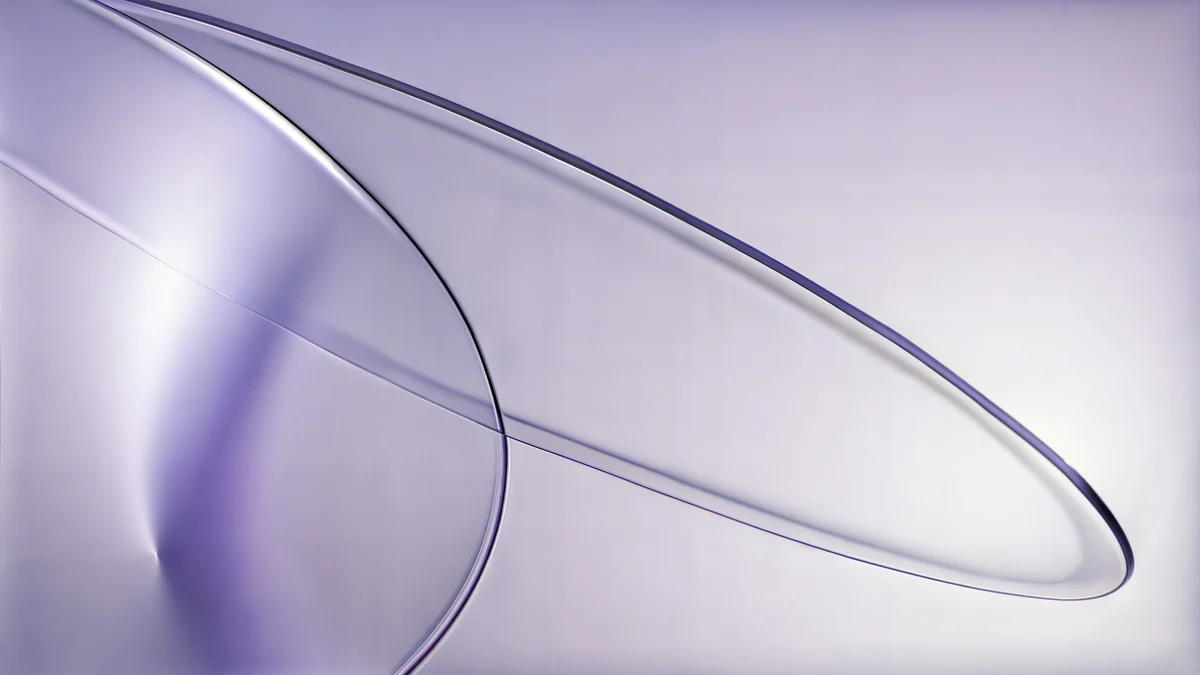 Lilac Drift5K · Desktop
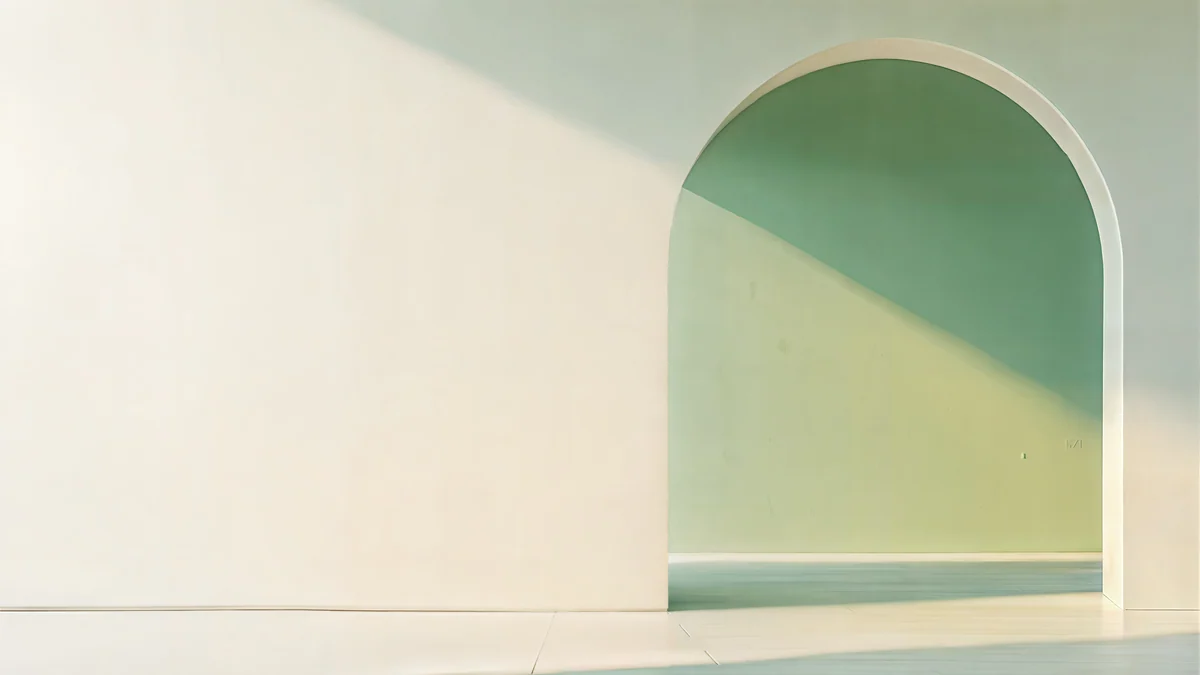 Sage Sun Gallery5K · Desktop
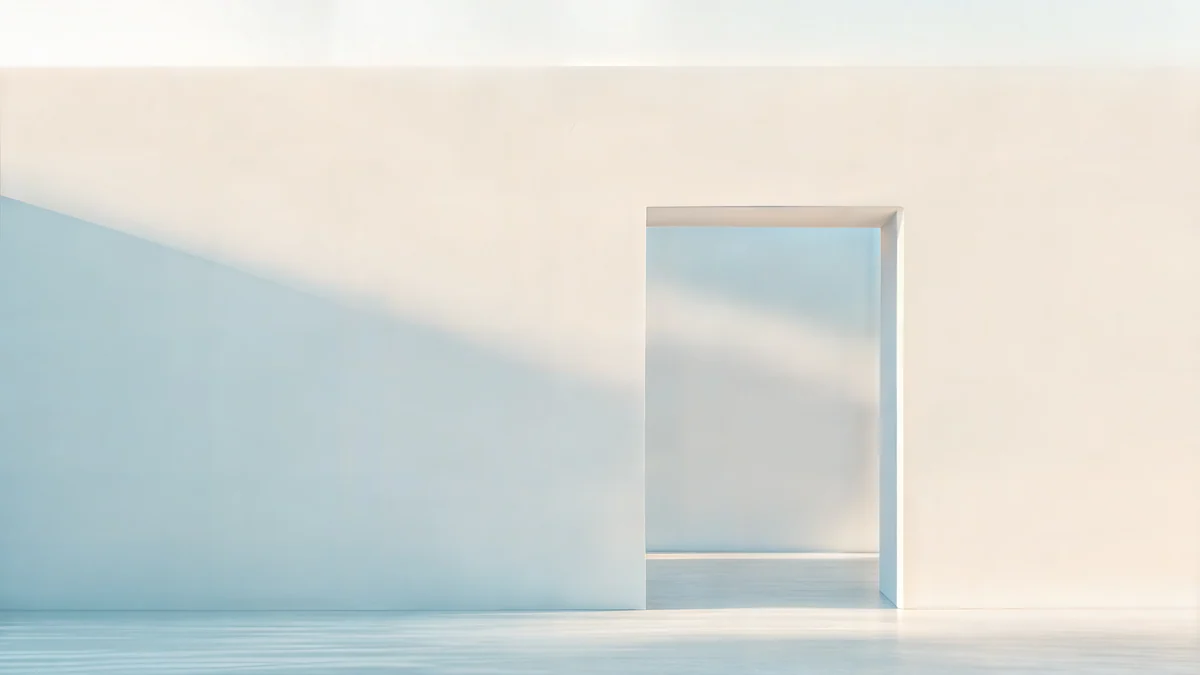 Ivory Daylight Gate5K · Desktop
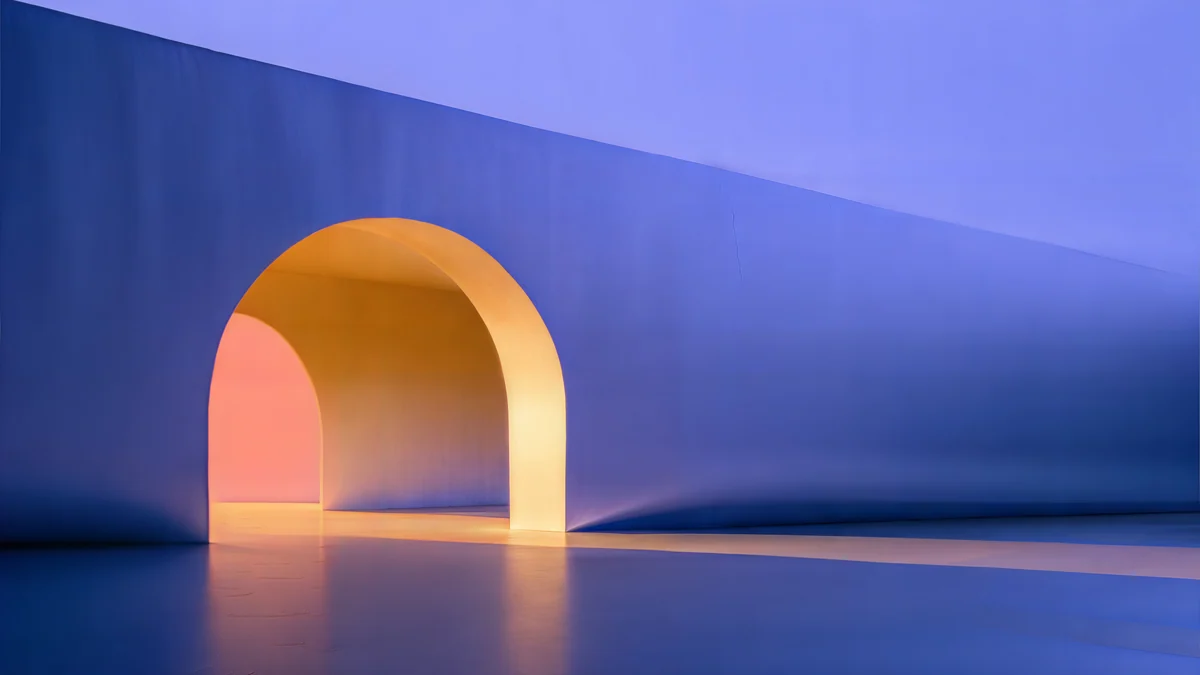 Solar Indigo Gate5K · Desktop
Lilac Drift is two lilac glass rings on a pale violet field, soft enough for the clock to sit on. Sage Sun Gallery and Ivory Daylight Gate keep their openings slightly right of centre, so neither the time nor the password field lands on detail. Solar Indigo Gate is the dark option, deep indigo with a warm glow. All four are 5120 × 2880 originals.
For dark mode, three darker pieces work well behind a light clock.
Electric Violet Vault is dark and saturated violet, Light Slits is almost entirely black with a few slits of pale light, and Petrol Current rolls dark teal across a 5K frame. macOS draws the time in a light tone, so very pale skies at the top can make it fade; if it is hard to read, a mid-tone or darker wallpaper is the simpler fix.
Which size looks sharp on the lock screen
The lock screen shows the wallpaper with nothing in front of it, so a soft file is more obvious there than behind windows. MacBook Air and MacBook Pro screens range from 2560 × 1664 to 3456 × 2234 pixels, the 24 inch iMac is 4480 × 2520, and Studio Display is 5120 × 2880. A 3840 × 2160 file covers any MacBook, and a 5120 × 2880 file covers every current Apple display except Pro Display XDR.
Velpaper desktop wallpapers come in exactly those two sizes, and all of them are free. In the Velpaper app for Mac, open a wallpaper and press Set as Desktop Picture; the lock screen picks it up the next time you lock. For other apps that do the same job, see our comparison of the best 4K wallpaper apps for Mac.
Original wallpapers in 4K and 5K for iPhone, Android and desktop.
Questions
Can I set a different wallpaper for the Mac lock screen?
Not on current macOS. Since Sonoma, the lock screen uses the same picture as the desktop of that display, and System Settings has no separate lock screen option. The closest workaround is the screen saver: choose a photo style in Screen Saver settings, point it at a folder of images, and in Lock Screen settings require a password soon after the screen saver starts. Anyone who walks up to the idle Mac then sees your chosen photos, and the password prompt appears as soon as they touch it.
How do I change the lock screen wallpaper on a MacBook?
Change the desktop wallpaper. Open the Apple menu, choose System Settings, click Wallpaper, then pick a picture or use Add Photo for your own file and choose Fill Screen. The lock screen shows the new picture the next time you lock the Mac with Control, Command and Q, or from the Apple menu with Lock Screen. If you use an external display as well, set the wallpaper for each display in the same pane.
Why does my Mac lock screen still show the old wallpaper?
Usually because of FileVault or a moved file. With FileVault on, the first sign-in screen after a restart is drawn before your account unlocks, so macOS uses a stored copy of the picture until you have signed in with the new wallpaper at least once. If the image came from a folder you later renamed or emptied, macOS can fall back to a default. Set the wallpaper again from a fixed folder, lock and sign in once, then restart to refresh the startup screen.
What size should a Mac lock screen wallpaper be?
The same as a desktop wallpaper: at least the native resolution of the screen. MacBook Air and MacBook Pro models range from 2560 × 1664 to 3456 × 2234 pixels, so a 3840 × 2160 file is enough for any of them. The 24 inch iMac needs 4480 × 2520 and Studio Display 5120 × 2880, so use a 5K file there. A 1920 × 1080 image is enlarged on every current Mac and looks soft on the lock screen, where nothing covers it.
Are Velpaper wallpapers for Mac free?
Yes. Every Velpaper desktop wallpaper is free, in 3840 × 2160 or 5120 × 2880 pixels, without a watermark and without an account. You can download them on velpaper.com or use the Velpaper app for Mac, where Set as Desktop Picture applies the full original in one click. Because the Mac lock screen reuses the desktop picture, the same file appears on the lock screen the next time you lock.
Carlos Vivero
Designer of Velpaper wallpapers
Carlos Vivero designs the wallpapers in Velpaper: quiet architecture, liquid glass, Japanese ink and calm landscapes. Every piece is made as a 4K original for iPhone, Android and desktop.
Recent work








