Good Lock Lock Screen: Customize a Samsung Beyond Default
Customize the Samsung lock screen past One UI's defaults: the built-in editor, then Good Lock modules like ClockFace and Wonderland, and wallpapers that fit.
In short: Start with One UI's own editor: touch and hold the lock screen and tap Edit to change the clock, widgets and shortcuts. For more, install Good Lock from the Galaxy Store and add modules such as ClockFace for clock designs and Wonderland for moving wallpapers.
By the Velpaper team · Wallpapers by Carlos Vivero, Velpaper designer · · 5 min read
Free 4K originals for iPhone and Android, no watermark
On this page
To customize a Samsung lock screen beyond the defaults, first use the editor built into One UI: touch and hold the lock screen, tap Edit, and change the clock style, colour, widgets and shortcuts. When that is not enough, install Good Lock, Samsung's free customisation app, from the Galaxy Store and add its lock screen modules, mainly ClockFace for new clock designs and Wonderland for layered, moving wallpapers. Good Lock is not available in every country, and its module list changes with each One UI version.
What the built-in editor already does (One UI 8)
Many people install Good Lock for things One UI now does on its own. Check the stock editor first.
- Wake the phone and unlock it with your face or fingerprint, but stay on the lock screen.
- Touch and hold an empty area of the lock screen and tap Edit. You can also open Settings, then Lock screen and AOD, and tap the lock screen preview.
- Tap the clock to change its style, font, colour and size. Some styles let you move it on the screen.
- Tap the area under the clock to add widgets such as weather, battery or a calendar.
- Tap the two shortcuts at the bottom to replace them with apps or actions you use more.
- Tap Wallpaper to change the image just for this lock screen, then tap Done.
On One UI 6 the settings entry is called simply Lock screen, and some options sit in slightly different places. For the full wallpaper steps, see how to change the Samsung lock screen wallpaper.
Install Good Lock and its lock screen modules
- Open the Galaxy Store, search for Good Lock and install it. If it does not appear, it is not offered in your region.
- Open Good Lock. Modules are grouped on two tabs, Make up for looks and Life up for tools.
- Tap a module to download it. Each one installs as its own small app and opens from inside Good Lock.
- After a One UI update, open the Galaxy Store and update Good Lock and its modules, because older module versions can stop working on a new system.
ClockFace, Wonderland and LockStar: which does what
- ClockFace adds clock styles to the lock screen and Always On Display, and lets you build your own from fonts, colours and layouts. This is the module to get if the stock clock styles feel limited.
- Wonderland turns an image into a moving wallpaper. You stack layers and add effects such as particles, and the layers shift as you tilt the phone. It works on the lock screen and the home screen.
- LockStar was the original lock screen module for moving items around. Samsung has brought most of its ideas into the stock editor, so on recent One UI versions it may be missing from the list or offer fewer options.
- NotiStar keeps a history of notifications and changes how they appear on the lock screen, useful if notifications cover your wallpaper.
- Theme Park builds a theme and icon set from colours you pick, so the rest of the phone can match the lock screen.
Module names and features change between versions, and Samsung retires some modules over time. Treat the list in the app as the current one.
Wallpapers that leave room for a custom clock
A big ClockFace design or a stack of widgets needs calm space at the top of the screen. These six keep their detail low and give the clock a clean surface.
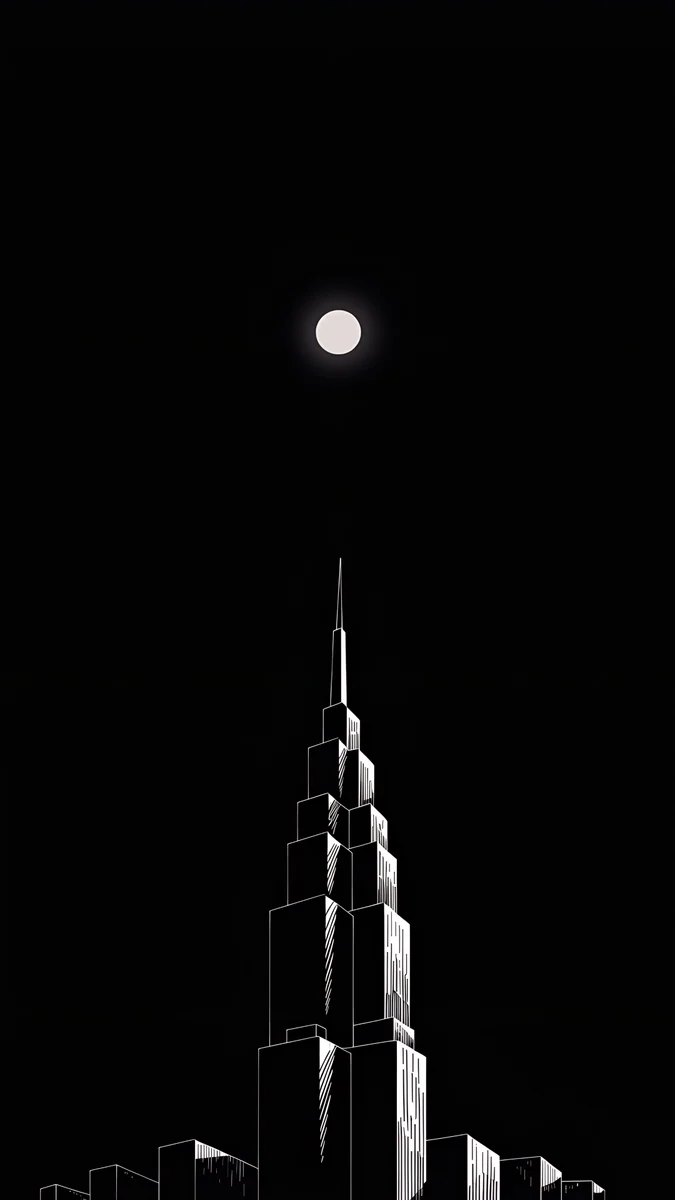 Lone Spire4K · Phone
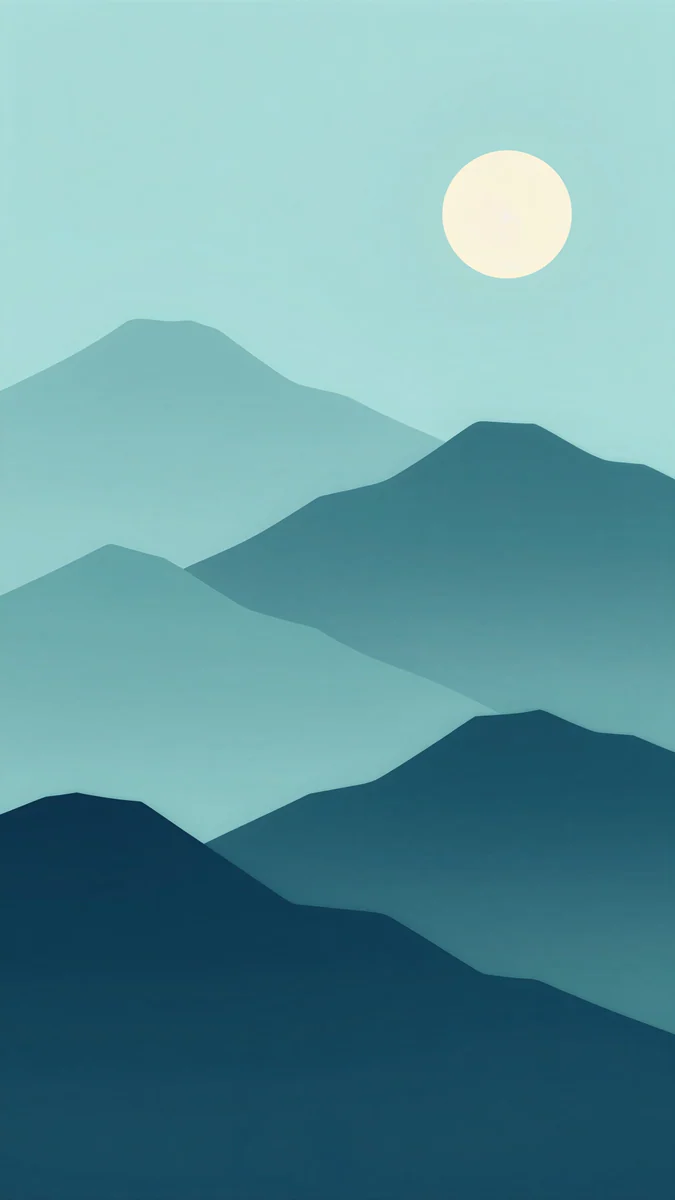 Midnight Paper Peaks4K · Phone
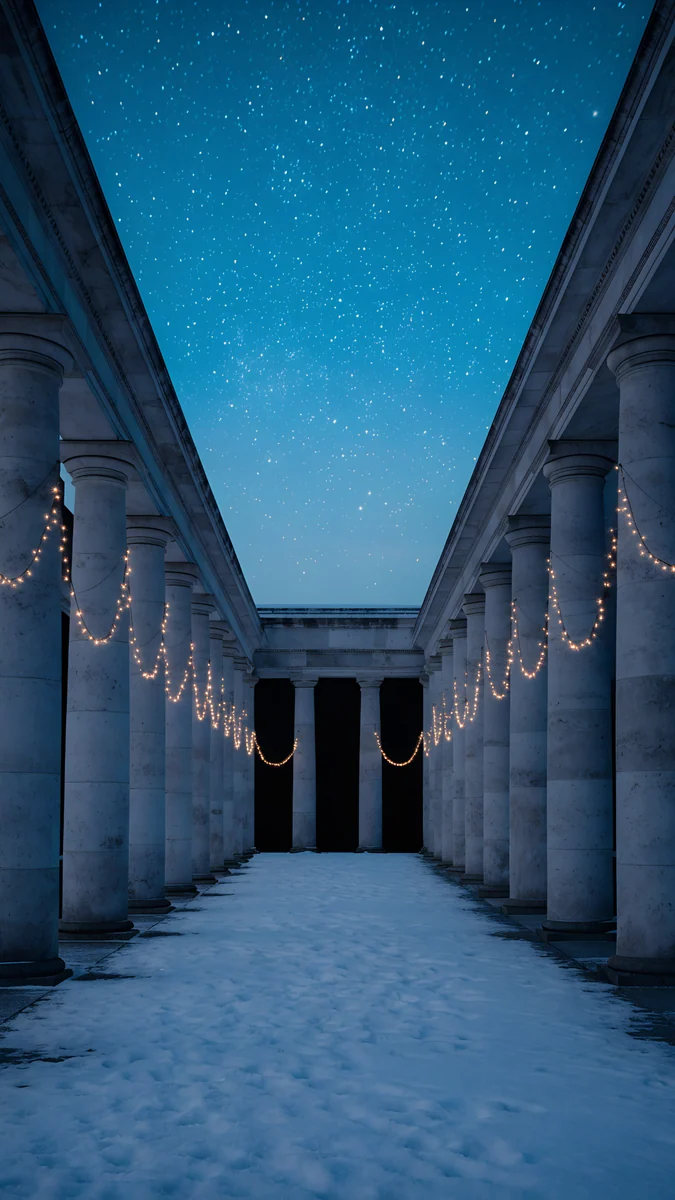 Starlit Colonnade4K · Phone
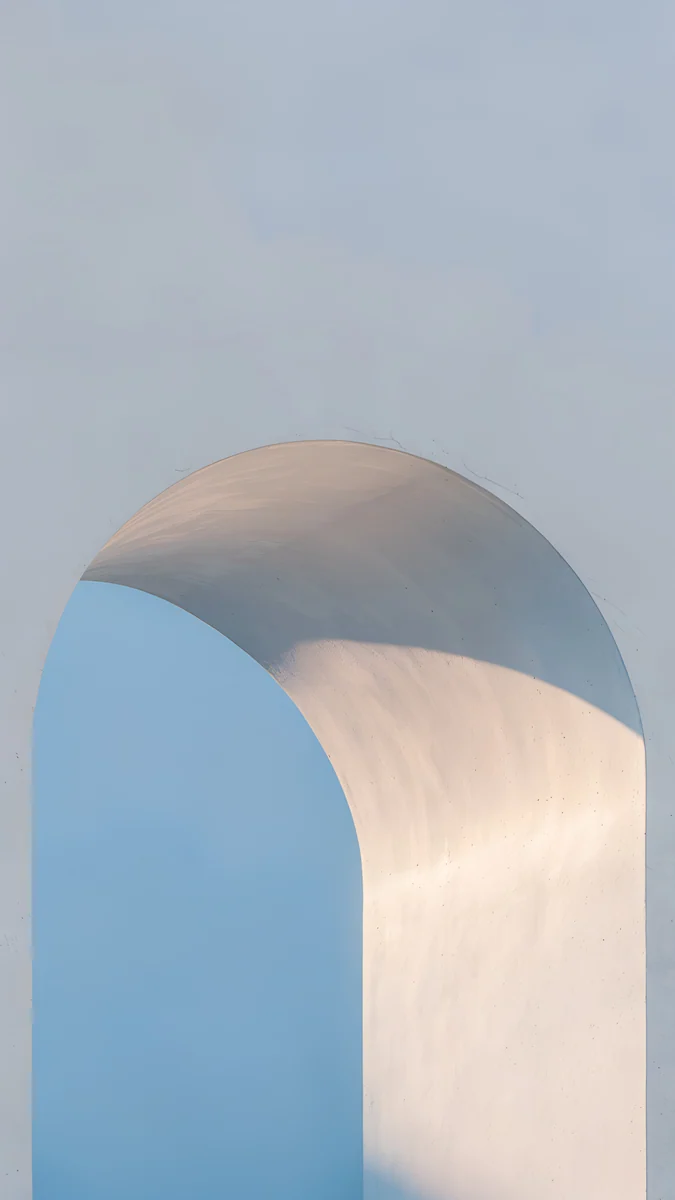 Blue Hour Portico4K · Phone
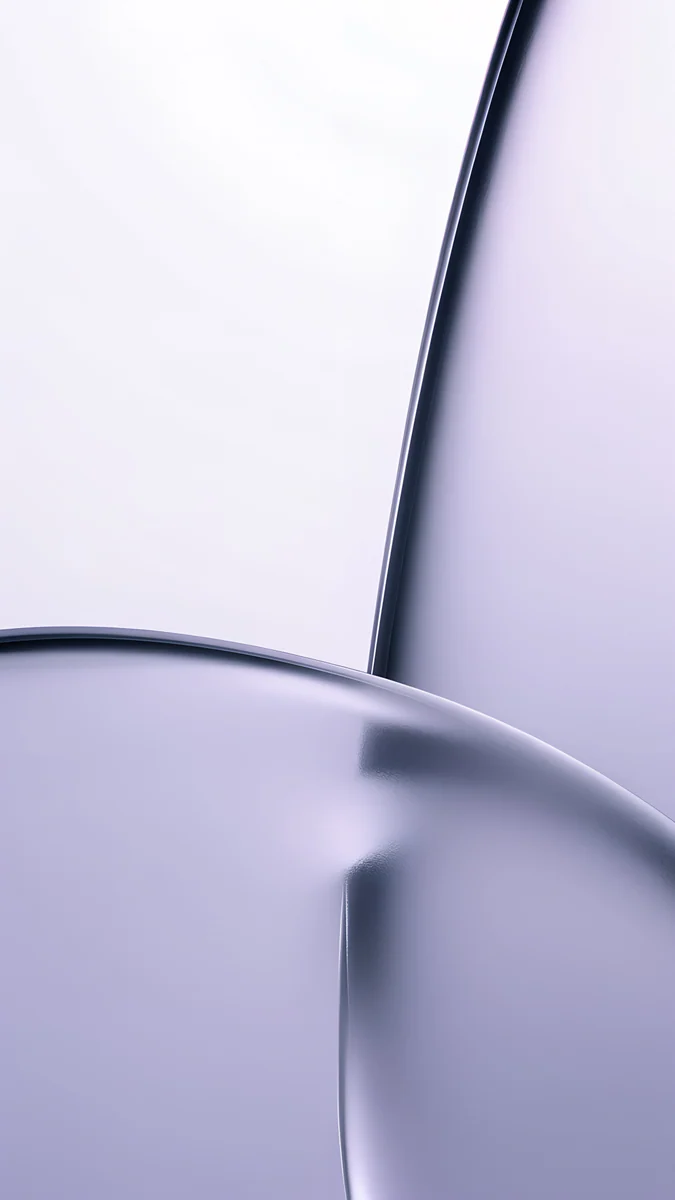 Lilac Transmission4K · Phone
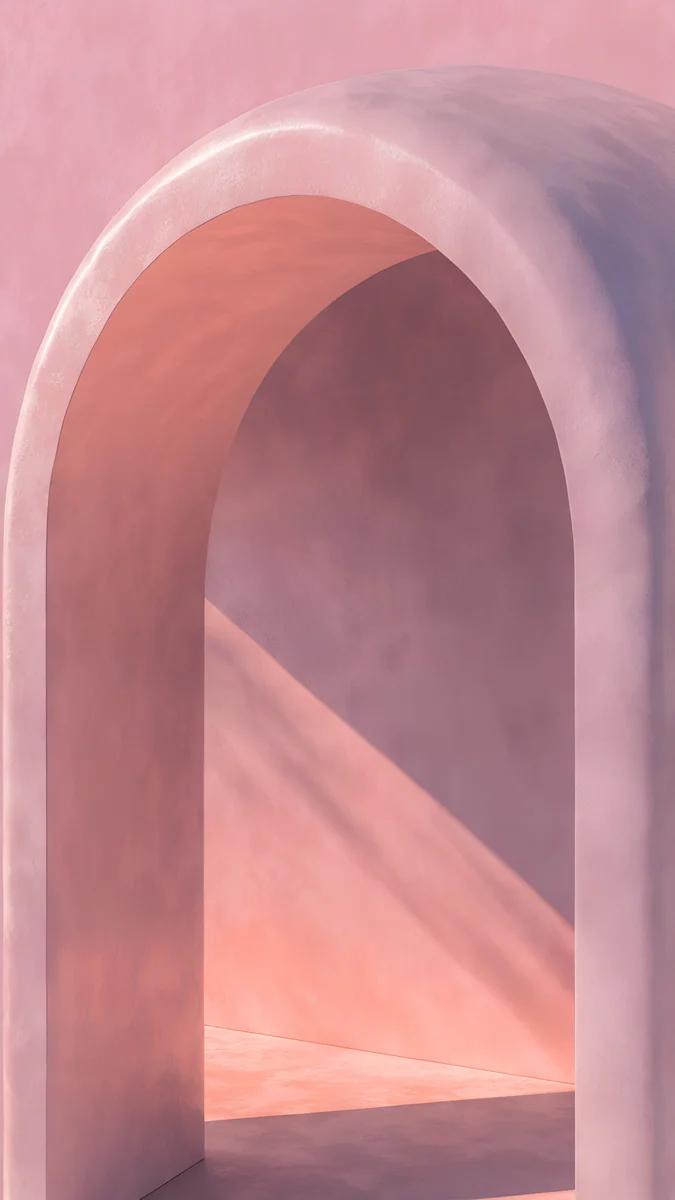 Rose Courtyard4K · Phone
- Lone Spire puts one dark tower low in the frame and leaves the whole night sky for a large clock.
- Midnight Paper Peaks has layered paper mountains at the bottom, a good base for Wonderland if you want depth without noise.
- Starlit Colonnade is dark and quiet at the top, so a white or pale gold clock reads at a glance.
- Blue Hour Portico is soft blue with the architecture in the lower half, which suits a thin clock font.
- Lilac Transmission is pale lilac, a light option for a dark clock colour.
- Rose Courtyard is warm rose, and its colour carries well into a Theme Park palette.
All six are 4K originals at 2160 × 3840, so a Galaxy S or Ultra screen shows them sharp.
Common problems and fixes
- Good Lock is not in the Galaxy Store. It is limited to certain countries. No setting changes that, so stay with the stock editor.
- A module will not open or crashes. It is probably out of date for your One UI version. Update it in the Galaxy Store; if it still fails, the module may not support your version yet.
- The ClockFace clock is hard to read. The wallpaper is busy behind it. Pick one with an empty upper third, or change the clock colour to contrast with the image.
- The Wonderland wallpaper looks soft. The source image was small. Start from a full 2160 × 3840 original, not a screenshot.
- The lock screen keeps changing picture. Dynamic Lock screen or a wallpaper service is switched on. Our guide to an Android wallpaper that keeps changing shows how to turn it off.
- The wallpaper is zoomed in. See the Android wallpaper zoom fix.
Get these wallpapers in Velpaper
Velpaper is a wallpaper app for iPhone, iPad, Mac and Android, and the same collection is on velpaper.com. Every wallpaper is an original by designer Carlos Vivero, made in 4K: 2160 × 3840 for phones, and 4K or 5K for desktops. Each one is composed so the clock and widgets have a quiet area to sit on, and downloading needs no account.
- Open Lone Spire in the Velpaper app on your Galaxy or on velpaper.com.
- Save the full 2160 × 3840 original to the phone.
- Touch and hold the lock screen, tap Edit, then Wallpaper, and pick the file from Gallery. Then style the clock in the editor or in ClockFace.
Want the system colours to follow the new wallpaper too? See how to make Android colours match your wallpaper.
Original wallpapers in 4K and 5K for iPhone, Android and desktop.
Questions
How do I customize my Samsung lock screen beyond the default options?
Begin with One UI's built-in editor, because it covers more than most people expect. Unlock with your face or fingerprint while staying on the lock screen, touch and hold an empty area and tap Edit. There you can change the clock style, font, colour and size, add widgets under the clock, swap the two bottom shortcuts and set a separate wallpaper. When you want more than that, install Good Lock from the Galaxy Store and add modules: ClockFace for extra and custom clock designs, Wonderland for layered moving wallpapers, and NotiStar for lock screen notifications. Good Lock is free but only offered in some countries.
Is Good Lock safe and free?
Good Lock is made by Samsung and distributed through Samsung's own Galaxy Store, so it is an official app rather than a third-party tweak. It is free, and so are its modules. Each module installs as a separate small app that you open from inside Good Lock. It does not need root or any unlocking of the phone. The main limits are availability, because the Galaxy Store only offers it in certain countries, and compatibility, because modules are updated for each One UI version and an old module can stop working after a system update. Updating Good Lock and its modules in the Galaxy Store usually fixes that.
Which Good Lock module changes the lock screen clock?
ClockFace is the one to use. It adds clock styles to the lock screen and the Always On Display, and lets you design your own by choosing fonts, colours and layouts. After you install it from inside Good Lock, open it, build or pick a style, and apply it; the new clock then appears in the lock screen editor's clock options. LockStar used to handle moving lock screen items as well, but Samsung has moved much of that into the stock editor, and on recent One UI versions LockStar may be missing or limited. Whichever clock you choose, a wallpaper with an empty upper third keeps it readable.
How do I make a moving lock screen wallpaper on a Samsung?
Use the Wonderland module in Good Lock. Open Good Lock, install Wonderland from the Make up tab and open it. Create a new wallpaper, add your image as a layer, and add more layers or effects such as particles. The layers shift slightly as you tilt the phone, which gives a sense of depth. Save it and set it for the lock screen, the home screen or both. Start from a full resolution image, because Wonderland cannot add detail to a small picture. A wallpaper with clear layers, like paper mountains or architecture in front of a sky, gives the best effect. Velpaper's Midnight Paper Peaks is a good example.
What wallpaper size should I use for a Samsung lock screen?
Use a tall image at least as large as your screen, and ideally larger. Galaxy S phones have screens around 1080 × 2340 or 1440 × 3120, so a 2160 × 3840 original covers every current model with room to spare, and One UI only has to scale it down. Keep the important part of the image away from the top, where the clock and widgets go, and away from the very edges, which can be cropped on narrower screens. Velpaper phone wallpapers are all 4K originals at 2160 × 3840, made by designer Carlos Vivero, and are available in the Velpaper app for Android and on velpaper.com.
Carlos Vivero
Designer of Velpaper wallpapers
Carlos Vivero designs the wallpapers in Velpaper: quiet architecture, liquid glass, Japanese ink and calm landscapes. Every piece is made as a 4K original for iPhone, Android and desktop.
Recent work








