How to Change Samsung Lock Screen Wallpaper (One UI 7)
How to change the Samsung lock screen wallpaper step by step in One UI 6 and 7: three ways, how to stop it changing on its own, and the size that stays sharp.
In short: On a Samsung Galaxy with One UI 6 or 7, open Settings, tap Wallpaper and style, then Change wallpapers, pick an image and choose Lock screen. You can also long-press the lock screen to open its editor, or open a photo in Gallery and tap Set as wallpaper.
By the Velpaper team · Wallpapers by Carlos Vivero, Velpaper designer · · Updated · 5 min read
Free 4K originals for iPhone and Android, no watermark
On this page
- How to change the Samsung lock screen wallpaper in Settings
- Long-press the lock screen: the fastest way
- Set a lock screen wallpaper from the Gallery app
- Samsung lock screen wallpaper keeps changing? Turn auto change off
- What size should a Samsung lock screen wallpaper be?
- Lock screen wallpapers that suit a Galaxy
- How to get a Velpaper wallpaper onto your Galaxy
To change the lock screen wallpaper on a Samsung Galaxy, open Settings, tap Wallpaper and style, then Change wallpapers, pick an image and choose Lock screen. That is the whole job on One UI 6 and One UI 7, and it takes less than a minute. Two shortcuts do the same thing faster: long-press the lock screen itself, or set a photo straight from the Gallery app.
Below are all three routes step by step, plus the fix for the second most common Samsung question: why the lock screen picture keeps changing on its own.
How to change the Samsung lock screen wallpaper in Settings
- Open Settings and tap Wallpaper and style.
- Tap Change wallpapers.
- Pick a source. Gallery holds your own photos and downloads; the other sections hold Samsung's built-in wallpapers.
- Select the image. When One UI asks where to use it, choose Lock screen. Pick both screens only if you want the same picture behind your apps.
- Pinch and drag to frame the image, then tap Done.
The preview shows the clock and notifications on top of the picture before you confirm. This is the moment to check that the time is still easy to read. If the digits vanish into a bright sky, drag the image down a little or choose a darker one.
Long-press the lock screen: the fastest way
Since One UI 5, the lock screen has its own editor, a lot like the one on iPhone.
- Wake the phone but stay on the lock screen.
- Touch and hold an empty part of the screen.
- Confirm with your fingerprint, face or PIN. The editor opens.
- Tap the wallpaper option in the editor and choose a new image from Gallery or from the built-in sets.
- Tap Done.
The same editor changes the clock style and colour, the notification icons and the two shortcuts at the bottom corners. It is worth a visit even if you keep your current picture, because a clock colour chosen to match the wallpaper does more for readability than any filter. Our guide to choosing a wallpaper that keeps the clock readable shows which combinations hold up.
Set a lock screen wallpaper from the Gallery app
If the picture is already on your phone, this route skips the settings menus entirely.
- Open Gallery and open the image.
- Tap the three-dot menu at the bottom right.
- Tap Set as wallpaper.
- Choose Lock screen, adjust the framing and tap Done.
Files you save from a browser land in the Download album, so look there first if a new wallpaper is not among your camera photos. The same menu also offers Home screen and Call background. If you also use a Pixel or another brand, the general steps are in our guide to changing the wallpaper on any Android phone.
Samsung lock screen wallpaper keeps changing? Turn auto change off
If the lock screen shows a different picture every time you wake the phone, a wallpaper service is running. It is a setting, not a fault. Samsung's own version is called Dynamic Lock screen, and on some models and carriers a content service such as Glance does the same thing with news cards on top.
To stop it, open Settings, go to Lock screen and AOD (simply Lock screen on older versions), tap Wallpaper services and select None. Then set your own picture again with any of the three methods above. Choosing an ordinary image as the lock screen wallpaper also switches Dynamic Lock screen off.
If the menu sits somewhere else on your model, type wallpaper services into the search bar at the top of Settings. It takes you straight to the switch.
What size should a Samsung lock screen wallpaper be?
Most Galaxy phones have a tall 19.5:9 screen. The Galaxy S25 and the Galaxy A55 show 1080 × 2340 pixels, and the Ultra models go up to 1440 × 3120. An image at least that large stays sharp; anything smaller gets stretched and looks soft around fine lines.
A 2160 × 3840 original covers every one of them. It is taller than any Galaxy screen, so One UI only has to scale it down, and the slightly wider 9:16 frame leaves room to trim the sides. Keep the subject near the middle and nobody will notice the crop. The full list of models is in our Android wallpaper size guide.
Galaxy S models and most of the A series use AMOLED panels, where black pixels are simply switched off. A dark lock screen wallpaper looks deeper on them and sits well next to Always On Display. If that is the look you are after, browse our dark wallpapers for OLED screens.
Lock screen wallpapers that suit a Galaxy
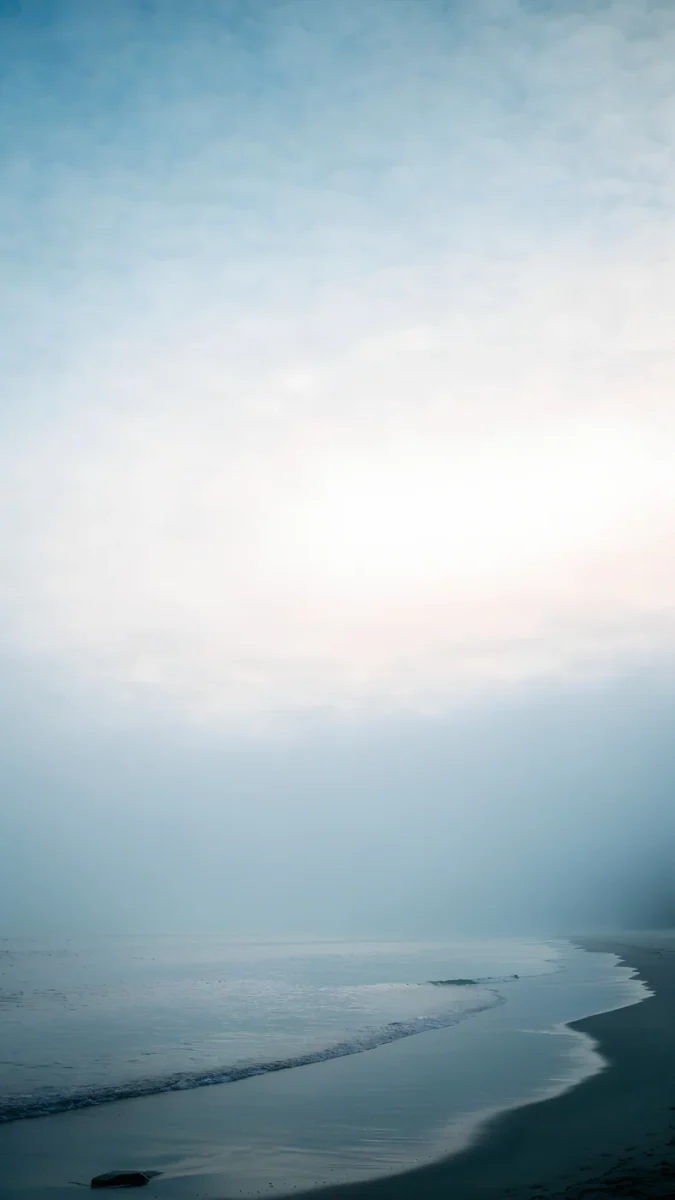
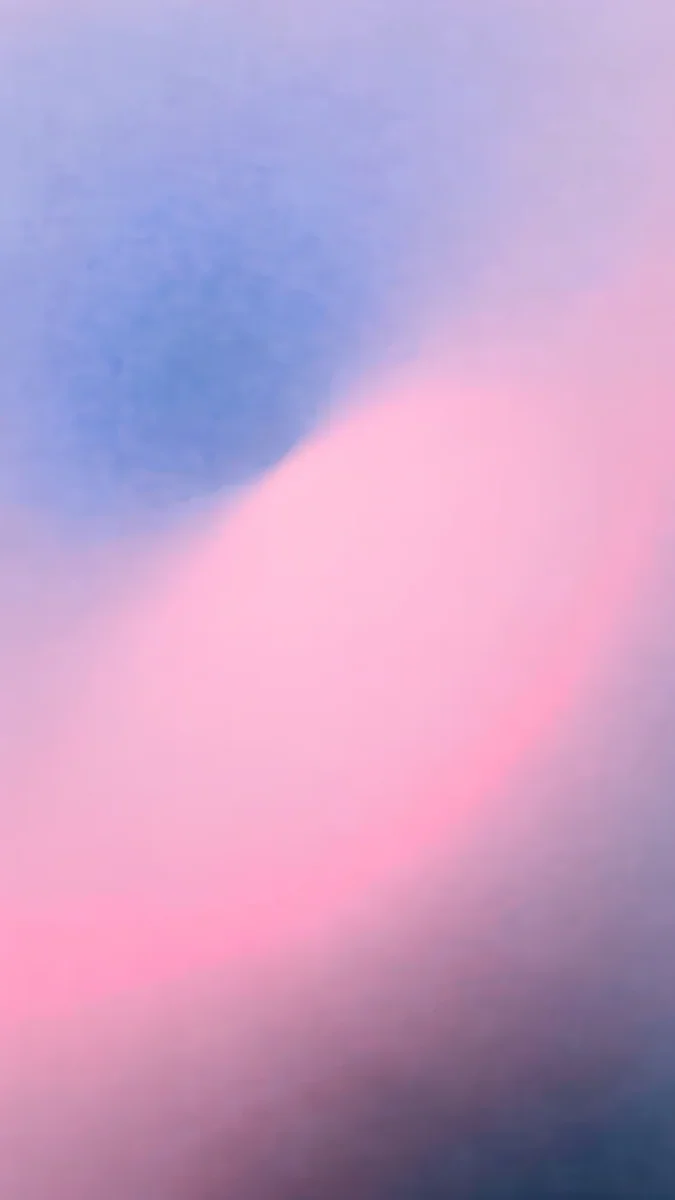
A lock screen picture has one job beyond looking good: it must leave the top third calm enough for the clock. These Velpaper wallpapers all do that, and each is a 2160 × 3840 original.
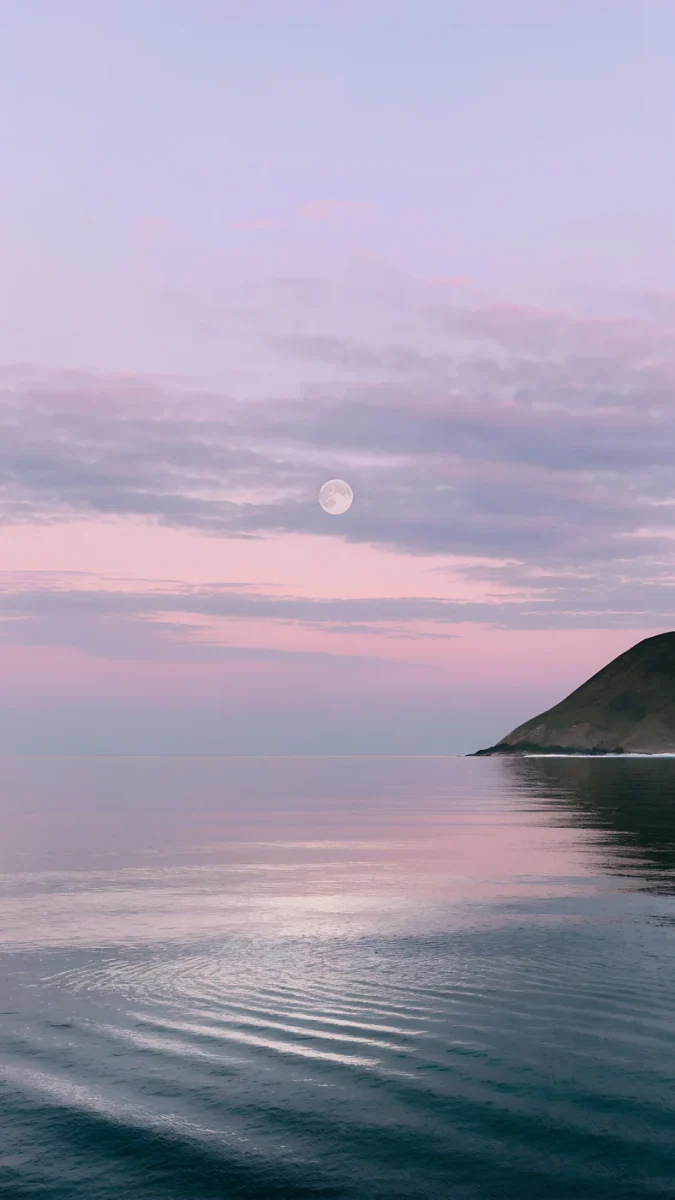 Saltwater Moon4K · Phone
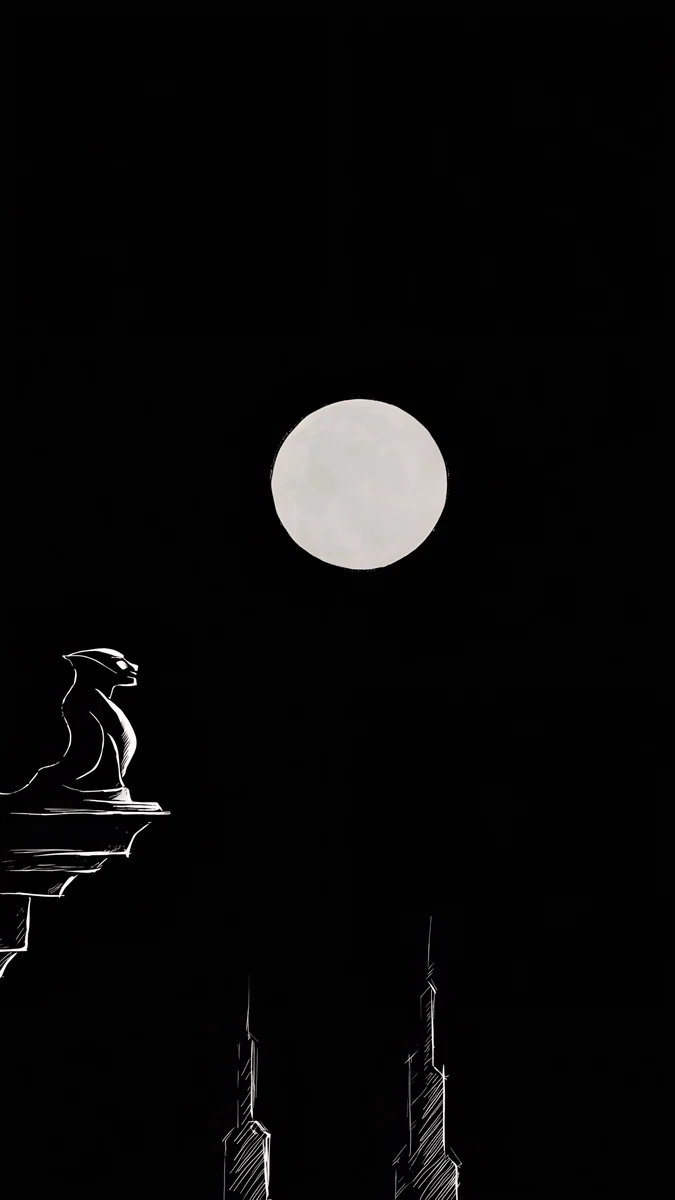 Moon Ledge4K · Phone
 Celadon Haze4K · Phone
 Tidal Quiet4K · Phone
 Where the Sea Ends4K · Phone
 Lilac Hush4K · Phone
Saltwater Moon puts a small moon in a lilac evening sky over flat water, with nothing busy above the horizon. Moon Ledge is almost entirely black: a gargoyle silhouette, a full moon and two thin spires, ideal for AMOLED and white digits. Celadon Haze is a soft teal and cream gradient for people who want colour without a subject. Where the Sea Ends keeps a misty blue sky over a thin strip of shore, so the clock floats on empty space. Tidal Quiet, an aerial view of turquoise water over rock and sand, is free to download.
How to get a Velpaper wallpaper onto your Galaxy
Open the wallpaper in the Velpaper Android app or on its page at velpaper.com and download the original. Browsing is free. Most phone wallpapers unlock after a short optional ad in the app; on the website, if no ad is available, the original downloads for free. Then follow the Gallery route above: open the file, tap Set as wallpaper, choose Lock screen.
Always download the full file rather than screenshotting the preview. A screenshot is already exactly your screen size, so as soon as One UI crops or zooms it, the edges turn soft.
Original wallpapers in 4K and 5K for iPhone, Android and desktop.
Questions
How do I change only the lock screen wallpaper on a Samsung, not the home screen?
When One UI asks where to use the image, choose Lock screen and leave Home screen unselected. This works in all three routes: Settings, Wallpaper and style, Change wallpapers; the long-press editor on the lock screen; and Gallery, three-dot menu, Set as wallpaper. The home screen keeps its current picture. If you later want the same image on both, repeat the steps and choose both screens. The long-press editor only ever touches the lock screen, so it is the safest choice when you want to leave your home screen alone.
How do I turn off the auto changing lock screen wallpaper on Samsung?
The rotating pictures come from a wallpaper service, usually Samsung's Dynamic Lock screen or, on some models, Glance. Open Settings, go to Lock screen and AOD (Lock screen on older One UI versions), tap Wallpaper services and select None. Then set a normal picture as your lock screen wallpaper again. If you cannot find the option, type wallpaper services into the Settings search bar. Selecting an ordinary image in Wallpaper and style also turns Dynamic Lock screen off, so the picture you choose stays put until you change it yourself.
Why does my Samsung lock screen wallpaper look blurry?
Usually the image is smaller than the screen. A Galaxy S25 Ultra can show 1440 × 3120 pixels, so a 720 × 1280 picture from a messenger has to be enlarged more than twice and turns soft. Screenshots cause the same problem once you zoom them. Download the original file instead, ideally 2160 × 3840 or larger, and set it from Gallery. Also check that you did not pinch to zoom in a long way while framing it, because every step of zoom spends resolution. A sharp original with room to spare stays crisp after cropping.
Do these steps work on Galaxy A phones and older Samsung models?
Yes, as long as the phone runs One UI 5 or newer. Galaxy A15, A35 and A55 use the same Wallpaper and style menu, the same long-press lock screen editor and the same Gallery option as the S series. On much older versions without the long-press editor, Settings and Gallery still work. Menu names shift slightly between versions, for example Lock screen became Lock screen and AOD, but the search bar at the top of Settings finds any of them if you type wallpaper.
Where can I get 4K lock screen wallpapers for Samsung?
Velpaper publishes original phone wallpapers at 2160 × 3840 pixels, without a watermark, in its Android and iPhone apps and on velpaper.com. Browsing and previewing are free. Most phone wallpapers unlock after a short optional ad in the app, and on the website the original downloads for free if no ad is available. There is no account and no subscription. The file covers every Galaxy screen, from the A series to the Ultra models, with room for One UI to trim the sides.
Carlos Vivero
Designer of Velpaper wallpapers
Carlos Vivero designs the wallpapers in Velpaper: quiet architecture, liquid glass, Japanese ink and calm landscapes. Every piece is made as a 4K original for iPhone, Android and desktop.
Recent work