How to Make Android Colors Match Your Wallpaper
Turn on Material You wallpaper colors on a Pixel or Samsung Galaxy, theme your icons, and pick a wallpaper that gives Android a clean, strong palette.
In short: Android builds its system colours from your home screen wallpaper. On a Pixel, open Wallpaper & style and choose Wallpaper colors; on a Samsung Galaxy, open Wallpaper and style, then Color palette, and pick one of the palettes taken from your wallpaper.
By the Velpaper team · Wallpapers by Carlos Vivero, Velpaper designer · · 5 min read
Free 4K originals for iPhone and Android, no watermark
On this page
Android takes its accent colours from your wallpaper automatically, a feature Google calls Material You or dynamic colour. To switch it on, touch and hold the home screen, open Wallpaper & style and choose one of the Wallpaper colors options on a Pixel, or Color palette on a Samsung Galaxy. The palette is only as good as the picture: a wallpaper with one clear main colour gives the cleanest result.
How Material You picks its colours
When you set a new home screen wallpaper, Android reads the image and pulls out a few dominant tones. It turns them into a palette and applies it to the quick settings tiles, the notification shade, the Settings app, the keyboard, the clock and every app that supports dynamic colour. Google introduced this in Android 12, and every Pixel and most recent Android phones have it.
Two things follow from that. A wallpaper that is mostly one hue, say a jade arch or a violet glow, gives a palette that clearly matches it. A busy photo with many colours, or a mostly grey image, gives a muted, beige or grey palette that seems unrelated to the picture.
Turn on wallpaper colours on a Pixel (Android 16)
- Touch and hold an empty spot on the home screen and tap Wallpaper & style.
- Set the wallpaper you want first, so the palette is read from it.
- In the colour options, choose Wallpaper colors, not Basic colors. Basic colors are fixed palettes that ignore the image.
- Swipe through the palette options. Each one uses the same wallpaper but leans on a different tone, so try two or three before you settle.
- Turn on Themed icons if you want the app icons tinted with the same palette.
- Use the Dark theme toggle on the same screen to see the palette in dark mode as well.
The layout of this screen has changed between Pixel updates, so on your version the colour options may sit in a separate Colors tab. Google keeps its own steps in Change wallpaper on your Pixel phone.
Color palette on a Samsung Galaxy (One UI 8)
- Touch and hold the home screen and tap Wallpaper and style, or open Settings and tap Wallpaper and style.
- Set your wallpaper.
- Tap Color palette. The first row shows palettes drawn from your wallpaper; the next ones are basic colours.
- Pick a wallpaper palette and tap Apply.
- Turn on Apply palette to app icons to tint the icons as well.
Samsung applies the palette to One UI menus, the keyboard and apps that support dynamic colour. If you change the wallpaper later, open Color palette again, because One UI can keep your old palette until you choose a new one. For the lock screen itself, see our guide to changing the Samsung lock screen wallpaper.
Wallpapers that give Android a strong palette
These six each have one main colour and quiet areas around it, which is exactly what the colour extraction needs.
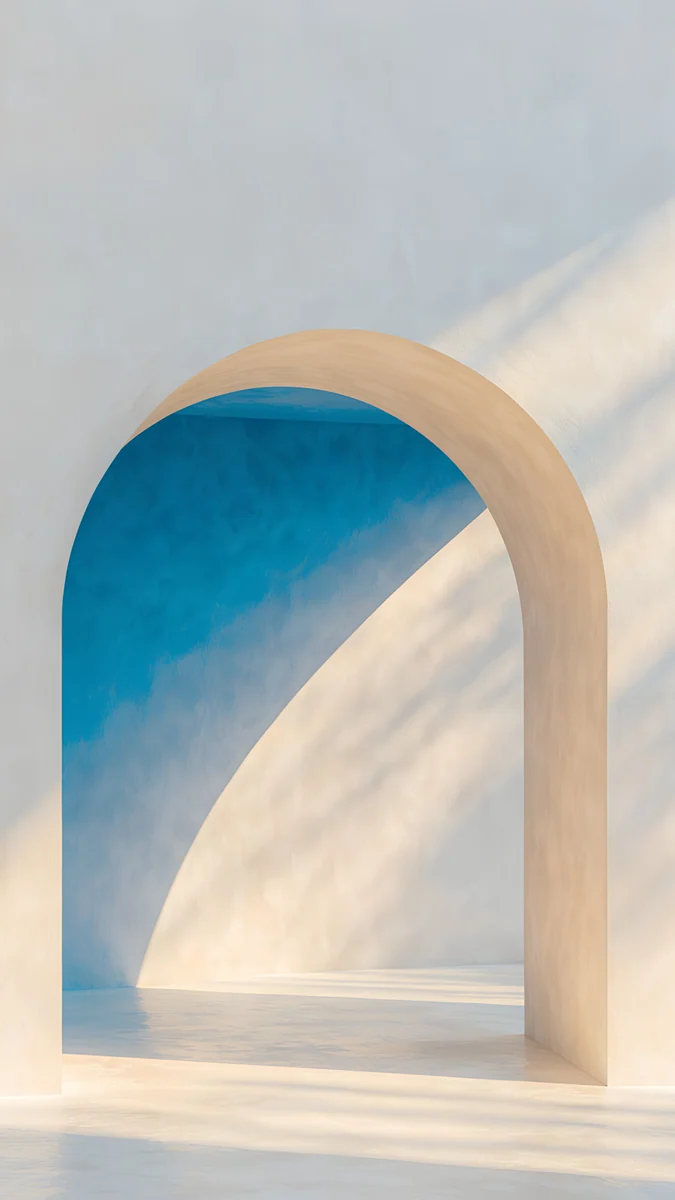 The Blue Arch4K · Phone
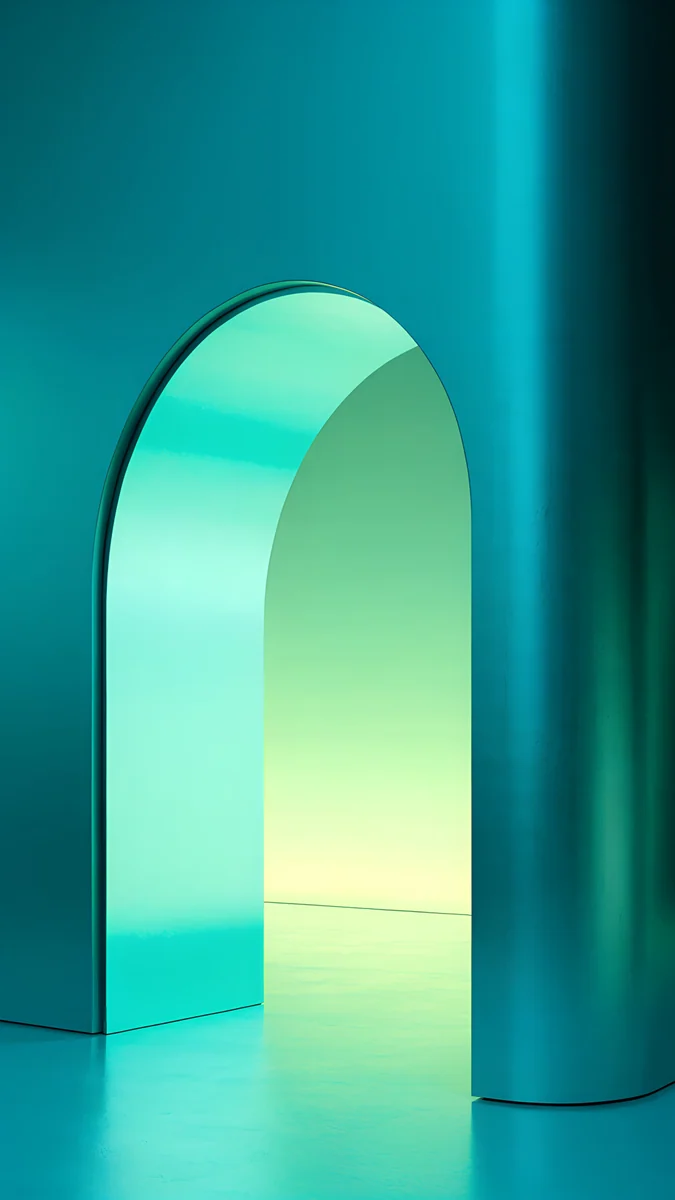 Jade Mint Arch4K · Phone
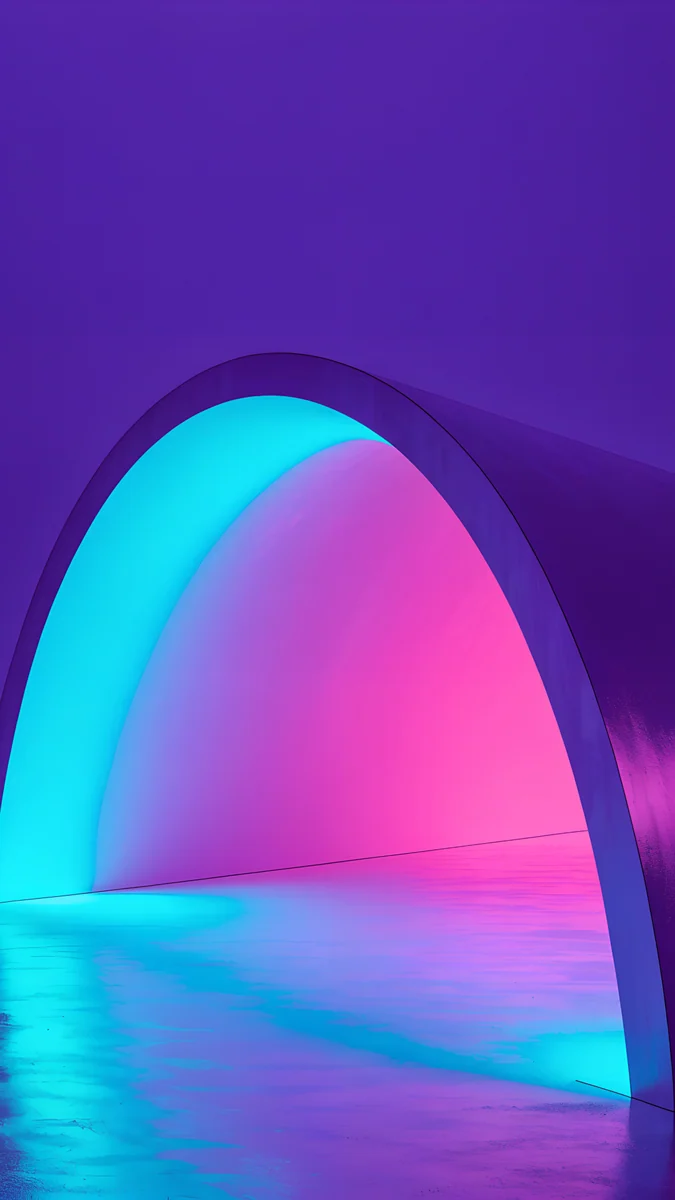 Electric Violet Arch4K · Phone
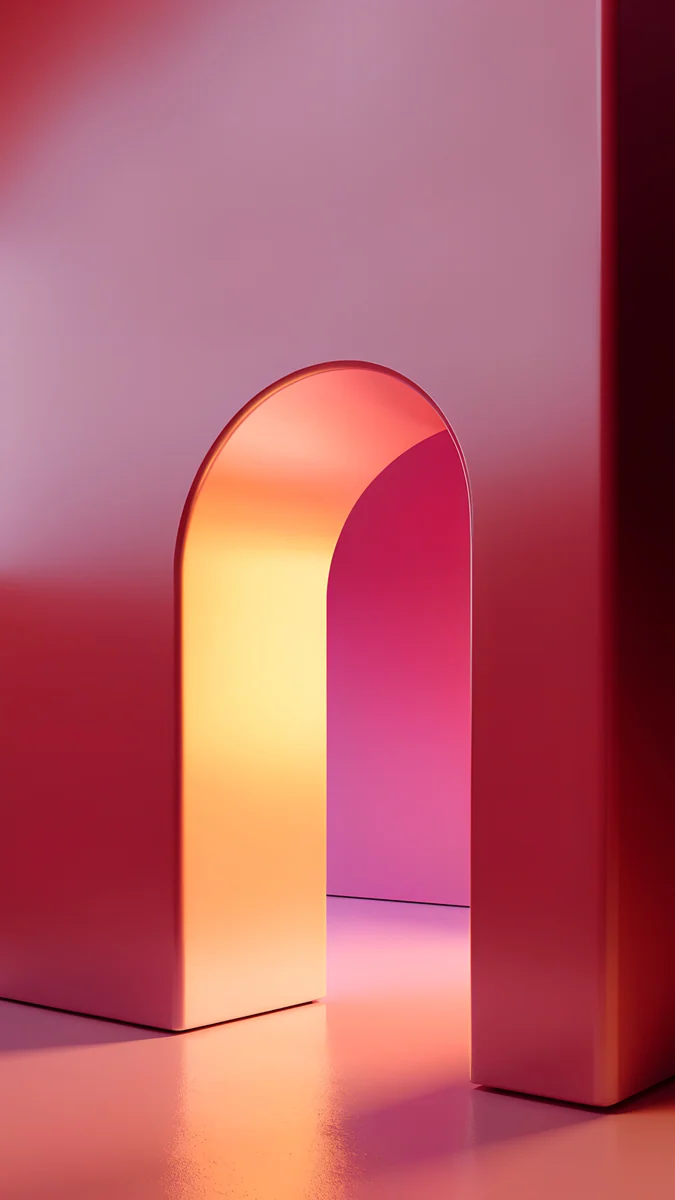 Coral Ignition Arch4K · Phone
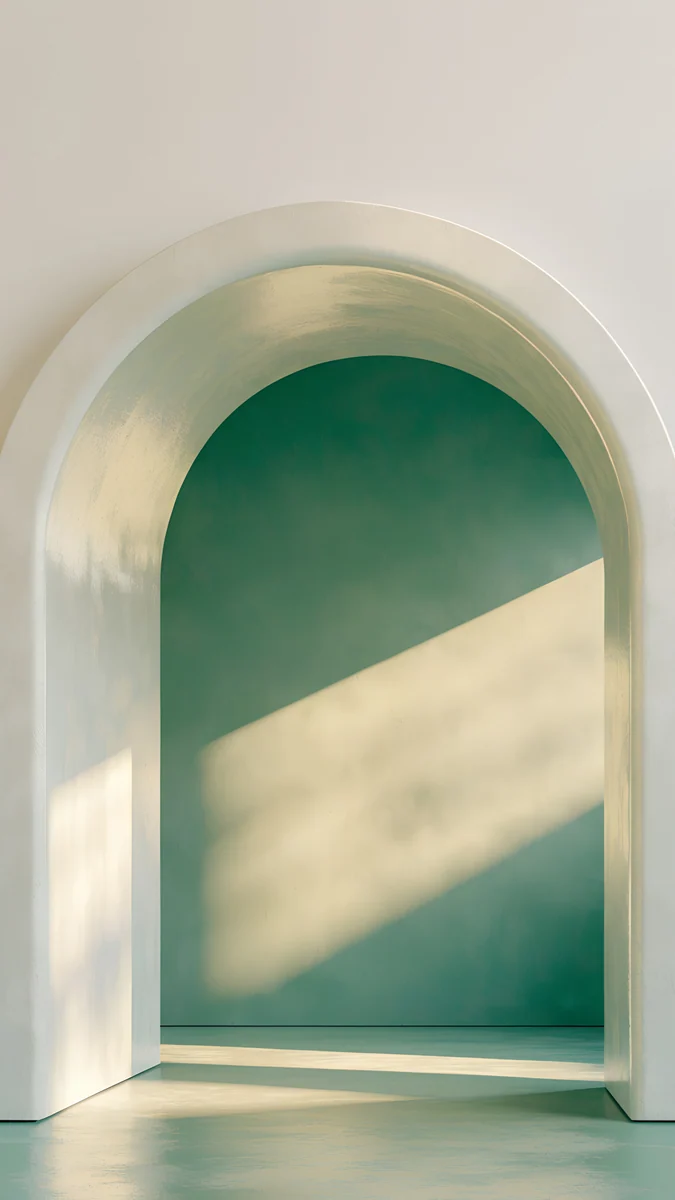 Sage Sun Arch4K · Phone
 Peach Switchback4K · Phone
- The Blue Arch is pale blue almost edge to edge, so Android settles on a soft blue palette with a white clock that stays readable.
- Jade Mint Arch glows green on a dark ground, which gives a fresh mint accent and works well with Dark theme.
- Electric Violet Arch puts saturated violet on near black, and the result is one of the most vivid palettes you can get.
- Coral Ignition Arch leans warm, so quick settings and buttons turn coral and peach.
- Sage Sun Arch is a light, muted green that gives a calm palette for people who find the vivid ones too loud.
- Peach Switchback is pale peach with soft shadows, a warm light theme that suits the Light mode.
Every one of them is a 4K original at 2160 × 3840, so nothing looks soft on a large Pixel or Galaxy screen.
Common problems and fixes
- The colours did not change. Basic colors is still selected. Go back to Wallpaper & style or Color palette and pick a palette from the wallpaper row.
- The palette looks grey or beige. The wallpaper has too many colours or too little saturation. Pick one with a single dominant hue, like the six above.
- One app ignores the palette. Only apps that support dynamic colour follow it. Many apps keep their own brand colours, and no system setting changes that.
- Some icons stay untinted. Themed icons only work for apps that ship a suitable icon. The rest keep their normal look.
- The palette follows the wrong picture. The colours come from the home screen wallpaper. If your lock screen is different, set the image you want on the home screen too.
- A different launcher. Third-party launchers can apply their own theme on top of the system one. Check the launcher's settings, or switch back to the default launcher to compare.
If the wallpaper itself looks zoomed in after you set it, our guide to the Android wallpaper zoom fix covers the crop.
Get these wallpapers in Velpaper
Velpaper is a wallpaper app for iPhone, iPad, Mac and Android, and the same collection is on velpaper.com. Every wallpaper is an original by designer Carlos Vivero, made in 4K: 2160 × 3840 for phones, and 4K or 5K for desktops. Each one is composed so the clock and widgets have a quiet area to sit on, and downloading needs no account.
- Open Jade Mint Arch in the Velpaper app on Android or on velpaper.com.
- Save the full 2160 × 3840 original, not a screenshot of the preview.
- Set it as your home screen wallpaper, then open Wallpaper & style or Color palette and choose a palette from the wallpaper.
For the basics of setting any image on Android, see how to change wallpaper on Android.
Original wallpapers in 4K and 5K for iPhone, Android and desktop.
Questions
How do I make my Android colours match my wallpaper?
Use the dynamic colour feature, called Material You on Pixel phones. Touch and hold an empty spot on the home screen and tap Wallpaper & style. Set the wallpaper you want, then choose one of the Wallpaper colors options rather than Basic colors. Android reads the dominant tones of the image and applies them to quick settings, the notification shade, Settings, the keyboard and apps that support dynamic colour. On a Samsung Galaxy the equivalent is Wallpaper and style, then Color palette, where the first row of palettes comes from your wallpaper. A wallpaper with one clear main colour gives the most obvious match.
Why are my Material You colours grey or brown?
Because the wallpaper does not give Android a clear colour to work with. The extraction looks for dominant tones, so a photo with many competing colours, or an image that is mostly grey, beige or black and white, produces a muted palette that can look unrelated to the picture. Two fixes work. First, swipe through the other wallpaper palette options, since each one leans on a different tone of the same image. Second, switch to a wallpaper with one strong hue and calm surroundings, such as a pale blue or a jade green design. Velpaper wallpapers like The Blue Arch or Jade Mint Arch give a clean palette for this reason.
How do I theme app icons to match my wallpaper on Android?
On a Pixel, open Wallpaper & style and turn on Themed icons. The icons then take the colours of your wallpaper palette. On a Samsung Galaxy, open Wallpaper and style, tap Color palette and turn on Apply palette to app icons. In both cases only apps that provide a suitable icon get tinted; the others keep their normal design, which is why a few icons may still stand out. If you use a third-party launcher, icon theming is handled by that launcher instead, usually through icon packs, and the system toggle may have no effect on the home screen.
Does Material You use the lock screen or the home screen wallpaper?
The system palette is taken from the home screen wallpaper. If you use one image for both screens, this makes no difference. If you set a different lock screen wallpaper, the colours of quick settings, Settings and apps will still follow the home screen picture, which can feel odd when you mostly see the lock screen. The simplest fix is to set the image whose colours you want on the home screen, or on both. On a Samsung Galaxy, also open Color palette again after any change, because One UI may keep the previous palette until you pick a new one.
Which wallpapers work best with Android dynamic colour?
Wallpapers with a single dominant colour and quiet areas around it. The colour extraction needs a clear signal, so an arch in pale blue, a glowing jade shape on a dark ground or a soft peach surface all give palettes that visibly match. Avoid rainbow images and very grey photos, which give muddy results. Contrast matters too: a darker image with one bright colour suits Dark theme, and a pale one suits Light mode. Velpaper has wallpapers in this style, such as The Blue Arch, Electric Violet Arch and Coral Ignition Arch, each a 4K original at 2160 × 3840 in the app for Android and on velpaper.com.
Carlos Vivero
Designer of Velpaper wallpapers
Carlos Vivero designs the wallpapers in Velpaper: quiet architecture, liquid glass, Japanese ink and calm landscapes. Every piece is made as a 4K original for iPhone, Android and desktop.
Recent work








