Wallpaper Settings on Android: Change It in 5 Steps (2026)
Wallpaper settings on Android step by step for Pixel and Samsung One UI: change lock and home screen in 5 steps, the file size that stays sharp and quick fixes.
In short: Android wallpaper settings open from a long-press on an empty part of the home screen: tap Wallpaper & style on a Pixel or Wallpaper and style on a Samsung Galaxy, pick a photo, then apply it to the Lock screen, the Home screen or both. The same menu is in Settings. Use a file at least as large as the display, such as a 2160 × 3840 Velpaper wallpaper.
By the Velpaper team · Wallpapers by Carlos Vivero, Velpaper designer · · Updated · 6 min read

Free 4K originals for iPhone and Android, no watermark
On this page
- Wallpaper settings on any Android phone in 5 steps
- Pixel and stock Android: Wallpaper & style
- Samsung One UI: Wallpaper and style
- Lock screen and home screen: set them separately
- The file size that stays sharp on Android
- Dark mode, battery and system colours
- Troubleshooting Android wallpaper settings
- Wallpaper settings on iPhone, Windows and Mac
- Next step: set a 4K wallpaper now
Android wallpaper settings live in the same place on every current phone: press and hold an empty spot on the home screen and tap Wallpaper & style on a Pixel or Wallpaper and style on a Samsung Galaxy with One UI 7 or 8. Pick a photo, choose Lock screen, Home screen or both, and tap Apply or Done. Below are the exact steps for both brands, the extra settings in that menu, the file size that stays sharp and fixes for the problems people hit most.
Wallpaper settings on any Android phone in 5 steps
- Press and hold an empty spot on the home screen. Not an icon or a widget. A small menu appears at the bottom.
- Tap Wallpaper & style. Samsung calls it Wallpaper and style; some other brands just say Wallpaper or Wallpapers.
- Choose a source. Choose a photo, My photos or Gallery opens your own pictures; the other tiles are the built-in collections.
- Frame the picture. Pinch to zoom and drag to move it. Zoom out rather than in: every step of zoom enlarges the pixels.
- Pick the screen and apply. Choose Lock screen, Home screen or both, then tap Apply, Set wallpaper or Done.
If the long-press does nothing, open Settings and search for "wallpaper"; the result leads to the same menu. You can also start from the picture: in Samsung Gallery tap the three-dot menu, then Set as wallpaper. Most other gallery apps have a similar Use as or Set as item in the same menu.
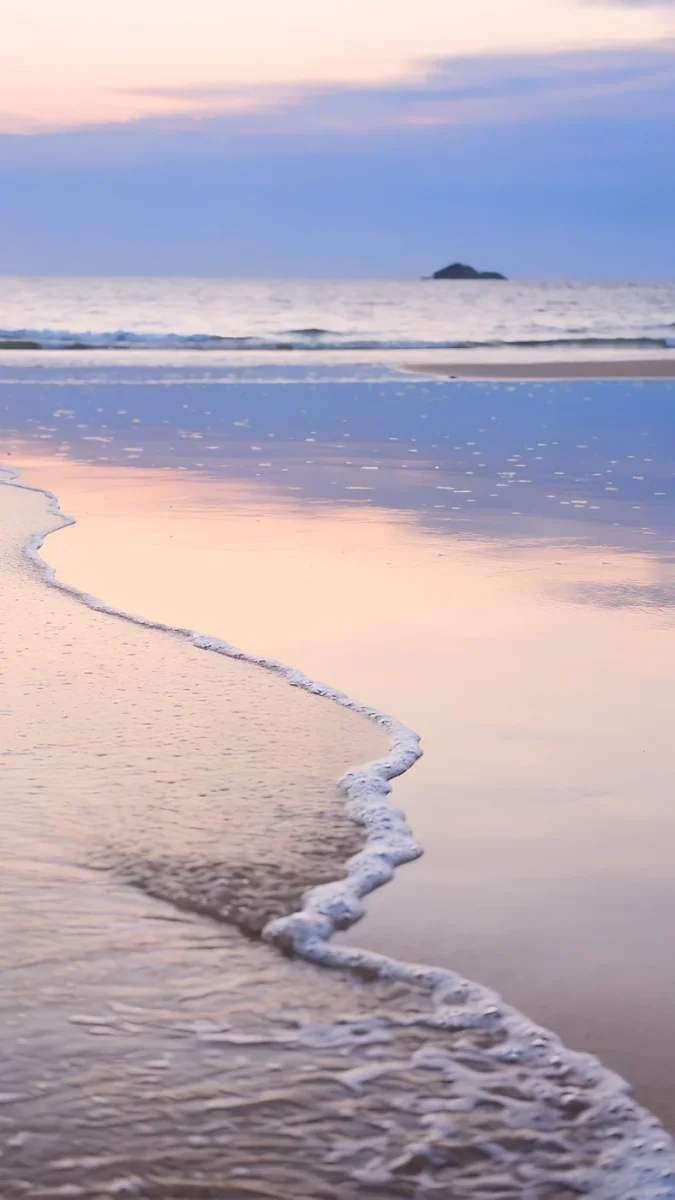
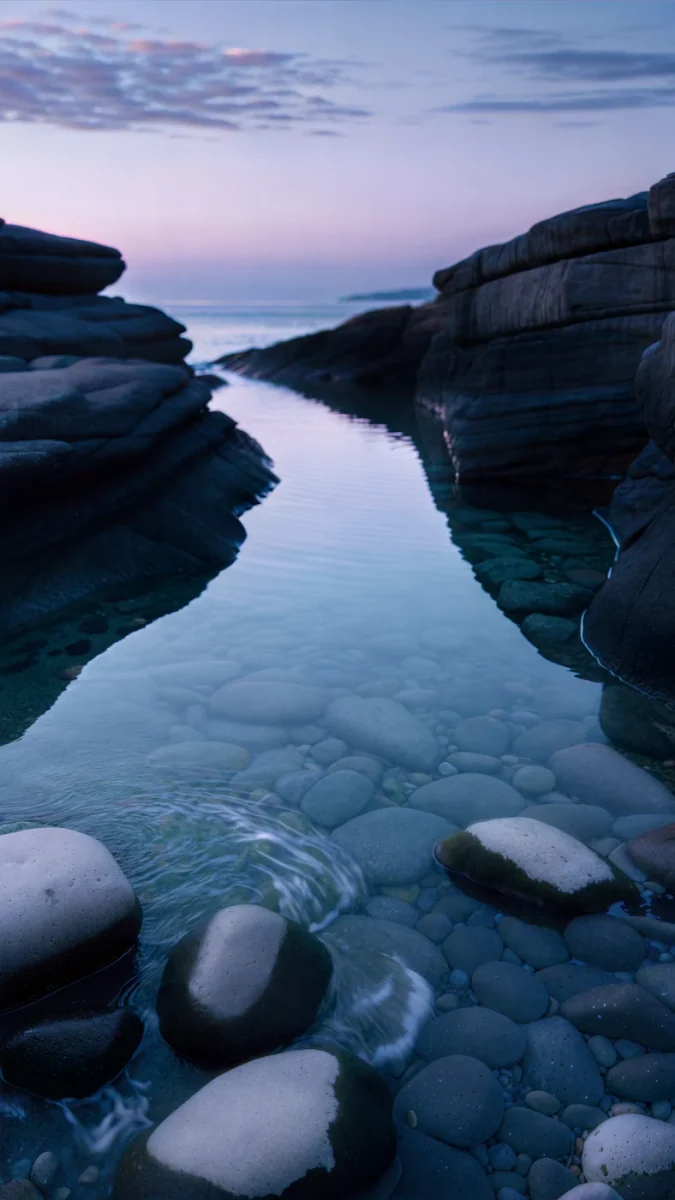
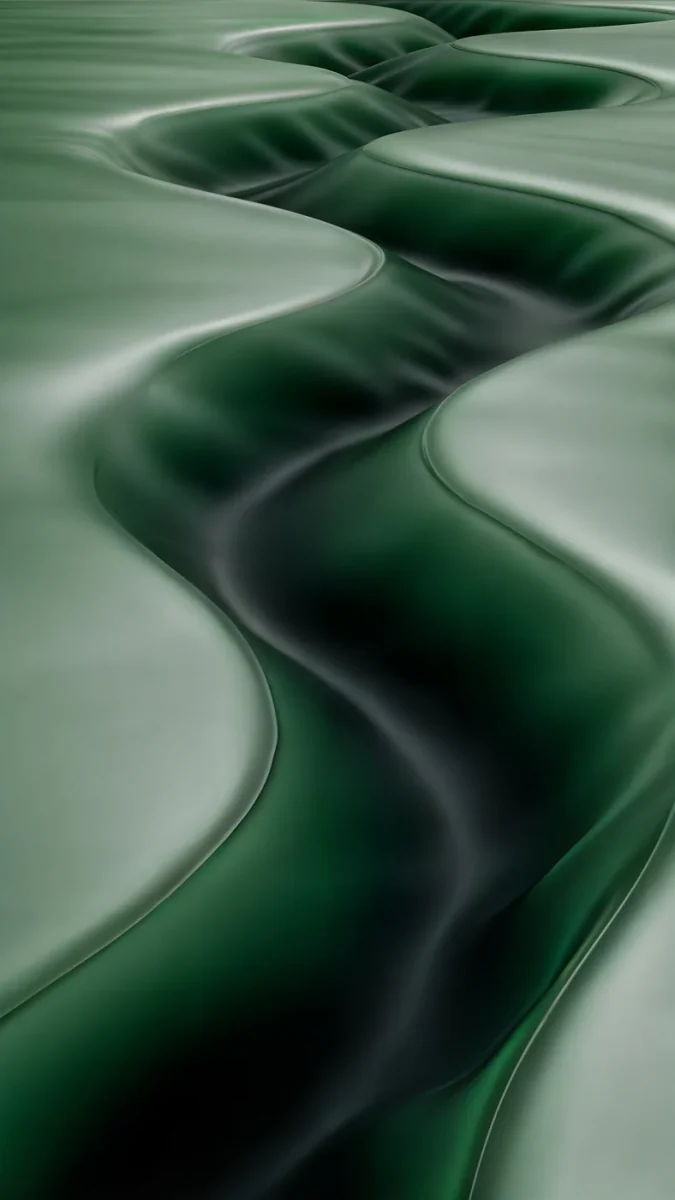
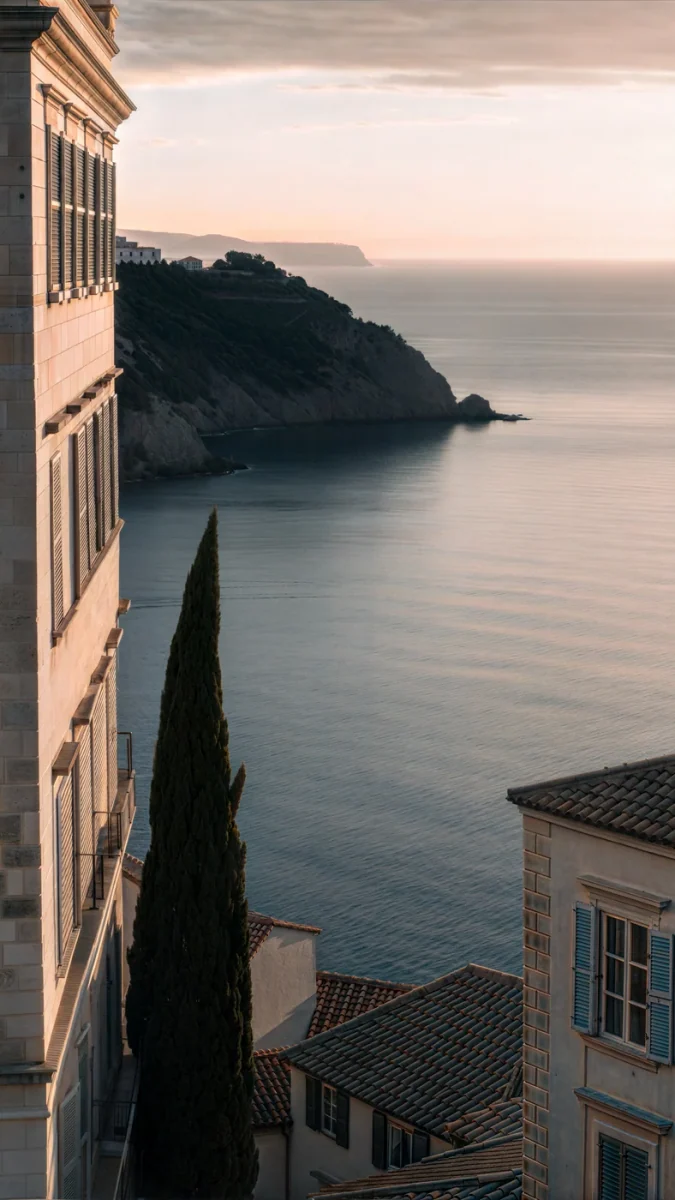
Tidal Quiet, Blue Cove and Sage Passage are calm enough to sit behind a full page of icons.
Pixel and stock Android: Wallpaper & style
Google's help page Change wallpaper on your Pixel phone describes this route:
- Press and hold the home screen and tap Wallpaper & style.
- Tap More wallpapers or Change wallpaper; the label depends on the Android build.
- Switch between Lock screen and Home screen at the top to set them separately, then tap Choose a photo or a category.
- Tap Preview, then Apply.
Two more settings sit on the same screen. Colors decides whether Android tints buttons, the quick settings panel and, with Themed icons on, app icons in tones taken from your wallpaper; choose Basic colors if you want the theme to stay the same when you swap pictures. A grid option below it sets how many app icons fit on a row.
Samsung One UI: Wallpaper and style
- Open Settings and tap Wallpaper and style, or long-press the home screen and tap the same item.
- Tap Change wallpapers.
- Under Gallery pick your own picture, or open one of the Samsung collections.
- On the preview tick Lock screen, Home screen or both, pinch to frame it and tap Done.
Samsung's own wallpaper help page adds the Gallery route and notes that a video wallpaper plays for up to 15 seconds. Two One UI details: the home screen preview has a motion effect switch that shifts the picture as you tilt the phone, so turn it off to keep your framing; and on One UI 6 and later you can long-press the lock screen itself to edit it. Our Samsung lock screen guide covers that editor.
Lock screen and home screen: set them separately
The lock screen is mostly image: a clock, a date, a few notifications. The home screen is covered in icons, and a detailed picture that looks good on the lock screen turns into noise behind five rows of apps. Put something with depth or colour on the lock screen and something plainer from the same palette behind the icons. Do it in two passes: the first image with Lock screen only, the second with Home screen only.
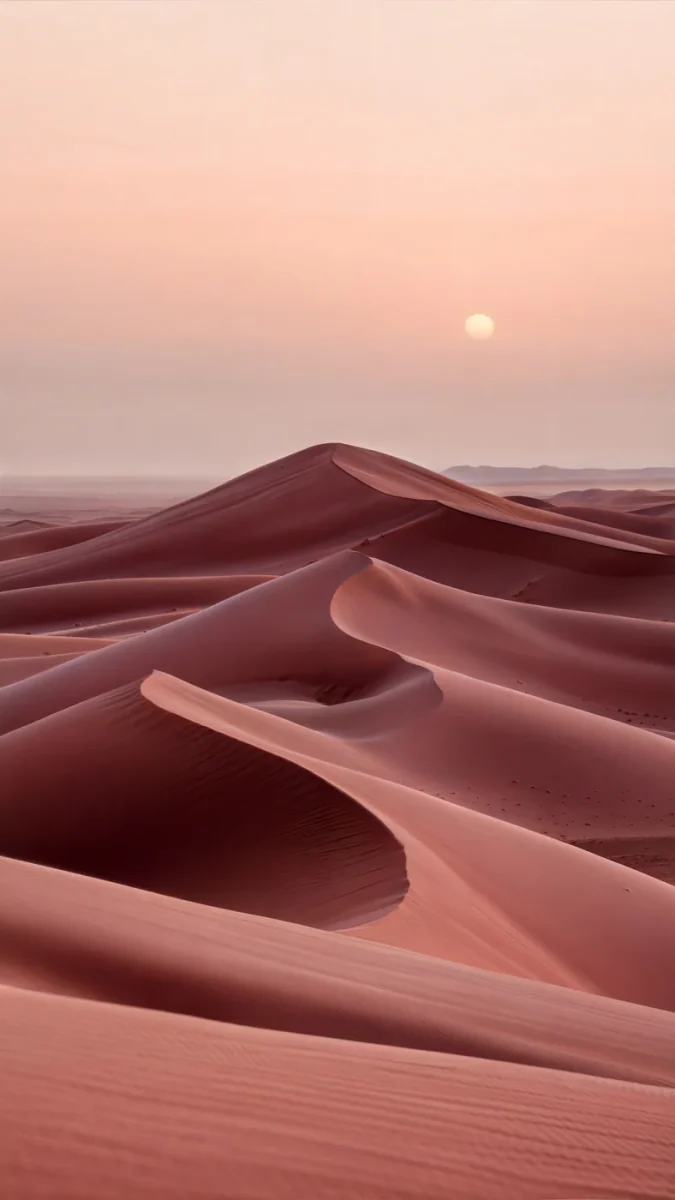
Coral Tide runs from slate blue (#344B5B) to warm peach (#EAC5B0); Peach Riviera and Rose Dunes sit in the same warm range, so any two of them make a lock and home pair without a clash.
The file size that stays sharp on Android
Android scales any picture to fill the screen, so the file has to be at least as large as the display. Phones are also narrower than a 9:16 image, so part of the width is always trimmed. Here is what happens to a 2160 × 3840 Velpaper file on popular phones:
| Phone | Screen (pixels) | Scaling | Width trimmed |
|---|---|---|---|
| Pixel 10 | 1080 × 2424 | Scaled down | about 21% |
| Pixel 10 Pro | 1280 × 2856 | Scaled down | about 20% |
| Galaxy S25 | 1080 × 2340 | Scaled down | about 18% |
| Galaxy S25 Ultra | 1440 × 3120 | Scaled down | about 18% |
The trimmed part is split between the left and right edges, so keep the subject in the middle 80% of the picture. Every Velpaper wallpaper is a 4K original: phone wallpapers are 2160 × 3840, desktop wallpapers are 3840 × 2160 and some are 5120 × 2880. The typical phone file is about 0.6 MB and the largest, Tidal Quiet, is 3.0 MB. Resolutions for more models are in the Android wallpaper size guide.
Dark mode, battery and system colours
Most Android phones sold today have an OLED screen, where black pixels are switched off. A dark wallpaper therefore uses a little less power than a bright one. The saving is modest on the home screen, where icons cover most of the picture, and larger on the lock screen and the always-on display. Dark images also sit better with the system dark theme: grey widgets and a dark quick settings panel look right on deep navy and odd on cream.
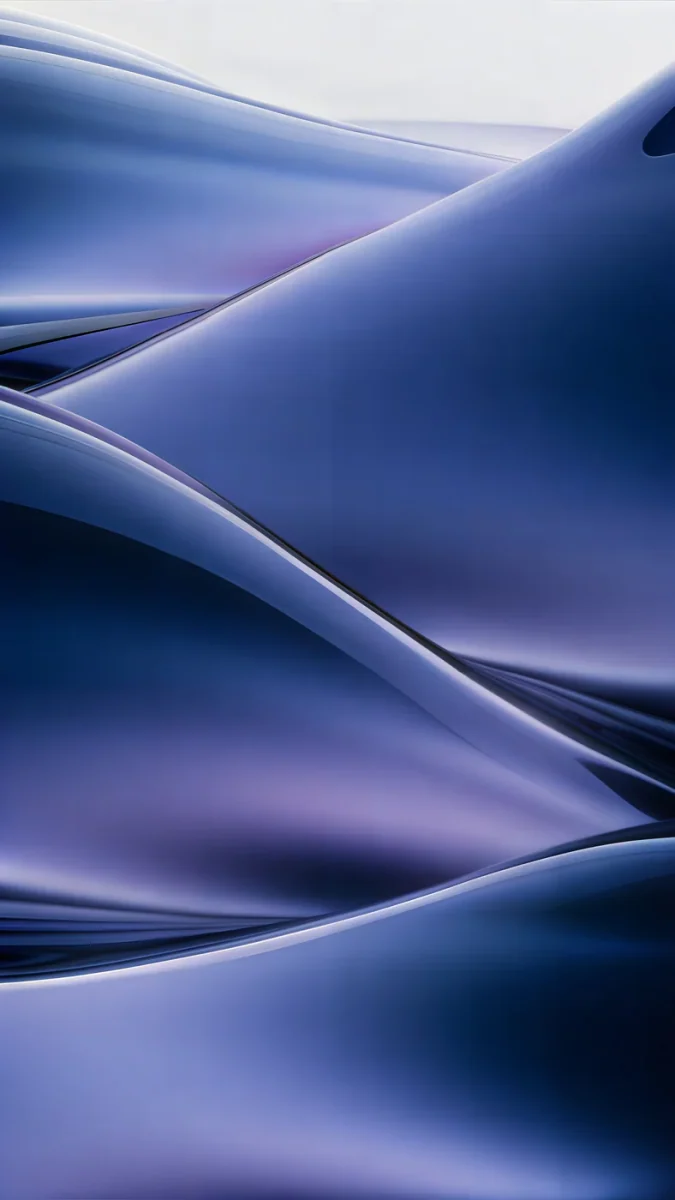
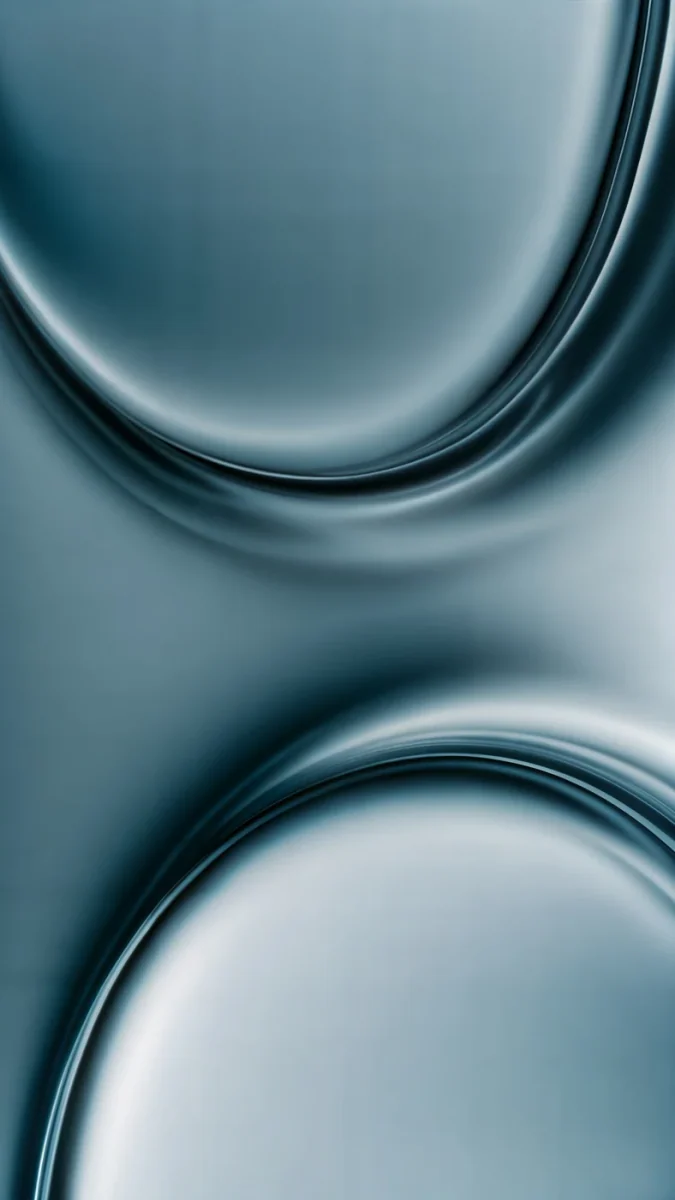
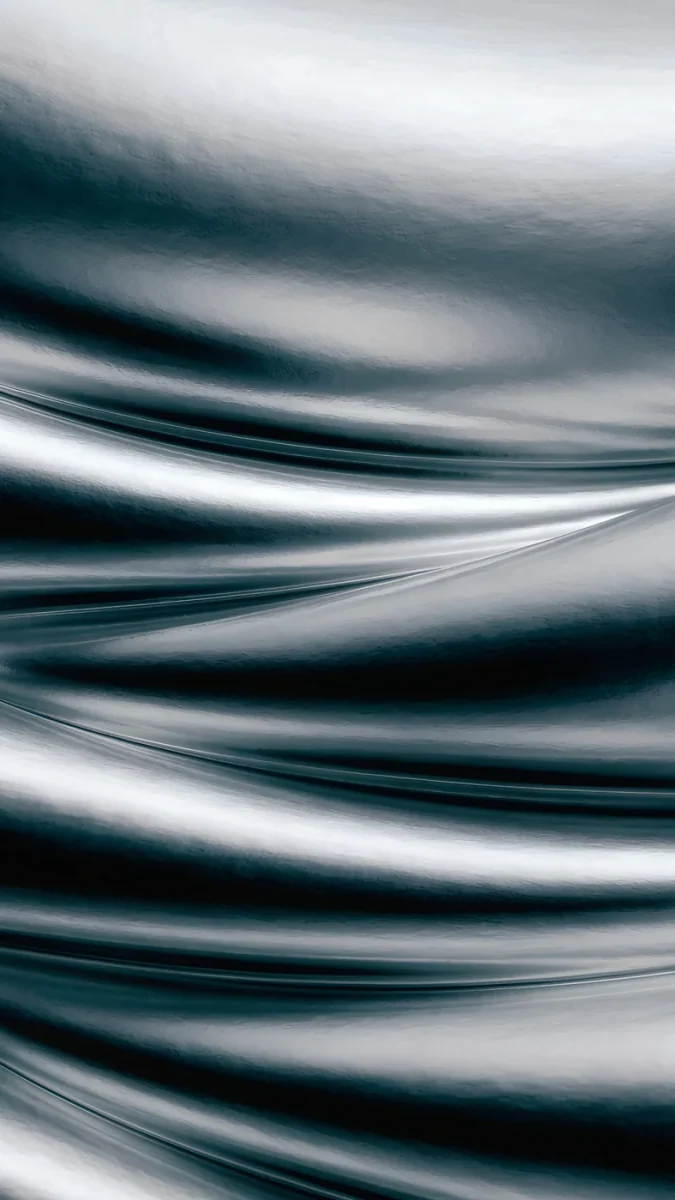
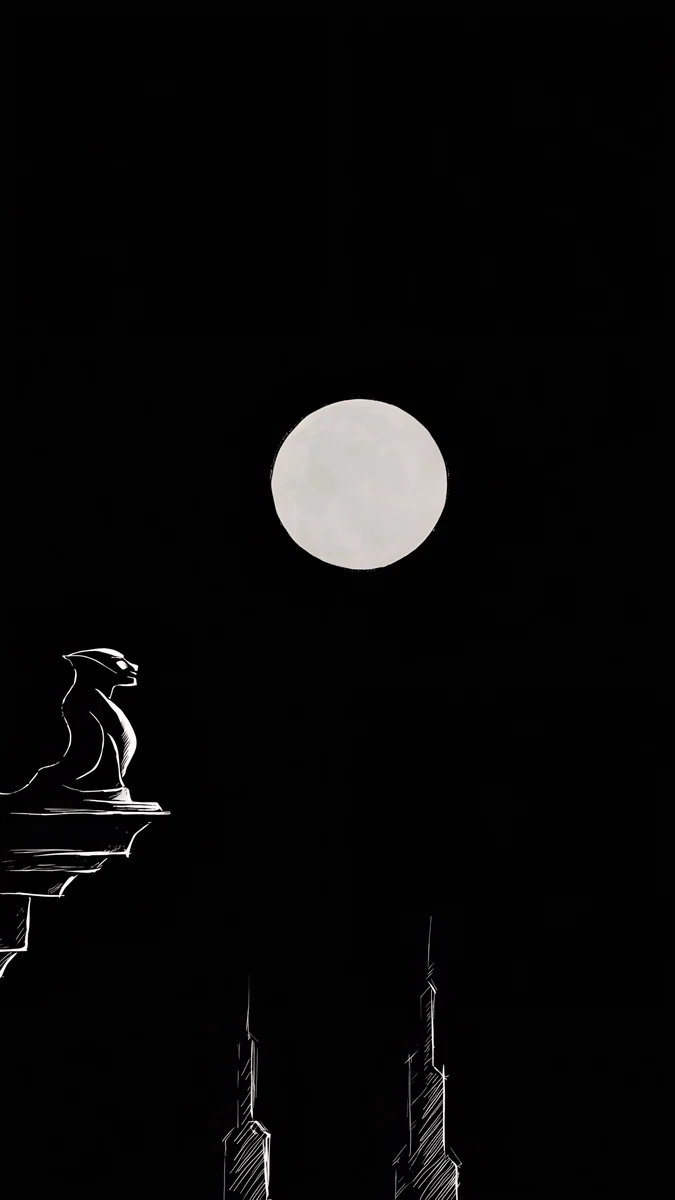
Midnight Flow (#15243E) and Arctic Current (#102F3D) are deep blue with a lighter current across them. Moon Silver (#11161E) and Moon Ledge (#07080A) are nearly black, which is where OLED saves the most.
Troubleshooting Android wallpaper settings
- Blurry or zoomed in. The file is smaller than the screen, or the preview was zoomed. Set the original file and zoom out; the Android wallpaper zoom fix also covers the Samsung motion effect.
- It changes by itself. A wallpaper service is switched on, such as Samsung Dynamic Lock screen. On Samsung open Settings, Wallpaper and style, Wallpaper services and choose None. Other causes are in why your Android wallpaper keeps changing.
- Only one screen changed. The wallpaper went to Home screen or Lock screen only. Repeat the steps and pick the other screen, or both.
- The whole phone changed colour. That is dynamic colour taken from the wallpaper. Choose Basic colors on a Pixel, or change Color palette in Wallpaper and style on a Samsung.
- No wallpaper item after a long-press. Some third-party launchers replace that menu. Search Settings for "wallpaper", or set the picture from the gallery app.
Wallpaper settings on iPhone, Windows and Mac
If you were looking for another device: on an iPhone open Settings, Wallpaper, Add New Wallpaper, then choose Set as Wallpaper Pair or Customize Home Screen, as Apple's support page describes. Our iPhone lock screen guide walks through the clock and widget options. On Windows 11 the setting is in Settings, Personalization, Background. On a Mac it is System Settings, Wallpaper.
Next step: set a 4K wallpaper now
Download Tidal Quiet in 4K: a 2160 × 3840 file of 3.0 MB in deep teal (#234E57), sea green and pale foam, free with no ad in the Velpaper app and on velpaper.com. Save it to your gallery, long-press the home screen, tap Wallpaper & style and apply it to the lock screen. Most other Velpaper phone wallpapers unlock after a short optional ad in the app and download free on the website. The images in this article are compressed previews; set the original.
Original wallpapers in 4K and 5K for iPhone, Android and desktop.
Questions
Where are the wallpaper settings on Android?
On almost every Android phone they open from the home screen: press and hold an empty spot and tap Wallpaper & style on a Pixel, Wallpaper and style on a Samsung Galaxy, or Wallpaper on some other brands. The same menu is in the Settings app; if you cannot find it, type "wallpaper" into the search bar at the top of Settings. From there you pick a built-in wallpaper or your own photo and choose whether it goes on the lock screen, the home screen or both. The menu also holds the colour settings that tint buttons and icons to match the wallpaper, and on Samsung the wallpaper services that change the lock screen picture automatically.
How do I set different wallpapers for the lock screen and home screen on Android?
Set them in two passes. Press and hold the home screen, open Wallpaper & style (Wallpaper and style on Samsung), pick the first image and, when the phone asks where to put it, choose Lock screen only. Go back, pick the second image and choose Home screen only. On Samsung the preview shows two options, Lock screen and Home screen, so tick one at a time. On a Pixel the choice appears after you tap Set wallpaper. Most people put the more detailed picture on the lock screen and a plainer one from the same palette behind the icons, so the switch between the two screens does not feel abrupt.
Why does my Android wallpaper look blurry or cropped?
Blurry usually means the file is smaller than the screen. A screenshot, a compressed preview or an image saved from a social feed is often well under the height of the display, and Android has to enlarge it. Zooming in during the preview enlarges the pixels further. Use an original at least as large as the display, such as a 2160 × 3840 Velpaper wallpaper, and zoom out rather than in. Cropping is normal and not a fault: Android screens are around 20:9 while most wallpapers are 9:16, so a thin strip is trimmed from the left and right edges. A wallpaper composed with the subject near the centre loses nothing that matters.
Does a dark wallpaper save battery on Android?
A little, and only on OLED screens, which most current Android phones have. On OLED each black pixel is switched off, so a mostly black image draws less power than a bright one. On the home screen the difference is small because icons and widgets cover most of the picture. It matters more on the lock screen and the always-on display, which you look at many times an hour without unlocking. A nearly black wallpaper such as Moon Silver or Moon Ledge gives the biggest saving; a deep blue one such as Midnight Flow gives a smaller one, but still less than a cream or white image. On an LCD phone the wallpaper colour makes no difference to battery.
How do I change the wallpaper on a Samsung phone?
Press and hold an empty part of the home screen and tap Wallpaper and style, or open Settings and tap Wallpaper and style. Tap Change wallpapers, then Gallery to use your own image, or one of the Samsung collections. Select the picture; the preview shows Lock screen and Home screen options, so tick the one you want or both. Pinch to adjust the framing and tap Done. If the image shifts when you tilt the phone and you would rather it stayed still, turn off the motion effect switch in the preview. On One UI 6 and later you can also press and hold the lock screen itself, open the editor and change the wallpaper from there.
Are Velpaper wallpapers free on Android?
Yes. Browsing and previewing is free in the Android app and on velpaper.com. A few phone wallpapers, such as Tidal Quiet, save free in the app with nothing else to do; most others unlock after a short optional ad. On the website every wallpaper downloads free. There is no account and no subscription. The file you receive is the full 2160 × 3840 original without a watermark, larger than any current Android display, so the phone only ever scales it down. Save it to your gallery and set it with any of the steps in this guide, for the lock screen, the home screen or both.
Carlos Vivero
Designer of Velpaper wallpapers
Carlos Vivero designs the wallpapers in Velpaper: quiet architecture, liquid glass, Japanese ink and calm landscapes. Every piece is made as a 4K original for iPhone, Android and desktop.
Recent work