How to Choose a Wallpaper That Keeps the Clock Readable
How to choose a lock screen wallpaper that keeps the clock readable on iPhone and Android: the quiet top rule, how iOS picks clock colour, and a 10 second test.
In short: Pick a wallpaper whose top third is quiet and clearly light or clearly dark, then set the clock to the opposite: white on a dark top, near black on a light top. Busy detail and mid-grey tones under the clock are what make it hard to read.
By the Velpaper team · Wallpapers by Carlos Vivero, Velpaper designer · · Updated · 5 min read
Free 4K originals for iPhone and Android, no watermark
On this page
A lock screen has one job you cannot skip: showing the time. Yet the most common complaint about a new wallpaper is that the clock vanished into it. The fix is not a different font. It is choosing a picture that leaves room for the clock in the first place. Here is how the clock and widgets are laid out, what kills readability, and a 10 second test that settles it.
Where the clock sits on iPhone and Android
On iPhone, since iOS 16, the time takes the upper third of the screen. Above it is a thin date line, below it a box for up to four small widgets. Notifications stack from the bottom. The whole upper third is text, and the wallpaper sits straight behind it.
Android is similar. On a Pixel the large two line clock sits top left, dropping to a smaller single line when notifications arrive. Samsung One UI centres the clock near the top and lets you move it. In every case the area that matters is the same: the top 30 to 35 percent of the image.
Why busy or mid-tone tops kill the clock
Two things break readability. The first is detail: branches, windows, text, ripples, anything with many edges. The clock's own edges compete with them and the digits stop reading as one shape.
The second is worse because it looks harmless in the thumbnail: mid tones. A clock is either light or dark. Against a very dark or very light background it has contrast. Against a mid-grey, mid-blue or dusty pink area it has almost none, whatever colour you pick. The typical failure is a sky that fades from deep blue at the top to pale at the horizon, with the clock landing exactly on the grey band in between.
The quiet top rule
So the rule is short: the top third of a lock screen wallpaper should be quiet, and either clearly dark or clearly light. Quiet means a plain wall, open sky, water, fog, a flat gradient or empty paper. The subject, the horizon, the colour accent and anything you want to look at should sit below the clock, where your eye goes after you have read the time.
This is why most Velpaper phone wallpapers are composed with an empty top. The focal point sits in the lower half, and the upper third is a single tone that the clock can rest on.
Light or dark: how iOS picks the clock colour
When you set a photo wallpaper, iOS suggests a clock colour drawn from the image. On a strongly dark or light picture it works. On anything in between it tends to choose a tinted mid tone that matches the palette nicely and reads badly. Tap the time in the editor and set it yourself: white or a pale tint on a dark top, near black or a deep tone on a light top. The full editor walkthrough is in how to set a lock screen wallpaper on iPhone.
On Android the clock colour does not adapt per image on most phones. Pixel tints it from the wallpaper's extracted palette, so a light wallpaper can get a light clock. Samsung lets you set the colour by hand under Lock screen, Clock style. Either way, check it after you set the picture. The settings for each brand are in how to set a wallpaper on Android.
The depth effect on iPhone
If iOS detects a clear subject, such as a person, a tower or a boat, it can place that subject in front of the clock. It looks striking and it is the fastest way to lose the time. iOS turns it off on its own when the subject would cover too much of the digits, and when you add widgets under the clock, but a subject that clips the bottom of the numbers slips through.
Toggle it in the editor: tap the three dots at the bottom right and switch Depth Effect off. Abstract and architectural wallpapers rarely trigger it, which is part of why they suit a lock screen.
Test it in 10 seconds
- Set the wallpaper and leave the clock colour on automatic.
- Lock the phone and raise it as you would in the street, not at your desk.
- Look for one second. If you read the time without hunting, it passes. If your eye went to the picture first, change the clock colour, and if that is not enough, change the picture.
Do it once in daylight, since outdoor light flattens contrast more than any wallpaper does.
Velpaper examples that pass the test
Dark tops for a white clock
 Moon Silver4K · Phone
 Tidal Quiet4K · Phone
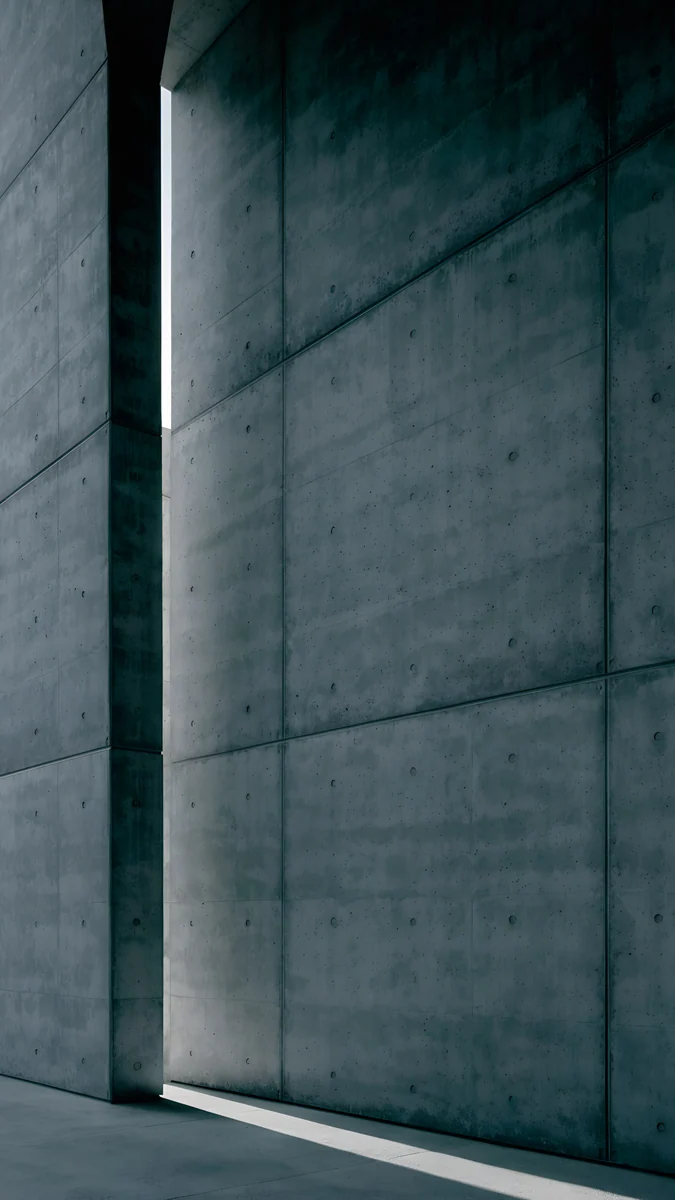 Charcoal Slot4K · Phone
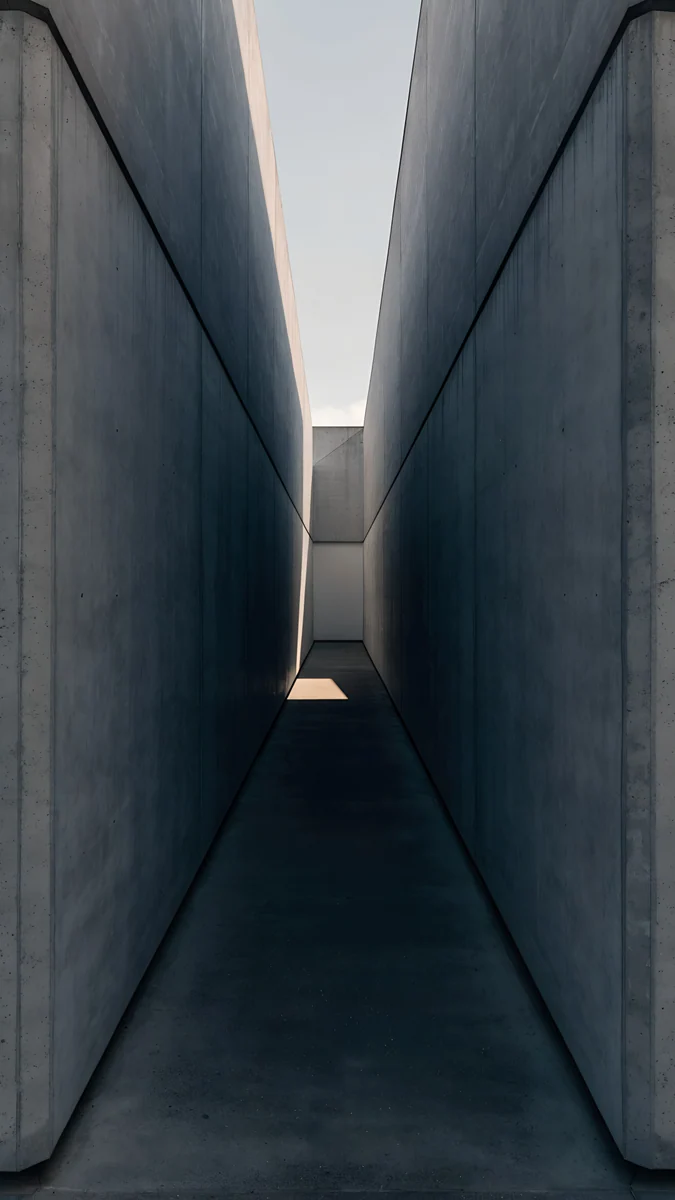 Graphite Passage4K · Phone
 Blue Hour4K · Phone
Moon Silver is nearly black with a wash of silver light, the simplest case there is. Tidal Quiet opens in deep teal and lets pale foam gather lower down; it is also fully free. Charcoal Slot and Graphite Passage are dim concrete interiors in charcoal and slate, with the light cut arriving below the clock. Blue Hour is deep navy fading to a soft grey-blue, with the lightest tones at the bottom. Charcoal Slot and Graphite Passage come from the soft brutalism collection.
Light tops for a dark clock
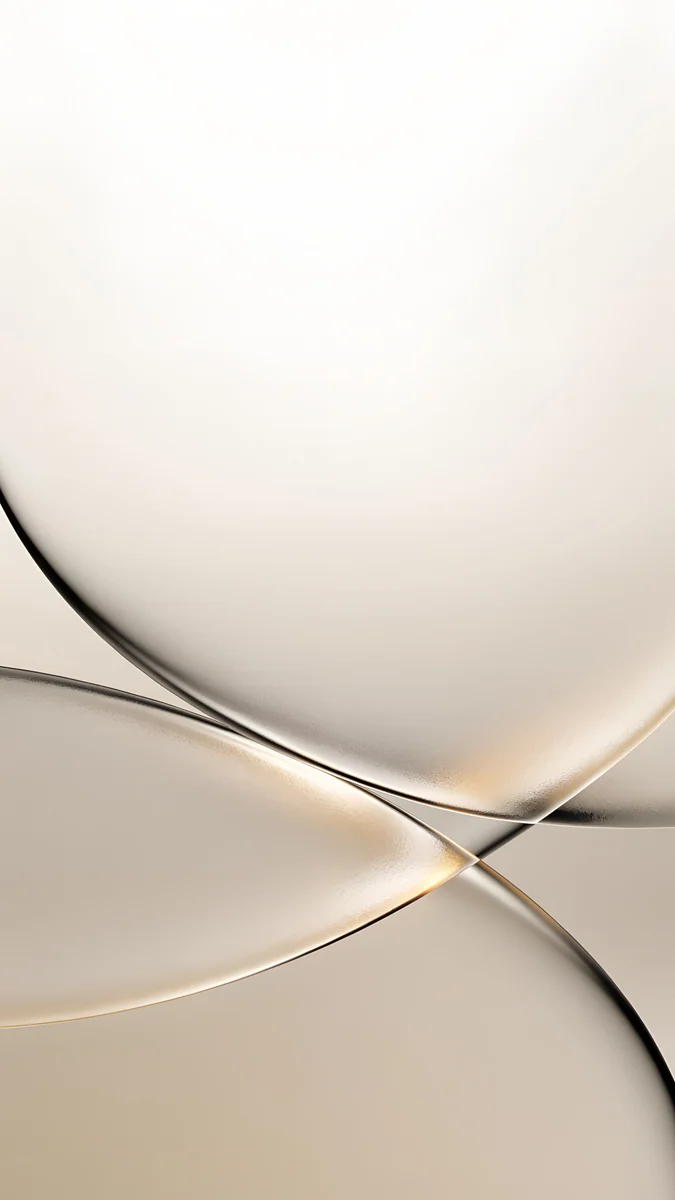 Champagne Veil4K · Phone
 Mist Pines4K · Phone
 Quiet Boat4K · Phone
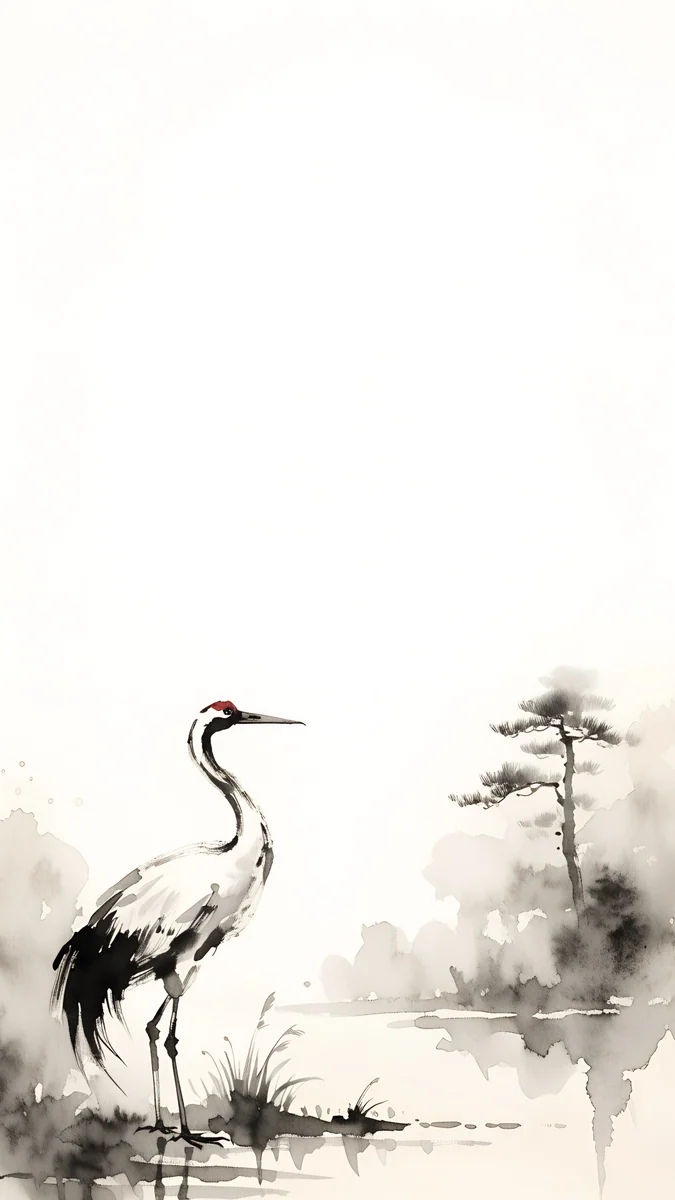 Ink Crane4K · Phone
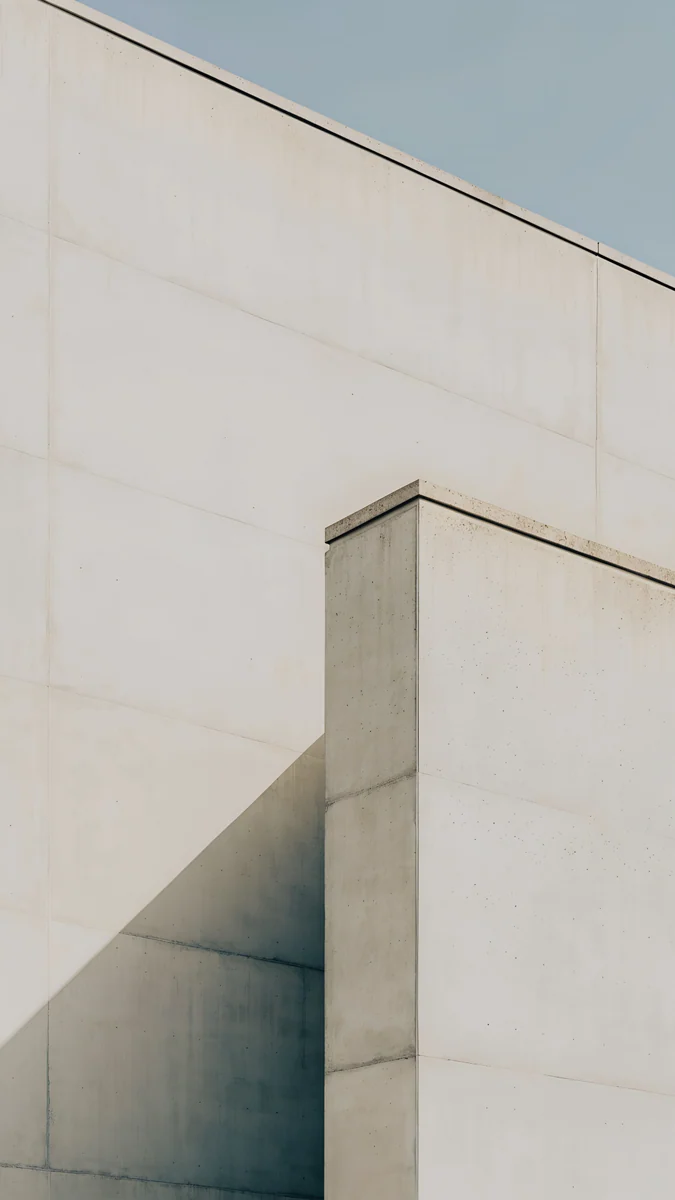 Ivory Fold4K · Phone
Champagne Veil is warm cream with barely any contrast anywhere, so a black clock sits on it like print on paper. Mist Pines and Quiet Boat are ink-wash scenes on pale paper: the pines and the boat sit low, and the top is fog. Ink Crane keeps the bird in the lower half and leaves the paper above empty. Ivory Fold is a soft grey-ivory surface with a single fold, no detail at the top. The three ink pieces come from our Japanese ink wallpapers.
The one to test
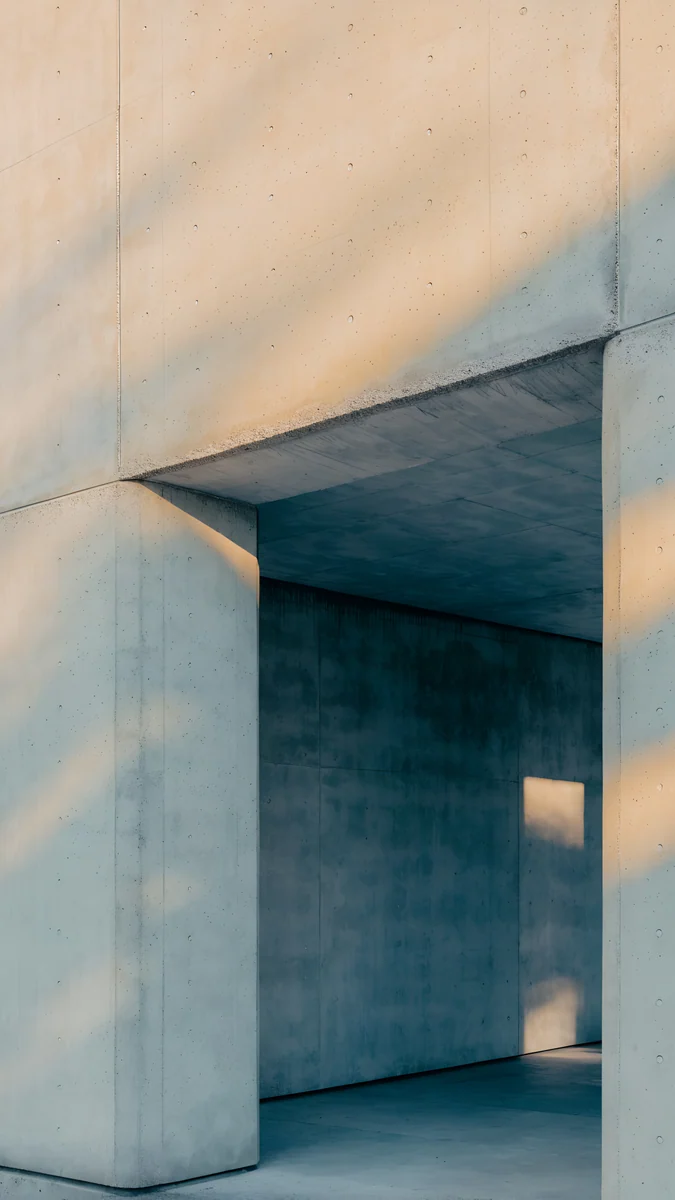 Apricot Void4K · Phone
Apricot Void is warm sand and tan, lighter than its name suggests but closer to mid tone than the others. A deep brown or black clock reads on it; the automatic colour may not. It is the kind of wallpaper the 10 second test exists for.
Original wallpapers in 4K and 5K for iPhone, Android and desktop.
Questions
Why is the clock on my lock screen so hard to read?
Almost always because of what sits behind it. The clock occupies the upper third of the screen on both iPhone and Android, and if that part of the wallpaper is detailed or sits in a middle tone, the digits lose their edge. A white clock on a mid-grey sky or a dark clock on dusty pink has very little contrast whichever font you use. First change the clock colour to the opposite of the background: white on dark, near black on light. If it still reads badly, the top of the picture is the problem and you need a wallpaper with a quieter, more decisive top third.
Should a lock screen wallpaper be light or dark?
Either works, as long as it is clearly one or the other where the clock is. A dark top with a white clock is the most forgiving combination and looks good on OLED screens, where deep blacks stay black. A light top with a dark clock reads like print on paper and suits daylight use. What fails is the middle: mid-grey, mid-blue and dusty colours in the upper third give neither clock colour enough contrast. Look at the top of the wallpaper on its own and ask whether you would call it light or dark without hesitating. If you hesitate, the clock will too.
How do I change the clock colour on the iPhone lock screen?
Press and hold the lock screen, tap Customise, then Lock Screen. Tap the time and a panel opens with font choices and a row of colour swatches. Tap a swatch to apply it, or tap the last circle in the row for a full colour picker. A slider under the swatches shifts the shade lighter or deeper. Choose white or a pale tint for a dark wallpaper and near black or a deep tone for a light one, then tap Done. iOS suggests a colour automatically when you first set a photo, but on wallpapers with middle tones that suggestion often blends into the image, so it is worth setting by hand.
What is the depth effect and should I turn it off?
The depth effect is an iPhone lock screen feature that lets the subject of a photo sit in front of the clock, so the time appears partly behind a person, a building or an object. It works when iOS can separate a clear subject from the background. It looks dramatic, but it also hides part of the digits, and iOS disables it on its own when you add widgets or when the subject would cover too much of the clock. To control it yourself, open the lock screen editor, tap the three dots at the bottom right and switch Depth Effect off. Abstract and architectural wallpapers rarely trigger it, which makes them a safe choice for a readable clock.
Does the same rule apply to Android lock screens?
Yes. Android phones also put the clock in the upper part of the screen, top left on a Pixel and centred near the top on Samsung, so the same quiet top rule applies. The difference is how the clock colour is chosen. Pixel phones tint the clock from colours extracted from the wallpaper, so a light wallpaper can end up with a light clock, and you cannot pick an arbitrary colour. Samsung One UI lets you choose the clock colour and style under Lock screen settings. In both cases, set the wallpaper, lock the phone and check the time once in daylight before you keep it.
Carlos Vivero
Designer of Velpaper wallpapers
Carlos Vivero designs the wallpapers in Velpaper: quiet architecture, liquid glass, Japanese ink and calm landscapes. Every piece is made as a 4K original for iPhone, Android and desktop.
Recent work