How to Make a Photo Fit as Wallpaper Without Zooming
Make your own photo fit as a phone or computer wallpaper without zooming: crop to the screen shape, turn off motion, or keep the whole photo on a tall canvas.
In short: A phone always fills the screen, so a photo fits without zooming only when it already has the screen's tall shape. Crop it with the Wallpaper preset in iPhone Photos or a 9:16 crop on Android, turn off Perspective Zoom or motion effects, or place the whole photo on a 2160 × 3840 canvas with a blurred or plain background. On a computer, choose Fit.
By the Velpaper team · Wallpapers by Carlos Vivero, Velpaper designer · · 6 min read
Free 4K originals for iPhone and Android, no watermark
On this page
To make your own photo fit as a wallpaper without zooming, give it the screen's shape before you set it. On an iPhone, crop it in Photos with the Wallpaper aspect ratio and turn off Perspective Zoom; on Android, crop it to 9:16 or close to it and switch off motion effects. If you want the whole photo visible, put it on a tall 2160 × 3840 canvas with a blurred copy or a plain colour behind it.
The reason is simple: iPhone and Android never show a wallpaper with empty bars. They enlarge any picture until it covers the whole screen and cut off what spills over. A standard camera photo is 3:4, a modern phone screen is close to 9:19.5, so an uncropped photo always loses its sides.
Is your photo big enough?
Usually yes, even after cropping. A 12 megapixel photo from a recent phone is 3024 × 4032 pixels upright. Cropped to a tall wallpaper shape, it is still about 2268 × 4032, larger than an iPhone 16 Pro Max screen at 1320 × 2868. Even a landscape photo cropped to a vertical slice keeps about 1701 × 3024 pixels, enough for a sharp lock screen.
The photos that really are too small are the ones saved from chats, social media or screenshots, often 1080 pixels wide or less and heavily compressed. Ask for the original file, or see our guide to upscaling a wallpaper to 4K.
Method 1: crop the photo to the screen shape
iPhone with iOS 26
- Open the photo in Photos and tap Edit.
- Tap Crop, then the aspect ratio button at the top, and choose Wallpaper. This preset matches your screen exactly.
- Drag the photo inside the frame until the part you want is in place, keeping faces and the subject below the top third, where the clock goes. Tap Done.
- Open Settings, tap Wallpaper, then Add New Wallpaper, and pick Photos and the cropped picture.
- Tap the More button, the three dots, and turn off Perspective Zoom if it is listed. On iOS 26, also check that the Spatial Scene button is off if the framing looks tighter than expected.
- Tap Add, then Set as Wallpaper Pair or Customize Home Screen.
Android 16, One UI 8 and HyperOS
- Open the photo in Google Photos, Samsung Gallery or Xiaomi Gallery and tap Edit.
- Open the crop tool and pick a tall ratio such as 9:16 if the editor offers it, or use a free crop roughly the shape of your screen. Save a copy.
- Touch and hold an empty spot on the home screen and open the wallpaper menu: Wallpaper & style on a Pixel, Wallpaper and style on a Samsung. On Xiaomi the names differ by HyperOS version.
- Choose the cropped photo from your gallery, check the preview and confirm for the lock screen, the home screen or both.
- If the picture still moves or looks enlarged, look for a motion or scrolling effect switch in the preview or in your launcher settings and turn it off. Its name differs between phones.
More fixes for each brand are in our guides to iPhone wallpaper zoom and Android wallpaper zoom.
Method 2: keep the whole photo on a tall canvas
Cropping always sacrifices something. For a group photo or a wide landscape where everything matters, build the tall frame yourself:
- In Canva or any editor, create a custom canvas of 2160 × 3840 pixels.
- Place your photo and scale it so its full width fits the canvas, centred slightly below the middle.
- Fill the empty space. Either duplicate the photo, stretch the copy over the whole canvas and blur it strongly, or pick a plain colour taken from the photo itself.
- Download as JPG at high quality or PNG, save it to your photo library and set it as in Method 1. Because the canvas already has the screen's shape, the phone has nothing to cut.
There is a quicker trick with lower quality: open the photo full screen, tap once so the background turns black, and take a screenshot. The screenshot is exactly your screen size with the photo in the middle.
On a computer: choose Fit instead of Fill
Desktops are more forgiving, because you can choose how the picture is placed.
- Windows 11: Settings, Personalization, Background. Pick your photo, then under Choose a fit for your desktop image select Fit to see the whole picture with bars, or Fill to cover the screen.
- macOS Tahoe: System Settings, Wallpaper, Add Photo. In the menu next to the thumbnail, Fit to Screen shows the whole photo, and Fill Screen covers the display.
An upright phone photo on a wide monitor will show large side bars with Fit. For a cleaner result, use the tall canvas method in reverse: a 3840 × 2160 canvas with the photo in the middle and a blurred copy behind it.
Compositions that survive any screen
These Velpaper wallpapers are built the way a good personal wallpaper should be: the subject sits low or in the middle, the top is calm for the clock, and nothing important touches the edges, so any phone can trim the sides safely.
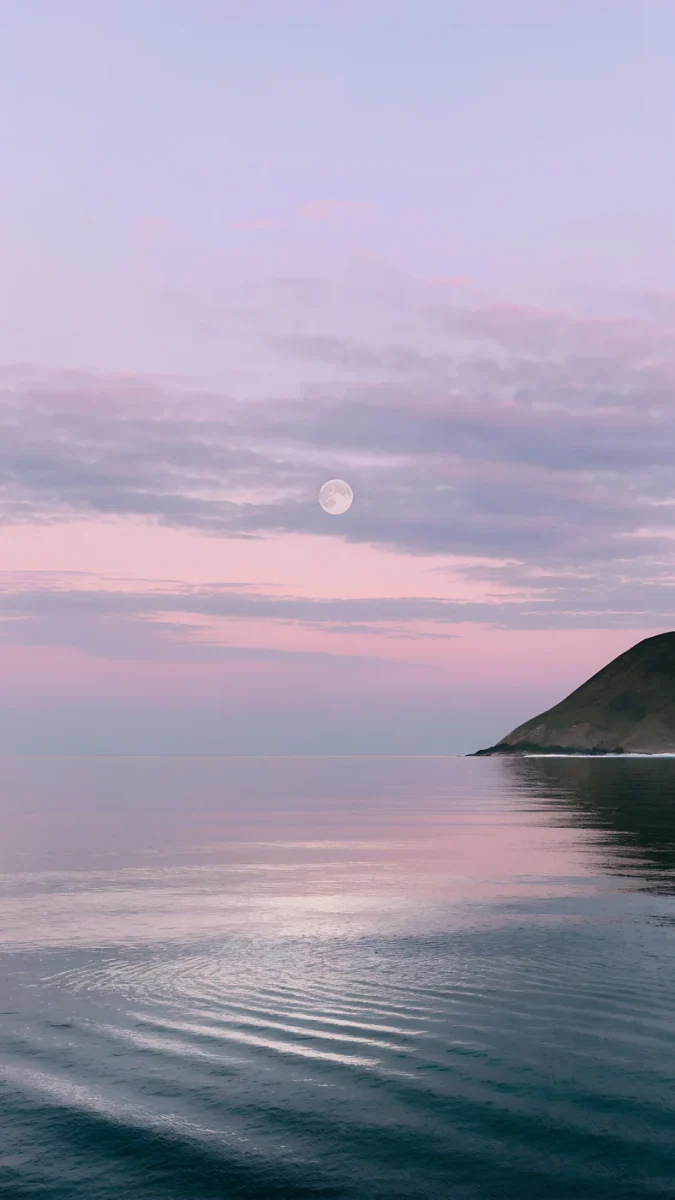 Saltwater Moon4K · Phone
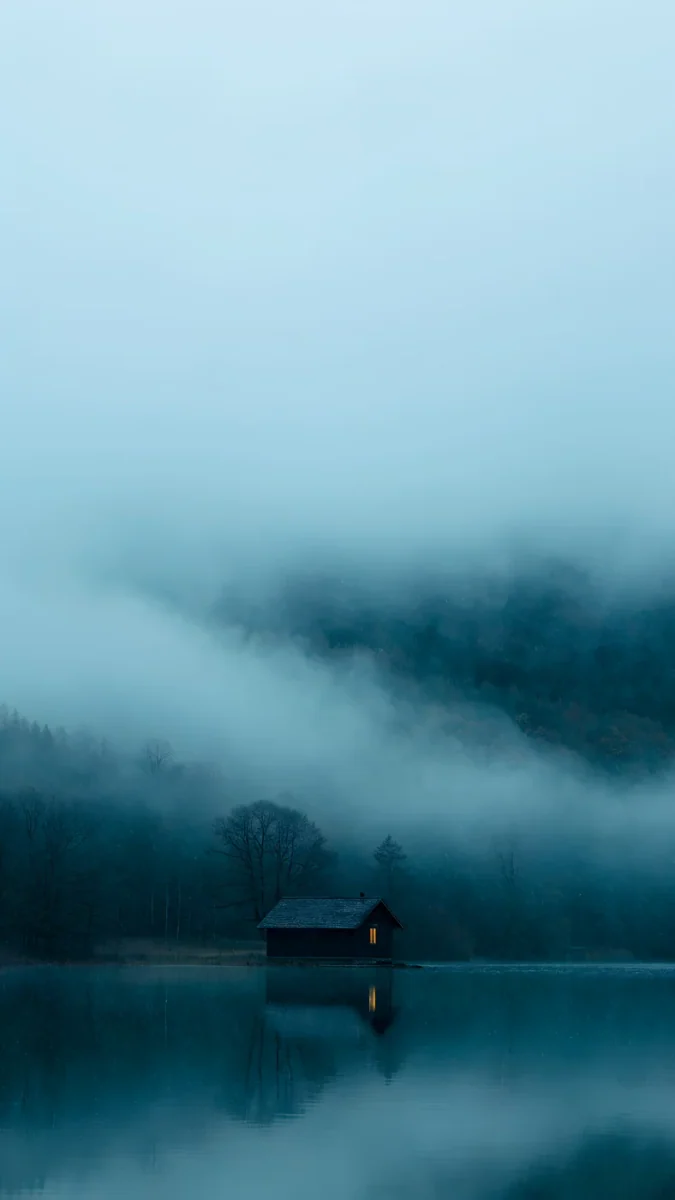 A Window in the Fog4K · Phone
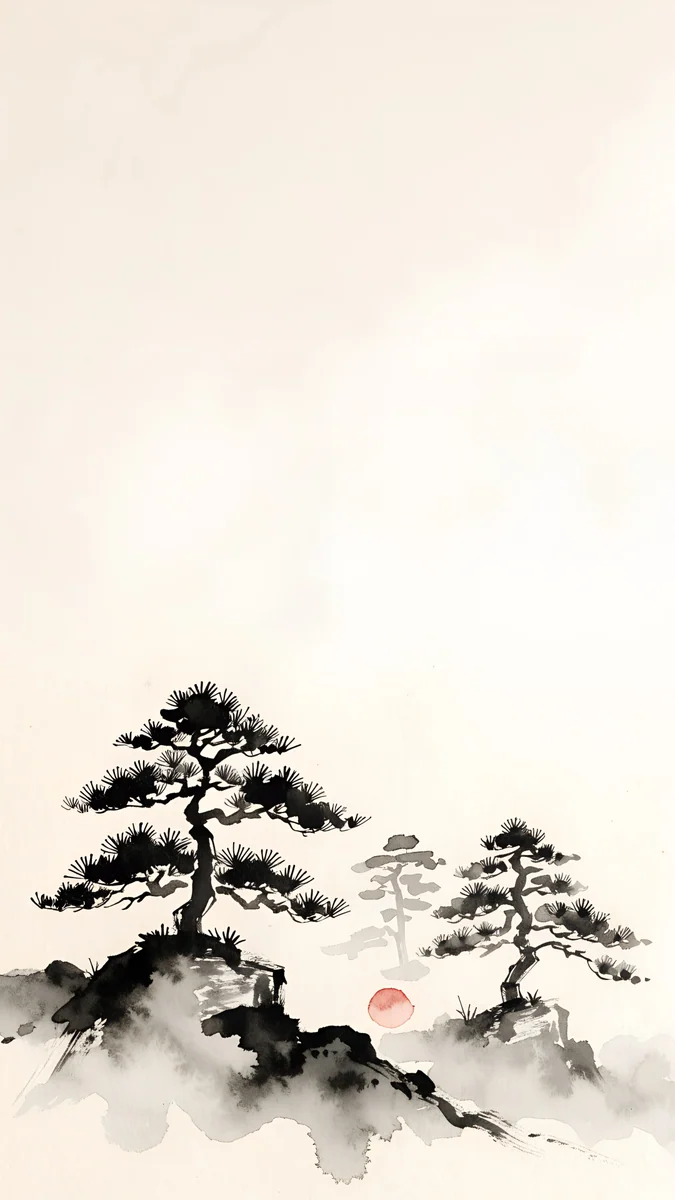 Mist Pines4K · Phone
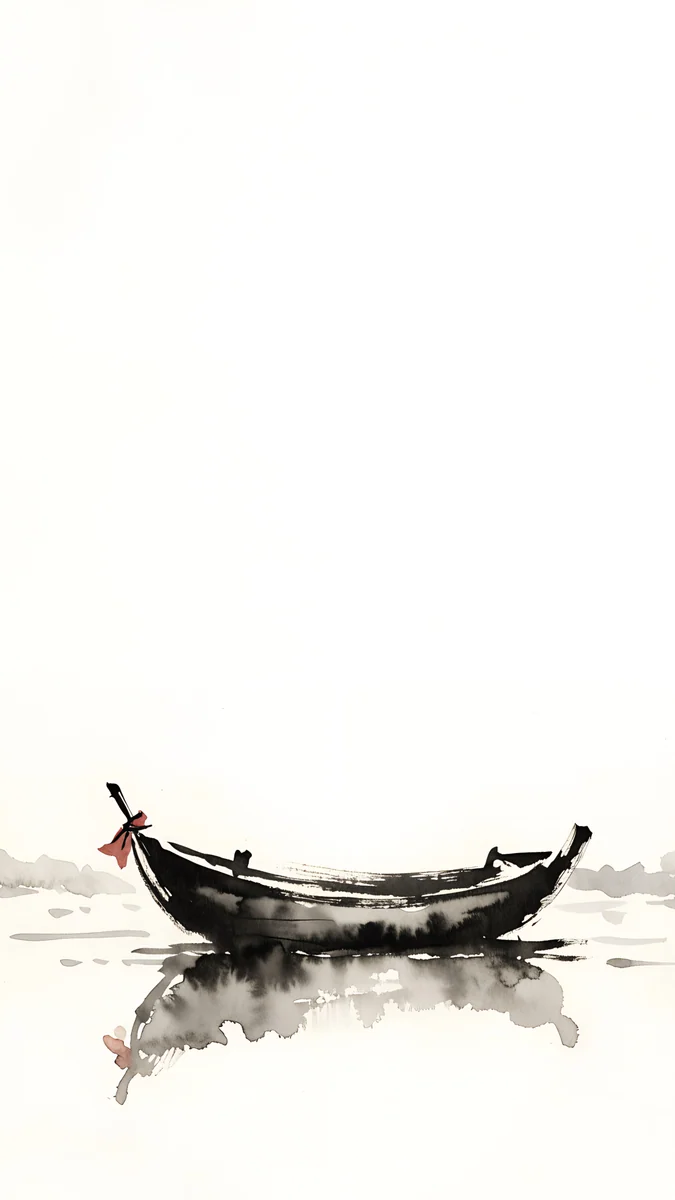 Quiet Boat4K · Phone
 The Night Is Soft4K · Phone
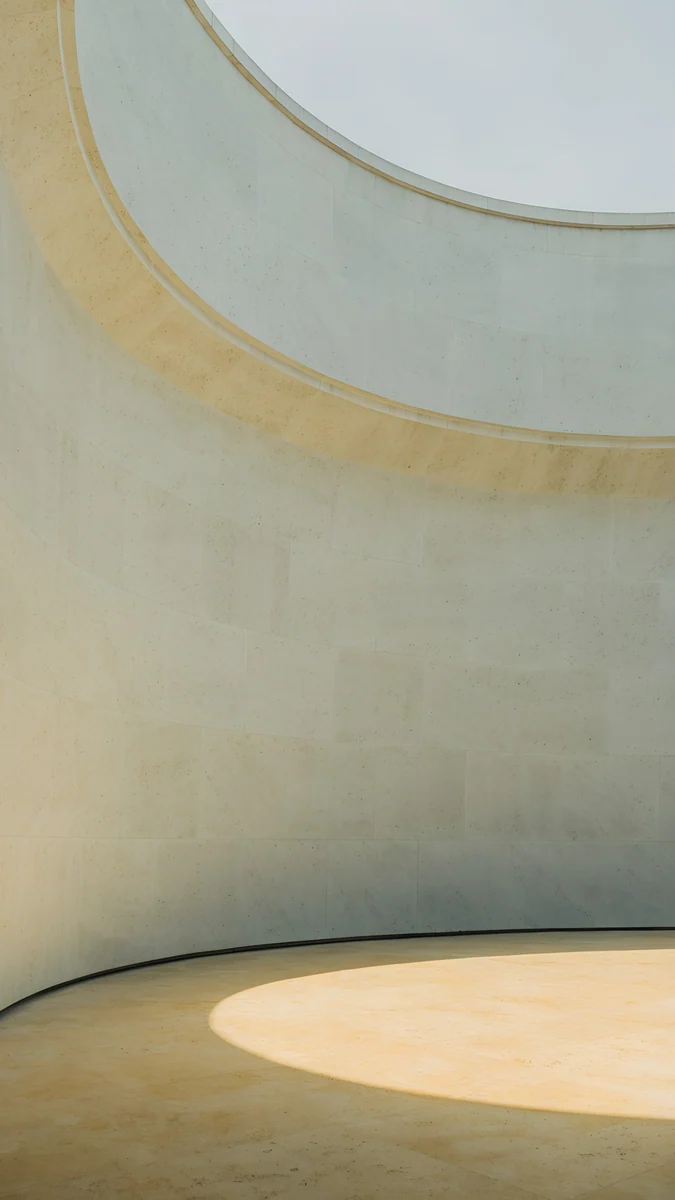 Ochre Light Pool4K · Phone
Saltwater Moon puts a small moon over flat water with nothing busy above the horizon, the same layout that works for a beach photo. A Window in the Fog keeps a cabin and one amber window low, with fog filling the upper half behind the clock. Mist Pines sets pines at the bottom and open grey mist above, so a dark clock reads clearly. Quiet Boat is one small boat in a wide pale field, proof that a subject can be tiny and still carry the screen. The Night Is Soft centres a lone shelter in grey fog, far from both edges. Ochre Light Pool drops one oval of sun in the middle of a pale floor, which no crop can reach.
Common problems and fixes
- Still zoomed after cropping. Perspective Zoom or a motion effect adds a few percent of enlargement. Turn it off as in Method 1.
- The clock covers a face. Move the face below the top third when cropping, or use the tall canvas and place the photo lower.
- The photo is blurry. The file came from a chat app or social media. Use the original from the camera roll, not a forwarded copy.
- The iPhone will not let you zoom out. That is by design: iOS cannot shrink a wallpaper below the screen size. Use Method 2.
- Home screen icons hide the subject. Use the same photo on the lock screen and a plain or blurred version on the home screen. On iPhone, Customize Home Screen has a Blur option.
No photo to hand? Get ready-made 4K wallpapers in Velpaper
Velpaper is a wallpaper app for iPhone, iPad, Mac and Android, and the same library is on velpaper.com. Every wallpaper is original 4K art designed by Carlos Vivero, and some desktop pieces are 5K. Each one is made for iPhone, iPad, Mac and Android screens, composed so the clock, icons and widgets have a calm place to sit, free to download with no account. Some phone wallpapers unlock after a short optional ad in the apps.
- Open Saltwater Moon in the Velpaper app or on velpaper.com.
- Save the 2160 × 3840 original to your photo library.
- Set it with the steps in Method 1. It already has a tall shape, so there is nothing to crop.
Original wallpapers in 4K and 5K for iPhone, Android and desktop.
Questions
Why does my photo zoom in when I set it as wallpaper?
Because the photo and the screen have different shapes. Phones never show a wallpaper with empty bars, so they enlarge the picture until it covers the whole screen and cut off whatever falls outside. A standard camera photo is 3:4, while a modern phone screen is about 9:19.5, much taller and narrower, so the sides of the photo disappear and the subject looks bigger. Motion effects such as Perspective Zoom on iPhone add a few more percent of enlargement so the image can move when you tilt the phone. Cropping the photo to the screen shape first and turning off the motion effect stops both.
How do I fit a whole picture on my iPhone wallpaper?
iOS will not shrink a wallpaper below the screen size, so you have to give the photo a tall frame first. Create a 2160 × 3840 canvas in Canva or another editor, place the full photo in it, and fill the space above and below with a blurred copy of the photo or a plain colour taken from it. Save it to Photos and set it through Settings, Wallpaper, Add New Wallpaper. A faster option with slightly lower quality is to open the photo full screen in Photos, tap once so the background turns black, take a screenshot and set the screenshot as your wallpaper.
What size should a photo be to fit as a phone wallpaper?
A tall 9:16 image of 2160 × 3840 pixels covers every current iPhone and nearly every Android phone without enlargement, and phones that are taller than 9:16 only trim a little from the sides. You rarely need exactly that size, though. A recent phone photo cropped to the Wallpaper shape is still around 2268 × 4032, and even a vertical slice of a landscape photo keeps about 1701 × 3024, both larger than an iPhone 16 Pro Max screen at 1320 × 2868. Problems start with images under about 1080 pixels wide, which is typical of photos saved from chat apps and social media.
How do I stop my Android wallpaper from zooming?
First crop the photo to a tall shape in Google Photos, Samsung Gallery or Xiaomi Gallery, using a 9:16 preset if the editor has one or a free crop close to your screen's shape. Then set it from the system wallpaper menu, reached by touching and holding an empty spot on the home screen, rather than through Set as from a messenger, which can open a fixed crop frame. In the preview, adjust the framing before confirming. If the image still moves or looks enlarged, turn off any motion or scrolling wallpaper effect in the preview or in your launcher settings; the name of that switch differs between brands.
How do I make a photo fit my computer screen without stretching?
Choose Fit instead of Fill. On Windows 11, open Settings, Personalization, Background, pick the photo and set Choose a fit for your desktop image to Fit. On a Mac with macOS Tahoe, open System Settings, Wallpaper, add the photo and set the menu next to the thumbnail to Fit to Screen. Both show the entire picture without distortion and fill the leftover space with bars. Avoid Stretch on Windows, which distorts the image to the screen shape. For a neater look with an upright phone photo, place it on a 3840 × 2160 canvas with a blurred copy behind it and set that with Fill.
Carlos Vivero
Designer of Velpaper wallpapers
Carlos Vivero designs the wallpapers in Velpaper: quiet architecture, liquid glass, Japanese ink and calm landscapes. Every piece is made as a 4K original for iPhone, Android and desktop.
Recent work








