Which Wallpapers Are Easiest on the Eyes? (2026)
Which wallpapers are easiest on the eyes: soft mid tones, low contrast and little detail, plus the Night Shift, Night Light and brightness settings that help.
In short: The easiest wallpapers on the eyes are soft, muted mid tones with low contrast and little fine detail, at a brightness close to the room around you. No wallpaper prevents eye strain on its own; screen brightness, text size and regular breaks matter more.
By the Velpaper team · Wallpapers by Carlos Vivero, Velpaper designer · · 6 min read
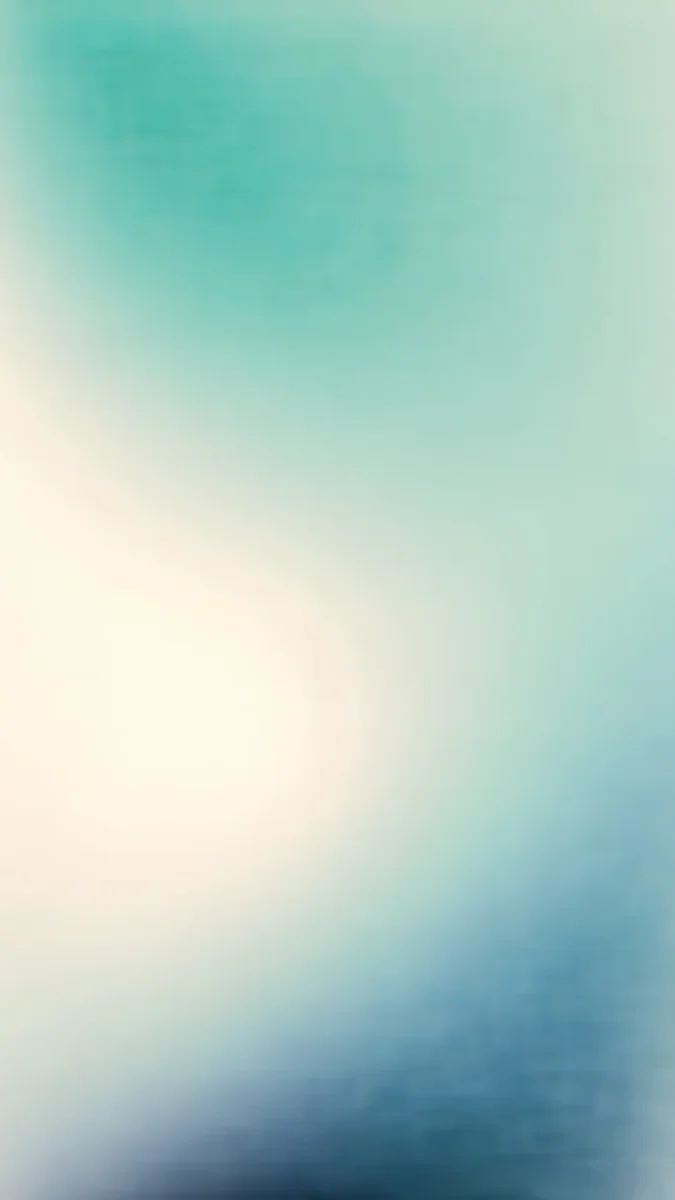 Celadon Haze
 Blue Hour
 The Night Is Soft
 Mint Contours
 Sage Passage
 Ink Quiet Lake
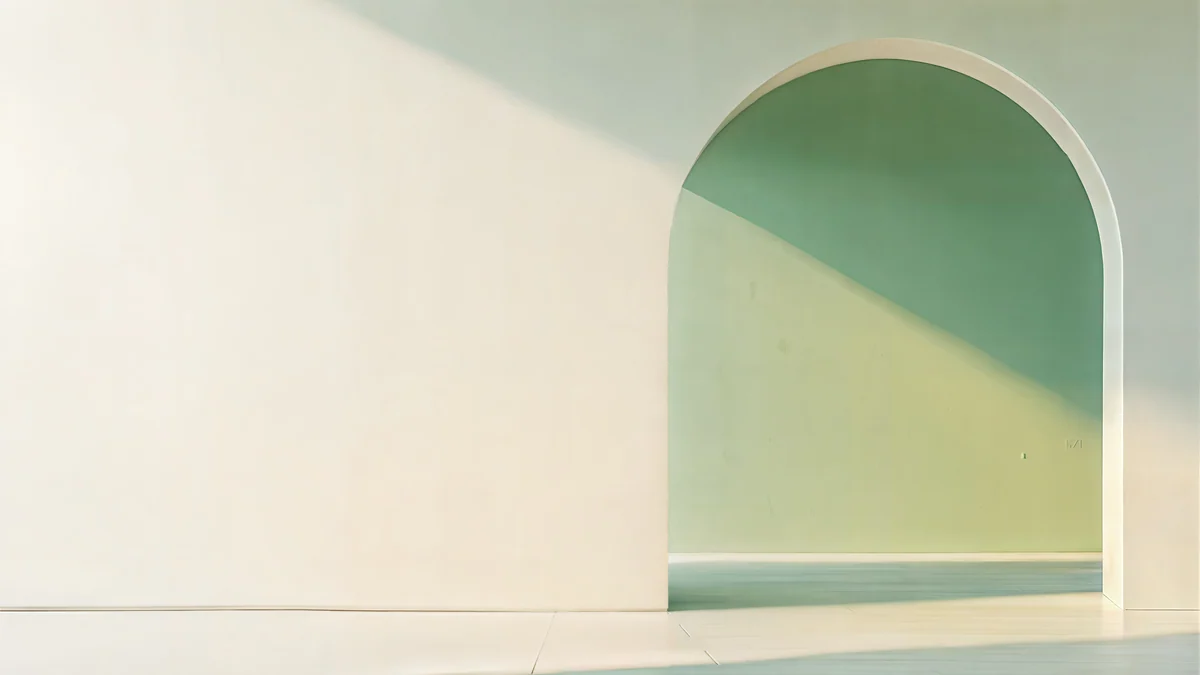 Sage Sun Gallery
 Lilac Drift
Free 4K originals for iPhone and Android, no watermark
On this page
The wallpapers easiest on the eyes are soft, muted mid tones with low contrast and little fine detail: a misty gradient, a pale sage wall, a grey-blue sea. They do not glare like pure white in a dark room, and they do not flicker between harsh black and bright neon behind your icons. But no wallpaper prevents eye strain by itself. Brightness that matches the room, readable text size and regular breaks do far more.
What actually causes screen eye strain
Tired, dry or aching eyes after screen time are usually about how we look at screens, not about the picture on them. When we focus on a screen we tend to blink less, and holding focus at one distance for a long time tires the eyes. The American Academy of Ophthalmology recommends the 20-20-20 rule: every 20 minutes, look at something about 20 feet (6 metres) away for 20 seconds. It also says there is no evidence that the blue light from screens damages the eyes.
A wallpaper still plays a part, because it sits behind the icons and text you read every time you unlock the phone or look at your desktop:
- Glare. A bright white wallpaper at night is the brightest thing in the room, and your eyes keep readjusting between it and the dark around you.
- Harsh contrast. Thin neon lines or sharp white shapes on black make small bright spots that can feel tiring behind text.
- Clutter. A busy photo behind icons makes your eyes work harder to find an app or read its label.
Soft wallpapers that are easy to look at
These Velpaper phone wallpapers keep their tones close together and their edges soft, so icons and the clock stay readable without any harsh spots.
Celadon Haze4K · PhoneMint Contours4K · PhoneBlue Hour4K · PhoneSage Passage4K · PhoneThe Night Is Soft4K · PhoneCeladon Haze drifts from seafoam to blue-green with no hard edge anywhere. Mint Contours is a soft, greyish mint that never fights the icons. Blue Hour fades from deep navy to a soft grey-blue, a good middle ground between light and dark. Sage Passage is dark but low in contrast, glossy green ribbons rather than bright lines. The Night Is Soft is grey fog and a lone shelter by the water, with no pure white and no pure black.
For a computer, where the screen is in front of you for hours, pick a quiet field where the icons and windows go.
Ink Quiet Lake is the wide version of Quiet Boat: one small boat on still water and a lot of bare cream paper. Sage Sun Gallery frames a muted sage wall with one plane of warm sunlight, and Lilac Drift is a pale smooth gradient; both are 5K. More quiet picks are in our calming wallpapers.
Settings that help your eyes more than any wallpaper
- Let brightness follow the room. On iPhone, turn on Settings, Accessibility, Display & Text Size, Auto-Brightness. On Android, turn on Adaptive brightness in the display settings. On a Mac, System Settings, Displays, Automatically adjust brightness.
- Warm the screen at night. iPhone: Settings, Display & Brightness, Night Shift. Pixel: Settings, Display, Night Light. Samsung: Settings, Display, Eye comfort shield. Windows 11: Settings, System, Display, Night light. Mac: System Settings, Displays, Night Shift.
- Dim further than the slider allows. On iPhone, Settings, Accessibility, Display & Text Size, Reduce White Point lowers the intensity of bright colours, handy in a dark bedroom.
- Use dark mode when the room is dark. iPhone: Settings, Display & Brightness, Automatic. Windows 11: Settings, Personalization, Colors, Choose your mode. Mac: System Settings, Appearance, Auto. Pair it with a darker wallpaper in the evening.
- Make text bigger. On iPhone, Settings, Display & Brightness, Text Size; on Android, Settings, Display, Font size (the name can differ by maker). Squinting at small text tires the eyes faster than any background.
- Calm the motion. If moving effects bother you, turn on Settings, Accessibility, Motion, Reduce Motion on iPhone, and choose a still wallpaper rather than a live one.
Light or dark wallpaper: which is easier?
It depends on the room more than on the wallpaper. In daylight, a light or mid-tone wallpaper with a dark clock is comfortable, because it is close to the brightness around you. In a dark room, a dark, muted wallpaper avoids glare. Some people find light text on very dark backgrounds harder to read for long stretches, with letters that seem to bloom at the edges, so if dark mode feels worse to you, a mid tone such as grey-blue or sage is the compromise.
Very high contrast in either direction is the thing to avoid: pure white with black detail, or pure black with neon. If you want dark for an OLED phone, our guide to wallpapers for iPhone dark mode shows softer options.
Common problems and fixes
- My eyes hurt at night. Lower the brightness, turn on Night Shift or Night Light, and switch to a dark, muted wallpaper. Then take a break; the screen time is usually the bigger cause.
- I cannot find apps on my home screen. The wallpaper is too busy behind the icons. Choose one with a plain area where the icons sit, or blur the Home Screen: on iPhone, touch and hold the Lock Screen, tap Customize, then Home Screen and Blur (the exact steps can differ by iOS version).
- The clock is hard to read. Contrast is too low under the time. Pick the clock colour by hand, white on dark and dark on light, as in our guide to keeping the clock readable.
- The screen seems to flicker at low brightness. Some OLED screens dim by switching pixels on and off very quickly, and a few people are sensitive to it. Try a slightly higher brightness with Reduce White Point, or look for a flicker or PWM option in your phone's display settings; not every phone has one.
- Symptoms do not go away. Lasting eye pain, headaches or blurred vision are a reason to see an eye doctor, not to change the wallpaper.
Get soft 4K wallpapers in Velpaper
Velpaper is an app for iPhone, iPad, Mac and Android, and the same wallpapers are on velpaper.com. Every wallpaper is a 4K original, 2160 × 3840 on a phone, with no account and no watermark.
- Open Celadon Haze in the app or on the site.
- Tap Download and save the original, not a screenshot of the preview, which can show banding in soft gradients.
- Set it on your Lock Screen and Home Screen, then pick a clock colour by hand.
Step-by-step help is in how to set a lock screen wallpaper on iPhone and how to change the wallpaper on Android.
Original wallpapers in 4K and 5K for iPhone, Android and desktop.
Questions
Which wallpaper colour is best for your eyes?
Soft, muted mid tones are the most comfortable: grey-blue, sage, seafoam, warm grey or a dusty lilac, with low contrast and few sharp details. They are neither as bright as white nor as stark as pure black with neon, so the icons and the clock sit on a calm surface. The best brightness depends on the room: lighter in daylight, darker at night. There is no single colour proven to protect the eyes, and the wallpaper matters less than screen brightness, text size and taking regular breaks from the screen.
Is a dark wallpaper better for your eyes?
In a dark room, usually yes, because it avoids a bright patch of glare and lowers the overall light from the screen. In daylight, a very dark wallpaper is not automatically easier; a mid-tone or light one with a dark clock can be just as comfortable. Some people also find light text on black harder to read for long periods. If dark mode or a black wallpaper feels tiring to you, try a muted mid tone such as grey-blue or sage. The important thing is to avoid harsh contrast and to match the brightness of the room.
Can a wallpaper cause eye strain?
A wallpaper alone rarely causes eye strain, but it can add to it. A bright white wallpaper at night creates glare, harsh neon on black creates small bright spots, and a busy photo behind icons makes your eyes work harder to read labels. The main causes of digital eye strain are long periods of close focus and blinking less while looking at screens. The American Academy of Ophthalmology recommends the 20-20-20 rule: every 20 minutes, look at something about 20 feet away for 20 seconds. If symptoms continue, see an eye doctor.
Does Night Shift or Night Light help with eye strain?
They make the screen warmer and often feel more comfortable in the evening, especially in a dim room, so many people find them pleasant. The American Academy of Ophthalmology says there is no evidence that blue light from screens damages the eyes, so treat these settings as a comfort option rather than protection. What reduces strain more reliably is lower brightness at night, larger text and regular breaks. On iPhone, Night Shift is in Settings, Display & Brightness; on a Pixel, Night Light is in Settings, Display; on Samsung it is called Eye comfort shield.
Are live or moving wallpapers bad for your eyes?
They are not harmful, but motion draws the eye, and a wallpaper that moves every time you unlock the phone can feel busy or tiring if you are sensitive to it. Some people also notice motion effects such as parallax more than others. If moving wallpapers bother you, use a still image and turn on Reduce Motion on iPhone in Settings, Accessibility, Motion. A soft, still wallpaper with low contrast is the most restful choice. The Velpaper wallpapers in this guide are still 4K originals, 2160 × 3840 on a phone.
Carlos Vivero
Designer of Velpaper wallpapers
Carlos Vivero designs the wallpapers in Velpaper: quiet architecture, liquid glass, Japanese ink and calm landscapes. Every piece is made as a 4K original for iPhone, Android and desktop.
Recent work








