iPhone Wallpaper in Dark Mode: Dimming and Auto Switch
iPhone wallpaper in dark mode: what Dark Appearance Dims Wallpaper does, how to stop it, and how to switch to a dark one at sunset with Shortcuts.
In short: When Dark Mode is on, iPhone dims your wallpaper if Dark Appearance Dims Wallpaper is enabled in Settings, Wallpaper. Turn it off to keep full brightness. Your own photo cannot change with the appearance by itself, but a Shortcuts automation at sunset or a Sleep Focus can switch to a darker wallpaper for you.
By the Velpaper team · Wallpapers by Carlos Vivero, Velpaper designer · · Updated · 5 min read
Free 4K originals for iPhone and Android, no watermark
On this page
Turn on Dark Mode and your wallpaper often looks a shade duller, as if someone lowered the lights. That is on purpose. iOS has a setting that dims the wallpaper in dark mode so it matches the darker menus. Some of Apple's own wallpapers go further and switch to a night version, while your own photos stay the same.
This guide covers all three: the dimming switch, wallpapers that change with light and dark, and how to make your own pictures do the same.
What Dark Appearance Dims Wallpaper does
Open Settings, tap Wallpaper and scroll to the bottom. The switch called Dark Appearance Dims Wallpaper lowers the brightness of the wallpaper whenever the iPhone is in Dark Mode. It does not change the colours or the image, it only lays a light dark veil over it.
- On: in Dark Mode the wallpaper is slightly darker. Bright skies and white walls look softer at night and do not glare next to dark menus.
- Off: the wallpaper keeps its full brightness in both modes.
If a bright wallpaper looks grey and flat in the evening, this switch is the reason. Turn it off and the picture comes back as you set it. If a pale wallpaper feels too harsh at night, leave it on.
How to turn Dark Mode on, off or on a schedule
Dark Mode itself lives in Settings, Display & Brightness. At the top you choose Light or Dark. Turn on Automatic and tap Options to pick Light Until Sunset or a custom schedule.
For a quick switch, open Control Center, touch and hold the brightness slider and tap the Dark Mode button. With Automatic on, the iPhone changes appearance every evening and morning, and the wallpaper dims and brightens with it if the dimming switch is on.
Wallpapers that change with light and dark mode
Several of Apple's own wallpapers come in a light and a dark version and follow the system appearance by themselves. You find them under Collections when you add a new wallpaper, and many of the wallpapers made for a specific iPhone model work the same way. In the editor, such wallpapers offer an appearance option, so you can leave them on automatic or fix them to light or dark.
The Weather and Astronomy wallpapers also change through the day, though they follow the real sky and weather rather than Dark Mode.
A photo from your library has only one version. iOS can dim it, but it cannot swap it for a night picture on its own. For that you need one of the two methods below.
Switch to a dark wallpaper automatically
Option 1: Shortcuts at sunset and sunrise
This pairs neatly with the Light Until Sunset schedule.
- Set up two Lock Screens in the gallery: a light one for the day and a dark one for the night.
- Open the Shortcuts app, go to Automation and create a new personal automation.
- Choose Time of Day, select Sunset and set it to run immediately.
- Add the Set Wallpaper action and pick your dark wallpaper.
- Repeat with Sunrise and your light wallpaper.
From then on the wallpaper changes at the same moments as the appearance.
Option 2: link a dark wallpaper to Sleep Focus
Touch and hold the Lock Screen, swipe to the dark wallpaper and tap the Focus button under it. Choose Sleep. Whenever Sleep Focus turns on, by schedule or by hand, the dark Lock Screen appears; when it ends, your usual one returns. Our guide to a Lock Screen wallpaper that keeps the clock readable helps pick a night picture that still shows the time clearly.
Dark Home Screen icons and wallpaper
In iOS 18 and later you can also make the app icons dark. Touch and hold the Home Screen, tap Edit, then Customize, and choose Dark. In the same panel a small sun button dims the wallpaper behind the icons, separately from the Settings switch. Choose Automatic and the icons follow Dark Mode too.
Dark icons look best on a wallpaper that is already dark or mid-tone. On a bright white image they turn into heavy black tiles.
Why a dark wallpaper can look blotchy
Dimming is unforgiving. When iOS lowers the brightness, the smooth steps between dark tones get closer together, and any flaw in the file shows: rings in a gradient, square blocks in the shadows, a grey haze where black should be. On an OLED screen these artefacts stand out even more, because true black next to them is perfectly clean.
The cause is almost never the iPhone. It is the file: a screenshot, a copy sent through a messenger, or an image saved from a social feed, all of which are compressed hard. Use the original file and the shadows stay smooth in both modes.
Which wallpapers work best in dark mode
A good dark mode wallpaper does not fight the menus. Look for deep blues, violets and charcoal with one area of light, rather than large white surfaces. On an OLED iPhone, dark areas also use slightly less power, as explained in our collection of dark OLED wallpapers.
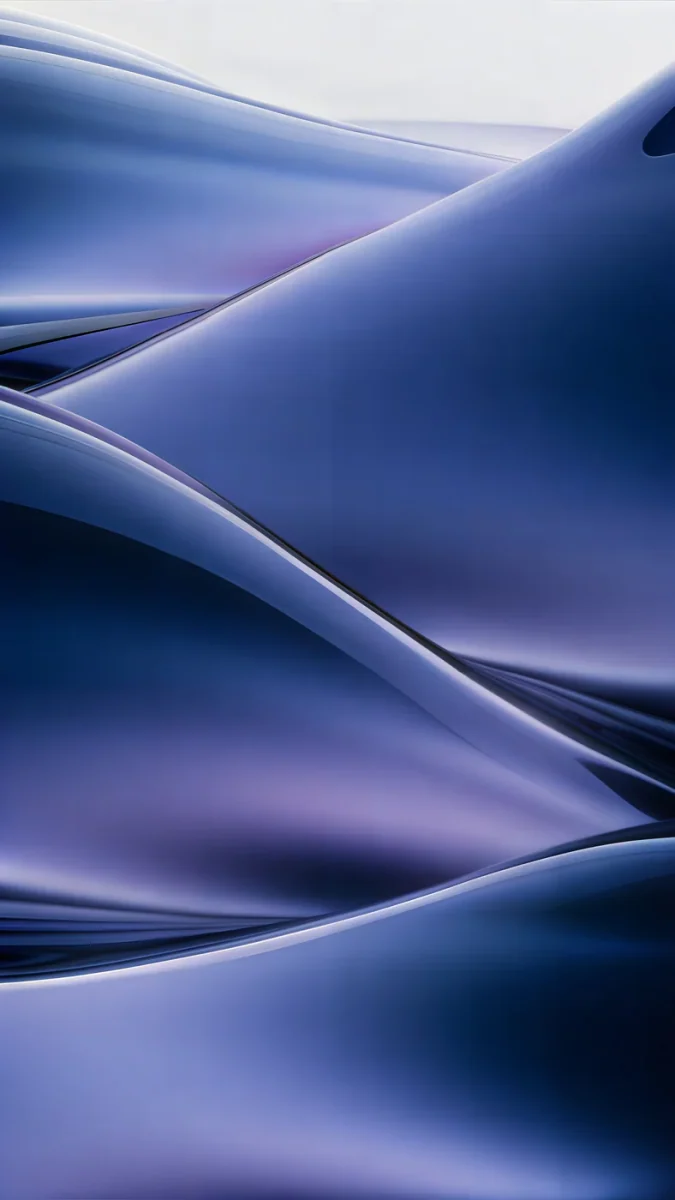 Midnight Flow4K · Phone
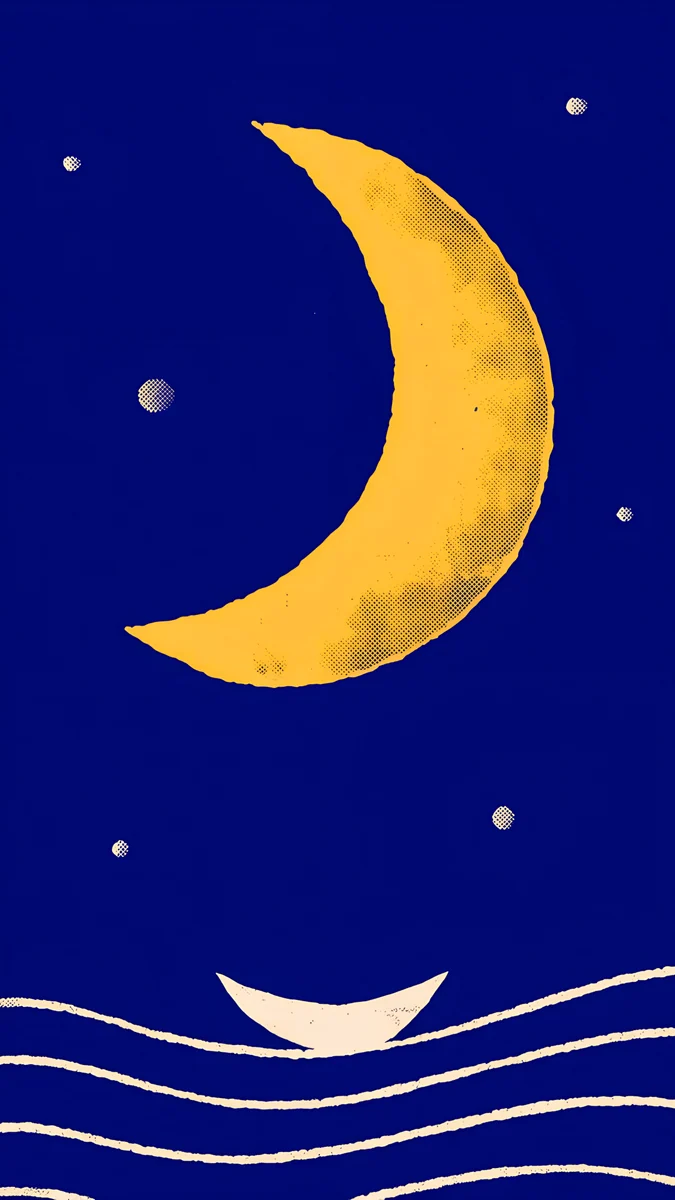 Moon Boat4K · Phone
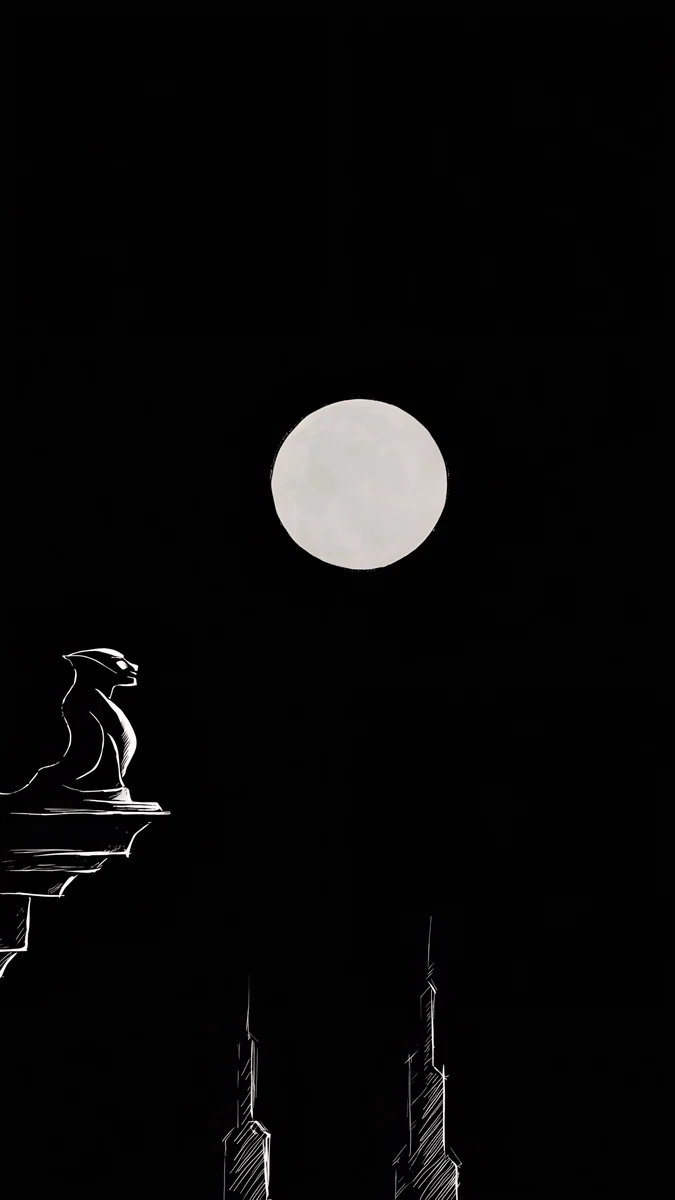 Moon Ledge4K · Phone
 Blue Reverie4K · Phone
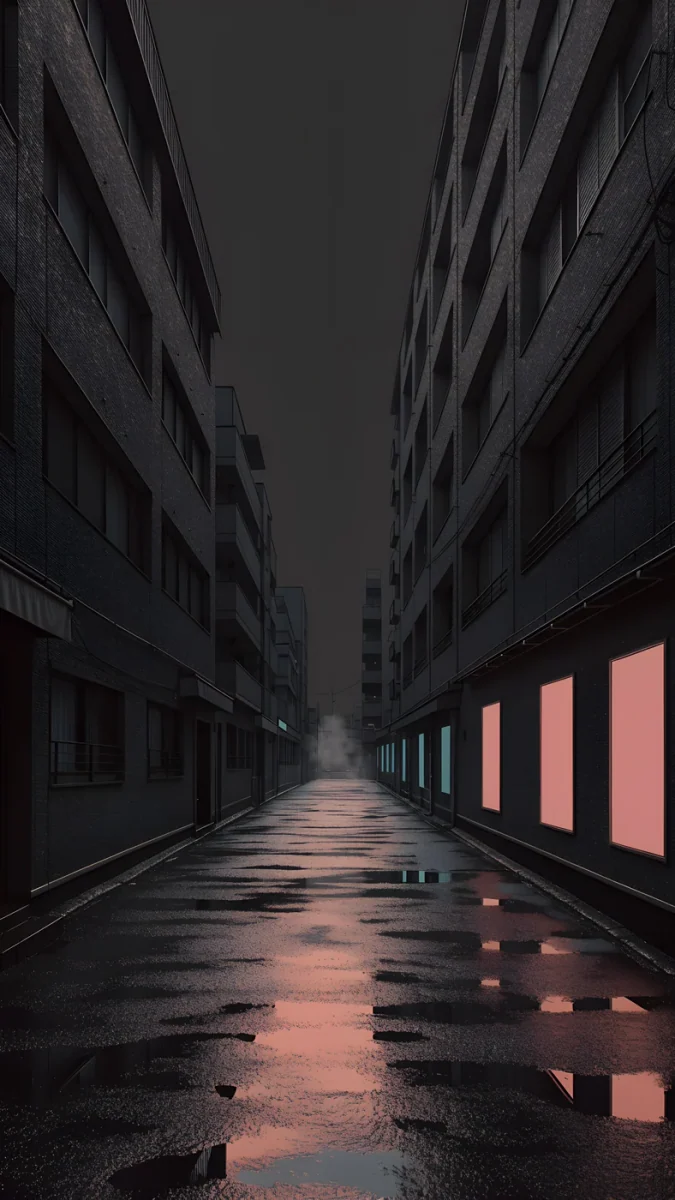 Tokyo After Rain4K · Phone
Midnight Flow is a calm navy and violet wave. Moon Boat and Moon Ledge put a single moon on a dark sky, so the clock sits on clean shadow. Tokyo After Rain adds neon reflections for those who like a little colour at night.
If you prefer one wallpaper for both modes, choose mid-tones. A picture like Arctic Current stays readable at full brightness and still looks rich when iOS dims it.
The same thinking applies to the Always On display of the iPhone 14 Pro and later, which dims the wallpaper even further; see the Always On display wallpaper guide. Every Velpaper phone wallpaper is a 2160 × 3840 pixel original, so dimming never reveals soft edges or blocky shadows.
Original wallpapers in 4K and 5K for iPhone, Android and desktop.
Questions
How do I stop my iPhone wallpaper from dimming in dark mode?
Open Settings, tap Wallpaper and scroll down to Dark Appearance Dims Wallpaper. Turn the switch off. From then on the wallpaper keeps its full brightness when Dark Mode is on. If you use dark app icons on iOS 18 or later, check the Home Screen Customize panel as well: its sun button can dim the wallpaper behind the icons separately from the Settings switch.
Can my iPhone change the wallpaper when Dark Mode turns on?
Only some of Apple's own wallpapers switch on their own, mostly in Collections and the model-specific sets. For your own photos, use the Shortcuts app: create a personal automation for Sunset with the Set Wallpaper action and your dark wallpaper, and another for Sunrise with your light one. Combined with the Light Until Sunset schedule in Display & Brightness, the wallpaper and the appearance change together.
Does Dark Mode affect the Lock Screen wallpaper?
Dark Mode itself does not replace the Lock Screen picture. With Dark Appearance Dims Wallpaper on, iOS lowers the wallpaper's brightness, and Apple wallpapers that have a dark version switch to it. A photo you set yourself stays the same picture. To show a different, darker Lock Screen at night, link it to Sleep Focus or switch it with a Shortcuts automation.
Does a dark wallpaper save battery on iPhone?
A little, on iPhones with an OLED screen, which includes most models since the iPhone X apart from the iPhone XR, 11 and SE. On OLED, black and very dark pixels use almost no power. The saving is small in daily use and most noticeable with the Always On display. On the LCD models a dark wallpaper looks good at night but does not save meaningful power.
What is the best wallpaper for dark mode?
One that is mostly dark or mid-tone with a single area of light: deep blue, violet or charcoal with a moon, a glow or a soft wave. Large white areas turn grey when iOS dims them and clash with dark menus. Keep the top third calm so the clock stays readable, and use a full-size original, because dimming makes compression blocks in dark areas easier to see.
Carlos Vivero
Designer of Velpaper wallpapers
Carlos Vivero designs the wallpapers in Velpaper: quiet architecture, liquid glass, Japanese ink and calm landscapes. Every piece is made as a 4K original for iPhone, Android and desktop.
Recent work








