Windows 11 Lock Screen Wallpaper: How to Change It (2026)
Windows 11 lock screen wallpaper step by step: set your own picture, run a slideshow, turn off Windows Spotlight, find its images and fix one that won't change.
In short: To change the Windows 11 lock screen wallpaper, open Settings, Personalization, Lock screen and set Personalize your lock screen to Picture, then click Browse photos. Choosing Picture or Slideshow also turns off Windows Spotlight, the feed that changes the image by itself.
By the Velpaper team · Wallpapers by Carlos Vivero, Velpaper designer · · Updated · 5 min read
Free 4K originals for iPhone and Android, no watermark
On this page
The lock screen is the first thing you see when you open a laptop or wake a PC, and by default Windows 11 fills it with Windows Spotlight: a new photo every so often, picked by Microsoft. If you would rather see your own picture every time, it takes four clicks.
The steps below use the menu names of Windows 11 version 24H2 and 25H2. They are the same on Home and Pro, on a laptop and on a desktop PC.
How to change the lock screen wallpaper on Windows 11
- Press Windows + I to open Settings, or right-click the desktop and choose Personalize.
- Click Personalization, then Lock screen.
- Next to Personalize your lock screen, choose Picture.
- Pick one of the recent images, or click Browse photos and open your own file.
The change applies at once. Press Windows + L to lock the PC and check the result. Windows keeps its own copy of the picture, so the lock screen stays the same even if you later move or delete the original file.
Below the picture you will see a checkbox for fun facts, tips and tricks on the lock screen. Untick it if you want only your image, without text boxes on top. The desktop background is a separate setting, explained in how to change the wallpaper on Windows 11.
The quick way: Photos app
Open the image in the Photos app, click the three dots in the toolbar, then Set as and Set as lock screen. The result is the same as the Settings route.
How to turn off Windows Spotlight on the lock screen
Windows Spotlight is not a separate switch. It is one of the three options under Personalize your lock screen, so choosing Picture or Slideshow turns it off.
Once Spotlight is off, the "Like what you see?" box and the info icon with details about the photo disappear as well. If you want Spotlight back later, select Windows spotlight in the same list.
There is no built-in option for a video or animated lock screen. Live wallpaper apps mainly work on the desktop, as covered in how to set a live wallpaper on PC, so a still picture or a slideshow is the reliable choice for the lock screen.
Windows 11 also offers Spotlight for the desktop, under Personalization, Background. The two are independent: you can keep Spotlight on the desktop and your own picture on the lock screen, or the other way round.
Set up a lock screen slideshow
A slideshow rotates pictures from a folder, which is a good middle ground between one fixed image and Spotlight's random photos.
- In Lock screen, set Personalize your lock screen to Slideshow.
- Click Browse next to the album list and add a folder. Remove the default Pictures folder if you do not want all your photos in the mix.
- Open Advanced slideshow settings to fine-tune it.
The advanced settings let you include the camera roll from the PC and OneDrive, use only pictures that fit your screen, keep the slideshow running on battery, and show the lock screen instead of turning the screen off when the PC is idle. Turn on Only use pictures that fit my screen: it skips small and tall images that would look blurry or cropped.
A folder of five to ten calm landscape images works best. Here are three that keep the clock and the date easy to read:
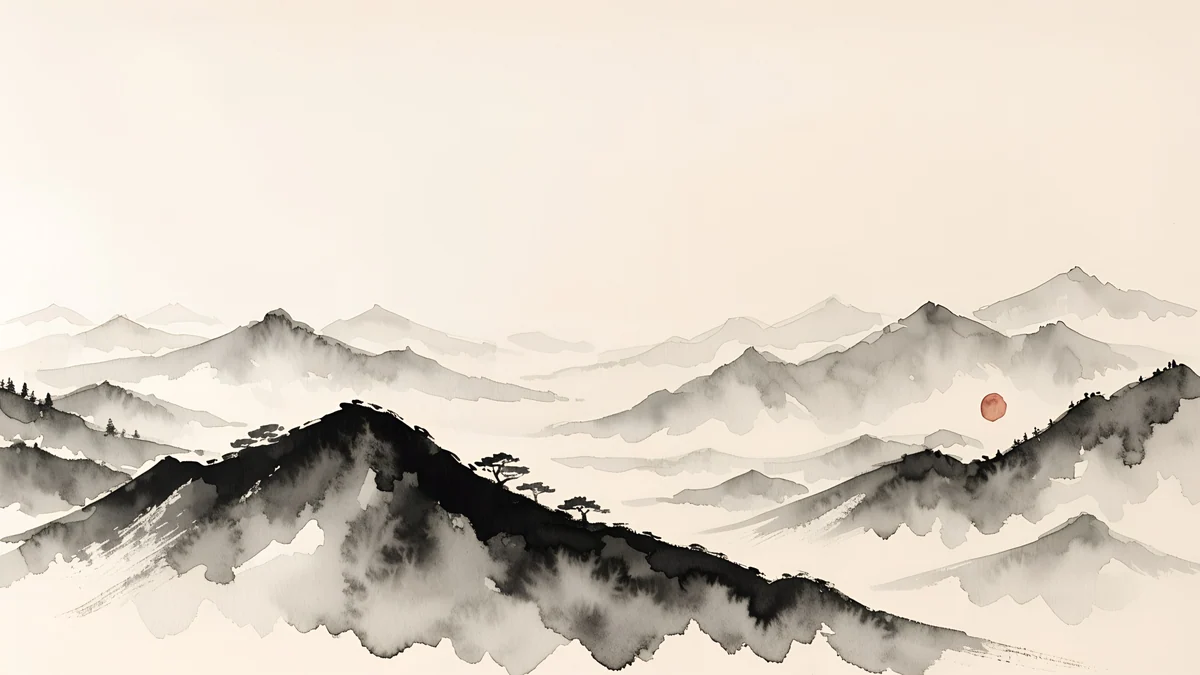
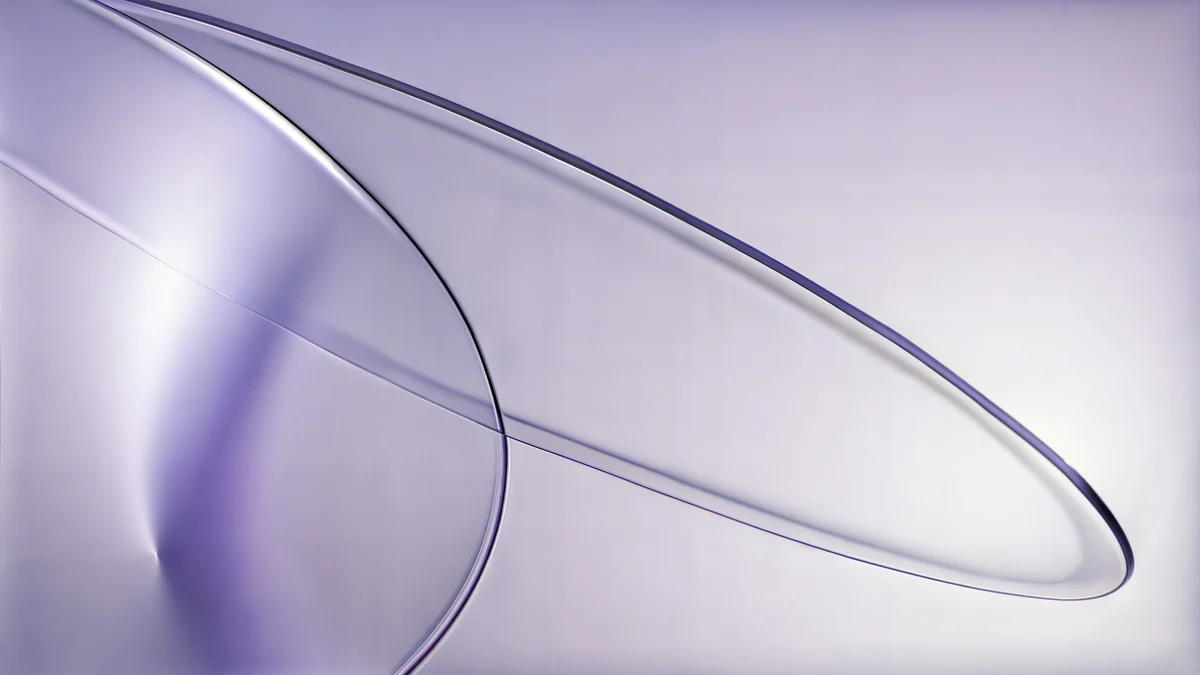
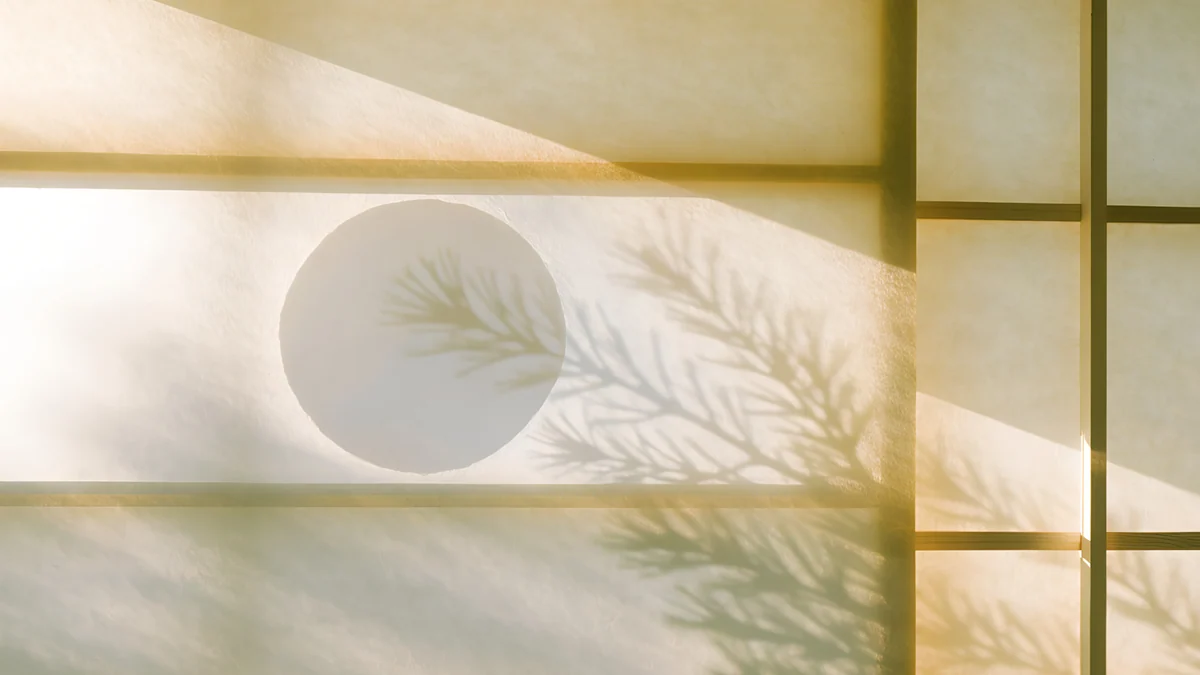
Ink Mountain Mist is ink-wash mountains in pale mist with a touch of red. Lilac Drift is a soft lilac 5K gradient, and Shoji Moon is warm paper and moonlight. All three stay light and quiet behind the white clock.
Where Windows 11 lock screen images are stored
The built-in lock screen pictures that ship with Windows are in C:\Windows\Web\Screen. You can open that folder in File Explorer and copy them freely.
Windows Spotlight images are hidden deeper, in this folder:
%LocalAppData%\Packages\Microsoft.Windows.ContentDeliveryManager_cw5n1h2txyewy\LocalState\Assets
Paste the path into the File Explorer address bar. The files have random names and no extension. Copy the largest ones to another folder and add .jpg to the name to open them. Spotlight images belong to Microsoft and its photographers, so keep them for your own screen.
Lock screen picture won't change? Common fixes
- "Some of these settings are managed by your organization". A work or school PC can lock the image by policy. Only the IT administrator can change it.
- Windows is not activated. Personalization settings are greyed out until Windows is activated.
- Spotlight shows the same photo for days. Switch to Picture, restart the PC, then switch back to Windows spotlight. Make sure the PC is online, since Spotlight downloads new images.
- The sign-in screen shows a plain colour. In Lock screen, turn on Show the lock screen background picture on the sign-in screen.
What size should a lock screen wallpaper be?
The lock screen uses the full native resolution of your display: 1920 × 1080 on a Full HD monitor, 2560 × 1440 on QHD, 3840 × 2160 on 4K, and taller 16:10 sizes on many laptops. A smaller image is stretched and looks soft, so start from at least your screen size. Our PC wallpaper size guide lists common resolutions.
Velpaper desktop wallpapers come at 3840 × 2160 or 5120 × 2880 and are free to download from velpaper.com, so they fill any lock screen without blur.
On a Mac the lock screen works differently and follows the desktop picture; see the Mac lock screen wallpaper guide if you use both systems.
Original wallpapers in 4K and 5K for iPhone, Android and desktop.
Questions
How do I change my lock screen wallpaper on Windows 11?
Press Windows + I, go to Personalization, then Lock screen. Next to Personalize your lock screen choose Picture, then pick a recent image or click Browse photos and open your own file. The change applies immediately; press Windows + L to check it. You can also open the image in the Photos app, click the three dots, then Set as and Set as lock screen.
How do I turn off Windows Spotlight on the lock screen?
Open Settings, Personalization, Lock screen and change Personalize your lock screen from Windows spotlight to Picture or Slideshow. That is the off switch; there is no separate toggle. The Like what you see box and the photo info icon disappear with it. Desktop Spotlight is set separately under Personalization, Background, so check there too if the desktop image keeps changing.
Where are Windows 11 lock screen pictures saved?
The built-in lock screen images are in C:\Windows\Web\Screen. Windows Spotlight images are stored in %LocalAppData%\Packages\Microsoft.Windows.ContentDeliveryManager_cw5n1h2txyewy\LocalState\Assets as files without an extension. Copy the largest files to another folder and add .jpg to their names to view them. Your own lock screen picture is copied by Windows into a protected system folder, so the original can be moved or deleted.
Why can't I change my lock screen wallpaper on Windows 11?
The most common reasons are a work or school policy, shown as Some of these settings are managed by your organization, and Windows not being activated, which greys out personalization. On a personal PC that is activated, also check that no third-party customisation tool has taken over the lock screen. If Spotlight is stuck on one image, switch to Picture, restart and switch back.
What resolution is best for a Windows 11 lock screen?
Your display's native resolution or larger: 1920 × 1080 for Full HD, 2560 × 1440 for QHD and 3840 × 2160 for 4K monitors. Many laptops use 16:10 panels such as 1920 × 1200 or 2880 × 1800. A 3840 × 2160 image covers all common screens, and Windows scales it down cleanly. Smaller images get stretched and look soft, especially the fine edges around the clock.
Carlos Vivero
Designer of Velpaper wallpapers
Carlos Vivero designs the wallpapers in Velpaper: quiet architecture, liquid glass, Japanese ink and calm landscapes. Every piece is made as a 4K original for iPhone, Android and desktop.
Recent work








