How to Make a 3D Spatial Scene Wallpaper on iPhone
Turn a photo into a 3D spatial scene wallpaper on iOS 26: the exact steps, which iPhones support it, which pictures work best and what to do when it fails.
In short: On iOS 26 with an iPhone 12 or later, open Settings, Wallpaper, Add New Wallpaper, pick a photo and tap the spatial scene button, or choose Spatial Scene in the top row; iOS splits the picture into layers that shift as you tilt the phone. Photos with a clear foreground and open space behind it work best.
By the Velpaper team · Wallpapers by Carlos Vivero, Velpaper designer · · 5 min read
Free 4K originals for iPhone and Android, no watermark
On this page
To make a 3D wallpaper on iPhone, you need iOS 26 and an iPhone 12 or later. Open Settings, Wallpaper, Add New Wallpaper, pick a photo and tap the spatial scene button in the bottom right corner of the editor. iOS splits the picture into a foreground and a background, and on the lock screen the layers shift slightly as you tilt the phone. Pictures with a clear subject in front and open space behind it give the strongest effect.
Apple calls the feature a spatial scene. It is built on the iPhone from any flat picture, so you do not need a special camera, a Live Photo or a 3D file. The menu names below match iOS 26 in English; small labels can shift between updates.
How to set a spatial scene wallpaper, step by step
- Save the picture to Photos. Use the full original, not a screenshot.
- Open Settings, tap Wallpaper, then Add New Wallpaper.
- Either scroll the top row and tap Spatial Scene to see photos iOS suggests, or tap Photos and choose your own.
- In the editor, tap the spatial scene button next to the three dots in the bottom right corner. A short message shows while iOS builds the scene.
- Tilt the phone to check the depth. Pinch and drag to reframe so the subject sits below the clock or just touches it.
- Tap Add, then choose Set as Wallpaper Pair or Customize Home Screen. The 3D motion shows on the lock screen.
To turn an existing lock screen into a spatial scene, touch and hold the lock screen, tap Customize, choose Lock Screen and tap the same button. Tap it again to switch the effect off. You can also try a photo first in the Photos app: on supported pictures a spatial scene button appears at the top of the photo, and the picture moves as you tilt the iPhone.
What makes a picture work in 3D
iOS has to guess what is near and what is far. It does that best when the picture gives it obvious clues. Apple does not publish the exact rules, so treat these as practical guidelines rather than guarantees.
- One clear foreground. A person, a tree, a tower or a ridge that stands apart from what is behind it.
- Distance behind the subject. Sky, sea, fog or far hills give the background room to move.
- Clean edges. Strong contrast where the subject meets the background helps iOS cut it out. Hair against a busy street is hard; a pine against the moon is easy.
- Room around the edges. When the layers shift, iOS fills a thin strip at the borders. A plain background hides that best.
- Enough pixels. A small, compressed picture gives soft, wobbly edges. A 2160 × 3840 original keeps the cut crisp.
Flat graphics, text, repeating patterns and very dark photos with no visible subject often produce little or no movement. Layered landscapes and architecture usually give the most convincing depth, which is also true for illustrations.
Velpaper wallpapers with layered depth
Velpaper wallpapers are illustrations, and iOS makes no promise about artwork, so try these as strong candidates. Each one is built in separate planes, which is the structure the spatial scene looks for.
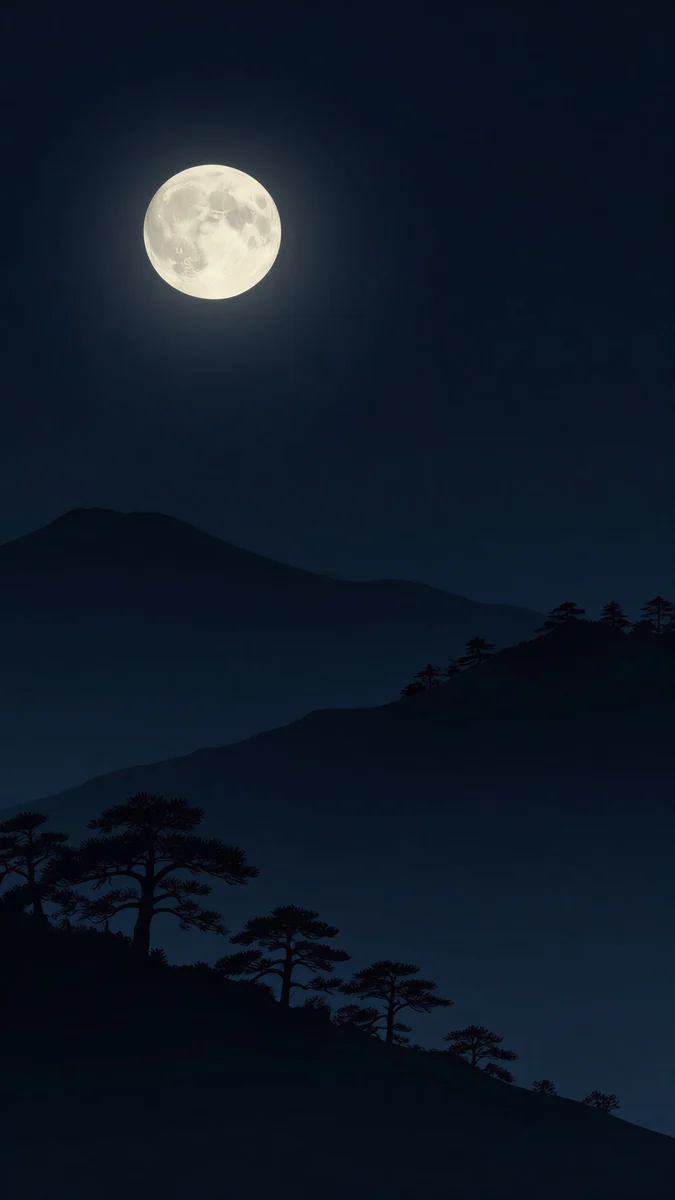 Moon Pines4K · Phone
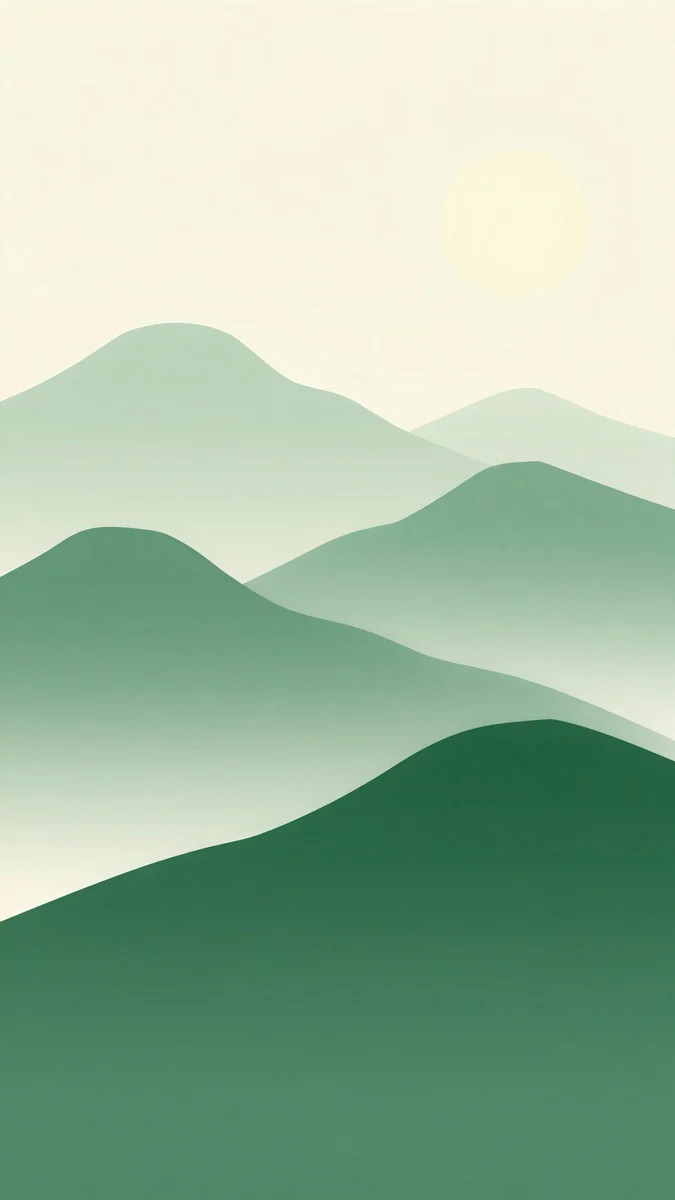 Forest Paper Peaks4K · Phone
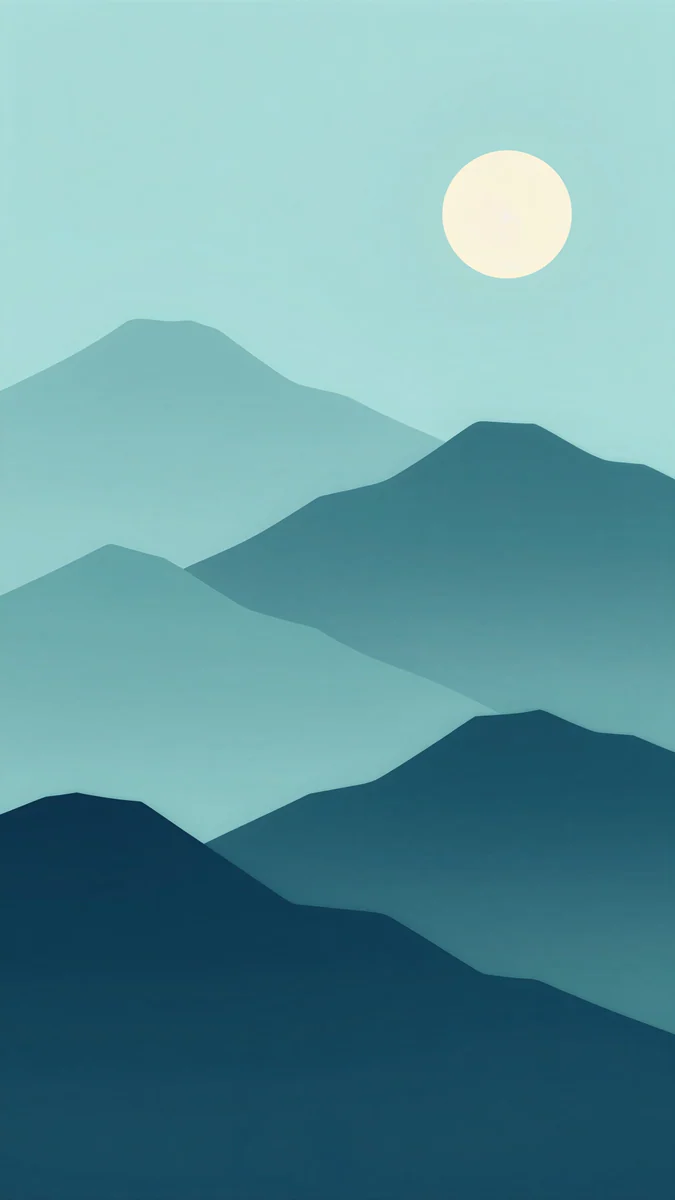 Midnight Paper Peaks4K · Phone
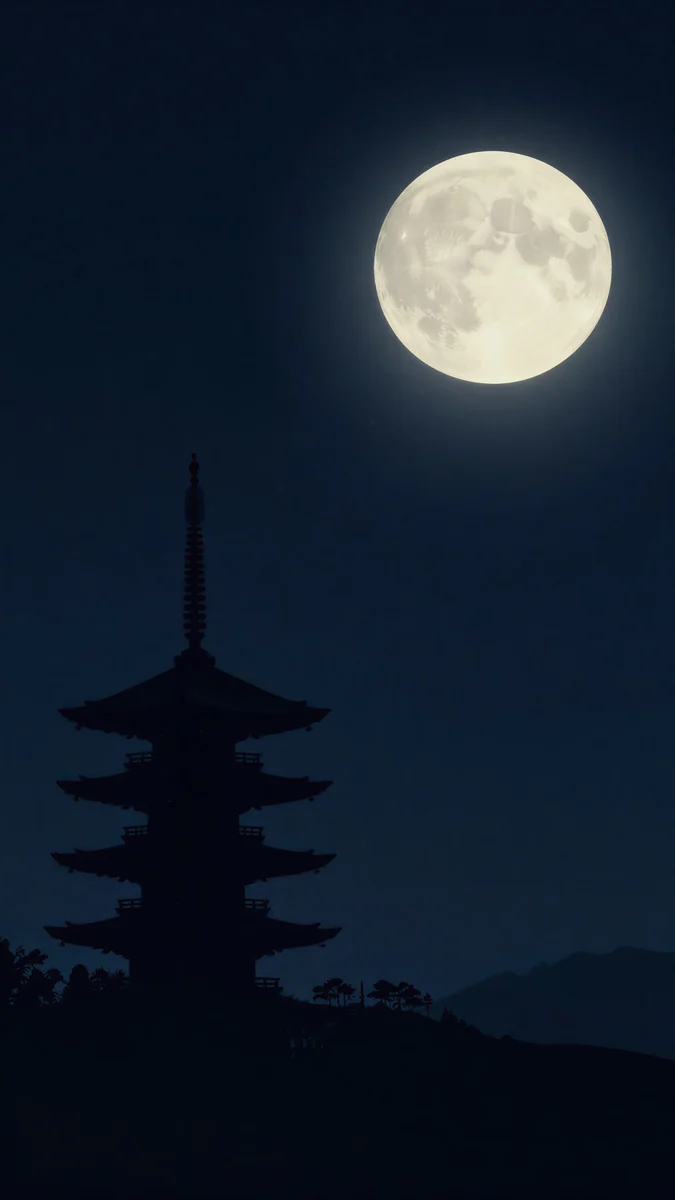 Pagoda Moon4K · Phone
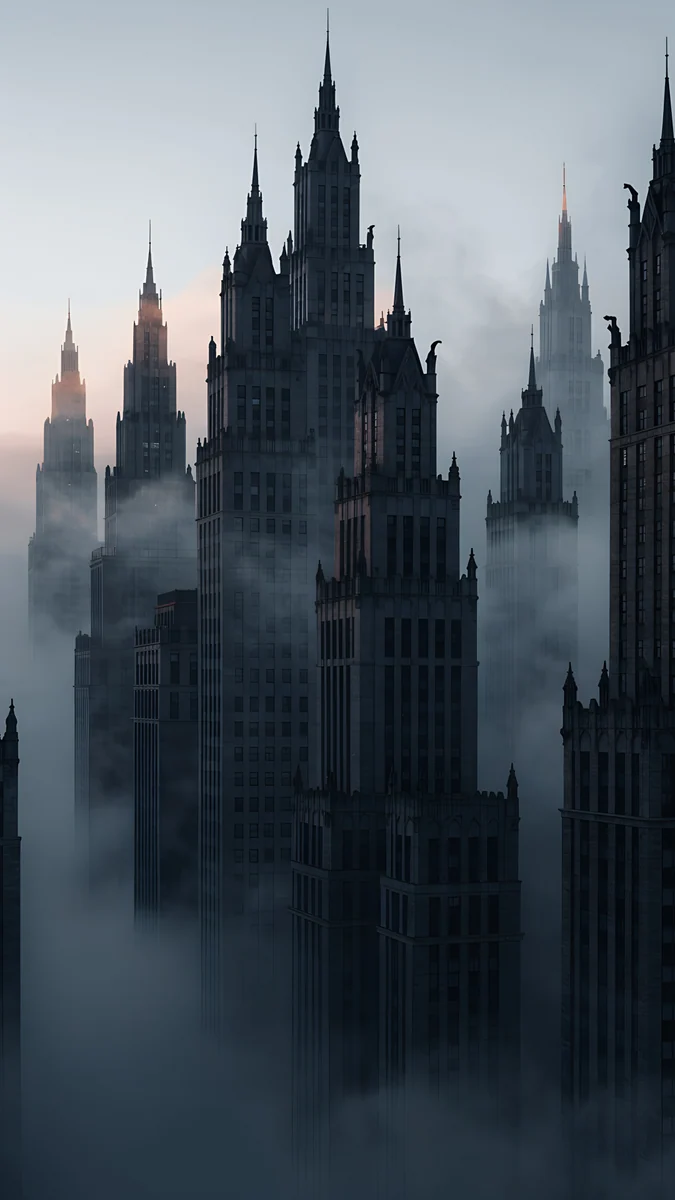 Fog Dawn4K · Phone
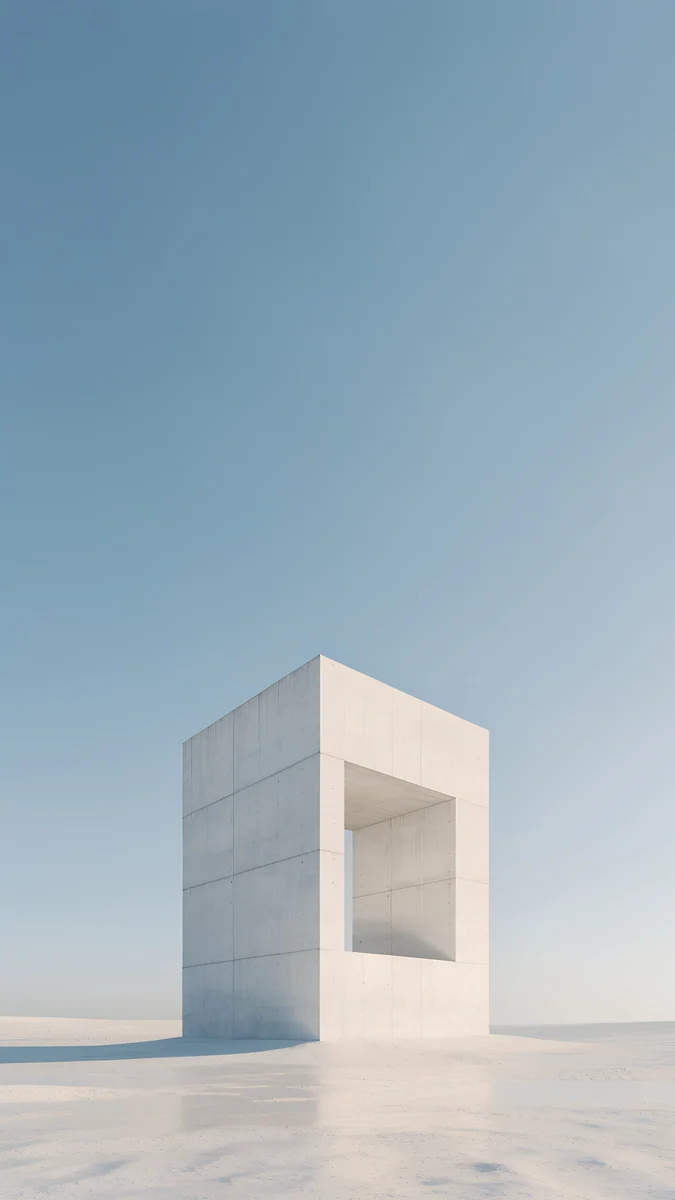 Monolith on the Plain4K · Phone
Moon Pines sets pine silhouettes in front of dark layered mountains and a full moon, three clear distances in one frame. Forest Paper Peaks stacks paper cut mountains from pale sage to deep forest green, with soft shadows between the layers. Midnight Paper Peaks is the same idea at night, soft teal to navy. Pagoda Moon places a slender pagoda on a hill against a large pale moon, a single sharp edge. Fog Dawn raises gothic spires out of grey fog, and Monolith on the Plain keeps one stone form low in the frame with open sky above, so the clock stays clear while the background moves.
Common problems and fixes
- There is no spatial scene button. The iPhone is older than the iPhone 12, it is not on iOS 26, or the wallpaper is an Emoji, Color or other generated style. Add the image from Photos instead.
- The button is there but the picture barely moves. iOS found too little depth. Try a picture with a clearer foreground, or zoom out so there is more background around the subject.
- Nothing moves on the lock screen. Check Settings, Accessibility, Motion: with Reduce Motion on, motion effects like this can be limited. Low Power Mode can also cut back on effects.
- The edges of the subject look warped. The cut is unclean, usually around hair or fine branches. Pick a picture with a simpler outline, or a larger file.
- It takes a long time to build. The scene is generated on the iPhone. Keep the editor open until the message disappears; a second try is often faster.
- The clock covers the subject. Drag the picture down, or make the clock smaller. Our iOS 26 lock screen customization guide shows how to resize it.
Spatial scene, depth effect or live wallpaper
These three are often mixed up. The depth effect puts the subject of a still photo in front of the clock; nothing moves. A spatial scene adds motion when you tilt the phone, with layers shifting against each other. A Live Photo wallpaper plays its short clip when the lock screen wakes, on iOS 17 and later. If your goal is a layered look without motion, read about the iPhone depth effect; for moving wallpapers, see live and animated wallpapers on iPhone.
Get these wallpapers in Velpaper
Velpaper has apps for iPhone, iPad, Mac and Android, and the same wallpapers are on velpaper.com. Every one is a 4K original designed by Carlos Vivero, 2160 × 3840 pixels on phones, which gives iOS plenty of detail to separate the layers.
- Open Moon Pines in the Velpaper app or on velpaper.com.
- Download the original and save it to Photos. A screenshot of the preview is too small for a clean cut.
- Open Settings, Wallpaper, Add New Wallpaper, tap Photos and pick the file.
- Tap the spatial scene button, tilt the phone to check the depth, then tap Add.
Browsing and previewing are free, with no account. Some phone wallpapers unlock after a short optional ad in the apps, and the file you get is the full original without a watermark.
Original wallpapers in 4K and 5K for iPhone, Android and desktop.
Questions
Which iPhones support spatial scene wallpapers?
Apple lists spatial scenes on the lock screen for iPhone 12 and later running iOS 26. That covers every model from the iPhone 12 onward, from the mini to the Pro Max. Older iPhones that run iOS 26 still get the other lock screen features, such as the taller clock and the depth effect where supported, but the spatial scene button does not appear. There is no setting that unlocks it. If you have a supported iPhone and still see no button, check that you added the picture from Photos rather than an Emoji or Color style, and that the iPhone is updated in Settings, General, Software Update.
How do I turn a photo into a 3D wallpaper on iPhone?
Open Settings, tap Wallpaper, then Add New Wallpaper, tap Photos and choose the picture. In the editor, tap the spatial scene button next to the three dots in the bottom right corner and wait while iOS builds the scene. Tilt the phone to see the layers move, reframe if needed, then tap Add. You can also convert your current lock screen: touch and hold it, tap Customize, choose Lock Screen and tap the same button. iOS does the 3D work on the iPhone itself, so any flat photo or illustration can be tried; you do not need a depth camera, a Live Photo or a special file.
Why does my spatial scene wallpaper not move?
Three common reasons. First, iOS found little depth in the picture: with no clear foreground, the layers have almost nothing to shift, so try a photo with a distinct subject and open space behind it. Second, Reduce Motion is on in Settings, Accessibility, Motion, which can limit movement effects across the system. Third, Low Power Mode can cut back on visual effects to save battery. Also keep in mind that the motion is subtle by design: it reacts to tilting the phone, not to time, so the picture stays still when the phone lies flat on a table. If none of these apply, set the wallpaper again from Photos.
Is a spatial scene the same as the depth effect?
No. The depth effect, available since iOS 16, takes the subject of a still photo and draws it in front of the clock, so the lock screen looks layered but nothing moves. A spatial scene, new in iOS 26, builds a 3D version of the picture whose layers shift against each other when you tilt the phone. The depth effect lives in the More menu behind the three dots in the lock screen editor; the spatial scene has its own button next to it. The depth effect works from the iPhone XS and XR, while the spatial scene needs an iPhone 12 or later. Try both on the same picture and keep the one you like.
Do illustrated wallpapers work as spatial scenes?
Often, but not always. iOS looks for depth clues such as a clear foreground, overlapping shapes and a distant background, and illustrations built in layers provide exactly that. Velpaper designs like Moon Pines, Forest Paper Peaks and Pagoda Moon are drawn in separate planes, which gives the effect a good chance. Flat graphics, repeating patterns and text usually produce little movement. Apple does not guarantee results for artwork, so test the picture in the editor before you commit. Every Velpaper phone wallpaper is a 4K original at 2160 × 3840 pixels, enough detail for a clean cut, and browsing is free with no account.
Carlos Vivero
Designer of Velpaper wallpapers
Carlos Vivero designs the wallpapers in Velpaper: quiet architecture, liquid glass, Japanese ink and calm landscapes. Every piece is made as a 4K original for iPhone, Android and desktop.
Recent work








