iPhone Depth Effect Wallpaper Not Working? iOS 26 Fixes
iPhone depth effect wallpaper not working? Why it is greyed out on iOS 26 and 18, and how to fix it step by step: widgets, clock overlap and the subject.
In short: The iPhone depth effect puts the subject of a photo in front of the lock screen clock. It only works when iOS finds a clear subject, when that subject overlaps the lower part of the time without hiding too much of it, and when no widgets below the clock get in the way. Turn it on from the More menu in the lock screen editor; it needs iOS 16 or later and an iPhone XS, XR or newer.
By the Velpaper team · Wallpapers by Carlos Vivero, Velpaper designer · · Updated · 6 min read
Free 4K originals for iPhone and Android, no watermark
On this page
The depth effect is the lock screen trick where a head, a mountain or a tower stands in front of the clock instead of behind it. When it works, the lock screen looks layered, like a magazine cover. When it does not, the option is greyed out or switches on and changes nothing.
Almost every failure comes down to three things: iOS cannot find a subject, the subject covers too much of the time, or widgets sit where the subject would go. Here is how the feature works on iOS 18 and iOS 26, how to turn it on, and what to change when it refuses.
What the depth effect does
When you set a photo as your lock screen wallpaper, iOS analyses it and tries to separate the main subject from the background. If it succeeds, it draws the clock between the two layers: background behind the digits, subject in front. Part of the time is hidden, but only a part, so it still reads.
The feature arrived with iOS 16 and needs an iPhone XS, XR or later. It works on wallpapers you add from Photos. Apple's generated styles, such as Emoji, Color or the gradient sets, have nothing to separate.
On iOS 26 the clock also adapts to the picture. You can drag its lower edge to make it taller, and with the depth effect on, iOS resizes it so the subject still fits in front.
How to turn on the depth effect
- Save the wallpaper to Photos and set it as a new lock screen through Settings, Wallpaper, Add New Wallpaper, Photos.
- Or edit the current one: unlock the iPhone, touch and hold the lock screen, tap Customize and pick the lock screen preview.
- Tap the More button, the three dots in the bottom right corner.
- Select Depth Effect. If it is already ticked, the effect is on. If it is grey, read the next section.
- Position the picture. Pinch and drag so the top of the subject rises just into the lower part of the clock.
- Tap Done.
Our guide on how to set a lock screen wallpaper on iPhone covers the rest of the editor: clock fonts, colours and the home screen pair.
Why the depth effect is not working
Widgets below the clock
This is the most common cause. The row of widgets under the clock sits exactly where the subject needs to rise, and iOS will not draw the subject over them. Remove the widgets from that row and check the More menu again. A widget in the date line above the clock is usually fine. If you depend on your widgets, you have to choose between them and the effect.
The subject covers too much of the time
iOS only lets the subject hide a limited part of the clock. If a face or a building would cover most of the digits, it either greys the option out or quietly moves the subject behind the clock. Pinch to make the picture smaller, or drag it down, so that only the top of the subject touches the time. On iOS 26, making the clock taller can also give the subject room.
The subject does not reach the clock
Sometimes Depth Effect is ticked and nothing looks different. The subject simply sits below the clock, so there is nothing to put in front. Drag the picture up or zoom in a little until the top edge crosses into the time.
iOS cannot find a subject
The analysis looks for a clear foreground shape: a person, a pet, a building, a mountain. Flat gradients, repeating patterns, text, very dark photos and busy scenes with no single focus often fail. If the option stays grey after you have removed widgets and reframed, the picture is the problem. Try another one.
The wallpaper is not a photo
Emoji and Color wallpapers are drawn by iOS itself, so there is no photo to separate. The effect is built for pictures from your library: save the image to Photos first and add it from there.
Your iPhone is too old
Models before the iPhone XS and XR can run some lock screen features but not the depth effect. There is no setting that unlocks it.
What makes a good depth effect wallpaper
A picture that works has a tall subject rising into the upper third, a plain sky behind the clock, and a narrow top, such as a spire, a head or a peak, so it hides only a slice of the time. Strong contrast at the edge of the subject helps iOS cut it out cleanly.
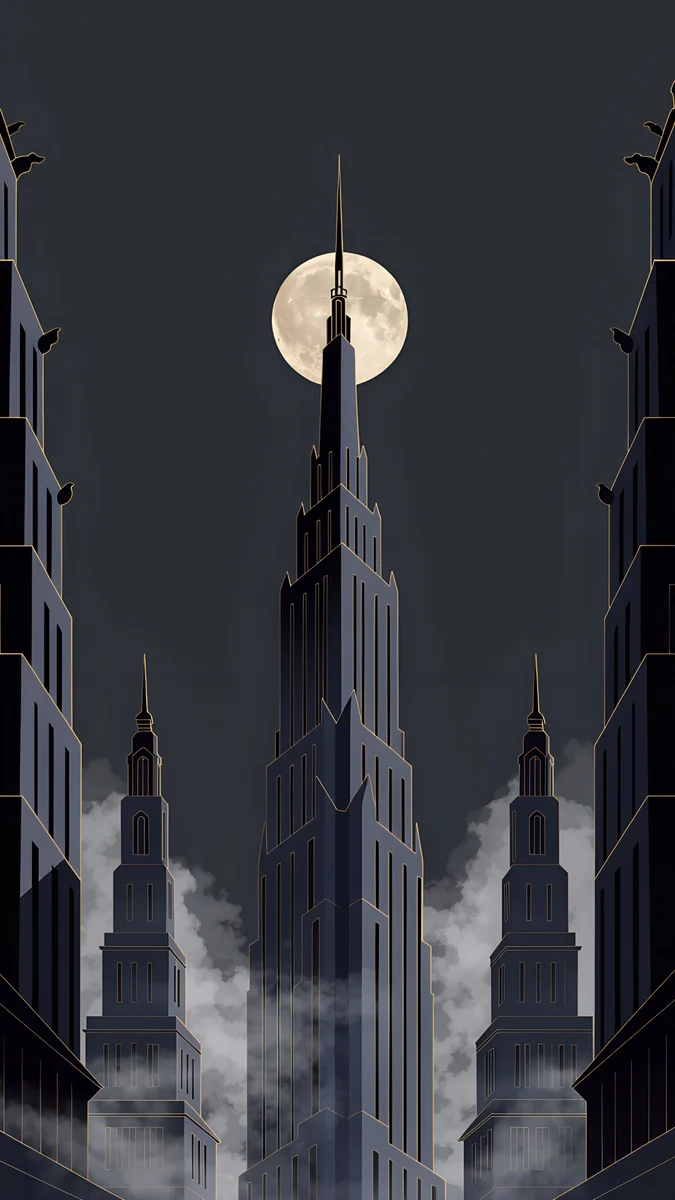
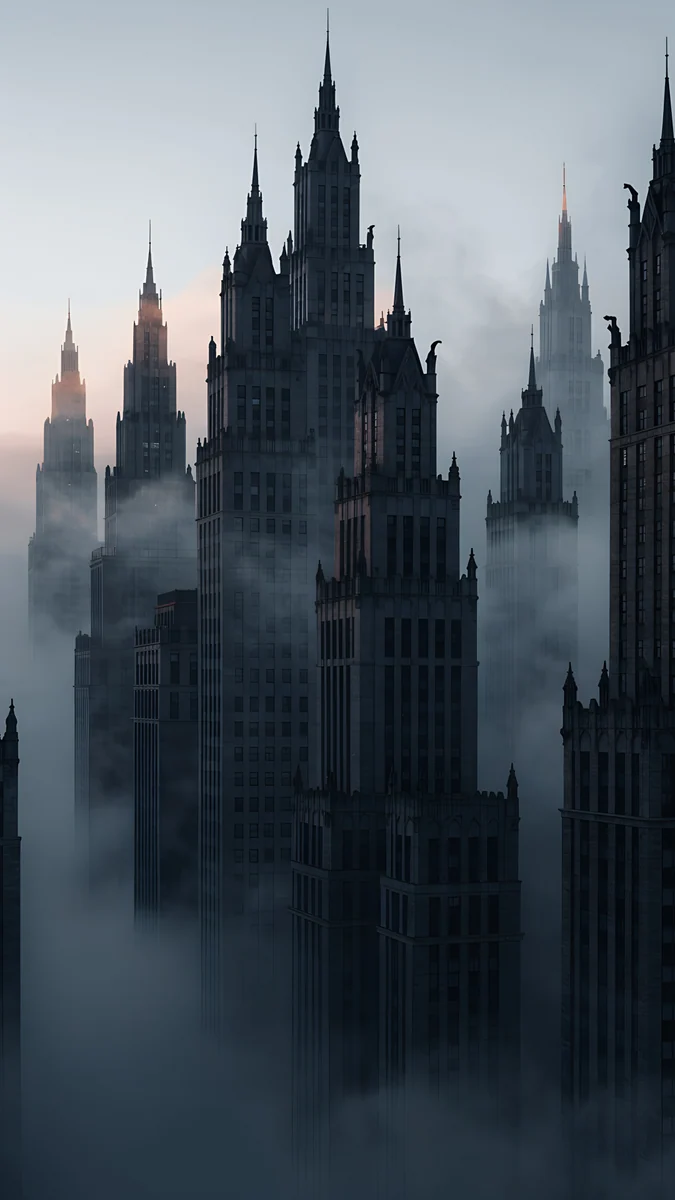
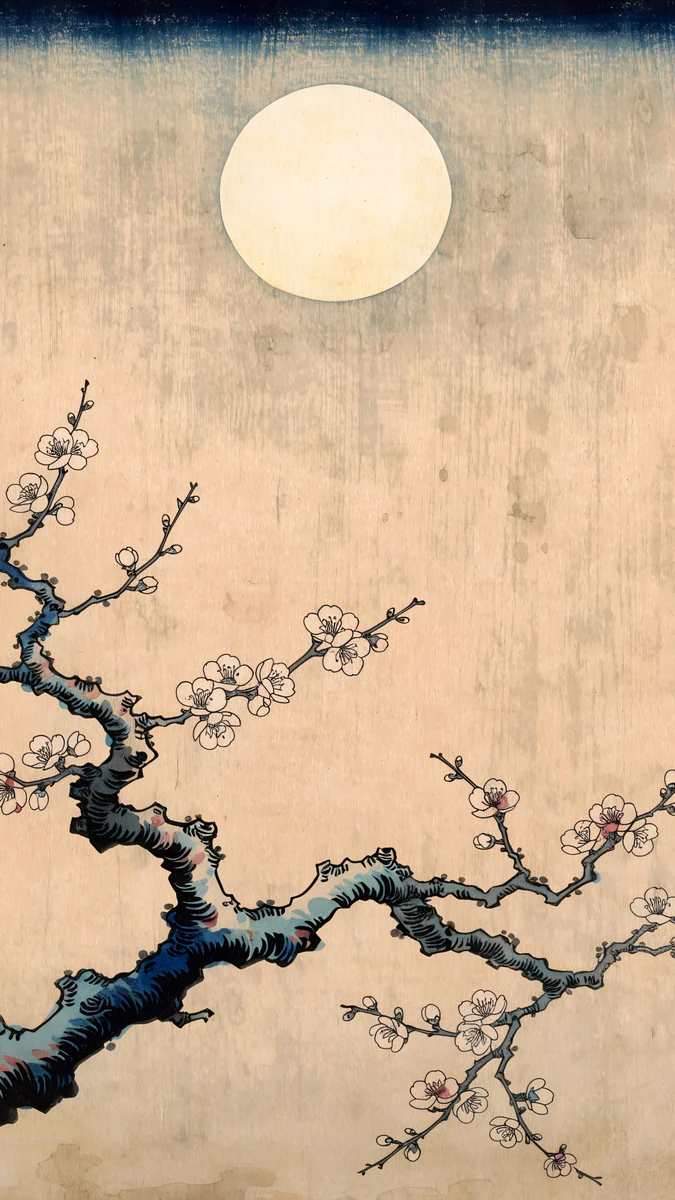
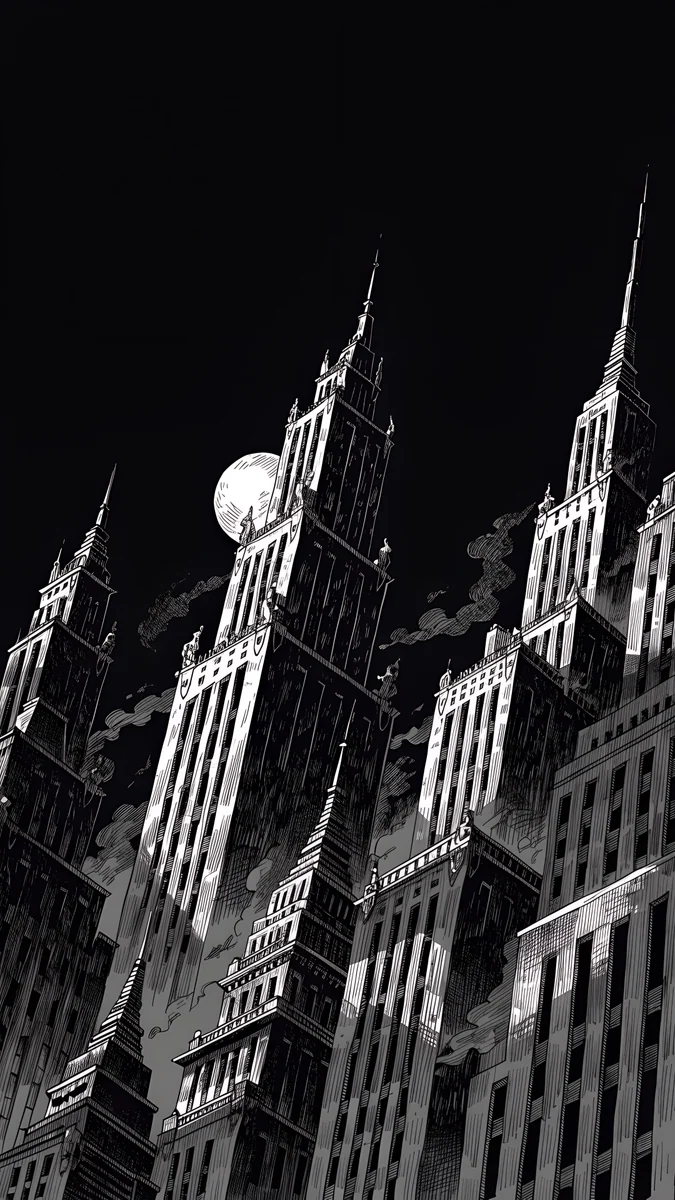
Velpaper wallpapers are illustrations, and iOS makes no promise about artwork, so treat these as good candidates rather than guarantees. Deco Gold has a single Art Deco spire climbing through a full moon, with flat dark sky on both sides: the shape iOS looks for. Fog Dawn raises gothic spires out of fog against a pale dawn sky, which gives a clear edge. Plum Moon lifts a blossoming branch toward the moon on cream paper. Ink Noir is the bold one, black and white towers that fill the frame.
Resolution matters too. A 2160 × 3840 original keeps the edge of the subject crisp after iOS scales it to your screen; a small, enlarged image gives a soft cut-out. Our iPhone wallpaper size guide lists the exact numbers per model.
When to skip the depth effect
Not every wallpaper should use it. If the subject sits low and the sky above is empty, the clock already has the best possible background, and pushing the picture up to force an overlap only crops it. Twin Slabs and Monolith on the Plain are built that way: a stone form in the lower half, open sky above. Leave the effect off and let the time float in clean space.
The same goes when the effect forces a crop you do not like. If turning it on made the picture look too big, our guide to an iPhone wallpaper that is zoomed in explains Perspective Zoom and how to reframe.
Depth effect or Spatial Scene on iOS 26
iOS 26 added Spatial Scene, a different feature with a similar idea. The hexagon button next to the three dots in the editor turns a photo into a 3D image that shifts as you tilt the phone, with the foreground steady and the background moving. It needs an iPhone 12 or later.
The depth effect is about layering the clock. Spatial Scene is about motion. Try both on the same picture and keep the one that reads better at a glance. Neither turns a still image into a video; for what moves on an iPhone lock screen today, see our guide to live and animated wallpapers on iPhone.
Original wallpapers in 4K and 5K for iPhone, Android and desktop.
Questions
Why is Depth Effect greyed out on my iPhone?
Usually for one of three reasons. Widgets are placed in the row below the clock, where the subject would need to go. The subject would cover too much of the time, so iOS refuses to put it in front. Or iOS could not find a clear subject in the picture at all. Remove the widgets under the clock, then pinch and drag so only the top of the subject touches the digits. If it is still grey, try a photo with one clear shape against a plain background.
Does the depth effect work with widgets?
Not with widgets in the row below the clock. That row sits where the subject rises into the time, and iOS will not draw the subject over widgets, so the option turns off. A widget in the small date line above the clock is usually fine. If you want both, keep your widgets on the home screen or in a second lock screen, and save the depth effect for one lock screen without the widget row.
Which iPhones support the depth effect wallpaper?
Any iPhone XS, XS Max, XR or later running iOS 16 or newer, which includes every model that runs iOS 18 or iOS 26. Older models cannot use the effect, and there is no setting that adds it. Spatial Scene, the separate 3D effect added in iOS 26, has a higher bar: it needs an iPhone 12 or later. Both features are switched on from the lock screen editor.
Is the depth effect the same as Spatial Scene?
No. The depth effect, available since iOS 16, separates the subject from the background and places it in front of the clock. The wallpaper itself stays still. Spatial Scene, new in iOS 26, turns a photo into a 3D image that moves as you tilt the phone, with the foreground steady and the background shifting behind it. You switch Spatial Scene on with the hexagon button in the editor and the depth effect from the More menu.
Do illustrated wallpapers work with the depth effect?
Sometimes. The analysis is tuned for photos of people, animals, buildings and landscapes, so results with illustrations vary. Artwork with one tall, sharply outlined shape against a flat sky has the best chance, for example Deco Gold with its spire through the moon, or Fog Dawn with spires rising out of fog. Flat gradients and patterns rarely work. Set the picture, open the More menu and see whether Depth Effect can be selected.
Carlos Vivero
Designer of Velpaper wallpapers
Carlos Vivero designs the wallpapers in Velpaper: quiet architecture, liquid glass, Japanese ink and calm landscapes. Every piece is made as a 4K original for iPhone, Android and desktop.
Recent work








