How to Set a Live Wallpaper on iPhone (iOS 18 and 26)
How to set a live wallpaper on iPhone step by step for iOS 26 and 18: Live Photos on the lock screen, why the photo will not move, and what to do with a video.
In short: To set a live wallpaper on iPhone, go to Settings, Wallpaper, Add New Wallpaper, choose Photos and pick a Live Photo, check that the Live Photo button in the bottom-left corner is on, then tap Add. On iOS 17 and later it plays a short slowed clip each time you wake the phone, on the lock screen only; iPhone has no video wallpapers.
By the Velpaper team · Wallpapers by Carlos Vivero, Velpaper designer · · Updated · 6 min read





Free 4K originals for iPhone and Android, no watermark
On this page
On an iPhone, a live wallpaper means a Live Photo on the lock screen. Since iOS 17 it plays a short, slowed down clip every time you wake the phone, then settles on a still frame. To set one, go to Settings, Wallpaper, Add New Wallpaper, choose Photos, pick a Live Photo and make sure the Live Photo button is on before you tap Add.
Two limits apply to every current iPhone. The motion only happens on the lock screen; the home screen shows the still frame. And iOS has no option to use a video file as wallpaper. The rest of this guide covers the exact steps, the usual reasons a Live Photo stays still, and the wallpapers that do move.
What live wallpaper means on iPhone in 2026
The feature has changed several times, which is why old tutorials disagree.
- Up to iOS 15, Settings had separate Dynamic and Live categories, and a Live Photo wallpaper played when you pressed and held the lock screen.
- iOS 16 introduced the new customizable lock screen. Live Photos could still be chosen, but they no longer moved, and the old Dynamic wallpapers were gone.
- iOS 17 brought Live Photo wallpapers back. Instead of playing on a long press, they now play once when the phone wakes.
- iOS 18 kept the same behaviour.
- iOS 26 added spatial scenes, which give a still photo a sense of depth that shifts slightly as you tilt the phone. That is a 3D effect, not a video.
So in 2026, a live wallpaper on iPhone is a few seconds of motion on wake, not a looping animation.
How to set a live wallpaper on iPhone
- Open the Photos app and check that your picture is a Live Photo. It shows a LIVE label in the top corner.
- Go to Settings, then Wallpaper, then Add New Wallpaper. You can also touch and hold the lock screen, tap Customize or the + button.
- Tap Photos at the top of the gallery. To find Live Photos faster, open the Live Photos album from the albums view.
- Pinch and drag to frame the picture.
- Look at the bottom-left corner. The Live Photo button, a circle of rings, must be on. Tap it if it shows a line through it.
- Tap Add, then Set as Wallpaper Pair to use it on both screens, or Customize Home Screen to choose something else behind your apps.
- Lock the phone and wake it. The clip plays once and stops on the key frame.
The basic lock screen editor, including fonts, widgets and clock colour, is covered in our guide on setting a lock screen wallpaper on iPhone.
Why your live wallpaper is not moving
The Live Photo button is off or greyed out. iOS checks every clip before it allows motion. If the Live Photo moves too much or is unsuitable, the button stays unavailable and the wallpaper is saved as a still. Try a calmer clip, such as water, a candle or someone turning their head.
You are looking at the home screen. Only the lock screen animates. This is by design and there is no setting to change it.
Your iPhone is too old. iOS 17 needs an iPhone XS, XR or newer. The iPhone 8, 8 Plus and X stop at iOS 16, so a Live Photo wallpaper on those models stays still.
The picture is not really a Live Photo. Screenshots, downloads from the web and photos sent through most messengers arrive as plain stills, even if they moved on the sender's phone. Ask for the original file, or send it with AirDrop, which keeps the Live Photo.
How to set a video as wallpaper on iPhone
Not directly. iOS only accepts photos for wallpaper. The workaround is a third-party app, such as intoLive, that converts a short video into a Live Photo. You then set that Live Photo with the steps above.
Keep expectations honest. Whatever the app promises, the lock screen still plays a few seconds once per wake and then freezes. No setting turns a video into a constantly looping background on an iPhone.
Built-in iPhone wallpapers that move
Apple's own gallery, under Add New Wallpaper, includes several faces with motion that need no Live Photo at all.
- Astronomy shows the Earth, the Moon or the solar system, and the view shifts when you unlock.
- Weather shows the current conditions at your location, so rain, cloud and sun change through the day.
- Photo Shuffle rotates through photos you pick, on tap, on lock, hourly or daily.
Photo Shuffle is the most useful of the three if you like changing pictures, because it works with any image, including still wallpapers.
Make a still 4K wallpaper feel alive
To be clear about our own catalog: Velpaper wallpapers are still images, not Live Photos or video. Every phone wallpaper is a 2160 × 3840 JPEG, which is larger than any iPhone screen, so it stays sharp on every model. Our iPhone wallpaper size guide explains why.
A still image can still change. Pick four to six wallpapers that share a palette and add them to Photo Shuffle set to On Lock. Each time you lock the phone, the next picture appears, which feels closer to a living screen than one clip that plays and stops.
These four woodblock scenes share one indigo palette, so the clock style you pick works on all of them. Snow Village is the darkest and wants a white clock; the others read best with a dark one. The whole set is in our ukiyo-e wallpapers collection.
Soft gradients are the other good choice for shuffle, because a change of colour is easy to notice and never fights with the clock.


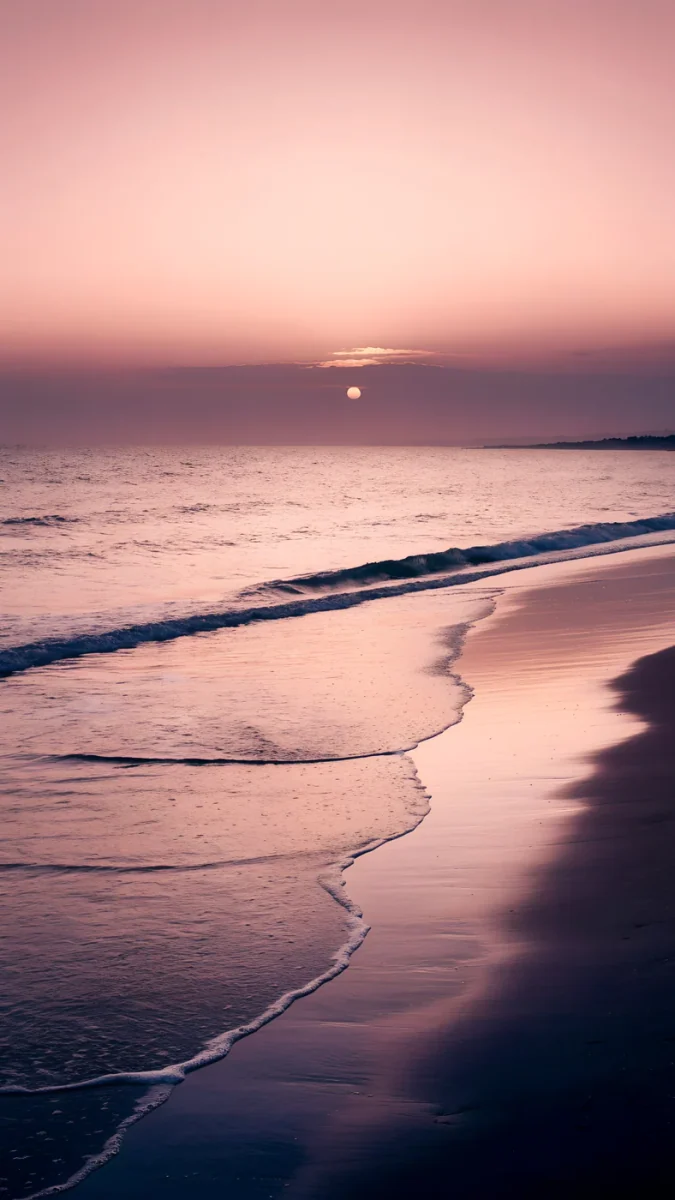
Lilac Hush and Rose Hour are calm grainy gradients; Peach Reflection is a beach at sunset. For the clock, our guide on a wallpaper that keeps the clock readable has the rules that matter.
Depth effect and spatial scenes on still wallpapers
Two more iOS features can add life to a still picture. With Depth Effect, iOS places a clear subject in front of the clock, which gives a layered look. With spatial scenes in iOS 26, a photo gains depth that responds to tilting.
Neither works on every picture. iOS decides per image, based on whether it can separate a subject from the background, and a wallpaper with a busy area behind the clock may not qualify. If the option is greyed out in the editor, that image simply does not support it. Our guide to the iPhone depth effect wallpaper explains what iOS looks for and why the effect sometimes stops working.
Original wallpapers in 4K and 5K for iPhone, Android and desktop.
Questions
Why can't I set a live wallpaper on my iPhone?
The most common reasons are a Live Photo button that is switched off in the wallpaper editor, a clip that iOS judged unsuitable for motion, or an iPhone that cannot run iOS 17. Live Photo wallpapers need iOS 17 or later, which means an iPhone XS, XR or newer. Also check that the file really is a Live Photo: screenshots, web downloads and photos sent through most messengers arrive as plain stills. The motion only plays on the lock screen.
Do live wallpapers work on the iPhone home screen?
No. On iOS 17, iOS 18 and iOS 26, a Live Photo wallpaper only animates on the lock screen, once each time you wake the phone. The home screen shows the still key frame, usually with your apps on top. There is no setting to change this. If you want something that changes on the home screen, use Photo Shuffle, which swaps the picture on tap, on lock, hourly or daily, and applies to both screens.
Can I use a video as my iPhone wallpaper?
Not directly. iOS only accepts photos as wallpaper. A third-party app such as intoLive can convert a short video into a Live Photo, which you then set through Settings, Wallpaper, Add New Wallpaper, Photos. The result plays for a few seconds when you wake the phone and then stops on a still frame. No app can make a video loop constantly in the background of the lock screen or the home screen.
Does a live wallpaper drain the battery?
Very little. A Live Photo wallpaper plays for a few seconds once per wake, then sits as a still image, so its cost is close to that of any other wallpaper. The built-in Weather and Astronomy faces update in the background but are also light. What does affect battery on OLED iPhones is brightness: a mostly dark wallpaper lights fewer pixels than a bright one, especially with the Always On display.
Are Velpaper wallpapers live or animated?
No. Velpaper wallpapers are still images, made as 2160 × 3840 JPEG originals for phones and 3840 × 2160 or 5120 × 2880 for desktops. They are not Live Photos and do not move. You can still get a changing lock screen by adding several of them to iOS Photo Shuffle with the On Lock setting, so a new picture appears every time you lock the phone.
Carlos Vivero
Designer of Velpaper wallpapers
Carlos Vivero designs the wallpapers in Velpaper: quiet architecture, liquid glass, Japanese ink and calm landscapes. Every piece is made as a 4K original for iPhone, Android and desktop.
Recent work