iPhone Always On Display Wallpaper: Settings and Tips
iPhone Always On display wallpaper explained: how iOS dims it, how to show or hide it, which models have it, the battery cost, and images that look good dimmed.
In short: On an iPhone with Always On display, the lock screen wallpaper stays visible after you lock the phone, but dimmed and darker. To hide it and keep only the clock and widgets on black, go to Settings, Display & Brightness, Always On Display and turn off Show Wallpaper.
By the Velpaper team · Wallpapers by Carlos Vivero, Velpaper designer · · Updated · 5 min read
Free 4K originals for iPhone and Android, no watermark
On this page
Lock an iPhone with Always On display and the screen does not go black. The clock, the widgets and your wallpaper stay in view, only much dimmer. Whether the wallpaper stays is your choice: one switch in Settings shows it dimmed, or replaces it with plain black.
This guide covers what Always On does to the picture, where the switch lives, which iPhones have the feature, what it costs in battery, and which kind of wallpaper still looks good at a fraction of its brightness.
What Always On display does to your wallpaper
When you press the side button, iOS does not turn the panel off. It drops the brightness, lowers the refresh rate to as little as 1 Hz and keeps a quiet version of the lock screen on the glass. Apple calls it a dimmed version of your Lock Screen, and that is exactly how it looks.
Your wallpaper is still there, but darker and calmer. Bright areas lose most of their glow, colours look muted, and fine detail in the shadows disappears into black. The clock and widgets stay on top, also dimmed.
Turn off Show Wallpaper and the picture is gone: the screen becomes black with only the clock, the date and your widgets. Many people prefer this at night or on a desk, because the phone reads as off at a glance.
How to show or hide the wallpaper on the Always On screen
- Open Settings.
- Tap Display & Brightness.
- Scroll down and tap Always On Display.
- Turn Show Wallpaper on or off. Show Notifications on the same screen decides whether notifications appear on the dimmed lock screen.
The main Always On Display switch on that screen turns the whole feature off. Then the iPhone locks to black like older models, and the wallpaper only appears when you wake it.
The wallpaper itself is chosen in the usual place. If you have not set one yet, our step by step guide on how to set a lock screen wallpaper on iPhone walks through the editor, fonts and widgets.
Which iPhones have Always On display
Always On needs a display that can slow down to 1 Hz, so only some models have it. According to Apple, these iPhones support the feature:
| Model | Always On display |
|---|---|
| iPhone 14 Pro, iPhone 14 Pro Max | Yes, on by default |
| iPhone 15 Pro, iPhone 15 Pro Max | Yes, on by default |
| iPhone 16 Pro, iPhone 16 Pro Max | Yes, on by default |
| iPhone 17, iPhone 17 Pro, iPhone 17 Pro Max | Yes, on by default |
| iPhone Air | Yes, off by default |
| iPhone 14, 15 and 16 (and their Plus models), iPhone 16e, iPhone SE | No |
The base iPhone 17 is the first standard model with the feature. For any newer iPhone, the quickest check is on the phone itself: if Always On Display appears under Display & Brightness, your model has it.
Does Always On display drain the battery?
It uses some power, because a lit screen always does, but Apple designed it to use little. The low refresh rate and the dimming do most of the work. The display also goes fully dark on its own when the iPhone:
- lies face down or sits in a pocket or bag,
- is away from your paired Apple Watch,
- is connected to CarPlay or used as a Continuity Camera,
- has Low Power Mode or the Sleep Focus turned on, or it is your usual bedtime.
If you want to save every bit of charge, turn off Show Wallpaper first. The iPhone screens that support Always On are OLED, where black pixels are simply switched off, so a black lock screen lights far fewer pixels than a bright photo. The same logic is why dark OLED wallpapers are the natural pick for this screen.
Wallpapers that look good dimmed
A wallpaper made for a bright screen is not always the one that survives the dim one. What matters is contrast and empty space.
Dark backgrounds with one bright shape
The best Always On wallpapers are mostly black or deep navy with a single light element: a moon, a lit window, a pale edge. When iOS dims the screen, the black stays black and the bright shape stays readable, so the picture keeps its idea. Lone Spire, one tower and a small moon on a black sky, is close to the ideal case. Moon Ledge works the same way with a full moon above the rooftops.
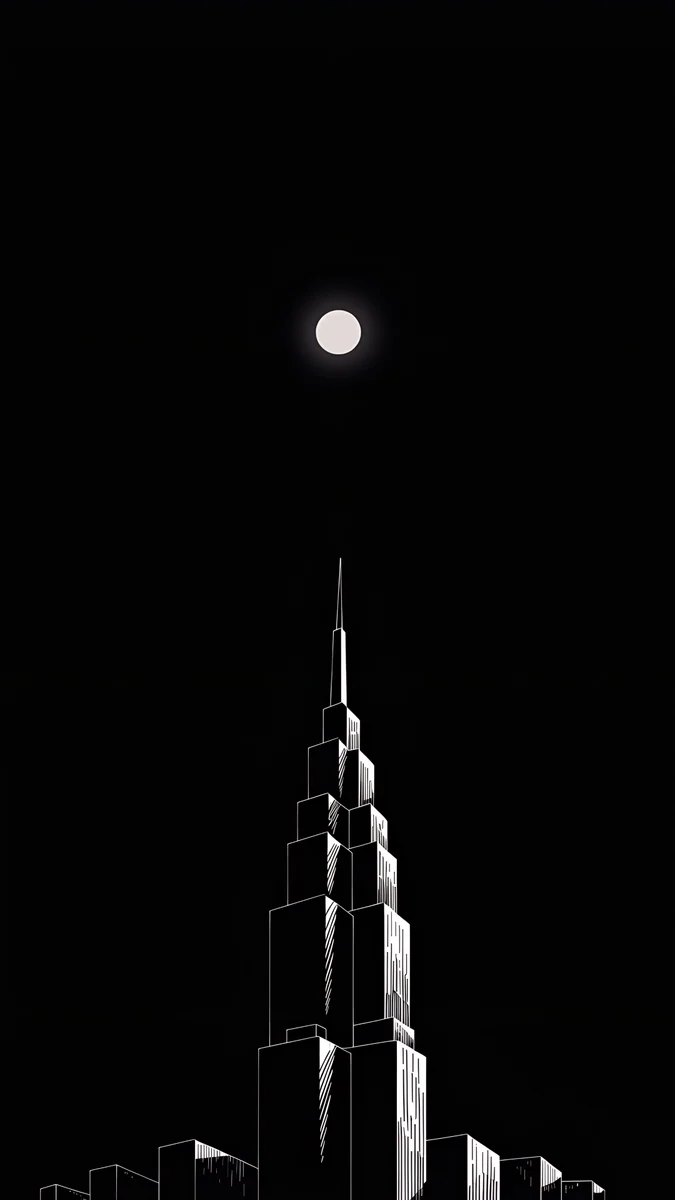 Lone Spire4K · Phone
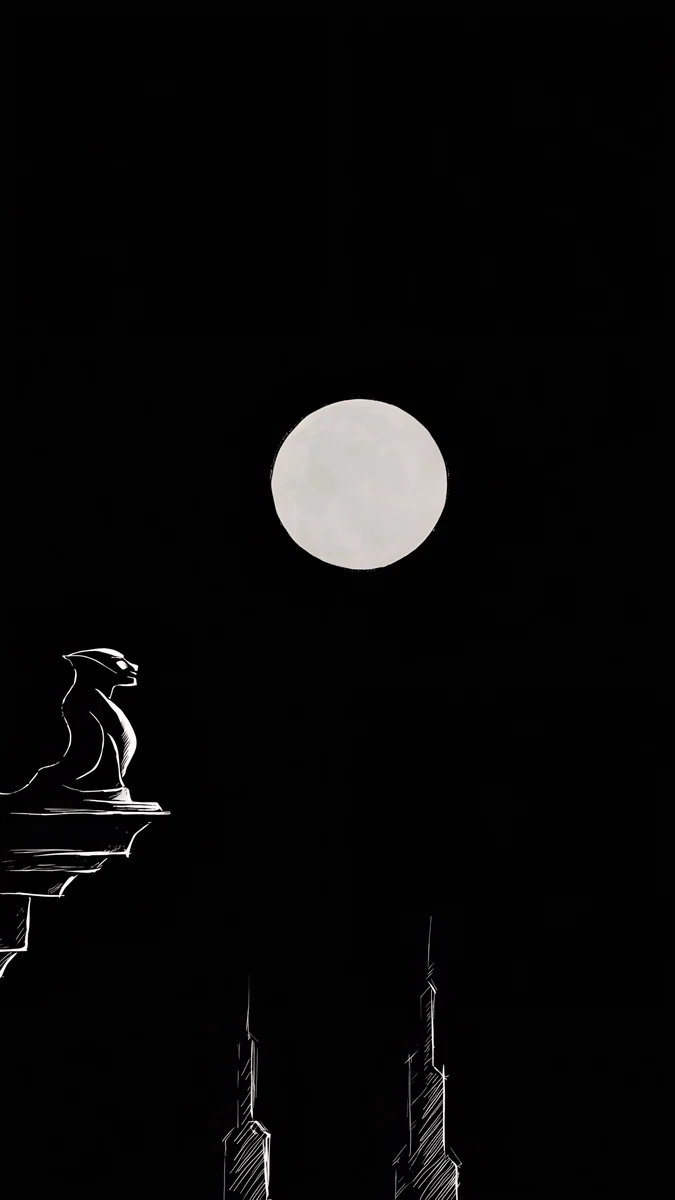 Moon Ledge4K · Phone
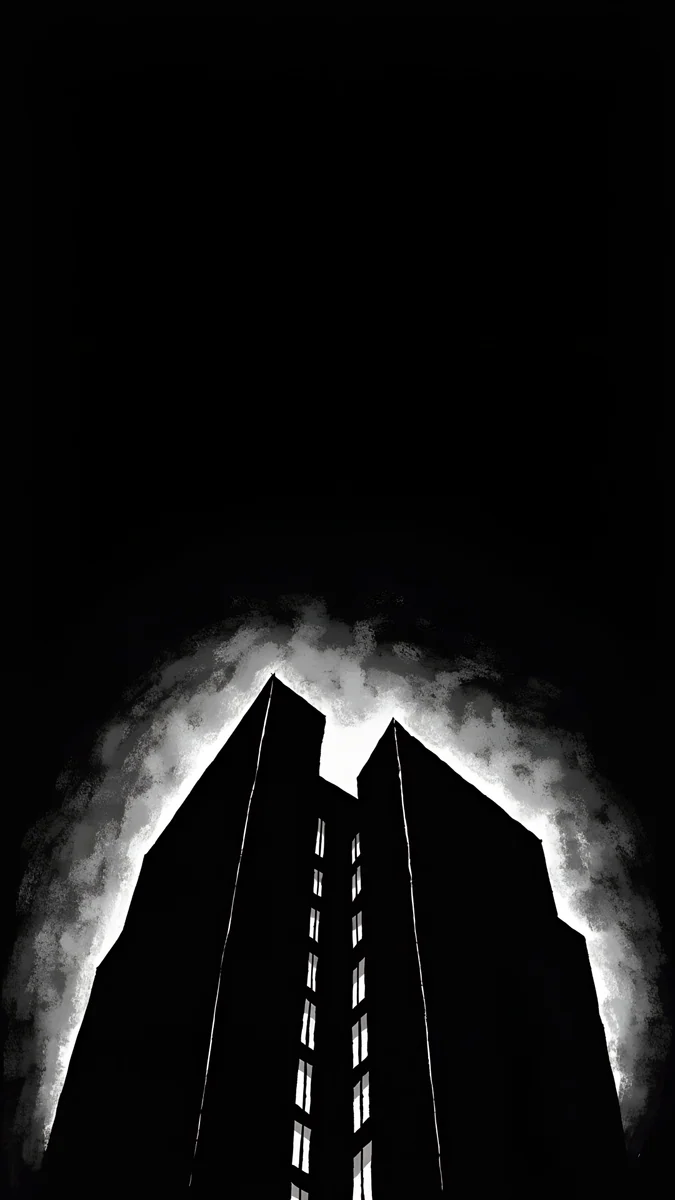 Light Slits4K · Phone
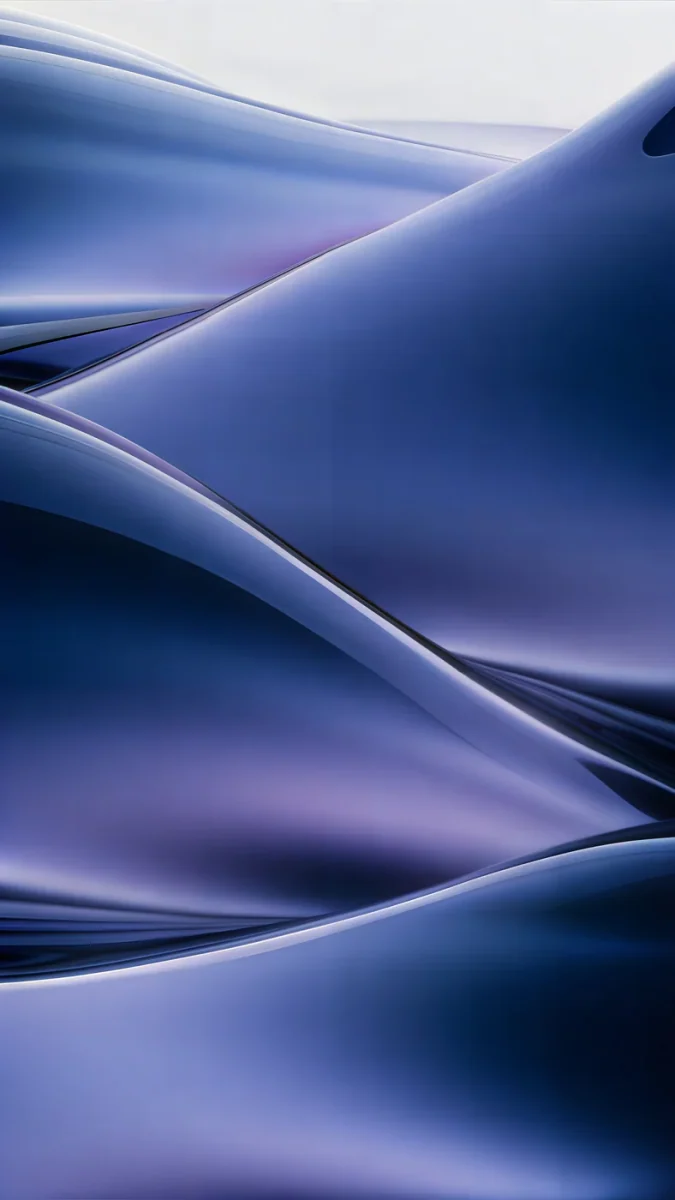 Midnight Flow4K · Phone
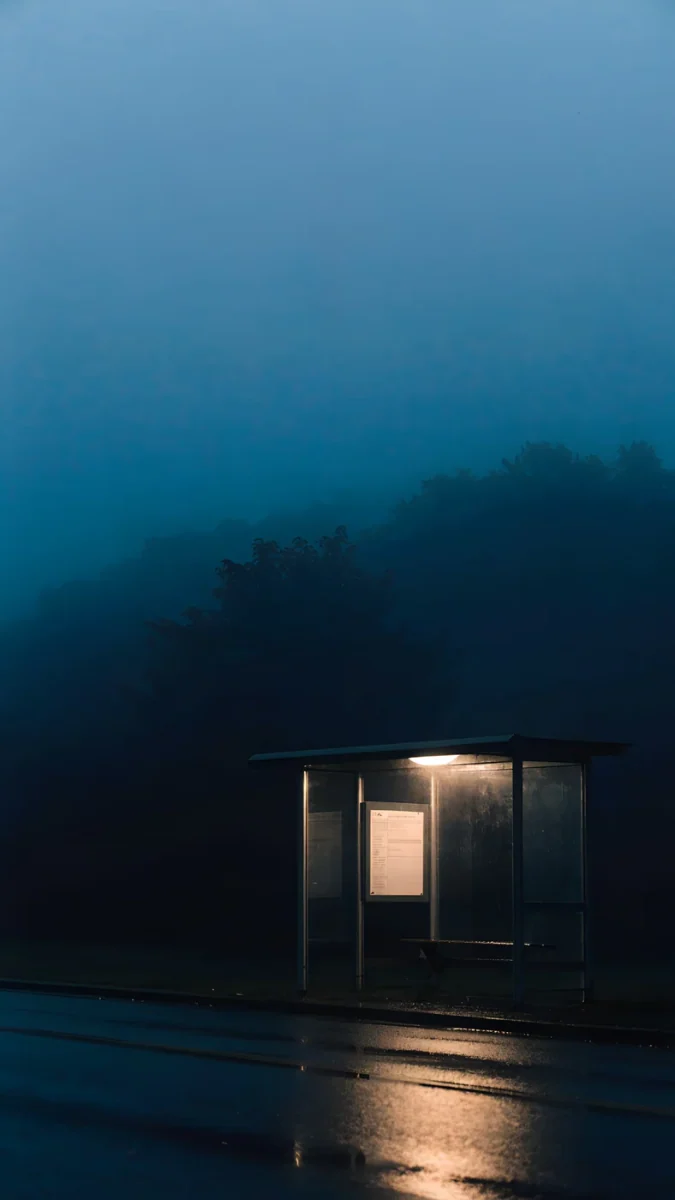 Last Stop4K · Phone
Every wallpaper in this set is a 2160 × 3840 original, larger than any iPhone screen, so it stays sharp when iOS crops the sides.
Deep colour instead of pale colour
Dimming a pale pastel turns it into a flat grey sheet. Saturated deep colours age better: cobalt, indigo, petrol and plum still read as colour at low brightness. Moon Boat, a yellow crescent on cobalt blue, keeps both its colours on the Always On screen, and Indigo Passage keeps the warm light inside its arch.
A calm top for the clock
The clock and widgets do not move when the screen dims, and they lose contrast too. A busy area behind them makes the time harder to read twice over. Keep the top third quiet, or let the subject sit low in the frame. Our guide on choosing a wallpaper that keeps the clock readable covers this in detail, and the depth effect guide explains when a subject may overlap the time.
Getting the original file
Every Velpaper phone wallpaper is a 2160 × 3840 JPEG without a watermark, in the iPhone and Android apps and on velpaper.com. Browsing is free, and most phone wallpapers unlock after a short optional ad. Save the image to Photos, set it on the lock screen, then lock the phone and look at it from arm's length. That one glance tells you whether to keep Show Wallpaper on.
Original wallpapers in 4K and 5K for iPhone, Android and desktop.
Questions
How do I turn off the wallpaper on the Always On display?
Open Settings, tap Display & Brightness, then tap Always On Display and turn off Show Wallpaper. The locked screen then shows only the clock, the date, widgets and, if you keep Show Notifications on, your notifications on a black background. Your wallpaper is not deleted: it still appears in full brightness whenever you wake or unlock the iPhone, and you can switch Show Wallpaper back on at any time.
Which iPhones have an Always On display?
According to Apple, the feature is on the iPhone 14 Pro and 14 Pro Max, iPhone 15 Pro and 15 Pro Max, iPhone 16 Pro and 16 Pro Max, iPhone 17, iPhone 17 Pro and 17 Pro Max, where it is on by default, and on iPhone Air, where it is off by default. The standard iPhone 14, 15 and 16, their Plus models, the iPhone 16e and the iPhone SE do not have it. On a newer model, look for Always On Display under Settings, Display & Brightness.
Does the Always On display use a lot of battery?
It uses some, but less than a normal lit screen, because the refresh rate drops to as low as 1 Hz and the brightness falls sharply. The display also switches off by itself when the iPhone is face down, in a pocket, away from your paired Apple Watch, in Low Power Mode or in the Sleep Focus. To save a little more, turn off Show Wallpaper so the screen is mostly black, or turn the whole feature off under Settings, Display & Brightness.
Why does my wallpaper look grey on the Always On screen?
Because iOS dims the whole lock screen and mutes its colours to save power. Pale and pastel wallpapers suffer most: their light tones fall to a similar mid grey and the picture loses its shape. Dark wallpapers with one bright element, such as a moon or a lit window, and deep saturated colours like cobalt or indigo hold up much better. If you love a pale wallpaper, keep it and simply turn off Show Wallpaper for the dimmed state.
Can I have a different wallpaper for the Always On display?
No. The Always On screen always shows a dimmed version of your current lock screen wallpaper, or black if Show Wallpaper is off. There is no separate image for the dimmed state. You can still switch quickly between several saved lock screens by touching and holding the lock screen, and each of them will appear dimmed in the same way when the iPhone is locked.
Carlos Vivero
Designer of Velpaper wallpapers
Carlos Vivero designs the wallpapers in Velpaper: quiet architecture, liquid glass, Japanese ink and calm landscapes. Every piece is made as a 4K original for iPhone, Android and desktop.
Recent work








