MacBook Air Wallpaper: 4K Picks for 13 and 15 Inch
MacBook Air wallpapers for the 13 and 15 inch models: exact screen sizes, how the notch and Dock crop a picture, macOS Tahoe steps and free 4K desktop picks.
In short: A 3840 × 2160 desktop file is the right MacBook Air wallpaper for both sizes: it is larger than the 13 inch screen (2560 × 1664) and the 15 inch screen (2880 × 1864). Pick one with a calm top centre, because the camera notch and the menu bar sit there.
By the Velpaper team · Wallpapers by Carlos Vivero, Velpaper designer · · 7 min read
Checked against official documentation: MacBook Air 13 and 15 inch (M5), macOS Tahoe 26; sizes from Apple's tech specs, 26 October 2026
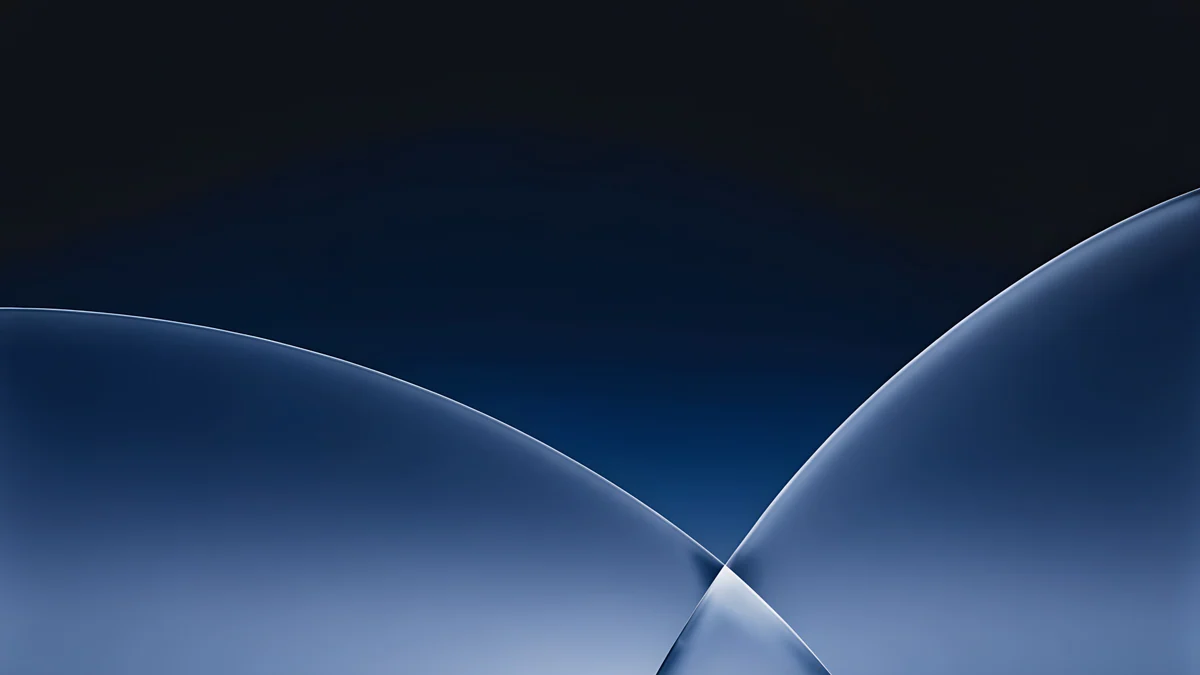 Cobalt Soft Horizon
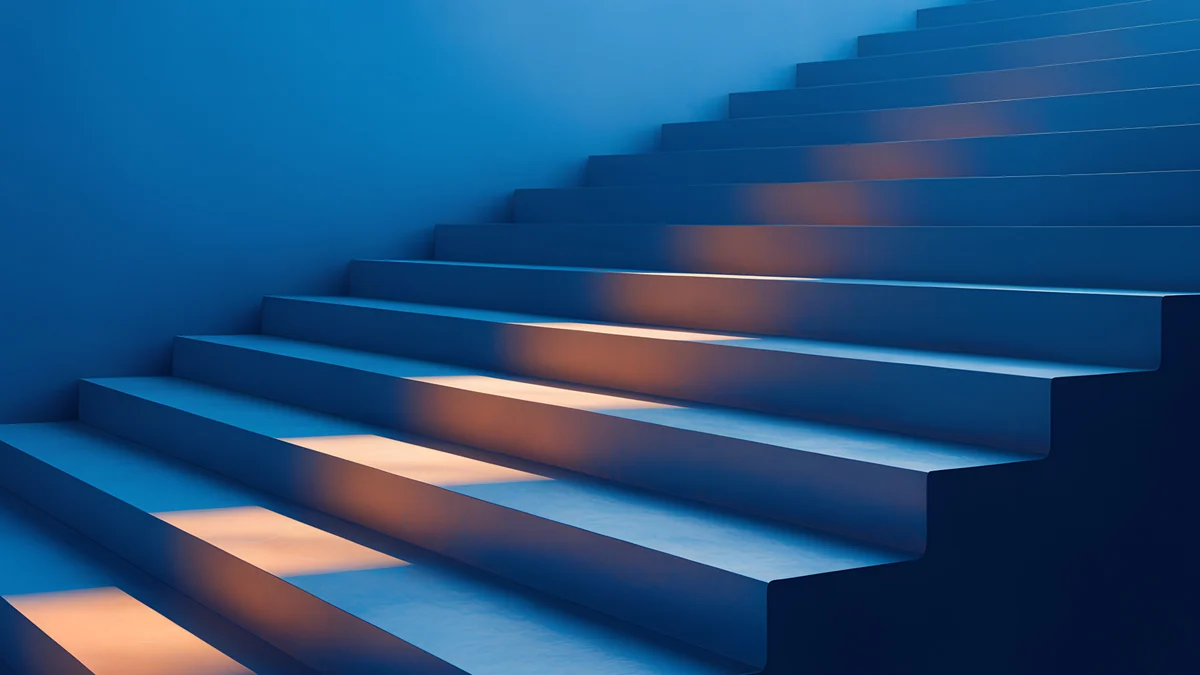 Cobalt Ember Steps
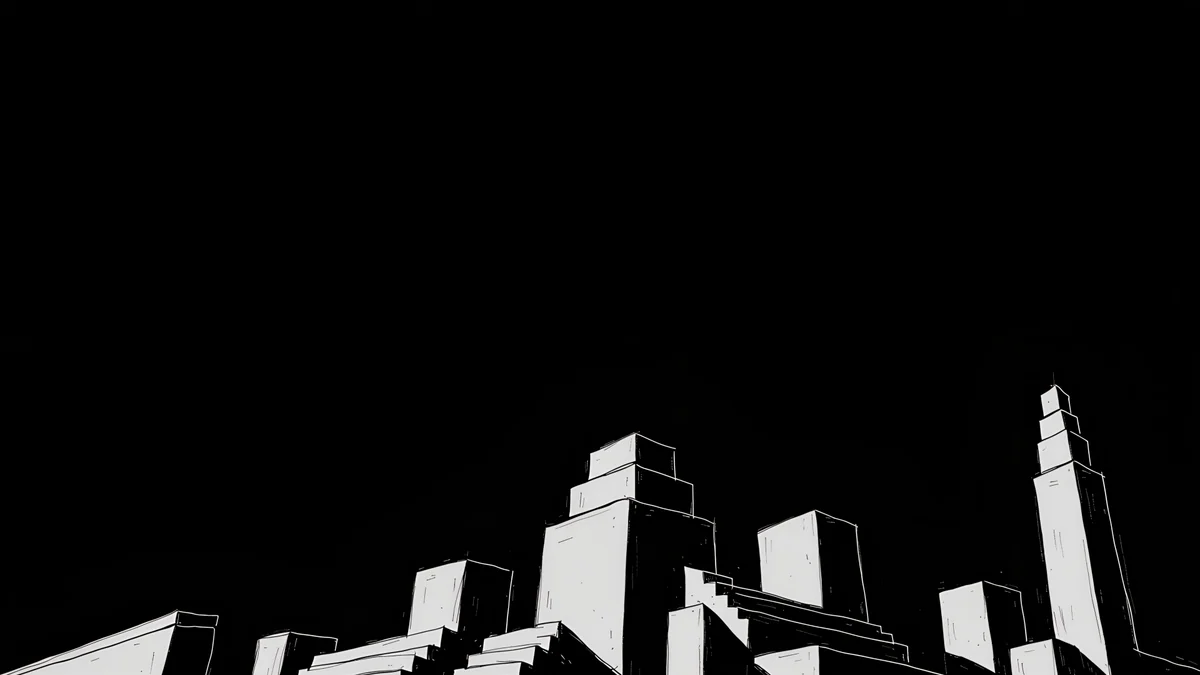 Night Blocks
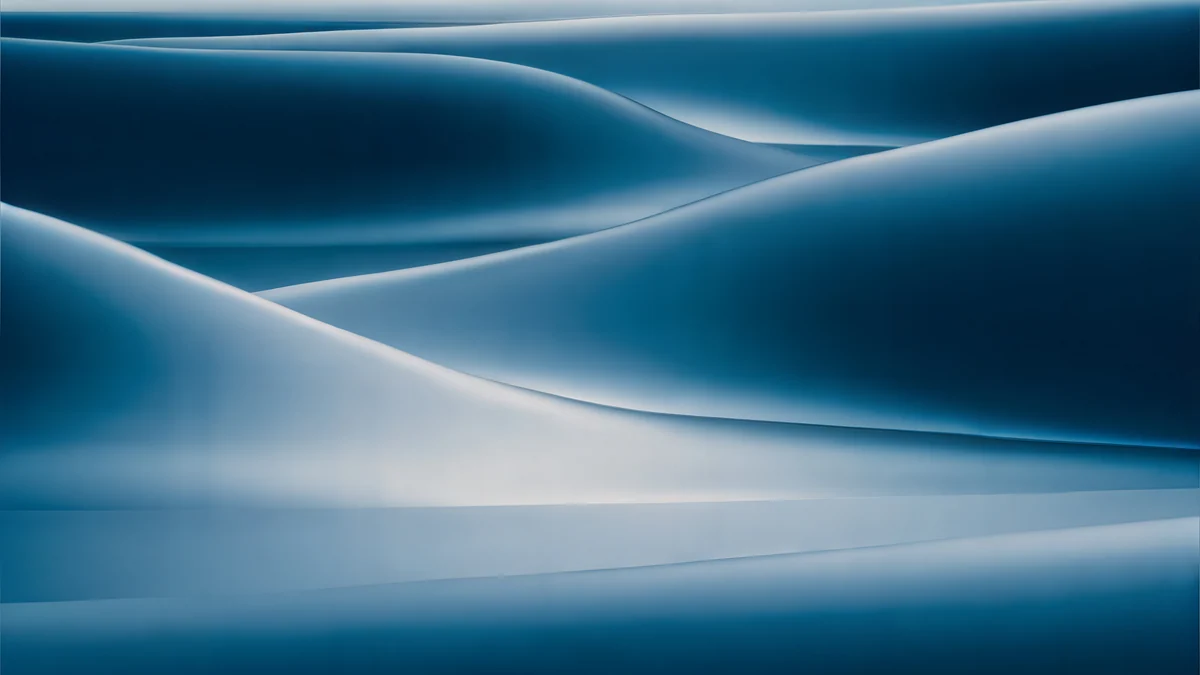 Petrol Current
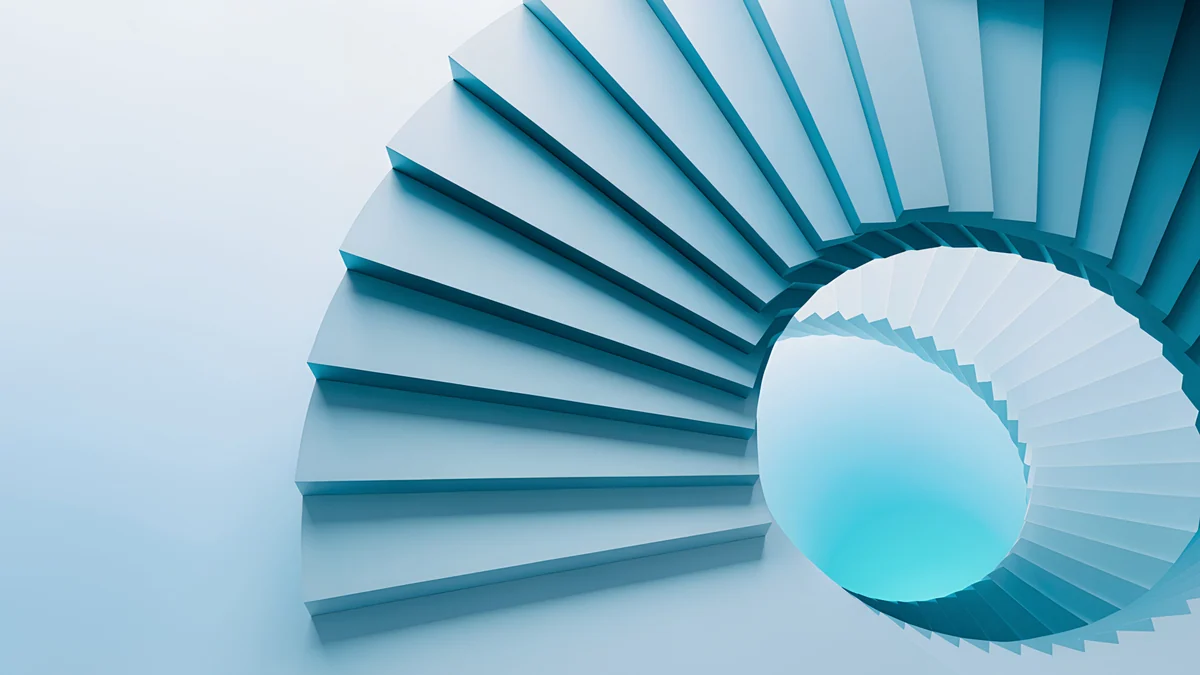 Glacier Spiral Hall
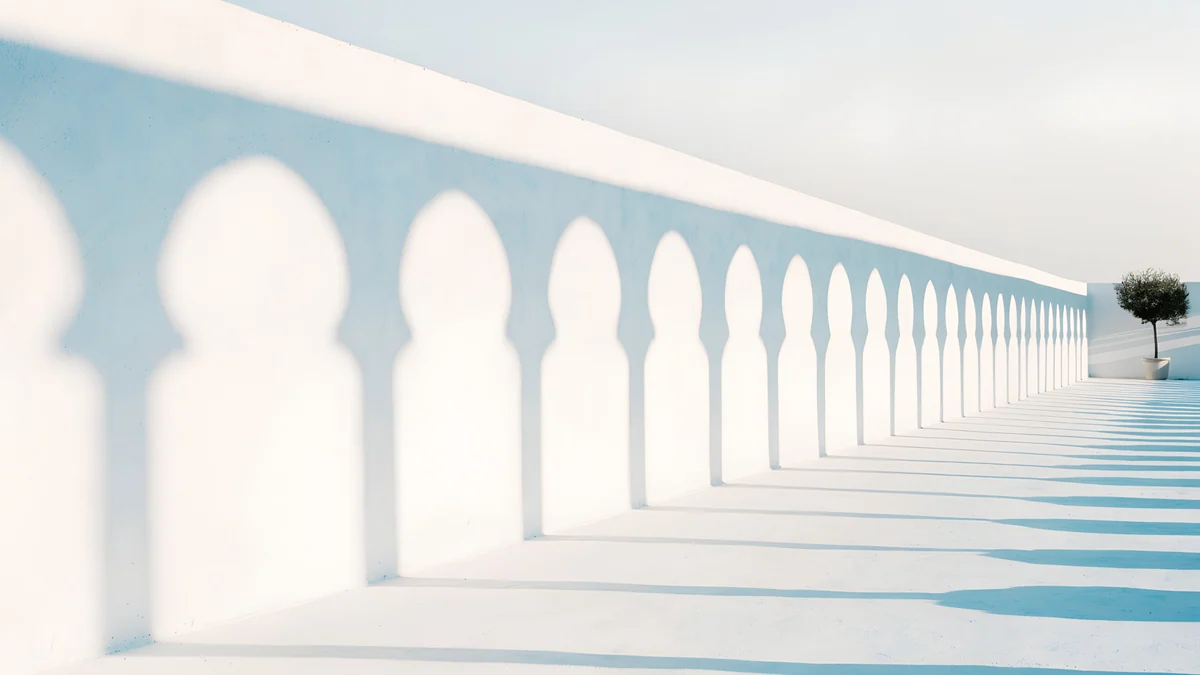 Olive Shadows
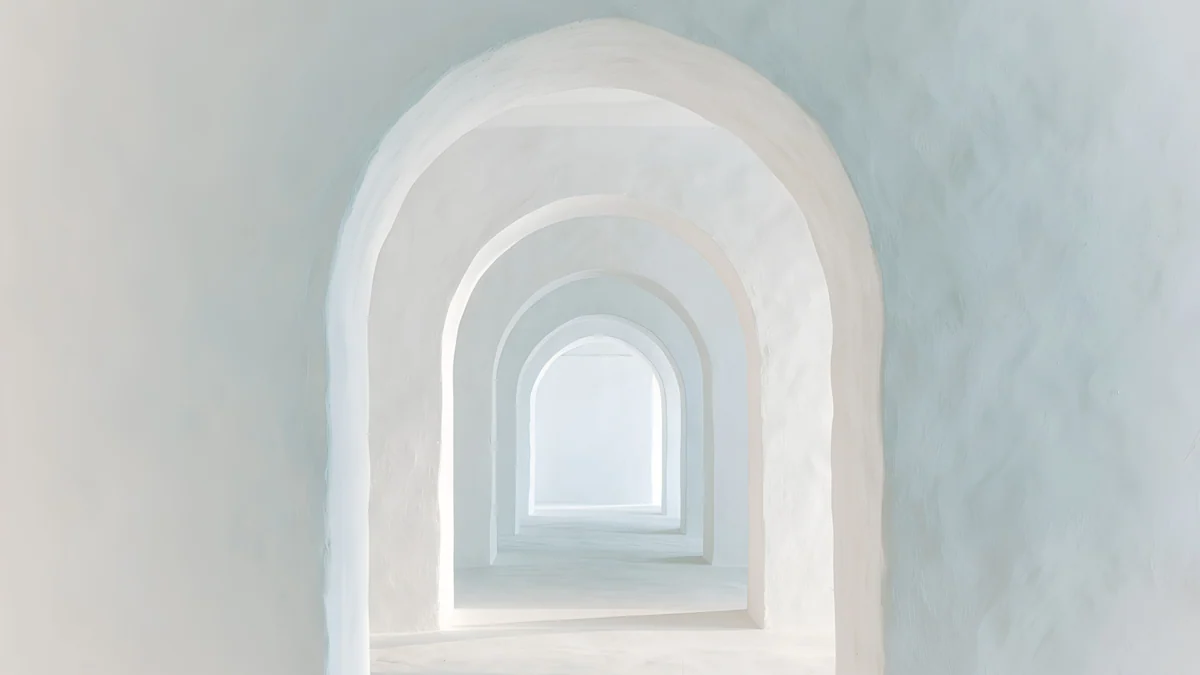 Enfilade
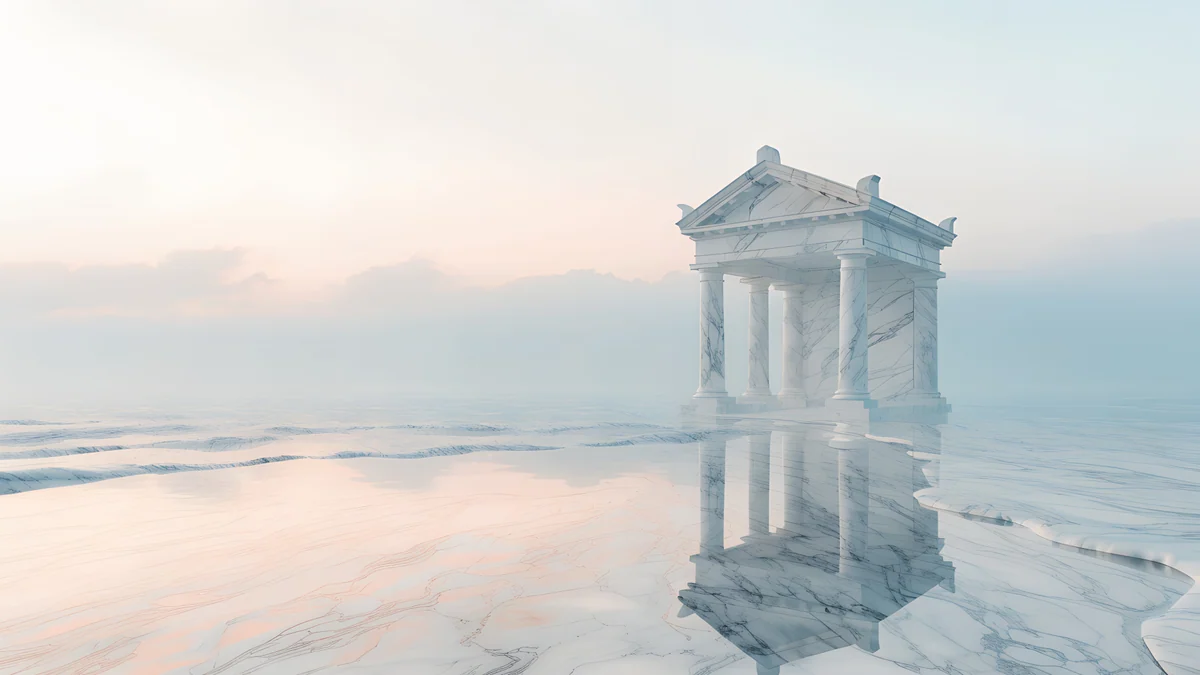 Portico
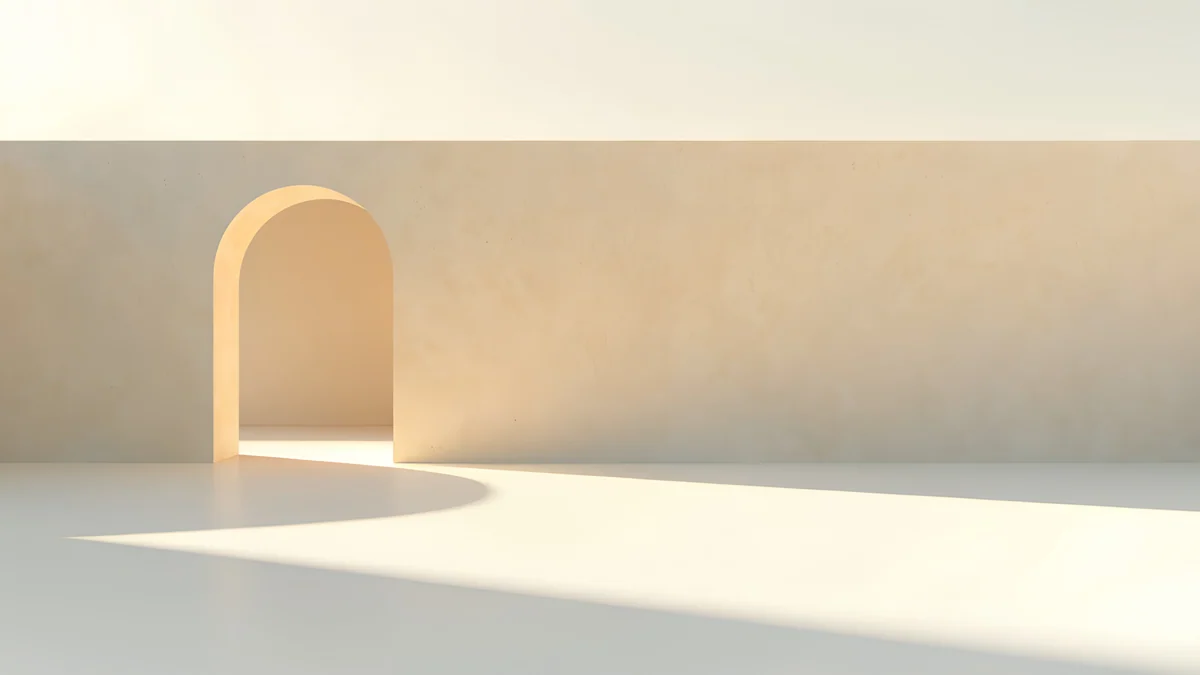 Apricot Noon Hall
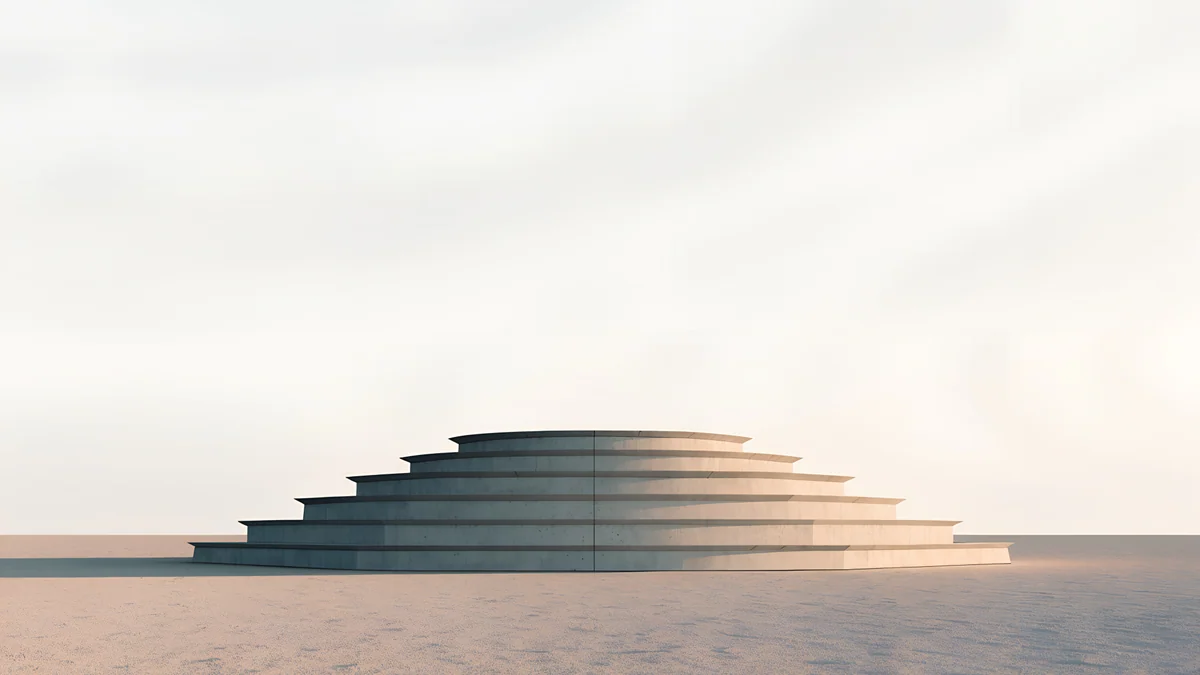 Stepped Ziggurat
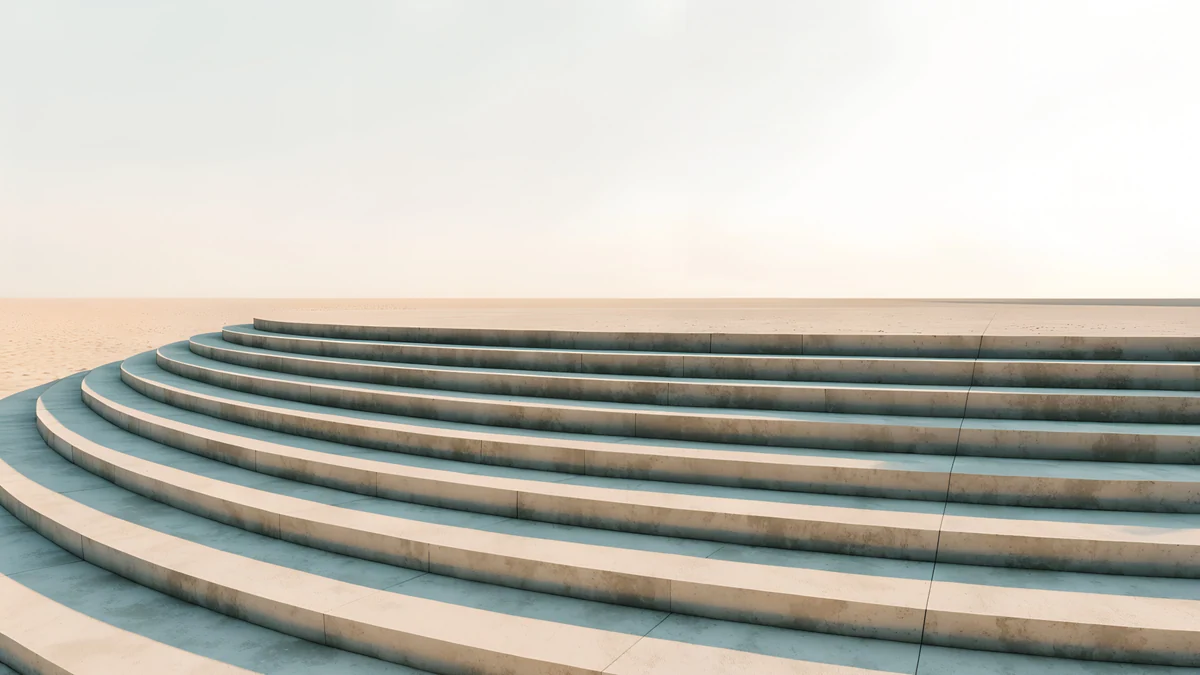 Amphitheatre Steps
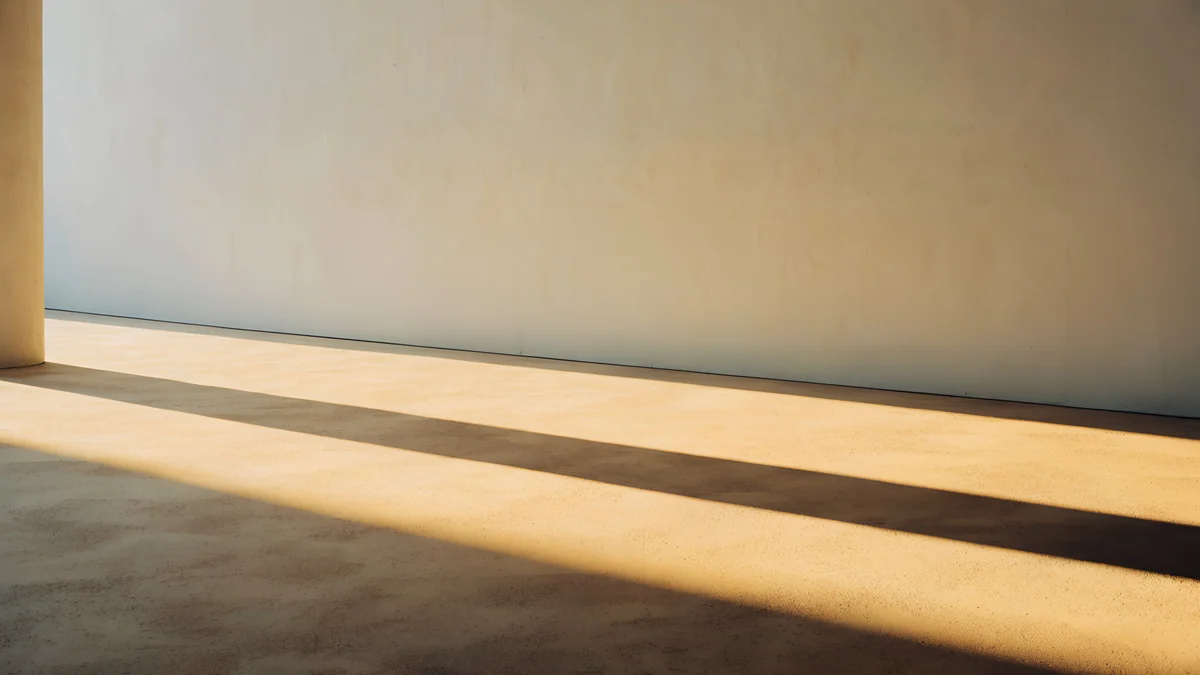 Column Shadow
Free 4K originals for iPhone and Android, no watermark
On this page
- MacBook Air wallpaper size: 13 and 15 inch
- The notch, the menu bar and the Dock
- How to set a wallpaper on a MacBook Air with macOS Tahoe 26
- Midnight: dark wallpapers for the notch
- Sky Blue: pale blue light and white walls
- Starlight: warm sand and late sun
- Silver: concrete and soft grey
- Common problems and fixes
- Get these MacBook Air wallpapers in Velpaper
The best MacBook Air wallpaper is a 4K desktop file with a quiet strip along the top and its main shape away from the far edges. The 13 inch MacBook Air shows 2560 × 1664 pixels and the 15 inch shows 2880 × 1864, so a 3840 × 2160 original is only ever scaled down. The camera notch and the menu bar cover the top centre, the Dock covers the bottom, and macOS trims a thin slice from each side to fit the taller screen.
Below are the exact sizes from Apple's specs, what the notch changes, how to set the picture on macOS Tahoe 26, and four sets of free 4K wallpapers sorted by the four MacBook Air colours.
MacBook Air wallpaper size: 13 and 15 inch
These are the native resolutions Apple lists for the Liquid Retina display, width by height:
| Model | Screen | Resolution | Density |
|---|---|---|---|
| MacBook Air 13 inch (M2, M3, M4, M5) | 13.6 inches | 2560 × 1664 | 224 ppi |
| MacBook Air 15 inch (M2, M3, M4, M5) | 15.3 inches | 2880 × 1864 | 224 ppi |
The current M5 models keep the same two panels as the M2, M3 and M4 generations. Apple lists 500 nits of brightness, support for 1 billion colours, wide colour (P3) and True Tone on both sizes. What it means for a file:
- A 3840 × 2160 desktop wallpaper is bigger than both screens in both directions, so it stays sharp. Both screens are a little taller than 16:9, so Fill Screen trims about 7 percent from the left and right edges.
- A 5120 × 2880 file gives the same crop with even more pixels to spare. It helps if you also plug the MacBook Air into a 5K display.
- A phone wallpaper is the wrong shape. On a landscape laptop screen you would see only a narrow band of it, enlarged.
The notch, the menu bar and the Dock
Since the M2 generation, the MacBook Air camera sits in a notch in the middle of the top edge, and Apple notes that the top corners of the display are rounded. The menu bar runs on both sides of that notch. Three habits make a wallpaper look right:
- Keep the top centre plain. A dark or even sky there lets the black notch fade into the menu bar. A bright shape right behind it makes the notch the first thing you see.
- Expect a see-through menu bar. In macOS Tahoe 26 the menu bar has no background by default, so menu names sit straight on the picture. On a dark top strip the menu text turns light and the whole bar looks like a black band around the notch.
- Leave the bottom quiet. The Dock is glass in Tahoe, so a busy floor behind it makes the icons harder to pick out.
- Watch the right edge if you keep files on the desktop. Finder stacks icons there.
How to set a wallpaper on a MacBook Air with macOS Tahoe 26
- Download the original from the wallpaper page in the Velpaper app for Mac or on velpaper.com. Do not save the preview image from the browser.
- Open the Apple menu, choose System Settings and click Wallpaper in the sidebar.
- Click Add Photo and choose the file. Some versions show it under Your Photos with a separate Choose File step.
- In the pop-up menu next to the preview, choose Fill Screen, not Fit to Screen or Stretch to Fill Screen.
- Open System Settings, then Desktop & Dock, to tidy the rest: turn on Automatically hide and show the Dock for a clean bottom edge, and look at the option that shows the desktop when you click the wallpaper, if you keep clicking it by accident.
- Lock the Mac with Control-Command-Q. The lock screen reuses the desktop picture, with the clock in the top half.
Menu names are from macOS Tahoe 26 in English and can differ slightly in later versions. Faster: Control-click the file in Finder and choose Set Desktop Picture. More on Tahoe itself is in macOS Tahoe wallpaper.
Midnight: dark wallpapers for the notch
For a Midnight MacBook Air, or anyone who keeps Appearance on Dark, these keep the top of the frame near black, so the notch disappears.
Cobalt Soft Horizon4K · DesktopCobalt Ember Steps4K · DesktopNight Blocks4K · DesktopPetrol Current5K · DesktopCobalt Soft Horizon is near black across the top half, with two wide pale blue arcs crossing low in the frame, the cleanest notch match here. Cobalt Ember Steps climbs a deep blue staircase with warm amber light on each step, and keeps its upper left corner plain navy. Night Blocks is pure black with white outlined buildings along the bottom; hide the Dock and the skyline gets the whole lower edge. Petrol Current rolls dark teal waves across a 5120 × 2880 frame, softer than the other three. More dark picks are in our Mac dark mode wallpapers.
Sky Blue: pale blue light and white walls
The Sky Blue MacBook Air is a light, cool blue. These wallpapers repeat it in shadows and sky without filling the screen with colour.
Glacier Spiral Hall looks down into a teal spiral staircase set right of centre in a pale blue wall, with an empty band on top for the menu bar. Olive Shadows runs a white arcade into the distance, its arch shadows pale blue on the floor and a small olive tree at the far end. Enfilade is a tunnel of white arches in cool light, centred, so it survives the side crop untouched. Portico places a small marble temple on the right, standing in a still sea under a pink and blue sky.
Starlight: warm sand and late sun
Starlight is a pale champagne gold. Warm stone and low sunlight match it, and all four keep a light, plain top.
Apricot Noon Hall4K · DesktopStepped Ziggurat4K · DesktopAmphitheatre Steps4K · DesktopColumn Shadow4K · DesktopApricot Noon Hall is a warm sand wall with one arched doorway on the left and sunlight spilling across the floor. Stepped Ziggurat sets a low round stepped platform on sand, far below a soft sky, so nearly the whole screen stays free for windows. Amphitheatre Steps curves pale stone steps through the lower half. Column Shadow lays a band of golden light and one long column shadow across a beige room, the warmest of the set.
Silver: concrete and soft grey
For the Silver model, grey concrete and diffused light look like the aluminium itself and stay neutral behind any app.
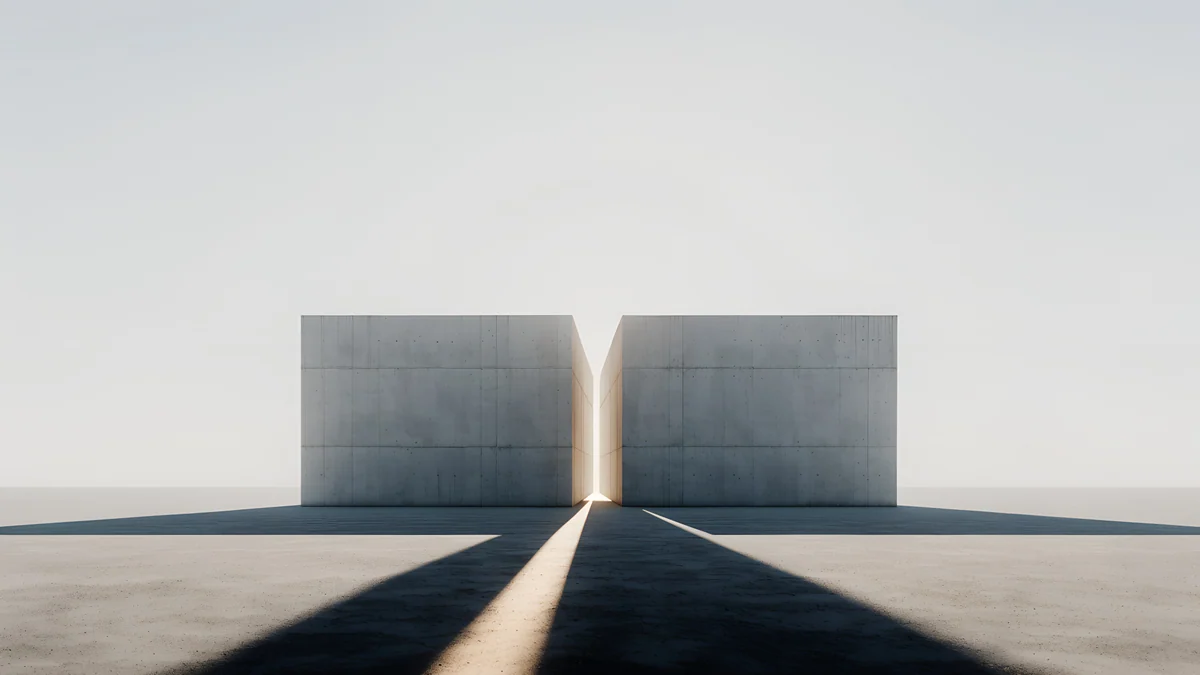
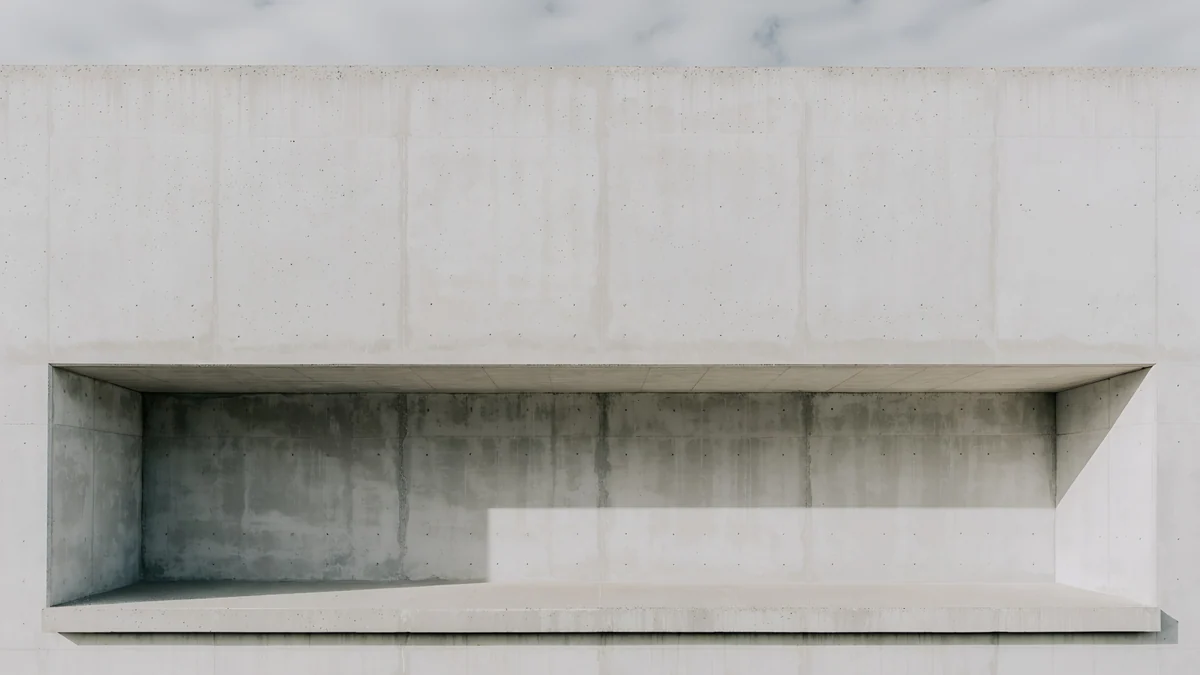
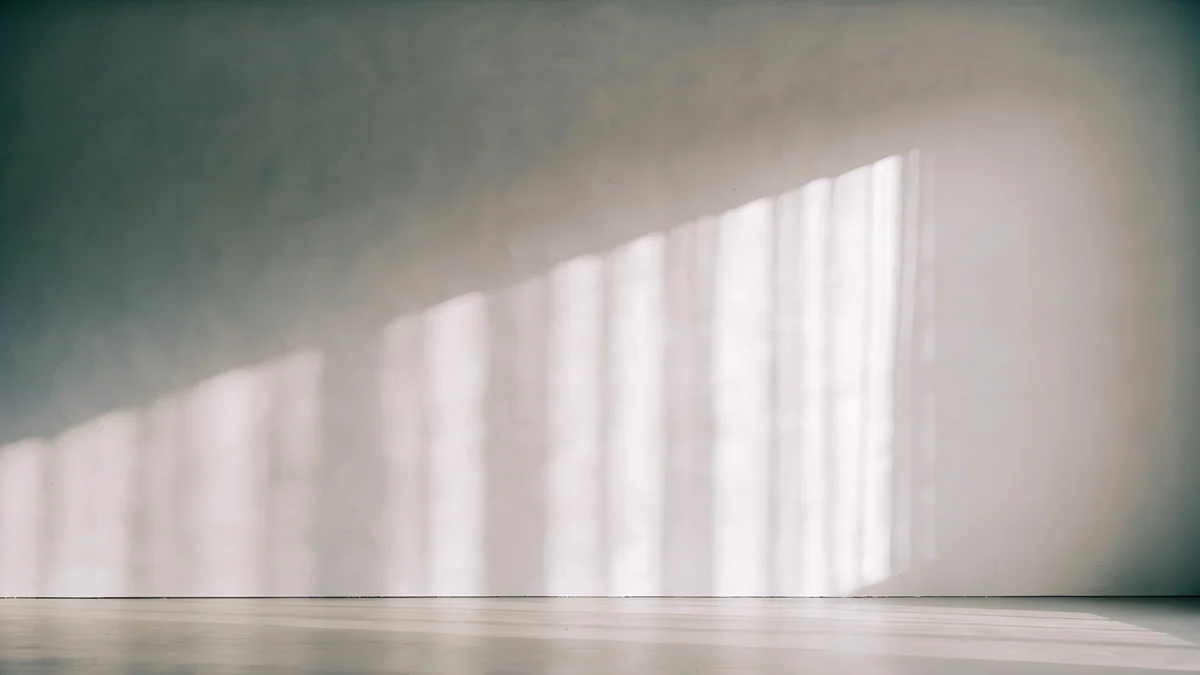
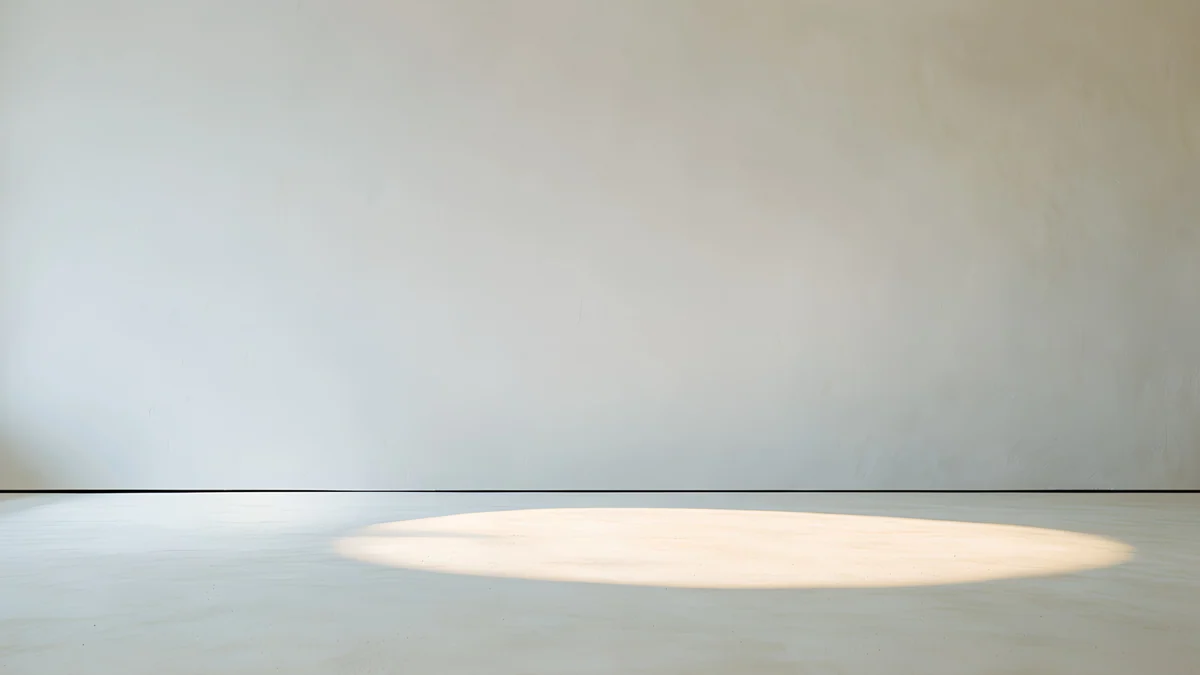
Twin Slabs stands two concrete blocks in the centre with a thin line of light between them and long shadows running toward you. Chalk Recess is a pale concrete wall cut by one long, low niche. Curtain Veil lets soft daylight through a curtain onto a grey wall, the calmest picture on this page. Skylight Circle is an empty grey room with one oval of light on the floor, low enough to sit just above the Dock. If you want a softer, more decorative look, see aesthetic MacBook wallpapers.
Common problems and fixes
- The wallpaper looks soft. The file is smaller than the screen, or you saved a browser preview. Download the 3840 × 2160 original again.
- Something important is cut off at the sides. Fill Screen trims about 7 percent from each side on both sizes. Choose a picture with its subject nearer the centre, or use Fit to Screen and accept thin bars.
- The notch stands out. There is bright detail behind it. Pick a wallpaper with a dark or plain top centre, such as Cobalt Soft Horizon.
- Menu bar text is hard to read. Look in System Settings, Menu Bar for an option to show a menu bar background; the name can differ by update. A calmer top strip also fixes it.
- The lock screen shows an old picture after a restart. With FileVault on, the first screen uses a stored copy. Sign in once and lock again.
For wallpapers aimed at any computer, not only a MacBook Air, see our desktop wallpaper collection.
Get these MacBook Air wallpapers in Velpaper
Velpaper is an app for iPhone, iPad, Mac and Android, and every wallpaper is also on velpaper.com. Desktop wallpapers are 4K and some are 5K, phone wallpapers are 4K originals at 2160 × 3840, all without a watermark and without an account. Every desktop wallpaper in this article downloads for free. For a matching iPhone, Twin Slabs, Glacier Spiral Well and Cobalt Shadow Ascent are the phone versions of Twin Slabs, Glacier Spiral Hall and Cobalt Ember Steps; phone wallpapers unlock after a short optional ad in the Velpaper apps, and on the website the phone original downloads for free if no ad is available. The wallpapers are designed by Carlos Vivero.
Next step: open Cobalt Soft Horizon, download the original and look at your notch disappear.
Original wallpapers in 4K and 5K for iPhone, Android and desktop.
Questions
What size wallpaper does a MacBook Air need?
Apple lists 2560 × 1664 pixels for the 13 inch MacBook Air (13.6 inch screen) and 2880 × 1864 for the 15 inch model (15.3 inch screen), both at 224 pixels per inch. The M2, M3, M4 and M5 generations share these panels. A 3840 × 2160 wallpaper is larger than both in each direction, so macOS only scales it down. Because both screens are slightly taller than 16:9, Fill Screen trims about 7 percent from the left and right edges. A 5120 × 2880 file behaves the same way.
How do I hide the notch on a MacBook Air with a wallpaper?
Use a wallpaper with a dark or plain top centre. The camera notch is black, so when the strip behind it is near black, the notch and the menu bar blend into one dark band. In macOS Tahoe 26 the menu bar has no background by default, which makes the top of the picture matter even more. Cobalt Soft Horizon and Night Blocks are near black across the top. Light wallpapers can work too, as long as nothing bright or detailed sits right behind the notch.
How do I change the wallpaper on a MacBook Air with macOS Tahoe?
Download the original file, then open the Apple menu, choose System Settings and click Wallpaper. Click Add Photo, pick the file and set the menu next to the preview to Fill Screen. You can also Control-click the file in Finder and choose Set Desktop Picture. The lock screen reuses the desktop picture, so one change covers both. Menu names are from macOS Tahoe 26 and can differ slightly in later versions. Desktop and Dock settings, such as hiding the Dock, live in System Settings, Desktop and Dock.
Can one wallpaper fit both the 13 and 15 inch MacBook Air?
Yes. Both screens have almost the same shape, about 1.54 to 1, and the same 224 pixels per inch, so a single 3840 × 2160 file looks the same on either. macOS scales it down to the screen height and trims a similar slice from each side on both sizes, about 7 percent. You do not need separate files for the 13 and 15 inch models. Keep the main subject away from the far left and right edges and from the top centre, and the picture will look right on both.
Are these MacBook Air wallpapers free?
Yes. Every desktop wallpaper in this article, from Cobalt Soft Horizon to Skylight Circle, downloads for free on velpaper.com and in the Velpaper app for Mac, as a 4K or 5K original without a watermark and without an account. Velpaper is also available for iPhone, iPad and Android. Phone wallpapers, such as the matching Twin Slabs version for iPhone, unlock after a short optional ad in the apps; on the website, if no ad is available, the phone original downloads for free.
Sources
- Apple: MacBook Air technical specifications apple.com
- Apple Support: MacBook Air (13-inch, M4, 2025) tech specs support.apple.com
Carlos Vivero
Designer of Velpaper wallpapers
Carlos Vivero designs the wallpapers in Velpaper: quiet architecture, liquid glass, Japanese ink and calm landscapes. Every piece is made as a 4K original for iPhone, Android and desktop.
Recent work








