macOS Tahoe Wallpaper: Change Desktop and Lock Screen
How to change the wallpaper on macOS Tahoe 26, why the lock screen uses the same picture, and how to choose one that looks good behind Liquid Glass.
In short: On macOS Tahoe, open System Settings, click Wallpaper, then pick one of Apple's pictures or click Add Photo and choose your own file with Fill Screen. There is no separate lock screen setting: the lock screen shows the same picture as the desktop, with the clock on top.
By the Velpaper team · Wallpapers by Carlos Vivero, Velpaper designer · · 6 min read
Free 4K originals for iPhone and Android, no watermark
On this page
To change the wallpaper on macOS Tahoe 26, open System Settings, click Wallpaper and pick one of Apple's pictures, or click Add Photo to use your own file and set the menu next to it to Fill Screen. The lock screen has no setting of its own: it shows the same picture as your desktop, with a large clock at the top, so changing one changes both. For a sharp result on a Retina screen, use a 3840 × 2160 or 5120 × 2880 original.
How to change the desktop wallpaper on macOS Tahoe
- Open the Apple menu and choose System Settings.
- Click Wallpaper in the sidebar. You may need to scroll down to see it.
- To use one of Apple's pictures, click it in one of the groups, such as Dynamic Wallpapers, Landscape or Cityscape. Group names can change between updates.
- To use your own image, click Add Photo and choose a file, a folder or a picture from Photos. Some versions show Add Folder as its own button.
- In the pop-up menu next to the preview, choose Fill Screen. Fit to Screen leaves bars at the edges and Stretch to Fill Screen distorts the picture.
- With several displays or Spaces, turn on Show on all Spaces for one picture everywhere, or leave it off and set each display separately.
The quick route skips Settings entirely: Control-click an image file in Finder and choose Set Desktop Picture. More options, including Photos and Safari shortcuts, are in our guide to changing the desktop wallpaper on a Mac.
The lock screen on macOS Tahoe
Since macOS Sonoma, the Mac lock screen shows your desktop picture in full, with the time large at the top and your account picture and password field near the bottom. Tahoe keeps that layout. There is still one wallpaper per display, so to change the lock screen you change the desktop wallpaper, then lock the Mac with Control-Command-Q to check it.
Two settings change what people see when the Mac is idle:
- System Settings, Screen Saver: choose a photo style and point it at a folder or album if you want different pictures to play while you are away.
- System Settings, Lock Screen: set when the screen saver starts, when the display turns off and when a password is required. The same pane can show a short message on the lock screen, handy on a work laptop.
If the first screen after a restart shows an old picture, FileVault is showing a stored copy from before you signed in. Set the wallpaper again, sign in once, and it catches up. Details are in our Mac lock screen wallpaper guide.
Choosing a wallpaper for Liquid Glass
Tahoe's Liquid Glass design makes the Dock, the menu bar, sidebars and widgets more see-through, so the wallpaper shows through them far more than in earlier versions. In Tahoe the menu bar has no background by default, and the menu text sits straight on the picture. That changes what makes a good desktop:
- Keep the top strip calm. A plain sky or wall under the menu bar keeps menu names and status icons readable.
- Watch the bottom edge. The Dock is glass now, so a busy pattern behind it makes the icons harder to pick out.
- Mid-tones beat extremes. Very bright white can make light glass hard to read, and pure black hides the edges of the glass panels.
- Match the icon style. Tahoe adds icon and widget styles, including clear and tinted looks, under System Settings, Appearance; the exact names can differ by update. Clear icons pick up the colours of the wallpaper, so a soft, low-contrast picture keeps them legible.
If the menu bar is hard to read on your picture, look in System Settings, Menu Bar for an option that shows a menu bar background, or switch to a calmer wallpaper.
Wallpapers that look right on Tahoe
All six keep the top of the frame quiet and put their main shape low or to one side, away from the menu bar and the lock screen clock.
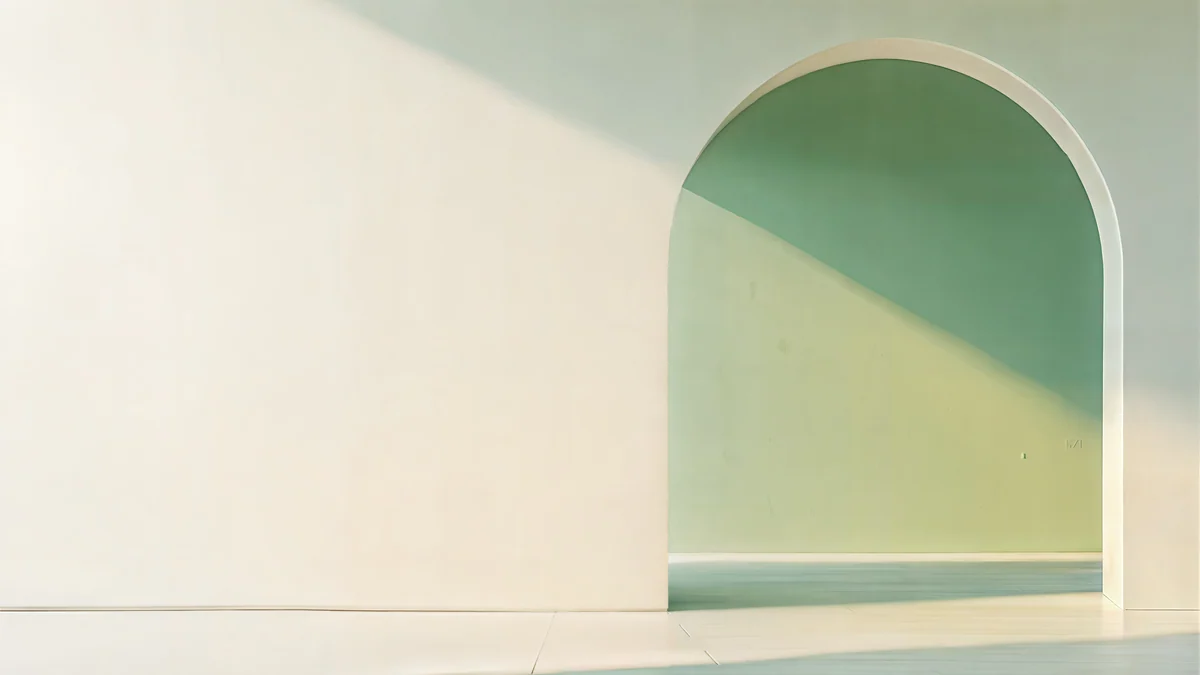 Sage Sun Gallery5K · Desktop
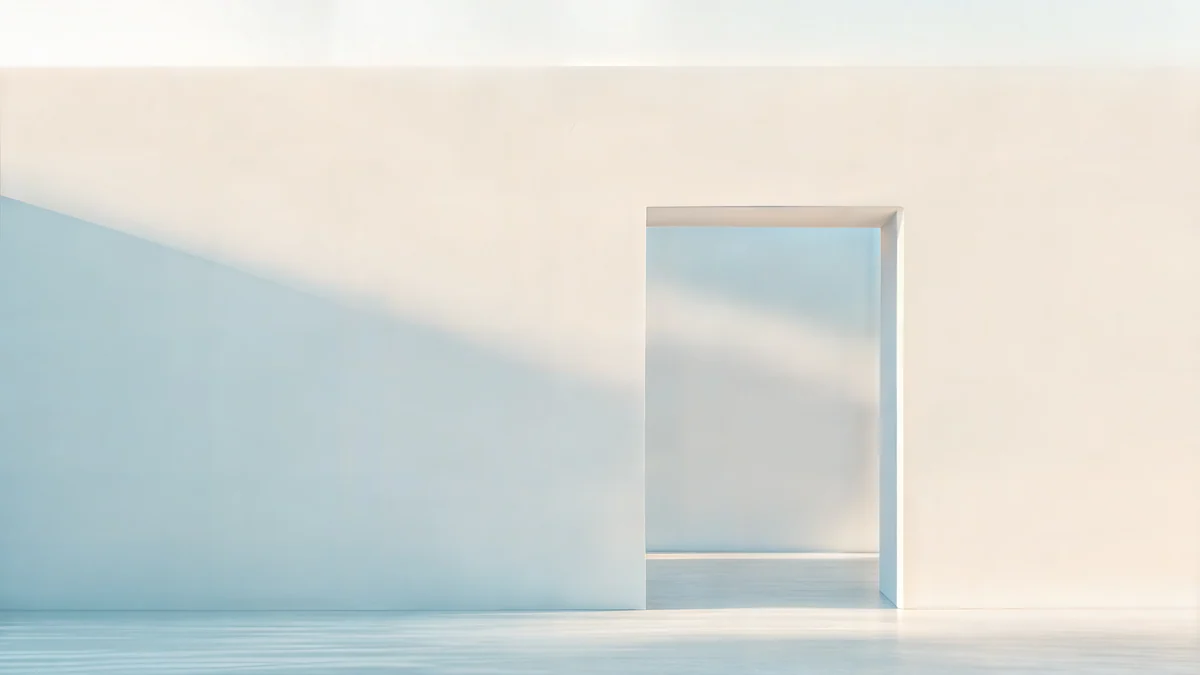 Ivory Daylight Gate5K · Desktop
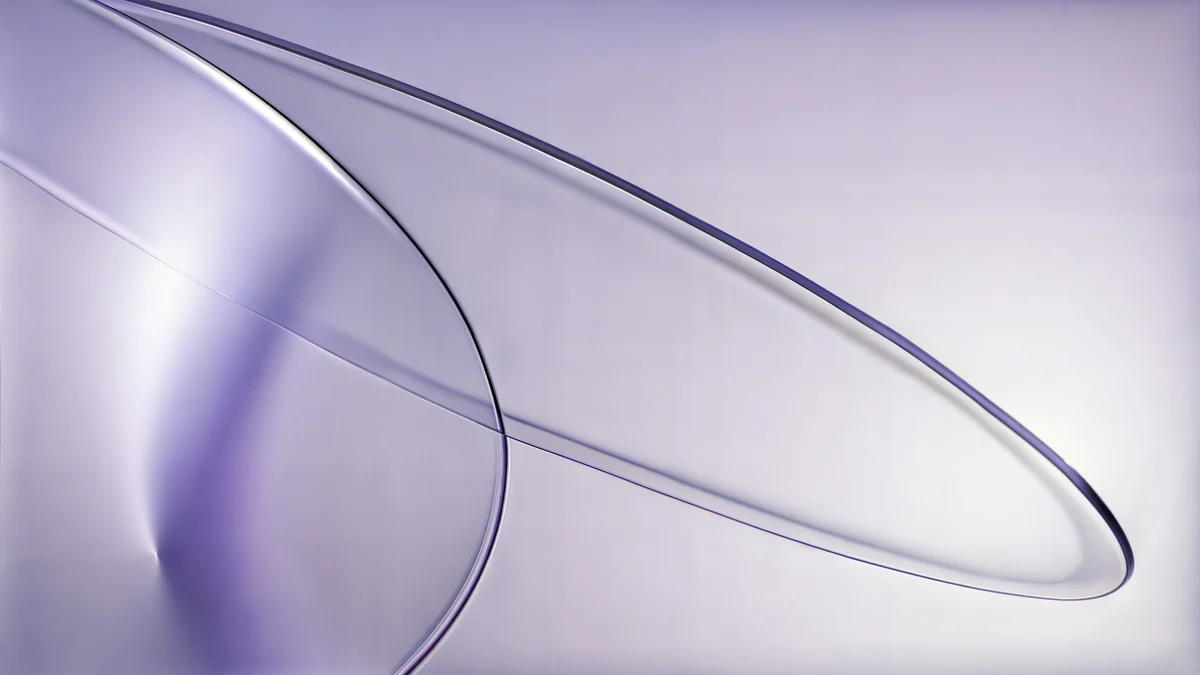 Lilac Drift5K · Desktop
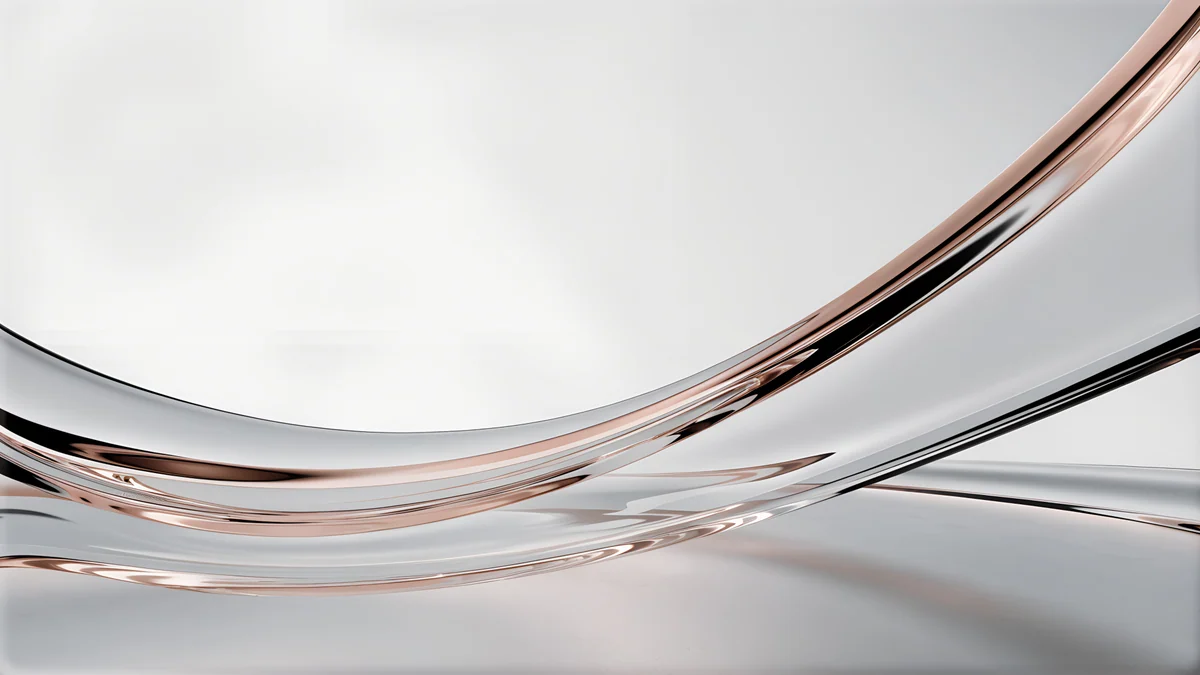 Liquid Light Band4K · Desktop
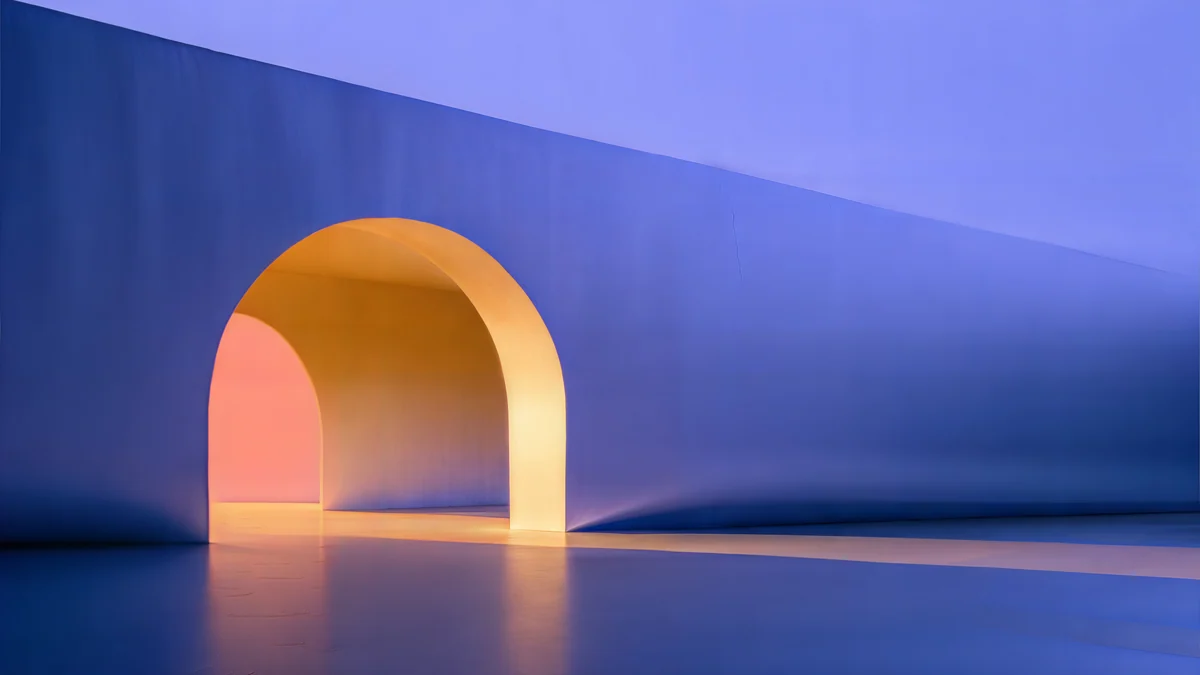 Solar Indigo Gate5K · Desktop
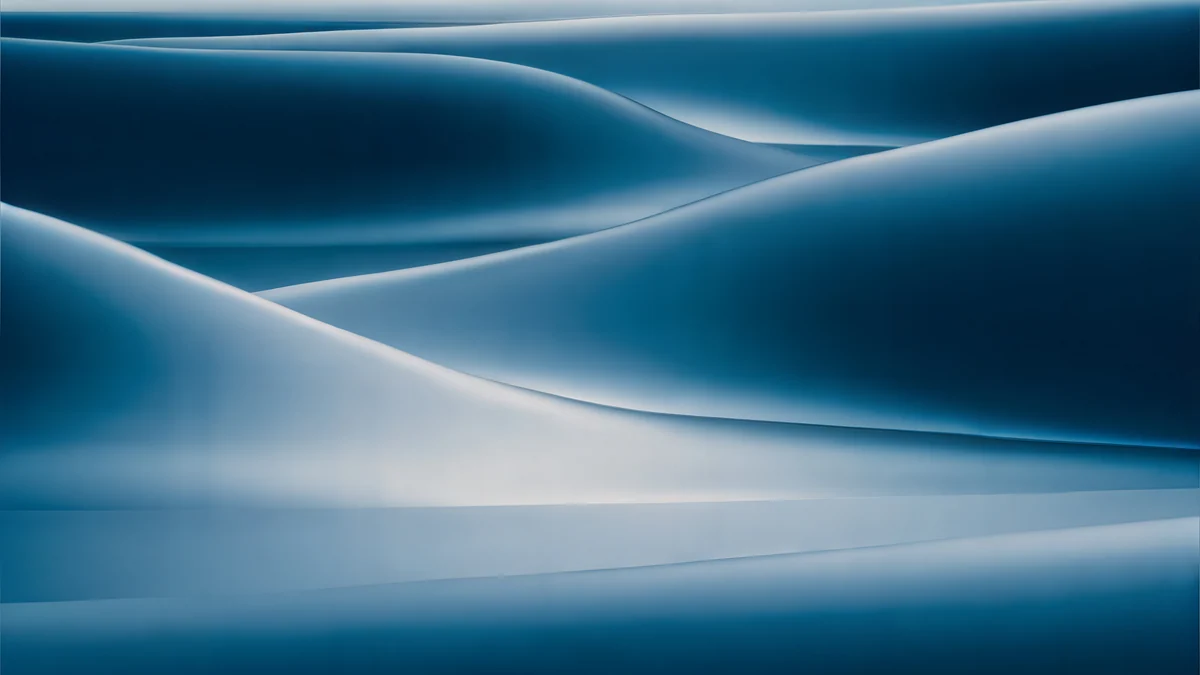 Petrol Current5K · Desktop
Sage Sun Gallery is a pale plaster wall with one green arch to the right, so the clock and the password field both land on plain wall. Ivory Daylight Gate is ivory and pale blue with a tall doorway, light enough for dark menu text. Lilac Drift is two glass rings on a soft violet field, the closest match to the glass look of the Dock. Liquid Light Band is a ribbon of clear glass with a copper edge on pale grey, low in the frame. Solar Indigo Gate is the dark option: deep indigo with a warm orange arch, made for dark mode. Petrol Current rolls dark teal dunes across the frame, calm enough for widgets. Sage Sun Gallery, Ivory Daylight Gate, Lilac Drift, Solar Indigo Gate and Petrol Current are 5120 × 2880; Liquid Light Band is 3840 × 2160.
For a darker set, see our Mac dark mode wallpapers; for wallpapers that change with the time of day, see how to make a dynamic wallpaper on Mac.
Common problems and fixes
- Blurry wallpaper. The file is smaller than the screen. A MacBook needs at least 3840 × 2160 to look sharp, and a 5K iMac or Studio Display needs 5120 × 2880.
- Bars at the edges or a squashed picture. The menu is on Fit to Screen or Stretch to Fill Screen. Choose Fill Screen.
- The lock screen still shows the old picture. Lock and sign in once with the new wallpaper; after a restart, FileVault may show a cached copy until then.
- Only one display changed. Turn on Show on all Spaces, or click each display's preview and set it there.
- Menu bar text is hard to read. The top of the picture is too busy or too close in brightness to the text. Choose a wallpaper with a plain top strip, or turn on a menu bar background in Menu Bar settings if your version has it.
- The wallpaper resets. The file was moved or deleted. Keep wallpapers in one folder, such as Pictures.
- The setting is locked. A work or school Mac can be managed by an administrator. Only they can change it.
Apple's own page, Customize the wallpaper on your Mac, covers every option in the Wallpaper pane.
Getting the wallpapers in Velpaper
Every Velpaper wallpaper is an original by designer Carlos Vivero. Desktop wallpapers are 3840 × 2160, some are 5120 × 2880, and phone wallpapers are 2160 × 3840. Velpaper is an app for iPhone, iPad, Mac and Android, with the same catalog on velpaper.com, and the desktop wallpapers are free in full size with no account and no watermark.
- Open Sage Sun Gallery in the Velpaper app for Mac or on velpaper.com.
- In the app, press Set as Desktop Picture. On the website, press Download, then Control-click the file in Finder and choose Set Desktop Picture.
- Lock the Mac with Control-Command-Q to see it behind the clock.
Want the same look on your phone? Our guide to matching phone and desktop wallpapers shows how to pair a Mac wallpaper with a phone one.
Original wallpapers in 4K and 5K for iPhone, Android and desktop.
Questions
How do I change the wallpaper on macOS Tahoe?
Open the Apple menu, choose System Settings and click Wallpaper in the sidebar. Click one of Apple's pictures, or click Add Photo to choose your own file, a folder or an image from Photos. Then set the pop-up menu next to the preview to Fill Screen so the picture covers the display without distortion. With several displays or Spaces, turn on Show on all Spaces to use one picture everywhere. A faster route for a downloaded file is to Control-click it in Finder and choose Set Desktop Picture. Use a 3840 × 2160 or 5120 × 2880 original so it stays sharp on a Retina screen.
Can I set a different lock screen wallpaper on macOS Tahoe?
No. macOS Tahoe, like Sonoma and Sequoia before it, has no separate lock screen wallpaper. The lock screen shows the same picture as the desktop of that display, with a large clock at the top and the password field near the bottom. To change the lock screen, change the desktop wallpaper in System Settings, Wallpaper, then lock the Mac to check. If you want something different to show while you are away, use the screen saver: set a photo style and a folder in System Settings, Screen Saver, and choose when it starts and when a password is required in System Settings, Lock Screen.
Why is my menu bar hard to read on macOS Tahoe?
Tahoe's Liquid Glass design shows the menu bar without a background by default, so the menu names and status icons sit straight on your wallpaper. If the top of the picture is busy, very bright or close in tone to the text, it becomes hard to read. The easiest fix is a wallpaper with a calm top strip, such as plain sky, wall or a soft gradient; Sage Sun Gallery and Ivory Daylight Gate on Velpaper are built that way. You can also look in System Settings, Menu Bar for an option that shows a menu bar background. The exact name of that setting can differ between Tahoe updates.
What size wallpaper do I need for a Mac on Tahoe?
Match or exceed the real pixel count of your screen. MacBook Air and MacBook Pro panels range from 2560 × 1664 to 3456 × 2234 pixels, the 24 inch iMac is 4480 × 2520, and the Studio Display and 27 inch 5K iMac are 5120 × 2880. A 3840 × 2160 file looks sharp on any MacBook, and a 5120 × 2880 file covers every current Apple display except Pro Display XDR, where macOS enlarges it slightly. Set the menu to Fill Screen; it keeps the proportions and trims a thin strip from the edges of screens that are not exactly 16:9, such as MacBook panels.
Where can I get wallpapers that suit Liquid Glass?
Look for pictures with a calm top strip, mid-tone colours and the main shape low or to one side, so the glass menu bar, the Dock and the lock screen clock all sit on quiet areas. In Velpaper, Sage Sun Gallery, Ivory Daylight Gate, Lilac Drift and Liquid Light Band are light options built that way, and Solar Indigo Gate and Petrol Current are darker ones for dark mode. They are originals by designer Carlos Vivero at 5120 × 2880 or 3840 × 2160, free in full size on velpaper.com and in the Velpaper app for Mac, where Set as Desktop Picture applies them in one click.
Carlos Vivero
Designer of Velpaper wallpapers
Carlos Vivero designs the wallpapers in Velpaper: quiet architecture, liquid glass, Japanese ink and calm landscapes. Every piece is made as a 4K original for iPhone, Android and desktop.
Recent work








