Galaxy Watch Face Photo: How to Set Your Own Picture
Galaxy Watch face photo step by step: set your own picture with the Galaxy Wearable app, crop it for a round screen, and choose images that read well.
In short: To put a photo on a Galaxy Watch face, open the Galaxy Wearable app on your phone, go to Watch faces, choose the photo face (My Photos or Photos, depending on the model), tap Customize, add pictures from your Gallery and save. Pick images with one clear shape in the centre, because the round screen cuts the corners.
By the Velpaper team · Wallpapers by Carlos Vivero, Velpaper designer · · Updated · 5 min read
Free 4K originals for iPhone and Android, no watermark
On this page
The Galaxy Watch has no "set as wallpaper" button like a phone. Instead, Samsung includes a watch face built around your own pictures, and you fill it from the phone. Once you know where it lives, putting a photo on the Galaxy Watch face takes about a minute.
This guide covers the Galaxy Wearable route step by step, the screen sizes of recent models, and how to choose and crop a picture so it still reads on a round screen less than four centimetres across.
How to set a photo as your Galaxy Watch face
These steps are for the Galaxy Watch4 and every newer model, which run Wear OS with Samsung's One UI Watch. They pair only with Android phones, and everything happens in the Galaxy Wearable app.
- Make sure the watch is connected, then open Galaxy Wearable on the phone.
- Tap Watch faces.
- Scroll to the photo face. Its name depends on the watch and its software version: look for My Photos or Photos.
- Tap it to apply it to the watch, then tap Customize.
- Open the background or photo option and add pictures from the phone's Gallery.
- Pinch and drag each picture inside the round frame until the part you want sits in the circle.
- Choose the clock style and colour, then tap Save.
You can usually add more than one photo. On most versions, a tap on the watch screen moves to the next picture, so a small set of four or five works like a slideshow on your wrist.
You can also start on the watch itself. Touch and hold the current face, swipe to the end of the list, tap the plus sign to add a face and pick the photo face. The pictures themselves are still chosen on the phone, so Galaxy Wearable opens there to finish the job.
Older Galaxy watches on Tizen, such as the Galaxy Watch3 and Watch Active2, use an earlier version of Galaxy Wearable with a similar photo face. The menu names differ a little, but the idea is the same.
Galaxy Watch screen sizes
A watch face photo is shown on a round screen of a few hundred pixels. These are the native resolutions of recent models as Samsung lists them.
| Model | Screen (pixels) |
|---|---|
| Galaxy Watch4 and Watch5, 40 mm | 396 × 396 |
| Galaxy Watch4 and Watch5, 44 mm | 450 × 450 |
| Galaxy Watch5 Pro, 45 mm | 450 × 450 |
| Galaxy Watch6 and Watch7, 40 mm | 432 × 432 |
| Galaxy Watch6 and Watch7, 44 mm | 480 × 480 |
| Galaxy Watch Ultra, 47 mm | 480 × 480 |
Newer models follow the same pattern. If yours is not in the table, Samsung's spec page for it lists the exact figure. In practice the number matters little: any normal phone photo or wallpaper is far larger, and Galaxy Wearable scales it down for you. What decides how it looks is the crop.
What kind of picture works on a round watch face
A phone wallpaper is a tall rectangle. The watch takes a square from it and then hides the four corners behind a circle. Roughly the middle third of a tall wallpaper ends up on your wrist.
- One shape in the centre. A moon, an arch, a single flower. Anything near the edges of the original disappears.
- Strong contrast. Fine texture turns to mush at 480 pixels. Big areas of light against dark survive.
- A quiet area for the time. The digits sit on top of the photo. A plain sky or wall behind them keeps the time readable at a glance.
- Dark backgrounds. Galaxy Watch screens are AMOLED, where black pixels are switched off. A mostly dark photo looks crisp and draws a little less power than a bright one.
Family photos follow the same rule. A close-up of one face works much better than a group shot, where everyone shrinks to a few pixels.
Wallpapers that suit a Galaxy Watch face
If you would rather use artwork than a photo, these Velpaper phone wallpapers have their main shape in the centre, so the round crop keeps what matters.
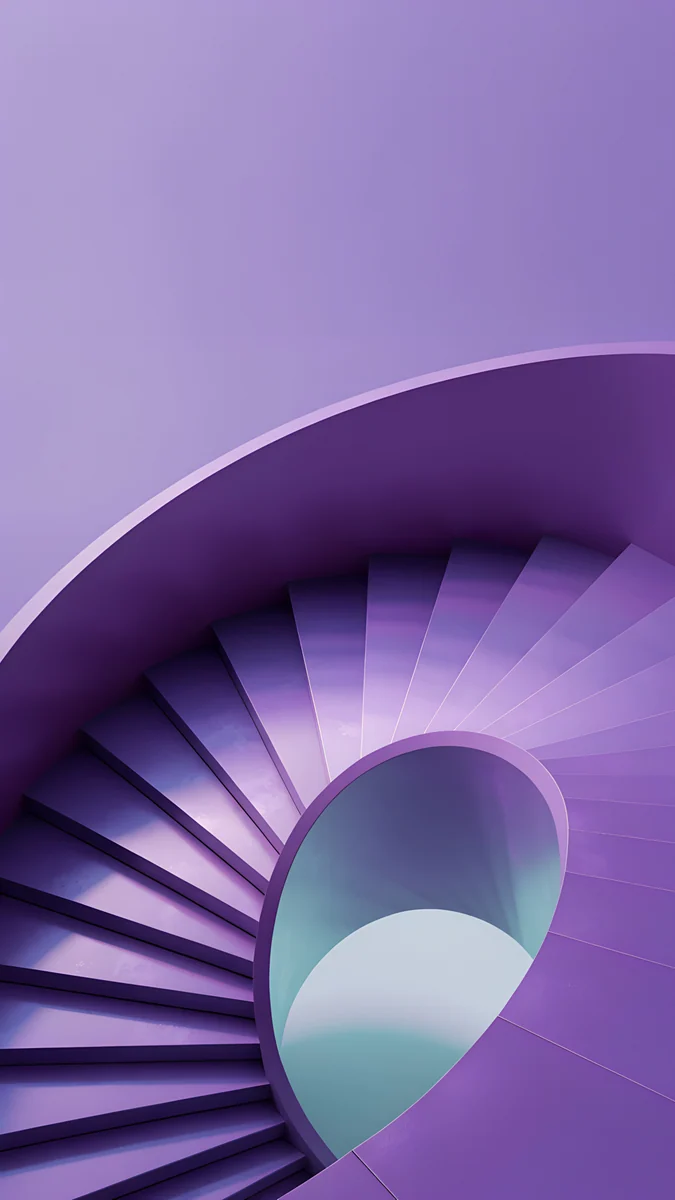 Violet Spiral Descent4K · Phone
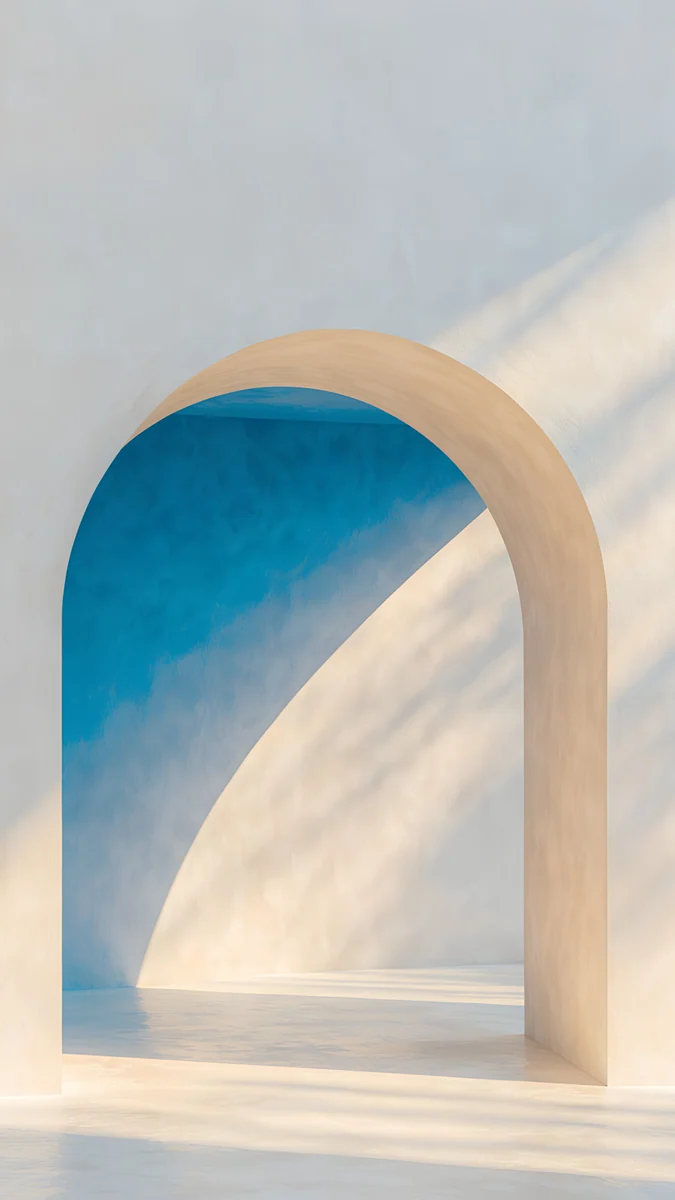 The Blue Arch4K · Phone
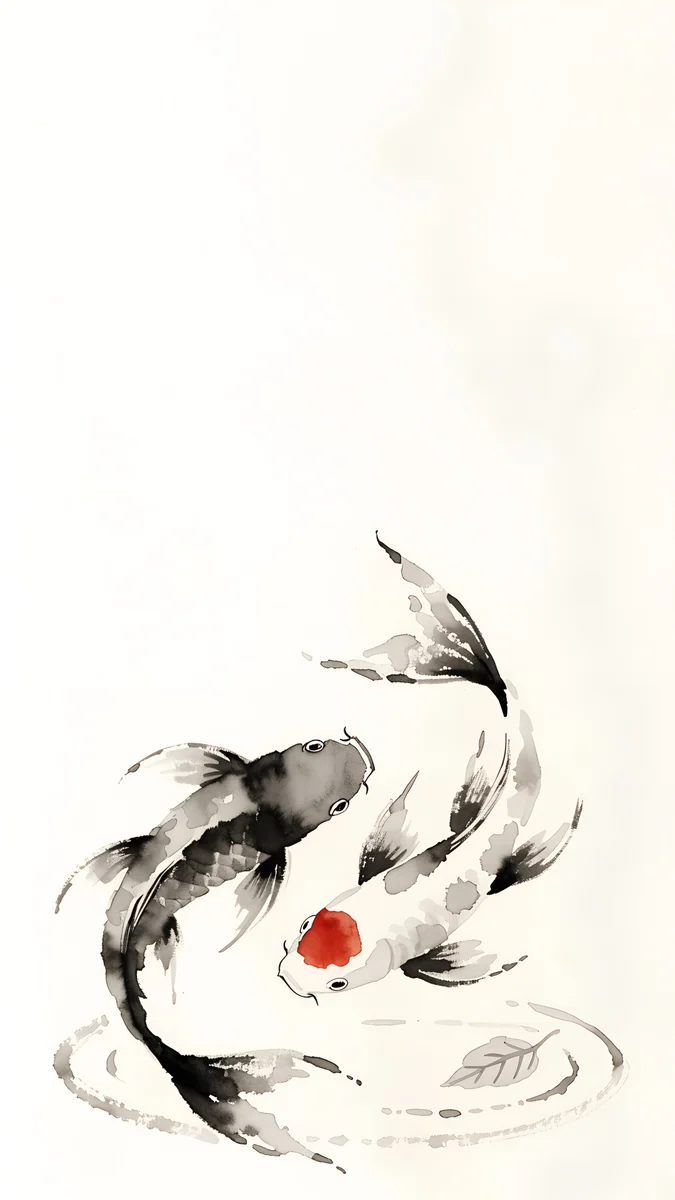 Koi Drift4K · Phone
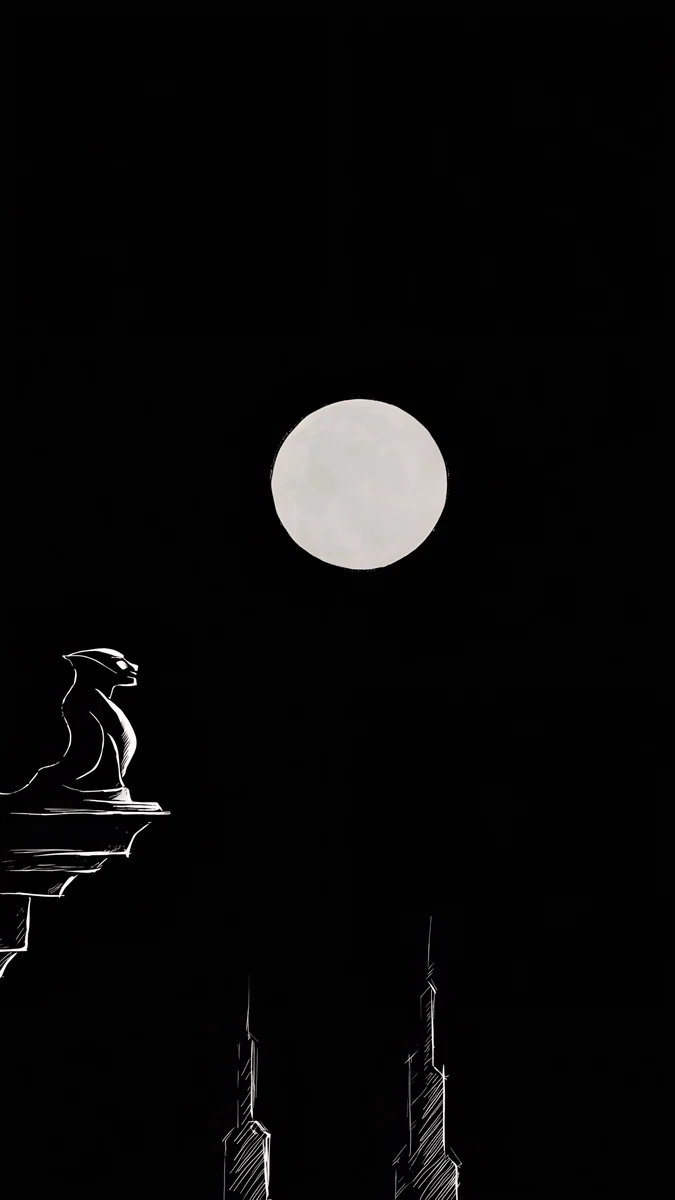 Moon Ledge4K · Phone
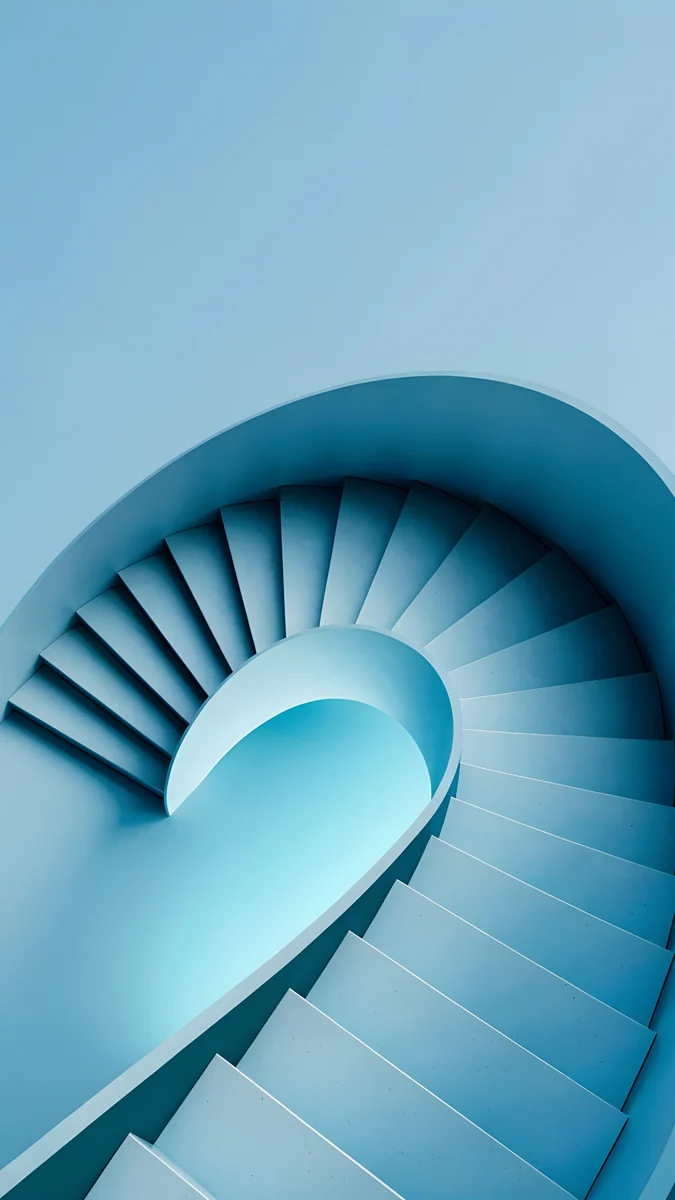 Glacier Spiral Well4K · Phone
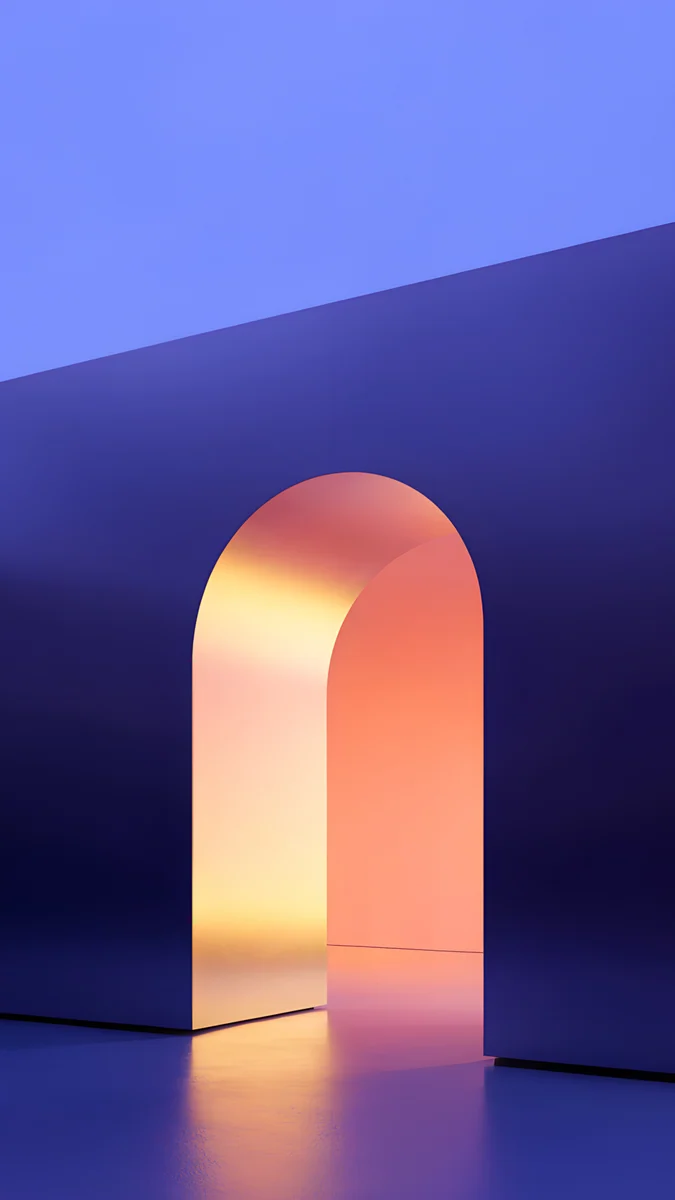 Solar Violet Arch4K · Phone
Violet Spiral Descent looks down a violet spiral staircase lit with mint, and its centre is exactly where the watch crops. The Blue Arch is a deep blue arch on warm cream, a bold shape that holds up at any size. Koi Drift places red koi on pale paper, a light option for daytime.
Moon Ledge is almost entirely black with a pale moon, the best pick for battery and for a face you check at night. Glacier Spiral Well spirals cool blue into a dark core, and Solar Violet Arch pours warm amber light through a violet arch.
Download the full file to the phone first, so it shows up in Gallery when Galaxy Wearable asks for a picture. For more round-screen ideas, our guide to Apple Watch wallpapers works through the same crop problem on the other platform, and the dark OLED wallpaper collection has more near-black picks.
Match the watch with your phone
A watch face looks best when it echoes the phone. Use the same wallpaper on both, or two from the same series: Moon Ledge on the watch with a darker noir image on the phone, or Koi Drift on the watch with another ink painting behind your apps.
On a Galaxy phone, setting the lock screen takes one more minute. Our step-by-step guide to the Samsung lock screen wallpaper covers Settings, the lock screen editor and the Gallery shortcut, and the general Android wallpaper guide helps if your phone is not a Samsung.
Original wallpapers in 4K and 5K for iPhone, Android and desktop.
Questions
Can I put my own photo on a Galaxy Watch face?
Yes. Open the Galaxy Wearable app on the paired phone, go to Watch faces and select the photo face, called My Photos or Photos depending on the model. Tap Customize, add one or more pictures from the phone's Gallery, adjust the crop and tap Save. The new face appears on the watch within seconds. Galaxy Watch4 and newer models work this way with any Android phone that runs Galaxy Wearable.
Why can't I find the photo watch face?
The name changes between models and software versions, so search the Watch faces list for My Photos or Photos rather than for a picture of a gallery icon. Make sure the watch is connected and Galaxy Wearable is up to date, because new faces arrive with app and watch updates. If it still does not appear, add a face from the watch itself: touch and hold the current face, swipe to the end and tap the plus sign.
What size should a Galaxy Watch face photo be?
Recent Galaxy Watch screens are round and between 396 × 396 and 480 × 480 pixels, depending on model and case size. Any ordinary phone photo is much larger, and Galaxy Wearable scales it down, so you do not need to resize anything yourself. What matters is the crop: only a circle from the middle of the picture is visible, so keep the main subject in the centre.
Can I use several photos on one Galaxy Watch face?
Yes. The photo face accepts more than one picture, and on most versions you switch between them by tapping the watch screen. Keep the set small and consistent, for example four or five images with similar brightness, so the time stays readable whichever picture is showing. You can add or remove photos later in Galaxy Wearable under Customize.
Does a photo watch face drain the battery?
A little more than a plain black face, mostly when the photo is bright. Galaxy Watch screens are AMOLED, so dark pixels use very little power and light ones use more. A dark photo with one bright subject is the best balance. Screen brightness, the always-on display setting and how often you raise your wrist matter far more than the picture itself.
Carlos Vivero
Designer of Velpaper wallpapers
Carlos Vivero designs the wallpapers in Velpaper: quiet architecture, liquid glass, Japanese ink and calm landscapes. Every piece is made as a 4K original for iPhone, Android and desktop.
Recent work








