Apple Watch Wallpaper: Set Any Photo as Your Watch Face
Apple Watch wallpaper step by step with the Photos face, the screen size of every recent model, and which images stay readable on a small OLED screen.
In short: Apple Watch has no separate wallpaper setting: a picture becomes your background through the Photos watch face. Save the image to Photos on your iPhone, open the Watch app, tap Face Gallery, choose Photos, pick up to 24 images and tap Add. Dark images with one shape in the centre read best on the small screen.
By the Velpaper team · Wallpapers by Carlos Vivero, Velpaper designer · · Updated · 6 min read
Free 4K originals for iPhone and Android, no watermark
On this page
Apple Watch has no wallpaper menu. The background belongs to the watch face, and the face made for your own pictures is called Photos. Give it an image and the picture fills the screen behind the time, like a tiny lock screen on your wrist.
This guide shows how to set it up from the Watch app on iPhone, lists the screen resolution of each recent model, and explains how to pick an image that still reads on a display a few centimetres wide.
How to set a wallpaper on Apple Watch
Everything happens on the iPhone paired with your watch. The image has to be in the Photos app first, so save it there before you start.
- Open the Watch app on your iPhone and tap Face Gallery at the bottom of the screen.
- Scroll to Photos and tap the face.
- Under Content, choose Photos, then tap Choose Photos and select up to 24 images.
- Check the preview at the top and tap Add.
The face is added to My Faces and switches on the watch a few seconds later. If it does not, touch and hold the current face on the watch and swipe to the new one.
With several images, the watch shows a different one each time you raise your wrist or tap the screen. Content has two other options: Album uses the album you sync to the watch, and Dynamic rotates through your recent Memories.
The shortcut from the Photos app
When you only want one image, start from Photos instead. Open the picture on your iPhone, tap the Share button, scroll down to Create Watch Face, choose the Photos face and tap Add.
Photos or Portraits?
The Portraits face looks tempting, because the time can sit partly behind the subject. It only accepts photos taken in Portrait mode, though, since it relies on the depth information the camera saves with them. A downloaded wallpaper has no depth data, so artwork belongs on the Photos face. Keep Portraits for pictures of people and pets.
Apple Watch wallpaper size by model
The watch shows an image at the native resolution of its display. These figures come from Apple's specifications, width by height.
| Model | Case | Resolution (pixels) |
|---|---|---|
| Apple Watch Ultra 2 and Ultra | 49 mm | 410 × 502 |
| Series 10 | 46 mm | 416 × 496 |
| Series 10 | 42 mm | 374 × 446 |
| Series 7, 8 and 9 | 45 mm | 396 × 484 |
| Series 7, 8 and 9 | 41 mm | 352 × 430 |
| SE (2nd generation) | 44 mm | 368 × 448 |
| SE (2nd generation) | 40 mm | 324 × 394 |
Models newer than these are listed on the Tech Specs page for each watch on apple.com. You do not need the exact number, though. All of these screens are a little taller than square, about 4:5, and anything over 500 pixels wide is already sharp. A 2160 × 3840 phone wallpaper is about five times wider than the largest watch screen.
Crop the image before you add it
Resolution is never the problem on a watch. Shape is. A phone wallpaper is a tall 9:16 frame and the watch is nearly square, so the face fills the screen with the middle of the picture and drops a large part of the top and bottom.
To decide which part survives, crop the image in Photos first. Open it, tap Edit, tap the crop tool and choose a near-square preset such as 8:10 in portrait orientation. Drag the frame over the part you want on your wrist and tap Done. You can undo the crop later with Revert, so the full wallpaper is never lost.
Even cropped, a 2160 × 3840 original keeps 2160 × 2700 pixels, far more than any watch needs. Leave some calm space where the time sits. A busy patch under the digits makes them hard to read at a glance, the same problem our guide on keeping the lock screen clock readable solves for phones.
Which wallpapers work on a small OLED screen
Apple's own watch faces are mostly black for a reason. The display is OLED, where a black pixel is simply switched off, so a black background melts into the bezel and the screen seems to have no edge. A bright image does the opposite: the watch becomes a glowing rectangle, striking in daylight and glaring in a dark room.
The images that look best on a wrist have a few things in common:
- One shape in the middle. A moon, a tower or an arch. The centre survives every crop.
- A dark field around it. It keeps the edge-to-edge look and lets the white time stand out.
- No fine detail. Thin lines, grain and small text turn to mush at this size.
- Strong contrast. You read a watch in a second, often in sunlight, and soft pastel gradients wash out.
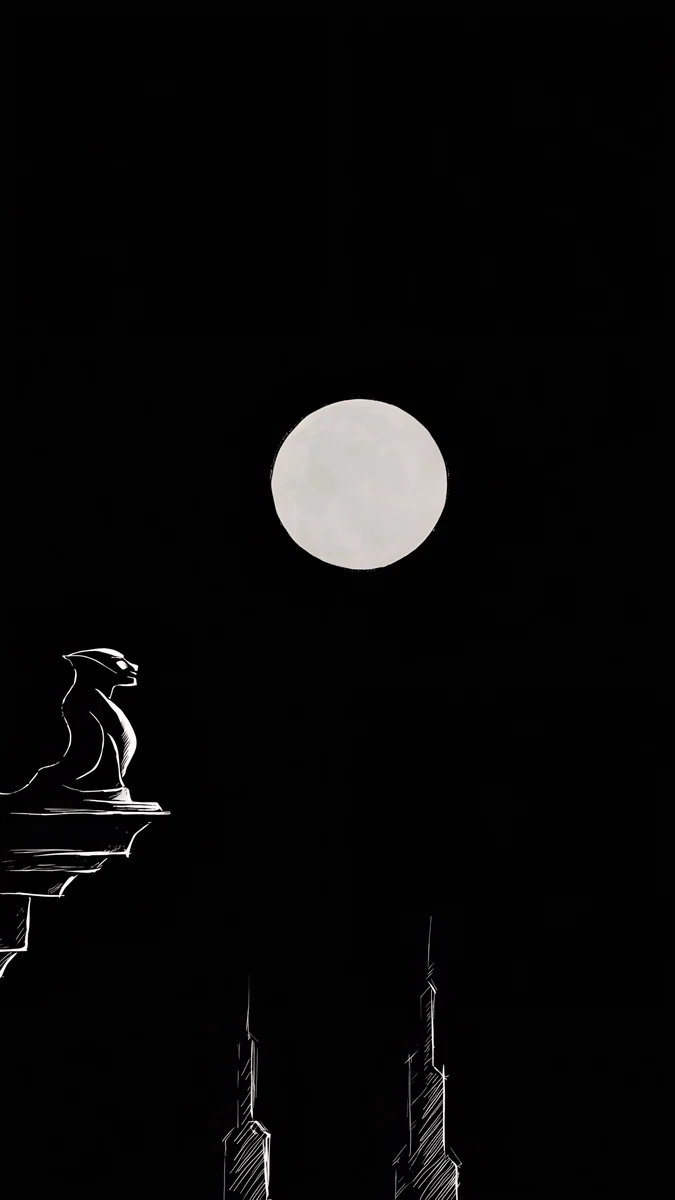 Moon Ledge4K · Phone
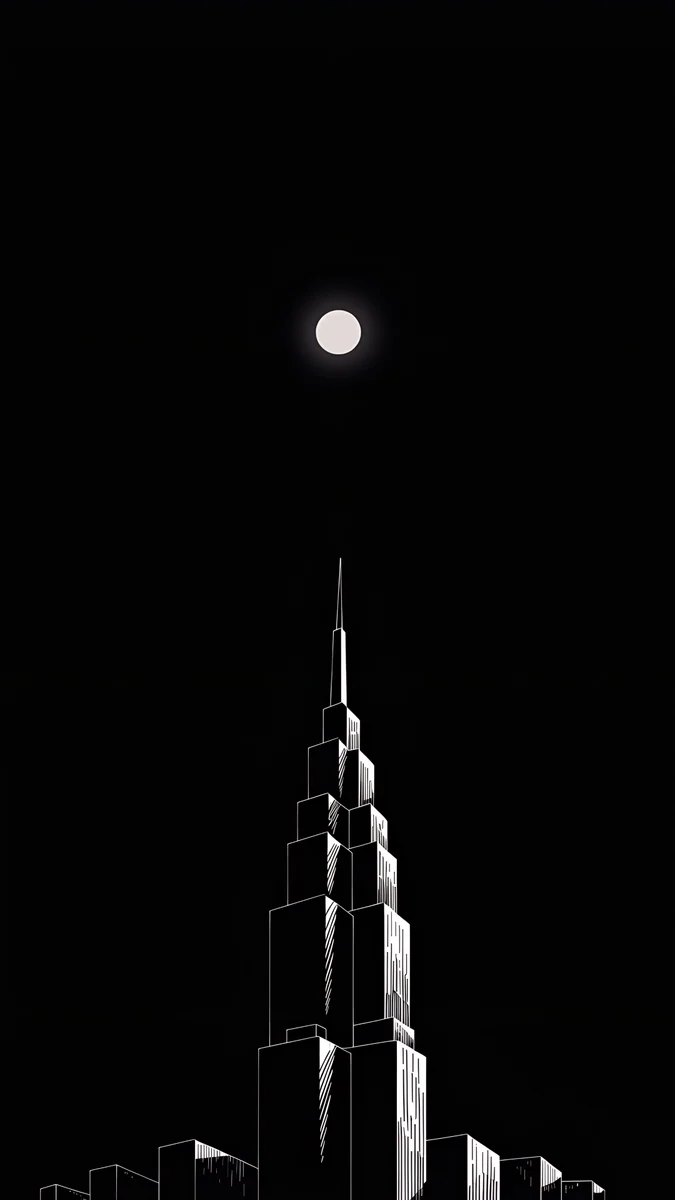 Lone Spire4K · Phone
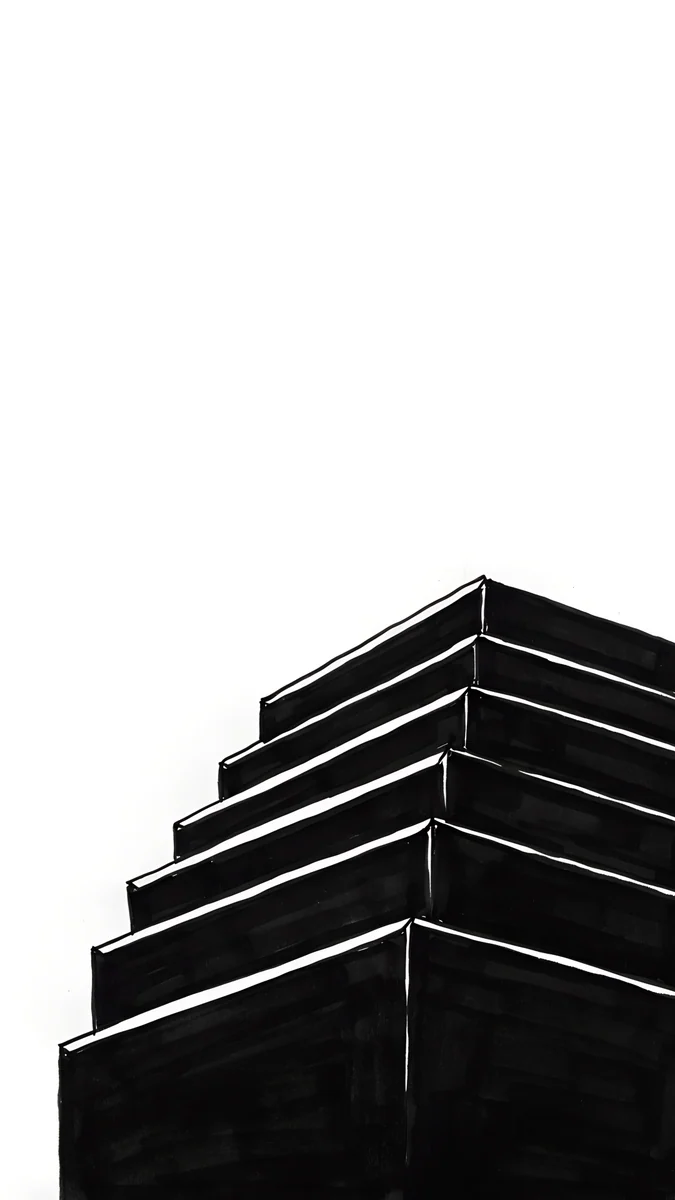 One Block4K · Phone
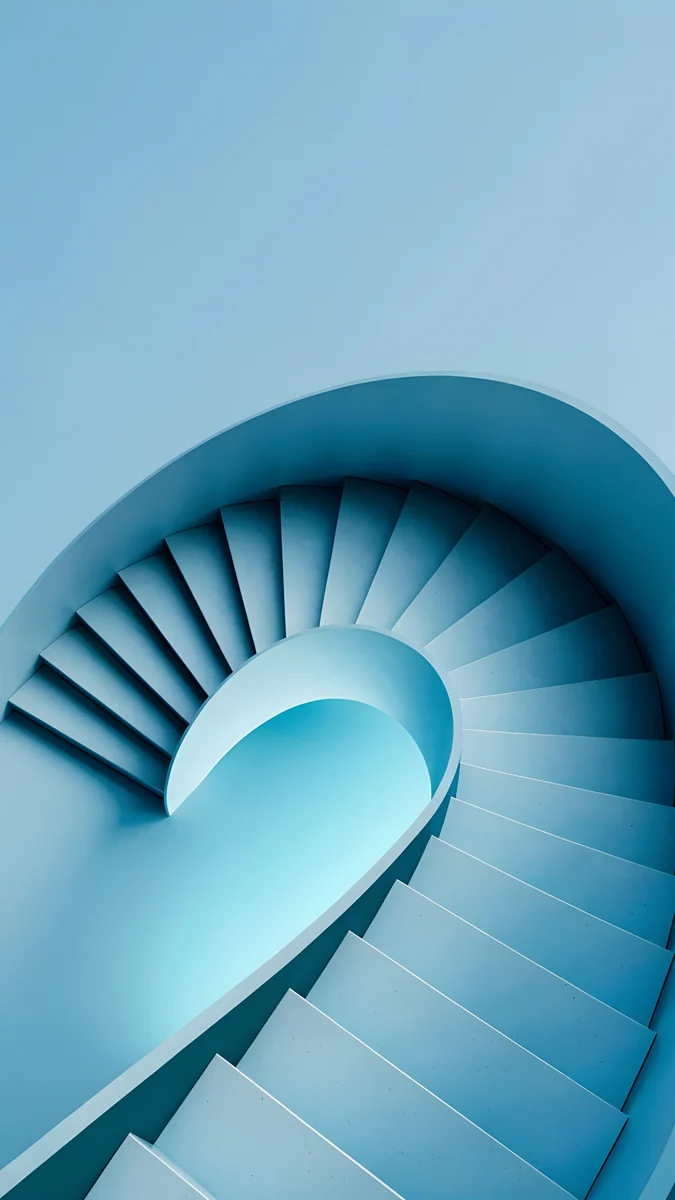 Glacier Spiral Well4K · Phone
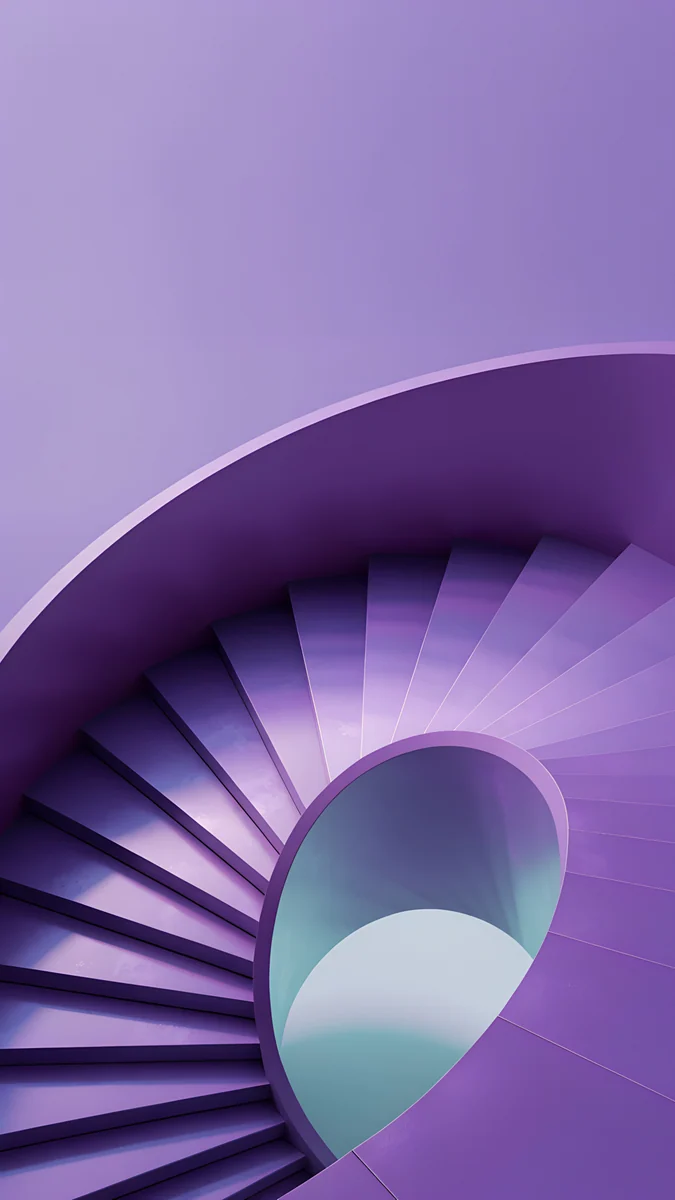 Violet Spiral Descent4K · Phone
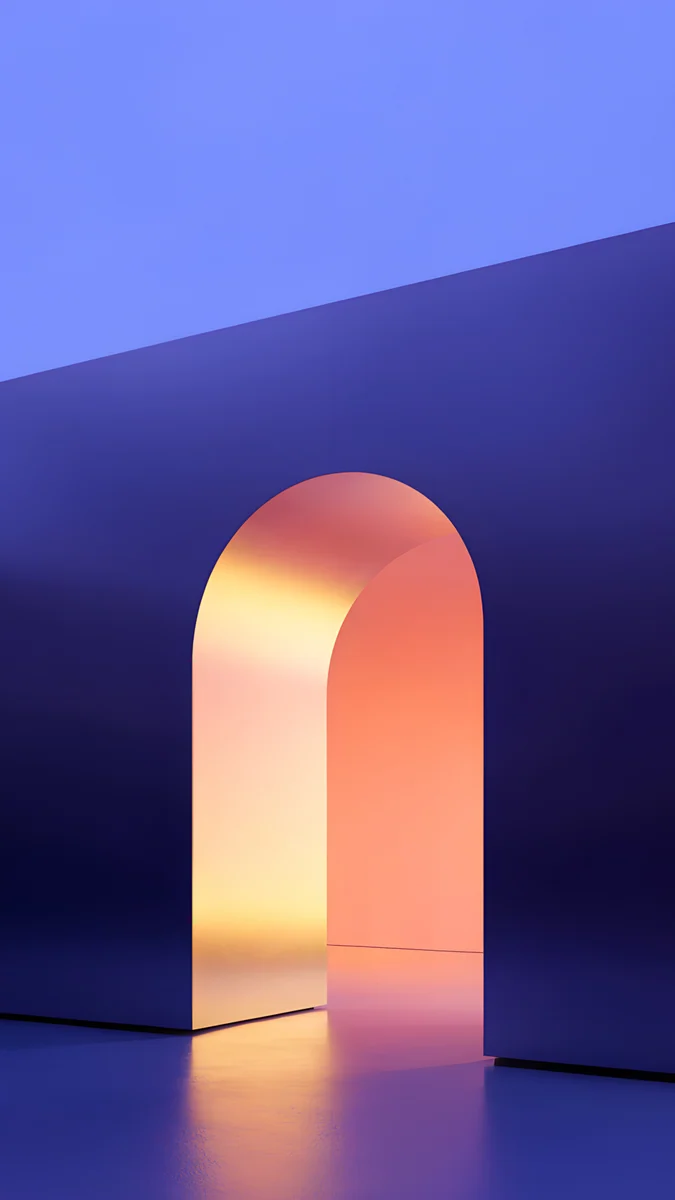 Solar Violet Arch4K · Phone
Moon Ledge is almost a ready-made watch face: a full moon in a black sky, right in the middle of the frame. Lone Spire draws a stepped tower in white outline under a small moon, and One Block reduces the idea to a single form. The spirals, Glacier Spiral Well and Violet Spiral Descent, are rings around a centre, so they look right however you crop them. Solar Violet Arch adds warmth with amber light inside a violet arch.
For more images in this spirit, browse our dark OLED wallpapers. Nearly all of them work on the watch after a crop.
Battery and the Always On display
On models with Always On, the screen dims rather than switching off when you lower your wrist. Whatever stays lit costs a little power, and on OLED the dark areas cost the least. The saving is real but modest: workouts, cellular use and brightness matter far more to battery life than the picture behind the time. Pick a dark image because it looks better, and treat the battery as a bonus.
The iPhone has the same trade-off on its lock screen, covered in our guide to wallpapers for the iPhone Always On display.
Where to get a sharp image
Velpaper has no watch app, and it does not need one. Save a wallpaper from the Velpaper app on iPhone, or download it from its page on velpaper.com and save it to Photos. You get the full 2160 × 3840 JPEG without a watermark, and the steps above take it to your wrist in a couple of minutes.
Skip screenshots and images forwarded through messengers. They are already compressed, and after a crop you are left with a soft, blocky picture. To match your wrist and your phone, set the same image on the iPhone as well: our lock screen guide shows how, and the iPhone wallpaper size guide explains why one original fits every model.
Original wallpapers in 4K and 5K for iPhone, Android and desktop.
Questions
Can I set any picture as my Apple Watch wallpaper?
Yes, as long as the picture is in the Photos app on the iPhone paired with the watch. Apple Watch has no separate wallpaper setting; the image becomes the background of the Photos watch face. Open the Watch app on iPhone, tap Face Gallery, choose Photos, set Content to Photos, pick up to 24 images and tap Add. You can also open a single image in Photos, tap Share and choose Create Watch Face. Images with one clear shape in the centre look best, because the watch crops a tall picture to its nearly square screen.
What size should an Apple Watch wallpaper be?
At least the native resolution of your watch, for example 416 × 496 pixels on the 46 mm Series 10 or 410 × 502 on the Ultra 2. Larger is fine, since the watch scales the image down without losing sharpness. Shape matters more than size. Watch screens are about 4:5, a little taller than square, so a picture you crop to that ratio in the Photos app shows exactly what you chose instead of an automatic centre crop of a tall phone image.
Why can I not use a downloaded wallpaper on the Portraits face?
The Portraits face needs photos taken in Portrait mode on an iPhone. Those files carry depth information, which the watch uses to place the time partly behind the subject. A downloaded wallpaper, a screenshot or a piece of digital art has no depth data, so the Portraits face cannot use it. Put such images on the Photos face instead. It shows the full picture behind the time and accepts any image from your library.
How many photos can the Photos face rotate through?
When you choose images by hand, the Photos face takes up to 24. A new one appears each time you raise your wrist or tap the screen. If you set Content to Album, the face draws from the album you sync to the watch instead, and Dynamic picks from your recent Memories. To keep a single wallpaper on screen all the time, select just one image.
Does a dark wallpaper save battery on Apple Watch?
A little. The display is OLED, so black pixels are switched off and dark areas use less power than bright ones, which matters most on models with Always On. The effect is modest compared with workouts, cellular use and screen brightness. The stronger reason to choose a dark image is the look: a black background blends into the bezel, and the white time stays easy to read.
Carlos Vivero
Designer of Velpaper wallpapers
Carlos Vivero designs the wallpapers in Velpaper: quiet architecture, liquid glass, Japanese ink and calm landscapes. Every piece is made as a 4K original for iPhone, Android and desktop.
Recent work








