How to Make an Aesthetic Laptop Wallpaper (2026)
Make an aesthetic laptop wallpaper in Canva or any editor: the canvas size for your screen, a calm palette, room for icons, export settings and setup.
In short: Start a canvas at your laptop's native resolution or at 3840 × 2160, use two or three colours from one mood, put one subject to the side and keep the area under your icons plain. Export a full size PNG or high quality JPG and set it with Fill on Windows 11 or Fill Screen on a Mac.
By the Velpaper team · Wallpapers by Carlos Vivero, Velpaper designer · · 6 min read
Free 4K originals for iPhone and Android, no watermark
On this page
To make an aesthetic laptop wallpaper, open a canvas at your screen's native resolution (3840 × 2160 covers most 16:9 Windows laptops), choose two or three colours from one mood and place a single subject to one side, leaving the rest of the frame calm. Export it at full size as a PNG or a high quality JPG, then set it with Fill on Windows 11 or Fill Screen on a Mac.
The steps below use Canva because it is free and runs in a browser, but the same rules work in Figma, Photoshop, GIMP, Affinity or Pixelmator Pro.
Find the right canvas size first
Most blurry or badly cropped homemade wallpapers start with the wrong canvas. Check your screen before you design anything.
- Windows 11: open Settings, then System, Display, and read the value under Display resolution marked Recommended.
- Mac: open the Apple menu and choose About This Mac. The display line shows the screen size and resolution. If it is not listed, click More Info and open the system report, where the display section lists the native resolution.
| Laptop screen | Native resolution | Canvas to make |
|---|---|---|
| Windows laptop, 16:9 | 1920 × 1080 or 2560 × 1440 | 3840 × 2160 |
| Windows laptop, 16:10 | 1920 × 1200 or 2560 × 1600 | 3840 × 2400 |
| MacBook Air 13 inch (M2 and later) | 2560 × 1664 | 2560 × 1664 |
| MacBook Air 15 inch | 2880 × 1864 | 2880 × 1864 |
| MacBook Pro 14 inch | 3024 × 1964 | 3024 × 1964 |
| MacBook Pro 16 inch | 3456 × 2234 | 3456 × 2234 |
If you switch between a laptop and an external monitor, design at 3840 × 2160 and keep the important part away from the edges, so a 16:10 or 3:2 screen can trim the sides without losing anything.
How to make the wallpaper in Canva, step by step
- On the Canva home page click Create a design, then Custom size, and enter your canvas in pixels, for example 3840 × 2160. Canva's ready-made desktop wallpaper format is usually 1920 × 1080, which looks soft on a sharper screen.
- Click the empty page and pick a background colour. For a gradient, choose two neighbouring shades, such as sage and cream, rather than two opposites.
- Add one subject: your own photo, a shape, an arch, a moon, a plant. Drag it to the right third on Windows or the left third on a Mac, so it does not sit under your desktop icons.
- Keep the bottom strip plain. That is where the Windows taskbar and the Mac Dock sit.
- If you add words, use one short line in a thin font, and place it in the middle third. Text near the edges is the first thing a different screen shape cuts off.
- Click Share, then Download. Choose PNG for flat colour and gradients, or JPG for photos, and keep the size at 100 percent.
Menu names in Canva change from time to time; if a label looks different, the custom size option is always in the dialog that opens when you start a new design.
Five rules that make it look aesthetic
- One mood, two or three colours. Warm neutrals (cream, sand, terracotta), cool calm (sage, slate, ivory) or night (navy, violet, a little pink). Take the third colour from the subject itself.
- One subject, lots of air. An aesthetic desktop is mostly empty. A single object on a third line reads as design; five objects read as clutter behind your files.
- Respect the icons. Windows lines desktop icons up from the top left, and macOS places them from the top right. Leave that column quiet.
- Soft texture beats sharp detail. A little grain, paper or linen texture hides gradient banding and looks more like a print than a screenshot.
- Match your phone. Reuse the same palette on your lock screen and the whole setup feels planned. Our guide to matching phone and desktop wallpapers shows ready pairs.
Velpaper wallpapers that show the rules at work
If you want a reference before you design, or a finished file instead, these desktop originals follow the same rules: a narrow palette, one subject and calm space for icons.
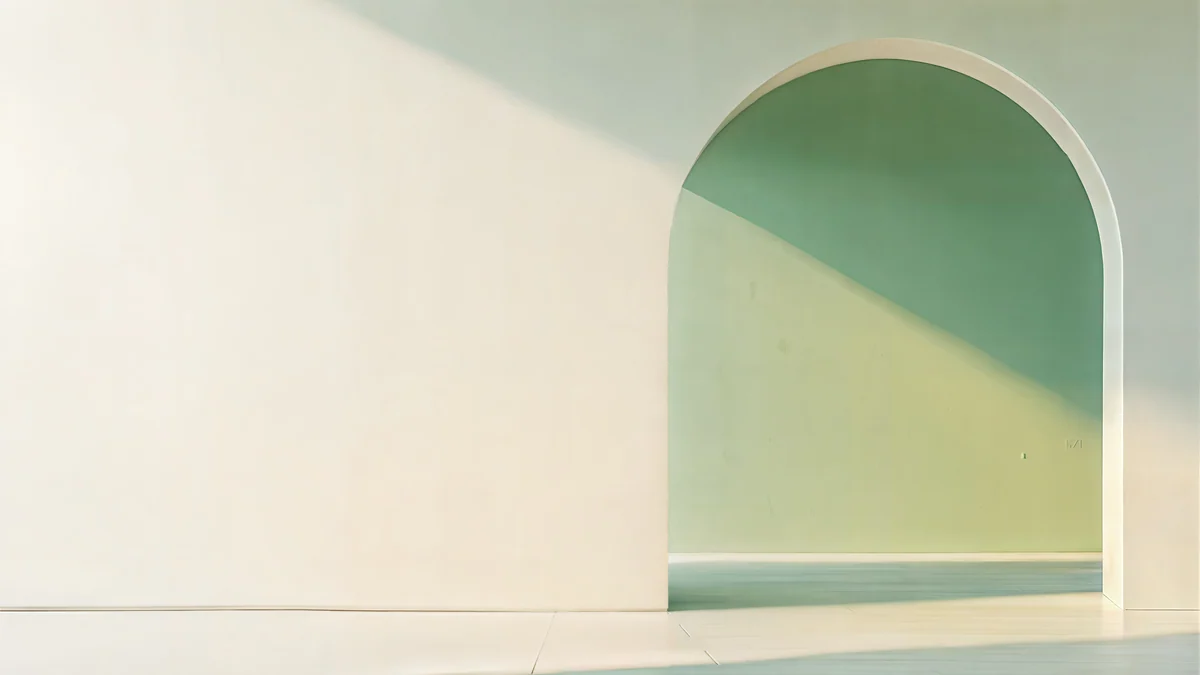 Sage Sun Gallery5K · Desktop
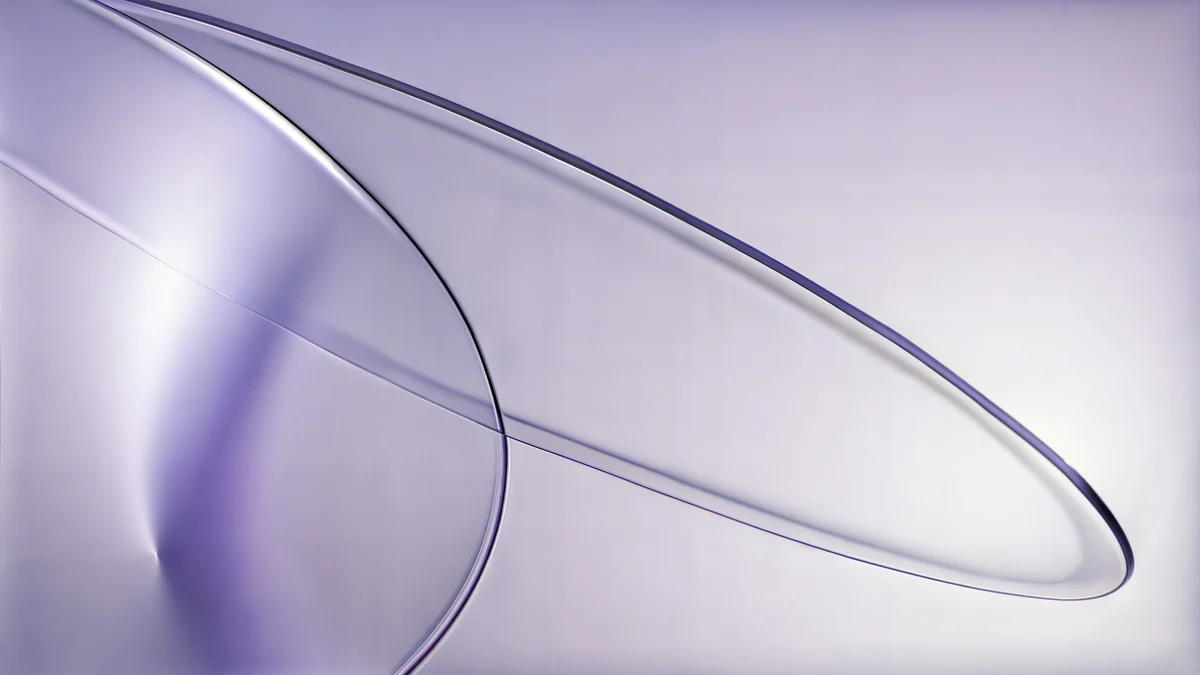 Lilac Drift5K · Desktop
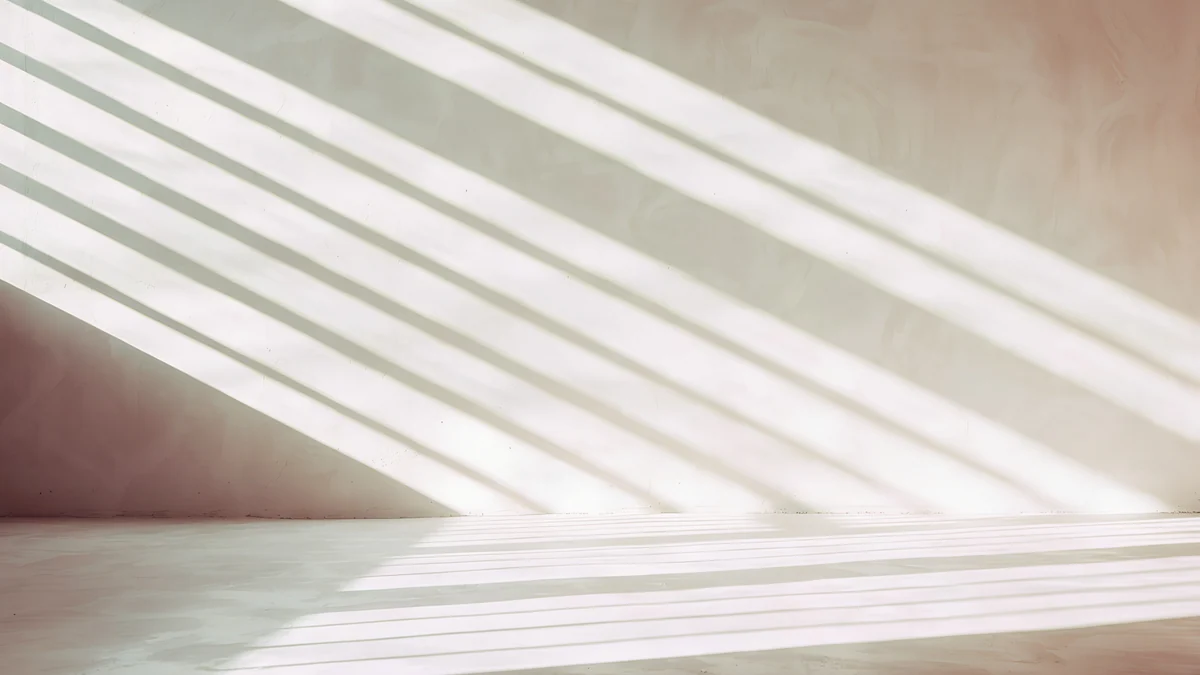 Noon Blinds4K · Desktop
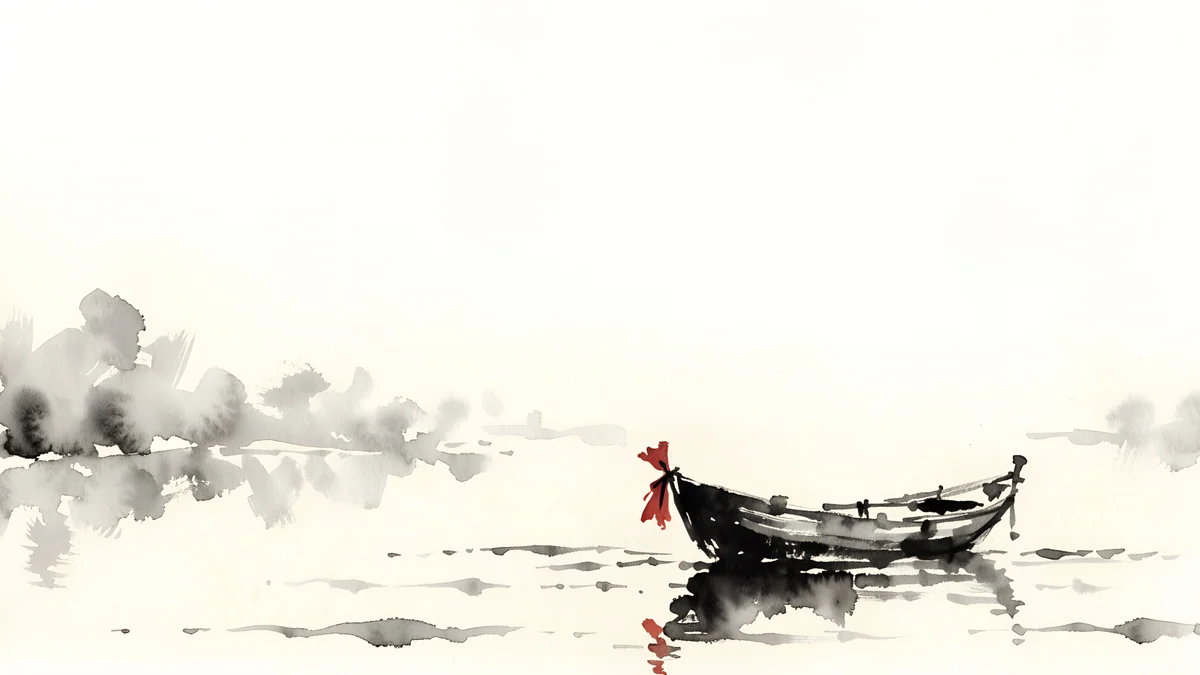 Ink Quiet Lake4K · Desktop
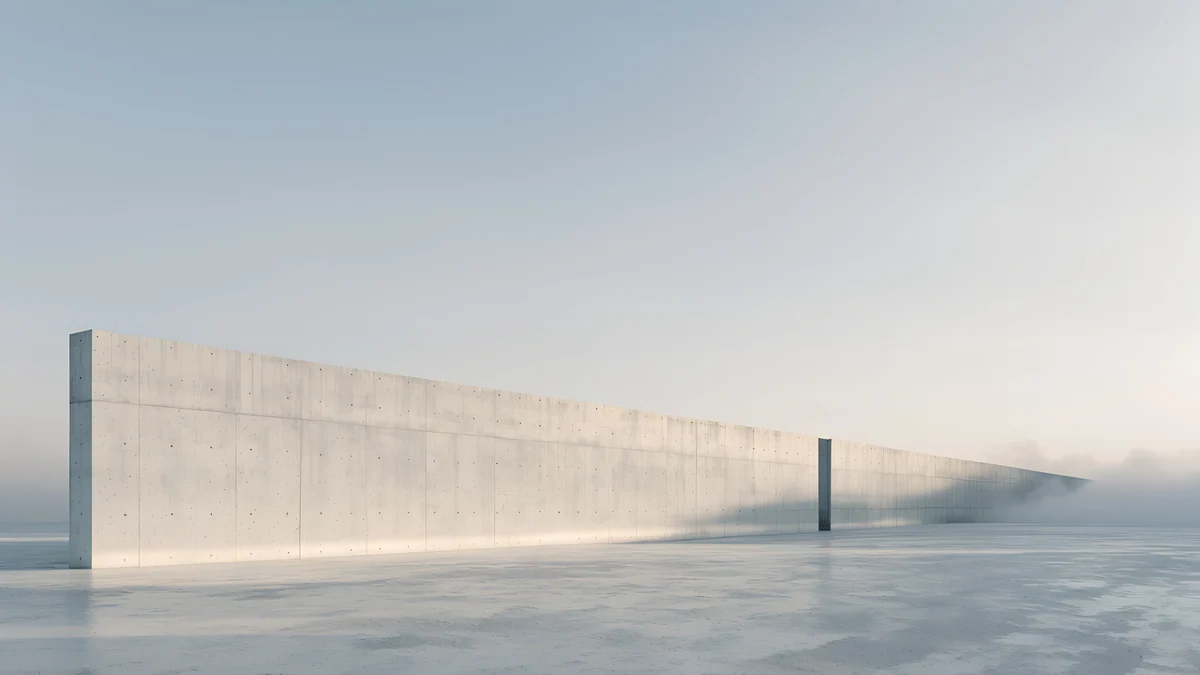 Horizon Wall4K · Desktop
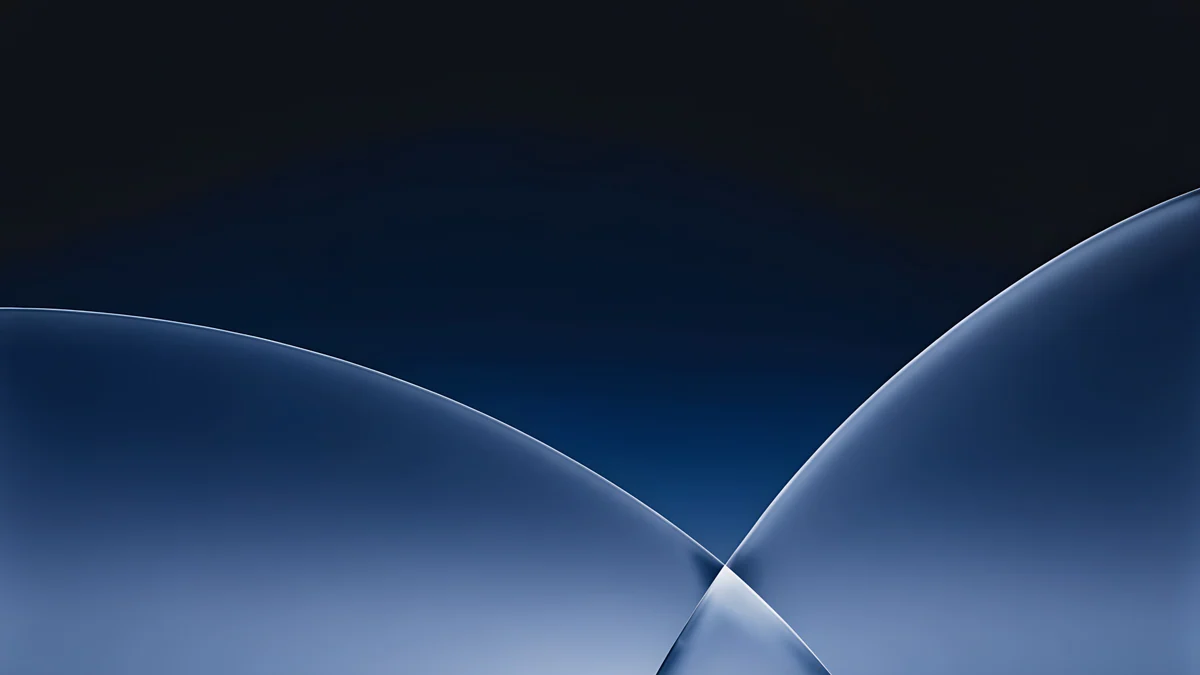 Cobalt Soft Horizon4K · Desktop
Sage Sun Gallery is a cream wall with one arched opening glowing sage and pale yellow, a two colour palette in practice. Lilac Drift lays a glass ribbon across a pale field, so icons sit on calm colour, and it is a 5K file for sharp Mac screens. Noon Blinds uses only shadow: diagonal stripes of sun on a cream wall, quiet enough for a desktop full of files. Ink Quiet Lake is a small boat on pale water with one red ribbon, the clearest example of one subject and a lot of air. Horizon Wall runs one low concrete wall across a misty plain, leaving the whole sky for icons. Cobalt Soft Horizon is deep cobalt fading into a lighter band, the dark mode option.
How to set your wallpaper on Windows 11 and Mac
Windows 11
- Right-click an empty part of the desktop and choose Personalize, or open Settings, then Personalization.
- Click Background.
- Next to Personalize your background, choose Picture, then click Browse photos and pick your file.
- Under Choose a fit for your desktop image, select Fill.
macOS Tahoe
- Open the Apple menu, choose System Settings, then Wallpaper in the sidebar.
- Scroll to Your Photos, click Add Photo, then Choose File.
- Set the menu next to the thumbnail to Fill Screen.
A quicker route on a Mac: Control-click the file in Finder and choose Set Desktop Picture. The full walkthroughs are in our guides for Windows 11 and Mac.
Common problems and how to fix them
- It looks blurry. The canvas was smaller than the screen, or the export was scaled down. Remake it at the native resolution and download at full size.
- Gradients show stripes. That is banding. Add a light grain or noise layer of 2 to 4 percent and export as PNG.
- The edges are cut off. The file has a different shape from the screen, so Fill trims it. Match the canvas to the table above, or keep the subject away from the edges.
- Icons are hard to read. The subject or a busy texture sits under the icon column. Move the subject to the other side or darken that area slightly.
- Colours look duller than in the editor. Check that you exported in the sRGB colour profile, the default in most editors, and not CMYK for print.
Get finished aesthetic wallpapers in Velpaper
Velpaper is a wallpaper app for iPhone, iPad, Mac and Android, and the same library is on velpaper.com. Every wallpaper is original 4K art designed by Carlos Vivero, and some desktop pieces are 5K. Each one is made for iPhone, iPad, Mac and Android screens, composed so the clock, icons and widgets have a calm place to sit, free to download with no account.
- Open Sage Sun Gallery on velpaper.com or in the Velpaper app for Mac.
- Press Download to save the original, not a screenshot of the preview.
- Set it with Fill or Fill Screen using the steps above.
For more finished ideas, browse our aesthetic laptop wallpapers collection.
Original wallpapers in 4K and 5K for iPhone, Android and desktop.
Questions
What size should an aesthetic laptop wallpaper be?
Make it at your screen's native resolution or larger. Most Windows laptops with a 16:9 screen are 1920 × 1080 or 2560 × 1440, so a 3840 × 2160 canvas covers them with room to spare. Newer 16:10 laptops are 1920 × 1200 or 2560 × 1600, so use 3840 × 2400. MacBooks have their own shapes: 2560 × 1664 for the 13 inch MacBook Air from M2 on, 2880 × 1864 for the 15 inch Air, 3024 × 1964 for the 14 inch MacBook Pro and 3456 × 2234 for the 16 inch. You can check yours in Settings, System, Display on Windows, or About This Mac on a Mac.
Can I make a laptop wallpaper for free?
Yes. Canva's free plan lets you set a custom size in pixels, add your own photos, shapes and text, and download the result as PNG or JPG, which is all a wallpaper needs. Figma's free plan and GIMP, which is free and open source, also work. You do not need a paid tool unless you want premium stock elements. The part that matters most is free anyway: choosing a narrow palette, one subject and calm space for icons. If you would rather not design at all, finished 4K and 5K desktop wallpapers are free to download on velpaper.com and in the Velpaper app for Mac.
Where should I put the main subject on a laptop wallpaper?
Put it on the side opposite your desktop icons. Windows 11 lines icons up from the top left, so a subject in the right third stays visible. macOS places new desktop items from the top right, so on a Mac the left third is safer. On both systems the bottom strip sits under the taskbar or the Dock, so keep it plain. Avoid the outer edges too: if you ever use the wallpaper on a screen with a different shape, Fill trims the sides or the top and bottom, and anything placed there can disappear. A subject between the centre and one third line survives almost every crop.
Why does my homemade wallpaper look blurry on my laptop?
Almost always because the file is smaller than the screen. A canvas made from a 1920 × 1080 template, a screenshot or an image saved from social media gets enlarged on a sharper display, and enlarging cannot add detail. Check your native resolution, rebuild the design at that size or at 3840 × 2160, and download it at 100 percent. Heavy JPG compression also softens edges, so pick PNG for graphics and gradients or the highest JPG quality for photos. If the design uses a small photo you cannot replace, an upscaler can help, as our guide to upscaling a wallpaper to 4K explains.
How do I make my laptop and phone wallpapers match?
Use the same palette and the same subject, then adapt the layout to each screen. Design the laptop version wide, at 3840 × 2160 or your native resolution, with the subject to one side. Then make a tall canvas of 2160 × 3840 for the phone, move the subject into the lower half and leave the top calm for the clock. Reusing two or three exact colour codes is what makes the pair look intentional. Velpaper also has ready pairs, for example Liquid Light on the phone and Liquid Light Band on the laptop, or Rose Smoke and Rose Smoke Glass, each a 4K original.
Carlos Vivero
Designer of Velpaper wallpapers
Carlos Vivero designs the wallpapers in Velpaper: quiet architecture, liquid glass, Japanese ink and calm landscapes. Every piece is made as a 4K original for iPhone, Android and desktop.
Recent work