How to Make Your Own Phone Wallpaper, Step by Step
Make your own phone wallpaper: canvas size, where the clock and widgets go, free tools like Canva and the Photos crop, and how to set it on iPhone or Android.
In short: To make your own phone wallpaper, start a canvas at your phone's resolution or 2160 × 3840, keep the top quarter calm for the clock, put the main shape in the middle or lower third, and export a full-size PNG or JPG. Then set it from Settings, Wallpaper on iPhone or by long-pressing the Home screen on Android.
By the Velpaper team · Wallpapers by Carlos Vivero, Velpaper designer · · 6 min read
Free 4K originals for iPhone and Android, no watermark
On this page
To make your own phone wallpaper, create a canvas at your phone's screen resolution, or at 2160 × 3840 if you want one file for every phone, then design with the lock screen in mind: a calm top quarter for the clock, the main shape in the middle or lower third, and nothing important in the corners. Export the full-size file as PNG or high-quality JPG, save it to your photo library and set it from Settings, Wallpaper on iPhone or by long-pressing the Home screen on Android. Free tools are enough: Canva, the crop tool in Photos, or any drawing app.
Step by step: from blank canvas to lock screen
- Pick the canvas size. Use your phone's exact resolution, for example 1320 × 2868 on iPhone 17 Pro Max and 16 Pro Max or 1440 × 3120 on Galaxy S24 Ultra and S25 Ultra. If you do not know it, use 2160 × 3840: it is larger than every current phone screen, and the phone scales it down.
- Choose a tool. In Canva, start a design with Custom size and type the pixels; some ready-made phone wallpaper templates are only 1080 × 1920, which looks soft on a modern phone. For a photo, the iPhone Photos app has a crop preset made for this: open the photo, tap Edit, then the crop tool, then the aspect ratio button and choose Wallpaper. On an iPad, any drawing app with a custom canvas works.
- Mark the safe zones. Draw a guide across the top quarter: on the iPhone and most Android lock screens the date, clock and widgets live there. Keep the bottom tenth plain too, where the flashlight and camera buttons or the Home screen dock sit.
- Build the picture. One clear subject, two or three colours, and enough empty space for icons. Put the subject in the middle or lower third so the clock never sits on top of it.
- Check the side crop. Phones are taller than 9:16, so a 2160 × 3840 file loses about 9 percent on each side when it fills a 19.5:9 screen. Keep text and faces out of those strips.
- Export. PNG for flat graphics and text, JPG at high quality for photos and painted textures. Export at 100 percent size.
- Move the file to your phone. AirDrop, a USB cable or a cloud drive keep the original. Messaging apps often compress images, so avoid sending it to yourself in a chat.
- Set it. On iPhone with iOS 26: Settings, Wallpaper, Add New Wallpaper, Photos, pick the image, tap Add, then Set as Wallpaper Pair. On Android 16: touch and hold an empty spot on the Home screen, tap Wallpaper & style (on Samsung, Wallpaper and style in Settings), choose your photo and apply.
Phone sizes for every model are in our iPhone wallpaper size guide and Android wallpaper size guide.
Design rules that make a home-made wallpaper look finished
- Leave the top empty. A sky, a plain wall or a flat colour behind the clock makes the time readable at a glance. Our guide to wallpapers that keep the clock readable goes deeper.
- Limit the palette. Two or three colours plus a neutral look deliberate. Ten colours look like a collage.
- Think in light and dark. A pale wallpaper wants a dark clock and a dark wallpaper wants white. Decide early and keep the clock area in one tone.
- Use texture lightly. A little paper grain or noise hides banding in gradients, which shows more on OLED screens.
- Separate the subject. On iPhone, a person, plant or building with a clean outline can rise over the clock with the depth effect. Busy backgrounds stop it working.
- Test before you finish. Send a draft to your phone, set it, and look at it with the clock, widgets and app icons in place. Most fixes become obvious in ten seconds.
Composition lessons from real wallpapers
Six Velpaper phone wallpapers that show the rules above in practice. Open one next to your draft and compare where the empty space sits.
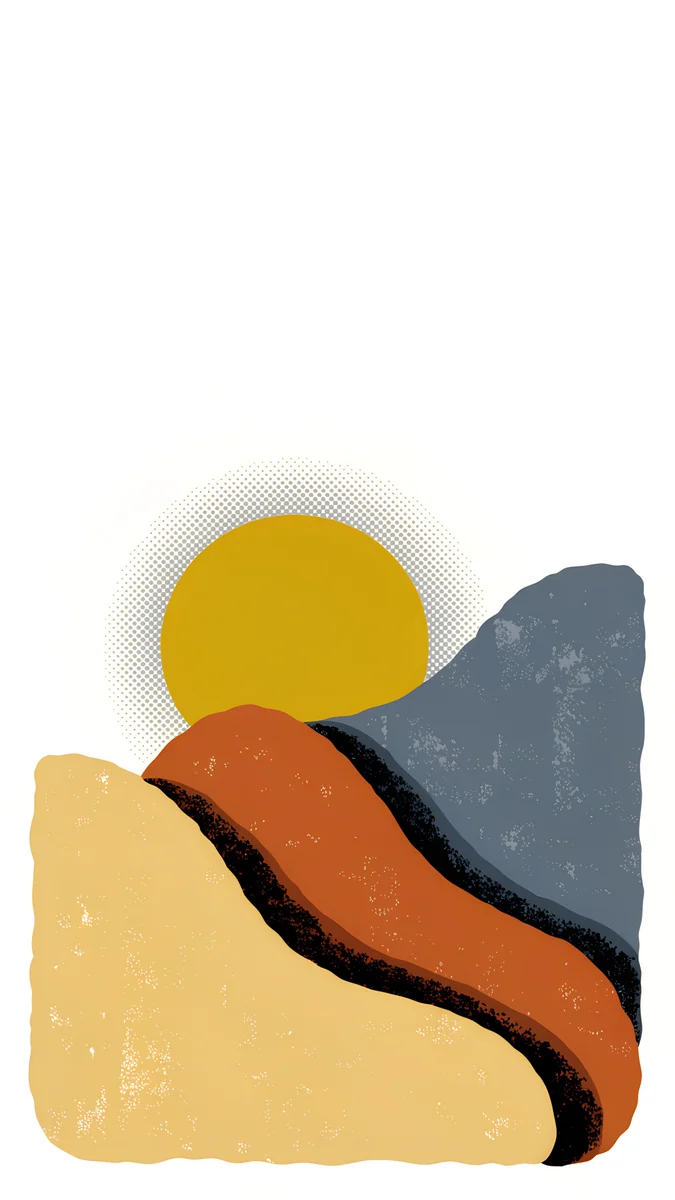 Dunes and Sun4K · Phone
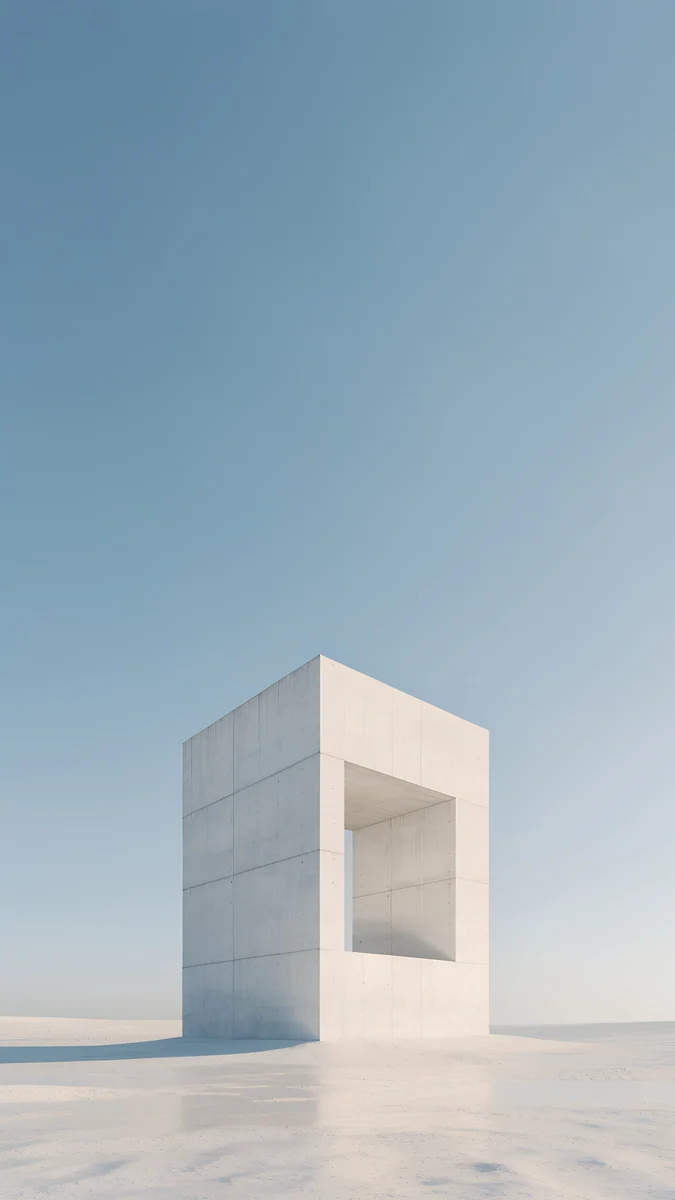 Monolith on the Plain4K · Phone
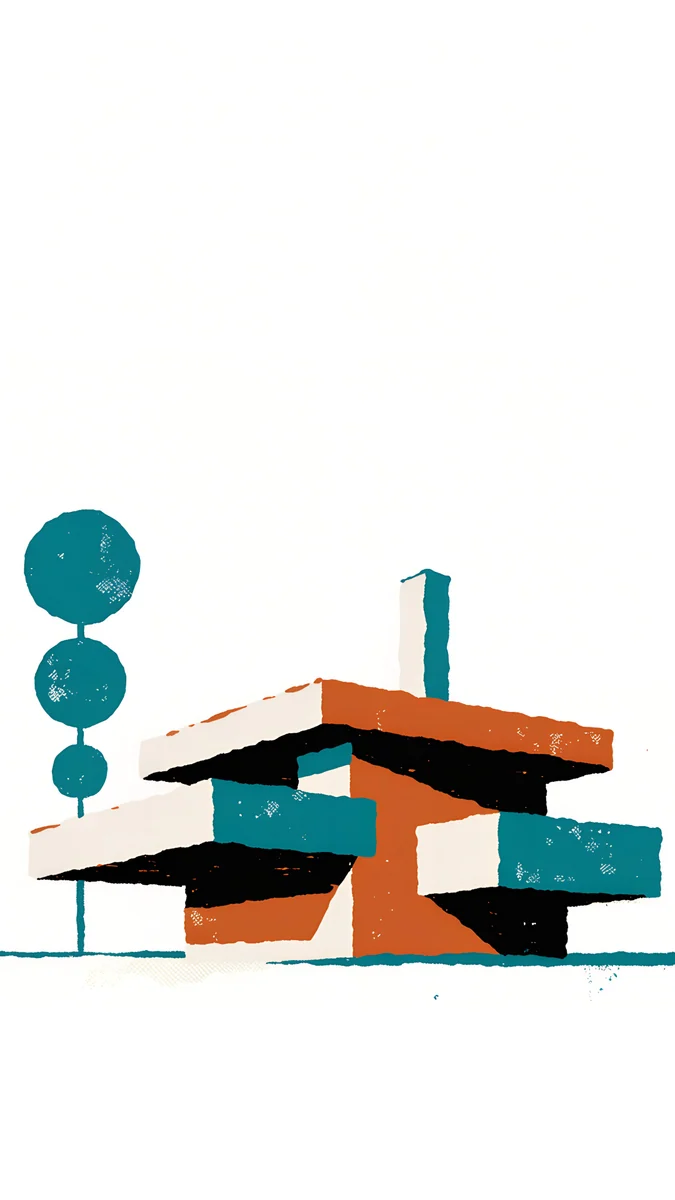 Modernist House4K · Phone
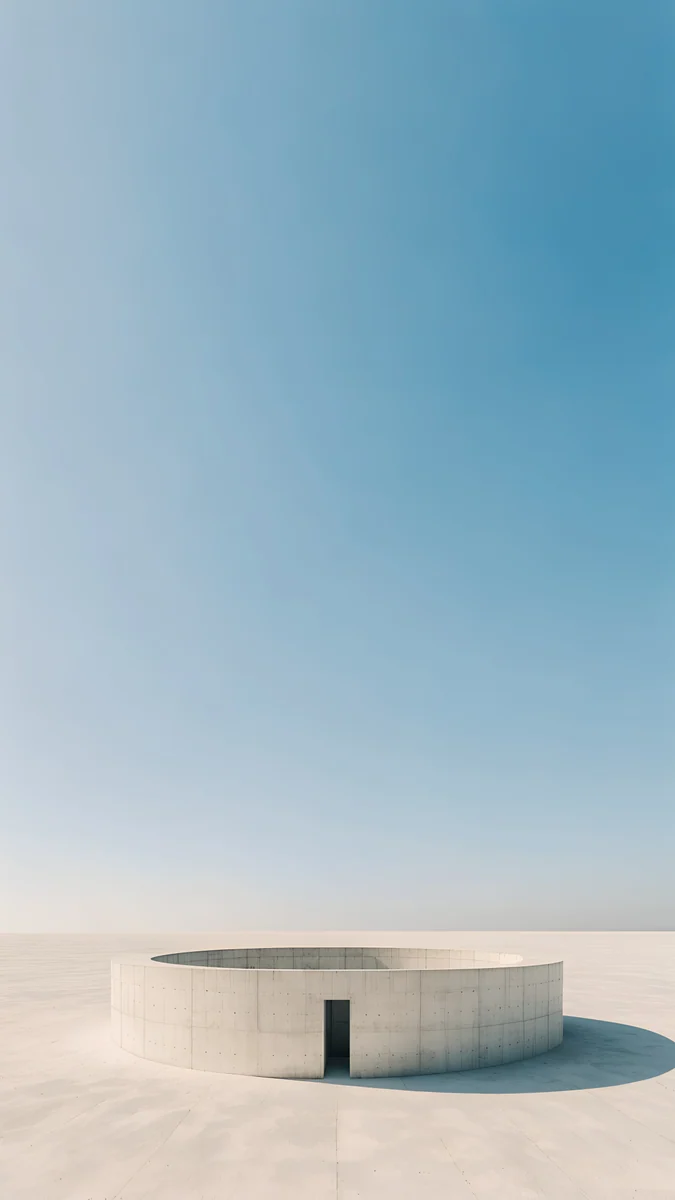 Circular Court4K · Phone
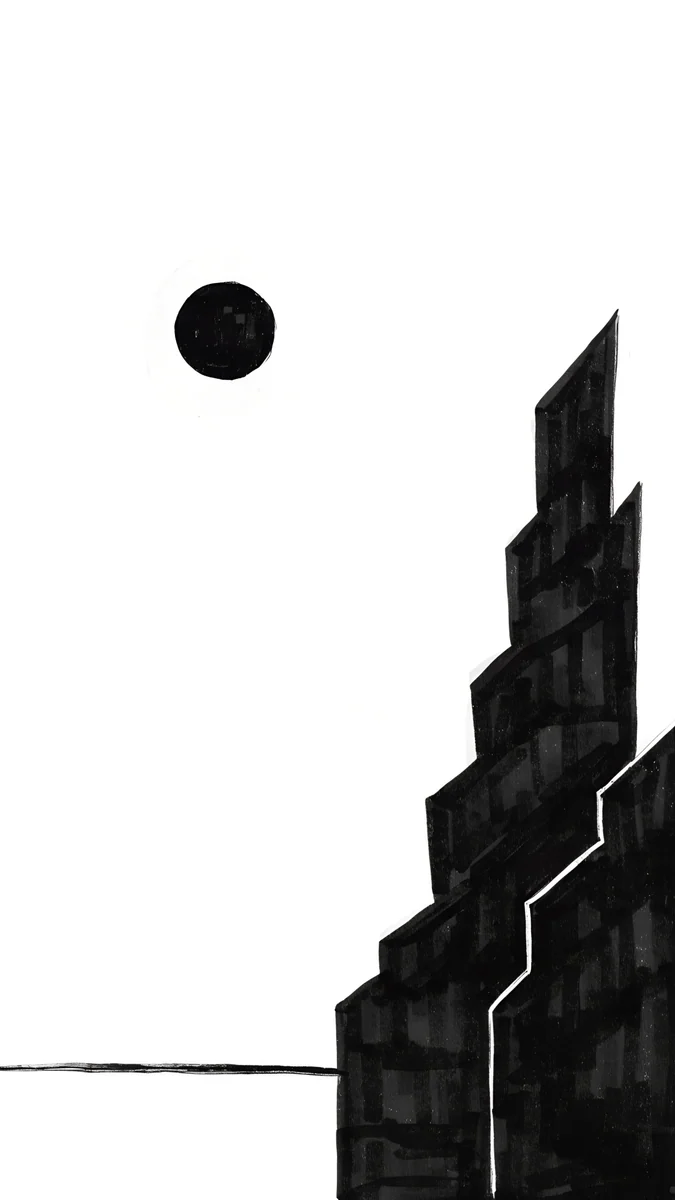 Paper Moon4K · Phone
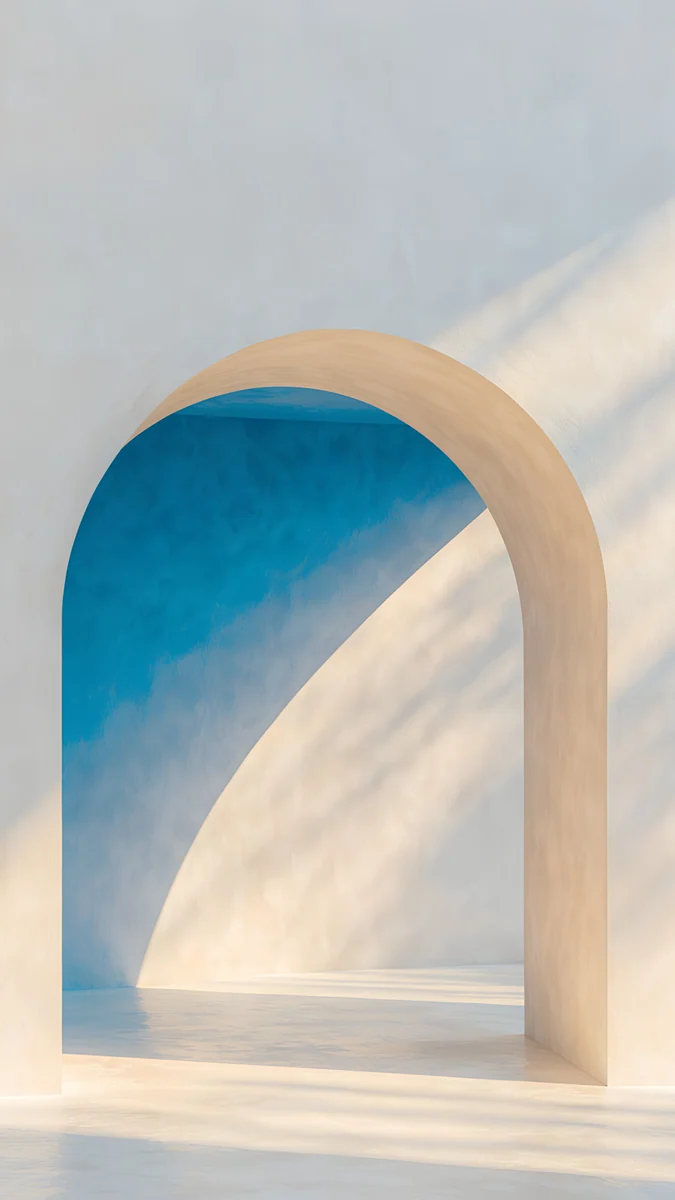 The Blue Arch4K · Phone
Dunes and Sun uses four flat colours on white paper and keeps the top third empty, so a dark clock reads cleanly. Monolith on the Plain is one pale block low in the frame under a big blue sky: the simplest possible layout and the safest for widgets. Modernist House sits in the middle third with clear white above and below, room for both the clock and the dock. Circular Court puts its subject at the very bottom and gives the rest to sky, which suits a large iOS 26 clock. Paper Moon shows how to use the top on purpose: the black moon sits to the left, away from a centred clock, and the tower climbs up the right edge. The Blue Arch frames a deep blue curve in a cream arch, one bold shape and three colours.
Common problems and fixes
- The wallpaper looks blurry. The canvas was too small, or the file was compressed on the way to the phone. Export at your screen resolution or 2160 × 3840 and transfer the original file.
- The phone zooms in on it. The image is not the shape of your screen, or the zoom setting is on. On iPhone, pinch out in the wallpaper editor; on Android, pinch to fit before applying. Our guides to the iPhone zoom fix and Android zoom fix cover every case.
- The clock covers the subject. Move the subject down into the middle or lower third, or drag the image down in the editor before you tap Add.
- Colours look different on the phone. Export in sRGB, which every phone shows correctly, and lower the brightness of very saturated areas.
- The file does not appear in Photos. It was saved to Files or Downloads. On iPhone, open it and tap Save Image; on Android, make sure it is in a folder the Gallery or Photos app shows.
- The depth effect does not work. The subject's outline is not clear enough, or widgets are placed where the subject would overlap. Try a simpler background.
Rather start from finished art? Velpaper
Making your own is a good evening project, and ready-made art is the shortcut when you want something polished today. Every Velpaper wallpaper is an original by designer Carlos Vivero, made in 4K: phone wallpapers are 2160 × 3840, desktop wallpapers are 3840 × 2160 and some 5120 × 2880. Each one is composed with a calm area for the clock. Velpaper is an app for iPhone, iPad, Mac and Android, with the same catalog on velpaper.com, with no account and no watermark; phone wallpapers unlock after a short optional ad in the apps.
- Open Dunes and Sun in the Velpaper app or on velpaper.com.
- Save the 2160 × 3840 original to your photo library.
- Set it from Settings, Wallpaper on iPhone or Wallpaper & style on Android.
Step-by-step screens for setting any wallpaper are in how to set a lock screen wallpaper on iPhone and how to set a wallpaper on Android.
Original wallpapers in 4K and 5K for iPhone, Android and desktop.
Questions
What size should I make my own phone wallpaper?
Make it at your phone's exact screen resolution, or larger. Examples: 1320 × 2868 pixels on iPhone 17 Pro Max and 16 Pro Max, 1206 × 2622 on iPhone 17 and 17 Pro, and 1440 × 3120 on Galaxy S24 Ultra and S25 Ultra. If you want one file that works on any phone, use 2160 × 3840, vertical 4K. It is larger than every current phone screen, so the phone only scales it down and it stays sharp. Because phones are taller than 9:16, a 2160 × 3840 image loses about 9 percent of its width on each side, so keep text and faces away from the left and right edges.
What free app can I use to make a wallpaper?
Canva is the easiest free option on phone, tablet and computer: start a design with Custom size, type your phone's resolution or 2160 × 3840, and use its shapes, photos and text. Avoid ready-made templates that are only 1080 × 1920, which look soft on modern screens. For a photo you already have, the iPhone Photos app can crop straight to the right shape: tap Edit, the crop tool, the aspect ratio button and choose Wallpaper. Google Photos and Samsung Gallery also have crop and colour tools. If you like drawing, any app that lets you set a custom canvas size works, on a tablet or a computer.
How do I set my own picture as a wallpaper on iPhone?
First get the full-size file into the Photos app, through AirDrop, a cable or a cloud drive rather than a chat app, which can compress it. Then open Settings, tap Wallpaper, tap Add New Wallpaper and choose Photos at the top. Pick your image, pinch and drag to position it so the subject sits below the clock, and tap the time if you want to change the clock font or colour. Tap Add, then choose Set as Wallpaper Pair to use it on the Home Screen too, or Customise Home Screen to pick something different. You can also open the photo, tap Share and choose Use as Wallpaper.
Where should the main subject go on a phone wallpaper?
In the middle or lower third. On the lock screen, the date, clock and widgets fill the top quarter on iPhone and on most Android phones, and the flashlight and camera buttons or the Home screen dock sit along the bottom. A subject in the top quarter ends up behind the clock; one in the bottom corners hides behind buttons. Leave the top as a calm sky, wall or flat colour so the time is easy to read, and keep the subject away from the left and right edges, which can be trimmed when the image fills a tall screen. Test the draft on your phone before you finish.
Is it better to make my own wallpaper or download one?
It depends on what you want. Making your own gives you a picture nobody else has, such as a photo of your street or a colour scheme that matches your case, and with Canva or the Photos crop tool it takes an evening at most. Downloading is faster and gives you finished, high-resolution art that has already been composed around the clock and widgets. Velpaper wallpapers are originals by designer Carlos Vivero at 2160 × 3840 for phones, in apps for iPhone, iPad, Mac and Android and on velpaper.com, with no account and no watermark. Many people do both: a home-made lock screen and a calm downloaded Home screen.
Carlos Vivero
Designer of Velpaper wallpapers
Carlos Vivero designs the wallpapers in Velpaper: quiet architecture, liquid glass, Japanese ink and calm landscapes. Every piece is made as a 4K original for iPhone, Android and desktop.
Recent work








