iPhone Lock Screen Ideas: 7 iOS 26 Setups to Copy
Seven iPhone lock screen ideas for iOS 26: a tall glass clock, depth effect, two widgets, Photo Shuffle, Focus screens and Always On, each with 4K wallpapers.
In short: A good iOS 26 lock screen pairs one wallpaper with the right clock, widgets and effect. Seven setups that work: a tall glass clock over empty sky, a tower rising in front of the time, two quiet widgets, a matching Photo Shuffle set, a screen per Focus, a retro poster and a dark Always On screen.
By the Velpaper team · Wallpapers by Carlos Vivero, Velpaper designer · · 6 min read
Free 4K originals for iPhone and Android, no watermark
On this page
- Idea 1: a tall glass clock over an empty sky
- Idea 2: a tower that stands in front of the time
- Idea 3: two widgets, not four
- Idea 4: a Photo Shuffle set that always matches
- Idea 5: one lock screen per Focus
- Idea 6: a retro poster with a bold clock
- Idea 7: a dark lock screen for Always On
- How to build any of these setups
- Common problems and fixes
- Get these wallpapers in Velpaper
The quickest way to a better iPhone lock screen is to treat the wallpaper and the clock as one design. In iOS 26 you touch and hold the lock screen, tap Customize and choose Lock Screen, and from there you can change the clock font, colour and height, add widgets and switch on the depth effect. Below are seven setups you can copy, each with real 4K wallpapers that fit it.
Menu names match iOS 26 in English. Apple moves small things between updates, so if a label looks slightly different on your phone, look for the closest match on the same screen. If you want the full editor walkthrough first, read our iOS 26 lock screen customization guide.
Idea 1: a tall glass clock over an empty sky
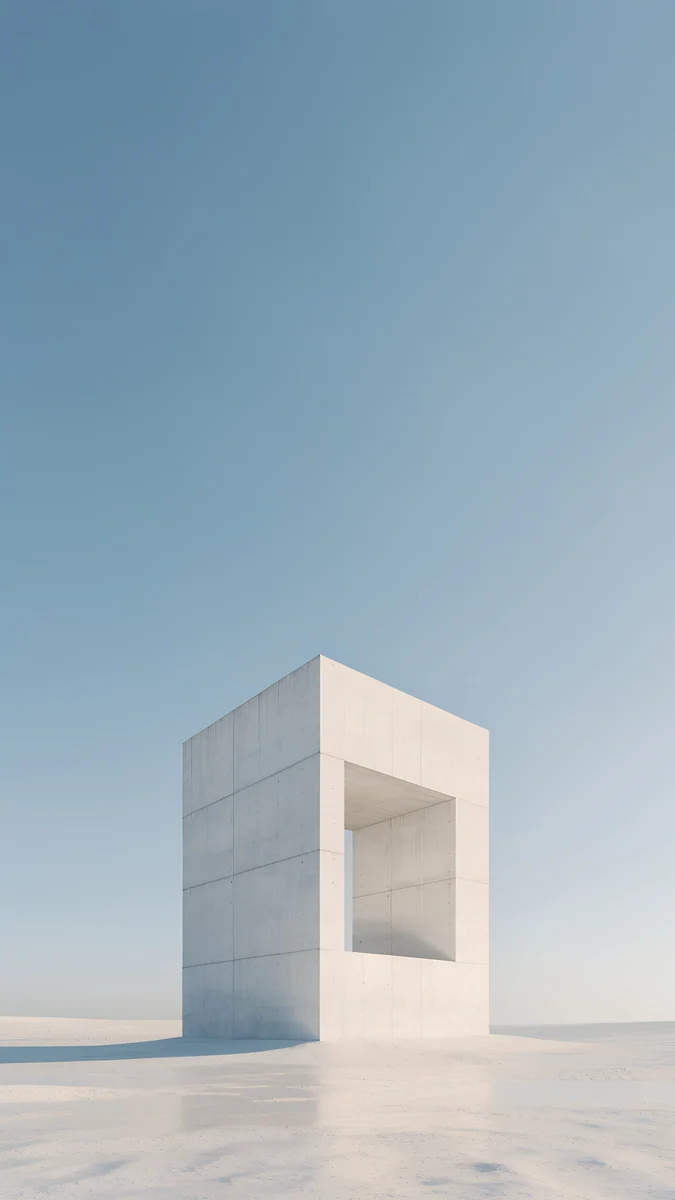
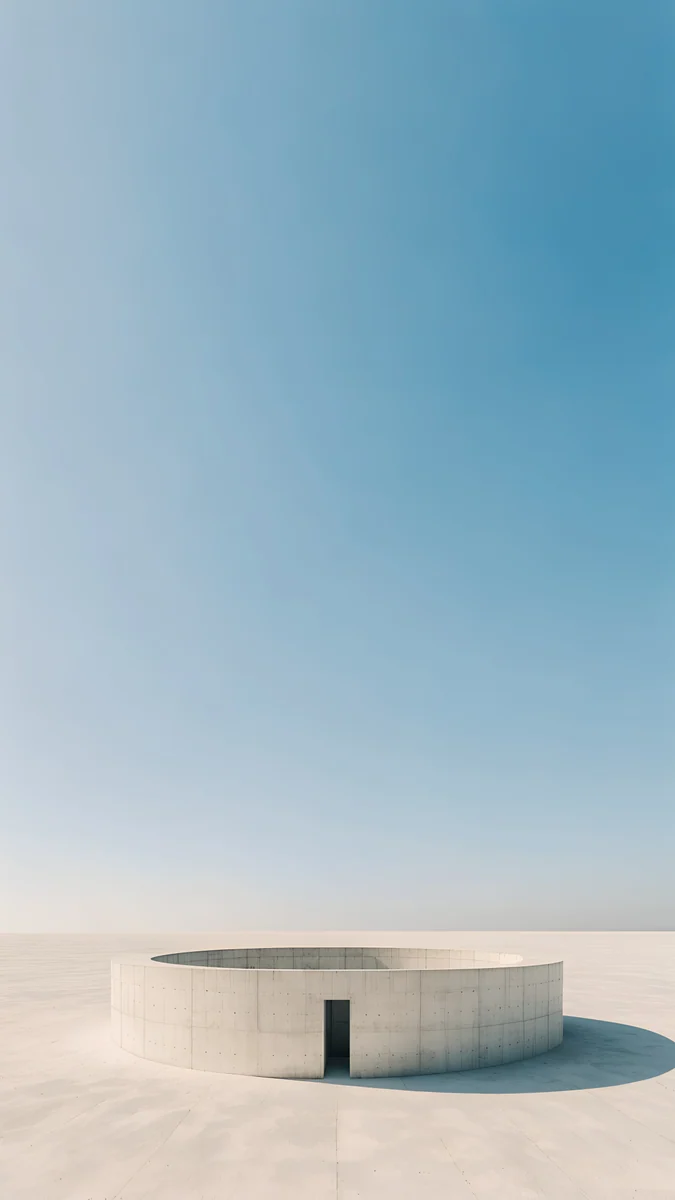
The iOS 26 clock can take a Liquid Glass look that picks up colour from the wallpaper behind it, and you can drag its lower edge to make the digits much taller. Put that on a wallpaper whose top half is plain sky and the time itself becomes the artwork.
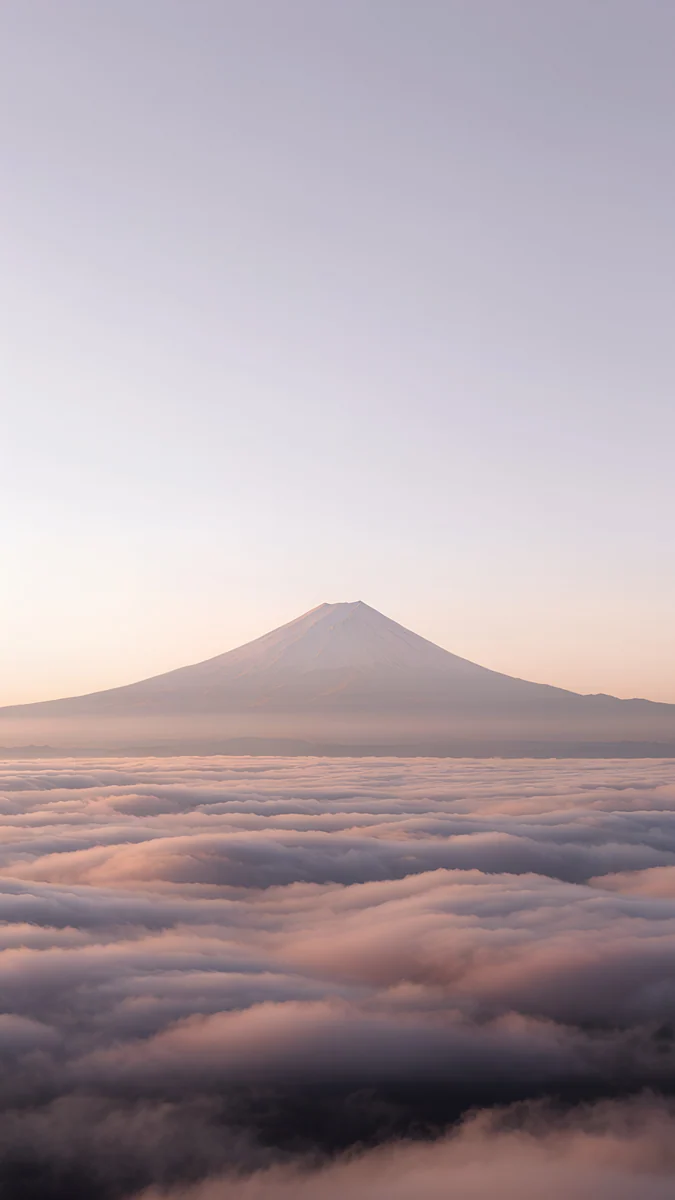
Monolith on the Plain sets one stone gateway on a pale plain, with nothing but soft blue sky above, so even a stretched clock never touches the subject. Circular Court has a low ring of wall under a deeper blue, and Fuji Above Clouds keeps the mountain and the sea of cloud in the lower third. All three are light, so a navy or dark grey clock reads better than white.
Idea 2: a tower that stands in front of the time
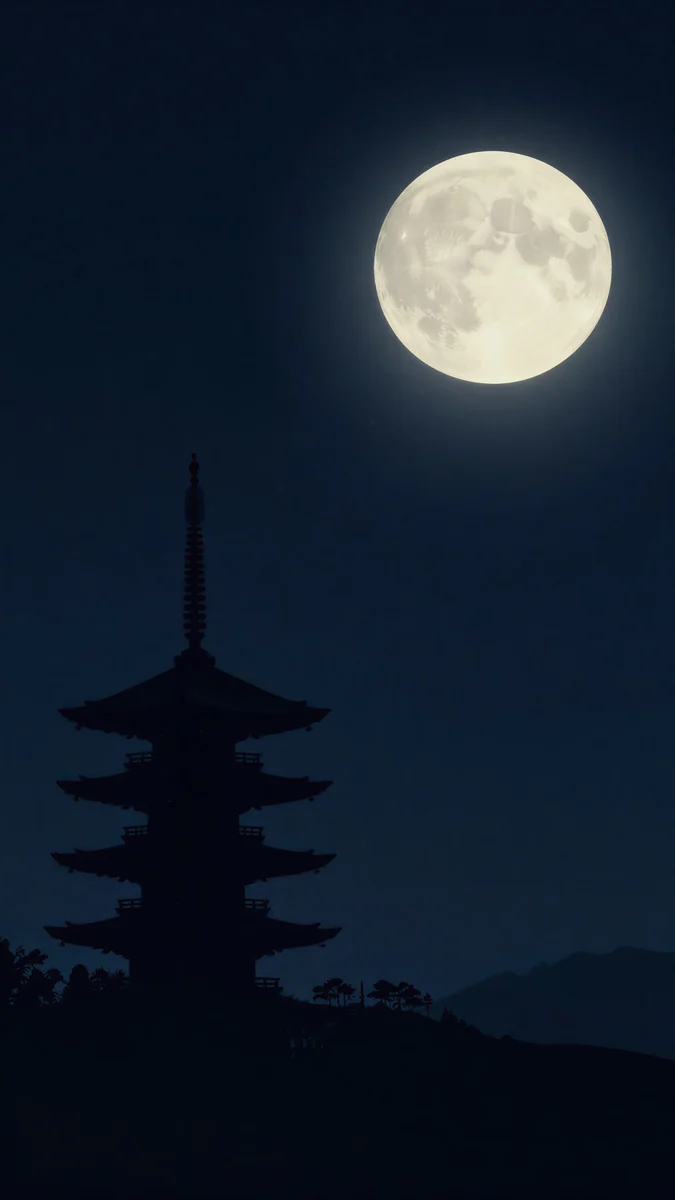
The depth effect lifts the subject of the picture in front of the digits, like a magazine cover. It works best when the edge between subject and sky is sharp.
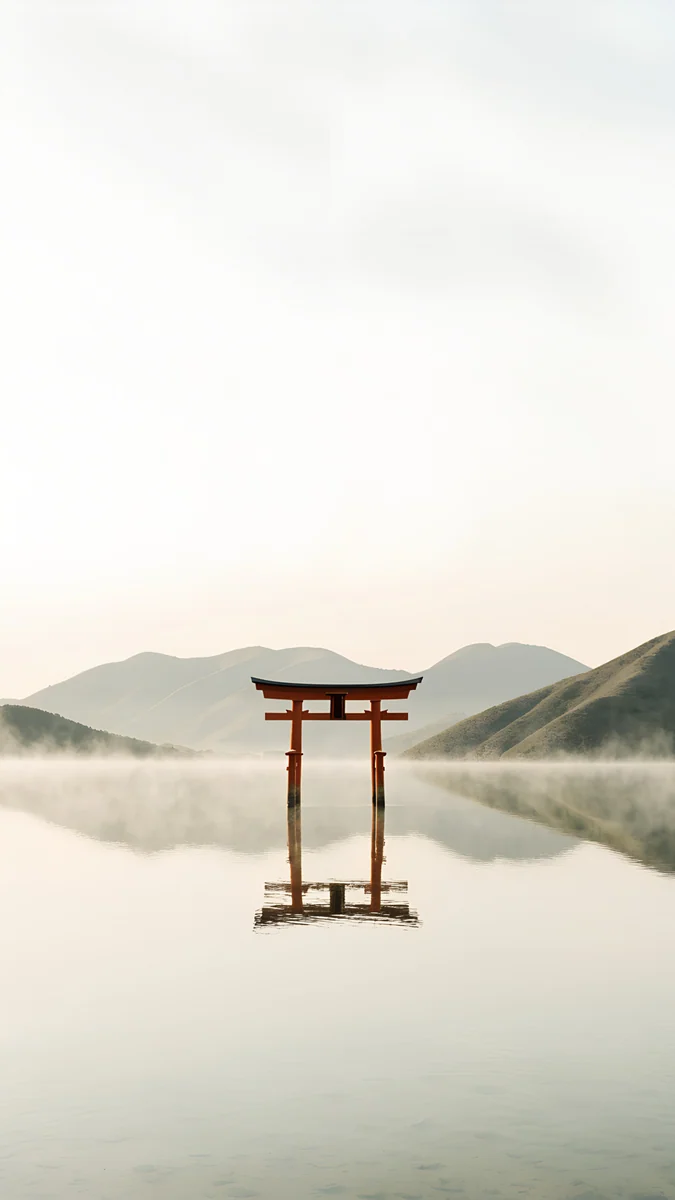
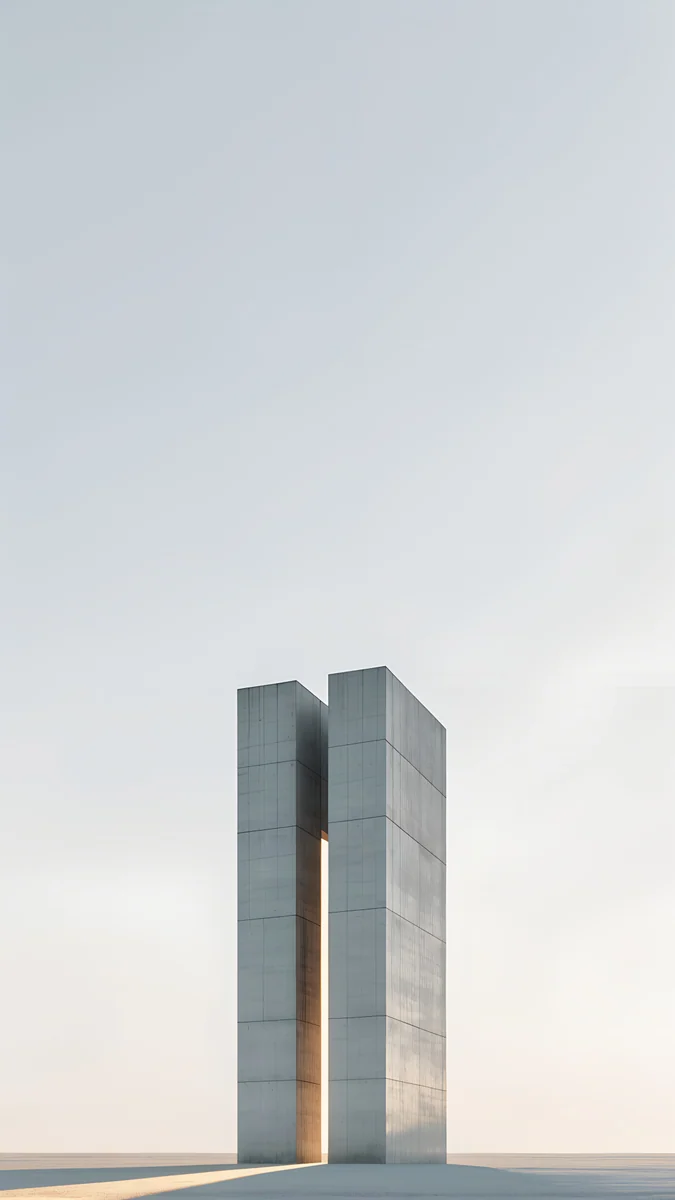
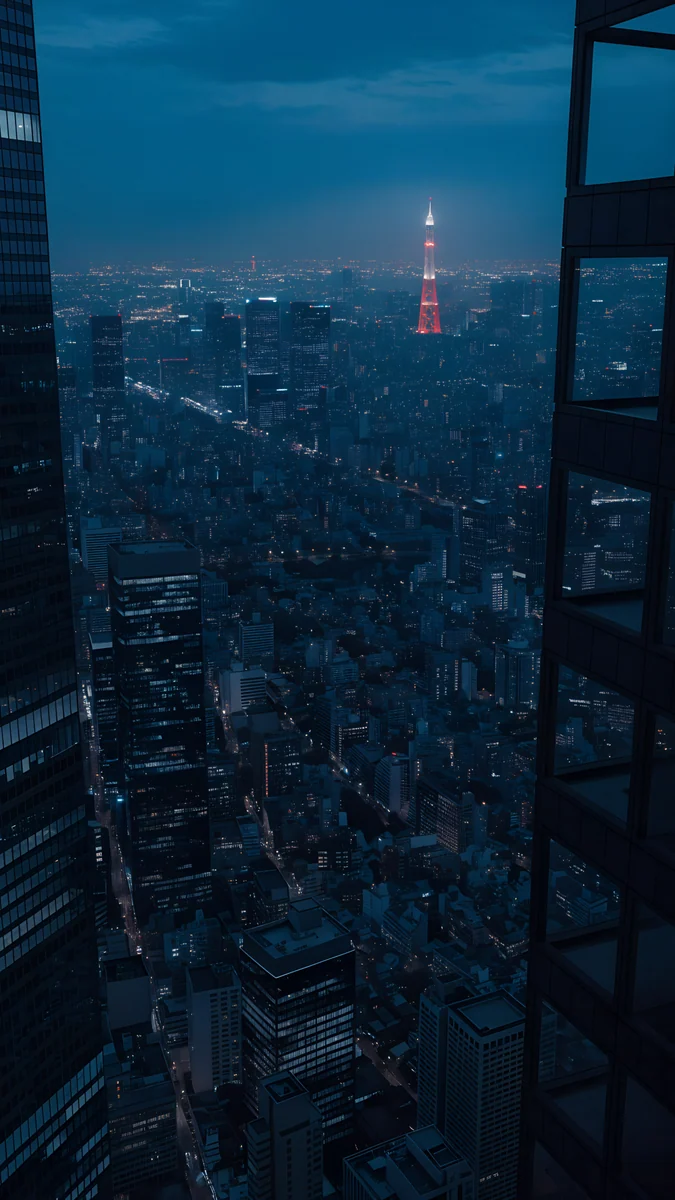
Pagoda Moon is a five storey pagoda in silhouette under a full moon on navy sky; let the tip of the roof cross the bottom of the numbers. Tokyo Tower Night looks down a canyon of towers to a red tower glowing in the distance. Torii in the Mist is a red gate standing in a still, misty lake, and Twin Slabs are two stone slabs with a line of light between them. Turn the effect on in the More menu, the three dots at the bottom right. If it stays grey, our depth effect troubleshooting guide covers every cause.
Idea 3: two widgets, not four
The box under the clock takes up to four small widgets, but two read faster and leave the wallpaper visible. Architecture with a bright top and its shadows lower down suits a widget row well.
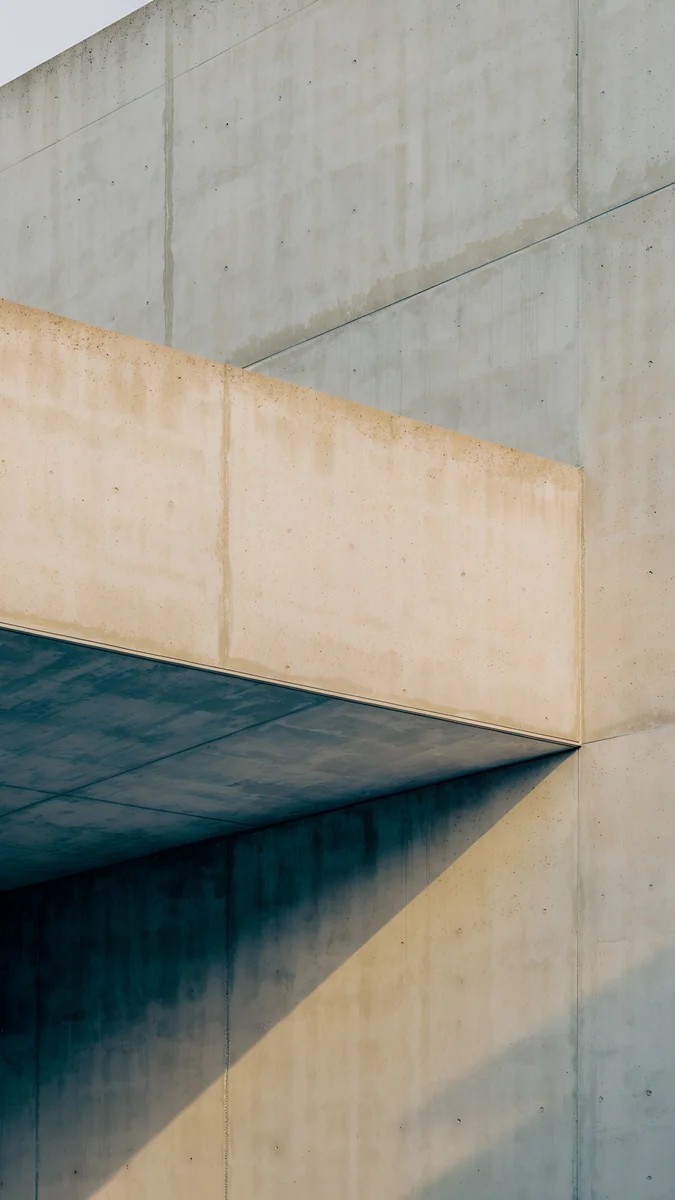
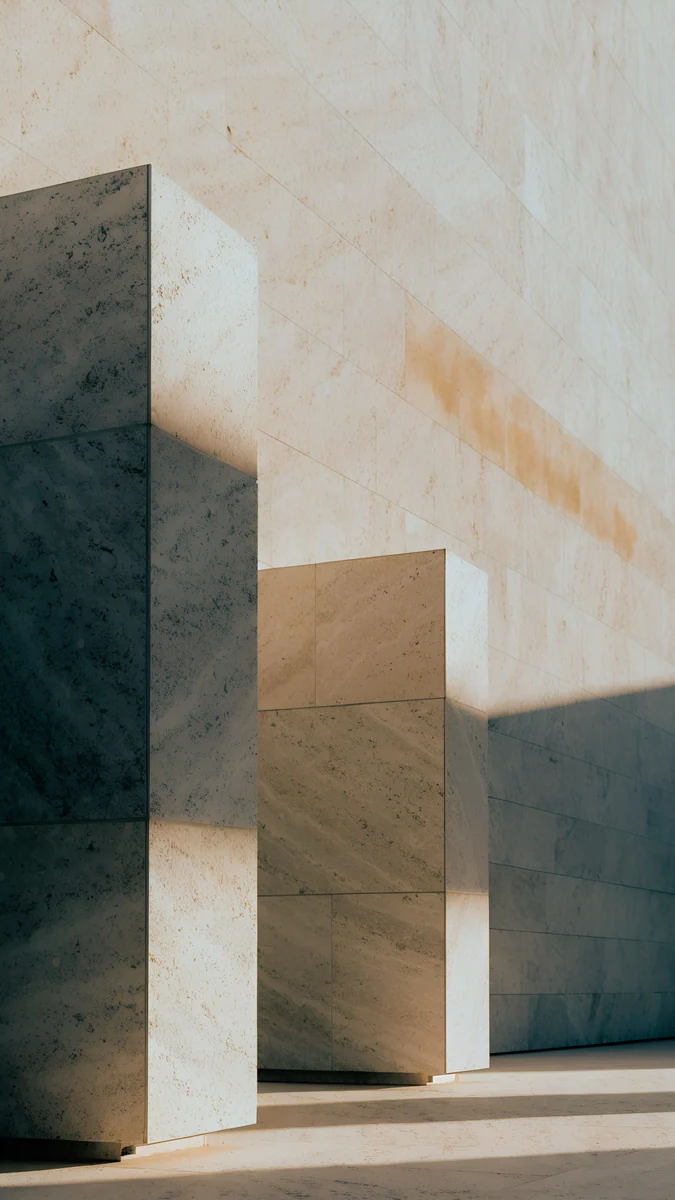
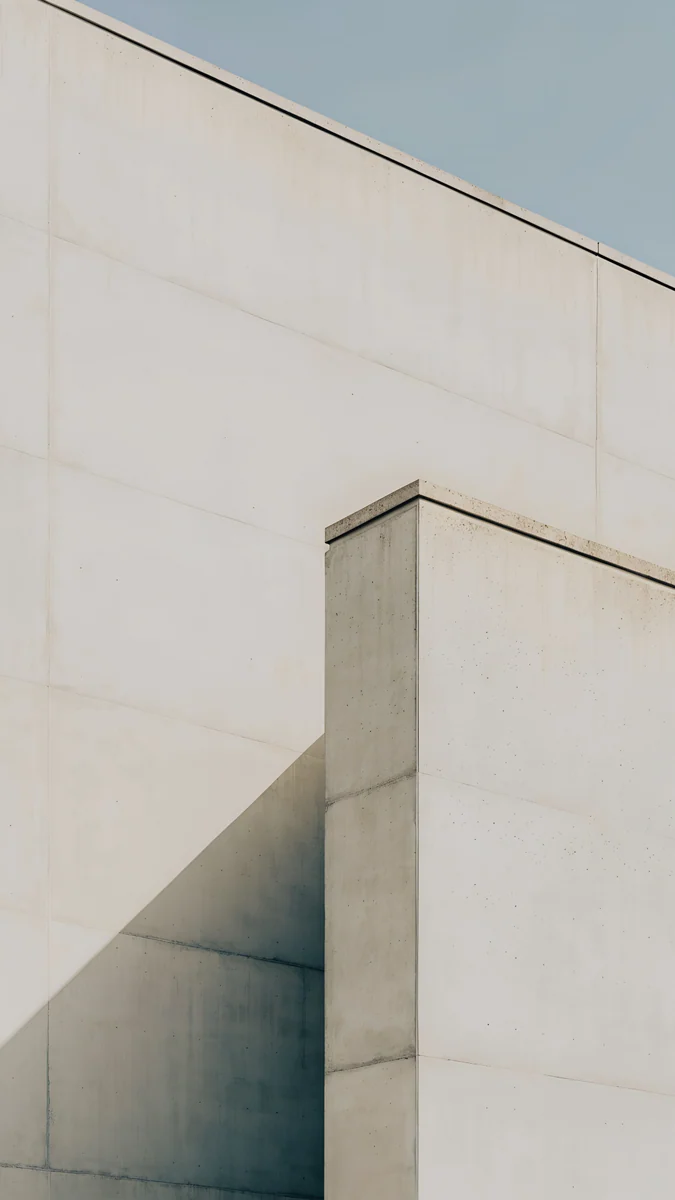
Sand Cantilever is a sand coloured concrete overhang with one deep shadow, Honey Shadow is stone walls in warm late light, and Ivory Fold is a pale wall meeting the sky at an angle. With so few colours, white widget text never gets lost. One trade off to remember: widgets under the clock switch off the depth effect, so pick one or the other for each lock screen.
Idea 4: a Photo Shuffle set that always matches
Photo Shuffle rotates a handful of pictures on the lock screen, on tap, on lock, hourly or daily. The clock colour stays the same for every picture, so the set only looks right when the pictures share a layout and a brightness.
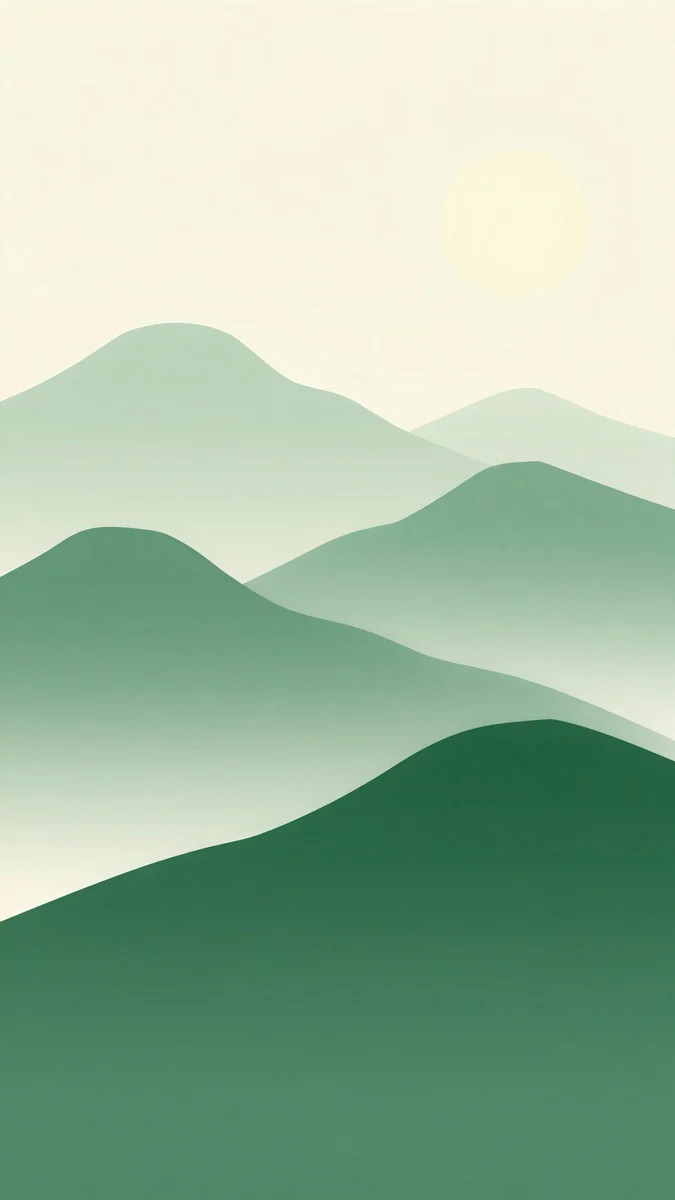 Forest Paper Peaks4K · Phone
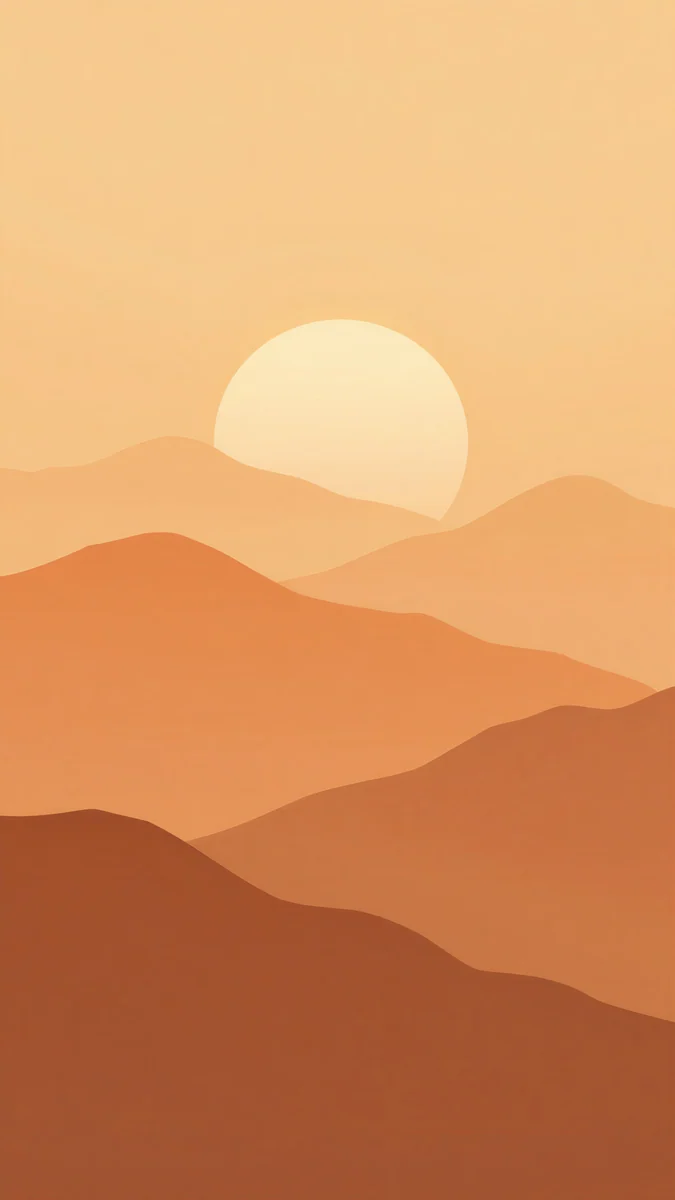 Amber Paper Sunrise4K · Phone
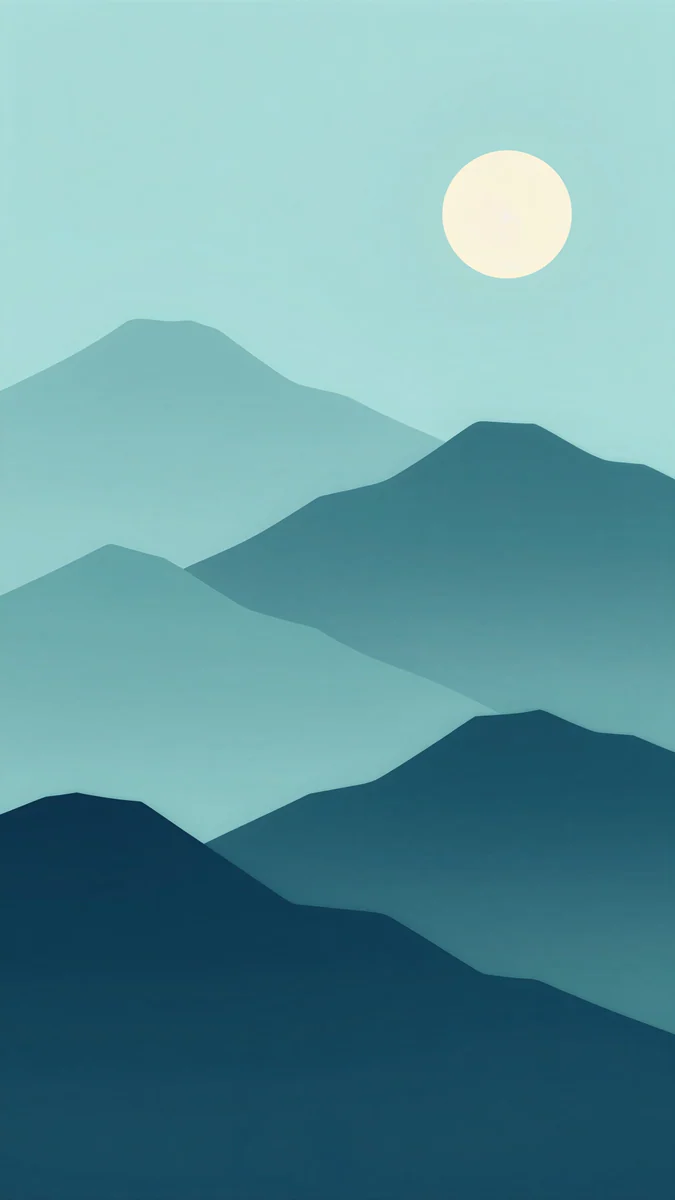 Midnight Paper Peaks4K · Phone
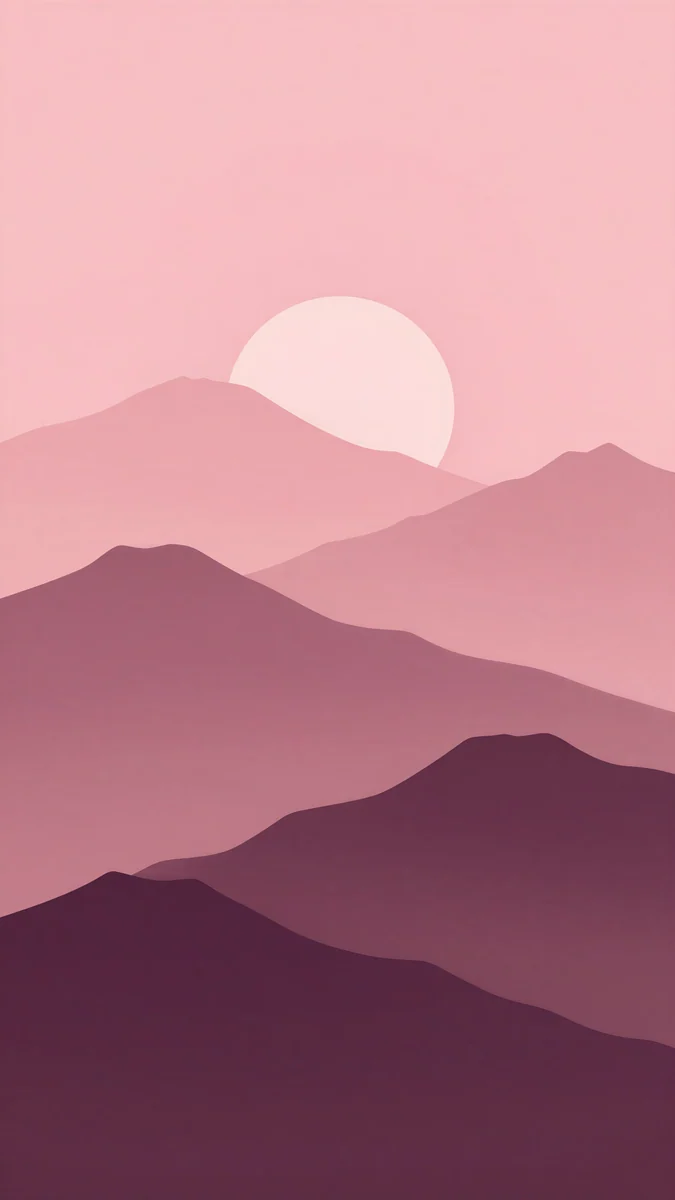 Plum Paper Peaks4K · Phone
These four come from one series of layered paper cut mountains: green Forest Paper Peaks, orange Amber Paper Sunrise, teal Midnight Paper Peaks and pink Plum Paper Peaks. Same composition, different colour, so each lock feels like a new season without breaking the clock. Setup steps are in how to make your iPhone wallpaper change automatically.
Idea 5: one lock screen per Focus
Each lock screen can follow a Focus. Touch and hold the lock screen, swipe to the one you want, tap Focus at the bottom and choose Work, Sleep or another mode. When that Focus turns on, the whole lock screen switches with it.
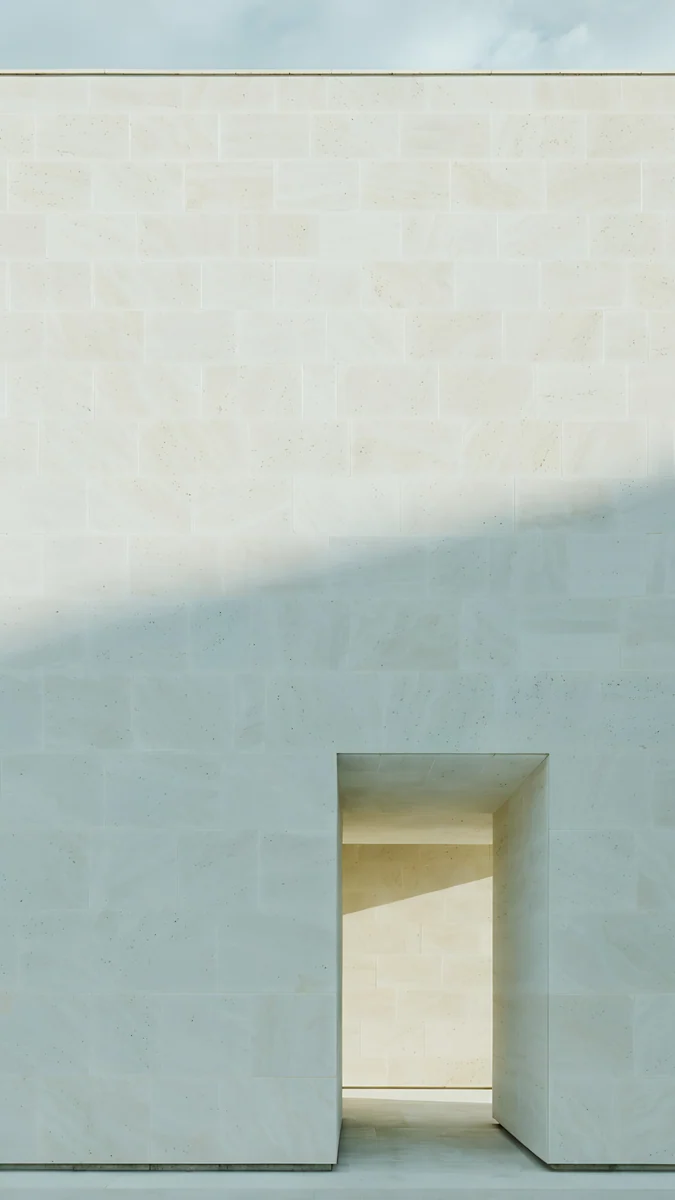
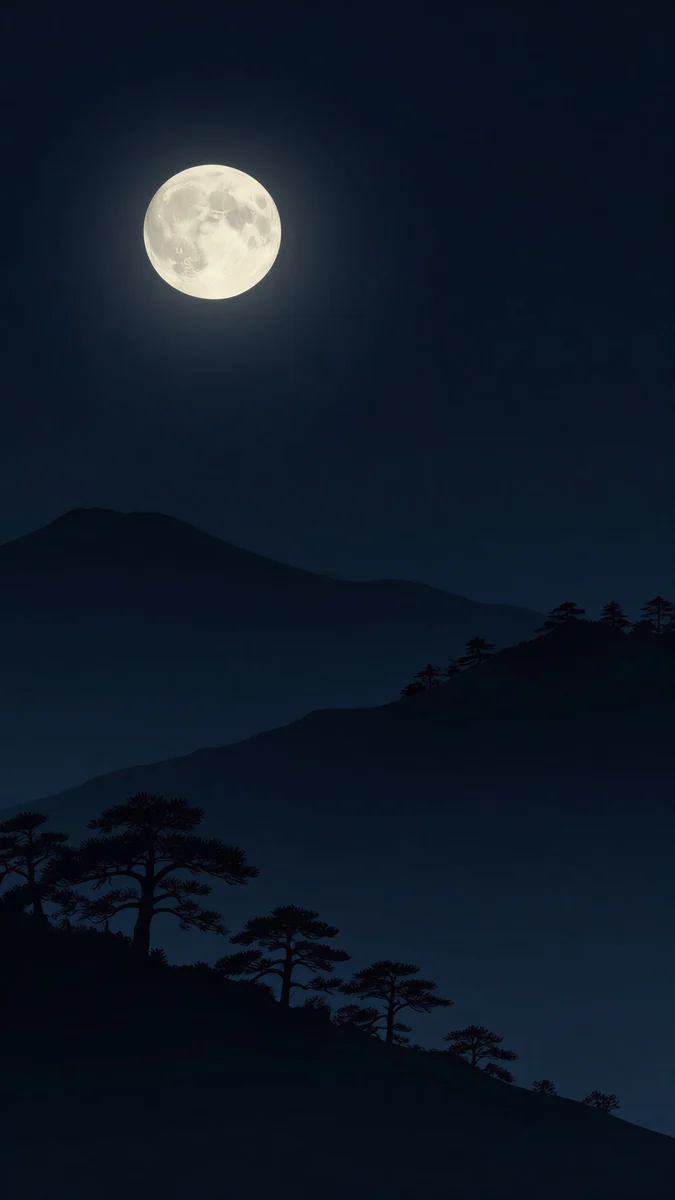
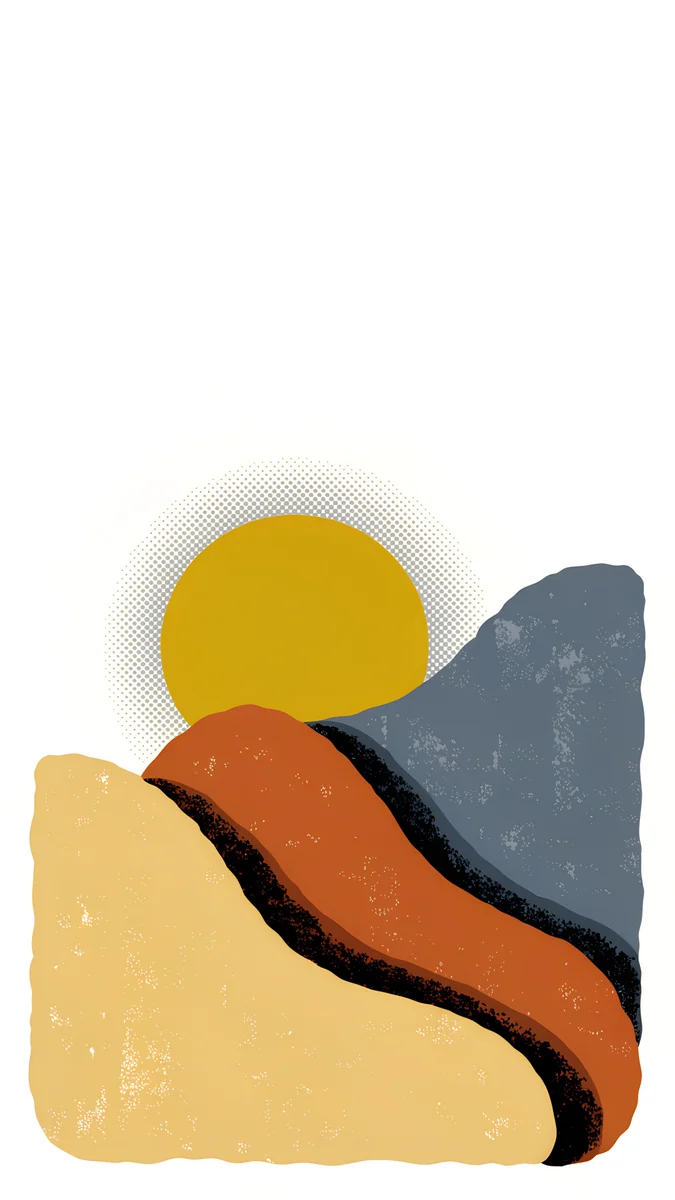
For Work, Ivory Daylight is a white stone wall with a single doorway, calm enough to ignore. For Sleep, Moon Pines is just a moon and black pine silhouettes. For weekends, Dunes and Sun is a bright poster of a yellow sun over orange dunes. You know which mode is on before you read a thing. The full linking steps are in our guide to a different iPhone wallpaper for each Focus.
Idea 6: a retro poster with a bold clock
Mid century poster wallpapers, one big shape and two or three flat colours on cream, pair well with a heavy clock font. Take the clock colour from the artwork and it looks as if it was printed there.
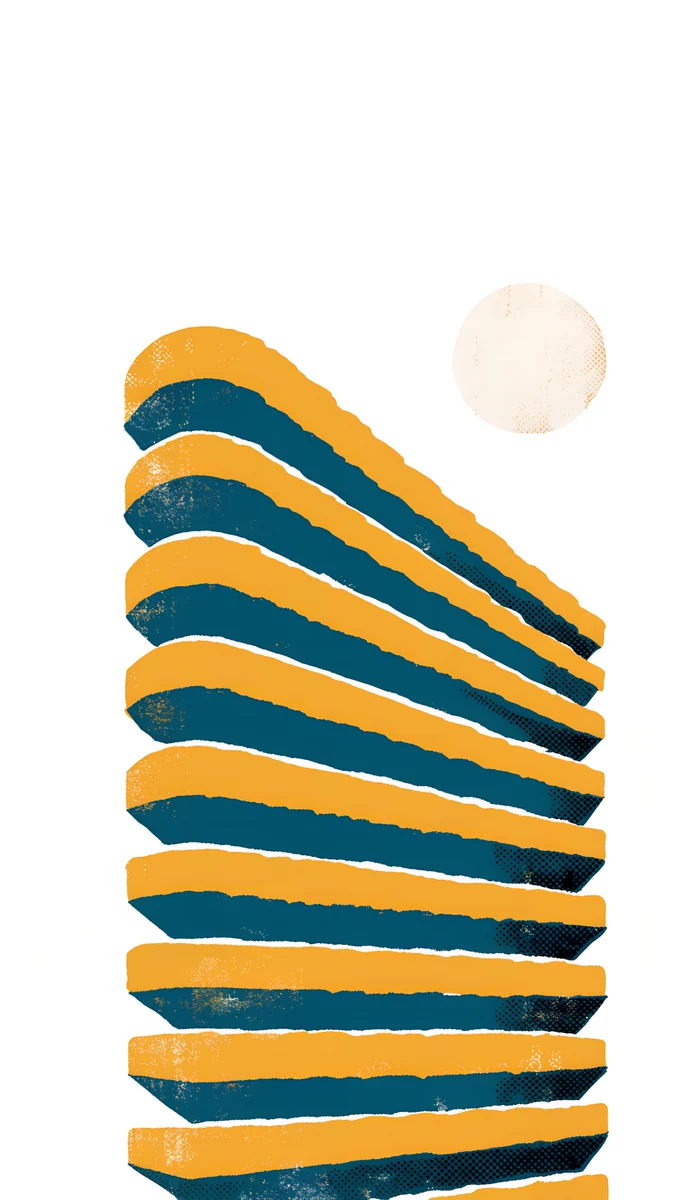
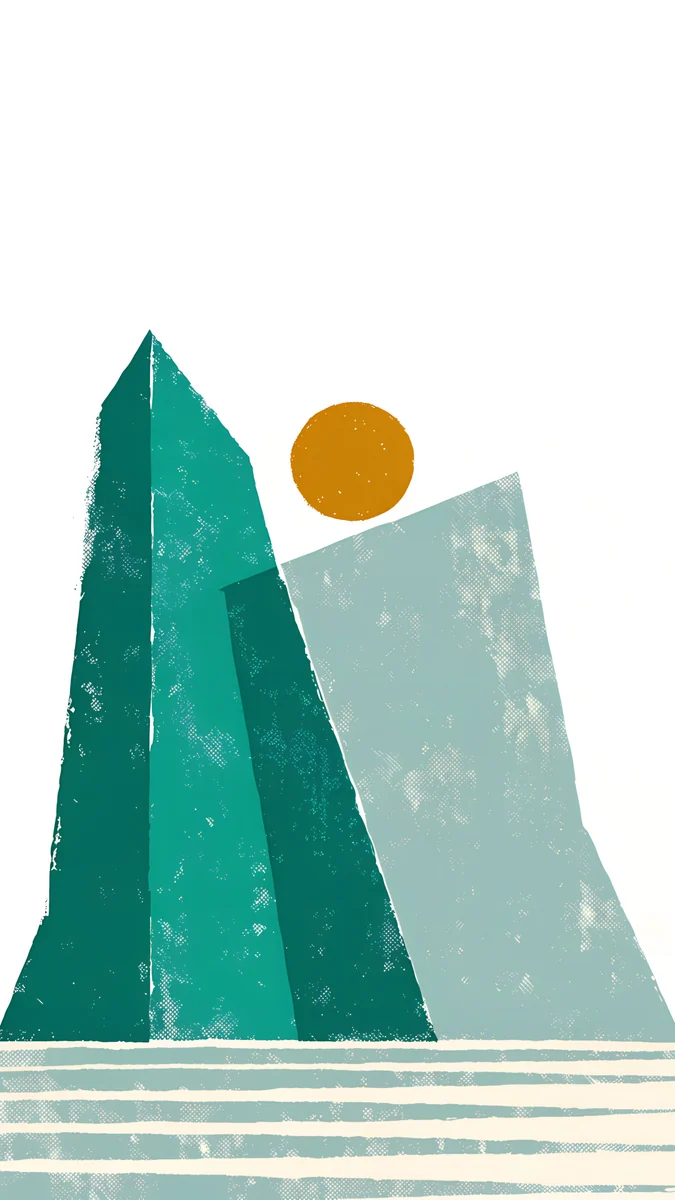
Spiral Stair stacks yellow and navy bands into a tower under a pale sun, and Mountain Lake has green peaks and a mustard sun over white lines of water. Tap the time, open the colour picker from the last circle in the row and match the navy or the green.
Idea 7: a dark lock screen for Always On
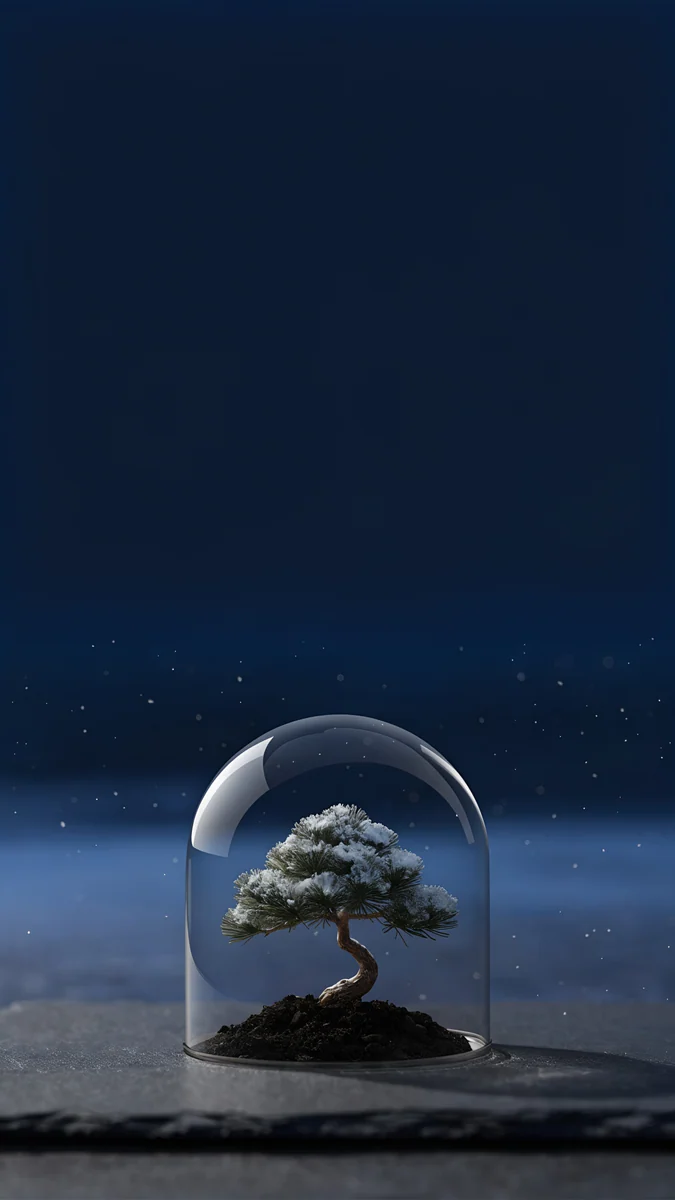
On iPhones with an Always On display, the wallpaper stays dimly visible while the phone rests. Mostly black pictures survive that dimming and leave only the white clock glowing.
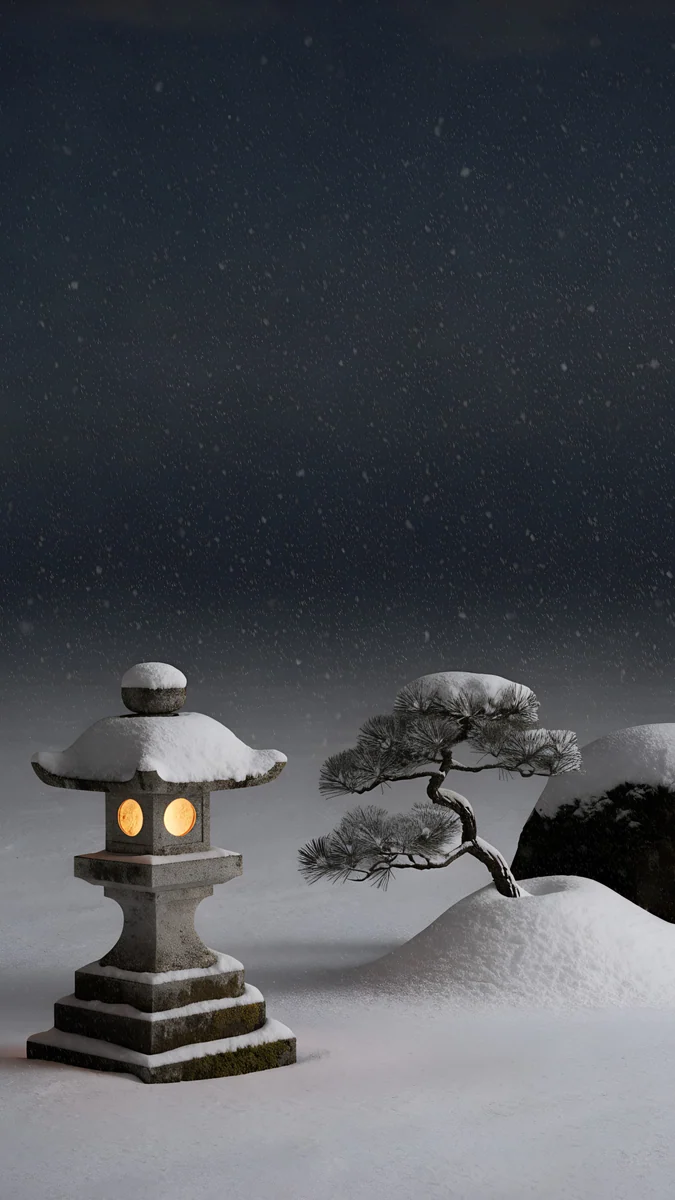
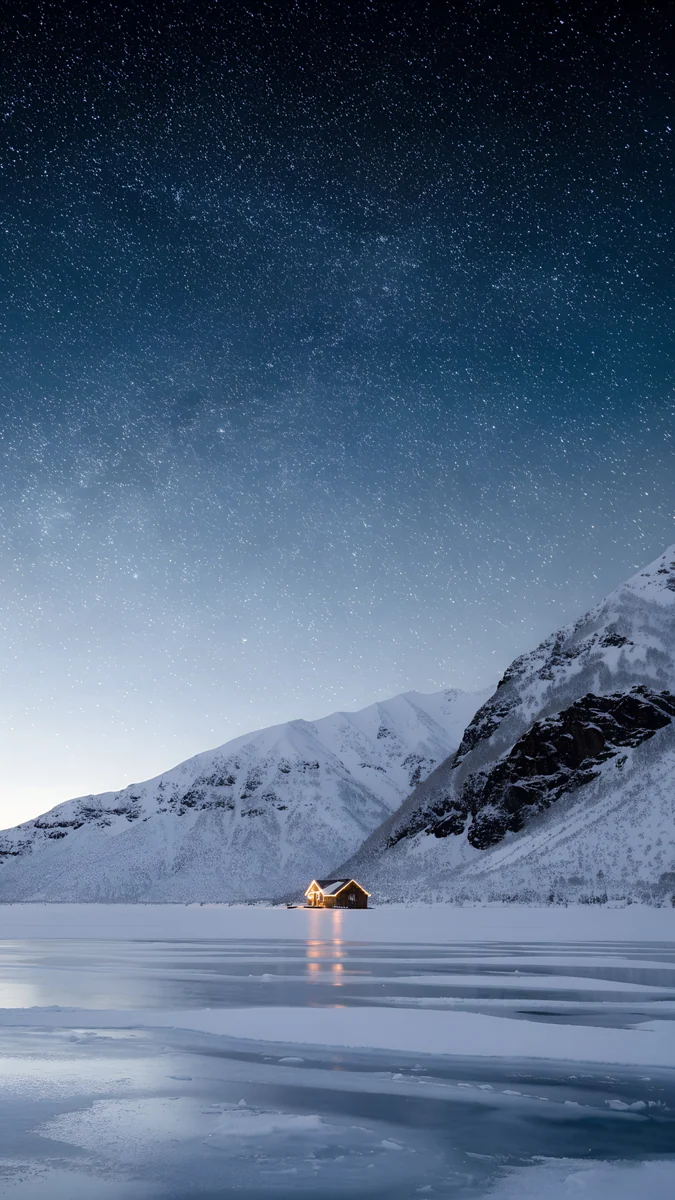
Bonsai Under Glass floats a glass dome with a snowy bonsai in navy dark. Snow Lantern Garden has one lit stone lantern in a snowy garden, and Frozen Lake Cabin shows a single cabin light under stars and snowy peaks. All three work as winter lock screens too. Settings are in our Always On display wallpaper guide.
How to build any of these setups
- Save the wallpaper to Photos.
- Unlock with Face ID or Touch ID but stay on the lock screen, then touch and hold it.
- Tap the + button and choose Photos. To edit the current one instead, tap Customize, then Lock Screen.
- Pinch and drag to frame the picture, then tap the time to pick a font and colour.
- Tap the box under the clock for widgets, or the three dots for the depth effect.
- Tap Add and choose whether the home screen uses the same picture.
You can keep several lock screens and swipe between them, so there is no need to choose just one idea. For more wallpapers built around a readable clock, see our lock screen wallpaper picks.
Common problems and fixes
- The glass clock is hard to read. There is fine detail behind it. Set the colour by hand or move to a wallpaper with a plain top.
- Depth effect is greyed out. Remove the widgets under the clock, then try a picture with a cleaner subject edge.
- The wallpaper looks zoomed or soft. In the More menu, turn off Perspective Zoom and reframe.
- Some shuffle photos hide the clock. The set mixes light and dark pictures. Use one series with the same brightness.
Get these wallpapers in Velpaper
Every wallpaper here is a 4K original designed by Carlos Vivero, 2160 × 3840 pixels on phones, composed with open space where the clock sits. Velpaper has apps for iPhone, iPad, Mac and Android, and the same wallpapers are on velpaper.com.
- Open a wallpaper in the Velpaper app or on velpaper.com.
- Download the original and save it to Photos. A screenshot of the preview is compressed, so skip it.
- Build the lock screen with the steps above.
Browsing and previewing are free, with no account. The wallpapers on this page unlock after a short optional ad in the apps, and the file you get has no watermark.
Original wallpapers in 4K and 5K for iPhone, Android and desktop.
Questions
How can I make my iPhone lock screen look better?
Choose the wallpaper first, then match the clock to it. A picture with an empty sky or wall in the top third gives the time a calm place to sit. Touch and hold the lock screen, tap Customize and Lock Screen, then tap the time to set a font and a colour by hand instead of leaving the automatic tint. Keep widgets to two at most. Those three choices, a calm wallpaper, a matched clock and few widgets, change the look more than any single effect, and you can save several versions and swipe between them.
How do I make the clock bigger on iOS 26?
Open the lock screen editor, tap the time and drag the handle at its lower edge downwards. The digits stretch taller and can fill much of the top half of the screen. With the depth effect on, iOS sizes the clock so the subject of the picture can sit in front of it. The taller clock may not be offered for every font or wallpaper style, so if it will not stretch, try another font or a picture added from Photos. A wallpaper with a plain upper half, such as Monolith on the Plain, gives a tall clock the most room.
Can I use widgets and the depth effect together?
Not on the same lock screen when the widgets sit in the box under the clock. That row occupies the space where the subject needs to rise in front of the time, so iOS turns the depth effect off or greys it out. The usual answer is to make two lock screens: one with the depth effect and no widgets for a photo you want to show off, and one with weather or calendar widgets for busy days. Touch and hold the lock screen and swipe to switch between them, or link each one to a Focus.
What wallpapers work best for Photo Shuffle?
Pictures from one series with a similar brightness and layout. Photo Shuffle keeps one clock colour for every image, so if the set mixes a white picture with a black one, the clock will vanish on one of them. A set of four or five that share a composition and only change colour, like the paper cut mountain series on this page, always looks deliberate. Choose a calm top area for all of them and set the clock colour once. On Lock changes most often, so it rewards the most consistent set.
Can each Focus have its own lock screen?
Yes. Touch and hold the lock screen, swipe to the lock screen you want, tap Focus at the bottom of the preview and pick a mode such as Work or Sleep. You can also do it from Settings, Focus, by choosing a mode and tapping the lock screen preview under the screen options. When the Focus turns on, by hand or on a schedule, the lock screen switches with its own wallpaper, clock and widgets. A plain light wallpaper for work and a dark one for sleep makes the current mode obvious at a glance.
Carlos Vivero
Designer of Velpaper wallpapers
Carlos Vivero designs the wallpapers in Velpaper: quiet architecture, liquid glass, Japanese ink and calm landscapes. Every piece is made as a 4K original for iPhone, Android and desktop.
Recent work








