How to Change Wallpaper on Windows 10 (Step by Step)
How to change wallpaper on Windows 10 step by step: desktop background, slideshow and lock screen, the activation lock and how to restore the default.
In short: On Windows 10, press Windows + I, open Personalization, then Background, set the Background list to Picture, click Browse to pick your image and choose Fill under Choose a fit. If Windows is not activated, right-click the image in File Explorer and choose Set as desktop background instead.
By the Velpaper team · Wallpapers by Carlos Vivero, Velpaper designer · · Updated · 6 min read
Free 4K originals for iPhone and Android, no watermark
On this page
- How to change wallpaper on Windows 10 in Settings
- Two shortcuts: File Explorer and Photos
- How to make the wallpaper change automatically
- Change the lock screen picture on Windows 10
- Change the wallpaper without activation
- Restore the default Windows 10 wallpaper
- Match the accent colour and hide the icons
- Which wallpaper size to use on Windows 10
To change the wallpaper on Windows 10, press Windows + I, open Personalization and stay on the Background page. Set the Background list to Picture, click Browse, open your image and choose Fill under Choose a fit. The desktop changes at once, and there is nothing to save.
The menu names below come from Windows 10 version 22H2, the last version Microsoft released. Free support for Windows 10 ended on 14 October 2025, but personalization works exactly as before, on Home and Pro alike. If your PC already runs the newer system, follow our guide on how to change wallpaper on Windows 11 instead, because the menus there are laid out differently.
How to change wallpaper on Windows 10 in Settings
- Right-click an empty part of the desktop and choose Personalize. Or press Windows + I and click Personalization.
- The Background page opens first. In the drop-down list under Background, choose Picture.
- Click one of the thumbnails under Choose your picture, or click Browse and open your own file.
- Under Choose a fit, select Fill.
The small preview at the top of the page shows the result straight away. Windows stores its own copy of the image, so deleting the original from Downloads later does not remove the wallpaper.
Fill is the right choice for nearly every wallpaper: it covers the whole screen and trims whatever sticks out. The other options, Fit, Stretch, Tile, Center and Span, behave the same as in Windows 11, and the table in our Windows 11 guide explains each one, along with a different picture on each monitor.
Two shortcuts: File Explorer and Photos
If the image is already on your PC, you can skip Settings. In File Explorer, right-click the file and choose Set as desktop background. That is the whole job.
Select several images with Ctrl first, then right-click one of them and use the same command. Windows turns the selection into a slideshow that rotates on its own.
In the Photos app, open the picture, click the three dots in the top right corner, then Set as and Set as background. The same menu also offers Set as lock screen.
How to make the wallpaper change automatically
- Put the pictures in one folder, for example a new folder called Wallpapers inside Pictures.
- Go to Personalization, Background and choose Slideshow in the Background list.
- Under Choose albums for your slideshow, click Browse and select that folder.
- Pick an interval under Change picture every, from 1 minute to 1 day.
- Turn on Shuffle if you do not want the pictures in alphabetical order.
On a laptop, the slideshow pauses on battery unless you turn on the switch that allows it. Leave it off if battery life matters more than variety.
A slideshow looks deliberate when the pictures share a palette. Five random photos feel like a screensaver; five pictures in the same ink and paper tones feel like a set.
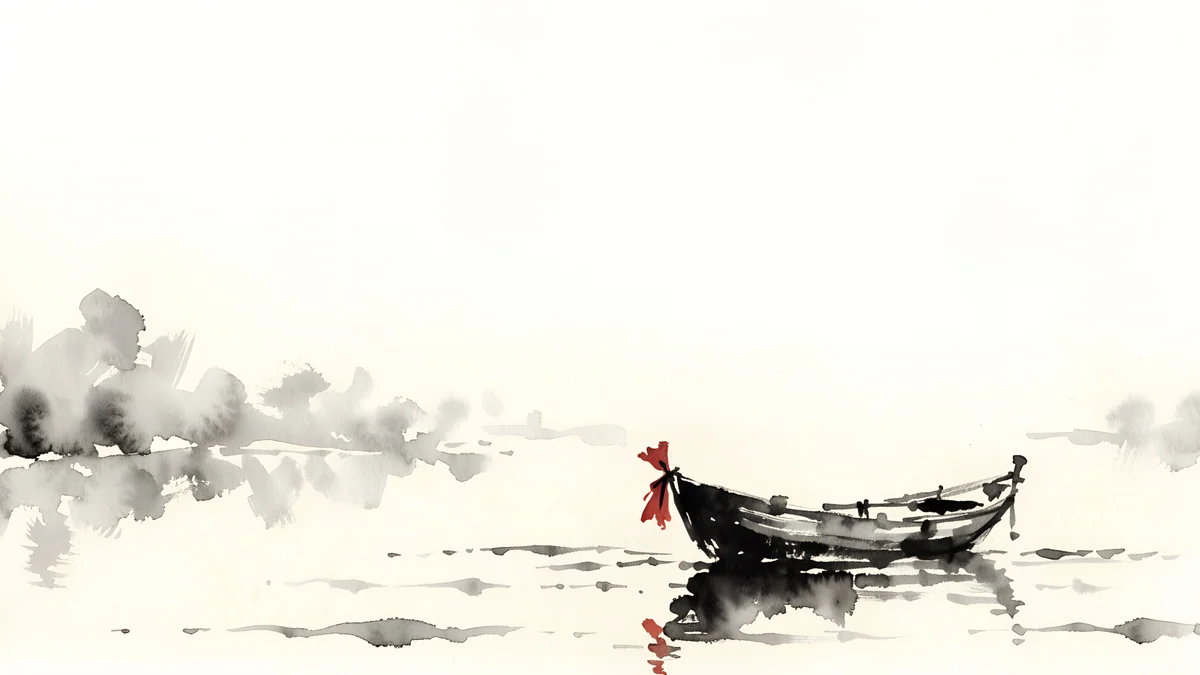 Ink Quiet Lake4K · Desktop
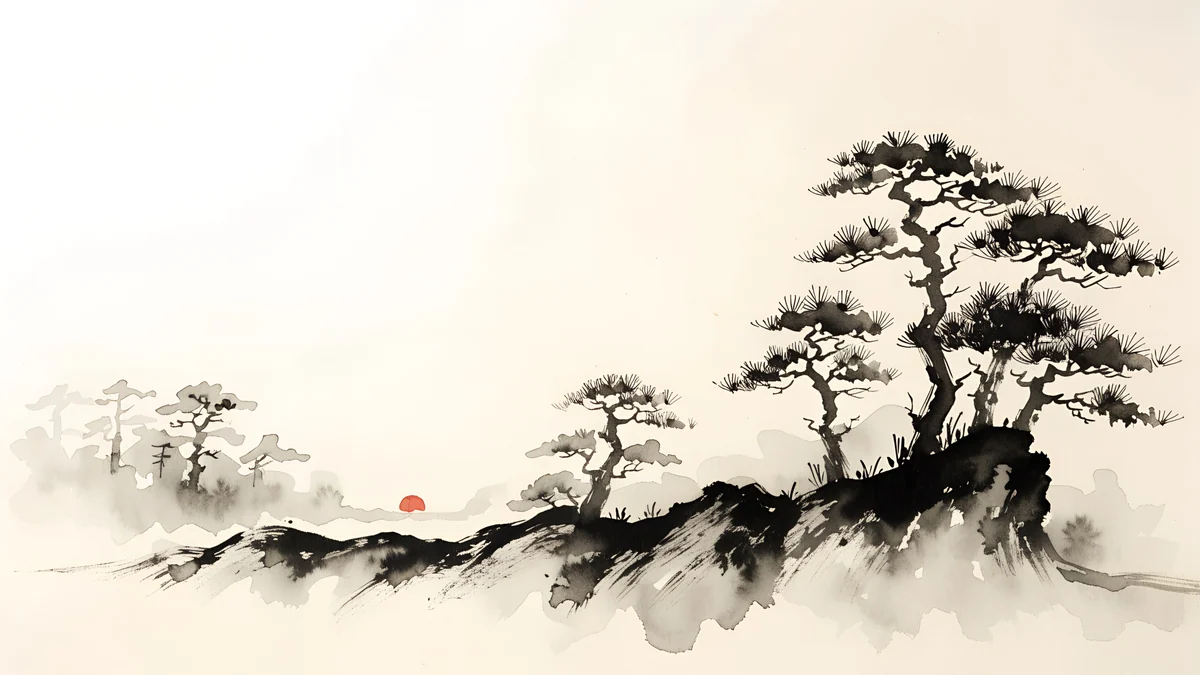 Ink Mist Ridge4K · Desktop
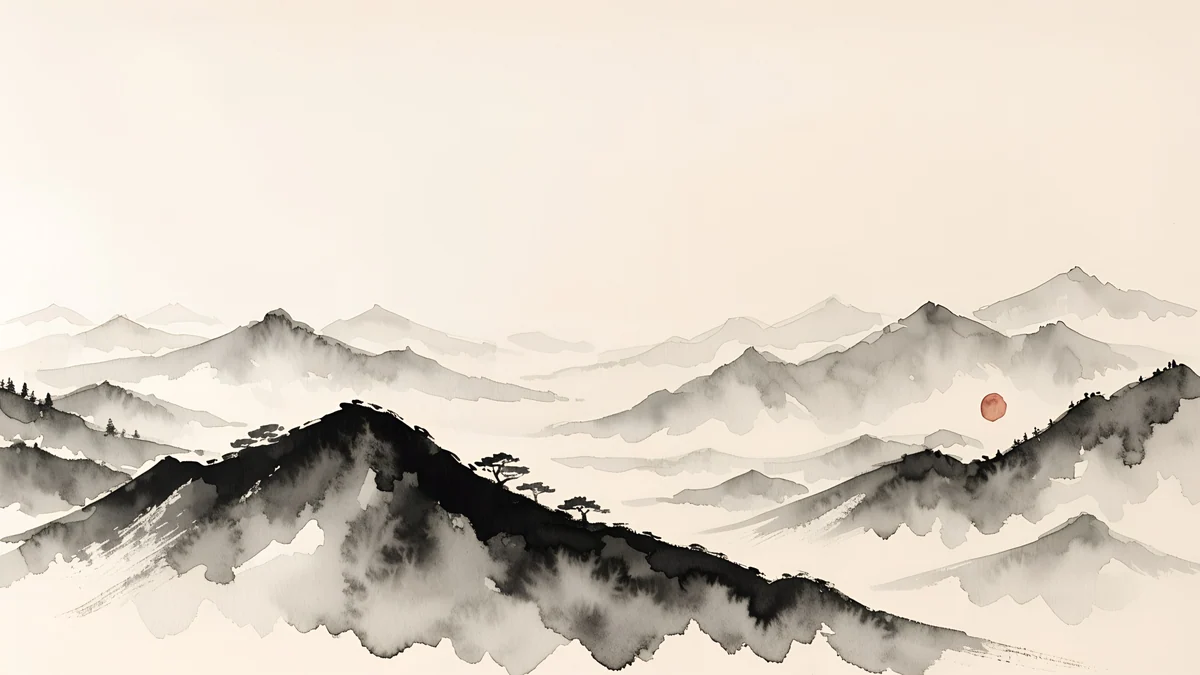 Ink Mountain Mist4K · Desktop
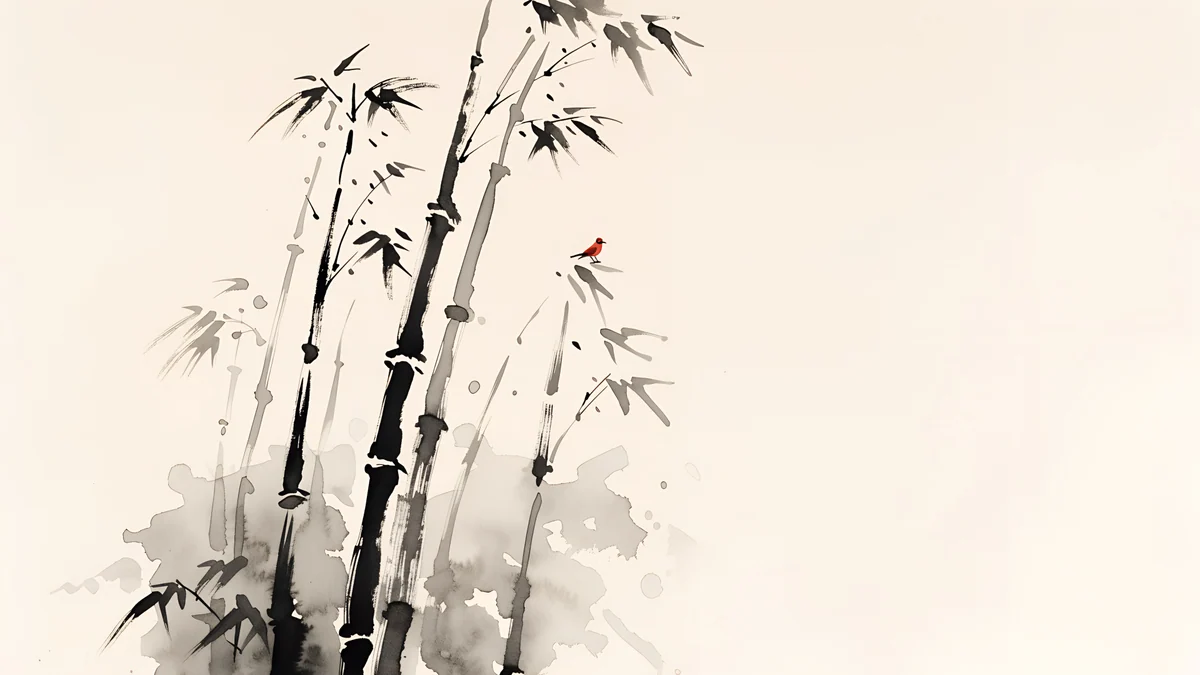 Ink Bamboo Grove4K · Desktop
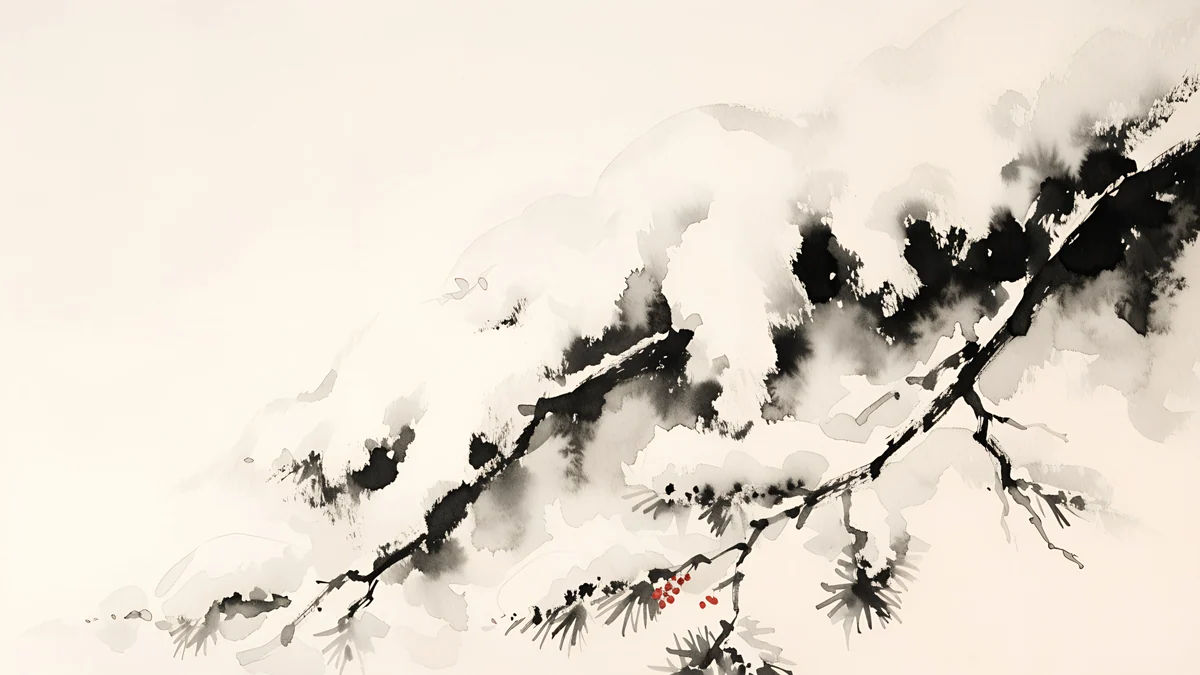 Ink Snow Branch4K · Desktop
These five Japanese ink wash desktop wallpapers use the same grey and paper palette, so a folder of them changes the scene through the day without changing the mood.
Change the lock screen picture on Windows 10
- Open Settings, Personalization, Lock screen.
- In the Background list, choose Picture. The other options are Windows spotlight, which brings in new photos from Microsoft regularly, and Slideshow.
- Click Browse and pick the image.
- Turn off the switch for fun facts and tips if you want the picture without text from Microsoft on top.
Further down the page, Show lock screen background picture on the sign-in screen decides whether the same picture appears behind the password field. Turn it off if you prefer a plain sign-in screen.
Change the wallpaper without activation
On a copy of Windows 10 that is not activated, the Personalization pages are greyed out and a line at the top says you need to activate Windows before you can personalize your PC. That locks the background, the lock screen, colours and themes in Settings.
The File Explorer route still works. Right-click the image and choose Set as desktop background, exactly as above. What you cannot change without activation is the fit, the slideshow interval and anything on the Lock screen page.
Ignore downloads that promise to unlock personalization or activate Windows for free. They are a common way to get malware onto a PC, and the right-click route already does the job.
On a work or school PC you may instead see that some settings are managed by your organization. That is a policy set by the administrator, and only the administrator can lift it.
Restore the default Windows 10 wallpaper
The familiar blue picture with the Windows logo is still on your drive. In Settings, choose Picture, click Browse and go to C:\Windows\Web\Wallpaper\Windows. The file is called img0.jpg.
Sharper copies for large screens, including 3840 × 2160, sit in C:\Windows\Web\4K\Wallpaper\Windows. Pick the one that matches your resolution.
Match the accent colour and hide the icons
Windows 10 can take its accent colour from the wallpaper. Go to Personalization, Colors and tick Automatically pick an accent color from my background. Start menu highlights and the selection colour then follow the picture, even during a slideshow.
On the same page, Choose your color switches Windows between Light and Dark. A dark taskbar sits best over a dark or mid-tone wallpaper; a light one needs a pale image to look intentional.
A calm wallpaper loses its point under three columns of shortcuts. Right-click the desktop, open View and untick Show desktop icons. The files stay where they are, only hidden.
Which wallpaper size to use on Windows 10
Check your resolution in Settings, System, Display. A 3840 × 2160 image covers Full HD, 1440p and 4K screens, because Windows only has to scale it down. Our PC wallpaper size guide has the full chart for laptops, ultrawide monitors and two-screen setups.
Velpaper desktop wallpapers are 3840 × 2160 or 5120 × 2880 JPEG originals, free to download on velpaper.com with no account. On Windows you use the website; the apps are for iPhone, Android and Mac. Wide, quiet compositions suit Windows 10 best, with the taskbar along the bottom and the icons down the left.
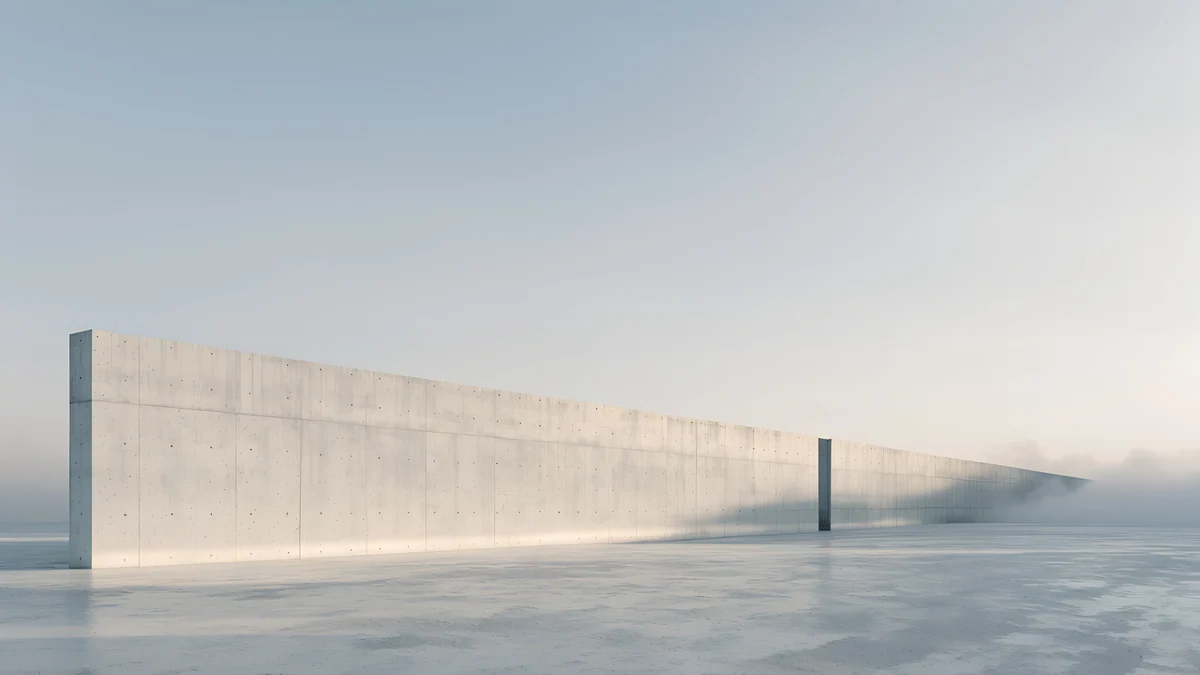 Horizon Wall4K · Desktop
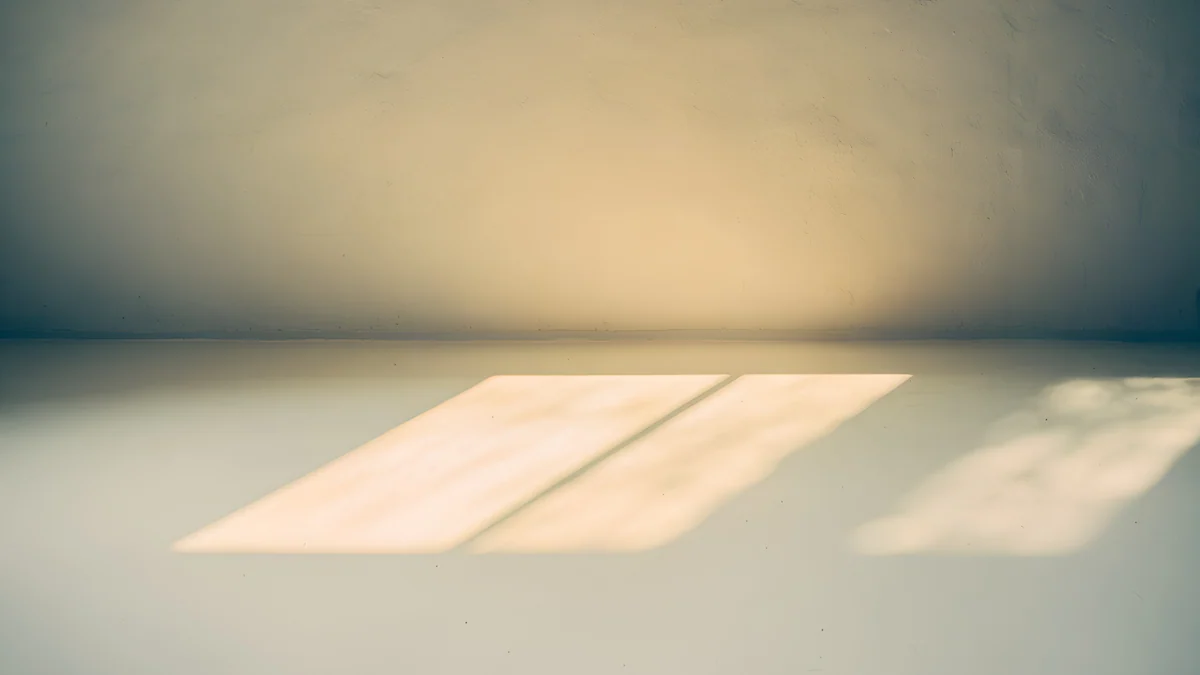 Window Square4K · Desktop
 One Block4K · Desktop
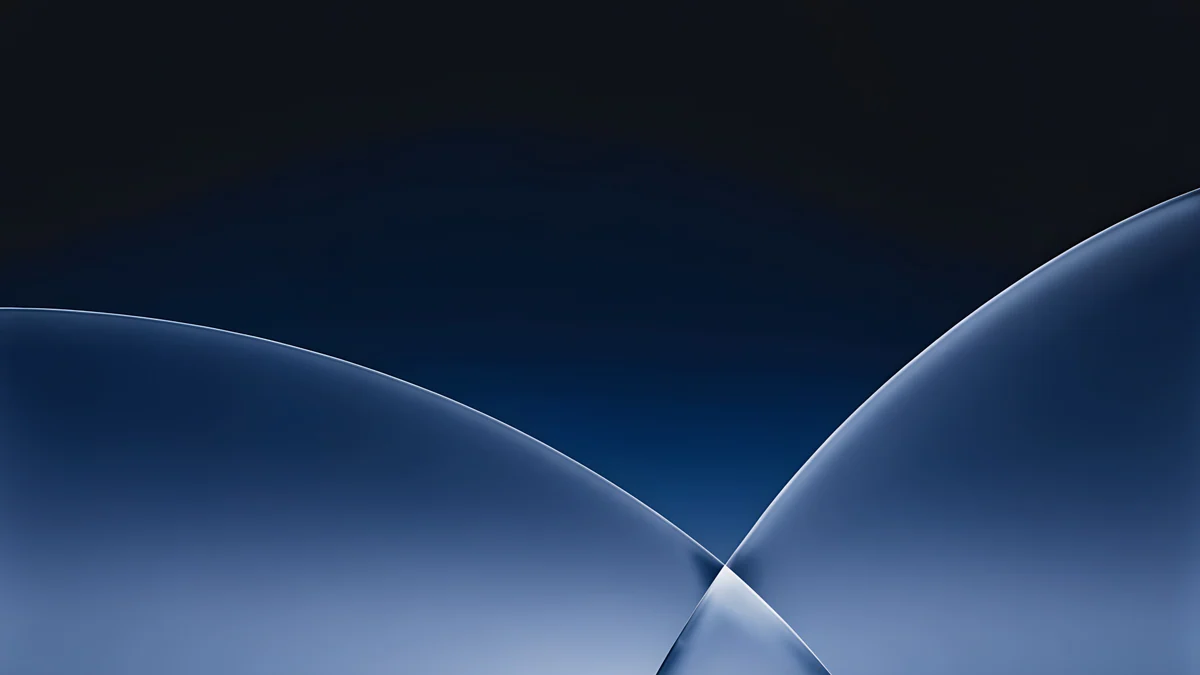 Cobalt Soft Horizon4K · Desktop
Horizon Wall is one long concrete wall across a misty plain, so the icons sit on open sky. Window Square is a slanted patch of afternoon sun on a cream wall, warm and bright. One Block keeps a black stepped tower in the lower right and leaves the rest white, and Cobalt Soft Horizon is the dark option for dark mode. More in this spirit are in our minimalist wallpapers. Windows 10 has no built-in moving wallpaper; for that, see how to set a live wallpaper on PC.
Original wallpapers in 4K and 5K for iPhone, Android and desktop.
Questions
How do I change the wallpaper on Windows 10 without activation?
Use File Explorer. Find the image, right-click it and choose Set as desktop background. This works on an unactivated copy of Windows 10, even though the Background page in Settings is greyed out, and the wallpaper stays in place after you activate Windows later. You cannot change the fit or the lock screen this way, and you should avoid tools that claim to unlock personalization, since they often carry malware.
How do I make my Windows 10 wallpaper change automatically?
Put the pictures in one folder. Then open Settings, Personalization, Background, set the Background list to Slideshow, click Browse under Choose albums for your slideshow and pick the folder. Under Change picture every you can choose an interval from 1 minute to 1 day, and Shuffle mixes the order. On a laptop, turn on the battery switch if you want the slideshow to keep running when the charger is unplugged.
How do I get the default Windows 10 wallpaper back?
The default picture is still on your PC. Open Settings, Personalization, Background, choose Picture and click Browse. Go to C:\Windows\Web\Wallpaper\Windows and open img0.jpg, the blue picture with the Windows logo. For a sharper version on a large screen, look in C:\Windows\Web\4K\Wallpaper\Windows, where copies at higher resolutions, including 3840 × 2160, are stored. Choose Fill as the fit and the original desktop is back.
How do I change the lock screen picture on Windows 10?
Open Settings, Personalization, Lock screen. In the Background list choose Picture, then click Browse and pick your image. Windows spotlight is the option that shows a new photo from Microsoft regularly, and Slideshow rotates a folder of your own. Turn off the fun facts and tips switch for a clean picture, and use the switch for the sign-in screen to decide whether the same image appears behind the password field.
Where can I get free 4K wallpapers for Windows 10?
Velpaper publishes original desktop wallpapers at 3840 × 2160 and 5120 × 2880 pixels. On a Windows PC you download them from velpaper.com: open a wallpaper, save the JPEG and set it with any of the methods in this guide. Desktop originals are free, without a watermark and without an account. The site also has phone versions of many designs, so your PC and phone can match.
Carlos Vivero
Designer of Velpaper wallpapers
Carlos Vivero designs the wallpapers in Velpaper: quiet architecture, liquid glass, Japanese ink and calm landscapes. Every piece is made as a 4K original for iPhone, Android and desktop.
Recent work








