Google Slides Background: Free 4K Images and How to Add
Google Slides background guide: how to add your own image, the file rules, and 24 original 4K 16:9 presentation backgrounds, light, dark and aesthetic.
Sources [1] · By the Velpaper team · Wallpapers by Carlos Vivero, Velpaper designer · · 5 min read
In short: In Google Slides, open Slide, Change background, Image, Choose and pick a .gif, .jpg or .png under 50 MB [2]. Slides are 16:9 by default, so any Velpaper 3840 × 2160 desktop wallpaper fits a slide exactly, and Add to theme puts it on every slide.
Wallpapers
 Liquid Light Band
 Cobalt Soft Horizon
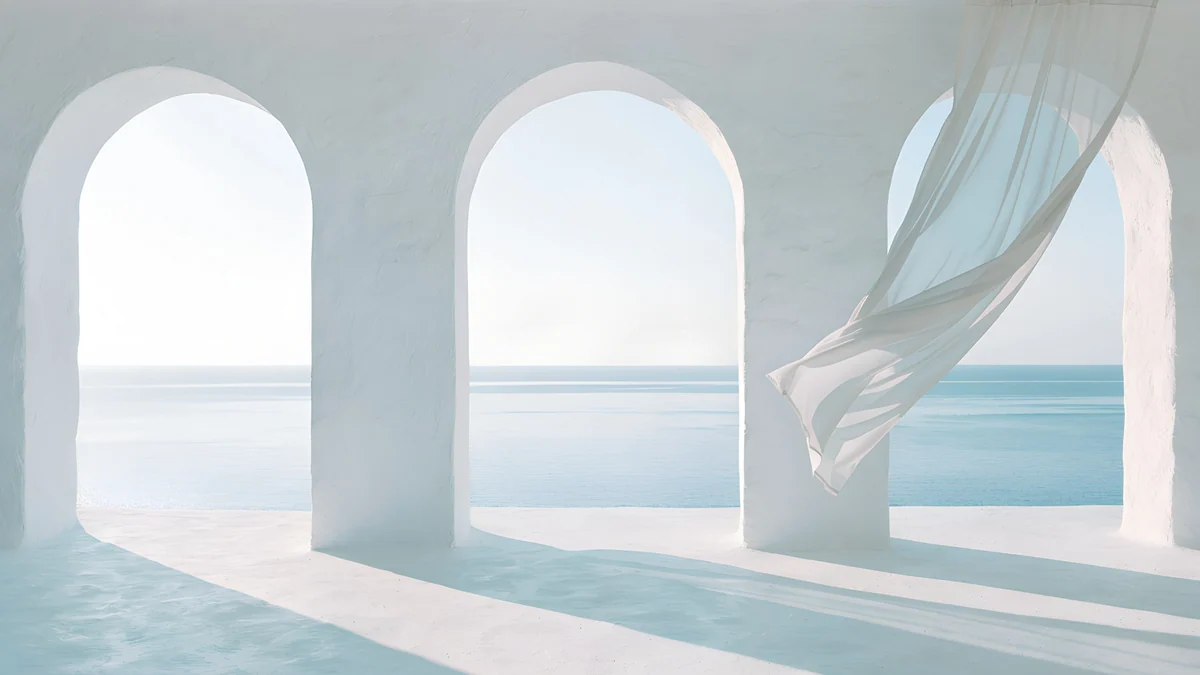 Sea Arch
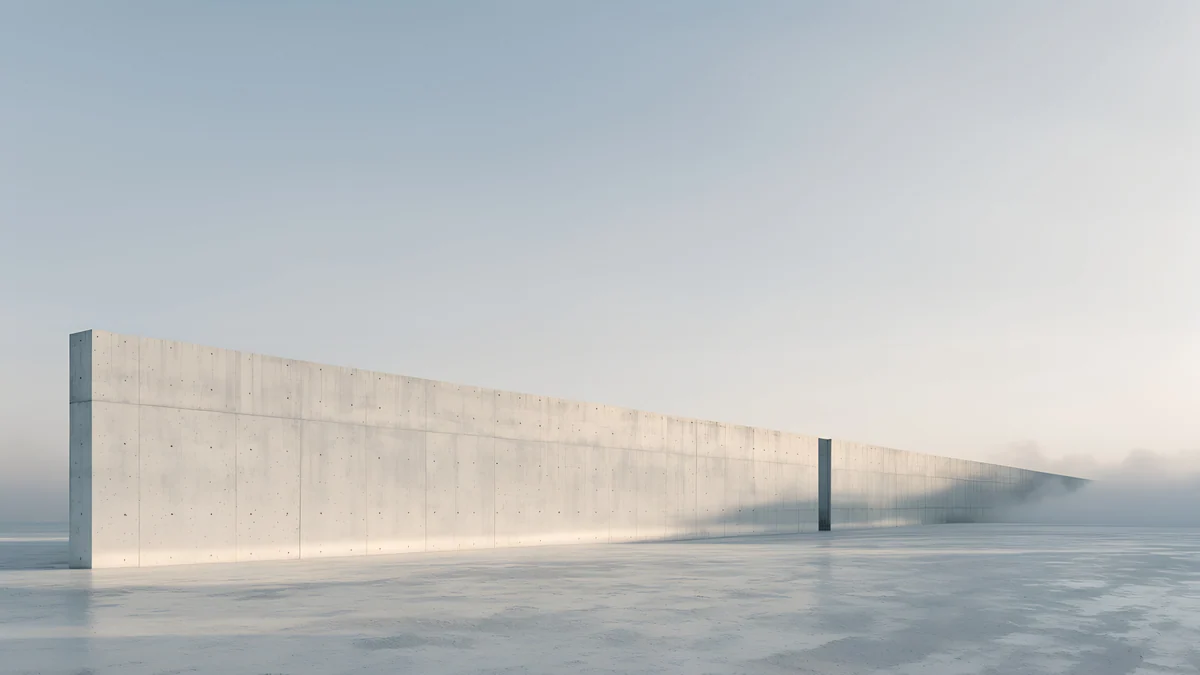 Horizon Wall
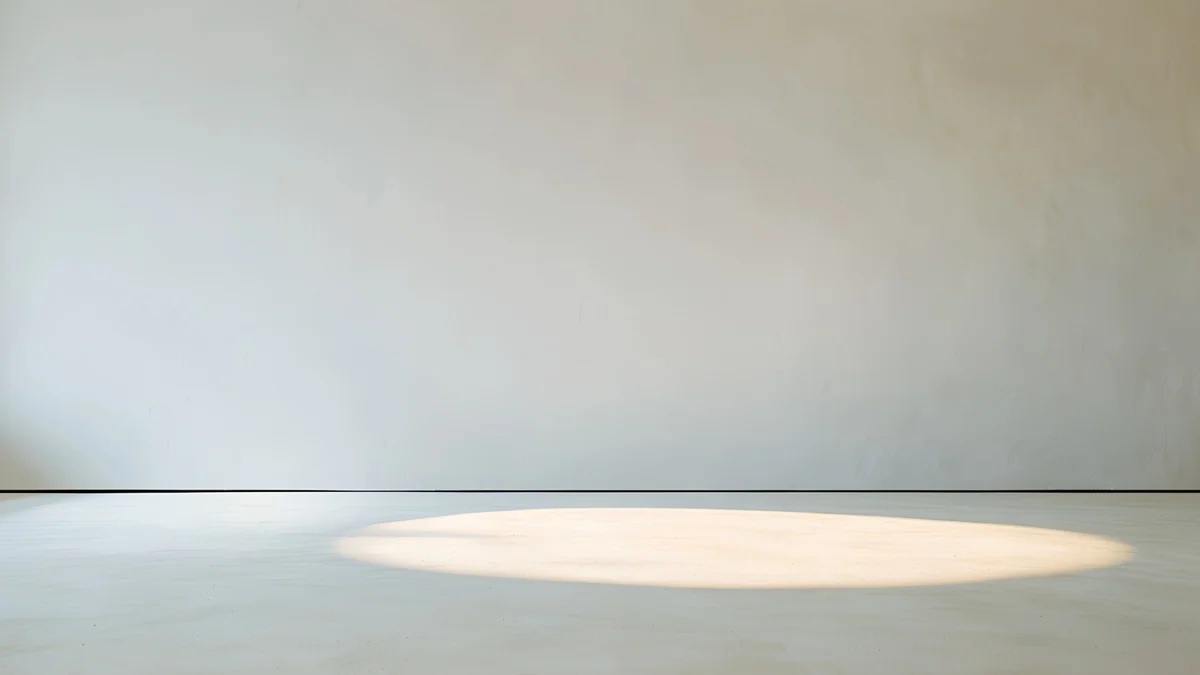 Skylight Circle
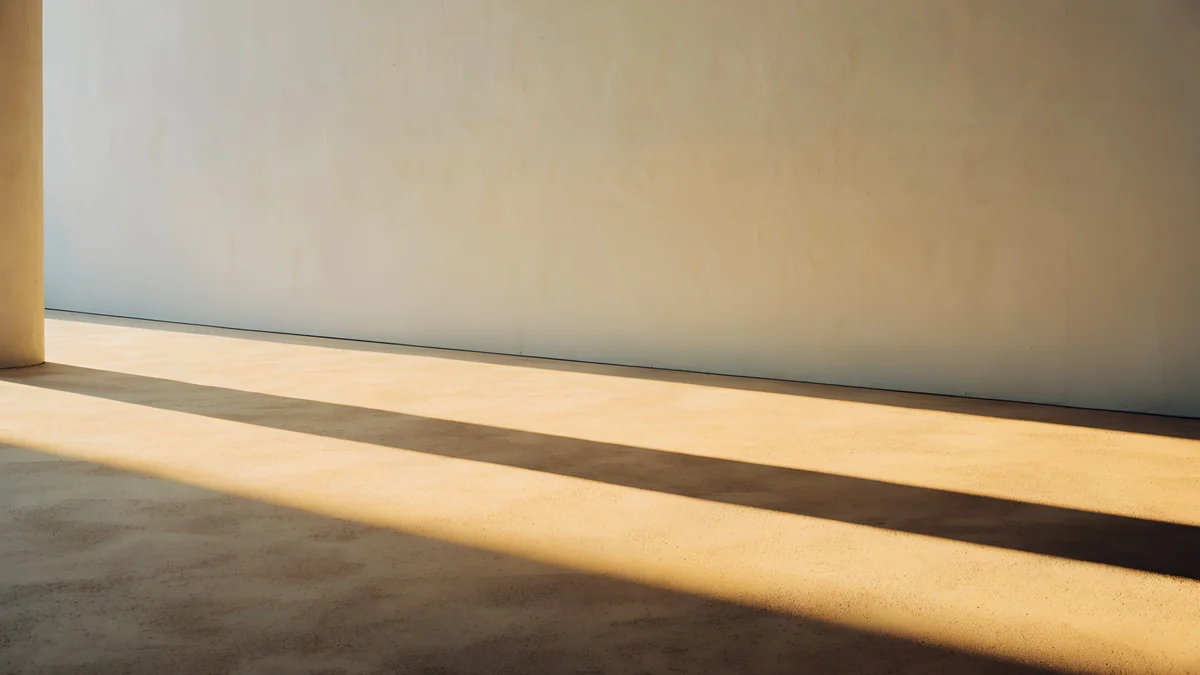 Column Shadow
 Soft Orbit
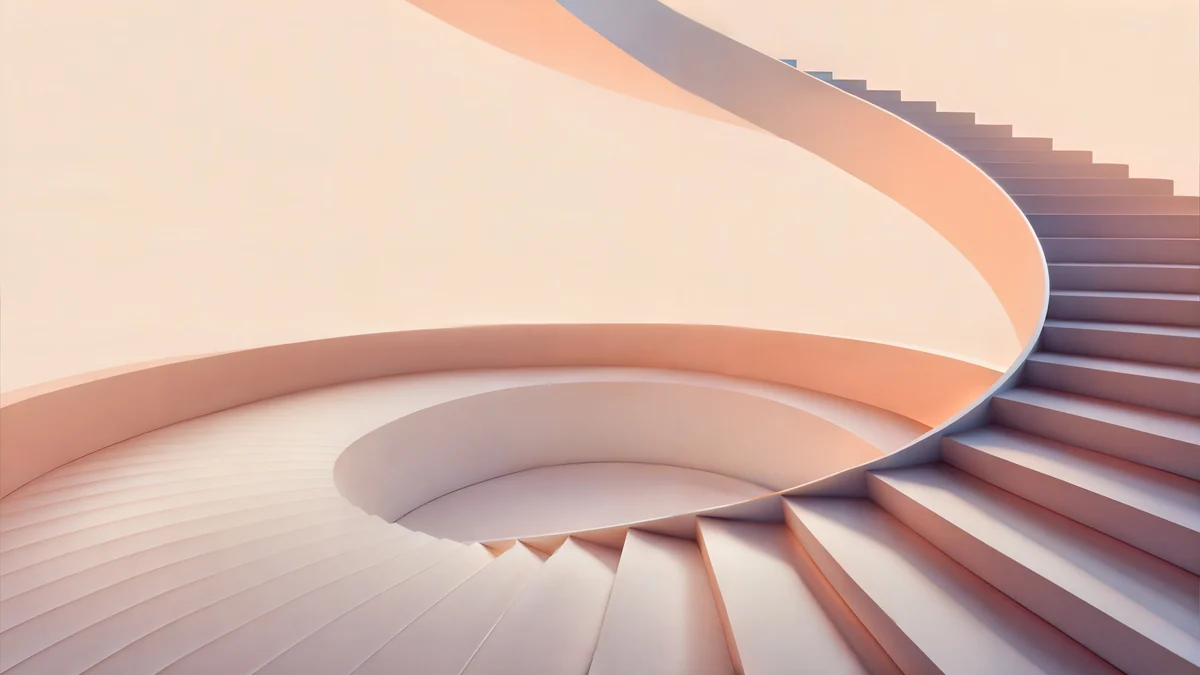 Peach Spiral Atrium
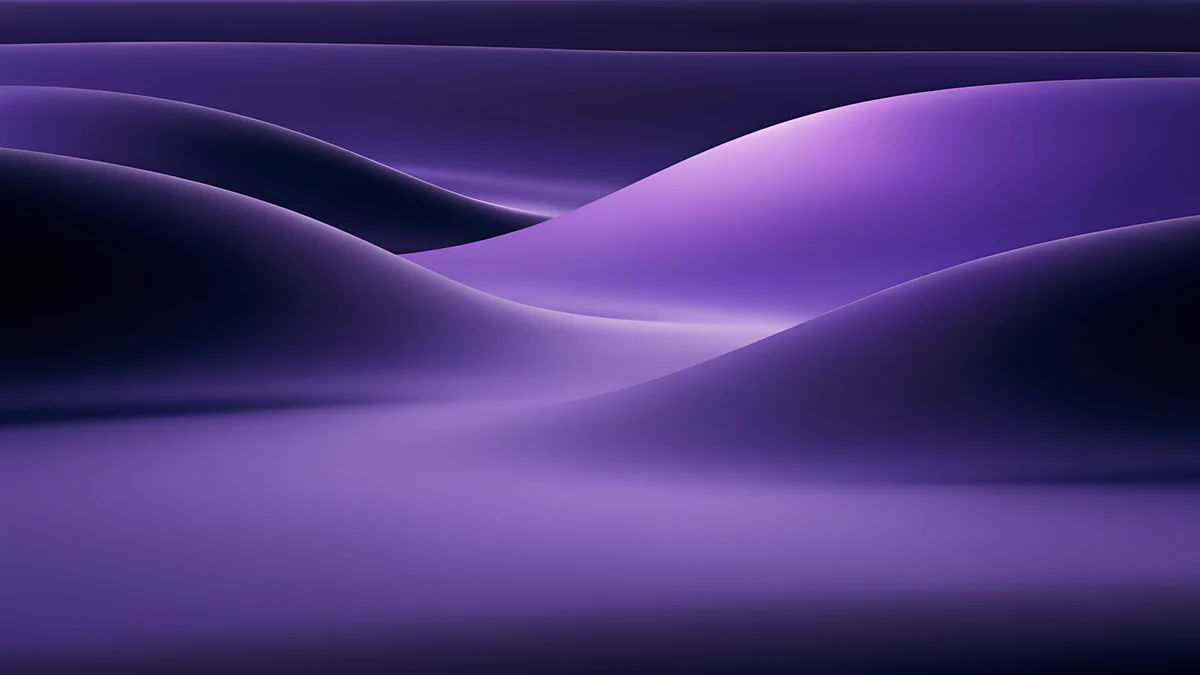 Indigo Silk Flow
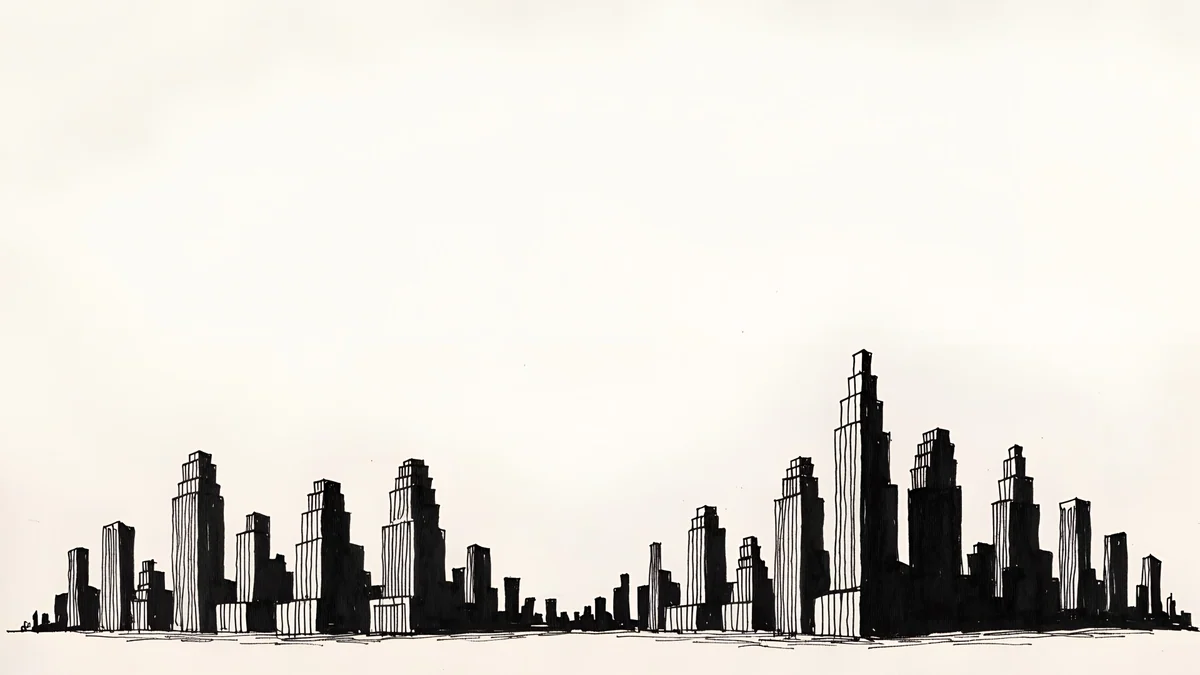 Paper Skyline
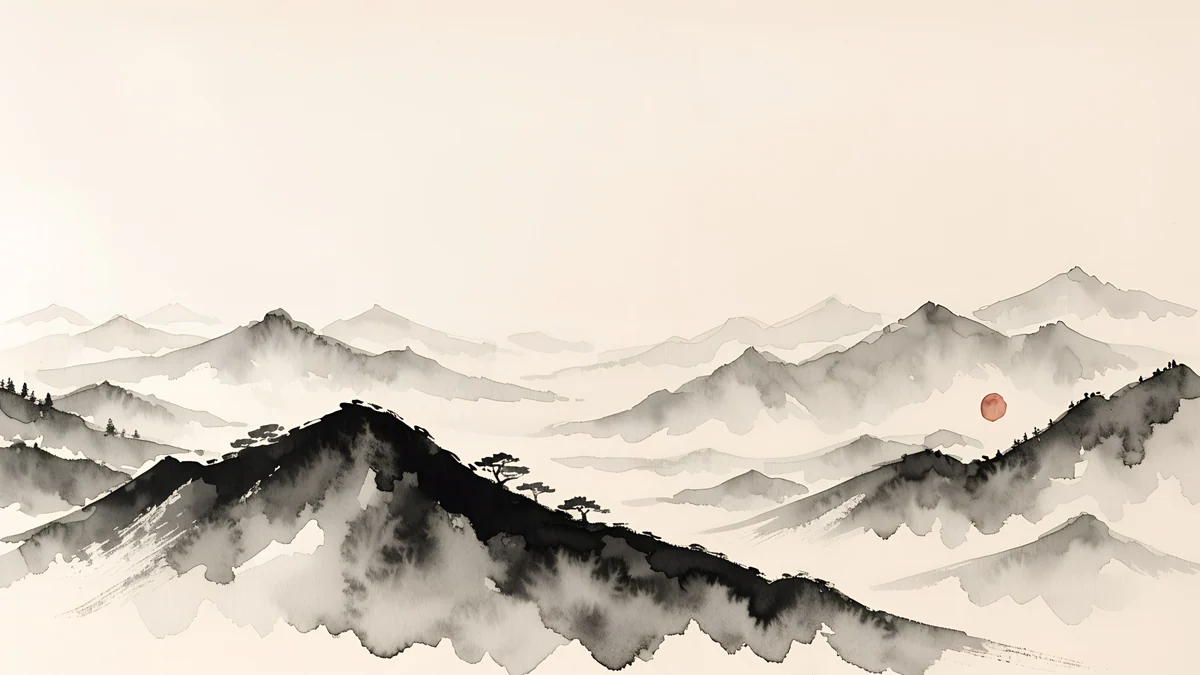 Ink Mountain Mist
 Petrol Current
Free originals for iPhone and Android, no watermark
On this page
A good Google Slides background is a quiet picture the text can sit on. Slides are widescreen 16 [1]:9 by default, and so is every Velpaper desktop wallpaper at 3840 × 2160, so the image covers the slide with no cropping and no stretched edges. Google accepts .gif, .jpg and .png files under 50 MB, which covers a normal 4K JPEG [1].
This guide gives the exact steps to set a slide background and apply it to the whole deck, then 24 original backgrounds in four groups: light and minimal, dark and formal, colour for creative decks, and quiet scenes. Each is free to download from Velpaper without a watermark. If your deck is for a video call, the same images also work behind you; see Zoom backgrounds and Teams backgrounds.
How to change the background in Google Slides
These are the steps from Google's help page, in the browser:
- Open your presentation and click the slide you want to change.
- In the toolbar choose Slide, then Change background.
- Next to Image, click Choose and pick the file from your computer or Drive.
- Click Done.
That changes one slide. To use the same picture on every slide, click Add to theme in the same dialog before you finish. Slides then applies the background across the whole deck, and new slides get it too.
Two limits to remember. The file has to be a .gif, .jpg or .png, and it has to be under 50 MB [2]. A Velpaper JPEG at 3840 × 2160 is a 16:9 image, the shape of a default slide, so it needs no resizing. If your deck uses another page size, use Fit or a crop in your own editor first.
Presentation background size for Slides
You do not have to shrink a 4K image for Slides, but it helps to know why it works [2]. The slide is 16:9. A 3840 × 2160 image is 16:9. On a projector or a Full HD screen of 1920 × 1080, the image is scaled to exactly half, the cleanest scaling there is. A 2560 × 1440 screen shows it at two thirds [1]. The file stays sharp when you present full screen on a large TV. More on these ratios is in the PC wallpaper size guide.
The same image can also be inserted as a picture in other presentation tools, but the steps above are for Google Slides only.
Light and minimal slides backgrounds
For a business or school deck, a pale background is the easiest to read. Black or dark grey text on white, grey or beige has the highest contrast, and soft shapes give the slide a finish without a template look. These seven have a calm, mostly empty field, so a title and a few lines of text sit on them without a box.
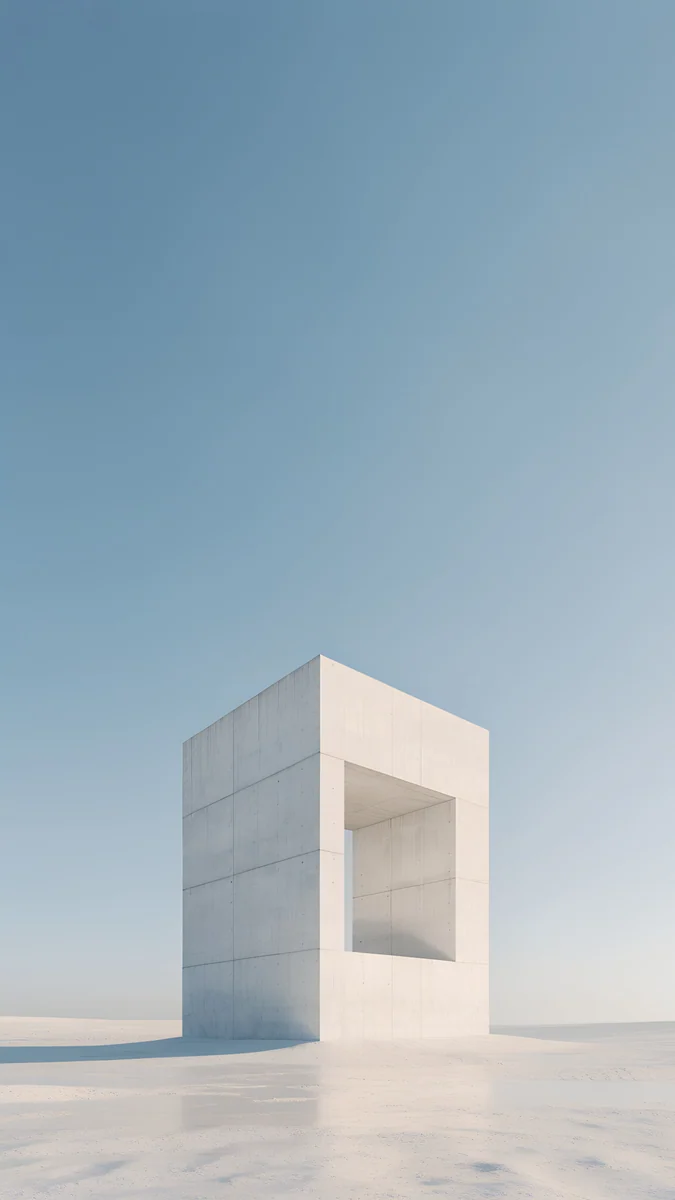
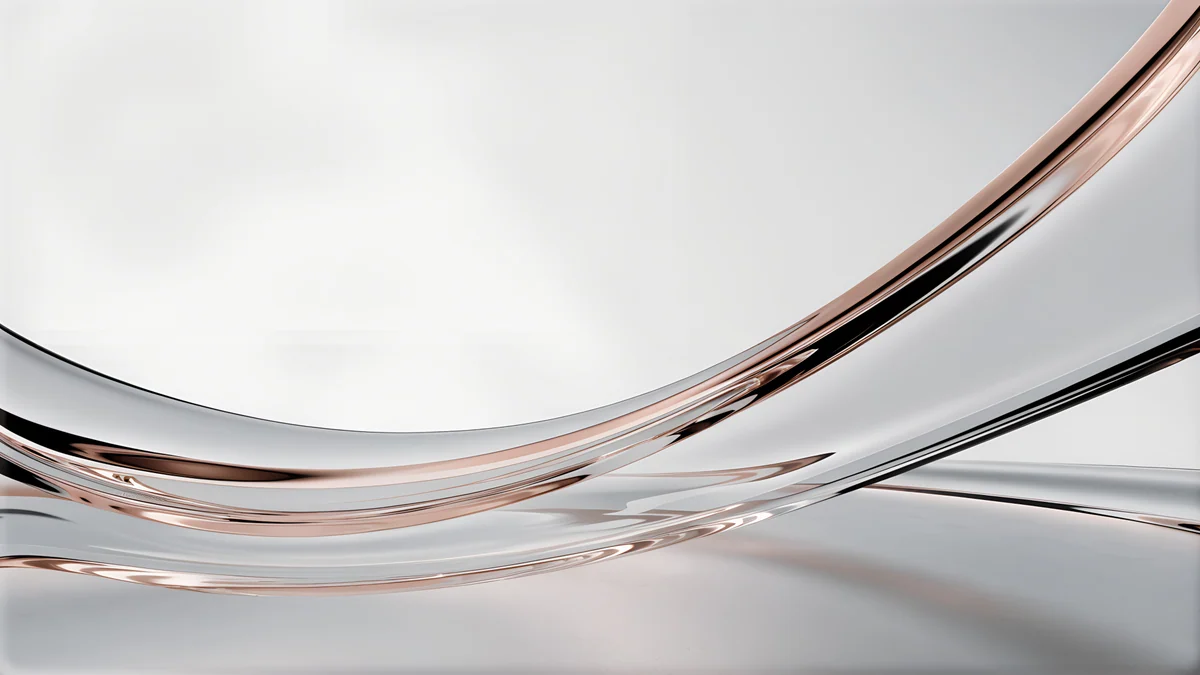
Liquid Light Band is white and grey with a soft pink band, Arch Sea Window is bright white and light blue, Horizon Wall is grey and white with a sky strip, Skylight Circle is beige with a single shadow, Column Long Shadow is warm gold light, Soft Orbit is a brown, pink and beige dune, and Peach Spiral Atrium is a pastel staircase at 5120 × 2880 [2]. For a sparse, aesthetic Google Slides background, Skylight Circle and Horizon Wall are the quietest. More of this style is in our minimalist wallpapers.
Dark and formal presentation backgrounds
A dark slide with white text suits a keynote in a dim room and an evening talk on a projector. Keep body text large, because thin white text on dark can look thin when projected.
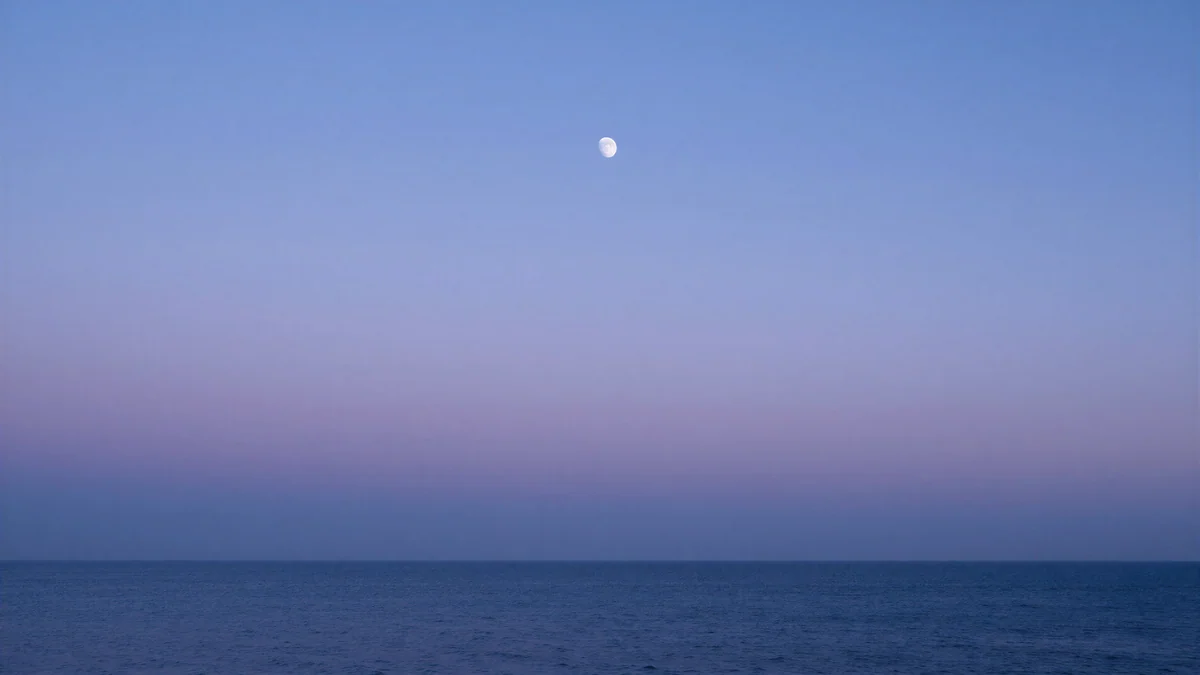
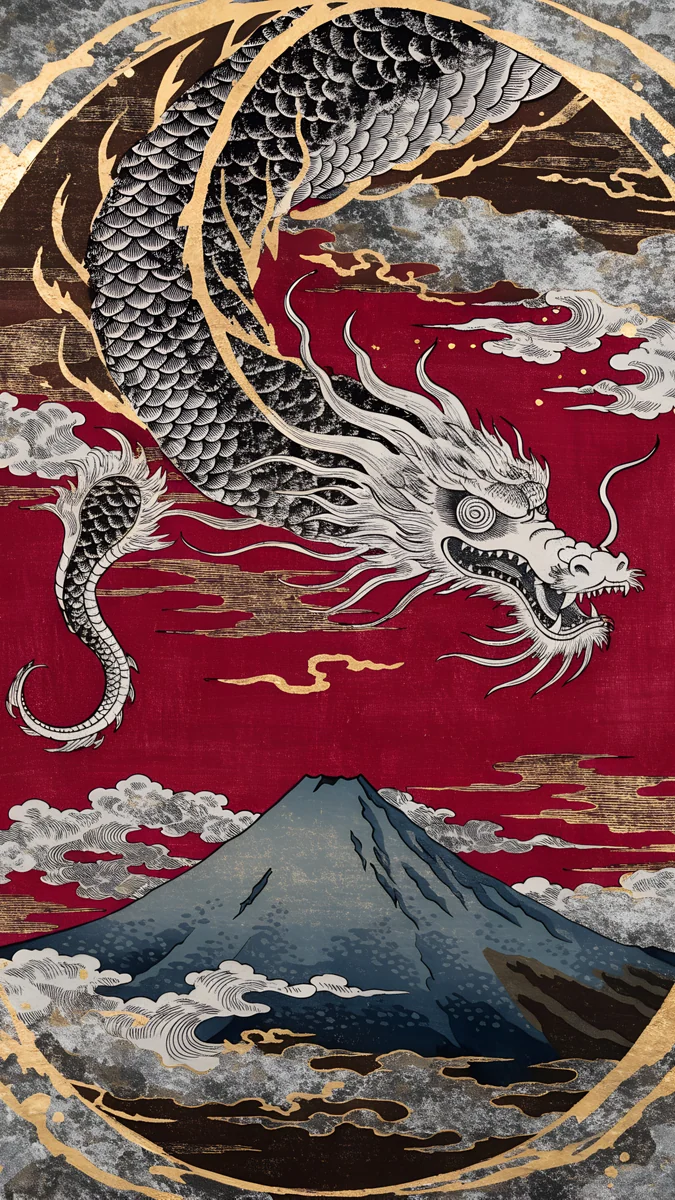
Cobalt Soft Horizon is a navy and black gradient with a pale horizon, Indigo Silk Flow is a purple and navy silk fold, Noir Paper Skyline is a monochrome skyline in beige and black, Ink Mountain Mist is foggy ridges, Petrol Current is teal silk, and Lilac Horizon is a navy to lilac sunset. Cobalt Soft Horizon and Petrol Current are the smoothest, so text over them stays easy to read. Look at the computer wallpaper collection for more dark options.
Colourful backgrounds for creative decks
For a pitch, a portfolio or a class project, colour sets a tone. These glow, so put the text on the darker or calmer side of the image, and use a bold, large font. A white title on a violet or navy field reads well; the orange and coral ones work better with a dark title or a short phrase.
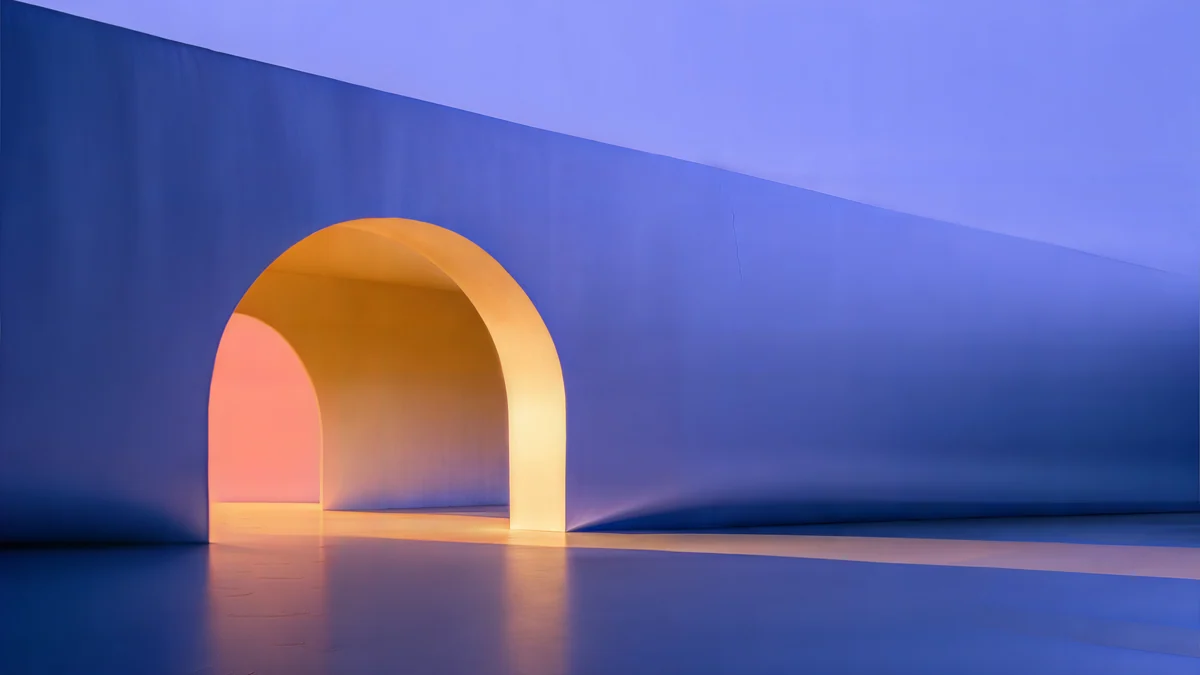 Solar Indigo Gate
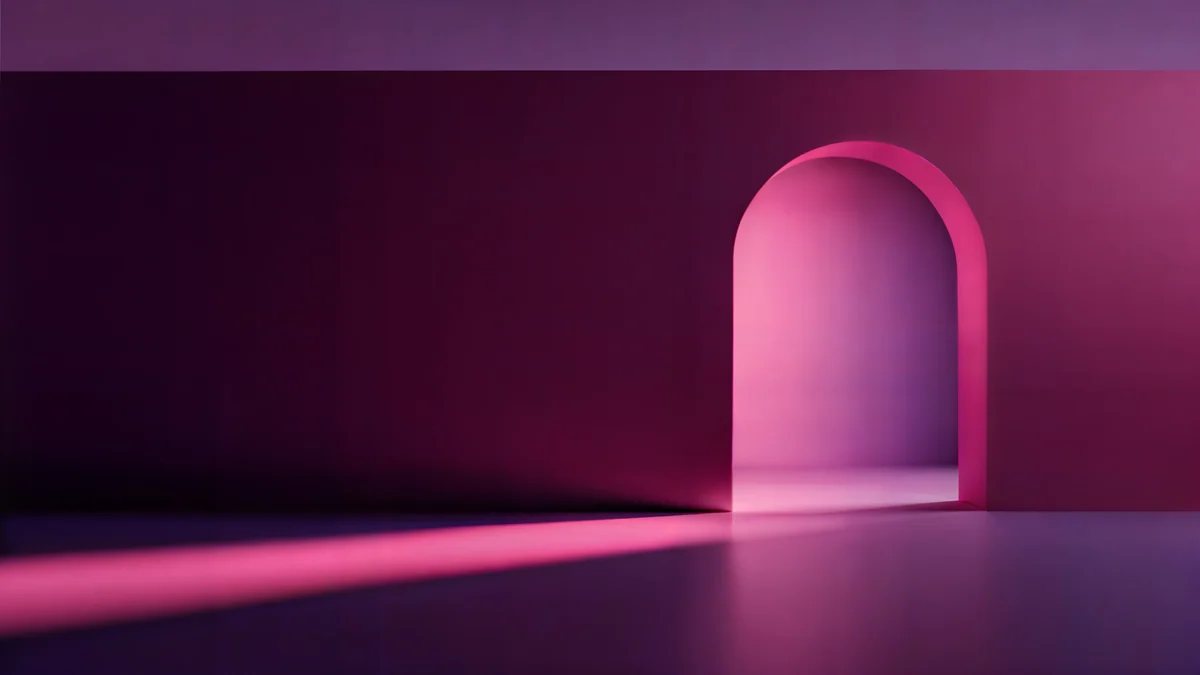 Rose Pulse Arcade
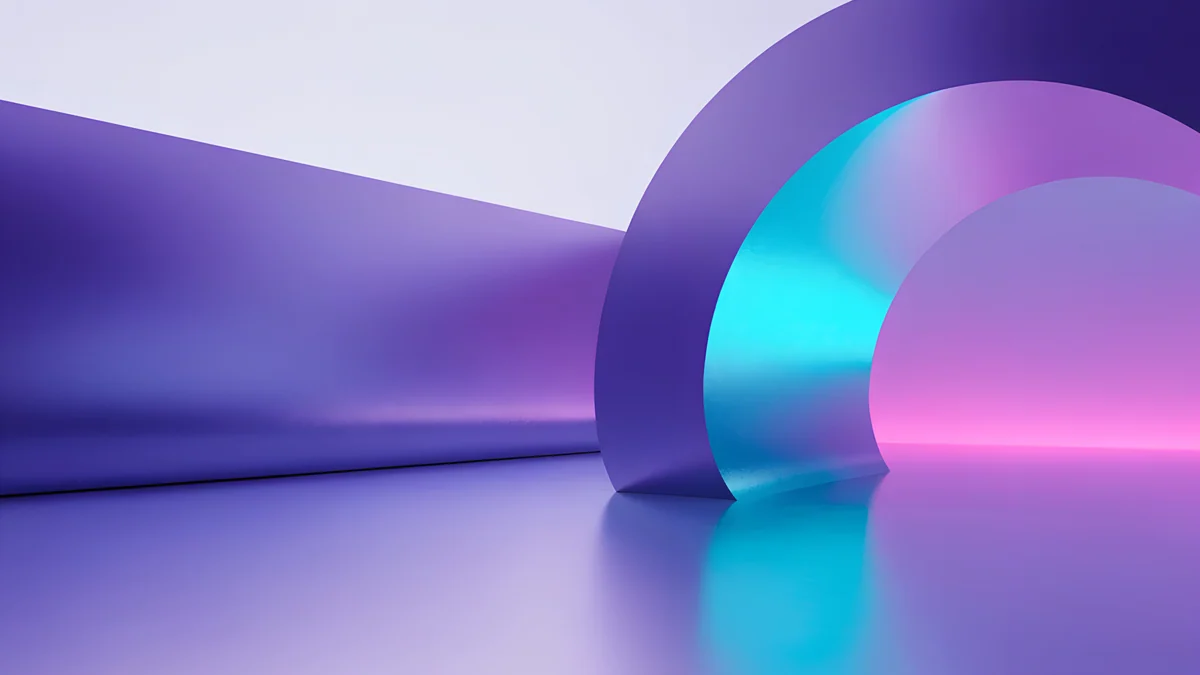 Electric Violet Vault
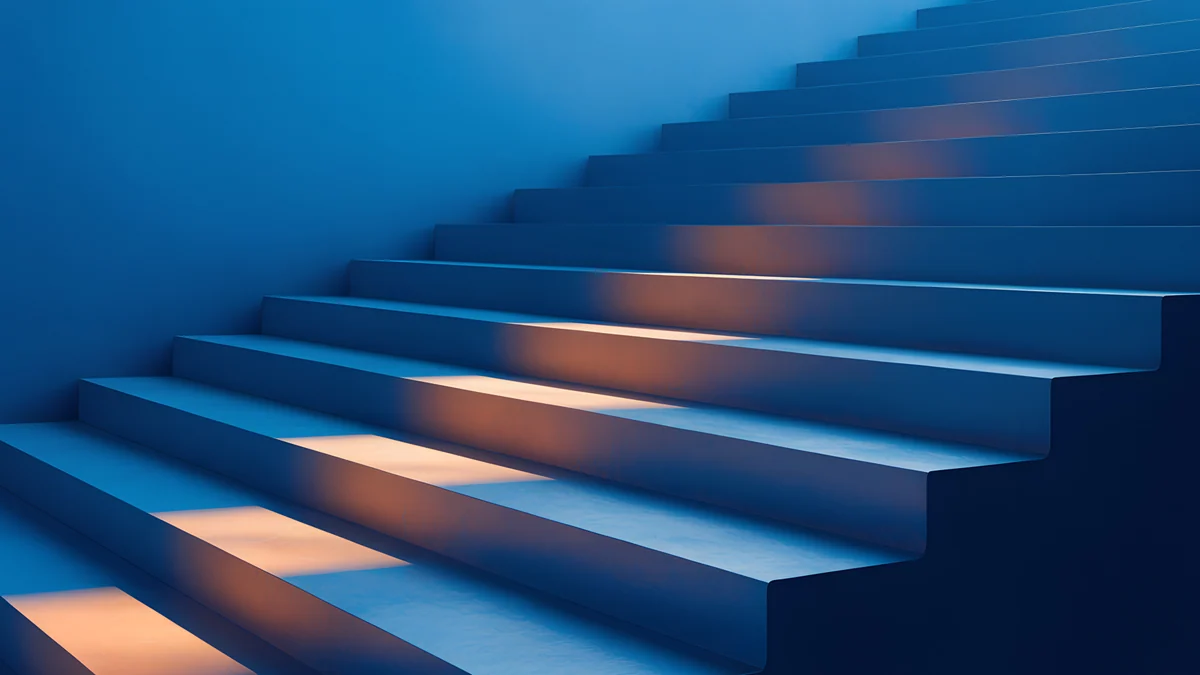 Cobalt Ember Steps
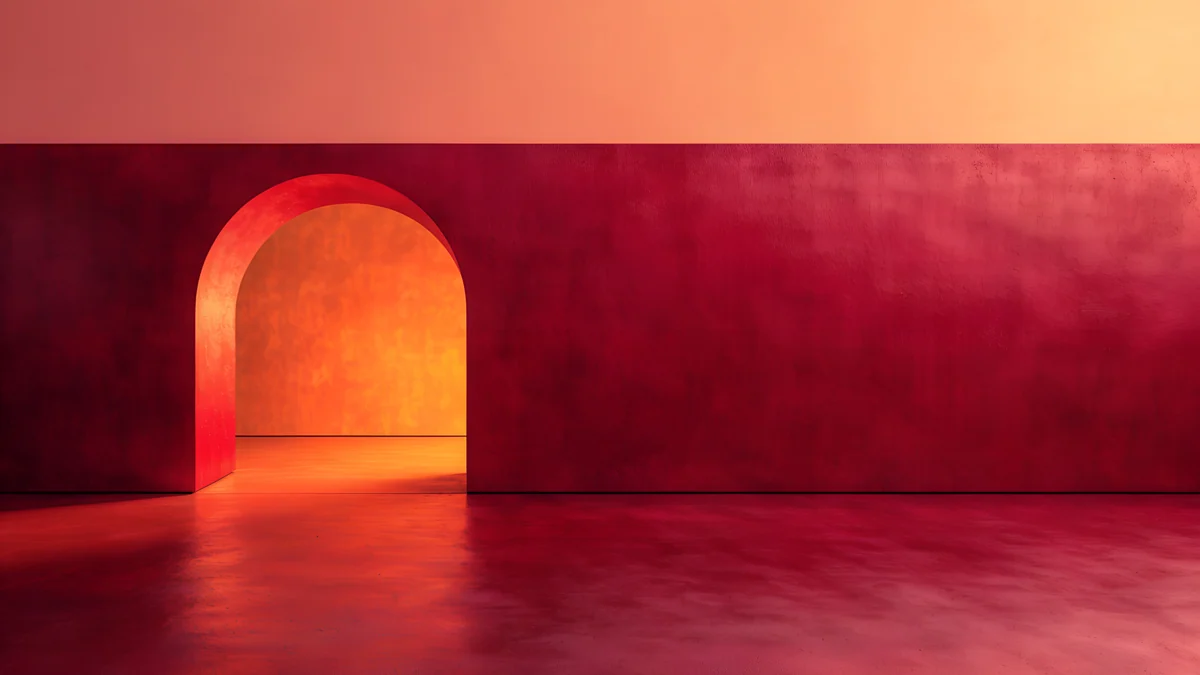 Coral Ignition Gate
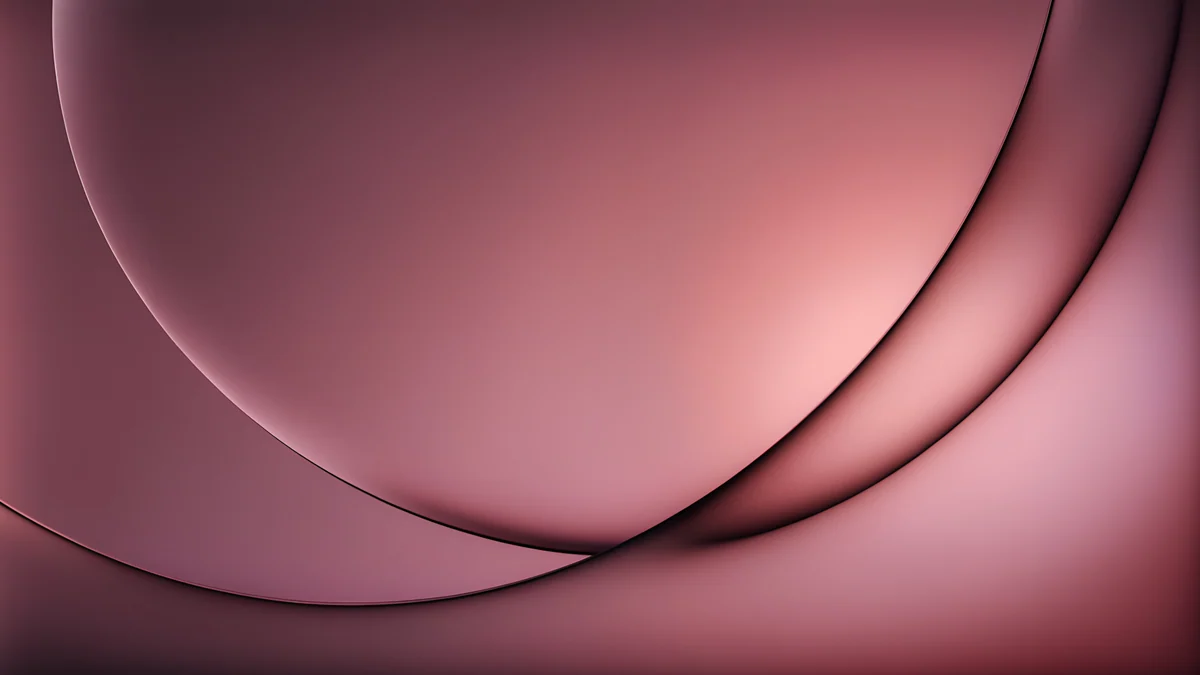 Rose Smoke Glass
Solar Indigo Gate and Rose Pulse Arcade are 5120 × 2880 arches [2] with a glow, Electric Violet Vault is a neon violet arch, Cobalt Ember Steps is blue stairs with an orange light, Coral Ignition Gate is a red and orange interior, and Rose Smoke Glass is a pink gradient with soft shapes. If you want ideas for how to pair colours, see aesthetic wallpaper ideas.
Quiet scenes as slide backgrounds
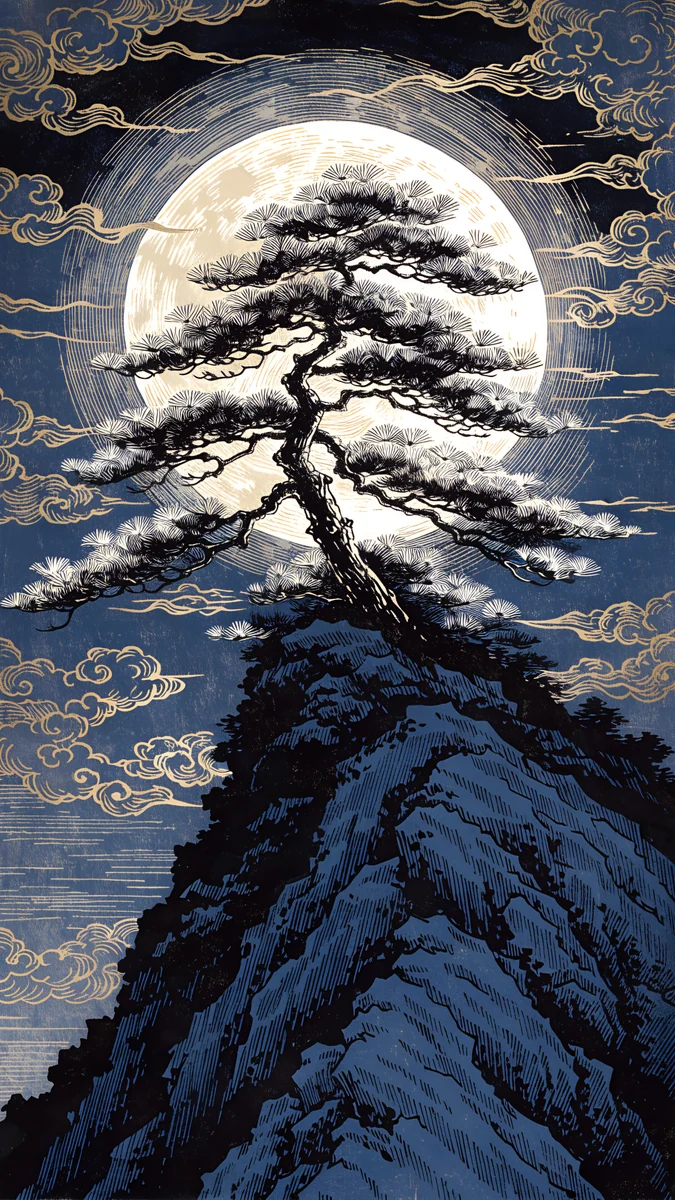
A scene works as a section divider: a title slide, a break, or a closing slide. Use it on a few slides and keep the content slides plain. These are moonlit, mint and stone images with one focal point off to the side.

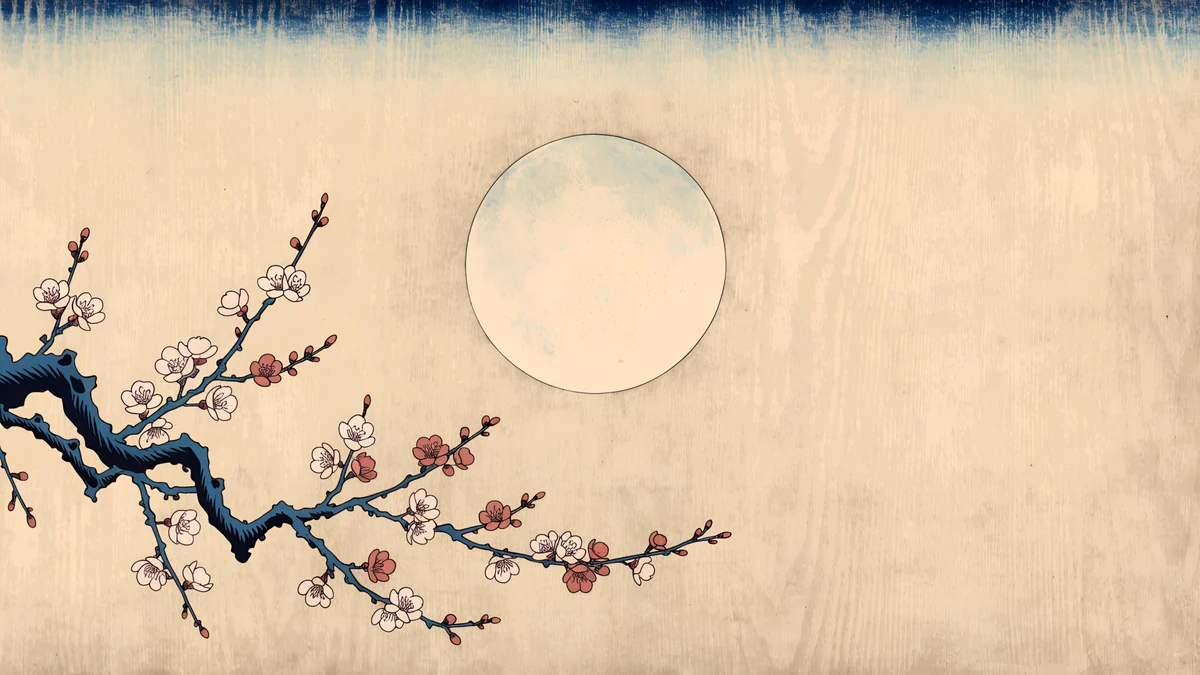
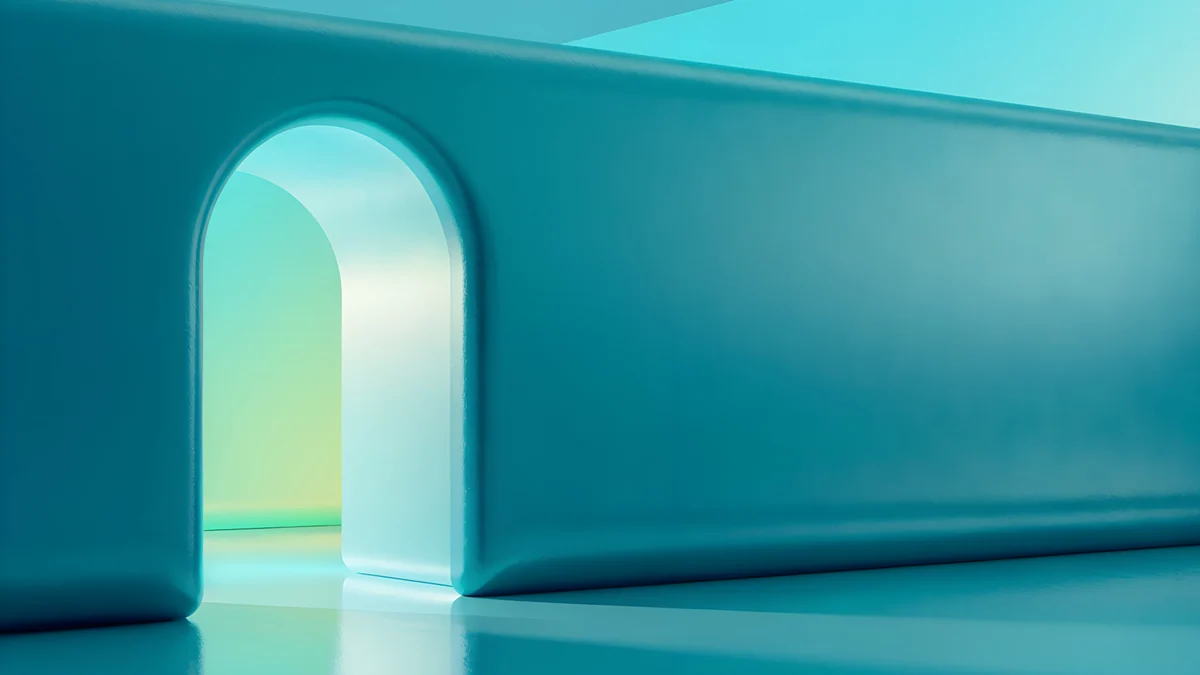
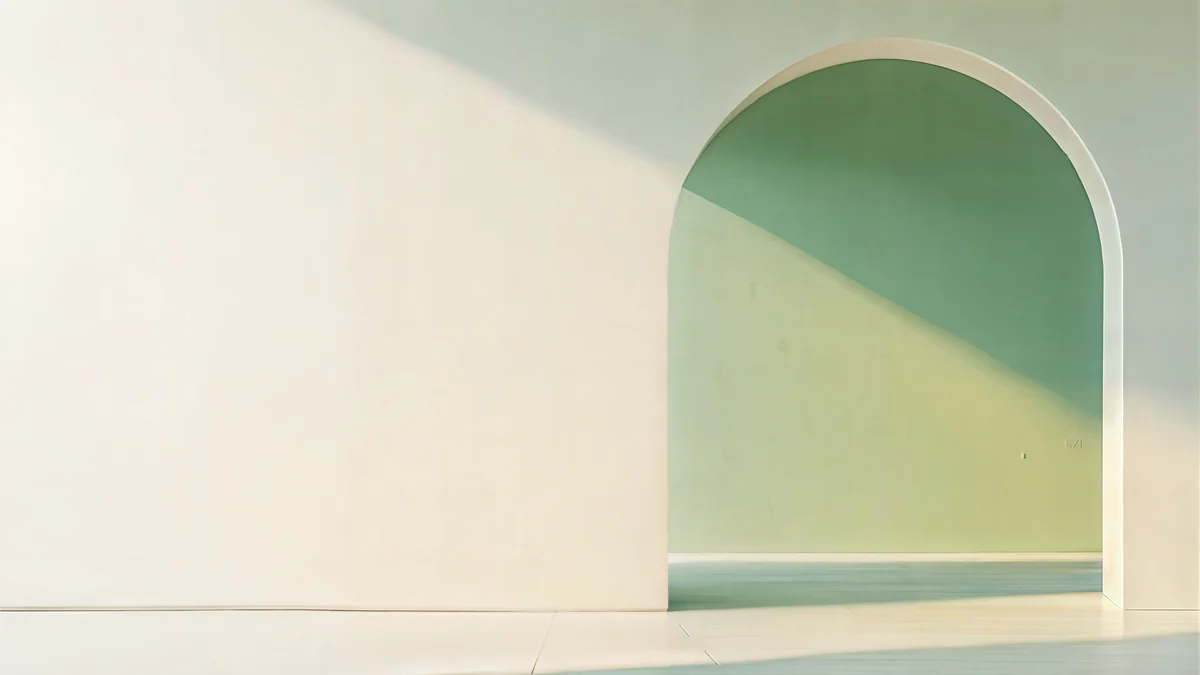
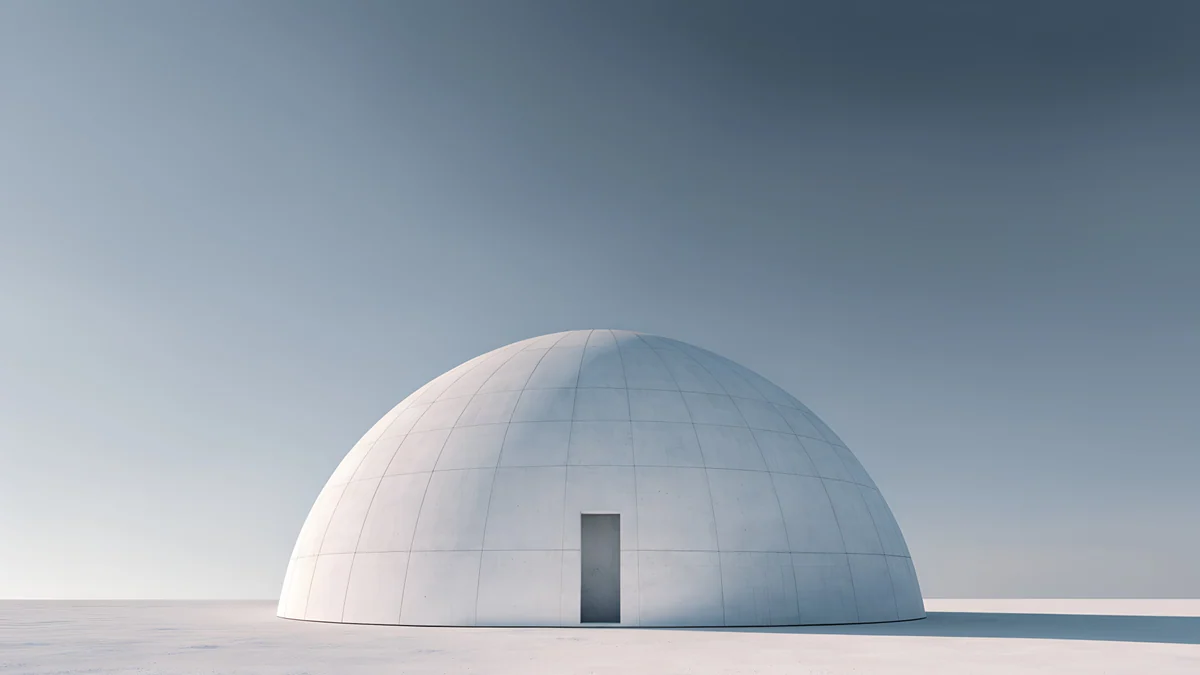
Ink Moonlit Boat is white, black and beige with a small boat, Ukiyo Plum Moon is a calm moon and flower scene, Jade Mint Portal is a teal arch with light, Sage Sun Gallery is a green and sand arch, and Concrete Dome is a grey architectural dome. Put your title in the empty area and leave the focal point clear.
Tips for readable slides
- Contrast first. Light background, dark text, or the reverse. Avoid mid tones for both.
- Use Add to theme for the base look, then change single slides for dividers.
- Keep it to one or two images. Many different backgrounds make a deck feel like a collage.
- Check on the real screen. Present full screen once before the talk.
Original wallpapers in and for iPhone, Android and desktop.
Questions
How do I add a background image in Google Slides?
Click the slide, choose Slide in the toolbar, then Change background. Next to Image, click Choose and pick a file from your computer or Drive, then click Done. The image must be a .gif, .jpg or .png under 50 MB [1]. To use it on every slide, click Add to theme in the same dialog before you finish. Without that, only the selected slide changes.
What size should a Google Slides background be?
Slides use a 16:9 widescreen page by default, so a 16:9 image fits with no cropping [1]. A 3840 × 2160 image is 16:9, as are 1920 × 1080 and 2560 × 1440. Google only requires a .gif, .jpg or .png file under 50 MB. A 4K JPEG is sharp on large screens and scales down to a Full HD projector exactly by half.
How do I apply one background to all slides?
Open Slide, then Change background, choose your image, and click Add to theme before you press Done. Google Slides then applies the background to every slide in the presentation. If you only want it on a few slides, skip that button and repeat the Change background steps on each of them. A common mix is a plain background for content slides and an image for the title and closing slides.
Which colours make a good presentation background?
Soft, low-contrast fields with one calm focal area: white, grey, beige and pale blue for text in dark colours, and navy, deep teal or dark grey for white text. Strong colours such as orange, coral and neon violet work for short titles but are tiring for long text. Avoid busy patterns behind body text. The calmer the area behind your text, the easier the slide is to read from the back of a room.
Are these slide backgrounds free?
Velpaper desktop wallpapers are original images at 3840 × 2160, some at 5120 × 2880, as JPEG files with no watermark [2]. Some are free to download and some unlock after a short ad. Every image is original artwork.
Carlos Vivero
Designer of Velpaper wallpapers
Carlos Vivero designs the wallpapers in Velpaper: quiet architecture, liquid glass, Japanese ink and calm landscapes. Every piece is made as a original for iPhone, Android and desktop.
Recent work