Zoom Background: 4K Virtual Backgrounds and How to Add
Zoom background guide: the file type, size and steps to upload your own, plus 15 original 4K virtual backgrounds with an office feel, calm and dark.
Sources [1] · By the Velpaper team · Wallpapers by Carlos Vivero, Velpaper designer · · 5 min read
In short: A Zoom background can be any PNG or JPG up to 15 MB in the shape of your camera, which is 16:9 for most webcams, so 1280 × 720 or 1920 × 1080 works well [1]. Any Velpaper 3840 × 2160 desktop wallpaper fits that shape exactly when you scale it down.
Wallpapers
 Cobalt Soft Horizon
 Sea Arch
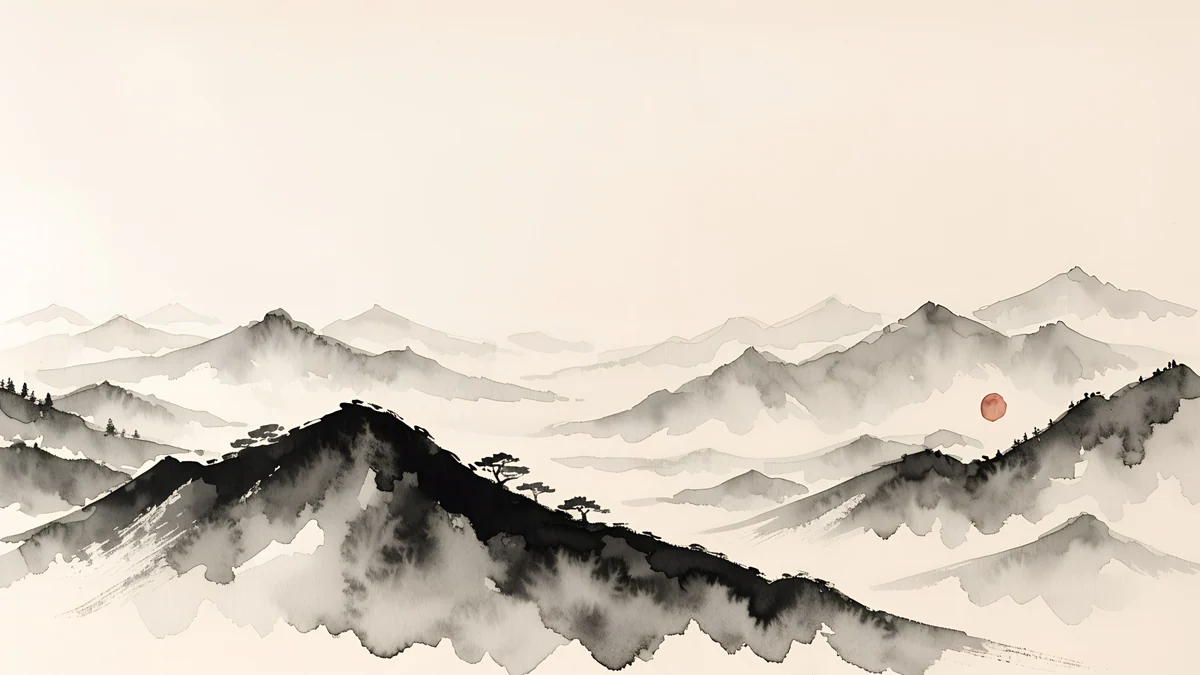 Ink Mountain Mist
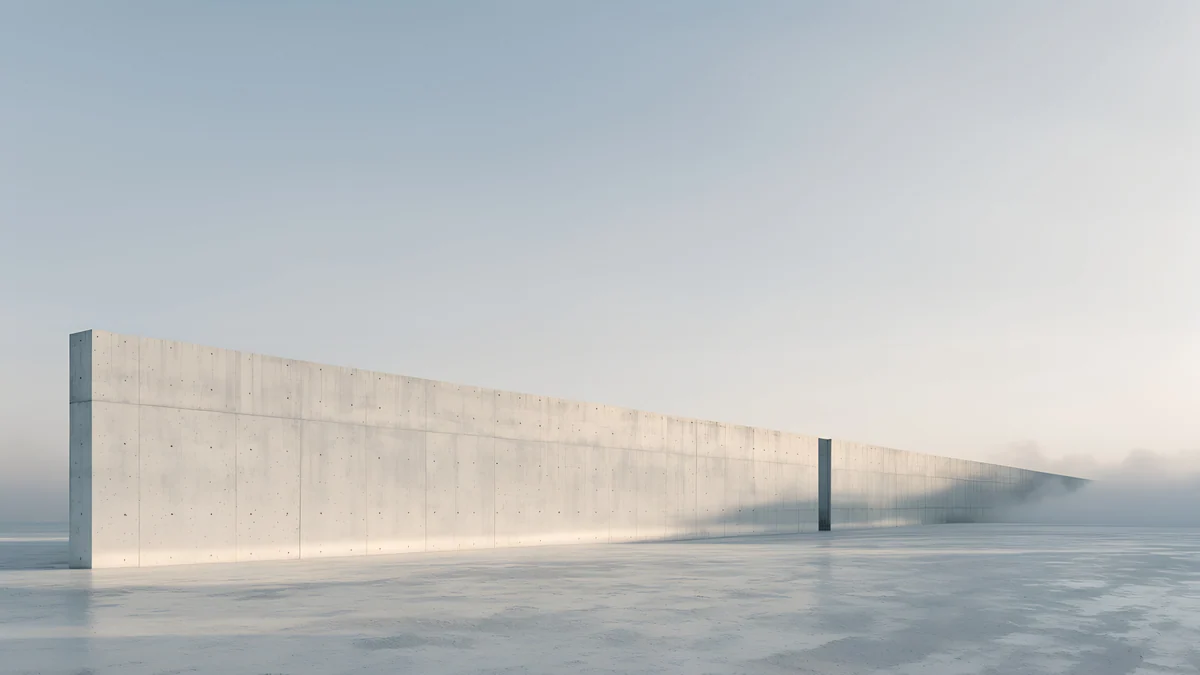 Horizon Wall
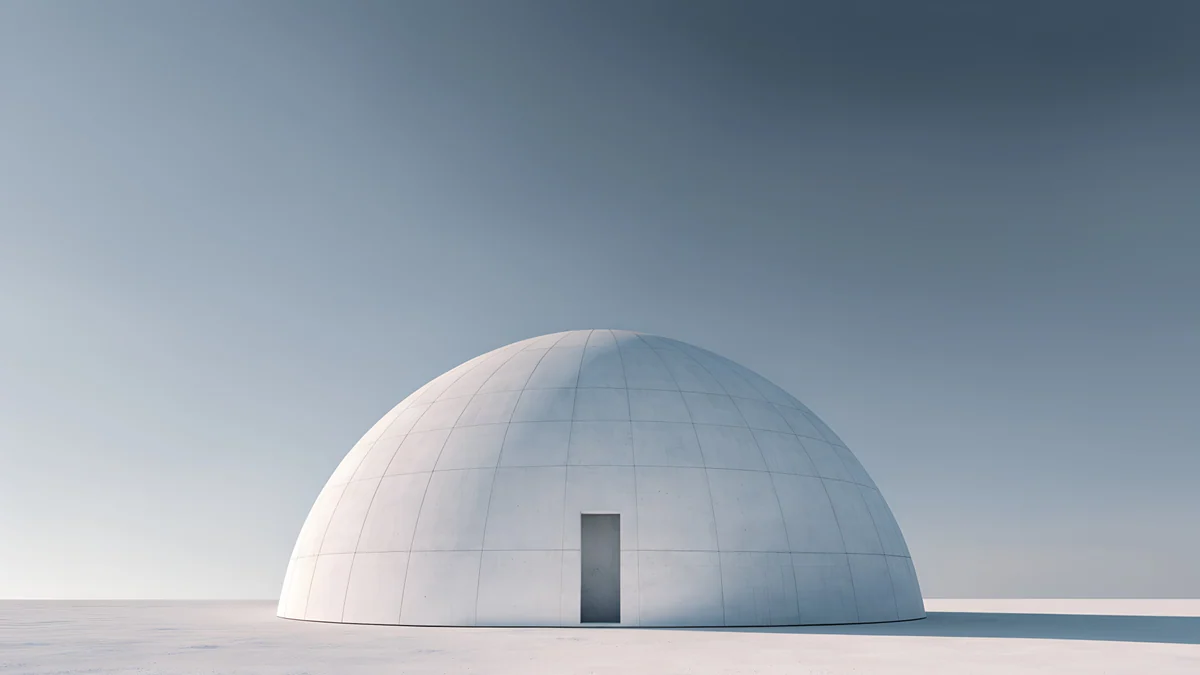 Concrete Dome
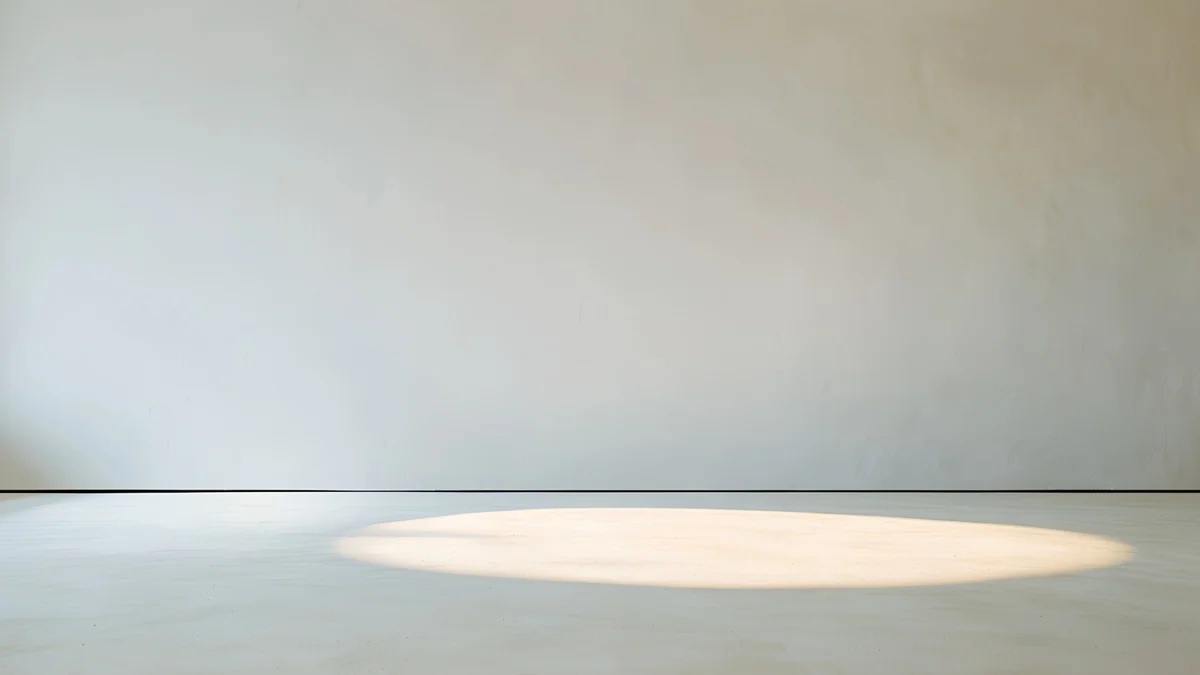 Skylight Circle
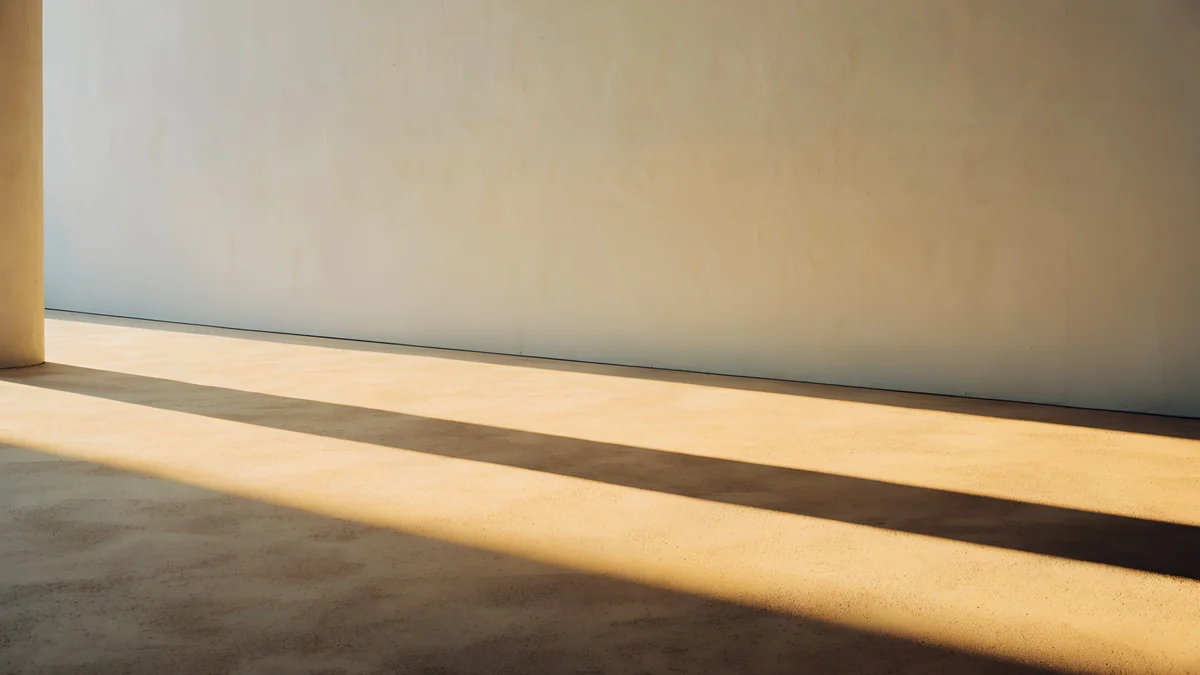 Column Shadow
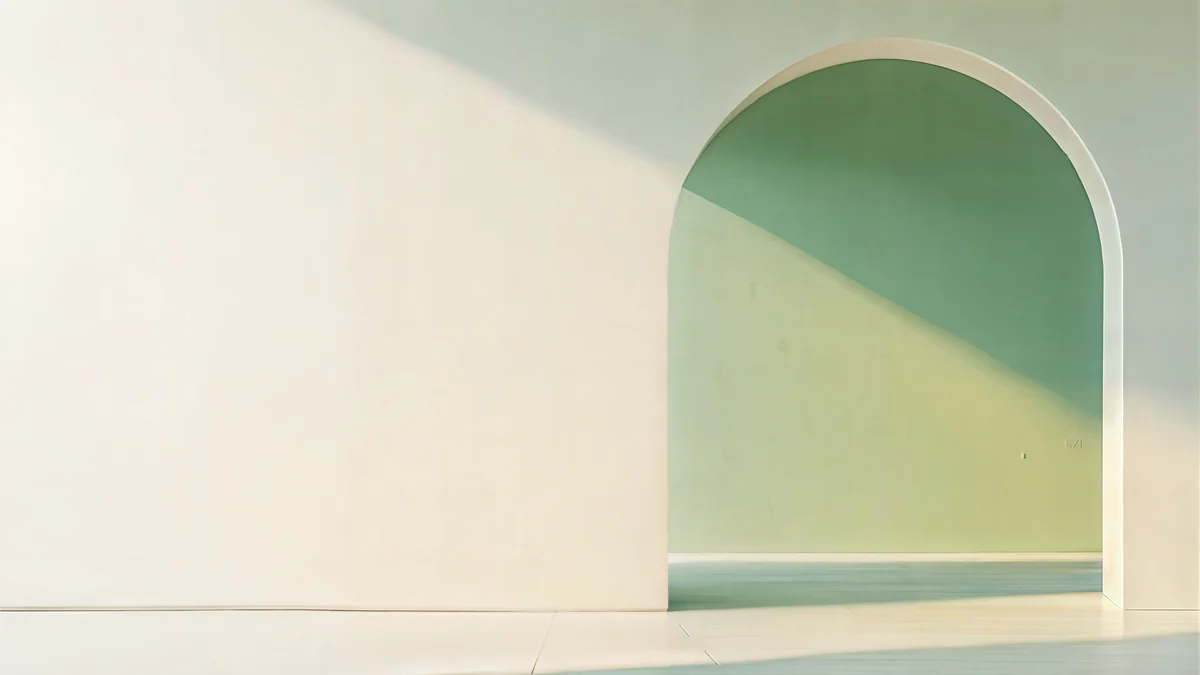 Sage Sun Gallery
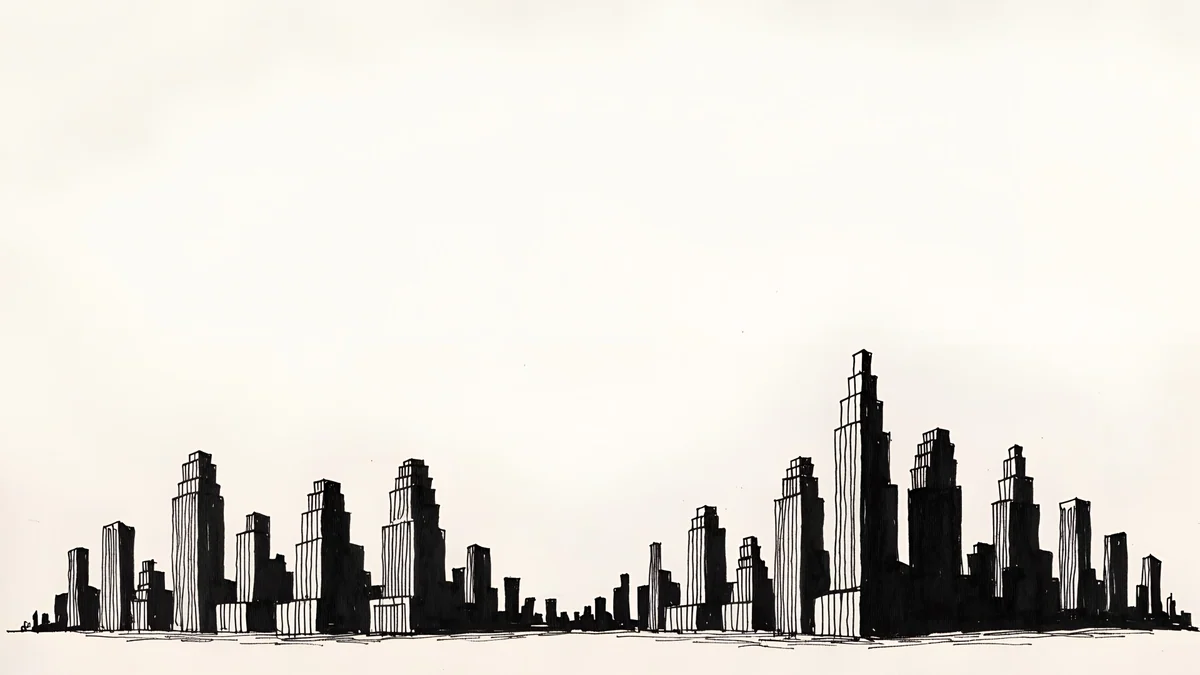 Paper Skyline
 Lilac Horizon
 Petrol Current
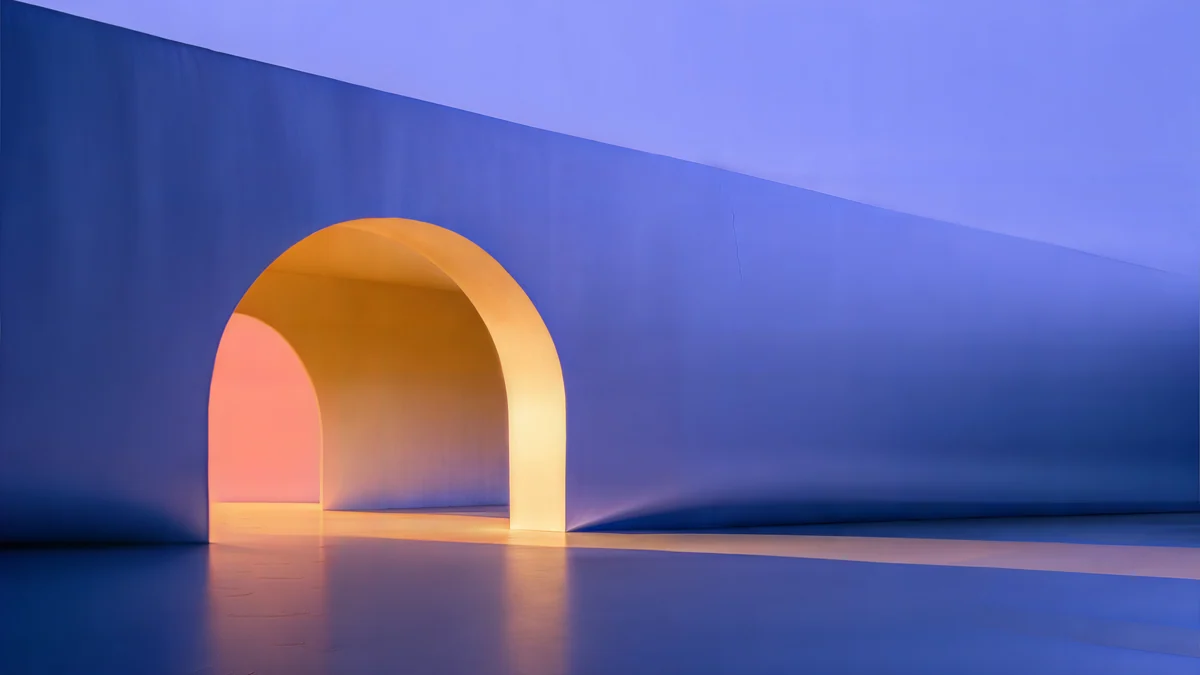 Solar Indigo Gate
Free originals for iPhone and Android, no watermark
On this page
A Zoom background is just a picture that replaces the room behind you, and you do not need a special file for it. Zoom takes a PNG or a JPG up to 15 MB [1]. The one thing to get right is the shape: crop it to your camera, which for most webcams and laptops is 16:9. Zoom names 1280 × 720 or 1920 × 1080 as sizes that work well for a 16:9 camera, and 1280 × 720 as the minimum if you are unsure.
That makes a 4K desktop wallpaper a good source. A 3840 × 2160 image is 16:9, so shrinking it to 1920 × 1080 loses nothing but pixels. This guide covers the exact steps to add a virtual background in the Zoom desktop app, the file rules, and 15 original Velpaper backgrounds grouped by the mood they give a call: calm office walls, dark and professional, and colour [1]. If you use Microsoft Teams as well, there is a separate guide for it: Teams background with a 4K wallpaper.
Zoom virtual background size and file type
These are the rules from Zoom's own help page on virtual backgrounds:
- File type: PNG, or JPG/JPEG in 24-bit colour [2].
- File size: up to 15 MB.
- Shape: crop the image to the aspect ratio of your camera. For a 16:9 camera that means 1280 × 720 or 1920 × 1080.
- Minimum: if you are not sure about your camera, use at least 1280 × 720 [2].
Velpaper desktop wallpapers are JPEG files at 3840 × 2160 (some at 5120 × 2880), also 16:9. They are well above the minimum, so they stay sharp even when someone shares a large view of your video. If a file is close to the 15 MB [1] limit, make a 1920 × 1080 copy: on a Mac open it in Preview, choose Tools, Adjust Size and set the width to 1920; on Windows 11 use Resize image in the Photos app. Keep the 4K original for your desktop [2]. The PC wallpaper size guide explains why 16:9 images scale so cleanly.
How to add a Zoom background in the desktop app
These steps are for the Zoom desktop app, before a meeting:
- Open Zoom and click your profile picture.
- Choose Settings.
- Open Video & effects, then Virtual backgrounds.
- Click the add icon and pick your image file.
- Click the new image in the list to use it.
To change it during a meeting, click the arrow next to Video in the meeting controls and choose Video & effect settings. The same Virtual backgrounds list appears there, and you can switch without leaving the call.
Zoom office background: calm walls that look like a real room
The most searched kind of virtual background is a tidy office. Velpaper does not make photos of desks, and a fake bookshelf behind a speaker tends to look strange when you move. What works instead is an architectural wall: pale plaster, a long soft shadow, an arch or a window opening. It reads as a clean room behind you, and the flat surfaces do not fight with your face. These originals are 3840 × 2160 unless noted, and the one with a green and sand palette is 5120 × 2880 [2].
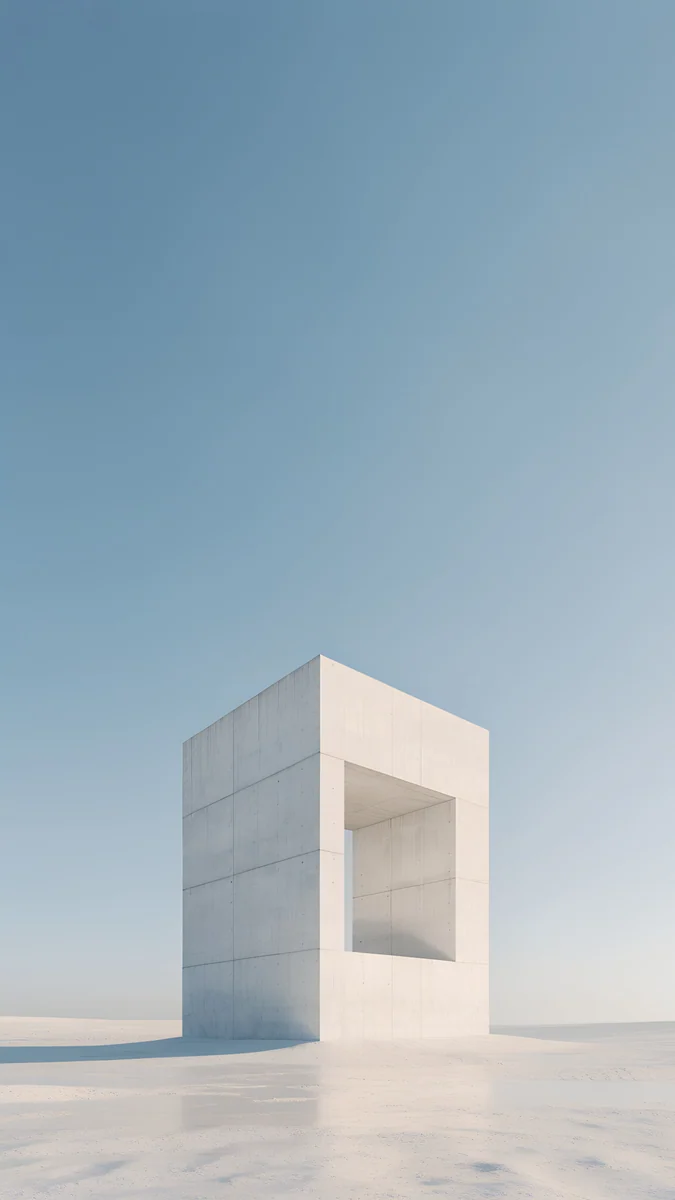
Arch Sea Window is white and light blue with a bright arch frame, Horizon Wall and Concrete Dome are grey and white and the most neutral of the set, Skylight Circle is beige with one soft shadow, Column Long Shadow adds a golden-hour glow, and Sage Sun Gallery is a calm green and sand arch. Keep detail away from the area behind your head, and note that a very bright wall can wash you out. The pale ones suit a well lit room. If your room is dim, pick the grey or beige ones, which are less glaring.
Dark and professional Zoom backgrounds
A dark background is the safe choice for a camera in a dim room, because a dark field makes skin and shoulders stand out. These four are quiet and have no pattern behind the head: a navy gradient with a pale horizon, a foggy ink mountain in beige and black, a monochrome skyline on paper tones, and a lilac and navy sunset line. Petrol Current, a teal and navy silk fold at 5120 × 2880, is the smoothest of them, which helps when video compression turns busy detail into blocks [2].
Cobalt Soft Horizon is the safest first pick: it is dark enough to feel formal and has one light line that gives the frame some depth. Ink Mountain Mist suits a call where you want to look calm rather than corporate. All five are free desktop wallpapers, so you can set the same image on your own desktop with these Windows 11 steps or the Mac guide [1].
Colourful virtual backgrounds for friendly calls
For a team stand-up, a class or a call with friends, a colour wall gives some personality without showing your room. These are glowing arches, steps and gradients. They are bolder, so a few rules help: keep your clothes in a different colour family, turn off any heavy filters, and avoid the orange and red ones if you wear a red or orange top.
Solar Indigo Gate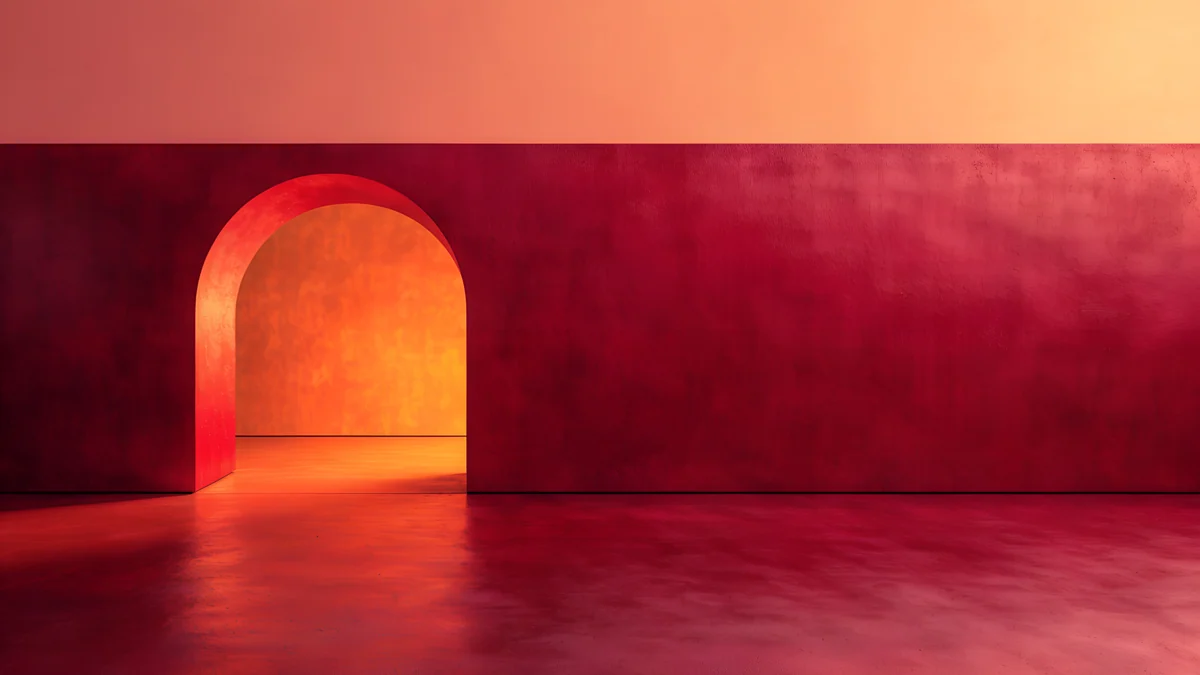 Coral Ignition Gate
 Rose Smoke Glass
 Electric Violet Vault
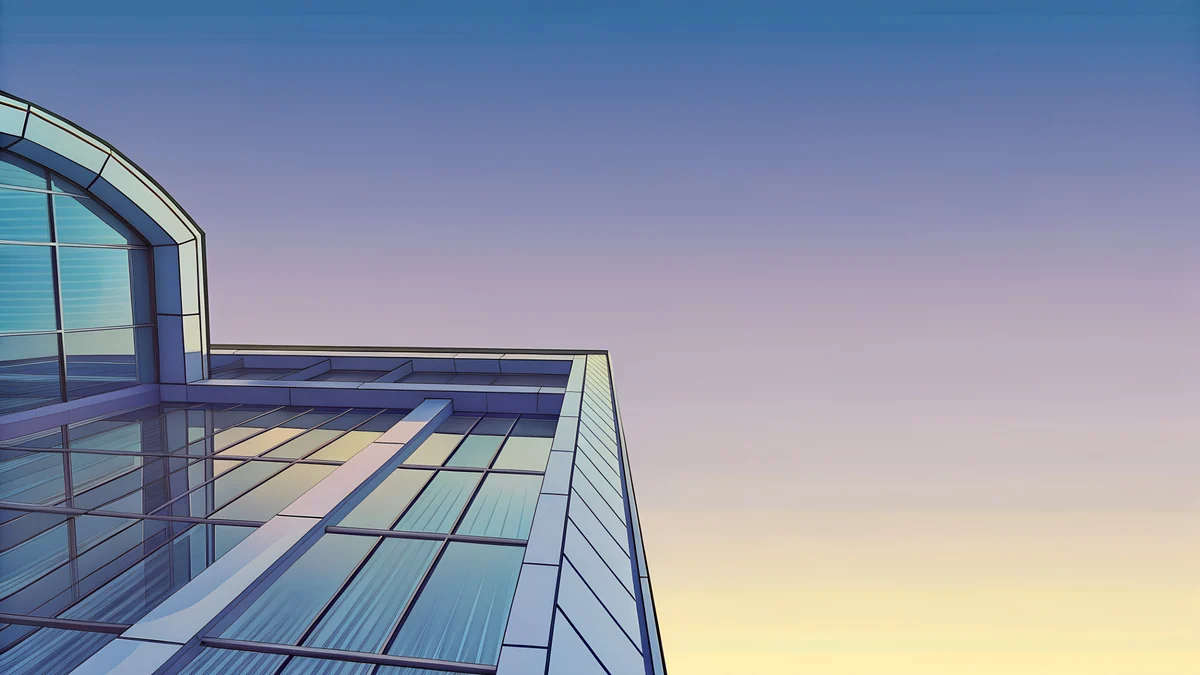 Glass Pavilion Dusk
 Peach Spiral Atrium
Solar Indigo Gate is purple and blue with an orange glow through an arch, Coral Ignition Gate is a warm red and orange interior, Rose Smoke Glass is a pink and red gradient with soft shapes, Electric Violet Vault is a neon violet arch, Glass Pavilion Dusk is a pastel blue and purple glass building at sunset, and Peach Spiral Atrium is a calm beige and pink staircase at 5120 × 2880 [2]. For more of the same tones, see our minimalist wallpaper and computer wallpaper collections.
Tips for a Zoom background that does not distract
- Pick calm over busy. Smooth gradients and big shapes compress well in video. Fine patterns can shimmer.
- Match your light. A bright background in a dark room makes your face look dark. Pick a background close to the brightness of your room.
- Test before you join. Open Video & effects in Settings and check the preview with your real lighting.
- Keep one favourite. Upload two or three backgrounds and switch with the Video arrow when the meeting type changes.
Original wallpapers in and for iPhone, Android and desktop.
Questions
What size should a Zoom background be?
Zoom asks you to crop the image to the aspect ratio of your camera. For a 16:9 camera, which covers most webcams and laptops, 1280 × 720 or 1920 × 1080 pixels works well [1]. If you are not sure about your camera, use at least 1280 × 720. The file can be a PNG or a JPG in 24-bit colour, up to 15 MB. A 3840 × 2160 wallpaper is also 16:9, so you can upload it directly if the file is under the limit, or shrink it to 1920 × 1080 first [2].
How do I add my own virtual background in Zoom?
Open the Zoom desktop app, click your profile picture, then Settings. Choose Video & effects, then Virtual backgrounds, and click the add icon to upload your image. Click the new picture in the list to use it. During a meeting you can change it by clicking the arrow next to Video and choosing Video & effect settings, where the same list is shown. Zoom accepts PNG and JPG files up to 15 MB [1].
Can I use a 4K wallpaper as a Zoom background?
Yes. A 4K wallpaper is 3840 × 2160 pixels, which is 16:9, the same shape as most cameras, so nothing is cropped [2]. Zoom accepts JPG files up to 15 MB, so check the file size. If it is too large, scale a copy to 1920 × 1080 in Preview on a Mac or in the Photos app on Windows 11. Choose a calm image with soft detail, because busy patterns can flicker in video compression.
What is a good Zoom office background?
A tidy, neutral wall works best: pale plaster, a soft shadow, an arch or a window opening, in white, grey or beige. It looks like a clean room and does not compete with your face. Avoid anything with strong detail behind your head. Velpaper does not offer photos of desks or shelves, but its architectural wallpapers such as pale arches and soft shadows give the same calm office feel and are free to download at 3840 × 2160 [2].
Is this the same as a Microsoft Teams background?
The idea is the same, a picture replaces the room behind you, but the menus differ. In Teams you add an image under Effects and avatars, then More video effects, then Add new. Zoom uses Settings, Video & effects, Virtual backgrounds. The same 1920 × 1080 image works in both [1]. Our Teams guide covers those steps and the sizes in detail.
Carlos Vivero
Designer of Velpaper wallpapers
Carlos Vivero designs the wallpapers in Velpaper: quiet architecture, liquid glass, Japanese ink and calm landscapes. Every piece is made as a original for iPhone, Android and desktop.
Recent work