How to Change Wallpaper on iPad in iPadOS 26
How to change the wallpaper on iPad: Settings, Wallpaper, Add New Wallpaper, with different lock and home screens and the right size for every iPad model.
In short: To change the wallpaper on iPad, open Settings, tap Wallpaper, then Add New Wallpaper, pick a photo or one of Apple's sets, tap Add and choose Set as Wallpaper Pair or Customize Home Screen. Use an image at least as large as your screen, up to 2064 × 2752 on the 13-inch iPad Pro, with the subject in the centre.
By the Velpaper team · Wallpapers by Carlos Vivero, Velpaper designer · · Updated · 5 min read
Checked against official documentation: Menu paths checked against Apple Support for iPadOS 26; screen sizes from Apple iPad spec pages, 19 October 2026
Free 4K originals for iPhone and Android, no watermark
On this page
- How do I change the iPad wallpaper in Settings?
- Can I change it from the Lock Screen?
- Can the iPad wallpaper change automatically?
- Can the lock screen and home screen be different?
- What size should an iPad wallpaper be?
- Which wallpapers survive the iPad rotation crop?
- Why does my iPad wallpaper look zoomed in?
- How do I get Velpaper wallpapers on iPad?
To change the wallpaper on an iPad, open Settings, tap Wallpaper, then Add New Wallpaper. Pick Photos or one of Apple's sets, adjust the crop, tap Add, and choose Set as Wallpaper Pair for both screens or Customize Home Screen for a different one. Use an image of at least 2064 × 2752 for the largest iPad.
How do I change the iPad wallpaper in Settings?
The Settings route works on every iPad with iPadOS 17 or later, including iPadOS 26.
- Open Settings and tap Wallpaper.
- Tap Add New Wallpaper.
- Choose Photos for your own image, Photo Shuffle for a rotating set, or a category such as Astronomy, Weather or Colour.
- Pinch and drag to place the subject. Tap the More button (three dots) to switch Perspective Zoom or Depth Effect on or off.
- Tap Add.
- Tap Set as Wallpaper Pair to use it on both screens, or Customize Home Screen to give the Home Screen its own look.
Can I change it from the Lock Screen?
Yes. Unlock with Face ID or Touch ID, stay on the Lock Screen, and touch and hold it until Customize appears. Tap the Add button (+) to create a new wallpaper, or swipe to an existing one and tap Customize to edit it. To remove a wallpaper you no longer use, swipe up on it in this gallery and tap the bin.
You can also start from the Photos app: open the picture, tap the Share button, then Use as Wallpaper.
Can the iPad wallpaper change automatically?
Yes, with Photo Shuffle. In Settings, Wallpaper, Add New Wallpaper, choose Photo Shuffle, then let iPadOS pick featured photos of people, pets, nature or cities, or tap to select your own photos. Under the shuffle frequency you can choose On Tap, On Lock, Hourly or Daily. For a calm rotation, put a small set of wallpapers from the same style into one album and shuffle only those, so the clock colour suits every image.
Each Focus mode can also have its own Lock Screen, so a Work Focus can show a quiet wallpaper and a Personal Focus a photo.
Can the lock screen and home screen be different?
Yes. After you tap Add, choose Customize Home Screen instead of the pair. Or later, go to Settings, Wallpaper and tap Customize under the Home Screen preview. You get these options:
- Pair: the same image as the lock screen.
- Colour or Gradient: a calm plain background that keeps icons easy to read.
- Photos: a different picture for the Home Screen.
- Blur: softens the image behind the icons.
The same logic on iPhone, with more ideas for pairs, is in different lock and home screen wallpapers.
What size should an iPad wallpaper be?
At least your screen's native resolution, with room to rotate. An iPad turns between portrait and landscape, and the wallpaper turns with it, so iPadOS keeps the centre of the image and trims the edges in each direction.
| iPad | Screen resolution |
|---|---|
| 13-inch iPad Pro (M4 and later) | 2064 × 2752 |
| 11-inch iPad Pro (M4 and later) | 1668 × 2420 |
| 13-inch iPad Air | 2048 × 2732 |
| 11-inch iPad Air | 1640 × 2360 |
| iPad (A16) | 1640 × 2360 |
| iPad mini (A17 Pro) | 1488 × 2266 |
A 2160 × 3840 phone original covers every model in portrait, and in landscape iPadOS scales it to the screen width. Older models and the reasoning behind the crop are in the iPad wallpaper size guide.
Which wallpapers survive the iPad rotation crop?
Pick pieces whose subject sits in the middle with calm space around it. Then neither orientation cuts anything important. These Velpaper wallpapers are built that way:
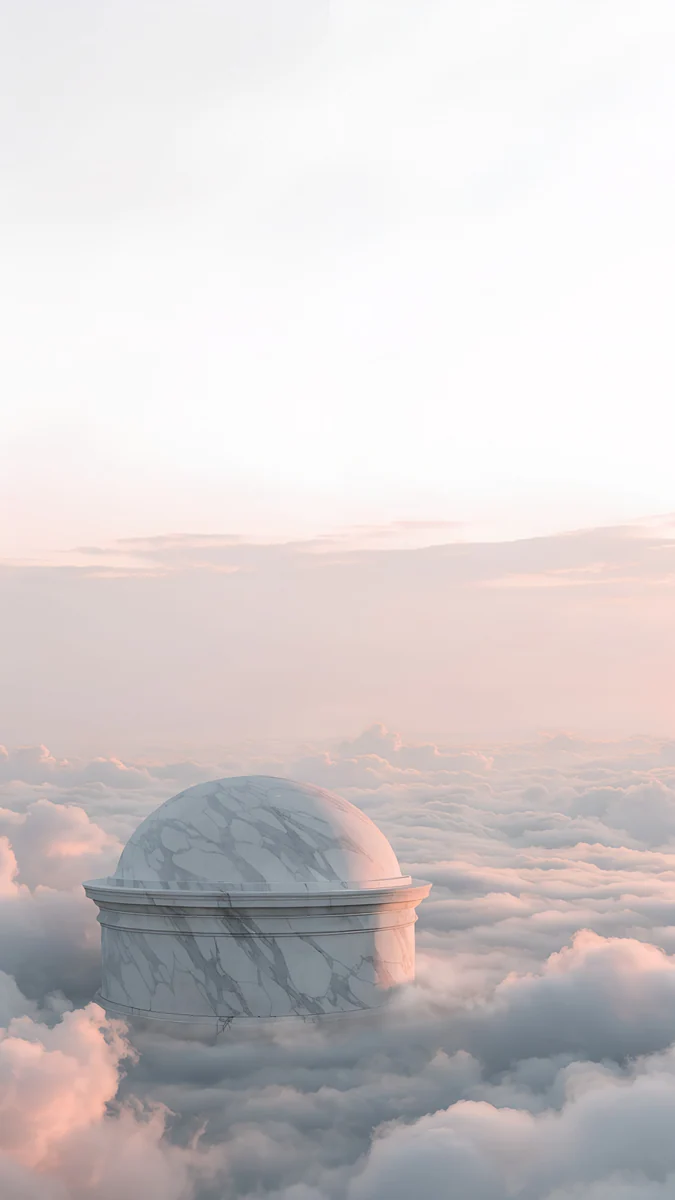 Rotunda4K · Phone
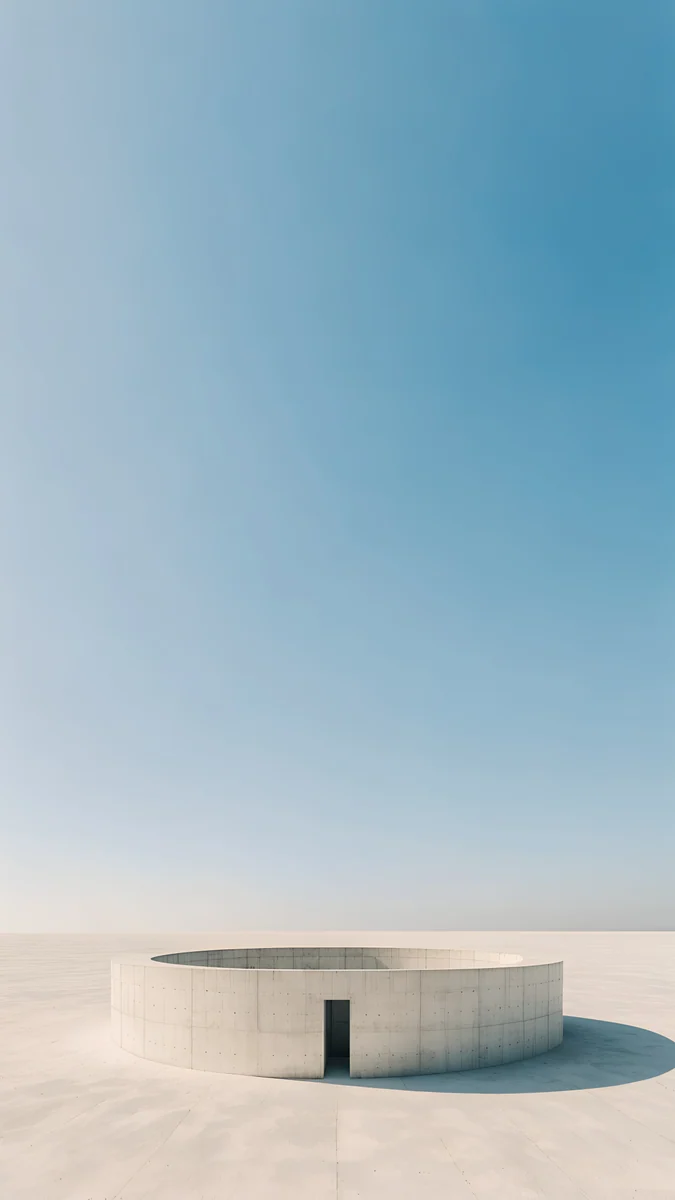 Circular Court4K · Phone
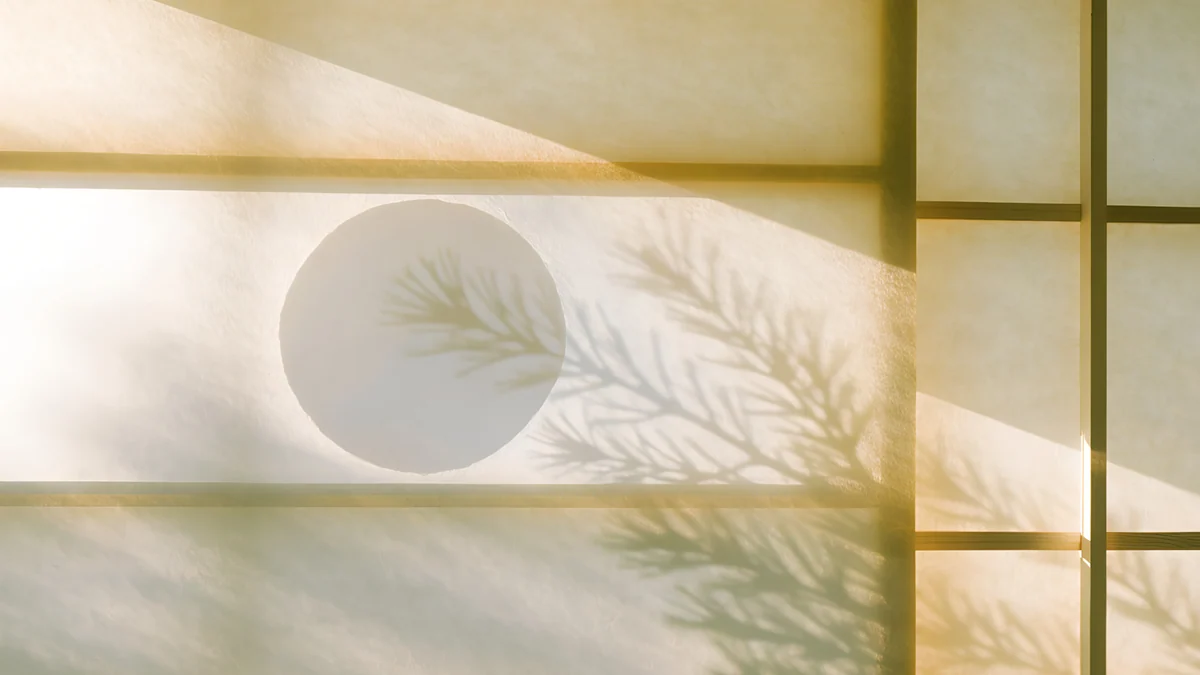
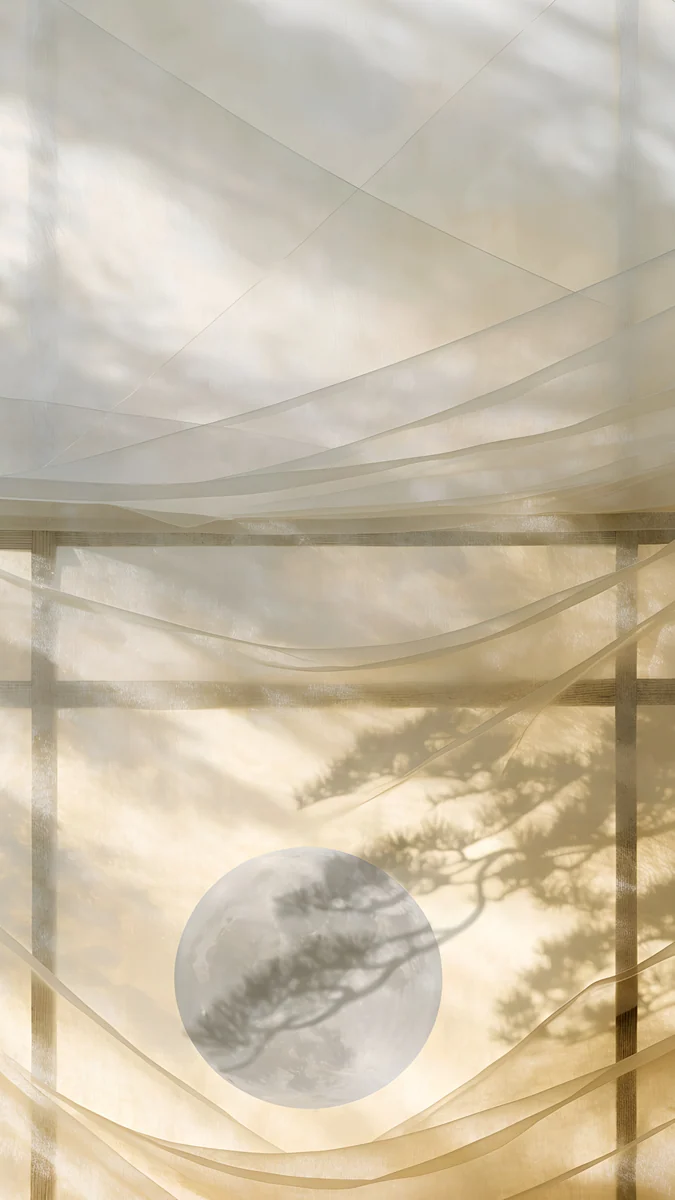 Shoji Moon4K · Phone
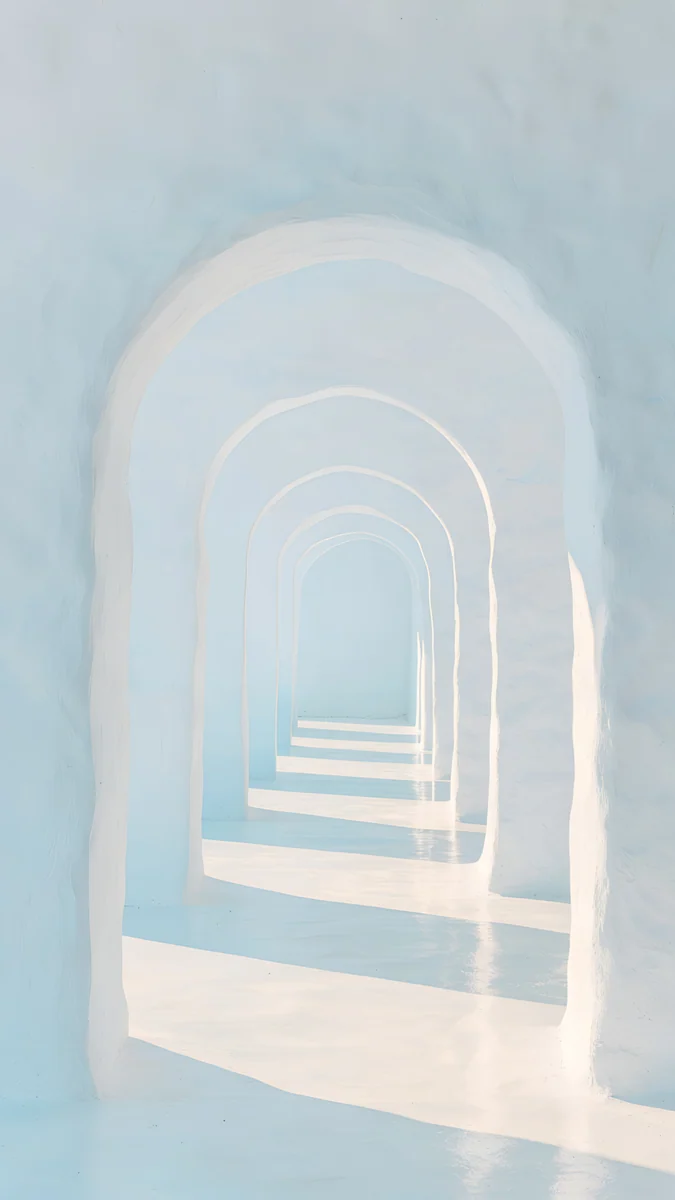 Enfilade4K · Phone
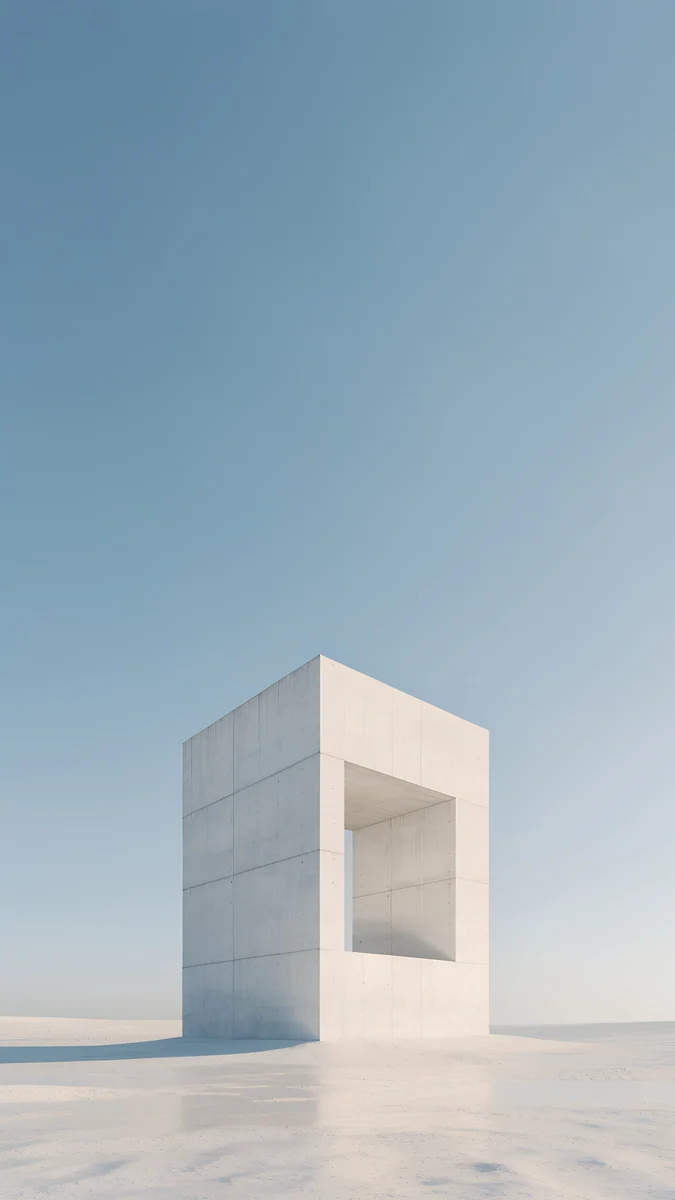 Monolith on the Plain4K · Phone
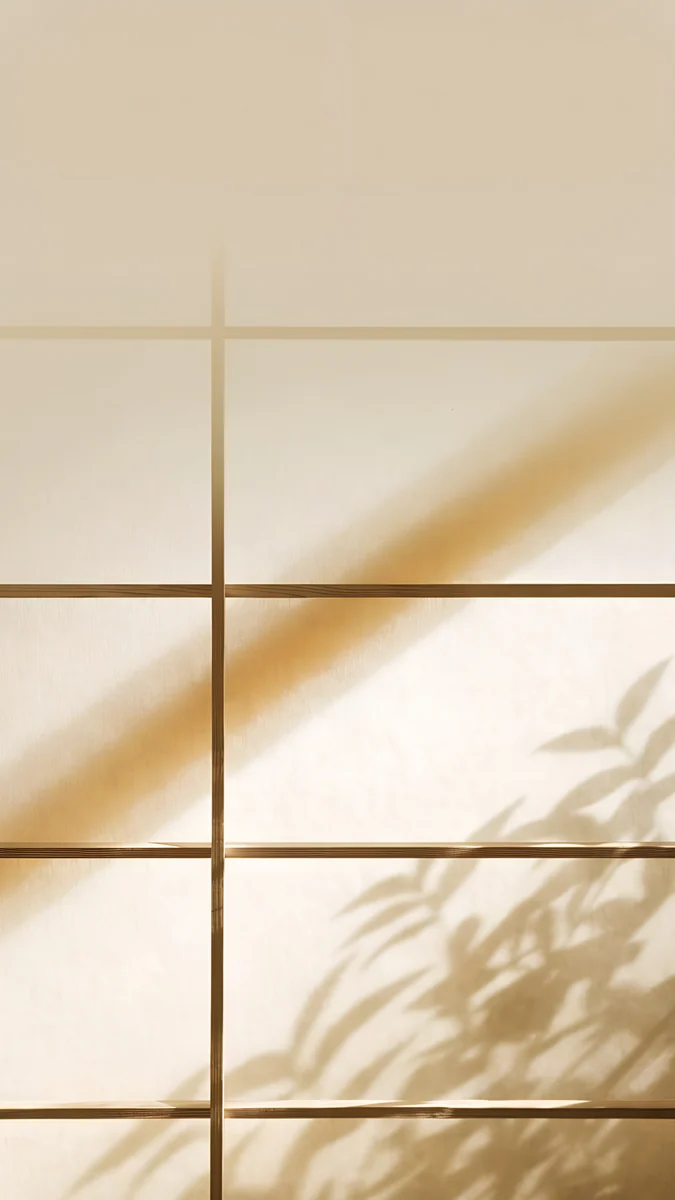 Washi Glow4K · Phone
Rotunda in Clouds floats a white rotunda in the centre of soft cloud. Circular Court is a round courtyard seen from above, the same in any orientation. Shoji Moon puts a pale moon behind a paper screen. Arch Enfilade looks through a row of arches down the middle, Monolith stands one stone frame on a plain, and Washi Glow Grid is an even paper pattern with no edge to lose.
Several of them also come as free desktop versions at 3840 × 2160, which suit an iPad used mostly in landscape with a keyboard:
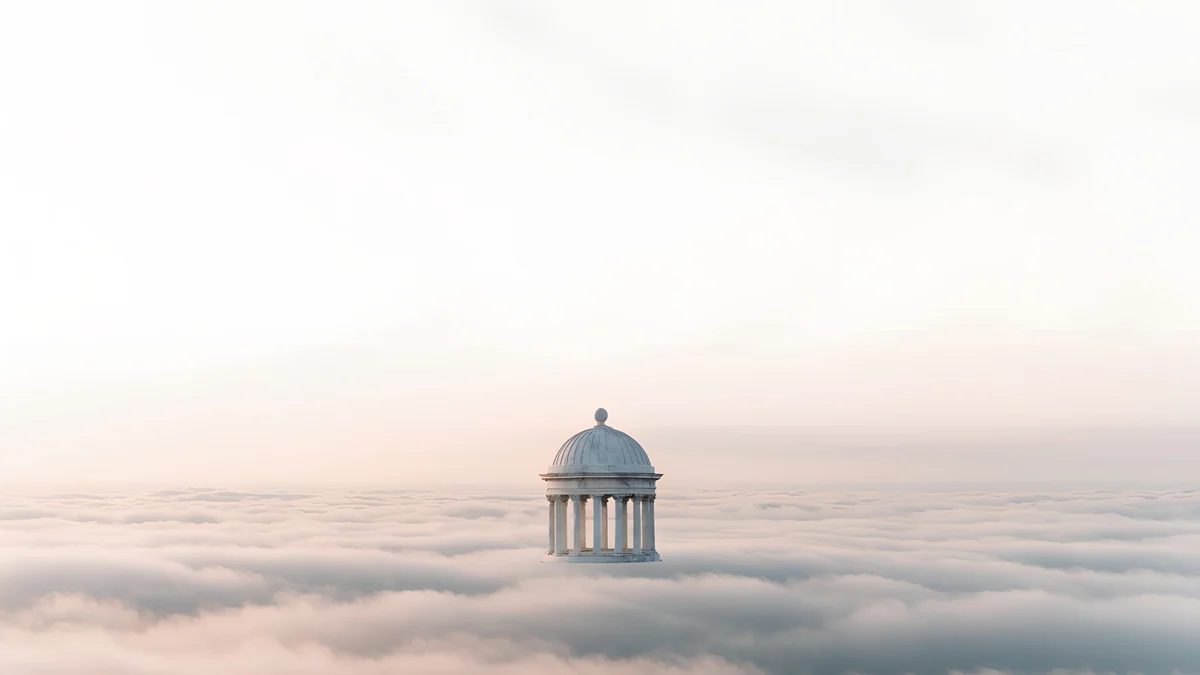
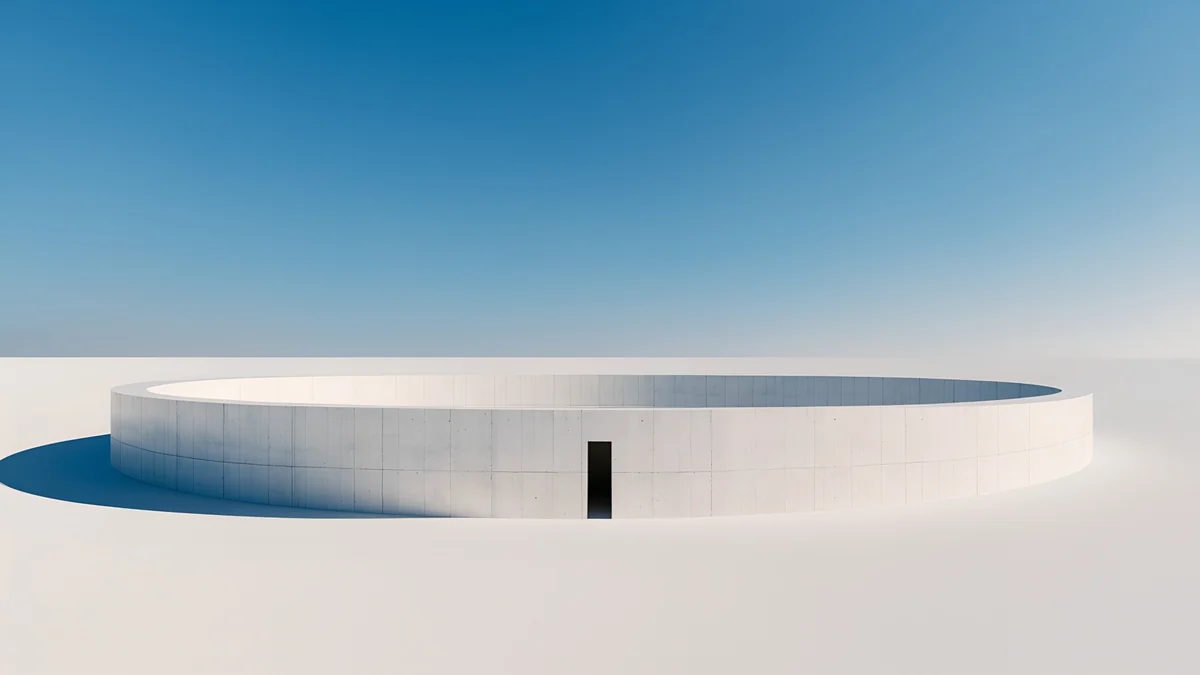
More ideas are in aesthetic iPad wallpapers.
Why does my iPad wallpaper look zoomed in?
- Perspective Zoom is on. It enlarges the image so it can move as you tilt the iPad. Turn it off in the More menu of the editor.
- The image is too small. Anything under your screen resolution is stretched. Use a 4K original.
- The subject is near the edge. Rotation trims the edges, so centre the subject or choose a wallpaper with a calm centre.
- Home Screen blur. If the Home Screen looks soft, Blur is on. Open Customize for the Home Screen and turn it off.
How do I get Velpaper wallpapers on iPad?
Velpaper is a wallpaper app for iPhone, iPad, Mac and Android, with the same catalog on velpaper.com. Every wallpaper is a 4K original: 2160 × 3840 for phones and tablets in portrait, 3840 × 2160 or 5120 × 2880 for desktops. Desktop files are free; some phone wallpapers unlock after a short optional ad.
- Open Rotunda in Clouds in the Velpaper app on your iPad or on velpaper.com.
- Tap Download to save the original to Photos.
- Go to Settings, Wallpaper, Add New Wallpaper, Photos, and pick it.
Original wallpapers in 4K and 5K for iPhone, Android and desktop.
Questions
How do I change my wallpaper on iPad?
Open Settings and tap Wallpaper, then Add New Wallpaper. Choose Photos to use your own picture, or pick one of Apple's categories such as Astronomy, Weather or Colour. Pinch and drag to frame it, then tap Add. Choose Set as Wallpaper Pair to use it on both the Lock Screen and Home Screen, or Customize Home Screen to give the Home Screen a different colour, gradient or photo. You can also touch and hold the Lock Screen and tap the plus button.
How do I set a different Home Screen wallpaper on iPad?
After tapping Add for a new wallpaper, choose Customize Home Screen instead of Set as Wallpaper Pair. For an existing wallpaper, open Settings, Wallpaper and tap Customize under the Home Screen preview. Choose Colour, Gradient or Photos to replace the image, and turn Blur on or off. The Lock Screen keeps its own picture, so you can have a photo on the Lock Screen and a calm colour behind your apps.
What resolution should an iPad wallpaper be?
At least the resolution of your iPad screen: 2064 × 2752 on the 13-inch iPad Pro with M4 or later, 2048 × 2732 on the 13-inch iPad Air, 1640 × 2360 on the 11-inch iPad Air and the iPad with A16, and 1488 × 2266 on the iPad mini with A17 Pro. Because the iPad rotates, keep the subject in the centre. A 2160 × 3840 original covers every model in portrait.
Why is my iPad wallpaper zoomed in or cut off?
Three common reasons. Perspective Zoom enlarges the picture so it can move as you tilt the iPad; turn it off in the More menu of the wallpaper editor. The image may be smaller than your screen, so iPadOS stretches it. And the iPad rotates, so the wallpaper must cover both portrait and landscape, which trims the edges. Use an image at least as large as your screen with the subject centred.
How do I delete a wallpaper on iPad?
Unlock the iPad, stay on the Lock Screen, and touch and hold it until the wallpaper gallery opens. Swipe to the wallpaper you want to remove, swipe up on it, and tap the bin, then confirm. The photo itself stays in your library; only the wallpaper set is removed. You need to keep at least one wallpaper, so add a new one first if you are removing the last.
Sources
- Apple Support: Change the wallpaper on iPad support.apple.com
- Apple: iPad Pro technical specifications apple.com
- Apple: iPad Air technical specifications apple.com
- Apple: iPad mini technical specifications apple.com
Carlos Vivero
Designer of Velpaper wallpapers
Carlos Vivero designs the wallpapers in Velpaper: quiet architecture, liquid glass, Japanese ink and calm landscapes. Every piece is made as a 4K original for iPhone, Android and desktop.
Recent work








